GetUSB.info Logo

Is it worth buying a USB 3.1 Flash Drive?

Is it worth buying a USB 3.1 USB flash drive?

The tech industry, tech nerds and tech blogs will definitely say that buying a USB 3.1 flash drive is worth it. After all, these blogs need something new to write about and new links to generate for affiliate advertising, but are these blogs reporting back valuable information before someone spends their hard earned cash?

Let us compare the write speed difference between a USB 3.1 flash drive and a USB 3.0 flash drive to see what information we can uncover.

Universal Serial Bus (USB) has different transfer speeds based on the version of technology, we did a write about that earlier. The USB 3.1 specification has a transfer rate which taps out at 1,250 MB/second (Megabytes per second). The USB 3.0 specification has a transfer rate which taps out at 625MB/second. Of course this is the theoretical maximum transfer speed. When anyone says “theoretical transfer speed” they are implicating all conditions are ideal. For example, the host computer has the horsepower and bandwidth to push that much data and the receiving device (in this case, flash drive) has equal throughput to receive that data. But is that the real world – is it worth buying a USB 3.1 USB flash drive?

Below are some images and here is the general order of what you will be reading:

  • Screen shots of the USB device type (USB 3.0 and USB 3.1)
  • Screen shots of benchmark software testing both USB technologies
  • Screen shots of a real-world copy jobs using a Windows computer

From the screen shots below you can see a USB 3.0 flash drive and USB 3.1 flash drive. Both flash drives use an SMI controller for the USB 3.0 and 3.1 technology. These are the same high quality and higher performance controllers seen in iPhones and NAND memory used from Micron Technology. The NAND memory type is MLC (multi-layer cell memory) is slower than SLC NAND memory (single layer cell). Note: USB flash drives do not use SLC memory because the NAND memory price is too expensive and the SLC supply is very small. Flash drives are produced at mass scale and meant to be a low cost data transfer and storage tools – speed is not the #1 priority, despit all the marketing we read online.

USB 3.0 flash drive specifications

USB 3.1 flash drive specifications

Here are benchmark speed tests for both USB devices in discussion today.

The program has two test settings for benchmarking a speed test. One test setting is for the theoretical maximum speed of the device and writes data directly to memory without accounting for operating system and device overhead for were the data is stored. Think of this as a random write test to any available sector on the flash drive.

The second test setting is a write sequence which includes the operating system and device overhead cache for placing files in the file allocation table. This means extra time is spend during the data transfer to log where each sector is written along with the calculation required to write the next bit of data. This second test setting is more like a real-world experience.

Speed benchmark software is designed to provide a relatively quick summary of the device capability. So the first test setting is designed to show the theoretical maximum write speed or “burst” write speed. The second test setting is designed to show a more “sustained” write speed. Any benchmark software is designed to provide a quick and easy snap-shot of what the device can do – but can the device do it?

Readers can download the USB Scrub software for speed benchmarking their flash drives. The software is 100% free, no installation or sign-ups, and includes other cool features like registry cleaning and making image files of flash drives. USB Scrub download link
Continue Reading

Test USB-C Cable For USB 2.0 and USB 3.0x Standards

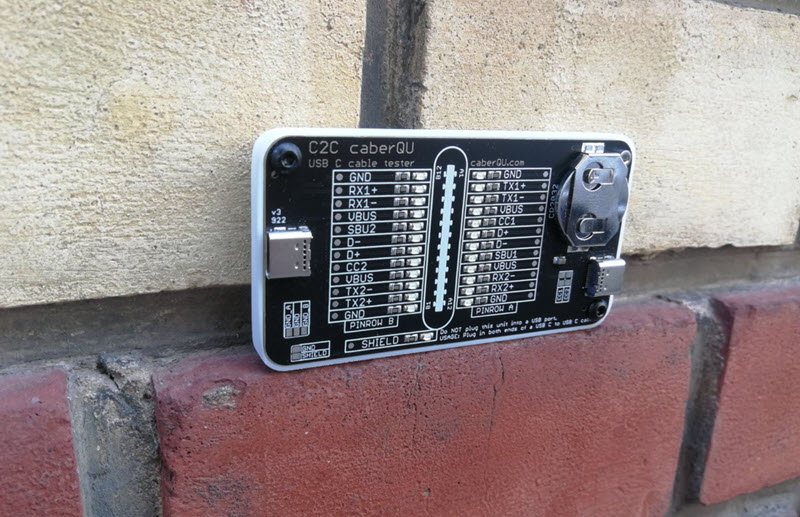
USB-C cable tester board for USB 2.0 and USB 3.x verification

The C2C caberQU is a compact USB-C cable tester board designed to validate USB-C to USB-C cables across a wide range of configurations and use cases.

This tool is particularly useful for IT professionals who need to verify cable quality beyond basic connectivity. It applies voltage to individual pins and detects continuity on the opposite end. With 25 LEDs, the board displays pin behavior across multiple modes, including USB 2.0/1.1, USB Power Delivery, USB 3.0/3.1/3.2, Alternate Mode, Debug Accessory Mode, and Audio Adapter Accessory Mode. A detailed manual is included to explain connectors, operating modes, and pin layouts.

Examples for IT managers:

  1. USB cable verification — An IT manager dealing with a pile of USB-C cables can quickly test each one and identify its capabilities. This helps ensure the correct cables are used for specific devices, reducing performance issues and compatibility problems.
  2. Hardware troubleshooting — In environments such as data centers or technical workspaces, cable faults can cause unpredictable behavior. Using the C2C caberQU board helps isolate issues like broken pins or incorrect wiring and reduces diagnostic time.
  3. Inventory management — Managing stock of USB-C cables can be difficult due to inconsistent labeling. The C2C caberQU board allows verification of cable specifications before deployment, helping teams avoid purchasing or distributing unsuitable cables.

V1 vs. V3 — Which one to choose?

Comparison of C2C caberQU V1 and V3 USB-C cable tester boards

There are two versions of the C2C caberQU board available, V1 and V3, with minor differences:

  • V1 includes a standard battery; V3 uses a higher-quality branded battery
  • V3 supports use with a protective case
  • V1 does not include hanging holes for storage
  • V1 features slightly different printed graphics on the PCB

Functionally, both versions perform the same task. They include the same manual and provide identical LED behaviors for testing.

Why was this board created?

USB-C cables exist in many variations, which makes it difficult to determine what a specific cable actually supports. Using the wrong cable can result in slow data transfer, charging issues, or device incompatibility. USB-C also requires precise pin mapping, grounding, and resistor configurations, which increases complexity.

Why is this a better way to test cables?

Determining whether a cable supports a specific use case can be difficult without specialized tools. Broken pins make troubleshooting even harder because failures are inconsistent. The C2C caberQU simplifies this by visually displaying pin behavior. By flipping the USB-C connectors, corresponding LEDs illuminate according to USB-C specifications. The package includes the PCB, a CR2032 battery, and a detailed manual. The USB-C cable itself is not included.

No external power source is required. The included CR2032 battery powers the board when a cable is connected and should last for an extended period under normal use.

Please note that this product is considered a prototype, is not certified, and is intended primarily for development and testing purposes. Minor quirks or unexpected behavior are possible and are part of its experimental nature.

The USB Implementers Forum (USB-IF) was established in 1995 by companies including Intel and Microsoft to develop and promote USB standards. USB 3.0 (later branded as USB 3.1 Gen 1) was introduced in 2008 and increased data transfer speeds to up to 5 Gbps, while maintaining backward compatibility with USB 2.0 devices.

There is no affiliation or affiliate relationship with this product, but it can be sourced here: C2C caberQU USB-C cable tester, typically priced around $30 USD.

Continue Reading

Solved: (Video) Windows Cannot Delete the System Volume on This Disk

Sometimes Windows cannot delete the system volume on the disk because the partition table is corrupt. The solution is very easy and all the tools required to solve this problem are pre-installed and ready to use on any Windows 10 (+) computer.

Windows Cannot Delete the System Volume on This Disk

In short, the Disk Management utility cannot delete the volume because there is corrupt data in the partition table of the device. This issue we are talking about is most likely associated with a USB flash drive and sometimes USB hard drives.

One of the reasons a user will get a corrupt partition table is from formatting the USB device over and over again. Sometimes computers just don’t do what they are supposed to do! Surprise!

A common reason a user would like to delete the volume of a flash drive is to start “clean” with a fresh device. The reason to start “clean” is because some other function or task is not working as expected. For example, a user trying to create an digital image file (.img) from a physical USB flash drive continues to create corrupt image files. Well, when you start with a corrupt partition table, you’ll end up with a corrupt image file.

Another reason could be a user is trying to make a two partition flash drive using Disk Management. However, you cannot make a two partition flash drive if you cannot delete the volume in the first place!

We did a great write up about “How to partition a USB flash drive in Windows” a while back. A good read if you have the time.

The below steps will show you exactly how to fix this problem. There is a video at the bottom of this post showing the steps.

  • Connect your flash drive
  • In the search field in Windows (bottom left white box that says “Type here to search”) type “Disk Management” and click ENTER on the keyboard. Disk Management should pop up.
  • In the search field in Windows type “diskpart” and click ENTER on the keyboard. DiskPart will either pop open, or a dialogue box will ask if you want to open it, click YES
  • In DiskPart type “list disk
  • From the list provided determine which disk number represents your USB flash drive or hard drive
  • In the screen shot below, our disk is #1
  • Type “select disk x*In this example we typed “select disk 1”
  • Type “clean
  • When that is complete, toggle over to the Disk Management utility
  • Right click the box which represents the USB flash drive and select “New Simple Volume
  • Follow the prompts in the wizard to complete the process

After completing the above steps the flash drive is now ready for use. In addition, if it is required to go back and delete the volume, say to make a two partition flash drive, you can now do this without the error message “This Request Is Not Supported”

Here is a video for the above process:

Continue Reading

What is USB Restricted Mode in macOS Ventura

USB Restricted Mode in macOS Ventura

Beginning with macOS Ventura, a new layer of protection offers some reassurance to enterprise IT against USB device-borne attacks.

Mac computers using the new Apple silicon will require USB and Thunderbolt accessories to be approved by the user before the accessory can communicate with macOS.

When a new USB or Thunderbolt device is connected to a Mac, the user will be prompted to approve the connection. The end user must unlock a locked Mac before the computer will recognize the accessory. This makes use of the allowUSBRestrictedMode restriction, which is new to the Mac. When your Mac is locked for more than an hour, the protection kicks in.

It does not apply to power adapters, displays, or connections to an approved hub, according to Apple, and devices will continue to charge even if you select Do Not Allow Use of a Connected Accessory. Energy flows, but data does not, according to the theory.

Where does USB Restricted Mode operate?

  • On Apple Silicon Macs, the protection is enabled by default.
  • The enabled protection is set to Request New Accessories; other options include:
  • — Every time, inquire.
  • — When unlocked, this happens automatically.
  • — Always.
  • Requesting new accessories is the bare minimum of security, though highly secure enterprises will want to request permission each time.
  • You can disable or enable the setting by going to: System Settings > Security & Privacy > Security
  • Setting up an accessibility Switch Control configures the policy to allow accessory use at all times.
  • For up to three days, approved devices can connect to a locked Mac.

This is a new security setting and configuration Apple is planning to introduce from Ventura forward. More articles related to USB and Mac computers.

Continue Reading

Power Apple TV Box Without Outlet

Power Apple TV box without outlet

From Mission, a company which makes your favorite accessories a little better, introduces a power solution to power your Apple TV box without needing an AC outlet.

By offering this solution, one less power outlet plug is required to run your Apple TV box.

Perfect for wall mounted TVs with only one outlet behind or near the TV. Declutter the cables around your TV with the Mission accessory.

How does it work?

Between the connection to your Apple TV box and a USB port on your TV sits a small electrical box. This box has a lithium ion battery and a custom PCB which stores extra power from the USB socket from your TV and buffers that power in the lithium battery. Then a slightly stronger current is sent to your Apple TV box to properly power it.

How it works, power Apple TV box without outlet

This Mission product is compatible with all versions of the Apple TV box.

  • Powerful battery: 7.2V / 2000mAh
  • High output power capability: works with 4K HDR video
  • Product dimensions: 4 ft / 121 cm total cable length, 7.9 oz
  • Compatibility: compatible with all generations of Apple TV

F.A.Q.

Q. Does the internal battery ever fully discharge and disrupt the USB cable performance?

A. No, the cable is designed to always have sufficient power, even after many hours of continuous use.

Q. Is a mount for Apple TV included in the box?

A. No, for the easiest setup we recommend the purchase of an Apple TV mount. This will allow the Apple TV and Mission USB Power cable to be easily installed on the back of the TV, minimizing clutter around the TV.

Q. What is the output voltage of the cable?

A. 120V

Q. What is the total length of the cable?

A. 4 feet or 121 centimeters.

Mission also provides this same type of solution for the Chromecast product and Amazon Fire Stick.

Continue Reading

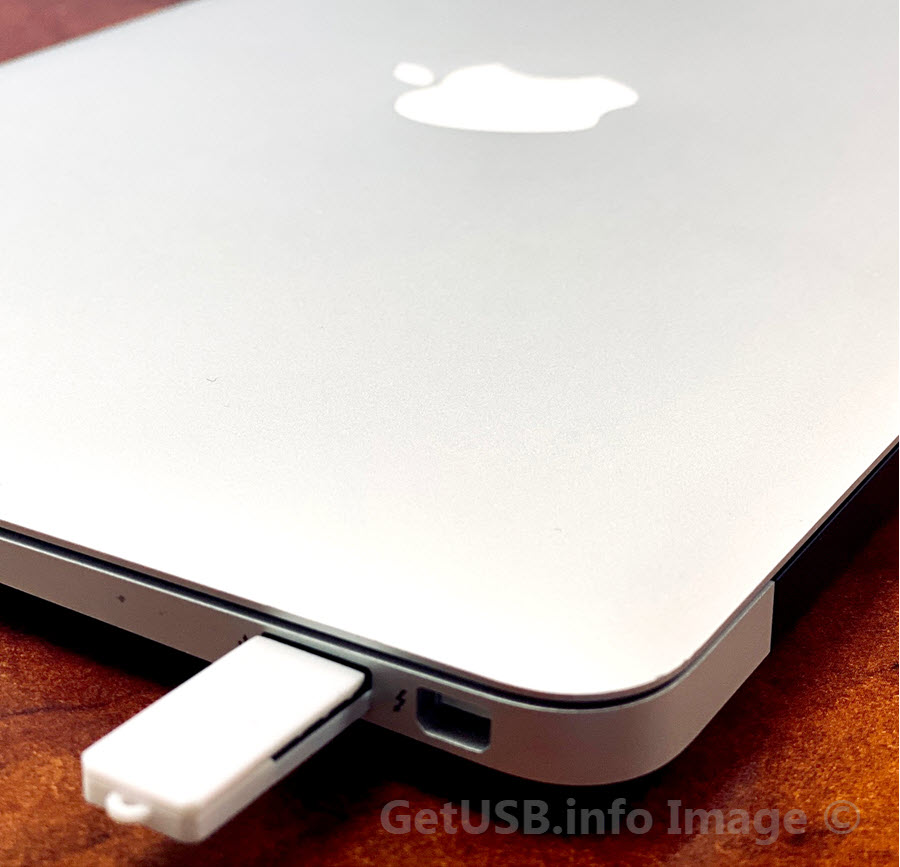
Official (nearly) – Apple Dropping Thunderbolt for USB-C

Apple switching Thunderbolt to USB-C

We love to hear the big and small wins for USB technology. After 10 years, USB-C will win the battle as the connection socket of choice for iPhone products.

Why?

It is estimated the value of charging cables to be sold in 2022 is $2.6 billion dollars. If you estimate cable to be $10 USD, that is 260 million physical cables made. Yes, this is an estimated number, but that is a lot of potential waste given most already have charging cables.

The fundamental problem are the different cables needed for different devices. This is why USB is such a lovely technology. It is designed to be universal. Really, all electronic devices which can charge or communicate should connect via one physical method. We vote USB-C!

Who started it?

The EU started the push to codify the use of a single connector type for all electronic devices starting in 2018. The EU started this process in order to eliminate waste associated with one cable being shipped with every electronic device. Their goal is to reduce the number of charging cables manufactured to get the world closer to a carbon neutral position. EU wants all devices to use the same connection type by 2030.

Who tipped us off?

Today we learn from a well known parts analyst who covers Apple products. Ming-Chi Kuo is an analyst who surveys different parts suppliers related to the supply chain of products manufactured for Apple. Through forecasting surveys and supplier questions, Kuo is able to accurately predict many upcoming trends and changes related to Apple products.

When will this start?

Based on parts forecasting and the ramp up of USB-C components, Kuo believes the change will happen in 2023.

Continue Reading

USB Flash Drive Label – For Professionals and Businesses

Sticky labels are not a professional solution to label flash drives. Today we look at an alternative for labeling a flash drive which suits the demands of a business and/or professional.

There is a clear difference between labeling your flash drive because of personal use and the need to label a flash drive which is sold, shipped or mailed to a paying customer.

A common method to label a flash drive is with a sticky label applied to the outside of the flash drive, or a paper merchandise tag with some notes about the contents hanging from the lanyard loop. Albeit a good method for a personal flash drive, not the most professional or durable flash drive label tag when sold as a commercial product.

It is a common requirement from a company to include more information about the contents of a flash drive than what the space of a sticky label or tag will allow. In addition, the durability of said label should withstand environmental conditions which surpass the limits of a merchandise tag. Examples include:

  • Detailed instructions for how the flash drive should be used
  • Software or firmware version information (longer than sticky label space)
  • Medical compliance information about the contents
  • Audit tracking of ownership / possession (longer than sticky label space)

From the examples above, the question becomes:

What flash drive label can be used which is professional looking while having the durability and space needed to print the information required?

The best flash drive label we have found is the plastic credit card sized label offered by Nexcopy.

The CC USB Label is a white PVC plastic product which is 85mm wide by 54mm tall and 0.75mm thick with a total weight of 4 grams. The CC USB Label is printable on both sides and includes a lanyard for connecting to a USB flash drive.

The CC USB Label accepts full color print and with a white background, each color is vibrant and great contrast for users to easily read the printed information. Using an eco-solvent printer, the ink is permanent and water proof. The information printed will last in various weather conditions and environmental conditions.

Nexcopy offers their eco-solvent LOGO-EZ printer for in-house production. Nexcopy also offers print services for those not wanting to invest in a flatbed eco-solvent printer.

The credit card size and the light weight of the card make it a perfect complement as a flash drive label. With double sided print capability, a company has a great deal of space to print the information required for their product.

From the image below, one can see the flash drive label is ideal for printed bar codes for scanning during product fulfillment, shipping and receiving. Printing a more precise image like a QR code could improve user experience, such as streamlining a product registration process or direct landing page for a how-to video for product instruction.

USB flash drive label

The plastic PVC material is ideal for printing color logos and highlighting specific information. Having the flexibility for color print lends itself to emphasizing certain bits of information the manufacturer wants the end-user to notice.

In addition, the CC USB Label allows custom branding to match the requirements from the marketing department to ensure branding compliance is matched – getting stuck with black only printed sticky labels or merchandise tags decrease the overall perceived value of the product and could fall out of compliance of a company’s marketing guidelines.

Although some of this information sounds overkill for a flash drive label, keep in mind this solution is designed for a business or professional who might be required to provide very detailed labels for the product in which the flash drive is associated with.

Continue Reading

How To: Get Serial Number of USB Flash Drive

Using the CMD prompt in Windows 10 or 11, it is a one-line request to get the serial number of a USB flash drive. The serial number in question is the device serial number, which follows the device and remains the same value used to identify the physical device. This serial number is written into read-only memory on the flash drive and cannot be duplicated, deleted, or modified. This is different than the volume serial number, which we covered in a previous post.

Steps are very simple:

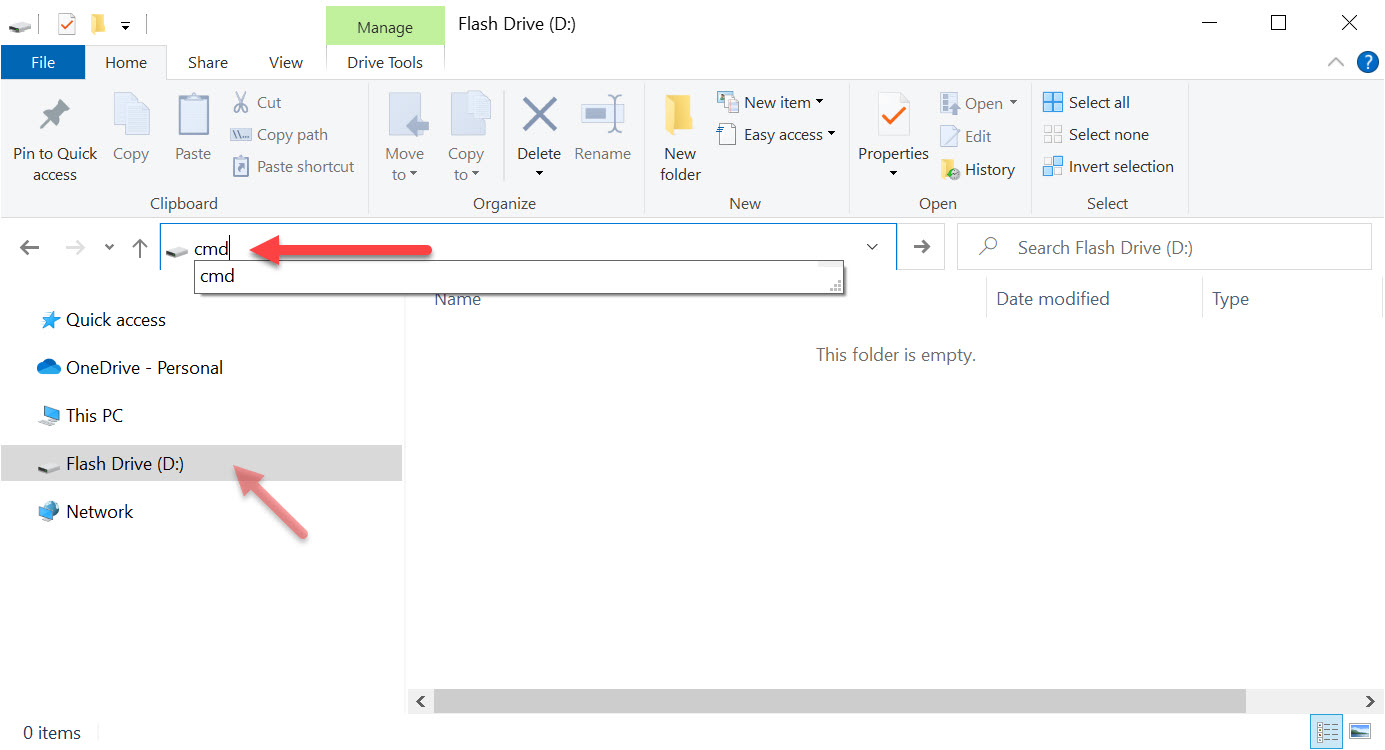
# Insert a flash drive (or multiple drives)

# Select a flash drive by clicking on the drive letter

# In the Explorer path field type cmd

Opening Command Prompt from Windows Explorer for a USB flash drive

This will open the Command Prompt.

# Copy the text below and press Enter

wmic path Win32_USBControllerDevice get Dependent | find “USBSTOR”

This command asks Windows to search the system for any Mass Storage devices (flash drives) connected to the computer’s USB host controller.

Command Prompt output showing USB device serial numbers

Multiple USB flash drive serial numbers shown in Command Prompt

You do need to parse some information out, because more than just the serial number is returned.

The serial number of the USB flash drive is listed last, and there is a &0 at the end which is not part of the serial number. The hardware serial number can vary in length, so there is no fixed guideline. In practice, we commonly see serial numbers ranging from 8 to 30 alphanumeric characters.

Using a third-party utility, you can confirm that the serial number reported by the software matches the same serial number shown by the CMD prompt method.

Third-party software confirming USB flash drive serial number

Continue Reading

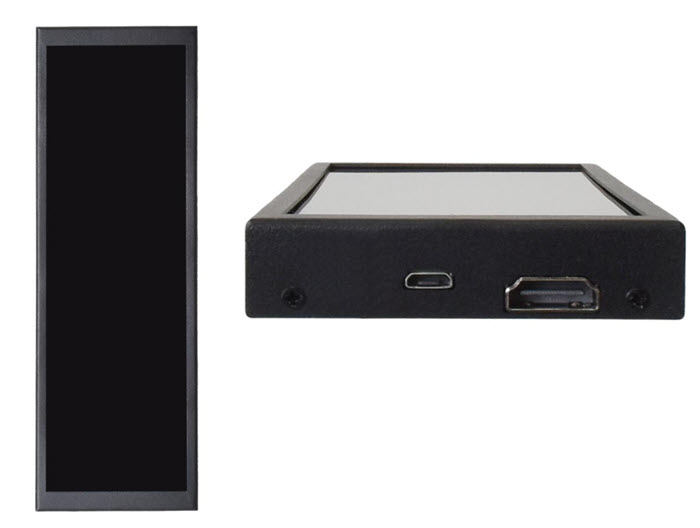
Mini Portrait Display Monitor – Mini in Size, Large on Coolness

mini portrait display monitor

Mini Portrait Display Monitor – Mini in Size, Large on Coolness

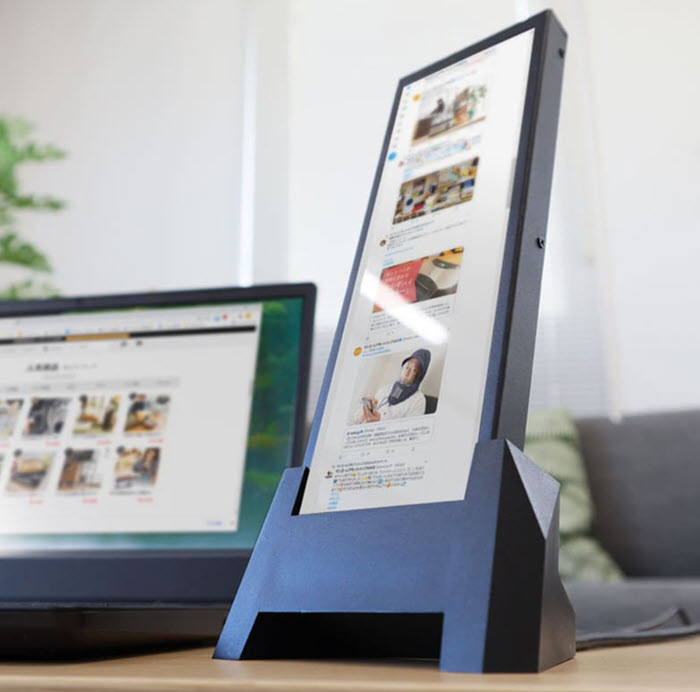
With the everlasting newsfeeds from Twitter and never-ending social media feeds a portrait style display is the ideal monitor keeping you connected while not eating up real-estate on your main monitor. We understand not one display size will fit all needs, but this mini portrait display stands tall amongst other sizes we’ve seen. The cool factor for this product is off the charts and wouldn’t you love to be the first in your office to have this setup?

Resolution is 1280 x 400 with a physical size of 70mm (x) 208mm (x) 16mm so for you Americans on the Imperial measuring system that is 8 inches tall by 3 inches wide. The monitor size is just under 8 inches.

The mini portrait display uses an HDMI cable for video and micro-USB for power.

The display isn’t fully supported on the Mac so user experience will vary when paired with that OS, but the mini portrait display monitor will run as expected on a Windows machine. The unit is (about) $95 USD after the conversion from Yen. The company marketing this display is Sanko and the product is not yet available.

Are you interested in this product? GetUSB.info is planning to bring in 50 units… get on the list to buy. Send an email to gmo (at) getusb.info to make a request.

small portrait display

mini portrait display with hdmi

Source: Impress Watch, Japan

Continue Reading

Free USB Flash Drives For Students

USB flash drives are indispensable for students.

They are a fantastic tool to store and use documents and other important data. Moreover, talk to any student and they will let you know how they carry a USB flash drive—attached to key rings, customized with colors, shapes, objects, and much more.

With a USB flash drive, you can use your computers or laptops efficiently whether you’re at home, at university, or at school. There may be times when you want to continue work even after school hours; therefore, carrying a USB flash drive is very handy.

With all that being said, USB flash drives can cost students a lot, especially if you’ve lost one and have to buy another. Therefore, here are a few ways you can get USB flash drives for free.

Free USBs With a Purchase

There are many computer stores, and stores for cameras, cell phones, and other tech-related products that give flash drives for free with purchases.

Itpstyli

Itpstyli is a company that makes over 1,000 styli for CMM, gear measurement equipment, and machine centers. To get a flash drive for free, you have to add it to the cart and save the cart as a shopping list.

If you require help with homework or need assistance in technical disciplines, feel free to get in touch with cwassignments.com to get assignment help online from experts.

MyBioSource.com

The company sells biological reagents. If you’re in the field of biology and need products in bulk, you can get a free USB flash drive, or even more, based on the items in your purchase. Your free flash drive will provide 8GB of storage.

You must also keep an eye on Best Buy, Tiger Direct, and Newegg, as these tech retailers often give away tech items, including USB flash drives. They may also give away products when you refer people, share their promotional posts, subscribe to their newsletters, maintain a loyal online presence, or purchase products from them.

Flash Drive Retailers

As you may have realized by now, there are very few stores that sell only USB flash drives. However, they do exist, and the chances of you getting a free USB flash drive from them can be higher. You can accomplish this through online contests, giveaways, store promos, affiliate programs, and more.

USBholic

USBholic is a Texas-based retailer that sells flash drives. You can pick a cute design from their store and choose the 4GB option. When you do so, you’ll see the price listed as $0.01 per flash drive. Even though it’s not completely free, it’s close. USBholic ships flash drives to Europe, the US, Asia, and Oceania. However, please check the shipping costs to your location to see if it’s worth ordering.

Continue Reading

USB Flash Drive With Activity Light

A USB flash drive with activity light gives the user visual feedback the device is working.

Click here to buy a USB flash drive with activity light. While on this site, consider some other advanced functions you might need, but didn’t think of. Advanced functions such as:

  • Maybe you want the USB flash drive to be read-only (write protected)
  • Maybe you want the USB to act like a CD-ROM drive
  • Maybe you need to copy protect files on the drive – meaning people can view the files but they cannot print them, save them, screen capture, share, etc. The files can only be viewed.

These USB flash drives use an activity light and also provide the other cool functions mentioned above. The landing website offers six different body styles and an unlimited number of body colors along with free printing / branding if required.

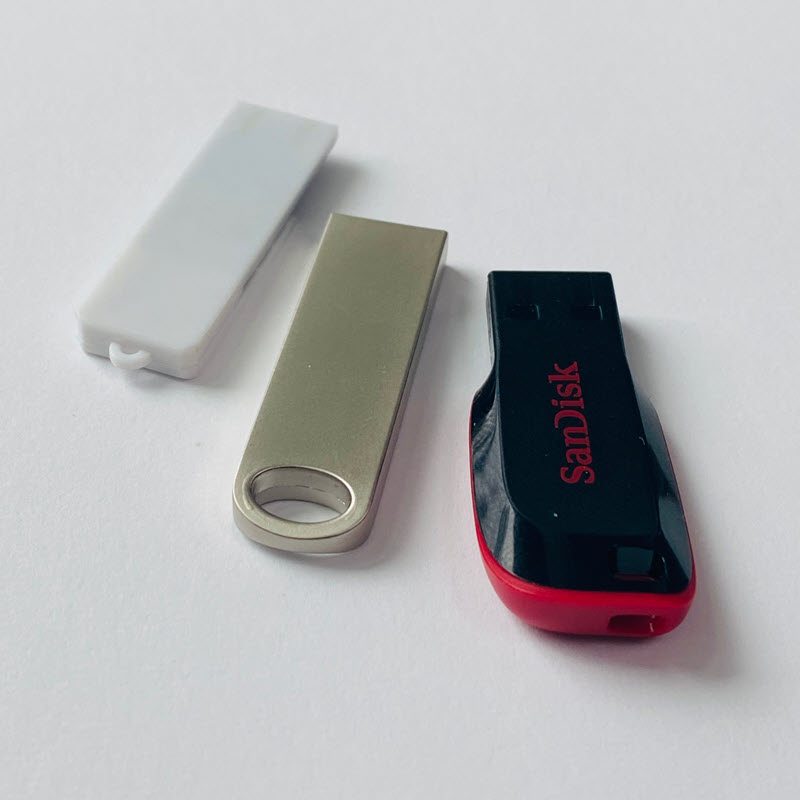
Many small and portable flash drives do not have an activity light and we don’t like those types of drives. They don’t give the visual feedback we want to see.

USB flash drive no activity light

Benefits of a Blinking LED Light on a USB Flash Drive

  • Data Transfer Awareness: A blinking LED lets users know data is actively being read or written. This helps prevent premature removal of the drive, which can corrupt files.
  • Visual Confirmation: The light confirms that the USB device is properly connected and receiving power from the host system.
  • Diagnostic Aid: If the LED never blinks or stays off, users can quickly determine there’s a connection or drive failure without launching Disk Management or File Explorer.
  • Multi-Drive Management: In environments where multiple USB drives are used at once—such as duplicator stations or kiosks—a blinking light helps identify which drives are in use versus idle.
  • Security Awareness: In high-security environments, a blinking light can alert users if a USB drive is unexpectedly being accessed, suggesting potential unauthorized read/write activity.

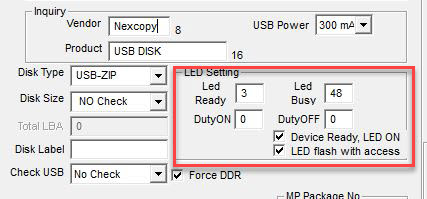
The people who write for this blog prefer a USB flash drive with an activity light. The USB manufacturers have different settings for the LED activity light. Here is a screen shot of the mass production software tool used when making a flash drive.

There are two main settings for a USB activity light:

  • On or Off setting for the LED on when device is ready
  • Blink or not when flash memory is being accessed (this is for either read or write)

USB flash drive with activity light, settings

In our experience any USB flash drive with an activity light will have both of the above settings to On. Meaning the LED will be a solid color when connected and ready, and will blink as the device is being accessed for either a read or write request.

USB flash drive with activity light, on

The most common LED color of a flash drive is red. However, we have seen green and blue LED lights on occasion. Most flash drives can be customized with specific LED colors if required. Lead times and pricing might fluctuate depending on what is required.

Continue Reading

DIY USB Power Hub Station

Using very simple and inexpensive items, create a USB power hub station for all gadgets like headphones, chargers, GPS units, GoPro camera’s and more.

In addition to a very organized solution, the DIY USB power hub station is out of the way, yet easily accessible. No more taking up valuable kitchen counter space with cluttered gadgets and a birds nest of cables.

The solution is ultra-easy. For the DIY USB power hub station all you need is a shoe rack for the closet, a USB hub and your cables.

In less than 10 minutes you can be organized, powered and out of sight. This DIY project was less than $35 dollars.

First, grab a hanging shoe rack from Amazon. I found this 10 slot shoe rack for $13.

Next, grab a USB hub that only runs power (less expensive) and I found a matching 10 socket version for my 10 slot shoe rack for $20.

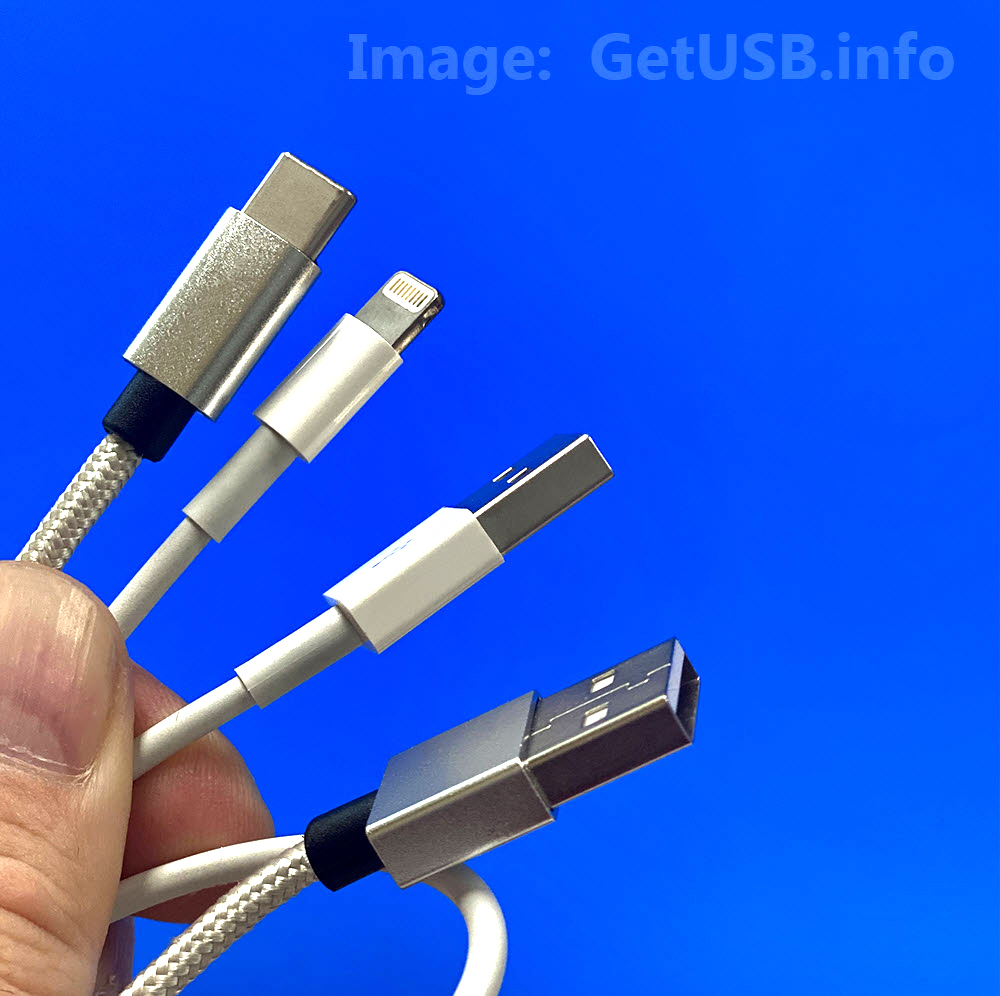
The only thing left to possibly buy are cables. However, you probably already have the powering USB cables required for your devices. I do think getting cables that have a combo Apple Lightening cable and microUSB cable allow things to be a bit more flexible when connecting various devices.

Here is a set of two cables with three different connectors (Lightening, USB-C and microUSB) for $6.00 (each) $13 total.

Once your items arrive the assembly is literally two minutes. There is a good chance it will take longer to clean out your closet than assemble the DIY USB power hub station.

The best location would be in the closet under your stairs. This is true because the space most likely has a power outlet.

  • Step 1 – Cut a small piece of fabric in the back of each shoe rack slot
  • Step 2 – Place USB powered hub in the bottom shoe rack slot
  • Step 3 – Lay out the shoe rack and thread each power cable from the USB hub to each shoe rack slot
  • Step 4 – Place devices in shoe rack slots and connect
  • Step 5 – Hang USB power hub charging station in your closet
Continue Reading

Copyright

Copyright © 2006 +

USB Powered Gadgets and more...

All Rights Reserved

Advertise with us

GetUSB Advertising

This is a high value website providing great exposure to your product and brand. Visit our advertising page to learn specifics.

For more information
Visit our advertising page.

Nexcopy Ad

Nexcopy Provides

USB copy protection with digital rights management for data loaded on USB flash drives.

Contact us learn more

Resources and References Page

Resources and References Page