GetUSB.info Logo

USB4 Is Coming: Here Is The Speed

USB 3.2, the most recent widely deployed standard at the time of its introduction, supports maximum transfer speeds of up to 20Gbps under its fastest configuration. USB4 builds on that foundation and raises the ceiling to 40Gbps, with the newer USB4 Version 2 specification extending bandwidth even further to a theoretical 80Gbps. Put another way, 80Gbps is equivalent to moving roughly 10,000MB of data in a single second, or about 10GB per second.

Keep in mind this is all theoretical maximum throughput. Real-world performance will always be lower due to protocol overhead, controller limitations, cable quality, and storage speed. That gap between headline numbers and actual transfer rates has always existed and will continue to do so.

USB4 flash drive concept image

USB4 is built on Intel’s Thunderbolt technology, a high-speed interface Apple strongly promoted starting around 2012. While Thunderbolt delivered excellent performance, licensing costs and strict certification requirements kept accessory prices high and limited widespread adoption. Intel’s long-term goal was always to merge Thunderbolt into USB, bringing higher speeds to the mainstream at more affordable price points.

USB4 maintains backward compatibility with USB 3.2, USB 2.0, and Thunderbolt 3 devices. Because the standard fully embraces the USB-C connector and unifies multiple protocols, manufacturers can design fewer ports while supporting more use cases. As USB4 adoption increases, faster cables, docks, and storage devices are already becoming more common and less expensive.

USB4 devices are also required to support USB Power Delivery, which intelligently manages charging and power negotiation. This allows everything from smartphones to high-performance laptops to draw the correct wattage safely and efficiently from the same port.

Early USB4 products began appearing in the market in 2020, and today the ecosystem is steadily expanding as controllers, cables, and host systems mature. This post was originally prompted by the release of the finalized specification from the governing body, USB-IF, and the momentum behind USB4 has only increased since then.

Continue Reading

USB Wall Charger With Hidden Surveillance Camera

With USB gadgets like this, it’s hard to imagine how companies like ADT stay in business for residential customers. This functional USB wall charger includes a miniature camera that acts as a discreet surveillance device. You can plug any USB gadget into it for charging while simultaneously recording or streaming video of whatever falls within its field of view.

Using your Android or iPhone, you can stream video directly to the companion app or share access with a group of authorized users. The spy camera records 1080p HD video and also saves footage to the included 32GB microSD card. As a bonus, the camera can be configured to record only when motion is detected.

USB wall charger with hidden surveillance camera

The camera view is fixed directly in front of the wall plug, so there is no ability to pan or tilt the lens. That limitation is easy enough to work around by choosing an outlet that aligns with the area you want to monitor.

Here are some noteworthy features included at the low price of $29 USD:

  • Motion Detection – Can be configured to record only when motion is detected and send notifications directly to your phone.
  • Loop Recording – Automatically overwrites older footage to allow continuous recording.
  • Night Mode – Supports recording in dim or low-light environments.
  • Multi-User Support – Allows multiple users to connect to the same device, supporting up to eight users.
  • Multi-Camera Viewing – Supports up to eight cameras within the same app or software environment.

The Evela spy camera comes with a 32GB microSD card and a USB dongle for reviewing recorded footage. The low-light recording feature works particularly well. For a $29 investment, this device makes sense for frequent travelers who want to check in on their home while away. Another practical use case is monitoring a babysitter or nanny. You can never be too careful, and at this price point, the barrier to entry is minimal.

USB charger spy camera plugged into wall outlet

Visit the product page for the USB wall charger and surveillance camera to see ordering details and customer reviews. The product carries a four-star rating and has been well received.

For background information, Wikipedia offers a general overview of surveillance, which is worth reading before crossing the line into nanny-cam territory.

Continue Reading

Features to Consider When Buying a USB Duplicator

Came across an article today that I thought was a very good read. It’s a niche topic, but for anyone who deals with flash drives or media distribution, it’s worth checking out.

From the article:

The optical drive is nearly dead — no longer found in laptops and only rarely included in desktop PCs. As a result, the trend for distributing data has shifted toward USB flash drives instead of CDs or DVDs. Because of this shift, many companies are taking a closer look at purchasing a USB duplicator.

There are several factors to consider before spending thousands of dollars on duplication equipment. The article breaks the most important considerations into four categories. After reviewing these areas, you should have a much clearer understanding of which type of duplicator best fits your organization.

USB Duplication Speed

Speed is the first area to evaluate. This isn’t just about raw copy speed. It also includes the number of USB sockets, the user interface, and how much operational feedback is available during a copy session. Questions worth asking include:

# How many USB drives will you need to copy in a day or week?

# How large is the data load in MB or GB?

# What turnaround time is required between request and completion?

# Is printing or branding required on the USB devices?

# Do you need proof of performance via log files or reports?

Answering these questions helps define the type of USB duplicator you should be looking at: how many ports, what performance level, and what software features are necessary for your workflow.

Buy USB Duplicator

Your Production Crew

The next step is understanding who will actually be running the equipment. Will the system be operated by non-technical staff, or by IT professionals? Does the organization need to restrict access to the system or protect the data content during the duplication process?

This often depends on how the content is delivered. A duplication company might receive physical master drives from clients, while a fulfillment operation might receive files automatically from an online ordering system or internal server.

Another consideration is scale. Will the organization deploy multiple duplicators across different geographic locations? Many global companies standardize on a single manufacturer so the workflow, training, and support experience remain consistent worldwide.

Understanding the people, environment, and operational requirements goes a long way toward narrowing the field.

Read-Only vs. Read-Write

The third category is the final state of the USB media being shipped. Should the drives be read-only, or remain read-write? By default, all standard flash drives are read-write. That introduces risk: files can be deleted, modified, or infected after distribution.

Because of this, many organizations look for USB duplicators that support creating read-only (write-protected) media. With this approach, files cannot be deleted, formatted, or altered, and malware cannot write itself onto the drive. It’s a practical safeguard for training material, software distribution, compliance data, and controlled documentation.

Nexcopy is cited in the article as a world leader in read-only flash drive duplication systems and is used as an example of the type of platform organizations evaluate for secure media production.

Read the full article here

Continue Reading

Only One USB Drive Can Be Used In Windows – Others Are Ignored

The most common reason why only one USB drive can be used in Windows is due to multiple USBs connected with the same USB device signature, or disk signature collision.

If you are dealing with bootable devices and seeing this problem, we are confident a collision is the issue. If you are not dealing with a bootable device, then our information below will probably not help.

Only 1 USB Drive Can Be Use  In Windows, hard drive sketch image

What is a USB signature collision?

A signature collision can happen on any bootable device, such as Compact Flash cards, SD cards, microSD cards, and USB flash drives. A disk signature is a unique identifier number (UID). It is a unique identifier stored as part of the MBR (Master Boot Record) for an operating system loaded on the device. The operating system uses the UID to identify and distinguish between storage devices. It is commonly made up of eight alphanumeric characters. A disk collision occurs when your operating system (Windows) detects that there are two disks with identical signatures.

For Windows 7, 8, 8.1, and 10, these versions of Windows will disable the second drive and will not allow that second volume to mount until the disk collision has been rectified. If you are reading this article, chances are, this is exactly what is happening to you.

The first thing to do is navigate to the Disk Management tool within Windows. To do this, use the search tool and type in Disk Management. This will take you to the utility that Windows offers. Here you can see your multiple devices connected. If you click or hover over the device not working you will see one of two messages:

“The boot selection failed because a required device is inaccessible” or “This disk is offline because it has a signature collision.”

What created the USB disk signature collision?

Making a bit-by-bit copy of one device to another, like using a USB duplicator, would create a disk signature collision. Because these binary duplicators copy the MBR information, that UID is also copied to the target device. Stepping forward, once those two devices are connected to the same computer, “boom” you get the collision.

Chances are, the situation you are in right now is due to a cloning process you have just completed. But don’t worry, we have the fix!

Fixing a USB disk signature collision

There are two methods for fixing the collision issue. The first solution is using DiskPart, which is a free command line tool provided by Microsoft and is found on all Windows 10 computers. This is a one-by-one process. If you have multiple devices with this problem and need to fix all of them, best to use option number two.

DiskPart Method

To launch DiskPart, simply go to the search function and type DiskPart

You now see the command prompt for DiskPart and type list disk

DiskPart will list all the storage devices connected to your computer. From this list, identify which USB is your problem device. The easiest way to determine this is to check the capacity for the drive listed by DiskPart.

Select the disk you want to change the signature ID for, for example Disk 1, which is the second disk listed (typically disk 0 is your C drive). Type select disk 1

Now that disk one is selected, type uniqueid disk and the utility will spit out the disk signature for disk 1.

Our final step is to change this value. Knowing a hexadecimal value we can use, such as A53AEBE9, type the following in DiskPart: unique disk ID=A53AEBE9 and click Enter.

With this change, you can now go into Disk Management and put the device Online. When the device is online, Windows Explorer will see the device and you can use it. There is no longer a USB disk signature collision.

If your hexadecimal value will not take, it means your MBR file doesn’t have a signature you can change. You will need to flash the device with your bootstrap code. More details on that from a previous article found here.

Another reason why option number two, below, is better is that the hexadecimal number assigned to the partition is automatic and works. There is no guessing on what hexadecimal to assign to the partition, a step you must do in DiskPart.

Partition Wizard utility example

The second solution is downloading the free Partition Wizard and opening the software. The Partition Wizard software will automatically identify the USB disk signature collision and update the necessary MBR. Super simple!

There is more technical information about disk collision issues from Wikipedia. You can brush up on the details there if so inclined.

Continue Reading

Flash Drive Prices Are Going Up – Cause: Japan & S. Korea Trade War

Japan has long been a major supplier of three key elements used in the manufacturing of NAND memory and semiconductors. Due to recent trade tensions between Japan and South Korea, these materials are becoming increasingly difficult to obtain.

Japan produces roughly 90% of the world’s supply of fluorinated polyimide and photoresists, along with about 70% of the global supply of hydrogen fluoride. This concentration places the global supply chain at risk if Japan restricts exports of these materials.

These chemicals are used by Korean manufacturers to produce semiconductors and are critical for making components such as memory chips, microprocessors, and integrated circuits.

The impact is already visible. For the first time in more than eight months, NAND memory pricing for flash drives has increased. While the percentage increase varies by capacity, the most notable jumps are in 32GB and 64GB wafers, which rose nearly 25% week over week at the time this article was published on July 25.

Global semiconductor supply chain affected by Japan and South Korea trade dispute

Japan has cited inadequate management of these chemicals by purchasing countries. Put another way, the materials can also be used in the manufacture of military weapons, and Japan claims some supplies have been diverted for that purpose. Japan’s response has been to impose restrictions on exports.

Who ultimately loses in this trade dispute? Anyone who relies on modern technology. Smartphones, processors, flash memory, circuit boards, and countless other products depend on a stable semiconductor supply chain.

For a more detailed and source-based report, visit this CNBC article.

To learn more about polyimide chemicals, a quick overview is available on this Wikipedia page.

Continue Reading

QuadCore Raspberry Pi 4

Update:

From this article, the Raspberry Pi 4 USB-C power port was designed outside of official USB-IF specifications, making it incompatible with many USB-C chargers and power supplies. You can read more from the link above. The analysis leading to this conclusion was conducted by well-known Google engineer Benson Leung.

The Raspberry Pi is a collection of small computer boards assembled in a simplified way to form the foundation of a computer system. The Raspberry Pi (also known as RPi) was released in February 2012 in the United Kingdom. Its original intent was to provide a low-cost, simple computer platform for students to learn and develop on.

The original model became far more popular than anticipated and quickly expanded beyond its intended educational market into areas such as robotics. The platform does not include peripherals such as keyboards or mice, nor does it ship in a case. It is, quite literally, a bare-bones product.

To give you an idea of its popularity, Raspberry Pi products sold more than 19 million units from their 2012 launch through the end of fiscal year 2018. This places the Raspberry Pi among the best-selling computers in the world, albeit with limited resources. Until now.

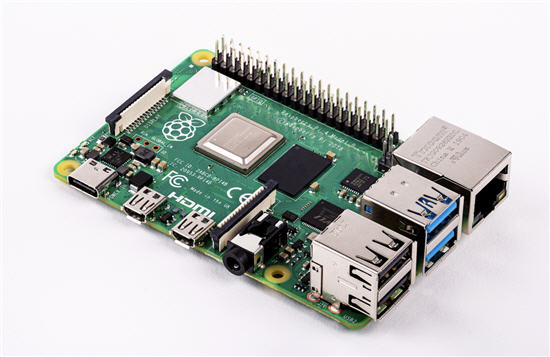
This week, the Raspberry Pi Foundation released the Pi 4. It is an impressive upgrade. Here are the key specifications:

Raspberry Pi 4 board showing ports and components

  • A 1.5GHz quad-core 64-bit ARM Cortex-A72 CPU (~3× performance)
  • 1GB, 2GB, or 4GB of LPDDR4 SDRAM
  • Full-throughput Gigabit Ethernet
  • Dual-band 802.11ac wireless networking
  • Bluetooth 5.0
  • Two USB 3.0 and two USB 2.0 ports
  • Dual-monitor support at resolutions up to 4K
  • VideoCore VI graphics supporting OpenGL ES 3.x
  • 4Kp60 hardware HEVC video decoding
  • Compatibility with earlier Raspberry Pi products

In addition to the hardware improvements, the Raspberry Pi Foundation says the new system includes an extensively modernized user interface, an updated Chromium 74 web browser, and a transition from USB micro-B to USB-C for power. The new connector supports an additional 500mA of current, ensuring a full 1.2A is available for downstream USB devices even under heavy CPU load.

The new boards are available to order now.

In the past, users have attempted running Windows on the Raspberry Pi platform, but performance was predictably slow. With this new configuration, we are curious to hear who has tried it and how it performs. Feel free to share your experience by emailing gmo @ getusb dot info.

Continue Reading

Updated iPad OS Will Accept USB Thumb Drives

Today Apple announced the new iPadOS will support USB thumb drives. The iPad has long been toughted a workers tablet from Apple, but the relaity is their iPad didn’t provide much functionality. In addition, the devices have limited storage.

With today’s announcement the above argument could get a little muted.

Update: We learned the iPad will allow other storage devices such as external hard drives and SD or microSD cards (with USB adapters). The USB port will also allow for HID devices, such as a USB mouse and keyboard. We are not sure if the iPad will support Bluetooth mouse and keyboard, but we’ve got to assume, right!

There is no word about the connection. The connection could be one of three; an adapter, USB-C socket size or the classic USB type A socket size.

iPad accepts usb drive

Source: The Next Web.

Continue Reading

Steampunk USB, The Gatling Gun Flash Drive

The Gatling gun is one of the earliest known rapid-fire, hand-cranked weapons. The Gatling design is a forerunner of the modern machine gun and rotary cannon. Invented by Richard Gatling, it saw limited use by Union forces during the American Civil War in the 1860s.

Megan Kening of Etsy has taken this historic concept and transformed it into a steampunk USB flash drive. The Gatling gun USB features remarkable detail, vivid LED illumination during operation, and a rotating barrel assembly when powered on.

Steampunk USB flash drive modeled after a Gatling gun

Megan’s set includes the Gatling gun USB flash drive and a matching ballpoint pen, both presented in a wooden display case. Each piece is completely handmade using materials such as copper, brass, glass tubing, USB electronics, and a small motorized gear assembly.

Megan Kening has been featured previously on GetUSB, and his work continues to impress. With a near-perfect five-star rating from buyers, it is safe to say any purchase from Megan delivers both craftsmanship and originality. Additional photos appear below.

Continue Reading

Microsoft Finally Capitulated the USB Safe Removal

In a battle so old most users no longer think about it, Microsoft has moved away from requiring safe removal for USB flash drives. The original intent behind safe removal was to prevent data loss if a user unplugged a drive before an active write operation had completed.

USB flash drive spinner

In practice, data loss was uncommon unless a large file was actively being transferred, but it is notable to see Microsoft finally adapt to real-world user behavior.

The update that introduced this change arrived with Windows 10 version 1809. If you are unsure which version of Windows you are running, right-click the Windows icon in the lower-left corner of your screen and select System.

Windows system information showing OS version

From the resulting screen, you can view the installed version of your operating system.

Continue Reading

Custom USB Flash Drive – 60 Incredible Designs (images)

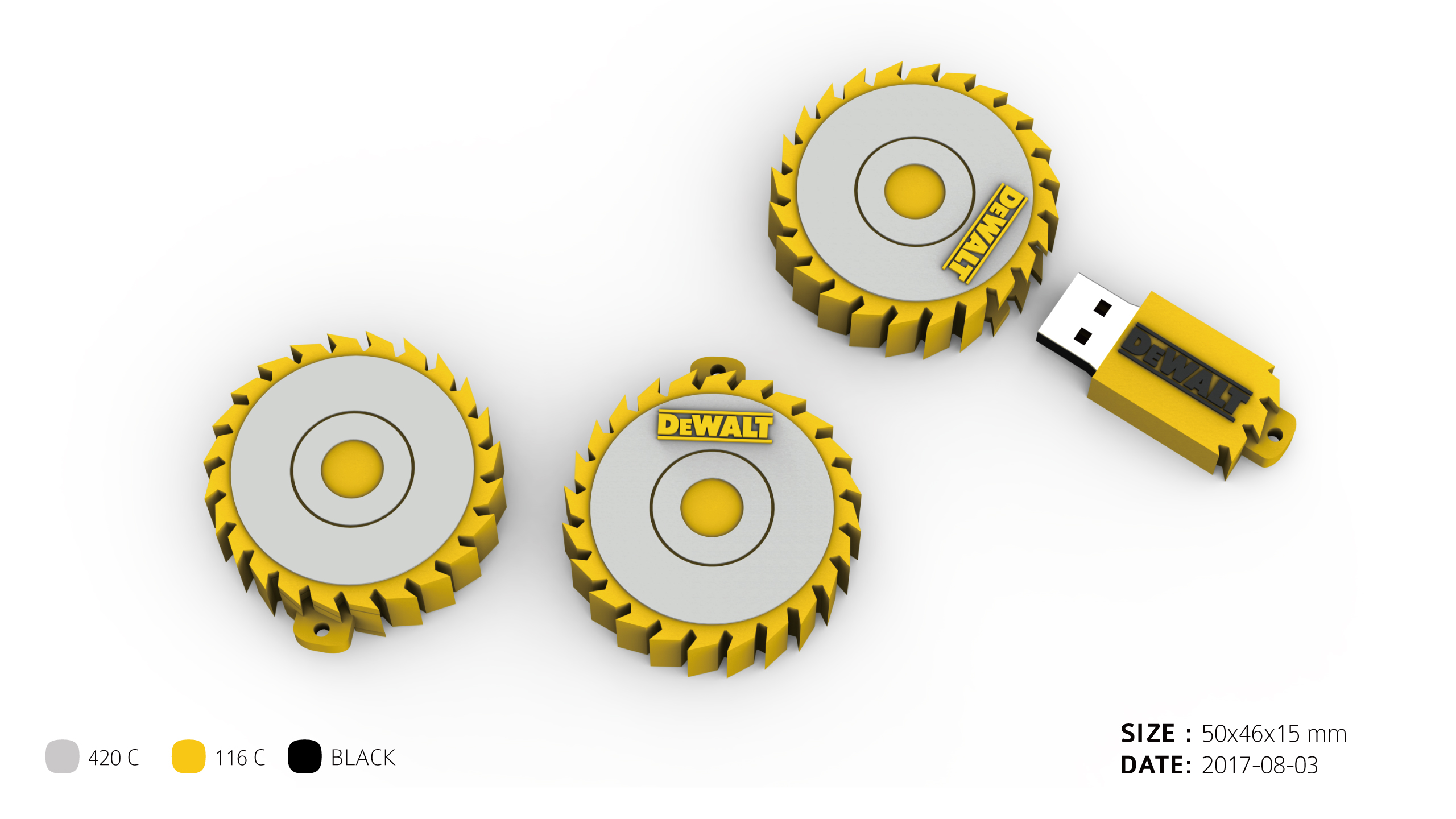
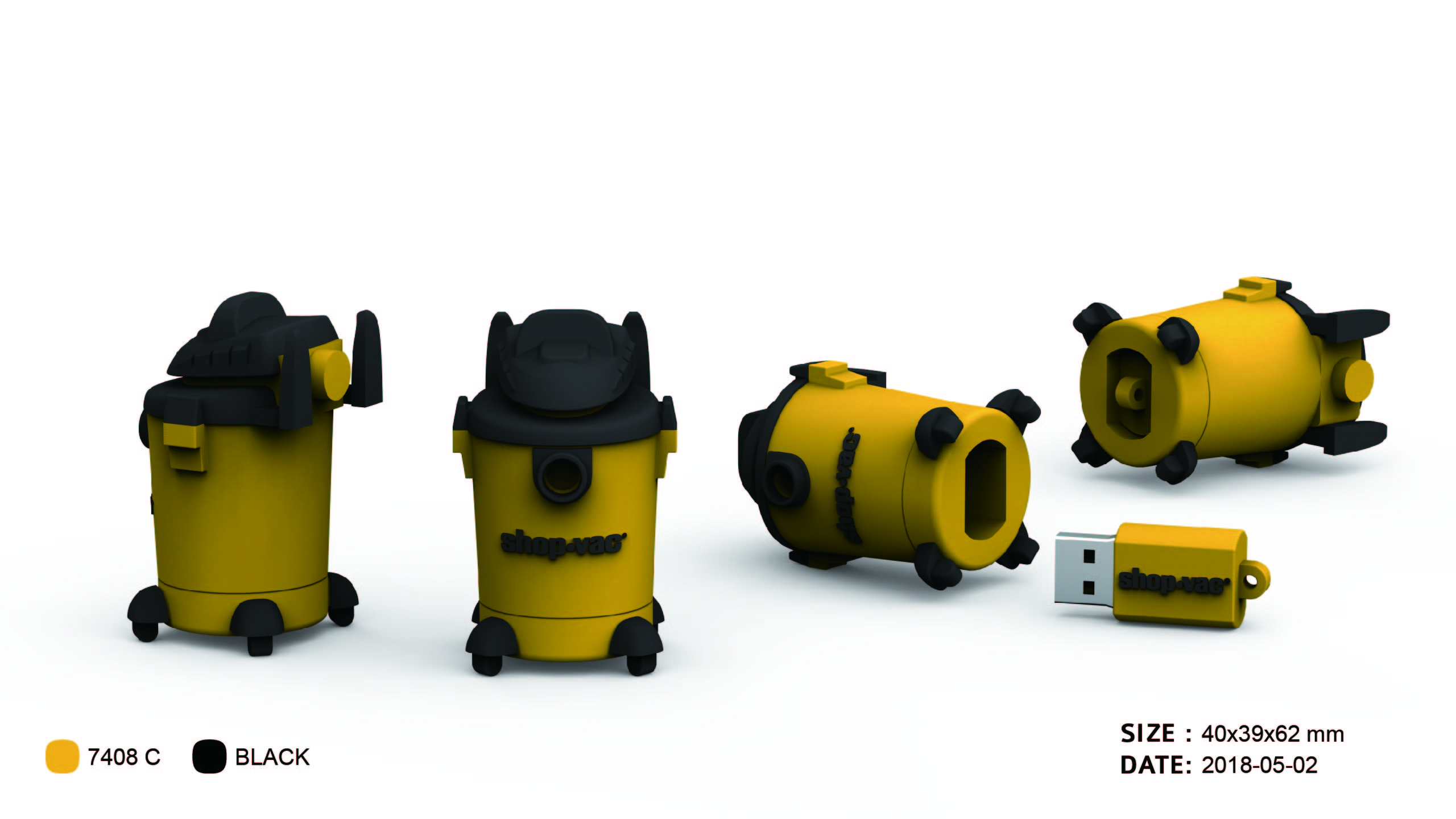
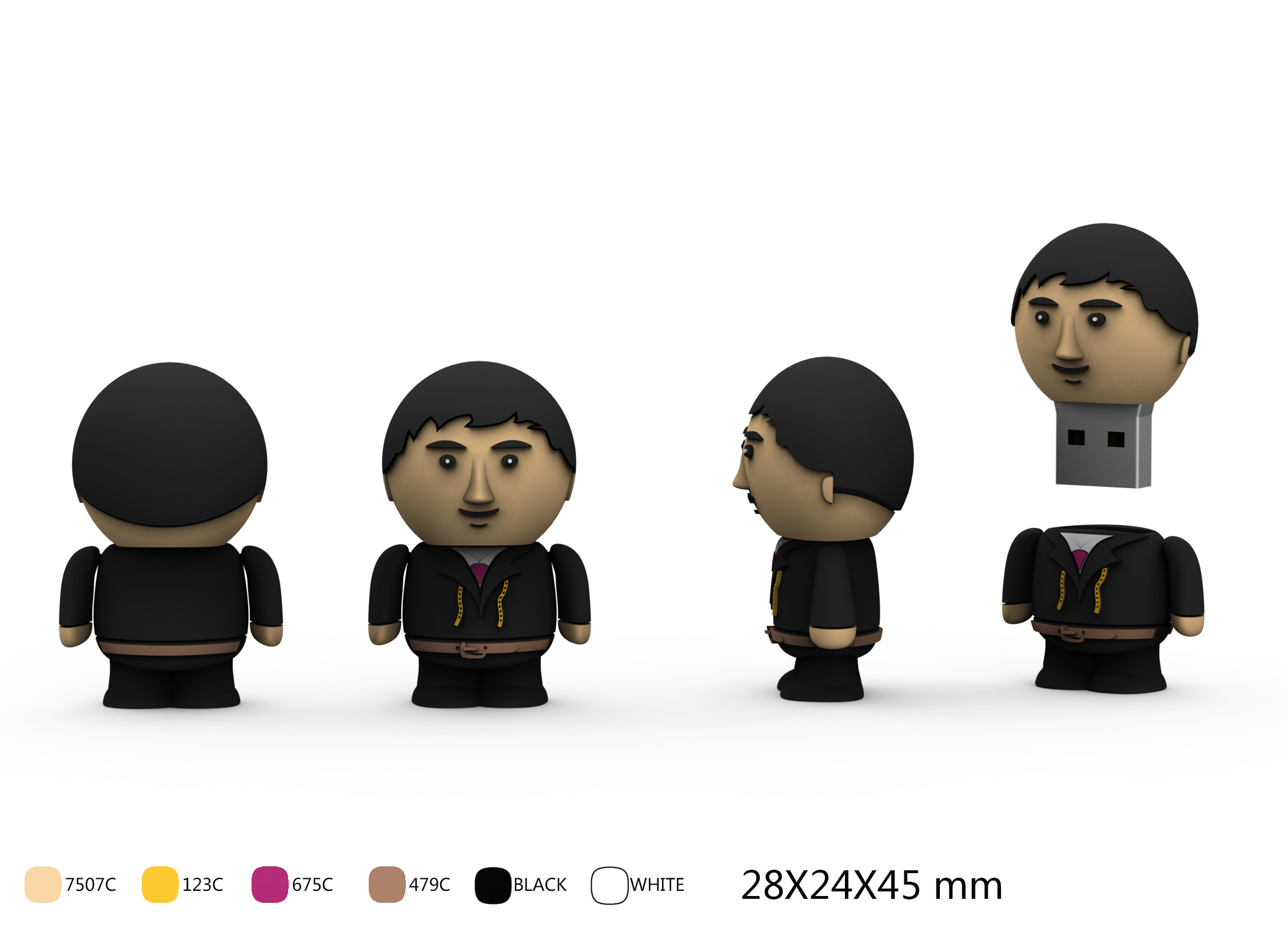
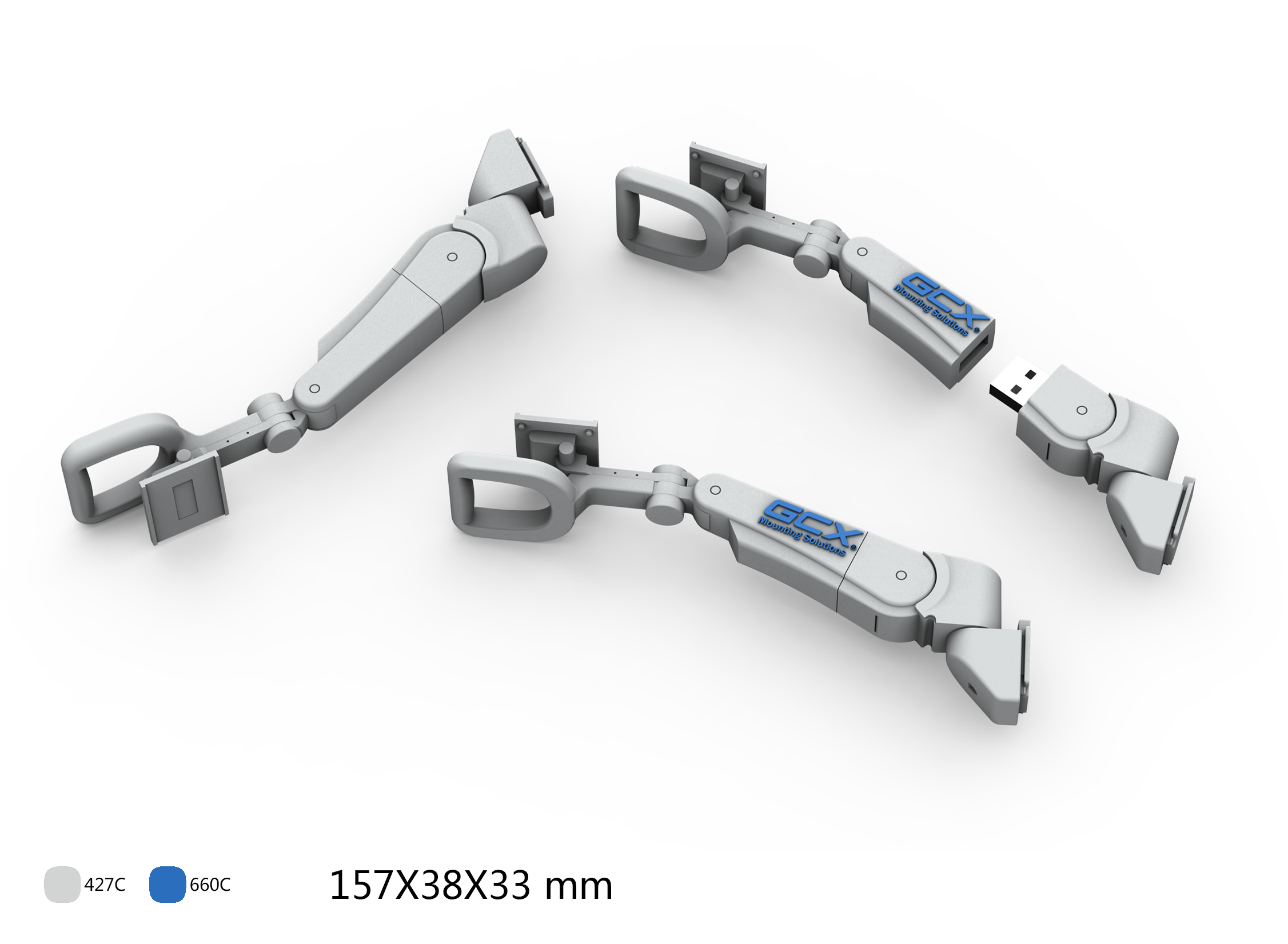
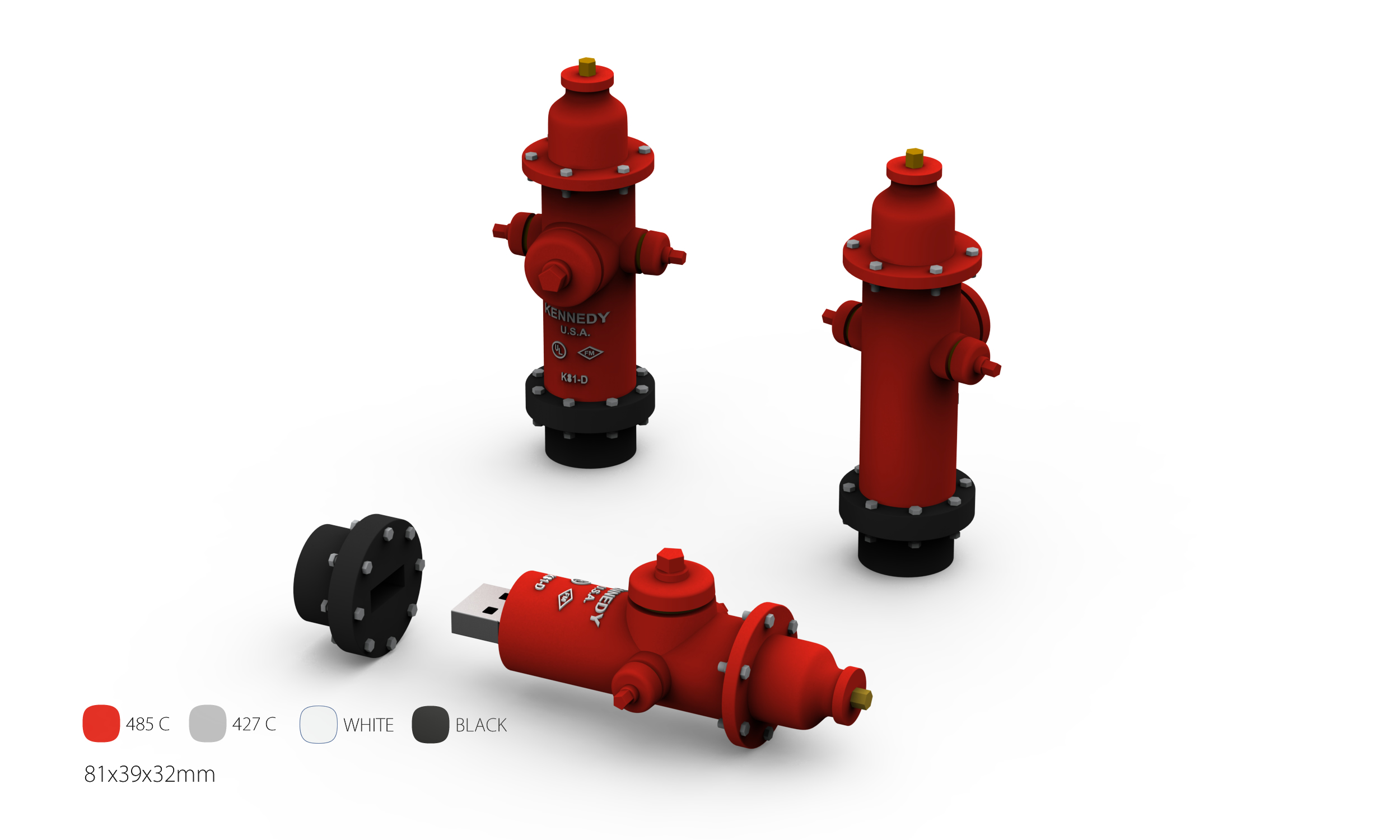
Here are 60 incredible Custom USB Flash Drive designs. Each one of these designs is real and was made for a company or client. The custom USB shapes are not listed in any specific order.

Flash Drive #1

custom molded USB flash drive with logo branding

Flash Drive #2

unique promotional USB memory stick design

Flash Drive #3

logo branded custom USB stick for marketing

Flash Drive #4

creative USB thumb drive shape for promotions

Flash Drive #5

custom shaped USB drive for advertising campaigns

Flash Drive #6

novelty promotional USB flash design

Flash Drive #7

corporate branded USB stick giveaway

Flash Drive #8

company logo custom USB flash drive

Flash Drive #9

unique novelty USB drive promotional gift

Flash Drive #10

creative molded USB thumb drive for events

Flash Drive #11

personalized logo USB memory stick

Flash Drive #12

custom promotional USB device for branding

Flash Drive #13

unique USB flash stick with company name

Flash Drive #14

3D molded promotional USB memory device

Flash Drive #15

creative USB giveaway with custom design

Flash Drive #16

logo printed USB flash drive for marketing events

Flash Drive #17

custom 3D shaped USB promotional item

Flash Drive #18

personalized corporate gift USB stick

Flash Drive #19

custom made USB flash drive for trade shows

Flash Drive #20

custom promotional USB with detailed molding

Want a Custom Drive?

Contact US for Details

Flash Drive #21

promotional USB pen drive custom design

Flash Drive #22

branded flash stick for business marketing

Flash Drive #23

molded USB giveaway with unique shape

Flash Drive #24

corporate logo USB thumb drive promotional

Flash Drive #25

custom novelty flash memory USB stick

Flash Drive #26

personalized USB promotional gadget

Flash Drive #27

trade show branded USB device sample

Flash Drive #28

logo imprinted USB memory key

Flash Drive #29

3D promotional USB flash drive custom molded

Flash Drive #30

unique corporate USB handout design

Flash Drive #31

custom branded USB device for giveaways

Flash Drive #32

special edition molded USB flash drive

Flash Drive #33

creative marketing USB thumb drive sample

Flash Drive #34

custom promotional USB stick for events

Flash Drive #35

logo customized USB flash memory device

Flash Drive #36

unique branded USB giveaway sample

Flash Drive #37

personalized flash drive for product launch

Flash Drive #38

custom USB marketing tool with logo print

Flash Drive #39

3D molded promotional memory stick design

Flash Drive #40

exclusive USB flash drive for corporate branding

Want a Custom Drive?

Contact US for Details

Flash Drive #41

custom logo printed USB gadget for promotions

Flash Drive #42

creative 3D shaped flash drive corporate gift

Flash Drive #43

branded promotional USB for trade fairs

Flash Drive #44

personalized molded USB key design

Flash Drive #45

company branded custom USB flash storage

Flash Drive #46

custom themed USB promotional device

Flash Drive #47

unique shape USB drive for advertising use

Flash Drive #48

corporate USB giveaway with logo engraving

Flash Drive #49

3D molded USB promotional tool for events

Flash Drive #50

custom USB stick for brand visibility campaign

Flash Drive #51

logo printed promotional USB thumb drive

Flash Drive #52

novelty shaped USB flash drive for giveaways

Flash Drive #53

custom molded USB for product promotions

Flash Drive #54

corporate logo flash memory giveaway

Flash Drive #55

personalized USB device for conferences

Flash Drive #56

creative promotional USB with custom imprint

Flash Drive #57

special molded USB thumb drive gift

Flash Drive #58

unique branded flash memory promotional item

Flash Drive #59

final sample of custom promotional USB stick design

Flash Drive #60

custom promotional USB flash drive sample design #60

Want a Custom Drive?

Contact US for Details

Continue Reading

A Flash Drive, an Ex Marine and Russia

Update: June 15, 2020

Paul Whelan was sentenced to 16 years in prison for espionage against the United States. As stated in the original post, an IT professional who cannot access “photos” on a flash drive, which later became the alleged vehicle for trading information, is a significant red flag that something more serious may have been occurring.

Update: February 3, 2019

“I want to tell the world that I am a victim of political kidnap and ransom,” Whelan said during a press conference in May. “This is retaliation for sanctions.”

“There are abuses and harassment that I am constantly subject to. There is a case for isolation,” he continued, before listing alleged abuses committed by prison staff.

The former Marine said he was being subjected to “typical POW Chapter 1 isolation” techniques intended to break him down and described his imprisonment as having a “Salem witch trial mentality.”

According to Reuters, Whelan made a direct plea to the President of the United States, stating, “Mr. President [Trump], we cannot keep America great unless we aggressively protect and defend American citizens wherever they are in the world.”

It is not every day that a “flash drive” appears in international espionage headlines. However, American citizen Paul Whelan was arrested in Russia and charged with espionage, with a USB flash drive playing a central role in the case.

Based on reporting surrounding the arrest, Whelan is a former Marine who frequently traveled to Russia. He worked as a security professional for a U.S.-based auto parts supplier, BorgWarner, spoke Russian, and used the Russian social media platform VKontakte, commonly referred to as VK.

According to reports, the arrest unfolded as follows: Whelan met with a Russian associate who handed him a USB flash drive. Earlier in the trip, Whelan claimed he had received digital vacation photos but was unable to view them on his computer. Because of this, he requested that the images be transferred to a flash drive.

Moments after the exchange took place, Russian police arrested Whelan and later claimed the USB flash drive contained state secrets.

Plugging a USB flash drive into a computer

Whelan has maintained that he had no knowledge of any sensitive information on the flash drive and believed it contained only vacation photos. If true, one can only hope he is given a fair opportunity to prove his innocence.

Additional background information about Paul Whelan includes the following.

He served for 14 years in the U.S. Marine Corps Reserve and was discharged in 2008 for bad conduct.

The discharge stemmed from a conviction involving the attempted theft of $10,410 in U.S. currency. He was accused of misusing another individual’s Social Security number and writing bad checks. Poor decisions early in life are not uncommon, though they can cast long shadows.

Playing devil’s advocate, the most troubling detail remains the claim that a security-focused IT professional could not open digital image files. Regardless of file format, that task is typically straightforward. If nothing else, this situation highlights the importance of using write-protected USB flash drives when traveling internationally. You never know how a simple device could be interpreted or misused.

Sources: CNN and GetUSB.info

Continue Reading

Chromebook Gets a USB Guard

Anyone in tech has seen the reports and news about USB sticks with a virus ruining a company network or infecting computers. Google built a small and effective feature: Chromebook Gets a USB Guard.

Chromebook Gets a USB Guard

The USBGuard is a feature that blocks interaction between the mass storage device and the Chrome operating system. The OS will give power to the device, but not let data transmit.

The USBGuard blocks this activity when the Chromebook is in locked mode. When the Chromebook is not in lock mode, the USB will interact as expected as a read/write device.

Continue Reading

Copyright

Copyright © 2006 +

USB Powered Gadgets and more...

All Rights Reserved

Advertise with us

GetUSB Advertising

This is a high value website providing great exposure to your product and brand. Visit our advertising page to learn specifics.

For more information
Visit our advertising page.

Nexcopy Ad

Nexcopy Provides

USB copy protection with digital rights management for data loaded on USB flash drives.

Contact us learn more

Resources and References Page

Resources and References Page