There is something uniquely satisfying about plugging a USB device into a Windows computer and having it appear almost immediately. Windows identifies the hardware, loads the appropriate driver, assigns the storage device a drive letter and, within a second or two, the USB drive is ready to use.
Most users never need to think about what happened during those few seconds. For developers, IT administrators, hardware engineers and anyone writing software that interacts with USB devices, however, the automatic process raises an important question: Where does Windows get the information it uses to identify the device?
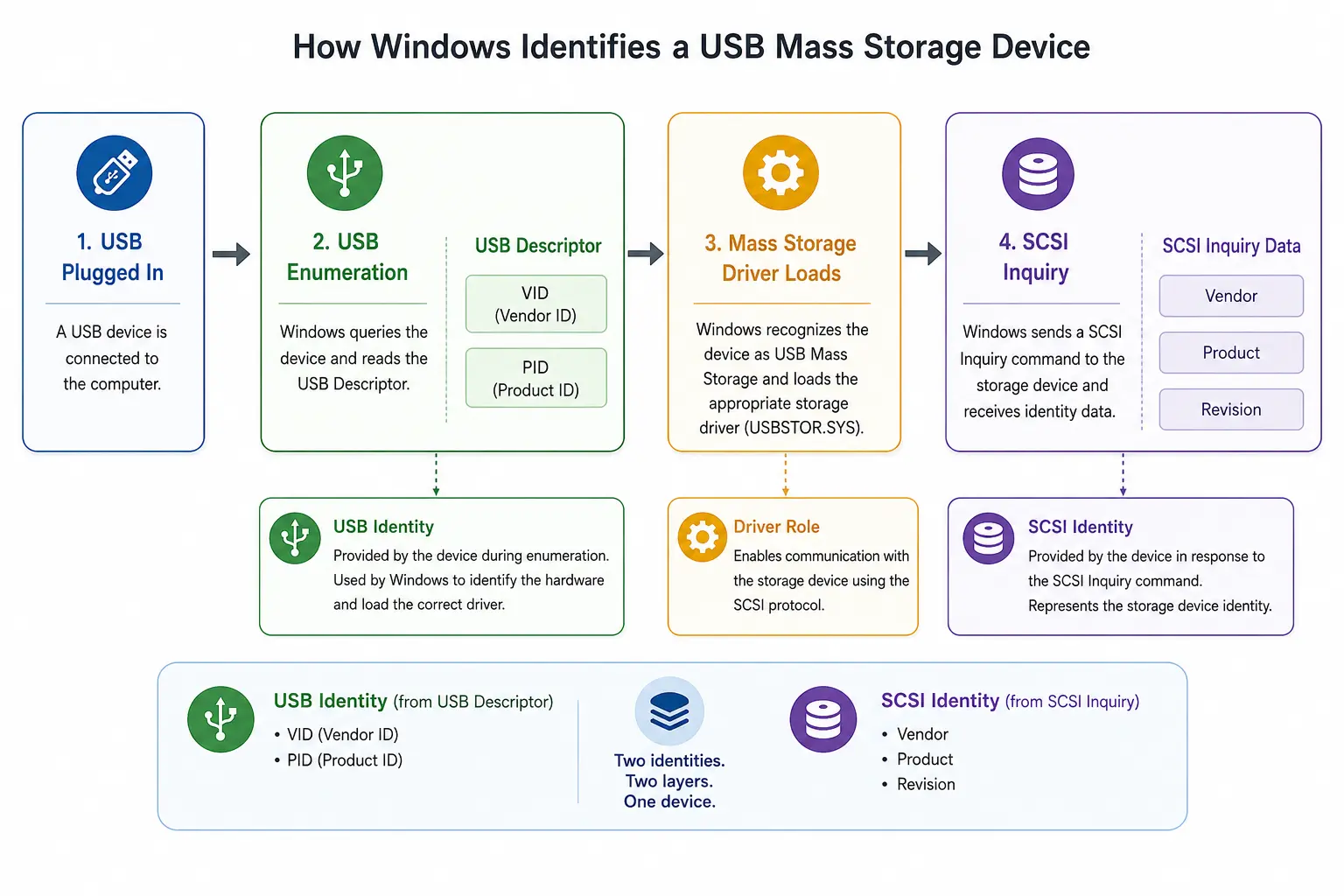
A USB flash drive can report more than one identity. At the USB level, the device reports a Vendor ID, commonly called the VID, and a Product ID, commonly called the PID. After Windows recognizes the device as USB mass storage, the storage device can also report a SCSI Vendor string, SCSI Product string and product revision.
Those values are related because they describe the same physical device, but they do not come from the same place. They are not interchangeable, and they do not always identify the same manufacturer or product name.
Windows 10 provides several ways to view or retrieve this information. Some methods are designed for a person sitting in front of the computer. Others are better suited for scripts, inventory systems, diagnostic software or applications that need to identify USB storage devices automatically.
USB VID and PID Versus SCSI Vendor and Product
Before looking at the different Windows methods, it helps to understand the two identities involved.
The USB Vendor IDA hexadecimal Vendor ID used to identify the manufacturer of a USB device during enumeration. and Product IDA hexadecimal identifier assigned by a USB vendor to identify a specific product or product family. come from the device’s USB descriptors. These values are reported when the USB device is first connected and Windows begins the USB enumeration process.
A typical USB hardware identifier might look like this:
USB\VID_090C&PID_1000&REV_1100
USB\VID_090C&PID_1000
In this example, the values are:
USB VID = 090C
USB PID = 1000
The VID is intended to identify the USB vendor, while the PID identifies a product or product family assigned by that vendor. Both values are hexadecimal numbers.
After Windows determines that the connected device is a USB Mass Storage device, Windows communicates with it through the storage command layer. A standard SCSIA modern USB data transfer protocol that improves efficiency by supporting command queuing and parallel processing. Inquiry response can include a Vendor string, Product string and Revision string.
A storage hardware identifier might look like this:
USBSTOR\Disk&Ven_Generic&Prod_Flash_Disk&Rev_8.07In this example, the values are:
SCSI Vendor   = Generic
SCSI Product  = Flash Disk
SCSI Revision = 8.07
The USB VID and PID are numeric identifiers used during USB enumeration. The SCSI Vendor and Product fields are text strings reported through the storage interface. A device manufacturer can change one identity without necessarily changing the other.
This is why a flash drive might report a USB VID associated with a controller manufacturer while the SCSI Product field displays a retail product name, a customer name or something generic such as “USB Flash Disk.”
How Windows Builds the Two Device Identities
The easiest way to picture the process is as two stages. Windows first identifies the connected USB hardware. It then identifies the storage device operating through that USB connection.
The USB VID and PID become available during the first stage. The SCSI Vendor, Product and Revision fields become available after the USB mass-storage driver is loaded and Windows queries the storage device.
This distinction also helps explain why Windows can remember a USB device after it has been disconnected. As discussed in our article about why Windows keeps a history of previously connected USB devices, Windows stores information gathered during device enumeration so it can recognize and manage the hardware the next time it appears.
Why Would Someone Need Both Sets of Information?
For simple troubleshooting, the USB VID and PID may be enough. For device inventory, manufacturing, diagnostics or software development, collecting both identities provides a more complete picture.
An inventory application may use the USB VID and PID to group devices by hardware platform, while displaying the SCSI Vendor and Product strings to the user. A manufacturing utility may confirm that a supported USB controller is connected before performing an operation. A diagnostic program may record all of the identifiers so results from different devices can be compared later.
Digital-forensics tools may collect the identifiers as part of a device record. USB validation software may compare the identity being reported by the device with the behavior observed during testing. This can be useful because the name, capacity and performance claimed by a USB device do not necessarily prove what hardware is actually inside it.
The same principle applies to data integrity. Identification information tells us what the device claims to be, while testing tells us how it behaves. Our article explaining why USB data verification should sometimes include a power cycle examines a similar difference between information reported immediately and information proven after the device has been disconnected and reconnected.
Method 1: Use Windows Device Manager
Device Manager is the easiest place to begin because it requires no command line, scripting or programming. The important detail is that the USB identity and storage identity usually appear under two different device entries.
Find the USB VID and PID
Open Device Manager and expand the section named Universal Serial Bus controllers. Locate the USB Mass Storage Device associated with the drive, right-click it and select Properties.
Select the Details tab and choose Hardware Ids from the Property drop-down list.
Device Manager
→ Universal Serial Bus controllers
→ USB Mass Storage Device
→ Properties
→ Details
→ Hardware Ids
A typical result may look like this:
USB\VID_090C&PID_1000&REV_1100
USB\VID_090C&PID_1000
The four characters following VID_ are the USB Vendor ID. The four characters following PID_ are the USB Product ID.
Find the SCSI Vendor and Product
Return to Device Manager and expand Disk drives. Locate the USB flash drive, right-click it and select Properties. Once again, open the Details tab and select Hardware Ids.
Device Manager
→ Disk drives
→ USB flash drive
→ Properties
→ Details
→ Hardware Ids
The result may look similar to this:
USBSTOR\Disk&Ven_Generic&Prod_Flash_Disk&Rev_8.07Windows has formatted the values into a Plug-and-Play hardware identifier:
Ven_Generic     = SCSI Vendor
Prod_Flash_Disk = SCSI Product
Rev_8.07        = SCSI Revision
Device Manager is an excellent choice when inspecting one device manually. Its limitation is that matching the correct USB Mass Storage entry to the correct Disk Drive entry can become confusing when several USB drives are connected at the same time.
Method 2: Use PowerShell
PowerShellA task automation and configuration management framework from Microsoft, consisting of a command-line shell and scripting language. is a better choice when the information needs to be collected repeatedly, displayed in a report or retrieved from more than one computer. Windows 10 includes PowerShell and the Plug-and-Play cmdlets needed for basic device inspection.
List Present USB Devices Containing a VID and PID
Open PowerShell and run the following command:
Get-PnpDevice -PresentOnly |
Where-Object {
    $_.InstanceId -match '^USB\\VID_'
} |
Select-Object FriendlyName, Class, InstanceId
The output will include device instance IDs similar to this:
USB\VID_090C&PID_1000\1234567890The next example extracts the VID and PID into separate columns:
Get-PnpDevice -PresentOnly |
Where-Object {
    $_.InstanceId -match '^USB\\VID_'
} |
ForEach-Object {
    if ($_.InstanceId -match 'VID_([0-9A-F]{4})&PID_([0-9A-F]{4})') {
        [PSCustomObject]@{
            DeviceName = $_.FriendlyName
            VID        = $matches[1]
            PID        = $matches[2]
            InstanceId = $_.InstanceId
        }
    }
}
This is useful because it converts a long Windows device instance string into a cleaner result containing the device name, VID and PID.
List USB Storage Information
The following PowerShell command queries the Windows disk-drive class and filters the results for USB storage devices:
Get-CimInstance Win32_DiskDrive |
Where-Object {
    $_.InterfaceType -eq 'USB' -or
    $_.PNPDeviceID -like 'USBSTOR*'
} |
Select-Object DeviceID,
              Manufacturer,
              Model,
              FirmwareRevision,
              PNPDeviceID
A result may look like this:
DeviceID        : \\.\PHYSICALDRIVE2
Manufacturer    : Generic
Model           : Flash Disk USB Device
FirmwareRevision: 8.07
PNPDeviceID     : USBSTOR\DISK&VEN_GENERIC&PROD_FLASH_DISK&REV_8.07...
The Manufacturer and Model fields can be convenient, but they are not populated consistently by every USB storage device. The PNPDeviceID often provides the clearest representation of the Vendor, Product and Revision values Windows received.
PowerShell is one of the best general-purpose options because it requires no compiled application. The harder part is correlating a USB-level device entry with its matching physical disk when several devices are connected. A more advanced script can follow Windows parent-and-child device relationships to perform that match.
Method 3: Use WMI or the WMIC Command
Windows Management Instrumentation, usually shortened to WMI, has been used for many years to retrieve hardware and operating-system information. Many Windows 10 computers also include the older WMIC command-line utility.
WMIC is useful for quick testing and for maintaining older scripts, although PowerShell and CIM are generally the better choices for new development.
Display USB Disk Information with WMICWindows Management Instrumentation Command-line tool for querying system information.
Open Command Prompt and run:
wmic diskdrive get DeviceID,InterfaceType,Manufacturer,Model,FirmwareRevision,PNPDeviceIDTo limit the result to disk drives using a USB interface, run:
wmic diskdrive where "InterfaceType='USB'" get DeviceID,Manufacturer,Model,FirmwareRevision,PNPDeviceIDA typical result may resemble this:
DeviceID             Manufacturer  Model                  FirmwareRevision
\\.\PHYSICALDRIVE2   Generic       Flash Disk USB Device  8.07
The PNPDeviceID column may contain a longer value:
USBSTOR\DISK&VEN_GENERIC&PROD_FLASH_DISK&REV_8.07\...Search Plug-and-Play Entries for USB VID and PID Values
The following WMIC command searches Plug-and-Play devices for entries containing a USB VID:
wmic path Win32_PnPEntity where "PNPDeviceID like 'USB%%VID_%%'" get Name,PNPDeviceIDThe doubled percent signs are used by WMIC as wildcard characters inside the query.
WMIC may not be present or enabled on every newer Windows installation, and Microsoft has been moving administrative scripting toward PowerShell. For a Windows 10 utility or an existing enterprise script, however, WMI can still provide useful information.
Method 4: Use the Windows SetupAPI
Software written in C or C++ can retrieve Windows Plug-and-Play device information through the SetupAPI. This is a practical approach for desktop applications that need to discover USB devices automatically rather than requiring the user to look through Device Manager.
A complete SetupAPI application includes error handling, dynamic buffers, device-property parsing and cleanup. The following abbreviated example shows the main Windows calls involved.
Create a Device Information Set
#include <windows.h>
#include <setupapi.h>

HDEVINFO deviceInfoSet = SetupDiGetClassDevsW(
    nullptr,
    L"USB",
    nullptr,
    DIGCF_ALLCLASSES | DIGCF_PRESENT
);
This creates a device-information set containing USB devices currently present in the computer.
Enumerate the Device Entries
SP_DEVINFO_DATA deviceInfoData{};
deviceInfoData.cbSize = sizeof(SP_DEVINFO_DATA);

for (
    DWORD index = 0;
    SetupDiEnumDeviceInfo(
        deviceInfoSet,
        index,
        &deviceInfoData
    );
    ++index
) {
    // Retrieve device properties here.
}
Read the Hardware ID Property
WCHAR hardwareIds[4096]{};
DWORD requiredSize = 0;

if (SetupDiGetDeviceRegistryPropertyW(
        deviceInfoSet,
        &deviceInfoData,
        SPDRP_HARDWAREID,
        nullptr,
        reinterpret_cast<PBYTE>(hardwareIds),
        sizeof(hardwareIds),
        &requiredSize
    )) {

    // Search hardwareIds for:
    // VID_xxxx
    // PID_xxxx
}
The returned hardware-ID property can contain one or more null-separated strings. A USB device entry may contain an identifier such as:
USB\VID_090C&PID_1000&REV_1100The application can search that string for the VID_ and PID_ fields and extract the following four hexadecimal characters.
When finished, the device-information set should be released:
SetupDiDestroyDeviceInfoList(deviceInfoSet);SetupAPI is powerful, but there is an important detail: Windows represents the USB device and the physical disk as separate nodes in the device tree. Retrieving the USB VID and PID is relatively direct. Matching those values to the correct disk, drive letter and SCSI identity may require walking through the parent-and-child device relationships.
This is one reason a commercial diagnostic application usually requires more code than a short demonstration suggests. The individual properties are available, but correctly joining all the information into one device record is the real work.
Method 5: Query the Storage Device Directly
A Windows application can query a physical disk by opening the device and sending an IOCTL_STORAGE_QUERY_PROPERTY request. This method is useful for retrieving storage information such as the Vendor, Product, Revision, serial number and bus type.
The example below opens PhysicalDrive2. The actual physical-drive number will depend on the computer and which USB device is being inspected.
Open the Physical Drive
HANDLE drive = CreateFileW(
    L"\\\\.\\PhysicalDrive2",
    GENERIC_READ,
    FILE_SHARE_READ | FILE_SHARE_WRITE,
    nullptr,
    OPEN_EXISTING,
    0,
    nullptr
);

if (drive == INVALID_HANDLE_VALUE) {
    // Handle the error.
}
Prepare the Storage Query
STORAGE_PROPERTY_QUERY query{};
query.PropertyId = StorageDeviceProperty;
query.QueryType  = PropertyStandardQuery;
Send the Query to Windows
BYTE buffer[4096]{};
DWORD bytesReturned = 0;

BOOL result = DeviceIoControl(
    drive,
    IOCTL_STORAGE_QUERY_PROPERTY,
    &query,
    sizeof(query),
    buffer,
    sizeof(buffer),
    &bytesReturned,
    nullptr
);
Interpret the Returned Storage Descriptor
if (result) {
    auto descriptor =
        reinterpret_cast<STORAGE_DEVICE_DESCRIPTOR*>(buffer);

    const char* vendor =
        descriptor->VendorIdOffset
            → reinterpret_cast<const char*>(
                buffer + descriptor->VendorIdOffset
              )
            : "";

    const char* product =
        descriptor->ProductIdOffset
            → reinterpret_cast<const char*>(
                buffer + descriptor->ProductIdOffset
              )
            : "";

    const char* revision =
        descriptor->ProductRevisionOffset
            → reinterpret_cast<const char*>(
                buffer + descriptor->ProductRevisionOffset
              )
            : "";

    const char* serial =
        descriptor->SerialNumberOffset
            → reinterpret_cast<const char*>(
                buffer + descriptor->SerialNumberOffset
              )
            : "";
}
The strings are not stored directly inside the fixed portion of the structure. Instead, the structure provides byte offsets pointing to the locations of those strings inside the returned buffer.
When finished with the physical-drive handle, close it:
CloseHandle(drive);A successful storage query can provide information similar to this:
Vendor   = Generic
Product  = Flash Disk
Revision = 8.07
Serial   = 1234567890
Bus Type = USB
This method is closer to the storage device than reading a friendly name from Device Manager or querying a cached registry value. However, it does not automatically return the USB VID and PID. The application must still correlate the physical disk with its USB parent and retrieve the USB hardware identifier separately, normally through SetupAPI or the Windows Configuration Manager functions.
Which Windows Method Should You Use?
There is no single best method for every situation. The correct choice depends on whether the goal is manual inspection, scripting, software development or low-level device analysis.
Open the Windows USB Identification Method Comparison
| Method | USB VID/PID | SCSI Vendor/Product | Coding Required | Best Use |
|---|---|---|---|---|
| Device Manager | Yes | Yes | No | Inspecting one device manually |
| PowerShell | Yes | Yes | Light scripting | Inventory and repeatable reports |
| WMI or WMIC | Yes | Yes | Light scripting | Older systems and existing scripts |
| SetupAPI | Yes | Through device correlation | Yes | Windows applications and USB utilities |
| Storage Query | Not directly | Yes | Yes | Diagnostics and direct storage information |
For a person checking one USB drive, Device Manager is usually enough. For administrators collecting information from many computers, PowerShell is likely the best starting point. For software developers building a Windows utility, SetupAPI combined with a storage-property query provides the most complete approach.
Is the Windows Registry Another Method?
Windows stores USB enumeration information in the Registry, and it is possible to locate both USB and USB-storage entries there.
USB device entries are commonly found under:
HKEY_LOCAL_MACHINE\SYSTEM\CurrentControlSet\Enum\USBUSB storage entries are commonly found under:
HKEY_LOCAL_MACHINE\SYSTEM\CurrentControlSet\Enum\USBSTORThese locations are useful for troubleshooting and historical analysis, but the Registry should not be confused with the original source of the information. Windows creates and updates these entries after it has already enumerated the USB device and queried the storage interface.
The original USB VID and PID come from the USB descriptors. The original storage Vendor, Product and Revision values come from the storage device’s Inquiry response. The Registry is where Windows records the results for later use.
Registry permissions can also make direct access inconvenient for software. When an application only needs information about devices that are currently connected, the supported Windows device APIs are usually a better choice.
Why the USB and SCSI Names May Not Match
It is common to expect every identifier to display the same manufacturer name. In practice, USB flash drives are built from several layers of hardware and firmware, and each layer may report something different.
A retail flash-drive company may purchase a controller from another manufacturer. The USB VID may identify the controller vendor or the company responsible for the firmware, while the SCSI Product field may contain the retail brand name. In other cases, the SCSI strings remain completely generic.
A device might report:
USB VID      = 090C
USB PID      = 1000
SCSI Vendor  = Generic
SCSI Product = Flash Disk
Another drive might report:
USB VID      = 0951
USB PID      = 1666
SCSI Vendor  = Kingston
SCSI Product = DataTraveler 3.0
Neither format automatically proves that the product is genuine. These identifiers are useful for identification and correlation, but they are values reported by firmware. A sufficiently modified or counterfeit device may report whatever values were programmed into it.
This is an important distinction for developers building device-validation software. Identification values should be recorded, but they should not replace capacity testing, write-and-read verification, performance testing or other forms of behavioral analysis.
A Practical Device Record
For software that inventories or tests USB flash drives, a useful device record may include more than four fields.
USB VID
USB PID
USB Revision
USB Serial Number
SCSI Vendor
SCSI Product
SCSI Revision
Storage Serial Number
Physical Drive Number
Drive Letter
Reported Capacity
Bus Type
Connection Speed
Not every USB drive will provide every value. Serial numbers may be missing, duplicated or reported differently at the USB and storage levels. Manufacturer strings may be blank. Product names may be generic. The software should expect incomplete information rather than assuming every field will always be available.
The strongest approach is to collect the available identifiers, preserve the original values and then associate those values with whatever performance, capacity or verification results the application produces.
One Thing Before You Go
Windows 10 offers several reliable ways to find a USB drive’s VID, PID, SCSI Vendor and SCSI Product information. Device Manager provides a quick manual answer. PowerShell and WMI provide scriptable access. SetupAPI gives Windows applications access to the Plug-and-Play device tree, while a direct storage-property query retrieves information associated with the physical disk.
The important lesson is that a USB storage device has more than one identity. The USB VID and PID come from the USB enumeration layer. The SCSI Vendor, Product and Revision values come from the storage layer. Looking in only one place may provide only half of the information.
Once that distinction is understood, the apparently conflicting names shown by Windows begin to make sense. The device is not necessarily changing its identity. Windows is simply showing information collected from two different parts of the same hardware.
Editorial note: This article is based on practical USB device-enumeration and storage-identification work performed with Windows systems. Exact output can vary by USB controller, firmware, Windows driver and storage-device implementation. Image created for easy of information consumption with the help of image creation tools from artificial intellegance.
Let GetUSB.info keep you updated.
Receive article notifications about USB storage, flash memory, and duplication updates in your preferred language. We average a couple of articles per week.