GetUSB.info Logo

Only One USB Drive Can Be Used In Windows – Others Are Ignored

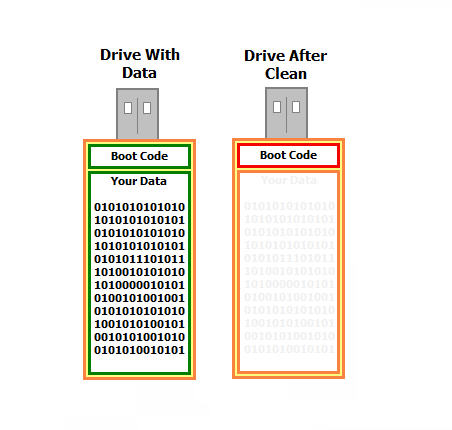
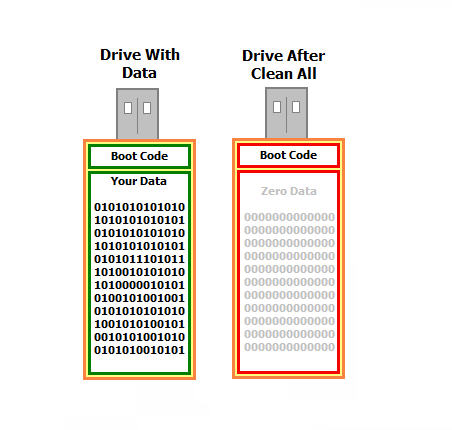
The most common reason why only one USB drive can be used in Windows is due to multiple USBs connected with the same USB device signature, or disk signature collision.

If you are dealing with bootable devices and seeing this problem, we are confident a collision is the issue. If you are not dealing with a bootable device, then our information below will probably not help.

Only 1 USB Drive Can Be Use  In Windows, hard drive sketch image

What is a USB signature collision?

A signature collision can happen on any bootable device, such as Compact Flash cards, SD cards, microSD cards, and USB flash drives. A disk signature is a unique identifier number (UID). It is a unique identifier stored as part of the MBR (Master Boot Record) for an operating system loaded on the device. The operating system uses the UID to identify and distinguish between storage devices. It is commonly made up of eight alphanumeric characters. A disk collision occurs when your operating system (Windows) detects that there are two disks with identical signatures.

For Windows 7, 8, 8.1, and 10, these versions of Windows will disable the second drive and will not allow that second volume to mount until the disk collision has been rectified. If you are reading this article, chances are, this is exactly what is happening to you.

The first thing to do is navigate to the Disk Management tool within Windows. To do this, use the search tool and type in Disk Management. This will take you to the utility that Windows offers. Here you can see your multiple devices connected. If you click or hover over the device not working you will see one of two messages:

“The boot selection failed because a required device is inaccessible” or “This disk is offline because it has a signature collision.”

What created the USB disk signature collision?

Making a bit-by-bit copy of one device to another, like using a USB duplicator, would create a disk signature collision. Because these binary duplicators copy the MBR information, that UID is also copied to the target device. Stepping forward, once those two devices are connected to the same computer, “boom” you get the collision.

Chances are, the situation you are in right now is due to a cloning process you have just completed. But don’t worry, we have the fix!

Fixing a USB disk signature collision

There are two methods for fixing the collision issue. The first solution is using DiskPart, which is a free command line tool provided by Microsoft and is found on all Windows 10 computers. This is a one-by-one process. If you have multiple devices with this problem and need to fix all of them, best to use option number two.

DiskPart Method

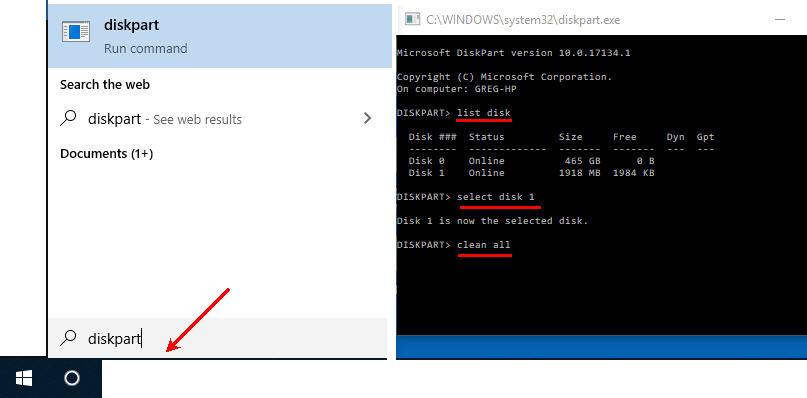
To launch DiskPart, simply go to the search function and type DiskPart

You now see the command prompt for DiskPart and type list disk

DiskPart will list all the storage devices connected to your computer. From this list, identify which USB is your problem device. The easiest way to determine this is to check the capacity for the drive listed by DiskPart.

Select the disk you want to change the signature ID for, for example Disk 1, which is the second disk listed (typically disk 0 is your C drive). Type select disk 1

Now that disk one is selected, type uniqueid disk and the utility will spit out the disk signature for disk 1.

Our final step is to change this value. Knowing a hexadecimal value we can use, such as A53AEBE9, type the following in DiskPart: unique disk ID=A53AEBE9 and click Enter.

With this change, you can now go into Disk Management and put the device Online. When the device is online, Windows Explorer will see the device and you can use it. There is no longer a USB disk signature collision.

If your hexadecimal value will not take, it means your MBR file doesn’t have a signature you can change. You will need to flash the device with your bootstrap code. More details on that from a previous article found here.

Another reason why option number two, below, is better is that the hexadecimal number assigned to the partition is automatic and works. There is no guessing on what hexadecimal to assign to the partition, a step you must do in DiskPart.

Partition Wizard utility example

The second solution is downloading the free Partition Wizard and opening the software. The Partition Wizard software will automatically identify the USB disk signature collision and update the necessary MBR. Super simple!

There is more technical information about disk collision issues from Wikipedia. You can brush up on the details there if so inclined.

Continue Reading No Comments

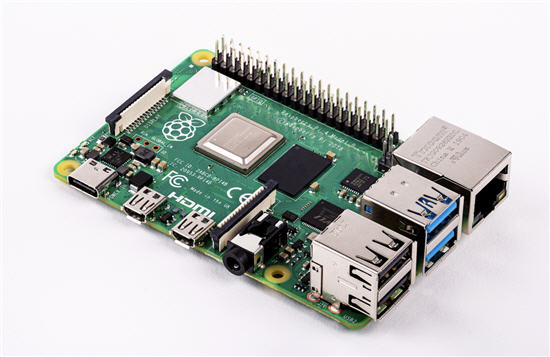
QuadCore Raspberry Pi 4

Update:

From this article, the Raspberry Pi 4’s USB-C power port was designed outside of official USB-IF specifications, making it incompatible with many USB-C chargers and/or power supplies. You can read more about from the link above and the information gathered to come to such a conclusion was done by a well known Google engineer, Benson Leung.

The raspberry Pi is a collection of small computer boards put together in a simplistic way to create the foundation of a computer system. The Raspberry Pi (also known as RPi) was released back in Feb of 2012 in the United Kingdom. The original intent of the RPi was to develop a low cost and simplistic computer which students could learn and develop.

The original model became far more popular than anticipated, and started selling outside its target market for uses such as robotics. It does not include peripherals (such as keyboards and mice) or even come inside a case. Literally a bare-bones product.

To give you an idea of the popularity, the RPi products have sold over 19 million units between its release in 2012 to the end of fiscal year 2018. This makes the RPi one of the best-selling computers in the world, although a computer with limited resources. Until now.

This week the Raspberry Pi Foundation has released the Pi 4. This is one hell of a great product. Check out these specifications:

  • A 1.5GHz quad-core 64-bit ARM Cortex-A72 CPU (~3× performance)
  • 1GB, 2GB, or 4GB of LPDDR4 SDRAM
  • Full-throughput Gigabit Ethernet
  • Dual-band 802.11ac wireless networking
  • Bluetooth 5.0
  • Two USB 3.0 and two USB 2.0 ports
  • Dual monitor support, at resolutions up to 4K
  • VideoCore VI graphics, supporting OpenGL ES 3.x
  • 4Kp60 hardware decode of HEVC video
  • Complete compatibility with earlier Raspberry Pi products

In addition to the hardware improvements, the Raspberry Pi Foundation says

Continue Reading No Comments

Solved Windows Will Not Assign Drive Letter To USB Flash Drive

Problem Issue: Windows Will Not Assign Drive Letter To USB Flash Drive

This is happening on Win8 and Windows 10.
When I remove a USB drive and reconnect it, Windows will not assign a drive letter. Clearly this is a problem as every other computer I use assigns a drive letter.

There are three solutions. All of which will work:

  1. You can go into Disk Management and select the device to assign a drive letter. This is a manual process and not ideal for each time you plug in a flash drive.
  2. There’s a good chance the driver or registry entry for that device is rogue or corrupt. Use this USBScrub tool to remove the registry entry. Chances are this will fix the problem. USBScrub link
  3. Use ‘diskpart’ and enable the automount feature.
Windows Will Not Assign Drive Letter To USB Flash Drive
  • Open Command Prompt as Administrator (search for Command Prompt in the Start Menu, right click, Run as Administrator)
  • Type ‘diskpart’ and hit Enter.
  • Once in the ‘diskpart’ command prompt, type ‘automount enable’ and hit Enter.
  • Type ‘exit’ and click Enter.

For solution number one from above, Disk Management is really the GUI version for diskpart, but with scaled-down functions compared to what diskpart can really do.

Diskpart has 37 commands that you can use to perform very cool tasks. The 38th command is

Continue Reading No Comments

Windows 10 Update, Hickup With Flash Drives

We have read on-line that Microsoft’s May 2019 update might not happen for those with connected USB sticks or SD cards. Microsoft claims the update will simply not happen if the OS detects these connected devices. The reason, Microsoft might re-assign drive letters to those connected devices.

On my first pass of reading this, the reassignment of drive letters doesn’t sound all that bad. Especially for a removable drive. However; Microsoft goes on to state that internal hard drives could also be affected by the drive letter shuffle.

There is your red flag!

The newly published Windows 10 support document reveals; those computers already having the April 2018 (version 1803) or October 2018 (version 1809) updates installed will receive this error message: “This PC can’t be upgraded to Windows 10.”

The Microsoft documentation does not referrence internal hard drives getting reassigned drive letters when no USB or SD card is detected and for that reason we feel you are safe during the update process. This is why Microsoft is blocking the update all together when a USB or SD card is detected in your system. Microsoft understands the importance of mounted internal hard drives; thus their blocking of the update.

Continue Reading No Comments

Microsoft Finally Capitulated the USB Safe Removal

In a battle that is so ancient most no longer consider it an issue, Microsoft has gone away with the safe removal for USB flash drives. The original suggestion by Microsoft was to eliminate data lose if a user removed the drive before properly ejecting it.

Nine out of ten times you wouldn’t lose data, unless a large file was being transferred, but it’s nice to see Microsoft adjust to user habits.

The update which includes this change is Windows 10 v v1809. If you are not sure the Windows version you have, simply right click the Windows icon in the bottom left of your screen and select “System

From the resultant page, you can view the version of your OS.

Continue Reading No Comments

Delete System Volume Information Folder Off Flash Drives

If you have found this post, chances are you are trying to Delete System Volume Information Folder Off Flash Drives.

UPDATE:

Thank you to a reader sending in additional information, we now have a solution that is universal to all PCs. You will never get the “There’s a problem with this drive. Scan the drive now to fix it” message. To get this universal fix, scroll to the bottom of this message and look for “Updated Solution.”

I will venture to say, there are probably five reasons why you are trying to remove this directory (probably more):

  • You have a SmartTV or stereo in your car and the device is showing this folder, and often times, is the default start location to resume play, so you want to remove it.
  • A binary verification utility is failing and it shows this folder as the source of inconsistency.
  • The “Disk needs to be scanned and repaired” message keeps popping up when you remove a drive without using the Eject function from Windows. You are now going crazy and want to stop that message forever.
  • A virus software utility is indicating this folder has a potential problem (smart hackers could stick their code in here).
  • You are performing some kind of USB duplication process and this folder continues to be a problem, therefore you want to remove it.

Go ahead and skim down this article if you want to get right to the instructions. For now, I’m going to take some time to explain what this folder is. Knowledge is power, and maybe the reason for why it’s there will deter you from wanting to delete it.

For any disk or storage device connected to Windows will have the “System Volume Information” folder. This is a hidden system file, so if you don’t see it, that is the reason why. You can see this file when you turn on “See Hidden Files” in your view properties settings.

The System Volume Information folder contains two files. The two files are meant for setting restore points and indexing for what is on the drive. Windows is trying to help you if and when you need to search the device for data.

The two files are the IndexerVolumeGuid and WPSettings.dat file. The indexer file assigns a unique identifier (GUID, Global Unique ID) to the drive. The indexing service examines the files so when you connect the drive to the computer in the future, Windows checks the identifier and knows which search database to associate with the drive.

WPSettings.dat file is used for Windows Phone’s Storage settings. If you are dealing with a hard drive, this could be a good thing; if dealing with a flash drive, you don’t need it. I haven’t met a person yet who backed up their phone data to a USB stick.

If you are still on the fence about whether you should remove this folder or not, think about this: If you are dealing with a hard drive with an operating system, don’t delete it. If you are dealing with mass storage drives, like a USB flash drive, you can remove it with little fear something bad will happen.

So how do you remove this folder?

How do you keep from this folder coming back?

The solution is a two-step process. The first step will be disabling the indexing and thus, ask Windows not to put the folder on the drive.

The second step is telling Windows not to start this indexing again once the computer has been restarted.

Keep in mind, if Windows doesn’t see the System Volume Information folder, it will try to write it every time the device is connected, to any Windows computer. This last sentence is an important point.

Let’s begin.

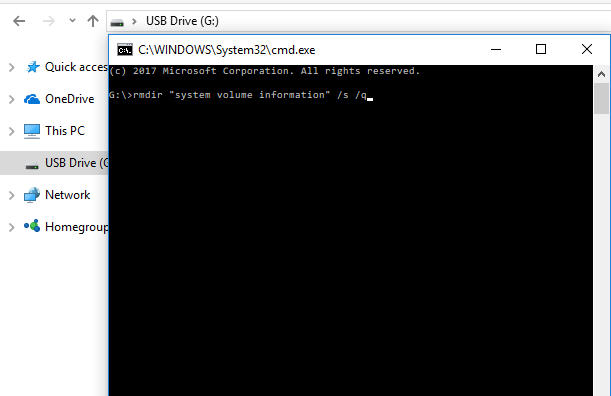
If you have the System Volume Information folder on your device, let us remove it right now. Connect the USB to your computer. Double click the drive letter of the USB and in the Explorer window type CMD. Click Enter.

This will get you to the command prompt to address that specific device.

Delete System Volume Information Folder Off Flash Drives, step 1

Now that we are in the command prompt for that drive (note the drive letter in the command window is the same drive letter as your USB in the computer). Let us use syntax to remove the folder. Since the folder cannot be deleted using your keyboard, the command line is the only way.

Type: rmdir “system volume information” /s /q

Now click Enter. That’s it, you are done, files removed!

Delete System Volume off USB stick, step 2

Moving along, let us set up your computer so the System Volume Information never appears again on your devices.

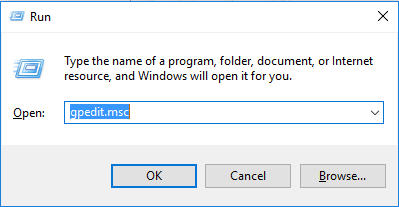
Press the Windows key + R at the same time (this is to Run a Windows service).

In the field type “gpedit.msc” this is for Group Policy Edit for Microsoft. We are going to edit a Group Policy which affects your entire computer, regardless of the user logged in. Click OK.

step 3, remove System Volume folder from USB media

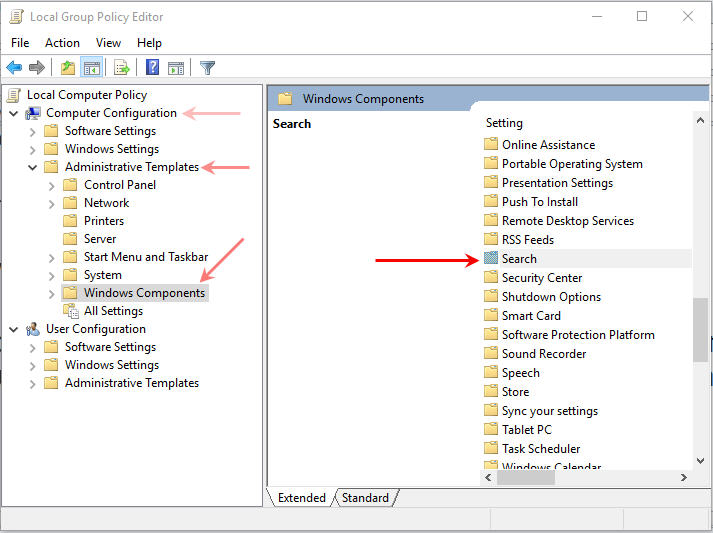
Navigate to: Computer Configuration > Administrative Templates > Windows Components > Search

remove System Volume off flash

On the right side of your screen, under Search, look for:

Do not allow locations on removable drives to be added to libraries. Once you see this sentence, double click the sentence, so you may edit that Group Policy.

Select the radial button “Enabled” and click Apply and then click OK.

Step-one is now complete, you have turned off indexing to removable drives. The next step is to ensure this indexing doesn’t start back up again the next time you boot up the PC.

Press the Windows key + R at the same time (this is to Run a Windows service).

In the field type “services.msc” this is for Windows Start Up services when the PC is turned on. We are going to edit a service policy. Click OK.

Scroll down until you see Windows Search. Double click that selection.

On the first tab, General, you will see “Startup Type:

Here you want to select “Disable

Once that is selected, click Apply and click OK.

Continue Reading No Comments

Harmonization Code for USB Flash Drives

HS Code for USB Flash Drives

When importing or exporting USB flash drives in the United States you will want to use this Harmonization Code to help with customs paperwork.

The Harmonization Code is tariff nomenclature for internationally trade which defines names and numbers assigned to traded products. The HS Code System came into effect in 1988 and has since been developed and maintained by the World Customs Organization (WCO), based in Brussels, Belgium. There are over 200 countries which participate in this program.

The HS Code for a USB flash drive is: 8523.51.0000

In the event your freight forwarder or delivery service tells you that an ECCN is needed to ship USB flash drives and is required to complete the Automated Export System (AES) or other documentation then please give them the above information and it should all work out.

USB Flash Drive, HS Code

ECCN stands for Export Control Classification Number. An ECCN is an alpha-numeric classification used in the Commerce Control List to identify items for export control purposes.

Continue Reading No Comments

Chromebook Gets a USB Guard

Anyone in tech has seen the reports and news about USB sticks with a virus ruining a company network or infecting computers. Google built a small and effective feature: Chromebook Gets a USB Guard.

Chromebook Gets a USB Guard

The USBGuard is a feature that blocks interaction between the mass storage device and the Chrome operating system. The OS will give power to the device, but not let data transmit.

The USBGuard blocks this activity when the Chromebook is in locked mode. When the Chromebook is not in lock mode, the USB will interact as expected as a read/write device.

Continue Reading No Comments

Why is my USB name always CAPS?

Why is my USB name always CAPS?

The reason is fairly simple. You also have the option to make your USB name or USB volume name upper and lower case.

The all CAPS of a USB name is due to your flash drive being formatted as FAT or FAT32. Windows will not allow FAT or FAT32 devices to use lower case letters.

To use lower case letters, or upper and lower case letters, simply format the drive as exFAT or NTFS. Note; we do not recommend formatting a USB as NTFS … so better to stick with exFAT.

Here are some screen shots to help better understand exactly what to do.

# Right click your USB drive letter, select Format, and do as the images below show

USB name all CAPS

##

USB name upper lower case
Continue Reading No Comments

Snap Power USB Charger

You know a product is a great idea when a couple of pictures describe the entire product. With that in mind, we’ve all seen wall outlet USB charges, but the Snap Power, in my opinion, will rule them all. The design is clever. Installation is ultra-easy. Accessibility supersedes all others. Take a second and just look at it: In my mind there are three things which make this a brilliant wall charger. If you don’t mind me walking you through the obvious, here we go. Or skip the highlights and jump right over to their website: The design is brilliant. The User keeps both outlets available for normal use while a sleek looking USB port is added underneath. At the time of this article there is one USB socket, but visiting their website you can see two sockets, one on either side. They are constantly improving. Installation is very easy. Simply unscrew your current face-plate and replace it with Continue Reading No Comments

How To Partition a USB Flash Drive in Windows

Using Windows 10, you can partition a USB flash drive into multiple partitions. The process is not difficult; you simply follow some easy steps. This tutorial will partition the drive so that your device is assigned multiple drive letters when connected to the computer.

This partition process is not done at the USB controller level, or said another way, done at the hardware level. This USB partition process, for lack of better terms, is done at the software level. What does this mean for you? It means the partitions can be wiped off the drive and the full capacity of the USB flash drive can be restored.

When a USB stick is partitioned at the controller level, or at the hardware level, there is no way to reverse the partition. The multi-partition drive is permanent. At the end of this tutorial is the solution for a hardware-based partition solution.

So let’s get started.

How to partition a USB flash drive in Windows 10:

Connect the USB flash drive to your Windows 10 machine. Be sure there is nothing valuable on the USB as this process will remove all content from the drive.

Right Click the Windows icon and select Disk Management.

How To Partition a USB Flash Drive in Windows - Disk Management Access

The Disk Management window will appear with all the connected devices. Select your USB flash drive by clicking one time. By selecting your flash drive, it will allow Windows to apply the partition to that device.

Partition a USB Drive in Windows - Select USB Device

You will see your flash drive as Disk X. The device is represented by diagonal gray lines. Right Click your device in the diagonal gray line area on your screen and select Delete Volume.

Delete Volume to Partition USB in Windows

Windows will display an error message stating all the contents of the device will be removed. Confirm Yes.

USB Flash Drive Partition Setup - Windows Confirmation

You will now have an unallocated partition for the flash drive. This means a file system is not assigned to the drive. Having no file system on your USB means you cannot save data to the drive. We need to create a file system for this partition, i.e., FAT, FAT32, NTFS, or exFAT.

At the same time, we assign a file system to this partition, we will also slice up the USB flash drive to create multiple partitions.

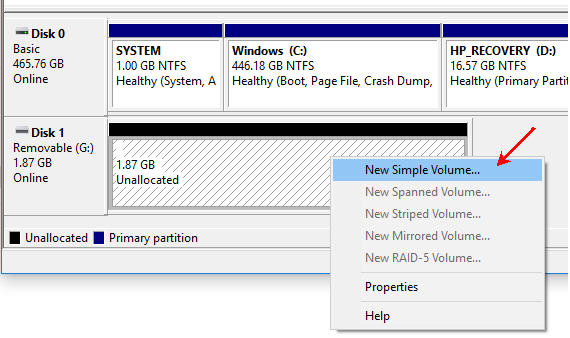
Right Click the unallocated space on your screen, represented by the diagonal gray lines. Select New Simple Volume from the options presented.

Create New Simple Volume - Partition USB Drive in Windows

A Microsoft wizard utility will start. Click Next from the first introductory screen. Windows will display the total amount of memory available to the device. This is where you will enter the size of your first partition. In this example, I am using a 2GB flash drive (1,896MBs) and will make a first partition of 500MBs.

Set Partition Size for USB Flash Drive in Windows

The rest of the wizard utility is auto-populated and straightforward. For example, the wizard will ask if you want a specific drive letter assigned to the partition once the process is done.

The wizard utility will ask you what file system you want for this new partition. If you are not sure, just leave the auto-populated selection from Windows.

TIP: If you want the dual partition USB drive to also work in Mac computers, be sure to format the drive as FAT, FAT32, or exFAT. Do not use NTFS, as Mac computers will only read the content but cannot write to the device. In fact, read this article on why to never format USBs as NTFS.

Be sure to set a volume name to the device so the partition (new drive letter) will be easy to recognize.

Name Partition - USB Flash Drive Setup Windows

Click Finish for Windows to make this first partition. Looking in Disk Management once the wizard has closed, you will now see the device with one partition and a balance of the drive as unallocated.

Partition USB Flash Drive - Disk Management Final View

Rinse and Repeat. Do the same steps as above for this smaller unallocated memory space.

After the second pass using the partition wizard for Windows, you will have a dual partition USB drive with two drive letters. Each USB flash drive letter will work and appear like a normal, single flash drive. You can data load each partition as normal. You can even flash one partition to make it bootable if you are into making bootable USB sticks.

Dual Partition USB Drive Setup in Windows

Although the above tutorial makes things easy to partition a USB flash drive into multiple drive letters, this method is not permanent. Using the same steps, you may clear out all the partitions and its content. For some users or companies, having an unsecured dual partition drive is not ideal for their business practice or application. There is an alternative. There is a method to partition a USB at the hardware level.

In order to partition a USB drive at the hardware level, or controller level, you will need some specific controller chips and the vendor commands to set up the partitions. These tools are not readily available as there are hundreds of chip makers and thousands of USB suppliers. However, Nexcopy has a solution for business-to-business applications for creating dual partitions at the controller level.

In addition, Nexcopy has the ability to make these partitions write-protected, or read-only. If this hardware solution is what you need, please contact them.

Continue Reading No Comments

Copyright

Copyright © 2006 +

USB Powered Gadgets and more...

All Rights Reserved

Advertise with us

GetUSB Advertising

This is a high value website providing great exposure to your product and brand. Visit our advertising page to learn specifics.

For more information
Visit our advertising page.

Nexcopy Ad

Nexcopy Provides

USB copy protection with digital rights management for data loaded on USB flash drives.

Contact us learn more

Resources and References Page

Resources and References Page