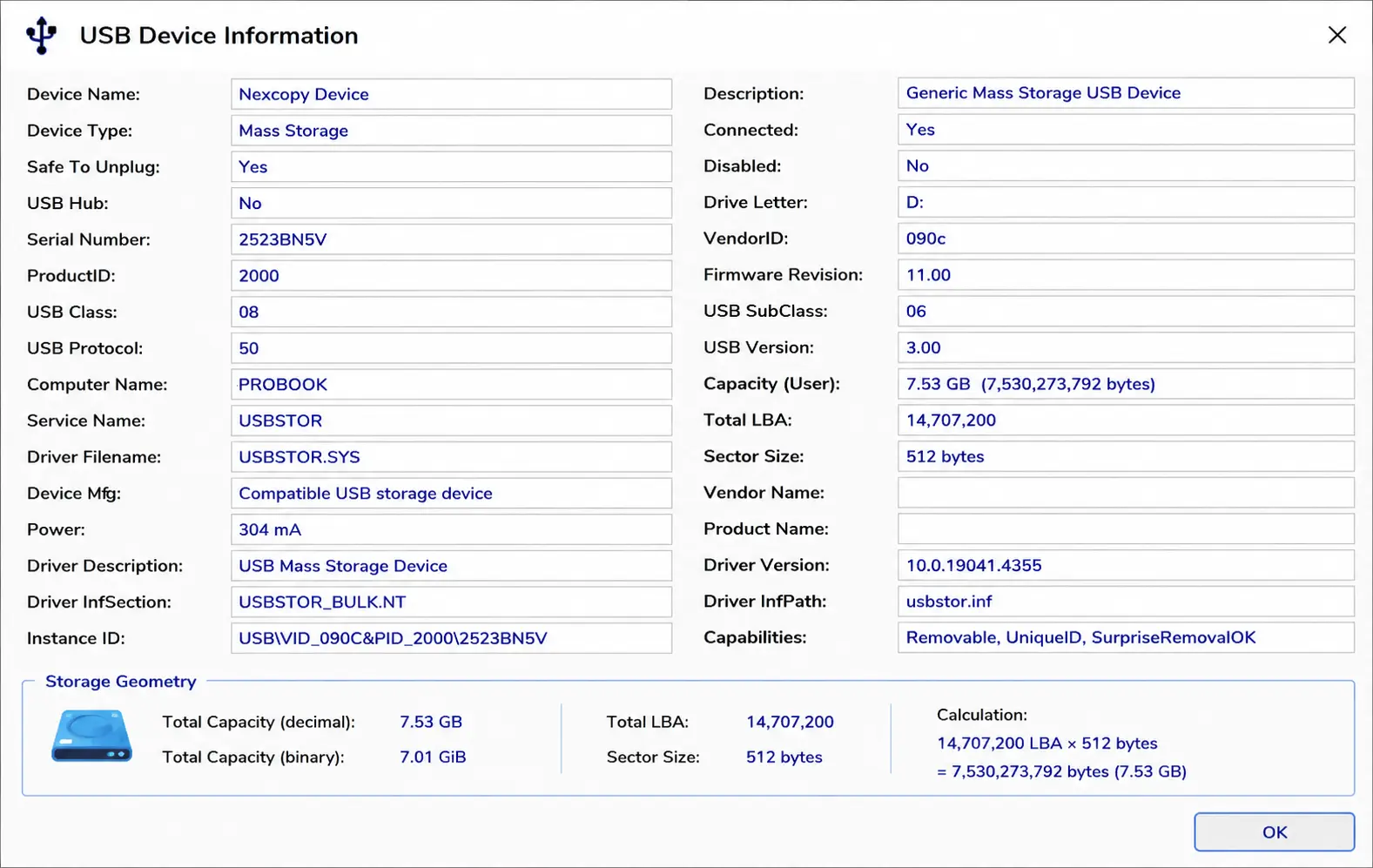
When working with USB flash drives, SD cards, microSD cards, SSDs, and other block storage devices, two numbers are particularly useful: the sector size and the LBA count. Together, these values describe the addressable capacity of a storage device at the block level.
LBA stands for Logical Block Addressing. Rather than describing a storage device using older physical concepts such as cylinders, heads, and sectors, modern storage devices are addressed as a sequential collection of logical blocks. Each block is assigned a number, starting with LBA 0 and continuing through the last available logical block on the device.
In simple terms, the LBA countThe total number of addressable logical blocks (sectors) on a storage device. tells us how many addressable sectors are available, while the sector size tells us how many bytes are contained in each of those sectors.
Why Exact LBA Count Matters
For normal file storage, a small difference in raw device capacity usually goes unnoticed. A user copying documents or photographs onto a flash drive generally does not care whether two nominally identical drives contain slightly different numbers of sectors.
Disk imaging and duplication are different.
A source device may contain a partition or disk structure extending very close to its final available LBA. If the target device contains fewer LBAs than the source, even by a relatively small amount, a sector-for-sector image may not fit.
This can happen even when both devices are marketed with exactly the same capacity. Two devices labeled 32GB, 64GB, or 128GB are not necessarily guaranteed to contain the exact same number of addressable logical sectors.
The issue becomes particularly important with structures located near the end of a disk. GPT-formatted media, for example, maintains a backup GPT header near the end of the device. Changing the available LBA range can therefore affect more than simply the amount of unused space at the end of a disk.
LBA Is More Precise Than the Capacity Printed on the Device
Commercial capacity labels such as 32GB, 64GB, and 128GB are useful for consumers, but they are not precise descriptions of storage geometry.
When exact compatibility matters, three values provide a much clearer picture:
1. Device size in bytes
2. Logical sector size
3. Total LBA count
Knowing these values makes it possible to determine exactly how much addressable storage exists and whether one storage device is truly large enough to contain the complete block structure of another.
The Relationship Between LBA and Sector Size
The basic capacity calculation is:
For a device using 512-byte logical sectors:
The calculation can also be reversed. If the total device capacity in bytes and logical sector size are known, the LBA count can be calculated as:
For example, consider a device with an LBA count of 60,125,184 and a logical sector size of 512 bytes:
LBA Count: 60,125,184
Sector Size: 512 bytes
60,125,184 × 512
= 30,784,094,208 bytes
This relationship becomes especially important when comparing storage devices for disk imaging, duplication, cloning, forensic work, or other applications where the exact number of available sectors matters.
Why 512-Byte Sectors Are So Common
A logical sector size of 512 bytesThe logical block size of 512 bytes commonly used in storage devices for addressing data. has been the traditional standard for storage devices for decades. It remains extremely common for USB flash drives, memory cards, and many other storage devices because of compatibility with operating systems, file systems, boot structures, controllers, and existing software.
For this reason, when examining a typical USB flash drive, a 512-byte logical sector size is generally a reasonable expectation. However, it should not simply be assumed when exact capacity matters. Windows can report the logical sector size directly, and checking the actual value removes any uncertainty.
Some modern storage devices use 4,096-byte physical sectors while continuing to present 512-byte logical sectors to the operating system. This configuration is commonly referred to as 512e, or 512-byte emulation. Other devices can expose 4,096-byte logical sectors directly, commonly called 4Kn.
Why Would a Device Use a Different Sector Size?
Larger sectors can improve storage efficiency because fewer sectors are required to describe the same amount of capacity. A 4,096-byte sector contains eight times as much data as a 512-byte sector. Larger sectors can also reduce some addressing and error-correction overhead and better match the internal architecture of modern high-capacity storage devices.
However, changing the logical sector size has compatibility implications. Operating systems, boot loaders, file systems, duplication equipment, embedded systems, and specialized software may expect 512-byte logical sectors. This is one reason a storage device may internally use 4K physical sectors while still presenting 512-byte logical sectors to the host.
How Sector Size Changes the LBA Count
The same byte capacity can have very different LBA counts depending on the logical sector size.
Consider a hypothetical storage area containing 4,096,000 bytes.
512-byte logical sectors
4,096,000 ÷ 512
= 8,000 LBAs
4,096-byte logical sectors
4,096,000 ÷ 4,096
= 1,000 LBAs
The amount of storage has not changed. Only the size of each addressable logical block has changed. The 4K-sector device therefore requires one-eighth as many LBAs to describe the same byte capacity.
This is why an LBA count by itself does not completely describe storage capacity. The logical sector size must also be known.
Converting LBA to MB and MiB
When converting an LBA count into a more familiar capacity value, it is important to distinguish between decimal megabytes (MB) and binary mebibytes (MiB). Although the terms are often used interchangeably in casual discussion, they represent different numbers of bytes.
1 MB = 1,000,000 bytes
MB = (LBA Count × Logical Sector Size) ÷ 1,000,000
1 MiB = 1,048,576 bytes
MiB = (LBA Count × Logical Sector Size) ÷ 1,048,576
This distinction explains why storage capacities can appear different depending on how a utility or operating system reports the value. Drive manufacturers commonly advertise capacity using decimal units, while many operating-system and technical calculations have traditionally used binary units.
For a device using 512-byte logical sectors, converting an LBA count to MiB is particularly easy:
Because 1,048,576 ÷ 512 = 2,048:
This is a useful shortcut when working with USB flash drives that report 512-byte logical sectors.
The reverse calculation is:
For example, adding 7 MiB of addressable capacity to a 512-byte-sector device requires:
7 × 2,048
= 14,336 additional LBAs
Current LBA: 60,110,848
Additional LBA: 14,336
Target LBA: 60,125,184
This means a device with 60,110,848 LBAs would need an additional 14,336 logical sectors to reach 60,125,184 LBAs. With 512-byte logical sectors, that difference represents exactly 7 MiB of addressable capacity.
If decimal MB is required instead, the calculation uses 1,000,000 bytes per MB rather than 1,048,576 bytes per MiB:
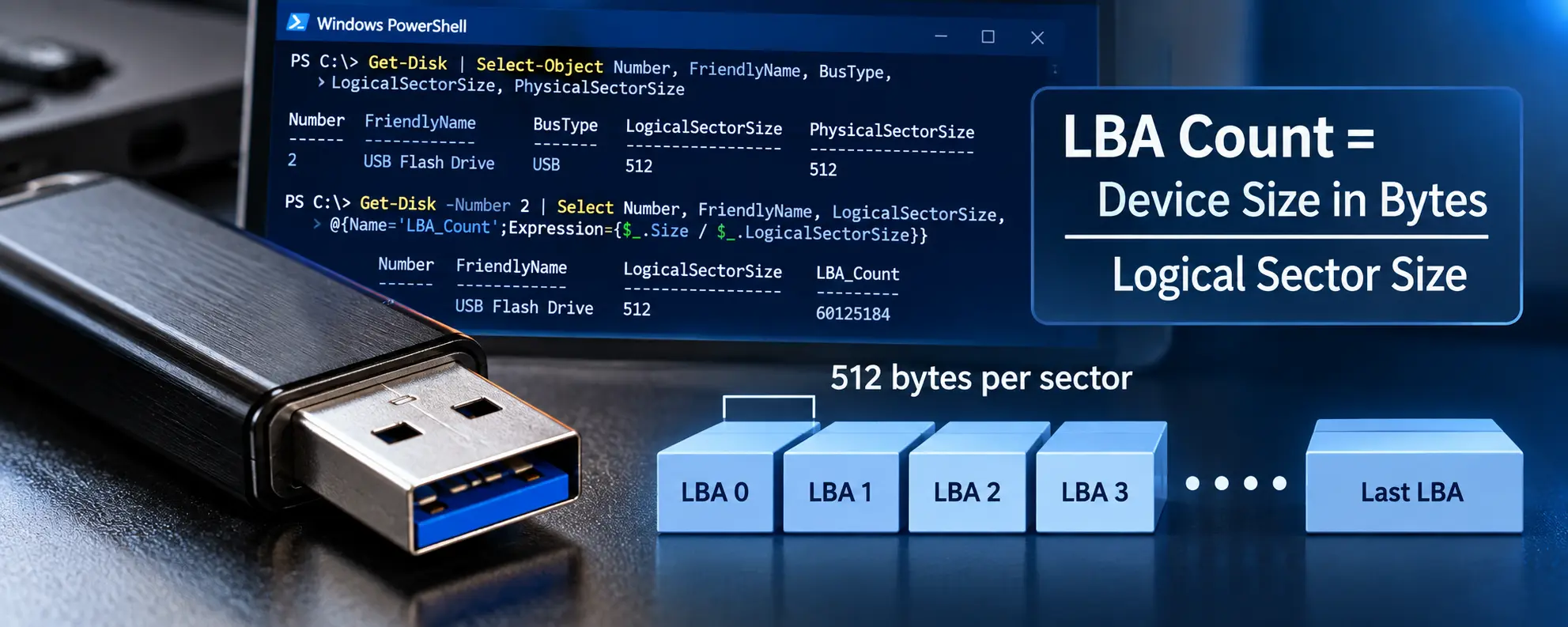
How To: Check Sector Size in Windows PowerShell
Windows PowerShell makes it easy to examine the logical and physical sector sizes reported by attached storage devices.
Open PowerShell and enter: (copy and paste)
Get-Disk | Select-Object Number, FriendlyName, BusType, LogicalSectorSize, PhysicalSectorSizeThis command lists the disks recognized by Windows and displays the disk number, device name, bus type, logical sector size, and physical sector size.
The output might show a USB device similar to this:
Number  FriendlyName       BusType  LogicalSectorSize  PhysicalSectorSize
2       USB Flash Drive    USB      512                512
The important value for calculating the LBA count is LogicalSectorSize. In this example, each logical block presented to Windows contains 512 bytes.
It is important to distinguish the logical sector size from the physical sector sizeThe logical block size of 512 bytes commonly used in storage devices for addressing data.. LBA addresses the logical blocks presented to the operating system. Therefore, when calculating an LBA count, the LogicalSectorSize value is the relevant number.
For example, a 512e drive may report a logical sector size of 512 bytes and a physical sector size of 4,096 bytes. Windows still addresses that device using its 512-byte logical blocks, so the LBA calculation is based on 512 bytes rather than the underlying 4,096-byte physical sectors.
How To: Get the LBA Count with PowerShell
Once the correct disk number has been identified, PowerShell can calculate the total LBA count directly.
For example, if the USB device is Disk 2:(copy and paste)
Get-Disk -Number 2 | Select Number, FriendlyName, LogicalSectorSize, @{Name="LBA_Count";Expression={$_.Size / $_.LogicalSectorSize}}The calculation being performed by PowerShell is simply:
The PowerShell command does not assume that every storage device uses 512-byte logical sectors. Instead, it reads the LogicalSectorSize reported by the selected device and uses that value in the calculation.
This means the same command works with traditional 512-byte logical sector devices, 512e drives, and native 4Kn drives. For a 512-byte or 512e device reporting 512-byte logical sectors, the device size is divided by 512. For a native 4Kn device reporting 4,096-byte logical sectors, the device size is divided by 4,096.
This distinction is important because a 512e drive may physically store data in 4,096-byte sectors while still presenting 512-byte logical sectors to Windows. LBA numbering follows the logical block size exposed to the operating system, not necessarily the physical sector size used internally by the storage device.
The Simple LBA Formulas
For quick reference, these are the core calculations used when working with LBA values:
CALCULATE LBA COUNT
LBA Count = Capacity in Bytes ÷ Logical Sector Size
CALCULATE CAPACITY IN BYTES
Capacity in Bytes = LBA Count × Logical Sector Size
CONVERT LBA TO DECIMAL MB
MB = (LBA Count × Logical Sector Size) ÷ 1,000,000
CONVERT LBA TO MiB
MiB = (LBA Count × Logical Sector Size) ÷ 1,048,576
512-BYTE SECTORS: LBA TO MiB
Capacity in MiB = LBA Count ÷ 2,048
512-BYTE SECTORS: MiB TO LBA
LBA Count = Capacity in MiB × 2,048
COMPARE TWO 512-BYTE SECTOR DEVICES
Capacity Difference in MiB = LBA Difference ÷ 2,048
That last equation is particularly useful when determining exactly how much smaller one USB flash drive is compared with another. The important detail is that dividing the LBA difference by 2,048 produces a result in MiB, not decimal MB, when the devices use 512-byte logical sectors.
Let GetUSB.info keep you updated.
Receive article notifications about USB storage, flash memory, and duplication updates in your preferred language. We average a couple of articles per week.