This how to tutorial describes a simple way to check for bad sectors on a USB flash drive. The instructions below will also fix any bad sectors, if possible, during the scanning process.
A bad sector on a flash drive is a portion of memory on the flash drive which cannot be accessed, written to, or read from and therefore cannot be used. A bad sector on a flash drive sounds easy enough to diagnose, but it’s important to know there are two types of bad sectors: hard and soft.
Physical damage to a USB flash drive will create a hard bad sector. A hard bad sector cannot be repaired or fixed and is typically induced from physical abuse. A good example: leaving a flash drive in your pocket and it went through the wash, or the device was dropped and hit the ground is such a way, physical damage happened to the memory.
A soft bad sector on a flash drive are memory logic problems. A soft bad sector can occur from a software or data error during the write process. In lower quality flash drives, it is possible the incorrect firmware was written into the USB controller ROM and thus creates instability via soft bad sectors.
Bad sectors cannot be repaired; however soft bad sectors can be repaired.
The soft bad sectors can be fixed by using the CHKDSK utility in the Windows operating system. This same utility will also flag any hard bad sectors not to be used again, and of course not repaired.
Some signs of a bad sector on a flash drive include:
Cannot read a file on the flash drive
A file location is no longer available
Unable to format the USB flash drive
A disk read error occurs during operation
In our opinion, run the check disk one time to see if your issue is resolved, but if subsequent scans are required, we recommend discarding the flash drive to avoid further issues.
Running the chkdsk scan is really easy:
Insert flash drive to computer
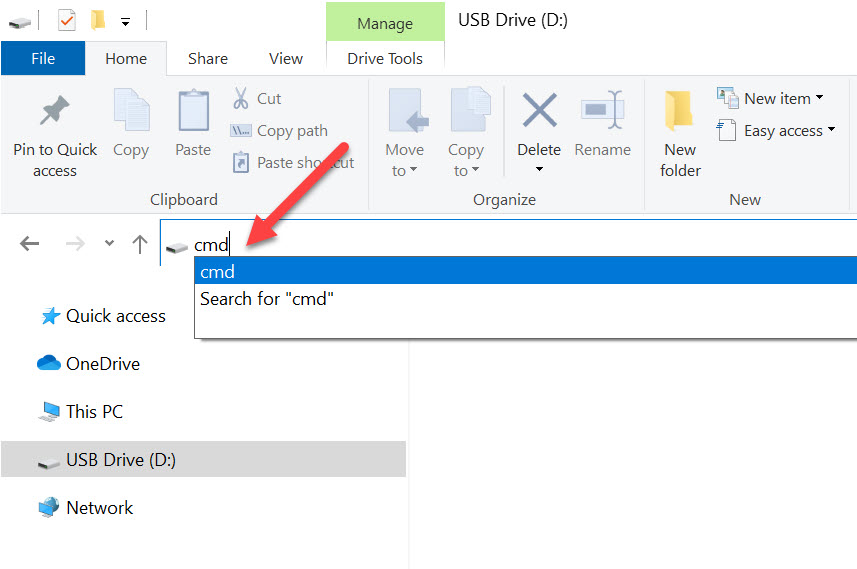
Using Windows Explorer navigate to the drive letter
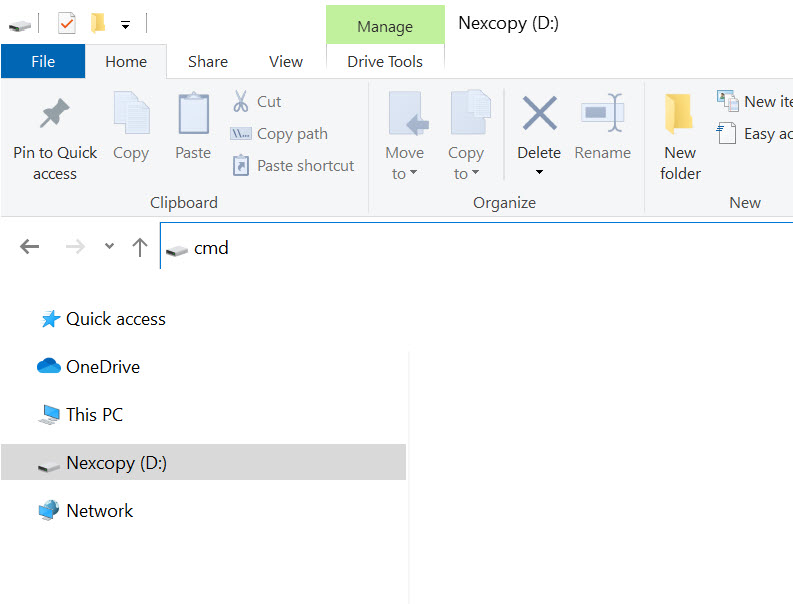
In the Explorer window type cmd and press enter
Once inside the command line utility type chkdsk d: /f /r /x and click Enter. NOTE: *The letter d represents the drive letter of the flash drive.
The /f parameter tells CHKDSK to fix any errors it finds.
The /r parameter tells Windows to repair/restore bad sectors (if possible).
The /x parameter unmounts any “handles” to the drive or said another way, this step will not allow any other resource to access the flash drive during the scan.
Using the command prompt (cmd) you can quickly and easily get the USB volume serial number and the USB device serial number. There is no computer experienced needed to perform these functions, simply type a couple letters and you will get the information!
To get the USB Volume Serial Number do the following:
Insert USB flash drive into the computer
Double click the drive letter associated with the USB flash drive (remember the drive letter as you will need this in a moment)
In File Explorer type: cmd
From the command prompt type: vol d: and click Enter ( where “d” is the drive letter of the USB flash drive)
The command prompt window will return the results and look something like this:
The Volume in drive D is named “Nexcopy”
The Volume serial number is 3AAB-AA16
After we explain how to get the USB device serial number we will explain the difference between the two.
To get the USB Device Serial Number do the following:
If anyone searches for “burn ISO to USB” they will get pages and pages of Rufus links. However, there is a big misconception with Rufus… it doesn’t create USB CD-ROM drives! Review Rufus with us now:
The only thing Rufus does is take a bootable ISO file and write the data to a USB stick. Basically Rufus will extra the data on an ISO file and write it to the flash drive. You can do the same thing with WinRAR.
There is nothing magical about Rufus when it comes to “making a CD” because Rufus doesn’t make a “CD.”
If you need to make a USB CD-ROM flash drive the best solution found so far, is the Disc License drive. The Disc License drive is a blank USB CD-ROM flash drive. Using their Drive Wizard software (free), easily write ISO files to USB. The resultant drive will be a USB CD-ROM flash drive.
Before we get into Disc License technology, we do need to clear up some points about WinRAR and Rufus software. WinRAR will extract all the files contained in an ISO file and write them to your USB flash drive; however, if the ISO is bootable, WinRAR won’t write the boot code. This is where Rufus does shine. The Rufus software will write all the files contained in an ISO file along with the boot code to make your device bootable. With that said, there is a clear advantage for using Rufus over WinRAR.
Does Rufus burn any ISO file to USB? NO.
Does Rufus make your USB flash drive read-only, like a CD? NO.
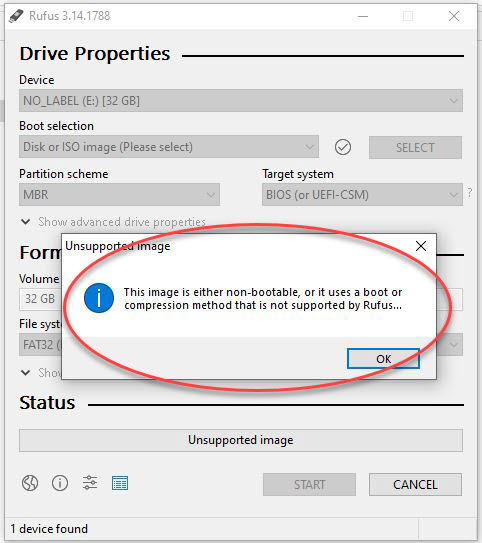
If the ISO file isn’t bootable, there isn’t much [more] Rufus can offer. A non-bootable image will display an error message saying “This image is either non-bootable, or it uses a boot or compression method that is not supported by Rufus.”
This is a brilliant solution which after viewing the video you will say: “this should have come out years ago!”
This is the least expensive, yet most secure way to hold a USB flash drive in a DVD case.
The era of CD and DVD is coming to a close with USB flash drives taking its place. Yet many CD and DVD duplication facilities have shelves and shelves of DVD jewel cases which they need to put to good use. This DVD-to-USB-Insert card is the quick, easy and cheap solution. The insert allows users to keep their DVD case and related jewel case artwork to remain the same, but now secure a USB flash drive inside the DVD case, rather than an optical disc.
So many businesses enjoy the DVD case because the DVD case is a great storage box. The case is a good size with a thick spin to print what the contents in the DVD case are.
Continue this same “library” methodology with the DVD-to-USB-Insert card.
In case you can’t see, or didn’t see, the video posted above the solution will hold two USB flash drives in a DVD case. The DVD-to-USB-Insert is a thick 0.65mm clear plastic which is the same diameter as a DVD. However, the clear plastic has two rectangles which are inverted to hold just about any sized USB flash drive. This solution will fit two USB flash drives into a single DVD case. The two rectangles are the same size and as said, will fit darn nearly all USB sticks with a size that is 3″ long by 3/4″ wide and a depth of 3/8″ ( for you metric folks, that is 76mm long, 21mm wide and 9.5mm deep).
The clear plastic has a hole in the center the same size as a DVD disc and will snap into the “holder” of the DVD case. Using any DVD case on the market you can easily hold a USB flash drive inside a DVD case. The video shows how secure the USB flash drive is when inside the DVD case. The flash drive will not fall out during shipping or transit.
To be clear, the DVD-to-USB-Insert is only the clear plastic that holds the USB flash drive using the nipple snap that holds the DVD. The DVD case itself is not sold with this solution because the assumption is you (the user) already have stock or inventory of the DVD case itself.
This solution to hold a USB flash drive in a DVD case does not infringe on any patents from other manufacturers who use alternate solutions to secure a flash drive inside a DVD type case.
Please contact USB Copier for more details. This is a USB duplication service company.
CD and DVD optical duplicators have been popular for years; however, with the disc drive no longer sold in computers, the only device left for moving files around are USB flash drives – well, most common device at least. With that in mind, let us provide a USB duplicator review and our observations about them.
So what is the speed of burning a DVD compared to copying to a USB flash drive? With a 16X DVD recorder it will take about 6-7 minutes to burn an entire disc, which is 4.7GBs. A common size DVD duplicator is seven drive system which means 7 copies every 7 minutes. However, today’s file sizes are getting larger and a data load can easily be over 5GBs. A dual layer DVD is 8.5GBs and would take about 27 minutes.
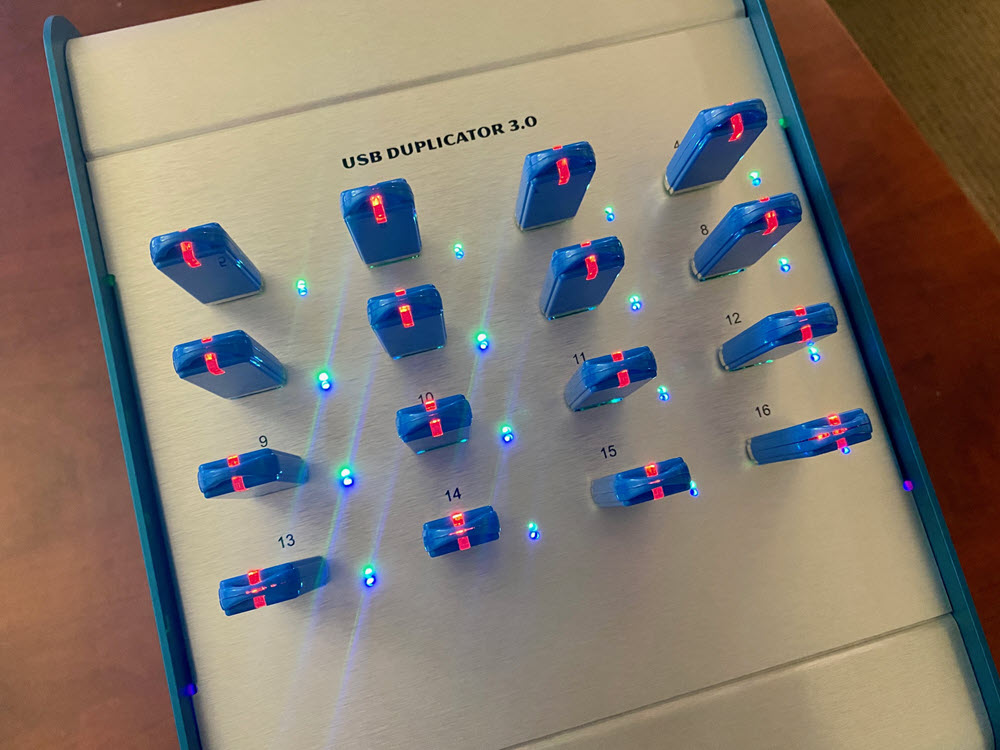
The USB duplicator in this review is a sixtenn target USB 3.0 duplicator manufactured by Nexcopy. This model was selected because it was the most popular in search results, and honestly – looks best for an office setting. This system will make sixteen copies at 1GB under a minute; which translates to 16 copies in less than five minutes. The dual-layer DVD mentioned above would be 9 minutes to make 16 copies. Clearly a USB duplicator is more efficient than a DVD duplicator.
OVERVIEW
Nexcopy’s model in today’s review is the USB160PC. This is a Windows computer based software and hardware solution which runs on Windows 7 or Windows 10. The copy speeds are the same as designated standalone systems. Below is a picture of the PC based system and the standalone system, both about the same port numbering (16).
The USB160PC uses software and provides six copy modes which a company can chose which copy method is best for their needs. Copy modes are:
File Copy
Copy Add
Device Copy – Data Only
Device Copy – Full Media
IMG Copy
Unique Data Streaming
We will cover the copy modes a bit later in the review.
The Drive Manager software by Nexcopy, has a data extraction feature giving the user the ability to extract data off the drive and make a data dump to a location on the host PC.
The PC based USB duplicator is fast and flexible to work with and provides excellent user feedback during the duplication process. The GUI (Graphical User Interface) ties in the obvious information such as USB flash drive total size, bytes used, percentage done during duplication and pass/fail response. Nexcopy uses their own Drive Manager software (trademarked) and provides lifetime software support and updates for free.
The GUI does an excellent job of identifying the USB device shown in the software with the USB socket on the duplicator. This is one problem with any home-grown duplication system, like connecting flash drives to a USB hub – the only way to identify a drive is by disconnecting it until you’ve found the one in question. The USB160PC gives you the tools to quickly identify each USB drive connected.
The bonus information from Drive Manager is the second tab of the GUI. This page shows the device serial number, the VID (Vendor ID) the PID (Product ID) and device descriptor information. The tech folks will appreciate this feature.
HARDWARE
For this USB duplicator review we weighed the duplicator box and it came in just under 5 pounds – so portable! Two LED for feedback along with the GUI software. Blue LED shows power to the socket and green LED displays activity of the device (will blink when reading or writing data). The GUI will provide performance feedback and status about the copy job and process. The power supply is auto-detecting and will automatically work in a 110v or 230v environment, no need to make a manual power setting switch with the physical box. The USB duplicator has a 5v fan on the back side to provide air flow for cooling; although we didn’t experience any heat during testing and operation.
The power supply inside is a 150watt MeanWell brand power block, which is a brand used by medical companies so power will never be an issue. This also means the 150watt power supply can support 16 USB hard drives.
There are two popular methods to get large videos off your iPhone.
The most common problem is having a large video on your iPhone which you need on your computer. Email programs usually limit a file size at 20MBs, so if the file is larger, what can you do?
There are two popular options which come to mind: Use QuickTime or Use a USB flash drive.
Option #1
Use QuickTime. Macs already have QuickTime built into the OS, but Windows users must install it. Before deciding this as your best route to get large videos off your iPhone here is a list of things to consider:
You must backup your iPhone on QuickTime before you access the video
You need your computer (an authoized computer) to perform the backup
Windows user smust download and install QT
QuickTime is an invasive program which most Windows users will not like
Not a “portable” way to get the videos off your iPhone
However, this is a free solution!
Option #2
Use a flash drive.
Yes, you need to buy a specific flash drive, but after this investment it’s infinitely easier to get videos off your iPhone. Some advantages worth considering:
Get large videos off your phone without a PC
Share the videos immediately to another user’s PC
External storage device for backups of those videos
Point number one is really the value in all this {wink}.
Yes, you need to make a purchase of a product so you won’t be able to make the transfer ‘right now’ but will be able to once you have the USB device.
Specific USB drives have software which work with the iOS allowing the download of files from the phone to the drive. The one tested is the SanDisk iXpand flash drive at 128GB capacity and will cost about $40ish dollars.
Did you know Windows 10 has a speed test feature you can easily run from the CMD prompt?
This feature is what many USB flash drive speed test applications call upon during their operation. Some people feel uncomfortable downloading software from an unknown source, so this article will explain how to use Windows features everyone already has for checking the speed of a USB flash drive, or any storage device.
TIP:The company which owns this website (Nexcopy Inc.) took the below information and wrapped it into a GUI (Graphical User Interface). The free GUI is easier to use because you can click a button rather than type in commands in the CMD prompt window. We baked in a couple extra USB benchmark speed features {wink}. Our free GUI version is here.
Every flash drive manufacturer claims a particular read and write speed of their flash drive and this is a great tool to verify what you purchased is what you received. It’s been said manufacturers will manipulate their computer environment to optimize the performance and use those optimized results as their marketing material. This could be true when a manufacturer is trying to determine the maximum performance, so let’s take a look now at benchmarking a standard environment.
The read and write speed of a flash drive will depend on the USB port one is using during the test. You will see a performance difference between a USB 2.0 and USB 3.0 device that is connected to a USB 2.0 or USB 3.0 socket on your computer. So take note about what you are doing!
After you’ve connected the USB drive to your USB port, take note of which technology they are, and be sure no data is on your drive. Although this Windows utility did not remove our data during testing, one can never be too sure.
In Windows type CMD into the search field.
Please be sure to use the Ctrl + Shift keys when you click the Enter key. This will run the command prompt at the Administrator level. You want to run this at the Admin level because if you don’t, a separate window will pop up during the testing process and immediately disappear with the process is done… taking the speed test results with it!
Once you’ve opened the command prompt at the Admin level, type the following:
winsat disk -drive d (where d is drive letter)
Windows will perform it’s task and should take about one minute to complete. The results will be printed out in the console window once everything is complete. Take note from our example below. This is a 64GB drive which we connected to both a USB 2.0 socket and a USB 3.0 socket. You can see the performance difference.
The information you want are:
> Disk Sequential 64.0 Read
> Disk Sequential 64.0 Write
Nice feature, right? Free and immediately available.
For those who don’t want to go this far, you could always take a large file, say 100MBs or larger and drag-and-drop this to your USB flash drive for speed testing. Just look at the copy process window and you’ll get a fairly good idea of device speed.
It’s important to remember flash drive media does not copy at sustained transfer speeds. The speed process does move around during the copy process; however, the read process is more stable and should happen at a more sustained transfer speed. We’ve seen drives drop down to 1MB/second for a short bit, before jumping back up to 30+MB/second write speed.
It seems the Microsoft updates are endless for Windows 10. Most users don’t bother with reading the notes about what has changed or been updated, myself included.
Today we noticed the eject feature in the Windows toolbar for quickly unmounting USB flash drives.
This isn’t breaking news. Simply a post about a feature you might not have noticed.
How to quickly eject a USB flash drive in Windows:
Click the access arrow in your tool bar
Hover over the USB icon and click
Your list of connected devices will show up. Hover over the USB flash drive device you want to Eject and click it.
Windows: Sound of connected a USB flash drive to Windows…
User: Ah yes… let’s get to work!
Windows: The Windows sound of a disconnected USB device…
User: Oh no, what’s happening?
A quick Google search and here we are… let’s take a look:
Here are five legitimate reasons your USB drive might be disconnecting from your Windows computer.
1. Running on Battery
Windows OS is set at default to power down USB ports when running from a battery. The power down process usually doesn’t happen until 10-15 into a stalled USB port, but maybe your setting is different. So worth checking… but first… plug in your laptop and see if the problem is resolved.
To check your USB power setting do this:
Search for Control Panel and click Enter
In the Control Panel click the Hardware and Sound link
From here (might be slightly different for everyone) click the Change battery settings and further click Change plan settings and then you’ll see an Change advanced power settings option. Click the Change advanced power settings you can scroll around to find the USB devices and adjust your power there.
2. Faulty USB Port
The number one reason for why a USB device doesn’t work is the physical USB port on the host computer. A laptop generally has only 3 or 4 ports and those ports get a lot of action. With a tower PC, the front USB ports on the bezel also get most the action. Question: When you insert the USB device can you wiggle it around? Was there very little tension or pressure when connecting the USB device? If the device wiggles, or extremely easy to insert… you might have a physically bad USB socket.
This article will help you view Linux files on a flash drive when connected to a Windows 10 computer.
This is a more common problem than one would think. As of 2020 the percentage of computers running Linux is 25%. With this in mind, there is a good chance you will receive a USB flash drive (formatted in Linux) which you’ll need to gain access to. This article is a “how to” for a Windows user to read a USB flash drive from Linxu.
Linux will format USB flash drives as ext2, ext3 or ext4. Note: It is possible for a Linux OS to read/write to a FAT32 or exFAT flash drive.
How to Copy Protect PDF Files Outside Adobe Ecosystem
This article will overview how to copy protect PDF files outside of the Adobe ecosystem. A couple of things worth mentioning before getting into the details:
Encryption is different than copy protection. Encryption is a technology solution where the PDF owner assigns a password to the document and after the user enters that password the user can do anything they want with the file. Print, share, screen capture, etc. The idea for encryption is the document being unattainable until a password is entered.
Copy protection does not use a password and anyone can see the file. However, the file cannot be copied, printed, shared or screen captured. The idea behind copy protection is the PDF being viewed by anyone, but nothing can be done with the file. When people are searching for PDF copy protection, this is the solution most likely sought after.
Challenges with PDF Security and Copy Protection
PDF or Portable Document Format is an open standard. What this means is the document format was designed to be used in just about any document reader program. The goal for the PDF specification was to make the format as universal as possible. For this reason, it is a bit more difficult than one would think to copy protect a PDF file.
Windows comes pre-installed with Adobe Reader. In addition, Windows has embedded Adobe API code to read PDF files. Even if Adobe Reader was not installed on your computer, or uninstalled, the underlying code is still there to open a PDF. In additional to Adobe Reader (#1 PDF reader in the market) there are dozens of additional PDF reader programs. Again, the goal for all these readers is to open and read a portable document file.
Adobe copy protection solutions are very well known for being cracked. If you Google “Adobe copy protection crack” you will find pages of ways the Adobe security features are compromised. Here and here are two examples of Google search results with web pages dedicated to hacking.
The fundamental problem with copy protection are the lack of controls when viewing a PDF. Meaning a PDF content owner (you) does not have the control over Adobe Reader, or other programs, to stop the user (your client/customer/student) from printing, screen grabbing, sharing and saving.
The idea behind a PDF copy protection solution is a framework where the PDF can be opened and viewed, while you (the content owner) maintains control of the document.
Of course Adobe Reader, FoxIt Reader and others, will not provide the tools to block a user from printing or saving from within their program. In contrast, we need a “reader” or “viewer” with controls to block those functions.
With this in mind, it is difficult to provide a reader with these security functions. Most users who receive a PDF do not want to download and install another program just to read a PDF file. The ease and beauty of a PDF gets lost in that process. No longer is the PDF a portable document format. In addition, a software program that can be downloaded to view a PDF can also be downloaded by a hacker to be reverse engineered. There needs to be something more than just a secure reader/viewer to control the PDF.
The most secure way to copy protect a PDF file is to associate it with something physical. There are some software (only) solutions, but those are not as secure as a solution with something physical.