GetUSB.info Logo

Solved: (Video) Windows Cannot Delete the System Volume on This Disk

Sometimes Windows cannot delete the system volume on the disk because the partition table is corrupt. The solution is very easy and all the tools required to solve this problem are pre-installed and ready to use on any Windows 10 (+) computer.

Windows Cannot Delete the System Volume on This Disk

In short, the Disk Management utility cannot delete the volume because there is corrupt data in the partition table of the device. This issue we are talking about is most likely associated with a USB flash drive and sometimes USB hard drives.

One of the reasons a user will get a corrupt partition table is from formatting the USB device over and over again. Sometimes computers just don’t do what they are supposed to do! Surprise!

A common reason a user would like to delete the volume of a flash drive is to start “clean” with a fresh device. The reason to start “clean” is because some other function or task is not working as expected. For example, a user trying to create an digital image file (.img) from a physical USB flash drive continues to create corrupt image files. Well, when you start with a corrupt partition table, you’ll end up with a corrupt image file.

Another reason could be a user is trying to make a two partition flash drive using Disk Management. However, you cannot make a two partition flash drive if you cannot delete the volume in the first place!

We did a great write up about “How to partition a USB flash drive in Windows” a while back. A good read if you have the time.

The below steps will show you exactly how to fix this problem. There is a video at the bottom of this post showing the steps.

  • Connect your flash drive
  • In the search field in Windows (bottom left white box that says “Type here to search”) type “Disk Management” and click ENTER on the keyboard. Disk Management should pop up.
  • In the search field in Windows type “diskpart” and click ENTER on the keyboard. DiskPart will either pop open, or a dialogue box will ask if you want to open it, click YES
  • In DiskPart type “list disk
  • From the list provided determine which disk number represents your USB flash drive or hard drive
  • In the screen shot below, our disk is #1
  • Type “select disk x*In this example we typed “select disk 1”
  • Type “clean
  • When that is complete, toggle over to the Disk Management utility
  • Right click the box which represents the USB flash drive and select “New Simple Volume
  • Follow the prompts in the wizard to complete the process

After completing the above steps the flash drive is now ready for use. In addition, if it is required to go back and delete the volume, say to make a two partition flash drive, you can now do this without the error message “This Request Is Not Supported”

Here is a video for the above process:

Continue Reading No Comments

Make USB Flash Drive Bootable in Anything

USB flash drive, bootable, in anything

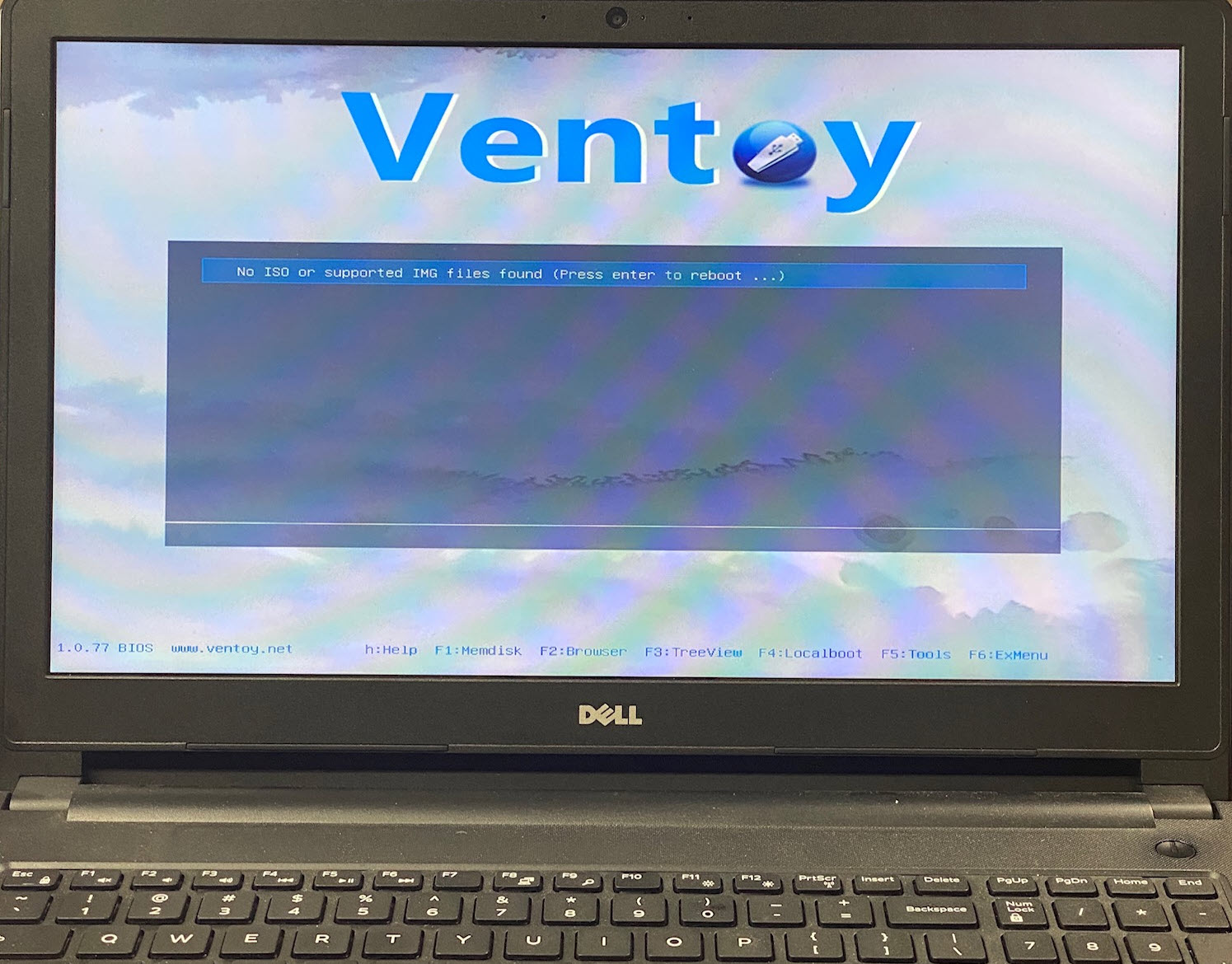
Doing some research for why some HP computers do not boot from a USB flash drive, I came across Ventoy.

Ventoy is a software tool to create a USB flash drive bootable in anything and supports the most common image files.

We tried Ventoy to make a USB flash drive bootable, and it works like a champ. In fact, the software is so easy to use, it is worth commenting about a previous post we did. A while back we talked about how to check if your USB flash drive is bootable, and to be honest, rather than putting in the time and work to read the article and do the steps, your time is better used flashing your drive with Ventoy. The result is a bootable USB flash drive for any device.

Ventoy is an open source tool for creating bootable flash drives when using image files like ISO, IMG, WIM, VHD and EFI files. The project team tested over 900 image files which tested successfully on over 90% of the distro packages.

What we like about this solution is no need to flash the drive with boot code using the source CD-ROM like so many tutorials out there (for Windows at least) because the Ventoy tool creates a second partition which all the boot code and the Ventoy utility flashes that partition with the boot code needed. You can see from the Disk Management screen shot below there are now two partitions on the tested flash drive.

usb flash drive, bootable, disk management, ventoy

You can tell there have been plenty of Ventoy updates and what is (also) very nice about their software tool is the display of Ventoy version on your device. Nice feature to cross reference if your device is current or needs an update. The update process is just as quick as the original creation of the bootable device.

usb bootable in anything, ventoy software screen

Considering the above, it goes without saying it is easier than ever to make a USB flash drive bootable in anything without having to re-do the work. This software eliminates the need to re-create a bootable image to USB and flash it over and over. Simply update the image file content, not the boot strap code.

The only thing even slightly annoying, which is easy enough to correct is the Volume name for the primary partition defaults to “Ventoy” Would be nice if an edit feature was in the software to customize this without the additional step of renaming the volume after-the-fact.

USB volume name, ventoy, for bootable flash drive

Here are a list of feature copied from the website. The project is open source and we suggest making a donation if you do in-fact use the code. It’s only fair, right!

Continue Reading No Comments

How To: Hide Files on a USB Flash Drive

How To: Hide Files on a USB Flash Drive

close up picture of flash drive

This article, “How To: Hide Files on a USB Flash Drive,” explains two free methods to conceal files on a USB drive using built-in Windows features. One method is quick and basic; the other is more advanced and harder to detect.

Overview of the Two Methods

Method 1: Standard Hidden Attribute

This method is the easiest. Anyone can right-click a file or folder, go to Properties, and select the Hidden checkbox. This will hide the file unless a user has Windows configured to show hidden files.

Pros: Easy and fast
Cons: Easily bypassed

Method 2: System Hidden Attribute

This method hides a file using both the system and hidden attributes. Windows will not show these files—even if “Show hidden files and folders” is enabled—unless the user also disables “Hide protected operating system files.”

Pros: Harder to detect
Cons: Slightly more technical

How to Hide a File Using the Hidden Attribute

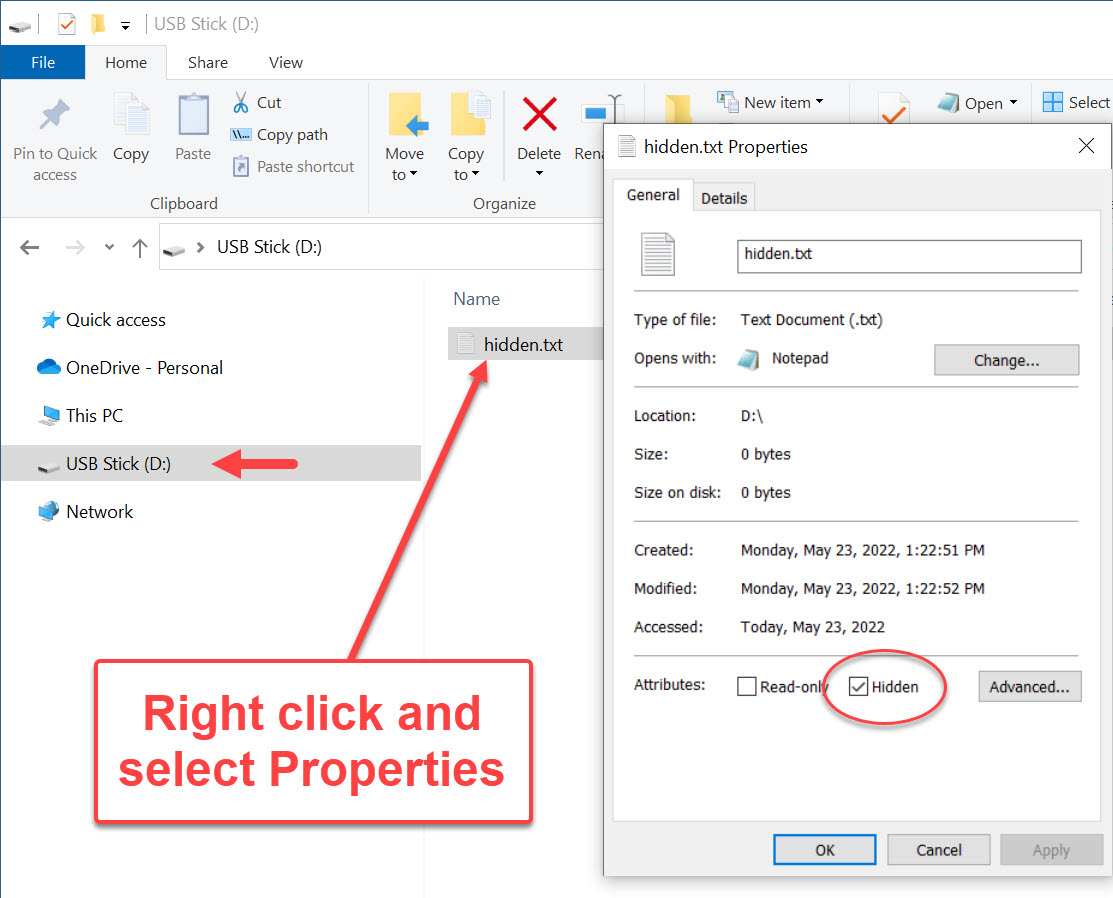
Right-click the file or folder ? Properties ? check the Hidden box ? click OK.

properties of hidden file on USB flash drive

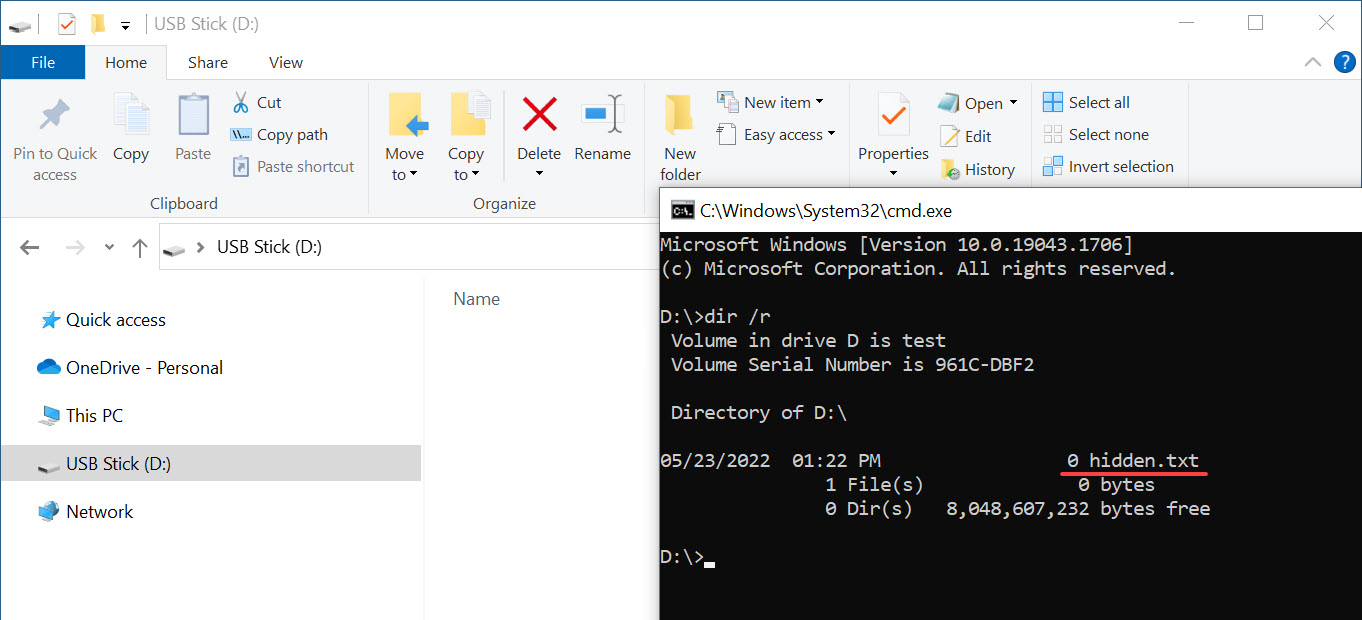
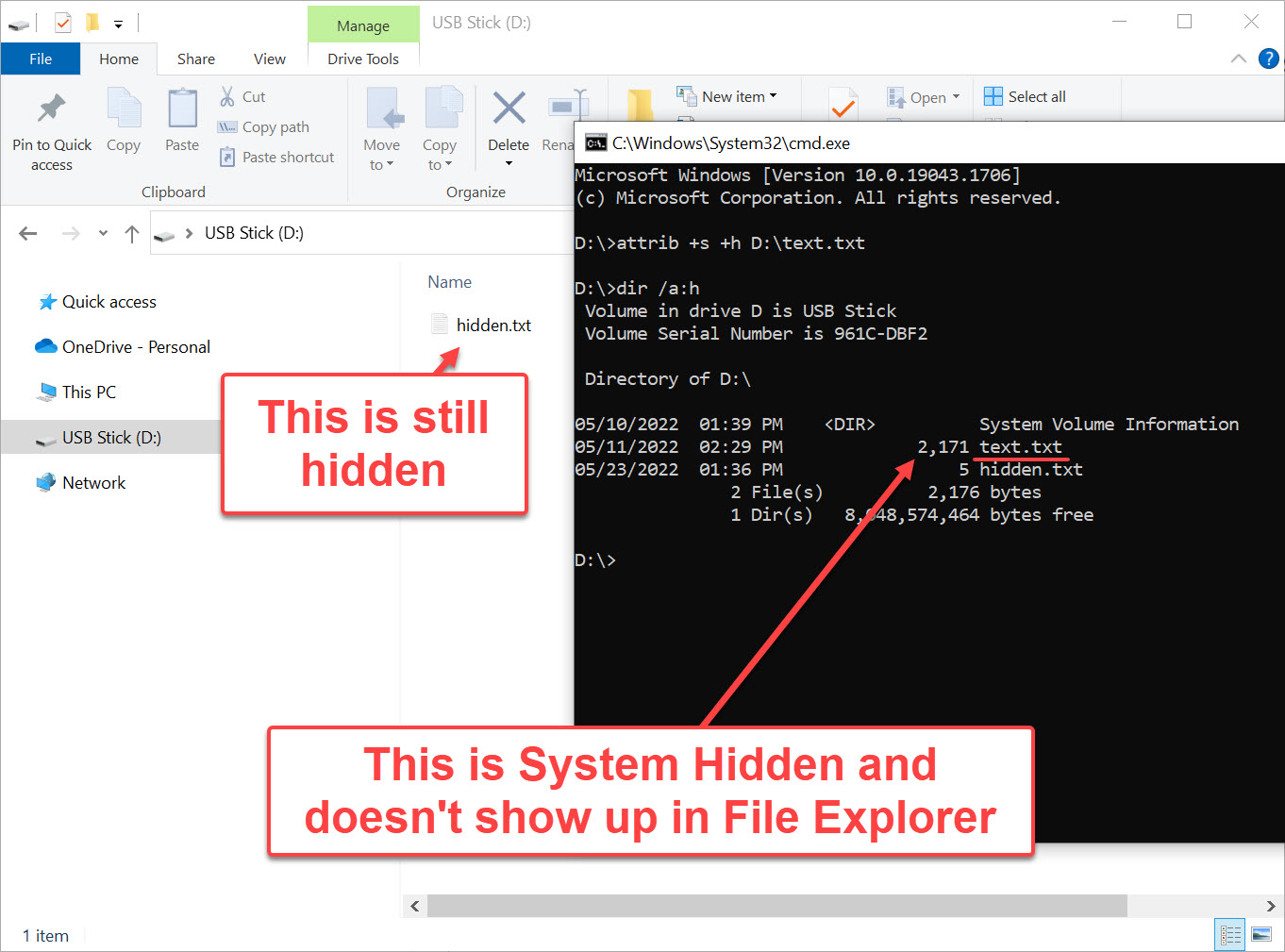
If Windows is set to not show hidden files, it disappears from File Explorer. However, it still shows in the Command Prompt:

command line of hidden file on USB flash drive

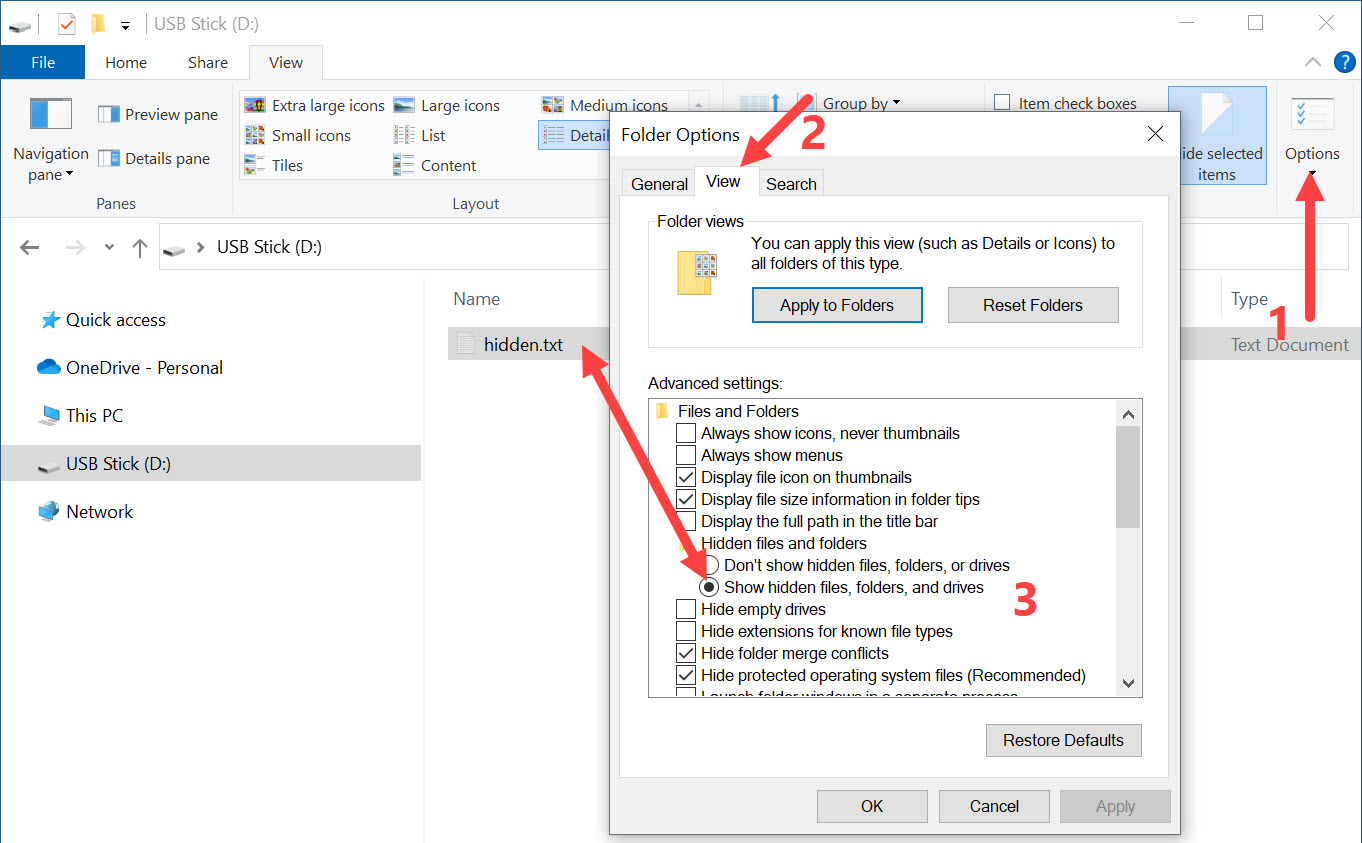
If the user has “View hidden files and folders” enabled, the file is visible again:

show hidden files on USB flash drive

How to Use the System Hidden Attribute

Let’s take it a step further and apply the system attribute in addition to the hidden flag.

Step 1: Prepare the File

Place the file (e.g., text.txt) onto the USB flash drive.

Step 2: Open Command Prompt on the USB Drive

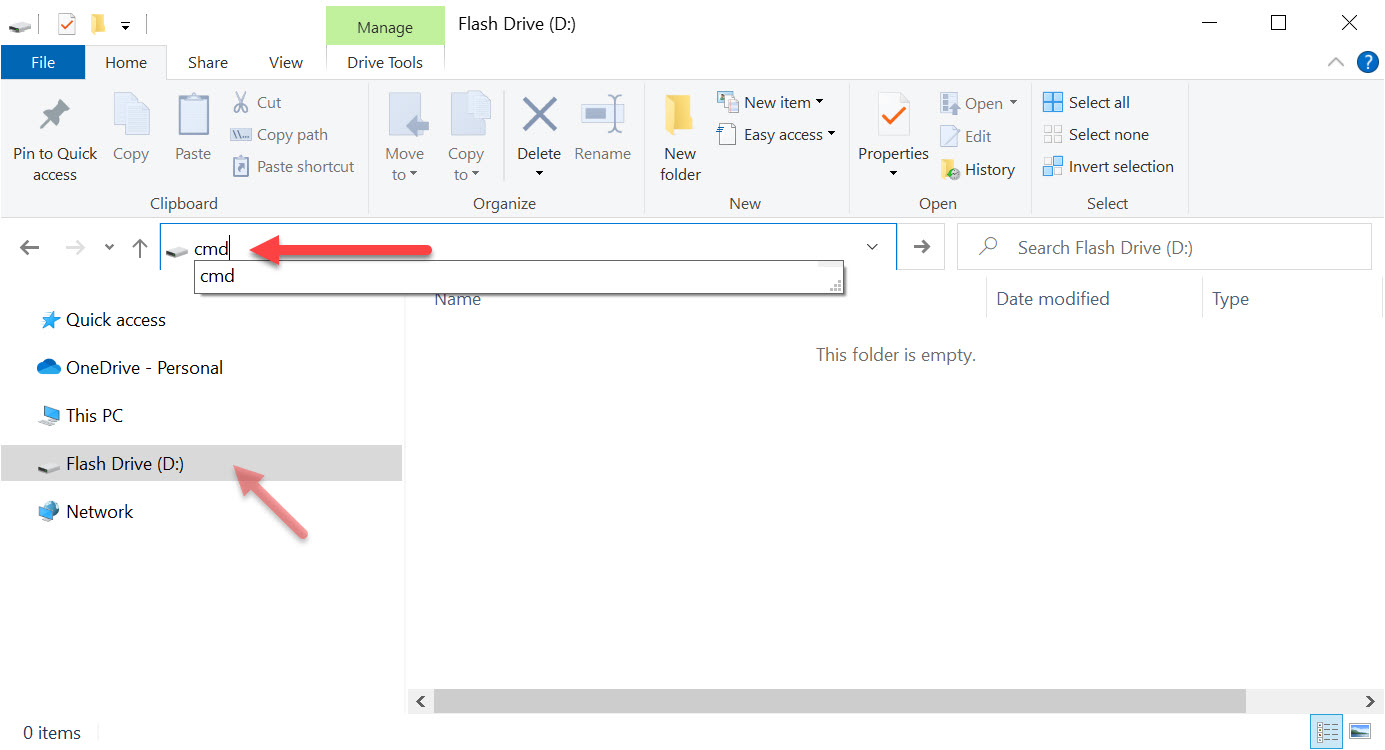
Click in the File Explorer address bar, type cmd, and hit Enter.

use command line to hide files on flash drive

Step 3: Apply the System Hidden Flags

At the prompt, type:

attrib +s +h D:\text.txt

Replace D:\ with your actual USB drive letter.

system hidden file property to hide file on a USB stick

Type exit to close the prompt. Then unplug and reconnect the USB drive. The file will now be invisible—even with hidden files shown—unless the system file setting is also disabled.

Confirming the Hidden File

Open Command Prompt and type:

dir /a:h

You’ll see hidden files listed—even the system hidden ones—but they won’t appear in File Explorer.

view system hidden file on USB drive

How to Open or Restore the Hidden File

Option 1: Show Protected Files (Not Recommended)

Enable “Hide protected operating system files” in Windows Explorer. This reveals system-hidden files but also exposes critical OS files to potential deletion.

Option 2: Remove Attributes

In Command Prompt, type:

attrib -s -h D:\text.txt

Option 3: Open Without Changing Attributes

To open the file without unhiding it, use:

notepad D:\text.txt

open hidden file on USB flash drive from command line

Need Stronger File Protection?

If you require stronger security, consider a Secure Disk solution. These USB flash drives hide entire partitions until a password is entered. They’re hardware-based, making them immune to software workarounds or hacks.

For more info, check out Nexcopy’s Secure Flash Drives.

Continue Reading No Comments

How To: Create a Website Shortcut on a USB Drive

This article will show you how to create a website shortcut that works from a flash drive. The article includes the instructions, a video on the instructions and a template file one can download and tweak for their own use.

The reason for this topic of creating a website shortcut on a flash drive is because dragging and dropping your desktop shortcut to a flash drive doesn’t work.

The shortcut on a desktop is a relative path of the computer to the website. Which means the shortcut doesn’t transfer well to a flash drive for others to use. Rather than a working shortcut, the shortcut either errors off or takes you to a generic page within the browser.

Creating a shortcut that works on a USB flash drive is very easy. Like, crazy easy.

  • Open Notepad (type notepad in search and click Enter)
  • Type: [InternetShortcut]
  • Type website landing page: URL=https://www.getusb.info
  • Now Save As the file to your USB flash drive with .URL extension.

You have now successfully made a website shortcut on your USB flash drive.

This link can be used on any flash drive or hard drive or desktop location. The shortcut is truly a universal file that will work from any location.

Here is the text file which you can use as a template if the above instructions are too complicated or you simply don’t want to perform the steps.

Here is the video: How To: Create a Website Shortcut on a USB Drive

Continue Reading No Comments

USB Flash Drive Label – For Professionals and Businesses

Sticky labels are not a professional solution to label flash drives. Today we look at an alternative for labeling a flash drive which suits the demands of a business and/or professional.

There is a clear difference between labeling your flash drive because of personal use and the need to label a flash drive which is sold, shipped or mailed to a paying customer.

A common method to label a flash drive is with a sticky label applied to the outside of the flash drive, or a paper merchandise tag with some notes about the contents hanging from the lanyard loop. Albeit a good method for a personal flash drive, not the most professional or durable flash drive label tag when sold as a commercial product.

It is a common requirement from a company to include more information about the contents of a flash drive than what the space of a sticky label or tag will allow. In addition, the durability of said label should withstand environmental conditions which surpass the limits of a merchandise tag. Examples include:

  • Detailed instructions for how the flash drive should be used
  • Software or firmware version information (longer than sticky label space)
  • Medical compliance information about the contents
  • Audit tracking of ownership / possession (longer than sticky label space)

From the examples above, the question becomes:

What flash drive label can be used which is professional looking while having the durability and space needed to print the information required?

The best flash drive label we have found is the plastic credit card sized label offered by Nexcopy.

The CC USB Label is a white PVC plastic product which is 85mm wide by 54mm tall and 0.75mm thick with a total weight of 4 grams. The CC USB Label is printable on both sides and includes a lanyard for connecting to a USB flash drive.

The CC USB Label accepts full color print and with a white background, each color is vibrant and great contrast for users to easily read the printed information. Using an eco-solvent printer, the ink is permanent and water proof. The information printed will last in various weather conditions and environmental conditions.

Nexcopy offers their eco-solvent LOGO-EZ printer for in-house production. Nexcopy also offers print services for those not wanting to invest in a flatbed eco-solvent printer.

The credit card size and the light weight of the card make it a perfect complement as a flash drive label. With double sided print capability, a company has a great deal of space to print the information required for their product.

From the image below, one can see the flash drive label is ideal for printed bar codes for scanning during product fulfillment, shipping and receiving. Printing a more precise image like a QR code could improve user experience, such as streamlining a product registration process or direct landing page for a how-to video for product instruction.

USB flash drive label

The plastic PVC material is ideal for printing color logos and highlighting specific information. Having the flexibility for color print lends itself to emphasizing certain bits of information the manufacturer wants the end-user to notice.

In addition, the CC USB Label allows custom branding to match the requirements from the marketing department to ensure branding compliance is matched – getting stuck with black only printed sticky labels or merchandise tags decrease the overall perceived value of the product and could fall out of compliance of a company’s marketing guidelines.

Although some of this information sounds overkill for a flash drive label, keep in mind this solution is designed for a business or professional who might be required to provide very detailed labels for the product in which the flash drive is associated with.

Continue Reading No Comments

How To: Copy Protect Digital Photo on USB Flash Drive

I want to copy protect a digital photo on a USB flash drive. The answer wasn’t as obvious as I had hoped, but I did find it.

Below is the process I used to get what I needed.

The first thing I want to emphasize is that I want to protect a digital copy of a photo rather than a physical copy of a photo.

So, how to prevent a digital photo from being copied from a USB flash drive is a difficult question to answer. My first thought is about the medium I intend to use to send a digital photo to someone.

  • Do I offer a download link?
  • Do I send them a digital copy on a storage device like a portable hard drive or USB flash drive?
  • Do I provide them a weblink to view the file from a hosted server?

The more I considered a delivery method, the more questions I had.

My first thought was to host the photo on a private webpage. Only users with access to the page could view the photo.

This isn’t going to work. I realized that once the viewer is on the page and viewing the photo, they can save it or screen capture it. After that, they could share the digital photo with whoever they wanted. There isn’t much protection here.

My next thought was to put the digital photo in a password-protected zip file. That is a good idea. The photo can only be viewed by someone who knows the password.

Oh wait, that doesn’t work either. I end up with the same problem as the hosted webpage. Once the file is accessed, the user can do anything they want.

So it occurs to me… I keep returning to an encryption solution rather than a copy protection solution. Encryption is useful because only those with the correct password can access the photo; however, it is not the same as my ultimate goal, which is to copy protect a digital photo and prevent it from being copied.

I guess you can say encryption is a way of keeping the honest people… well, honest.

I need a way to protect my photo regardless of the recipient’s intent. I realized I needed a solution in which everyone can see the photo but no one can do anything with it. Is it even possible to find such a solution?

When I was talking with a neighbor who is an IT guy, he mentioned a concept that I’d heard of before but didn’t apply to my thinking. Rather than a digital method of sending the photo, he proposed a type of physical dongle that held the photo. He explained that without the physical device, viewing the photo is impossible.

The lightbulb went on!

Continue Reading No Comments

Fix: Computer Will Not Boot With USB Device Plugged In

There is nothing worse than a blank screen after pushing the power button on your computer. The heart stops, the shoulders sink and this feeling of utter despair and anxiety quickly overtake the body.

Why? Why is this happening right now! I have emails to check, orders to process, papers to submit.

It is inevitable a computer problem starts whenever you most need the computer.

A quick examination of the computer shows a flash drive sticking out of a USB port. Could this be the problem? Let me pull the USB out and restart my computer.

A few moments later you discover removing the flash drive did the trick, the computer boots up and starts, as expected. So what happened? Why will my computer not boot with a USB device plugged in?

In this scenario the explanation is very simple. When the USB is connected the operating system thinks it should boot from the flash drive, not the computer hard drive.

At one time in this USB’s life, the drive was made to be bootable and book-strap code was flashed to the device. Because the computer BIOS sees the drive and the boot code, the BIOS will instruct the computer hardware to reference the USB stick for the operating system.

This doesn’t mean any flash drive connected will force your computer to boot from a USB stick, only if the USB stick was made bootable at some point. Most flash drives are not bootable by default and have the boot-strap code to overtake the machine.

The other important point to consider,

Continue Reading No Comments

How To: Get Serial Number of USB Flash Drive

Using the CMD prompt in Windows 10 or 11, it is a one line request to get the serial number of a USB flash drive. The serial number in question is the device serial number which follows the device and will be the same serial number to identify the physical device. This serial number is written into read-only memory on the flash drive and cannot be duplicated or deleted or modified. This is different than the volume serial number which we talk about from a previous post.

Steps are very simple:

# Insert a flash drive (or multiple)

# Select a flash drive by clicking on the drive letter

# In the Explorer path field type cmd

usb flash drive, cmd prompt

This will open the Command Prompt

# Copy the text below and click Enter

wmic path Win32_USBControllerDevice get Dependent | find “USBSTOR”

This request is asking Windows to search the computer for any Mass Storage devices (flash drives) connected to the computer USB Host Controller on the motherboard.

How To Get Serial Number of USB Flash Drive

Serial Number of USB Flash Drive, multiple drives

You do need to parse some information out because more than a serial number is given.

The serial number of the USB flash drive is listed last and there is a &0 at the end which is not part of the serial number. The hardware serial number can range in length so we don’t have a guideline for how long it should be. Typically we see serial number lengths range from 8 to 30 alpha-numeric values.

Using a 3rd party program, you can see the serial number of the USB flash drive matches that of the cmd prompt request.

software to get serial number of USB drive

Continue Reading No Comments

Free USB Flash Drives For Students

USB Flash Drives are indispensable for the students.

They are a fantastic tool to store and use documents and other important data. Moreover, talk to any student and they will let you know how they carry a USB flash drive—attached to key rings, customized with colors, shapes, objects, and much more!

With a USB flash drive, you can use your computers or laptops efficiently whether you’re at home or university, or school. There may be times when you want to continue work even after school hours; therefore, carrying a USB flash drive is very handy.

With all that being said, USB flash drives can cost students a lot; especially if you’ve lost one and have to buy another. Therefore, here are a few ways you can get USB flash drives for free.

Free USBs With A Purchase

There are many computer stores, and stores for cameras, cell phones, and other tech-related things that give flash drives for free with purchases.

Itpstyli

Itpstyli is a company that makes over 1000 styli for CMM, gear measurement equipment, and machine centers. To get a flash drive for free, you have to add it to the cart and save the cart as a shopping list.

If you require help with homework or need assistance in technical disciplines, feel free to get in touch with cwassignments.com to get assignment help online from experts.

MyBioSource.com

The company sells biological reagents. If you’re in the field of biology, and need products in bulk, you can get a free USB flash drive, or even more, based on the items of your purchase. Your free flash drive will get you 8GB of storage.

You must also keep an eye on Best Buy, Tiger Direct, and NewEgg, as these tech retailers often give away tech items, including USB flash drives. They may also give away products when you refer people, share their promotional posts, subscribe to their newsletters, be a loyal online presence, or buy products from them.

Flash Drive Retailers

As you must have realized by now, there are very few stores that sell just USB flash drives. However, they do exist; and the chances of you getting a free USB flash drive from them becomes quite high. You can accomplish this through online contests, giveaways, store promos, affiliate programs, and more.

USBholic

USBholic is a Texas-based retailer that sells flash drives. You can pick a cute design from their store and choose the 4GB one. When you do so, you’ll see the price to be $0.01 per flash drive. Even though it’s not completely free, it’s close. USBholic ships flash drives to Europe, the US, Asia, and Oceania. However, please check the shipping costs to your place to see if it’s worth getting it shipped.

Continue Reading No Comments

Greyed Out USB Flash Drive (help)

If you have a greyed out USB flash drive this article should be able to help you resolve the issue.

The most common reason is the USB flash drive has a different file system and you simply need to format the drive. For example, Ext3, Ext4 or HFS are file systems for Linux and Mac. By formatting the USB drive it could restore the drive and it’s no longer greyed out.

please insert disk into USB drive

If this didn’t do the trick, then try the next suggestion ↓

It is possible the greyed out USB flash drive has a bad device driver. We can uninstall the drive and try re-installing the USB stick (reconnecting).

Do the following:

In the Search area type “Device Manager” and good chance Windows will auto-suggest before you are even done typing. Select Device Manager.

device manager, windows to find greyed out USB flash drive

Alternatively you can click the Windows key along with “X” and from the list select Device Manager

Win Key + X, windows to find greyed out USB flash drive

Device Manager lists things alphabetically so scroll towards the button and expand the carrot > for Universal Serial Bus controllers.

In the sub-listing you will see the Mass Storage Device and then right click that device and select Uninstall device

uninstall USB driver, greyed out USB stick

Now the device drive has been removed, please reconnect the device and see if the greyed out USB flash drive is still greyed out.

If this didn’t do the trick we have one last suggestion for you before declaring the USB stick most likely dead ↓

Continue Reading No Comments

Eject USB Flash Drive From Windows Command Prompt Any Version

Eject USB Flash Drive safely, Free Download

Microsoft does not provide ways to eject USB flash drives with a single click, or automatically. Universal Serial Bus (USB) is the #1 method for expanding storage in Windows, yet Microsoft makes ejecting a storage device such a manual process! Frustrating to many, like you, because you are here. {wink}

Today we cover how to eject a USB flash drive in Windows using the command prompt. In addition, this article also provides a software way to eject a USB flash drive with the single click of a button. Yes, that is right, a single click!

Let us start by covering how to eject a USB drive using the command prompt.

Like mentioned above, Microsoft does not make this easy. The user must get into DiskPart, List the volumes (drives) connected, select the specific volume (drive) then eject by typing “release.”

The above commands may be performed via the command prompt, but honestly it’s a pain in the a$$ because all the typing involved and manually selecting the device. This process needs to be automated. {hint}

If you are reading this article you want to make things quick to remove USB, easy and simple.

Nexcopy solved this problem with a free utility that doesn’t require installation, doesn’t require Admin rights, and doesn’t require you to select the drive. The tool is ultra-quick and ultra-easy. In addition, anyone can bundle the free exe file into their own software to automate the process.

The free software tool is called USB Eject Button

Here is the free download link to eject USB flash drives from Windows command prompt

Below is the command prompt using a single word to eject a USB flash drive. The command is “release”

Continue Reading No Comments

Solved: Can’t Mount IMG File in Windows 10

The first thing to understand is that image files are a messy business. There is plenty of cross-over information and functionality between image file extension types – it is easy to get confused!

Don’t be surprised if you can’t mount an .img file in Windows 10 with their default utility – it’s a common problem and this article will help.

Windows image mount utility

Windows, disc image file is corrupt

It is important to understand not all image files are the same. Heck, not all .img files are the same. Some basics: For the term “image files” you typically see .img files and .iso file extensions and they have similar functionality and conceptually accomplish the same goal. The goal is for an image file to hold digital content, in a single file, of a file system and a its set of data. If that sentence is confusing, then maybe think of an image file this way: a zip file (but without compression).

A very quick summary explaining the difference of .img and .iso image files. An optical disc holding data is configured differently than hard drive storage space. The optical disc has data written in a linear configuration and is a digital binary copy of the ISO 9660 standard or derivative UDF standard. The ISO file extension is a single file which contains all the digital information just described.

An .img file is a digital copy of the contents of a hard drive or flash drive. Technically you can have an .img of a CD or DVD as well, but most should associate the image of a disc as ISO. An .img file is a disk image which begins with a FAT sector which is used to identify the file system and files contained inside the image file. The image file of a disc (ISO) begins with a descriptor file which describes the layout of the disc.

That last sentence is important:

Continue Reading No Comments

Copyright

Copyright © 2006 +

USB Powered Gadgets and more...

All Rights Reserved

Advertise with us

GetUSB Advertising

This is a high value website providing great exposure to your product and brand. Visit our advertising page to learn specifics.

For more information
Visit our advertising page.

Nexcopy Ad

Nexcopy Provides

USB copy protection with digital rights management for data loaded on USB flash drives.

Contact us learn more

Resources and References Page

Resources and References Page