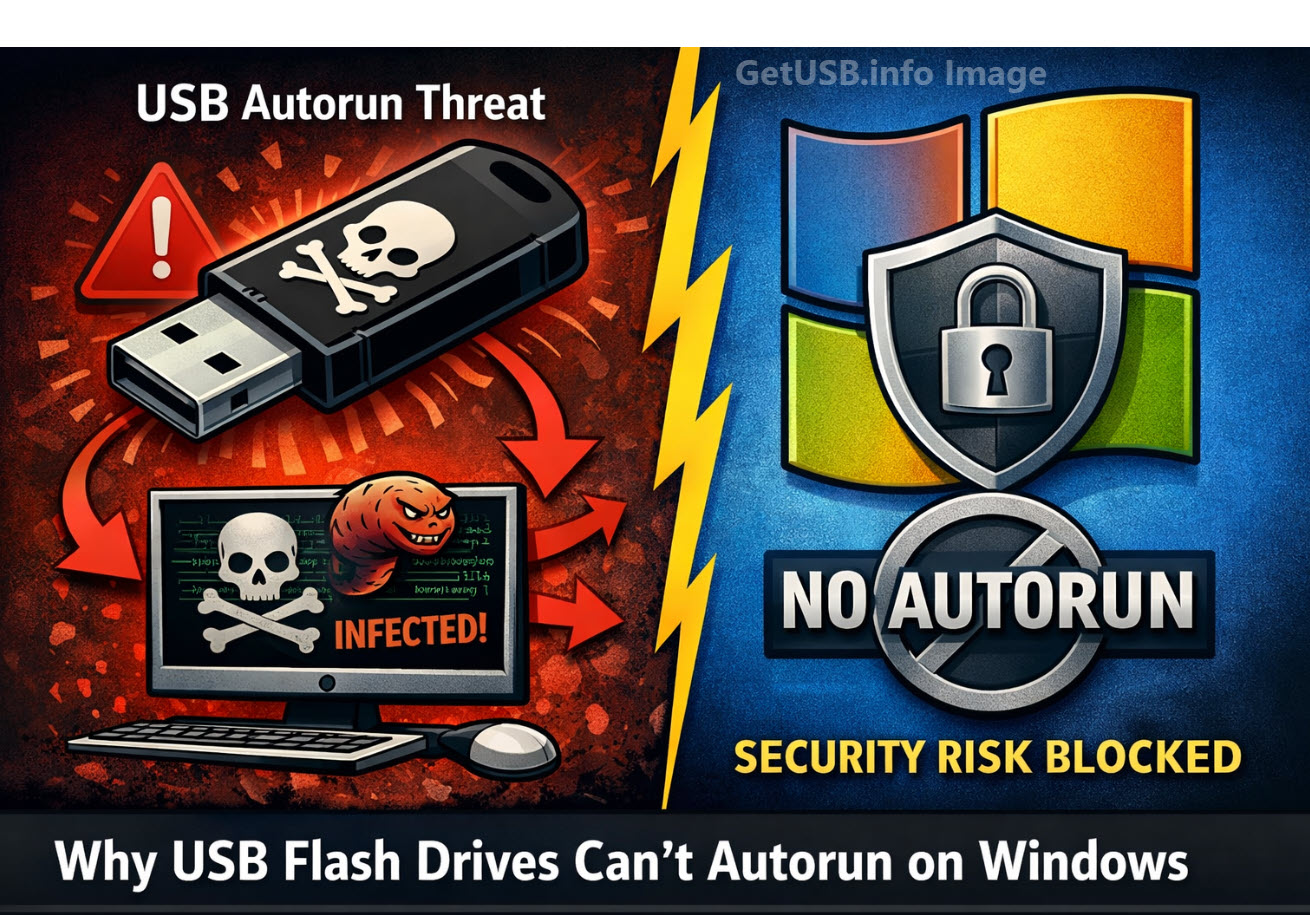
Why Doesn’t Microsoft Allow USB Flash Drives to Autorun Programs?
Can USB Flash Drives Autorun From Windows? The short answer is NO. Microsoft disabled USB autorun functionality on standard USB flash drives primarily for security reasons, following several high-profile malware outbreaks that exploited this feature. Here’s why this change was necessary:
Autorun Was a Major Malware Vector
Before 2011, when a USB drive was inserted, Windows’ autorun feature could automatically execute files (like autorun.inf) stored on the drive. Malware creators exploited this by placing malicious executables on USB drives that would launch automatically when inserted into a computer. This made it easy for viruses and worms, such as the infamous Conficker worm, to spread rapidly between systems without user interaction.
USB Drives Are Easily Shared and Untrusted
Unlike CDs or DVDs, which are typically read-only and distributed from trusted sources, USB flash drives are read-write devices. They are frequently passed between multiple users and computers, making them a prime target for malware. Any infected computer could unknowingly weaponize a USB stick, allowing malicious code to spread instantly upon insertion.
Security Patch KB971029 Disabled Autorun
In 2011, Microsoft released security patch KB971029, which permanently disabled autorun for USB flash drives on Windows XP, Vista, and later versions to match Windows 7’s safer behavior. After this patch:
- USB sticks no longer autorun programs automatically.
- The system only shows a menu to “Open folder to view files” or “Play media.”
- Autorun for CDs and DVDs was not changed because these media types are generally considered safer and are typically read-only.
CD-ROM Emulation Still Allows Autorun
USB drives that emulate a CD-ROM device can still trigger autorun because Windows treats them like optical media. This is useful for software distribution, marketing content, or protected applications that need an autorun experience.
A professional solution for this is the Nexcopy Disc License USB drive. These drives feature a permanent, hardware-based CD-ROM partition that allows autorun to function exactly like a traditional CD, while maintaining a second partition for standard flash storage. Because the CD-ROM portion is read-only, it is safe from malware infections and trusted by the Windows autorun process.
So what does this all mean?
Microsoft removed autorun from standard USB flash drives to stop self-spreading malware and worms that thrived on this feature. If you need legitimate autorun capabilities for distributing software or presentations, using a Nexcopy Disc License USB drive is a secure and reliable solution.
Why Does Windows Allow Autorun from a USB CD-ROM Device?
Windows allows autorun from a USB CD-ROM device because the hardware identifies itself as an optical disc drive, and Windows is designed to trust read-only media. Here’s a detailed explanation of why this behavior exists and how it works:
1) Windows Trusts Optical Media by Default
The autorun feature was originally created for CDs and DVDs, which are read-only media. Because the content on a physical disc cannot be modified by malware, it was considered safe for Windows to execute instructions from the autorun.inf file automatically. This design choice made software installations seamless and secure for optical discs.
2) USB CD-ROM Devices Use a Different USB Descriptor
All USB devices report their device type to the operating system through a descriptor. A USB stick configured as a CD-ROM device reports itself as a Mass Storage Device ? Subclass: SCSI Transparent ? Protocol: CD-ROM (0x05). To Windows, this looks identical to plugging in a real optical disc drive.
Because Windows cannot tell the difference, it applies the same rules for autorun as it would for a physical CD or DVD drive. The firmware of the USB device essentially “masks” its true nature and convinces the OS it is optical media.
3) Autorun Works Because the Partition is Read-Only
Windows checks whether the device is read-only before permitting autorun. A properly configured USB CD-ROM emulation device has a hardware-protected, non-writable partition that mimics a pressed CD. This read-only characteristic assures Windows that the autorun.inf file has not been altered or infected by malware, making autorun safe to execute.
4) Using a Nexcopy Disc License USB Drive for Safe Autorun
A professional solution for creating a USB with autorun capabilities is the Nexcopy Disc License USB drive. These drives feature:
- A permanent, hardware-based CD-ROM partition that is read-only and recognized by Windows as an optical disc.
- A second, writable flash partition for storing additional files and content.
- Reliable autorun behavior identical to that of a physical CD or DVD, without malware risks.
Conclusion
Windows allows autorun from USB CD-ROM devices because their firmware tells Windows they are optical discs, and optical media is inherently safer due to its read-only nature. Standard USB flash drives are blocked because they are writable and could easily carry self-propagating malware. If legitimate autorun functionality is required, using a Nexcopy Disc License USB provides a secure and professional solution.

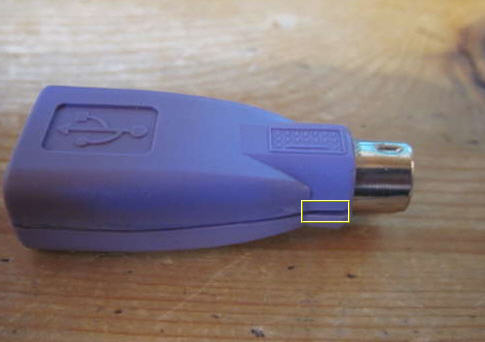 Well in any case, for the DIY folks, here is a nice tutorial on taking a standard PS/2 and converting it into a USB keylogger. What I like about it is the simple fact the average computer user wouldn’t notice. We all see the PS/2 on the back panel, so why investigate it to see if there’s mod to it?
The full tutorial can be found at Instructables. Only tip is that you need some good soldering skills. Other then that, not a hard task at all.
Continue Reading
Well in any case, for the DIY folks, here is a nice tutorial on taking a standard PS/2 and converting it into a USB keylogger. What I like about it is the simple fact the average computer user wouldn’t notice. We all see the PS/2 on the back panel, so why investigate it to see if there’s mod to it?
The full tutorial can be found at Instructables. Only tip is that you need some good soldering skills. Other then that, not a hard task at all.
Continue Reading
 Is it possible Microsoft figured out the best possible solution for longevity is letting users run their OS from a flash drive, then plug it into any PC they see fit to run their computer? Some storage problesm with that, but never-the-less, a good starting point.
Here are some other things we think might be bundled with Windows 8:
Is it possible Microsoft figured out the best possible solution for longevity is letting users run their OS from a flash drive, then plug it into any PC they see fit to run their computer? Some storage problesm with that, but never-the-less, a good starting point.
Here are some other things we think might be bundled with Windows 8:
 To give him some feedback about position, the first thing Jonas did was mount a video cam above the USB missile launcher. Next step was polish up his Python skills and incorporate the libfreenect library for control.
Using his hands to position the USB missile launcher, Jonas can rotate the base unit, angle the barrel up or down and fire the launcher – all thorugh his Kinect.
Video after the jump of Jonas shooting his brother[?]
To give him some feedback about position, the first thing Jonas did was mount a video cam above the USB missile launcher. Next step was polish up his Python skills and incorporate the libfreenect library for control.
Using his hands to position the USB missile launcher, Jonas can rotate the base unit, angle the barrel up or down and fire the launcher – all thorugh his Kinect.
Video after the jump of Jonas shooting his brother[?]
 The Eggbot chassis is made of tough fiberglass, with integrated heat sinks for the included motors. The pen and egg motors are high-torque precision stepping motors, and the pen lift mechanism is a quiet and reliable servo motor.
The Eggbot kit is easy to assemble in a couple of hours, and only requires a couple of basic tools like miniature Phillips-head and flathead screwdrivers. You’ll also need a computer with an available USB port (Mac, Windows or Linux).
The EBB allows your computer to directly control the stepper and servo motors. The onboard 16X microstepping driver chips along with the 200 step/revolution stepper motors give a combined resolution of
The Eggbot chassis is made of tough fiberglass, with integrated heat sinks for the included motors. The pen and egg motors are high-torque precision stepping motors, and the pen lift mechanism is a quiet and reliable servo motor.
The Eggbot kit is easy to assemble in a couple of hours, and only requires a couple of basic tools like miniature Phillips-head and flathead screwdrivers. You’ll also need a computer with an available USB port (Mac, Windows or Linux).
The EBB allows your computer to directly control the stepper and servo motors. The onboard 16X microstepping driver chips along with the 200 step/revolution stepper motors give a combined resolution of
 This project was born out of the frustration after being constantly interrupted by people who could not tell that he was already busy. I think it a great idea.
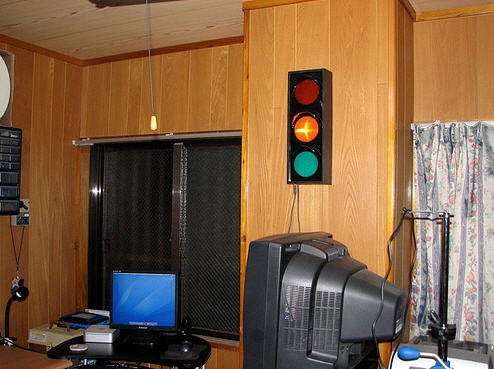 What I’d like to see is the traffic light also be used for email notifications. Say green means you have less then 10 emails, yellow means
 First, lets review the design. Taking a double A battery case, the concept is to attach a USB cable so the internal battery can be recharged. Nice concept if it came out 5 years ago, but why add the additional USB cable. Why not make the tip a USB connector? Oh wait, it’s been done.
So this brings us to what is already in the market place, the
First, lets review the design. Taking a double A battery case, the concept is to attach a USB cable so the internal battery can be recharged. Nice concept if it came out 5 years ago, but why add the additional USB cable. Why not make the tip a USB connector? Oh wait, it’s been done.
So this brings us to what is already in the market place, the 

 We’ve read these USB cuff-links are something James Bond would wear…but I’m sorry, James Bond has never been a steampunk guy, he’s much too classy for this cult following design work.
 The USB flash drive, slips out from the right and the blue radial area is the watch itself.
From the description of what is what, the Konect also has voice record ability and a lavish setting of alarms. Ability to stream audio live or communicate via Skype when loaded to the USB flash.
The USB flash drive, slips out from the right and the blue radial area is the watch itself.
From the description of what is what, the Konect also has voice record ability and a lavish setting of alarms. Ability to stream audio live or communicate via Skype when loaded to the USB flash.
 From the source post at

