Have you ever noticed that your favorite USB flash drive appears almost instantly when you plug it into your computer? There’s no lengthy driver installation, no setup wizard asking for permission, and no waiting while Windows figures out what you’ve connected. In many cases, the drive even receives the exact same drive letter it had the last time you used it—even if that was months or years ago.
Most of us simply accept this as normal behavior. We plug in a flash drive, hear the familiar Windows chime, and continue with our work without giving it a second thought. Yet behind that simple experience is a remarkably clever piece of engineering that has quietly existed inside Windows for decades.
The reason is surprisingly simple: Windows remembers every USB device you’ve ever connected.
At first glance, that statement may sound a little unsettling. In today’s world, words like tracking and history often imply something negative. Is Microsoft keeping tabs on your hardware? Is your computer filling itself with unnecessary information? Is this another example of Windows collecting data you never asked it to keep?
Fortunately, the answer is much less dramatic—and much more practical.
Windows remembers USB devices for the same reason you remember the names of your friends. Once you’ve met them, there’s no reason to introduce yourself all over again.
How Does Windows Know It’s Your Flash Drive?
Imagine purchasing two identical 64GB USB flash drives from your local electronics store. They are the same brand, the same model, the same color, and even have identical packaging. Sitting side-by-side on your desk, you probably couldn’t tell them apart without placing a small sticker on one of them.
Windows, however, has no trouble distinguishing between the two.
The first time each drive is connected, Windows reads information programmed into the USB controller itself. Among that information is a unique hardware serial number that identifies that specific physical device. From that point forward, Windows knows that Drive A and Drive B are two entirely different pieces of hardware, even though they look identical to you.
That single piece of information is one of the reasons Windows can reconnect your favorite flash drive almost instantly. It isn’t recognizing the model of the drive—it is recognizing the exact device you’ve connected before.
The First Connection Is Doing More Work Than You Think
When a USB device is connected for the very first time, Windows performs far more work than most users realize.
It identifies the manufacturer, determines the type of device, loads the appropriate drivers, assigns system resources, creates a hardware profile, and records enough information to recognize that device in the future. If the hardware is a storage device, Windows also assigns a drive letter, creates volume information, and stores additional configuration details that make future connections nearly effortless.
All of this happens automatically and usually within a matter of seconds.
The next time you connect that same device, Windows doesn’t need to repeat the entire process because it already knows exactly what it is looking at.
It simply says, in effect, “I’ve seen you before.”
Think of It Like Your Wi-Fi Networks
A good analogy is the list of Wi-Fi networks your laptop remembers.
Your computer probably knows your home wireless network, your office, your favorite coffee shop, the hotel you stayed at during your last vacation, and perhaps a friend’s house where you connected only once. That information isn’t stored because your computer is trying to keep a travel diary. It’s stored because remembering the digital handshake required to reconnect makes life easier the next time you’re within range.
Windows treats USB devices much the same way.
Instead of remembering wireless networks, it remembers hardware. The operating system stores the digital “handshake” associated with each USB device so it can immediately recognize it the next time it appears. Rather than reinstalling driversSoftware that allows the operating system to communicate with hardware devices. and asking the same questions every time you plug in a flash drive, Windows simply retrieves information it has already learned.
What appears to be simple Plug-and-Play is actually Windows remembering hardware it has already met.
But Why Keep the Information Forever?
At this point, you might reasonably wonder why Windows doesn’t simply delete this information after a few months.
The answer is reliability.
Imagine finding an old USB flash drive in the back of your desk drawer that you haven’t touched in five years. You plug it into your computer expecting Windows to spend several minutes rediscovering it, but instead it appears almost immediately with the same drive letter you remember using years earlier.
That convenience is only possible because Windows chose to remember the device rather than discard its history.
From Microsoft’s perspective, keeping a few small pieces of hardware information is far less expensive than forcing millions of users to reinstall and reconfigure familiar devices over and over again. It’s one of those engineering decisions that most people never notice because it’s working exactly as intended.
Windows Doesn’t Remember the Model—It Remembers the Device
Many people assume Windows simply recognizes the brand of a USB drive.
In reality, it’s much more specific than that.
Windows stores information that allows it to distinguish between individual devices. Two identical flash drives purchased from the same store will each receive their own unique hardware profile because their internal serial numbers are different. Windows treats them as two separate individuals, not two copies of the same product.
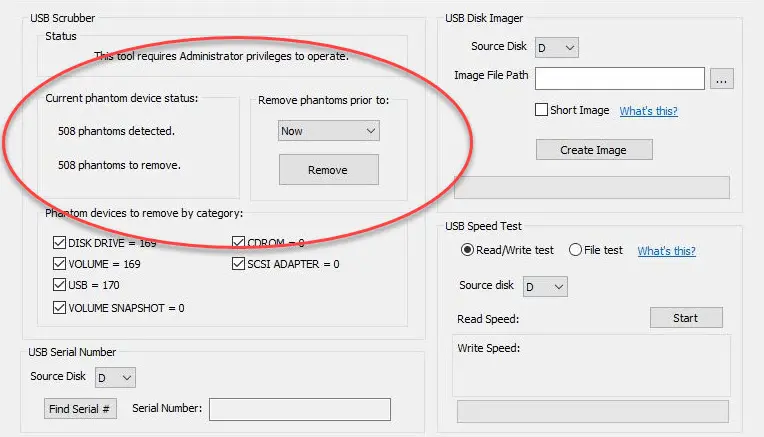
In those situations, technicians sometimes remove what are commonly called phantom USB devices-entries representing hardware that is no longer connected. Doing so allows Windows to rebuild fresh hardware information the next time those devices are attached. We explored this topic in greater detail in our article The USB Ghost That Wouldn’t Die, where we explain why stale USB device entries occasionally become part of the troubleshooting process and how they can sometimes interfere with reliable USB detection.
To most users, this happens invisibly. To Windows, it’s simply recognizing an old acquaintance.
Isn’t That a Lot of Information?
After years of normal computer use, Windows may have records for hundreds of USB devices.
Every flash drive you’ve borrowed, every printer you’ve installed, every keyboard you’ve replaced, every webcam you’ve experimented with, every smartphone you’ve connected, and every external hard drive you’ve used may still have an entry somewhere within Windows.
That sounds like a tremendous amount of information, but modern versions of Windows are specifically designed to manage this type of hardware database efficiently. Merely retaining these records does not normally slow down your computer or make Windows less responsive.
This is where older advice about “registry bloatThe accumulation of unnecessary or outdated entries in the Windows registry that can slow down system performance.” often creates unnecessary confusion. During the Windows XP era, it wasn’t uncommon to hear recommendations that cleaning the Registry would dramatically improve system performance. While there were situations where that advice had merit twenty years ago, Windows 10 and Windows 11 manage registry data far more efficiently than their predecessors. Simply remembering hundreds of USB devices is not, by itself, a performance problem.
In fact, forgetting them would likely create more inconvenience than benefit.
When Can USB History Actually Become Useful?
Although this history rarely causes problems for everyday users, there are situations where technicians intentionally inspect or remove portions of it.
Computers used in manufacturing facilities, IT departments, computer repair shops, forensic laboratories, and hardware testing environments may encounter hundreds or even thousands of different USB devices over their lifetime. Occasionally, a failed driver installation, corrupted hardware profile, or conflicting device entry can complicate troubleshooting.
In those situations, technicians sometimes remove what are commonly called phantom USB devices—entries representing hardware that is no longer connected. Doing so allows Windows to rebuild fresh hardware information the next time those devices are attached.
It’s important to understand that this isn’t routine maintenance. Most home users will never need to clear their USB history, nor should they feel compelled to do so simply because the entries exist. Windows is remembering those devices because that’s exactly what it was designed to do.
Good Engineering Is Often Invisible
One of the hallmarks of excellent engineering is that users rarely notice it.
The next time you plug your favorite USB flash drive into your computer and it appears almost instantly with the correct drive letter, remember that Windows didn’t magically recognize it. It remembered it.
What initially sounds like unnecessary tracking is actually one of the small engineering decisions that has made Windows easier to use for millions of people over the last two decades. By remembering the hardware you’ve already connected, Windows eliminates repetitive setup, avoids unnecessary driver installations, preserves familiar drive assignments, and delivers the seamless Plug-and-Play experience we’ve all come to expect.
It’s one of those features that quietly works in the background every single day, asking for no attention while making our computers feel just a little bit smarter.
Coming Up Next…
Now that we’ve looked at why Windows remembers every USB device, the next logical question is, what exactly is Windows remembering about your flash drives?
In an article coming up next week, we’ll explore a free Windows utility that allows you to inspect your PC’s USB device history, benchmark the read and write performance of USB flash drives, retrieve hardware serial numbers, create complete disk images, and, when troubleshooting requires it, remove phantom USB device entries that are no longer needed.
Sometimes the best way to understand how Windows works is to peek behind the curtain.
Experience, Expertise, Authoritativeness, and Trustworthiness
This article was written from the perspective of professionals who work with USB flash memory devices and Windows USB enumeration on a daily basis. Nexcopy has designed and manufactured USB duplication systems in California since 2004, with products deployed worldwide in manufacturing, government, education, and corporate environments. Supporting thousands of USB flash drives each week provides practical insight into how Windows detects, stores, and manages USB device information.
The technical information presented in this article is based on Microsoft’s documented Plug-and-Play architecture, Windows hardware enumeration behavior, and years of hands-on experience troubleshooting USB devices across Windows operating systems. The goal is to explain a commonly misunderstood Windows feature in an accurate, accessible, and non-sensational manner.
Let GetUSB.info keep you updated.
Receive article notifications about USB storage, flash memory, and duplication updates in your preferred language. We average a couple of articles per week.