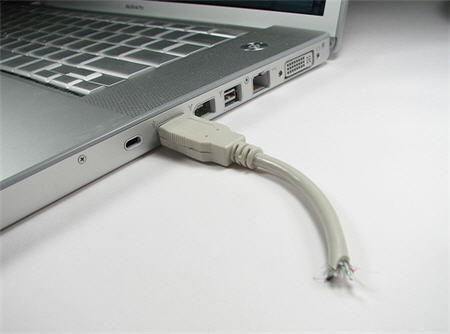
Wouldn’t it be nice to have a background image for the USB window upon connection of your USB storage device? This simple, quick USB hack will show you how to create a background image. In this example, I inserted the GetUSB logo at the bottom of my USB window, like this:

To perform this simply copy the following information:
[ExtShellFolderViews]
{BE098140-A513-11D0-A3A4-00C04FD706EC}={BE098140-A513-11D0-A3A4-00C04FD706EC}
[{BE098140-A513-11D0-A3A4-00C04FD706EC}]
Attributes=1
IconArea_Image=your background picture
Change: the IconArea_Image= to the name of your jpeg file…I did: getusb.jpg
Next, save the code above as desktop.ini
Last: place the ini file and the jpg file in the root of your USB drive.
Refresh or reconnect your device and …bamb…USB background image done. Tip: The image will repeat so when creating the jpeg be sure to leave plenty of white space in your image file. I used a canvas size of 800 x 800 pixels and placed the GetUSB logo near the bottom.
Let GetUSB.info keep you updated.
Receive article notifications about USB storage, flash memory, and duplication updates in your preferred language. We average a couple of articles per week.