GetUSB.info Logo

Posts Tagged ‘usb’

Industrial Control System USB Flash Drive Designed For ICS Security

Industrial Control System USB Flash Drive Designed For ICS Security

The fourth industrial revolution or “Industry 4.0” is a term used to categorize today’s trend with industrial control systems (ICS) and how these machines interact with each other and humans.

The fourth era of “industry” combines hardware, software and biology and emphasizes the advancements in communication and connectivity. When the term IoT (Internet of Things) is used, this is the type of example that would apply. Industrial Control System USB Flash Drives designed for ICS security are critical to industrial systems and how they are controlled by their owners. The key when a USB flash drive is introduced into a control system, is security. Without security, one could lose control of the industrial system and ultimately introduce risks into a population or region.

Before we look closer at Industry 4.0 and data storage, let us provide a short summary of the first three phases of the industrial revolution.

First Industrial Revolution

The first industrial revolution was marked by a transition from hand production methods to machines through the use of steam power and water power. The integration of these new technologies took a long time, and spans a period between 1760 and 1840 for Europe and the United States. The first phase had the greatest impact on virtual industrial channels such as textile manufacturing, iron production, agriculture and mining (in general).

Second Industrial Revolution

The Second Industrial Revolution, also known as the Technological Revolution, is the period between

Continue Reading

Review Rufus The Big Misconception With ISO Files

If anyone searches for “burn ISO to USB” they will get pages and pages of Rufus links. However, there is a big misconception with Rufus… it doesn’t create USB CD-ROM drives! Review Rufus with us now:

The only thing Rufus does is take a bootable ISO file and write the data to a USB stick. Basically Rufus will extra the data on an ISO file and write it to the flash drive. You can do the same thing with WinRAR.

There is nothing magical about Rufus when it comes to “making a CD” because Rufus doesn’t make a “CD.”

If you need to make a USB CD-ROM flash drive the best solution found so far, is the Disc License drive. The Disc License drive is a blank USB CD-ROM flash drive. Using their Drive Wizard software (free), easily write ISO files to USB. The resultant drive will be a USB CD-ROM flash drive.

Before we get into Disc License technology, we do need to clear up some points about WinRAR and Rufus software. WinRAR will extract all the files contained in an ISO file and write them to your USB flash drive; however, if the ISO is bootable, WinRAR won’t write the boot code. This is where Rufus does shine. The Rufus software will write all the files contained in an ISO file along with the boot code to make your device bootable. With that said, there is a clear advantage for using Rufus over WinRAR.

Does Rufus burn any ISO file to USB? NO.

Does Rufus make your USB flash drive read-only, like a CD? NO.

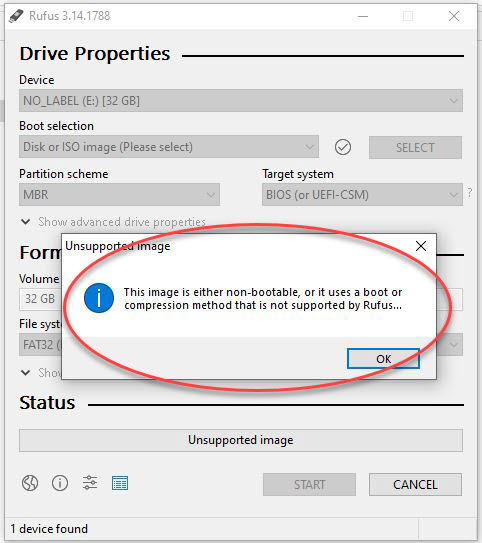
If the ISO file isn’t bootable, there isn’t much [more] Rufus can offer. A non-bootable image will display an error message saying “This image is either non-bootable, or it uses a boot or compression method that is not supported by Rufus.”

rufus does not support iso file

Rufus is truly designed for one thing:

Continue Reading

How To: Add USB Flash Drive to Roku TV Getting Pause and Rewind Features

It’s not difficult to add some premium-style functionality to a Roku TV — such as pause and rewind — simply by adding a USB flash drive to your setup.

You’ll need to configure the Roku TV and the flash drive to work together, but the process is straightforward and only takes a few minutes.

To get close to 90 minutes of pause or rewind time, you’ll want to use a 16 GB or larger flash drive. Using something small like a 2 GB or 4 GB USB drive generally isn’t worth the effort.

One important limitation to note: the pause feature only works with the Live TV input. That means you’re limited to content coming in through an antenna or cable connection, not streaming apps.

If that sounds useful, here’s how to set it up.

What you’ll need:

  • Roku Smart TV (not a dongle or external box — the Roku OS must be built into the TV)
  • Live TV input (antenna or cable)
  • Roku TV remote control
  • USB flash drive, 16 GB or larger (USB 2.0 or USB 3.0)

Before you begin, make sure there is nothing on the USB flash drive. Roku will format the drive, and any existing files will be permanently erased.

Getting Started

Locate a USB port on your Roku Smart TV. Any USB port will work; they are typically located on the back of the TV. Insert the flash drive into the USB port.

From the Roku home screen, move the cursor until the Live TV tile is highlighted.

Do not select Live TV yet. Instead, open the Options menu. You can do this either by pressing the Gear (Settings) button on the Roku remote, or by pressing the Home button on the remote five times.

Roku TV remote showing gear settings button

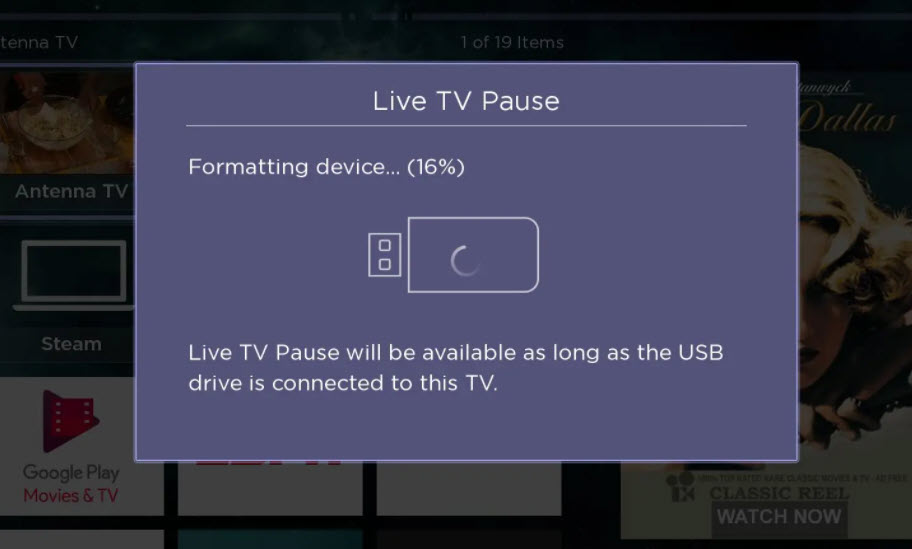
In the Options menu, select “Set up Live TV Pause” and follow the on-screen instructions. Part of the setup process includes formatting the USB flash drive so Roku can use it for pause and rewind buffering.

Roku will ask you to confirm the formatting process using a PIN. This step exists to make sure the action is intentional — once the drive is formatted, all previous data on the USB stick will be erased.

Roku TV formatting USB flash drive for live TV pause

Done

Once Live TV Pause is enabled, you can pause live television using the Play/Pause button on the Roku remote. You’ll also be able to rewind live TV by up to about 90 minutes — plenty of time to step away for dinner and come back without missing anything.

Continue Reading

40TB Expansion Solution – Not Much When Viewed Like This:

Seagate offers a 40 TB expansion solution that is truly plug-and-play. At first glance, 40 TB may seem excessive, but when you break it down into real-world usage and modern content demands, it may not be as much as it sounds.

Seagate 40TB expansion storage system

To illustrate the point, consider a family of four — two parents and two young children, ages two and five.

At that age, video recording happens almost daily. If it doesn’t, those parents are missing out on moments that are nearly impossible to recreate later.

Using an iPhone set to record video at 4K resolution and 24 FPS (frames per second), a one-minute video consumes roughly 270 MB of storage. If a parent records a four-minute video once per day for a year, that results in about 360 GB of data — roughly one-third of a terabyte.

Before continuing, it’s worth noting that the Seagate solution includes software that automatically syncs mobile devices with the storage system. Large videos can be difficult to move off an iPhone without a cloud or streaming backup service, and Seagate provides that capability. We also published an article covering manual transfers using a SanDisk USB iXpand device.

Given the age of the kids, a four-minute video is probably short for whatever funny or chaotic moment is unfolding. Rounding up to ten minutes of video per day, per parent, puts daily storage consumption at roughly 5.5 GB.

You could reduce resolution from 4K down to H.264, but who really wants to do that? High-resolution video is useful for editing, and five years from now today’s 4K footage may feel low resolution.

As the kids get older, they’ll start contributing their own videos to the Seagate storage system. The examples could go on, but the takeaway is simple: as technology improves, the amount of storage required to preserve our digital content grows right alongside it.

As a closing thought, consider how difficult and time-consuming it can be to migrate data from one storage device to a newer, larger one. While a 40 TB expansion may feel like a big purchase today, upgrading from a smaller system later often takes longer — and is more painful — than expected.

Seagate external expansion storage enclosure

Continue Reading

A Quadrillion+ Swivel USB Flash Drives Fit Inside the Empire State Building

Empire State Building

The Empire State Building stands at a total height of 1,454 feet, with an interior volume of about 37 million cubic feet.

If you take a swivel USB flash drive (the world’s #1 selling body style) measuring roughly 57 × 19 × 10 mm, it is theoretically possible to fit about 17,760,000,000,000,000 quadrillion flash drives inside the Empire State Building.

Would this be a good conversation starter at a cocktail party?

Ref: Wikipedia

Continue Reading

A USB Flash Drive Which Cannot Get a Virus

A computer virus is something we all strive to avoid because we understand the consequences and the amount of time and energy required to restore a computer to its original condition. In a recent poll by GetUSB.info when asking users to name the top three ways a computer can get a virus, they responded with:

  • Link from an email
  • Link from an unsecure website
  • USB flash drive

However, if Nexcopy has anything to do with the last answer, a computer virus which spreads by USB flash drive will be a thing of the past.

Nexcopy is a US company based in Southern California who specializes in flash memory duplication equipment, printers, FDA compliant flash drives, copy protection and now a road-blocking malware on flash drives.

USB drive cannot get a virus

A virus will spread via a USB stick because the device is writable. In fact, any device that is connected to a computer which is writeable could spread a virus; other devices such as external hard drives, SD cards, microSD cards, etc. all have the same potential for harm.

But what happens when you turn these storage devices on their head and not allow them to be writable in the first place? This simple yet obvious solution is a gigantic step in the right direction for controlling the spread of a virus via USB.

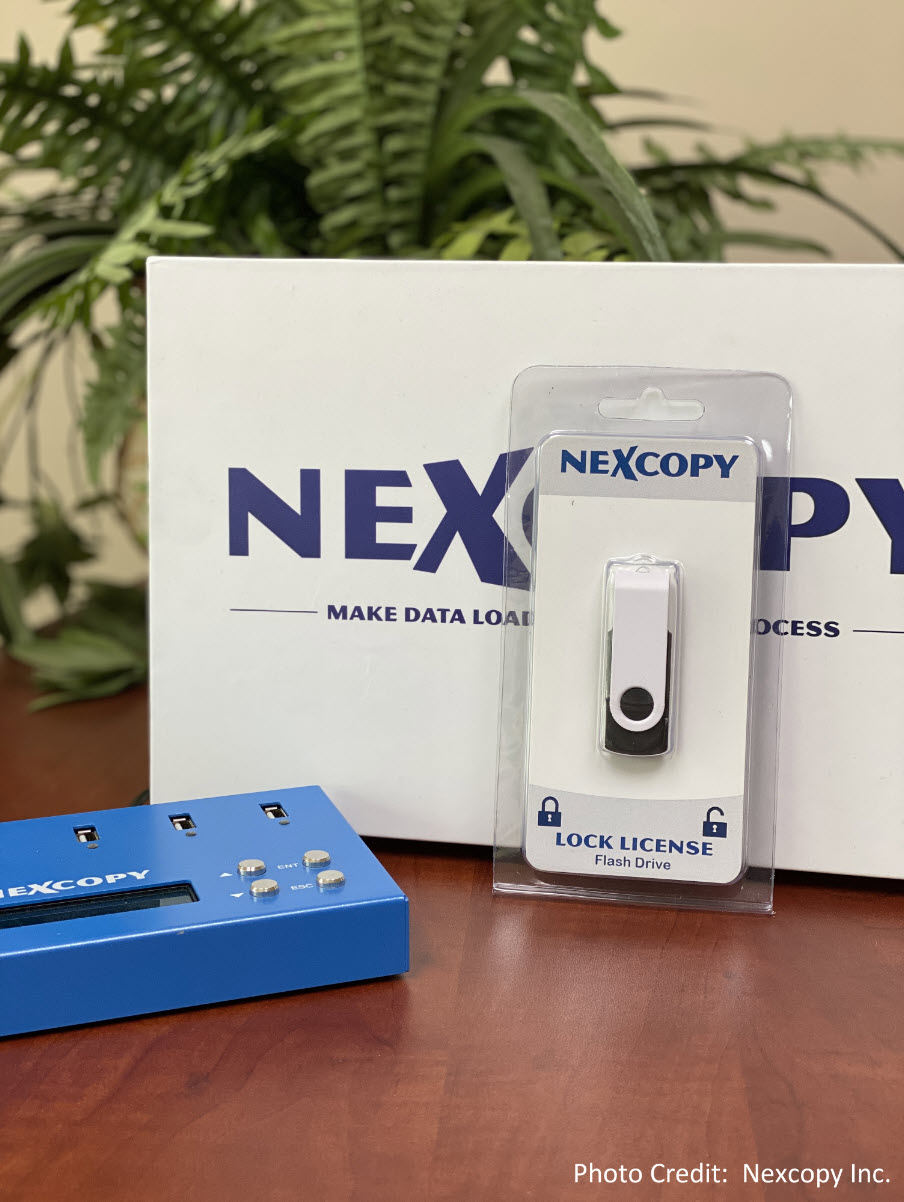
The Lock License flash drive designed and manufactured by Nexcopy is exactly that. The Lock License drive is a USB stick which is always write protected. The device doesn’t care what it’s plugged into, or when, or how, the Lock License drive will always be read-only.

A virus will spread in a very specific way. A virus is designed to scan newly connected devices and ping them to see if they can spread (if the device is writable). A new device is defined by any computer system when “power” is assigned upon connection, which, coincidentally is the same time the virus will try and spread.

Continue Reading

Transfer Rates Faster Than USB

In the world of physics, heat represents resistance. Think about touching your car tire before you’ve driven anywhere — it’s cool. Touch that same tire after driving to the store and it’s warm. That warmth is resistance.

Copper found in USB connectors and USB cables is the material where this resistance shows up. As copper heats up, data transfer rates slow down because heat represents inefficiencies in the material.

Research presented at February’s IEEE International Solid-State Circuits Conference by lead author Jack Holloway, along with co-authors Ruonan Han and Georgios Dogiamis, introduced a data transfer system capable of transmitting information up to 10 times faster than USB. The new link pairs high-frequency silicon chips with a polymer cable as thin as a strand of human hair.

Mr. Holloway explains, “Copper wires, like those found in USB or HDMI cables, are power-hungry — especially when dealing with heavy data loads. There’s a fundamental tradeoff between the amount of energy burned and the rate of information exchanged.”

Polymer cable technology for high-speed data transfer

The most commonly suggested alternative to copper wiring is optical fiber. Optical cables rely on photons and are extremely efficient, but the challenge lies in how photons interact with silicon chips. Because photons don’t interface cleanly with silicon, a direct connection between a fiber-optic cable and a computer chip is not ideal.

The technology developed by Holloway and his team uses a plastic polymer material that performs exceptionally well at sub-terahertz frequencies. These very high-frequency signals make the polymer a competitive alternative to fiber optics.

To complete the system, the team engineered a low-cost silicon chip that pairs directly with the polymer conduit. While traditional silicon chips struggle at sub-terahertz frequencies, this new design generates high-frequency signals with enough power to transmit data directly into the conduit. The clean interface between chip and conduit allows the entire system to be manufactured using standard, cost-effective processes.

Physically, the plastic polymer conduit is about the same diameter as a human hair.

Resource: Fiber optics.

Continue Reading

Universal USB Type A Connector – Doesn’t Matter What Side Is Plugged In

There are several USB articles circulating right now about the USB Type-A connector and how it often takes three tries to make a connection. We agree with the frustration — but it doesn’t have to be that way. A universal USB Type-A connector does exist; it’s just not widely available.

Would you buy this? Shoot us an email if you’re interested (gmo [@] getusb [.] info).

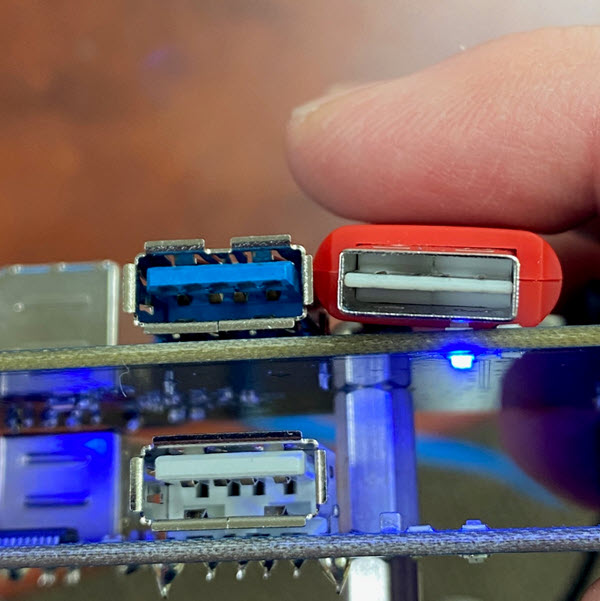
Pictures first. Below are three close-up images of the universal USB connector.

Universal USB Type-A connector close-up

Universal USB Type-A connector front view

Universal USB Type-A connector internal orientation

Physically, a USB Type-A connector appears symmetrical. It’s rectangular in shape, with no obvious marking indicating the top or bottom. Most users eventually learn that the seam on the connector indicates the bottom, while the smooth side is the top. HDMI connectors, for example, are much easier to orient because each side is shaped differently.

However, the USB Type-A connector is not truly symmetrical. Looking inside the connector reveals a slight offset in the internal contacts — one orientation places the contacts higher, the other lower.

It’s unclear why this connector design never gained broader adoption among vendors and manufacturers. Our company received samples several years ago, accompanied by the claim that products would eventually shift to this connector style. That transition, however, has never materialized.

Continue Reading

USB Flash Drive Speed Test – Built Free in Windows

Did you know Windows 10 has a speed test feature you can easily run from the CMD prompt?

This feature is what many USB flash drive speed test applications call upon during their operation. Some people feel uncomfortable downloading software from an unknown source, so this article will explain how to use Windows features everyone already has for checking the speed of a USB flash drive, or any storage device.

TIP: The company which owns this website (Nexcopy Inc.) took the below information and wrapped it into a GUI (Graphical User Interface). The free GUI is easier to use because you can click a button rather than type in commands in the CMD prompt window. We baked in a couple extra USB benchmark speed features {wink}. Our free GUI version is here.

Every flash drive manufacturer claims a particular read and write speed of their flash drive and this is a great tool to verify what you purchased is what you received. It’s been said manufacturers will manipulate their computer environment to optimize the performance and use those optimized results as their marketing material. This could be true when a manufacturer is trying to determine the maximum performance, so let’s take a look now at benchmarking a standard environment.

The read and write speed of a flash drive will depend on the USB port one is using during the test. You will see a performance difference between a USB 2.0 and USB 3.0 device that is connected to a USB 2.0 or USB 3.0 socket on your computer. So take note about what you are doing!

After you’ve connected the USB drive to your USB port, take note of which technology they are, and be sure no data is on your drive. Although this Windows utility did not remove our data during testing, one can never be too sure.

In Windows type CMD into the search field.

Please be sure to use the Ctrl + Shift keys when you click the Enter key. This will run the command prompt at the Administrator level. You want to run this at the Admin level because if you don’t, a separate window will pop up during the testing process and immediately disappear with the process is done… taking the speed test results with it!

USB Flash Drive Speed Test, free in windows

Once you’ve opened the command prompt at the Admin level, type the following:

winsat disk -drive d (where d is drive letter)

Windows will perform it’s task and should take about one minute to complete. The results will be printed out in the console window once everything is complete. Take note from our example below. This is a 64GB drive which we connected to both a USB 2.0 socket and a USB 3.0 socket. You can see the performance difference.

The information you want are:

  • > Disk Sequential 64.0 Read
  • > Disk Sequential 64.0 Write

benchmark USB speed test, USB Flash Drive Speed Test

Nice feature, right? Free and immediately available.

For those who don’t want to go this far, you could always take a large file, say 100MBs or larger and drag-and-drop this to your USB flash drive for speed testing. Just look at the copy process window and you’ll get a fairly good idea of device speed.

USB stick Speed Test

It’s important to remember flash drive media does not copy at sustained transfer speeds. The speed process does move around during the copy process; however, the read process is more stable and should happen at a more sustained transfer speed. We’ve seen drives drop down to 1MB/second for a short bit, before jumping back up to 30+MB/second write speed.

Continue Reading

Quickly Eject USB Flash Drive in Windows

Microsoft updates for Windows 10 seem endless. Most users don’t bother reading the update notes about what has changed or been added — myself included.

Today, we noticed the eject feature in the Windows taskbar that allows you to quickly unmount USB flash drives.

This isn’t breaking news — just a quick post about a feature you may not have noticed.

How to quickly eject a USB flash drive in Windows:

Click the access arrow in your taskbar.

Windows taskbar access arrow showing USB eject option

Hover over the USB icon and click it.

A list of connected devices will appear. Hover over the USB flash drive you want to eject and click it.

Windows USB device list showing eject option

That’s it. Your USB flash drive is now safely ejected.

Windows notification confirming USB device ejection

Continue Reading

How To Get Large Videos Off iPhone

There are two popular methods to get large videos off your iPhone.

The most common problem is having a large video on your iPhone that you need on your computer. Email programs usually limit file sizes to around 20 MB, so if the file is larger, what can you do?

Two popular options come to mind: using QuickTime or using a USB flash drive.

Option #1

Use QuickTime. Macs already include QuickTime in the operating system, but Windows users must install it separately. Before choosing this route to transfer large videos off your iPhone, here are a few things to consider:

  • You must back up your iPhone through QuickTime before accessing the video
  • You need your computer (an authorized computer) to perform the backup
  • Windows users must download and install QuickTime
  • QuickTime is an invasive program that many Windows users dislike
  • This is not a portable way to move videos off your iPhone
  • However, this is a free solution

Option #2

Use a flash drive.

Yes, you need to purchase a specific flash drive, but after this one-time investment, it becomes far easier to move videos off your iPhone. Some advantages worth considering:

  • Transfer large videos without using a PC
  • Share videos immediately with another user’s computer
  • Use the drive as external storage for video backups

Point number one is really the value in all of this ?.

While you won’t be able to make the transfer immediately without the hardware, once you have the USB device, the process is quick and repeatable.

Certain USB drives include software that works with iOS, allowing files to be copied directly from the phone to the drive. The device tested here is the SanDisk iXpand flash drive with 128 GB capacity, which typically costs around $40.

SanDisk iXpand flash drive for iPhone

The process is very straightforward:

  • Download the iXpand app from the Apple App Store
  • Connect the flash drive to your iPhone
  • Select the files you want to transfer
Continue Reading

ASUS Tinker Board 2 With Four USB 3.0 Ports

ASUS unveiled the Tinker Board 2 and Tinker Board 2S, its most powerful single-board computer (SBC), designed to challenge the Raspberry Pi. The Tinker Board 2 and Tinker Board 2S feature a Rockchip RK3399 processor and up to 4 GB of dual-channel LPDDR4 RAM, along with increased USB connectivity — including one USB 3.2 Gen1 Type-C port and three USB 3.2 Gen1 Type-A ports.

The only thing distinguishing the Tinker Board 2S from the Tinker Board 2 is its 16 GB of onboard eMMC flash storage. The standard Tinker Board 2 relies on a microSD card reader instead, which the Tinker Board 2S also includes. All other specifications are identical.

Underpinning both SBCs is a Rockchip RK3399 processor with two ARM Cortex-A72 cores, four ARM Cortex-A53 cores, and an ARM Mali-T860 MP4 GPU. Buyers can choose between 2 GB or 4 GB of dual-channel LPDDR4 memory.

Here is a list of the available I/O:

  • 1× HDMI 2.0
  • 1× USB 3.2 Gen1 Type-C (OTG & DisplayPort 1.2)
  • 3× USB 3.2 Gen1 Type-A
  • 1× 22-pin MIPI DSI
  • 1× 15-pin MIPI CSI-2
  • 1× RJ-45 Gigabit LAN
  • 1× Wi-Fi 802.11ac & Bluetooth 5.0
  • 1× 40-pin GPIO header
  • 1× DC fan header
  • 1× RTC battery header
  • 1× power and recovery headers
  • 1× 12 V – 19 V DC-in barrel connector

Now here’s the real question: will ASUS face the same issue of limited long-term support? One reason the Raspberry Pi continues to dominate is the size and strength of its community and ecosystem.

ASUS Tinker Board 2 and Tinker Board 2S

Measuring 85 mm × 56 mm, the boards support Debian 9, while ASUS planned Android 10 support by Q1 2021. According to ASUS, the Tinker Board 2 series should deliver up to 1.5× the performance of the original Tinker Board. Pricing and exact release dates were not confirmed at the time, though availability was expected around Q1 2021.

Although the Tinker Board 2 was not available at the time of this post (November 2020), you can use this Tinker Board 2 link to check current availability on Amazon.

Continue Reading

Copyright

Copyright © 2006 +

USB Powered Gadgets and more...

All Rights Reserved

Advertise with us

GetUSB Advertising

This is a high value website providing great exposure to your product and brand. Visit our advertising page to learn specifics.

For more information
Visit our advertising page.

Nexcopy Ad

Nexcopy Provides

USB copy protection with digital rights management for data loaded on USB flash drives.

Contact us learn more

Resources and References Page

Resources and References Page