GetUSB.info Logo

Posts Tagged ‘usb flash drive’

Antibacterial Flash Drive From Verbatim – Microban Technology

Although the Covid pandemic is officially over, from that time, people are paying more attention to the cleanliness of things they come in contact with. Because this website is dedicated to USB technology, it’s probably worth a mention about the Microban Technology used with USB flash drives from Verbatim.

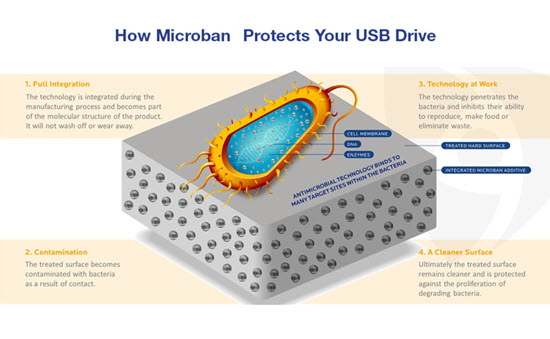
Microban technology is a type of antimicrobial technology that is incorporated into products during the manufacturing process to provide continuous antimicrobial protection against a range of microbes such as bacteria, mold, and mildew.

Microban works by disrupting the vital life processes and biological functions of microbes that come into contact with the treated surface. This disruption helps to prevent the growth and proliferation of these microbes.

Verbatim is now incorporating some of their USB flash drive products with this Microban technology. Consider the following:

If someone handles a flash drive with unwashed or unclean hands, they can transfer bacteria or other microbes onto the surface of the drive. Common bacteria from hands could include Staphylococcus aureus or Escherichia coli (E. coli).

Flash drives are often carried in pockets, bags, or purses where they can pick up dirt, dust, and other contaminants that may contain microbes. Pockets and bags are not always the cleanest environments, especially if food, tissues, or other items are stored alongside the flash drive.

microban technology explanation

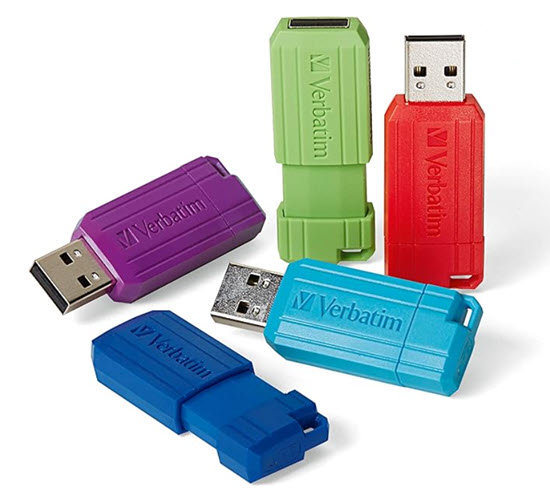
The Verbatim flash drives are available from Amazon in 16GB, 32GB and 64GB capacities. The “Pinstrip” drive uses the Microban technology.

Microban technology was developed by a team led by Dr. John H. McConnell in the mid-1960s. Dr. McConnell, along with his colleagues at Microban Products Company (formerly known as Microban International), pioneered the use of antimicrobial additives for various applications, including consumer products, textiles, and industrial materials.

Continue Reading

Encrypt a USB Flash Drive, Windows 10, Free Feature!

Encrypt a USB Flash Drive, Windows 10, Free Feature!

Encrypting a USB flash drive is quick and easy in Windows 10. The PRO version of Windows 10 will allow anyone to activate Microsoft’s built in bitlocker technology to encrypt an entire flash drive, or part of a USB flash drive.

Microsoft BitLocker is a disk encryption technology designed to enhance data security by encrypting entire disk volumes on Windows operating systems. Introduced with Windows Vista and included in subsequent versions, BitLocker provides a robust defense against unauthorized access and data breaches.

The primary purpose of BitLocker is to protect sensitive data in case a device is lost, stolen, or accessed by an unauthorized user. It uses full-disk encryption to secure the entire contents of a disk, including the operating system, system files, and user data. Even if someone physically removes the hard drive and attempts to access it on another system, the data remains inaccessible without the proper authentication credentials.

BitLocker employs various encryption methods, with Advanced Encryption Standard (AES) being a commonly used algorithm.

The encryption process is transparent to the user once configured, and access is granted through authentication methods like PINs and passwords.

Below are nine screen shots and simply follow along in your Windows 10 Pro computer and do what you see below. The process is very easy to do. The longest part of this entire setup is the encryption of the USB stick itself. The time required to encrypt the drive will depend on a couple of factors, such as the GB capacity of the USB drive and the processing power of your computer. In the example below, using a USB 2.0 device with a 16GB capacity the encryption time took only 4 minutes.

Continue Reading

Disable USB Flash Drive Pop Up Messages in Windows 10

Users can turn disable USB flash drive pop up messages in Windows 10 by performing a very simple step in Settings. While it may seem counterproductive to turn off USB notifications in Windows 10, once you’ve been using Windows for a while you will likely want to reduce the number of pop-up messages.

There are two ways to disable USB flash drive messages in Windows. Performing a RegEdit or modifing a Settings feature in the Windows GUI

Disable the USB flash drive pop up message via Windows Registry Edit

  • Open RegEdit by typing “regedit” in the Search bar
  • Navigate to: HOKEY_LOCAL_MACHINE\SOFTWARE\Miscrosoft\Shell\USB
  • Click the USB folder on the left of the screen to highlight the registry entries for \USB\
  • On the right side of screen select “NotifyOnUsbErrors” by clicking on it
  • Right click and select “Modify”
  • Set the value to “0” (zero). Zero is off, One is on

Disable USB message Windows 10, regedit

NOTE: Most users will receive a message saying they do not have privileges to modify the registry value. That is meant by design, and please see the comments at the end of this article for why.

Disable the USB flash drive pop up message via Settings

  • Type “settings” in the Seach bar of Windows
  • Select “Devices”
  • Select the USB tab near/at the bottom on left
  • Uncheck “Notify me if there are issues connecting USB devices

Disable USB message Windows 10, Settings

The second method via Settings is the preferred method because changing registry entries is not recommended unless the user is very experienced with computers. Windows 10 does a good job of not allowing users make registry changes that would crash their computer or brick the operating system, but the risk is still there.

If you received some sort of permissions message when attempting our regedit method, I would stay away from trying to resolve that security message. The reason Miscrosoft locks downt he registry in certain areas is to provide a more secure computer system for the user and reduce potential risk of malware or hackers getting control of your computer.

Over the years, numerous reports have come out about how hackers will expose certain USB protocols to insert malware or take control of a system. The registry is the main point of focus for hackers.

If you are persistent about changing the registry entries the first thing you can try is running RegEdit as Administrator. If that doesn’t resolve your issue then you may Google search for your specific error message and see if another website offers up a solution.

Continue Reading

I asked ChatGPT to Write a Thriller with a Flash Drive Holding the Secrets – Here is What Happened Next

Me: ChatGPT — Would you be so kind to write a five-paragraph thriller novel about international espionage where a USB flash drive is used to hide secrets from the KBG?

I asked ChatGPT to write a thriller story involving a USB flash drive

As a renowned international spy, Sasha had faced countless challenges and dangers. But nothing had prepared her for the mission she had been tasked with. She was to retrieve a USB flash drive that held vital information about the KBG’s plans to launch a massive cyberattack on the United States. The stakes were high, and the clock was ticking.

Sasha knew the risks involved in such a mission, and she was willing to go to any lengths to complete it. She flew to Moscow under the guise of a journalist and managed to sneak into the KBG’s headquarters. The flash drive was heavily guarded, and Sasha knew she had to act fast. With her quick reflexes and stealthy moves, she managed to grab the drive and slip away unnoticed.

But the KBG wasn’t going to let go of their secrets so easily. Sasha soon found herself on a secret plane bound for Washington, DC, with KBG agents hot on her heels. With time running out, she had to come up with a plan to keep the flash drive out of their hands.

As the plane took off, Sasha felt a sense of relief. She had managed to outsmart the KBG and keep the flash drive safe. But her relief was short-lived when she realized that the flash drive was corrupted, and she couldn’t access the information it held. Someone had tampered with it.

Sasha knew she had to act fast to uncover the truth. She suspected that there was a mole within her agency who had sabotaged the mission. She had to find the mole before it was too late. With the clock ticking and danger lurking around every corner, Sasha set out on a perilous journey to uncover the truth and protect her country from a devastating cyberattack.

As Sasha raced against time, she found herself embroiled in a deadly game of cat and mouse. With the KBG hot on her heels, she had to stay one step ahead of them to uncover the truth. But with the fate of the country hanging in the balance, Sasha knew she had no choice but to risk everything to protect it.

Me: ChatGPT — Please write a three-paragraph conclusion about what was found on the flash drive and how that information impacted the United States.

Sasha’s investigation eventually led her to uncover the truth about the flash drive. It turned out that the mole within her agency was actually a double agent, working for the KBG all along. They had corrupted the flash drive to hide their tracks and throw Sasha off course. But Sasha’s persistence and instincts ultimately led her to the truth.

The information on the flash drive was shocking. It contained detailed plans for a coordinated cyberattack on critical U.S. infrastructure, designed to disrupt power grids, communications, and transportation systems. If executed, the attack would have caused widespread chaos, economic damage, and risk to human life.

Thanks to Sasha’s courage and quick thinking, the plot was exposed before it could be carried out. The intelligence community credited her with preventing a national crisis. While she was recognized as a hero, Sasha understood the reality of her world: threats would continue to evolve, and vigilance would always be required to protect what mattered most.

Continue Reading

One Fix For: Windows Doesn’t Boot. Black Screen.

Windows doesn’t boot and all you’re seeing is a black screen after turning on the computer with the power button.

If this sounds familiar, read on.

Given this website is dedicated to USB (Universal Serial Bus) technology, here is a USB-related tip that could explain the black screen during boot.

Check your computer to make sure a USB flash drive is not connected at the time of power up. If you have a USB drive connected, disconnect it and try again. If this resolves the issue, then you likely have a bootable USB flash drive and your BIOS is configured to boot from USB. Both of these issues can be corrected.

The simple solution is removing the flash drive. But if you want to fix the problem permanently, there are a few steps you can take.

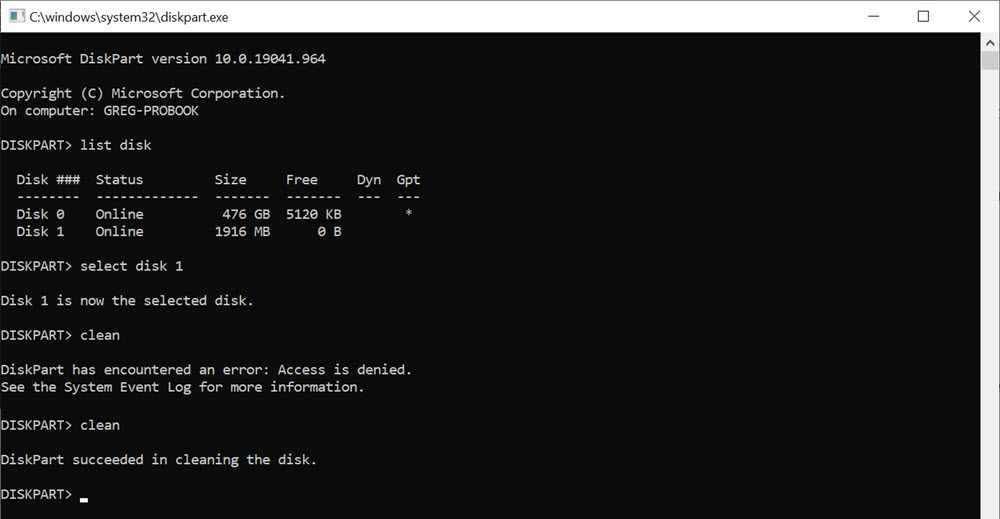
First, you can remove the boot code from your flash drive. Unfortunately, you cannot do this with a simple format or even a full format. You will need to clean the flash drive using DiskPart. This process wipes the device of boot code so it becomes a standard mass storage device rather than a bootable device.

Do the following (note: this will remove all data because the file allocation table will be erased):

  • In the Windows search bar, type cmd
  • From the Command Prompt window, type diskpart
  • Type list disk
  • From the list, identify the USB flash drive and its disk number
  • Type select disk X (replace X with the correct disk number)
  • With the flash drive selected, type clean

DiskPart clean command removing boot code from USB flash drive

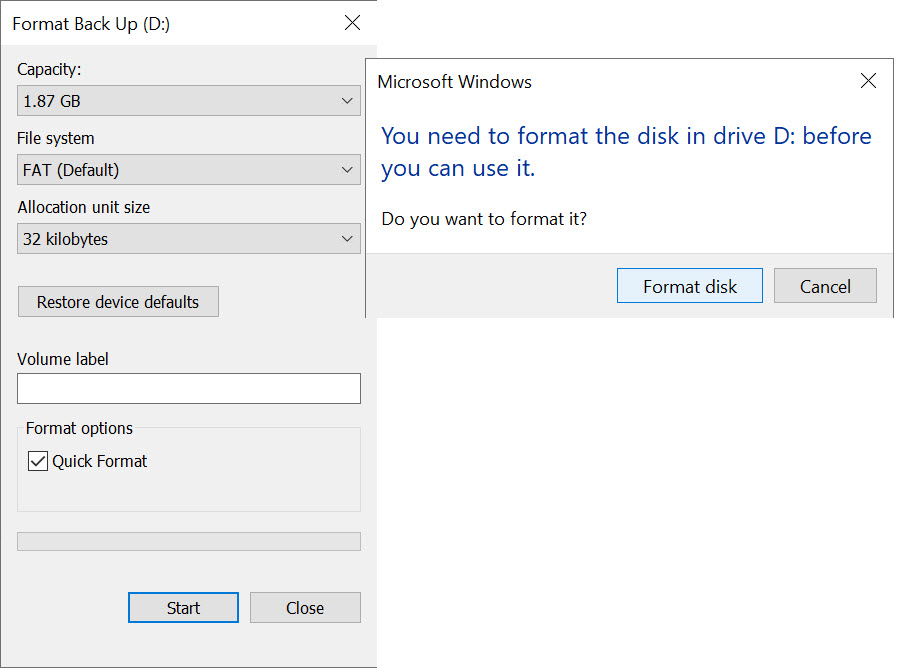
Your flash drive is now clean of boot code. However, the USB device is not yet ready for use. When you clean the flash drive, the file allocation table is removed, so Windows will prompt you to format the drive.

Navigate to your flash drive and attempt to access it. Windows will request to format the drive. Proceed with the format and the USB drive will then be ready for normal use.

Windows format prompt after DiskPart clean on USB flash drive

The final step, if you want to fully resolve this issue, is to update the BIOS setting so the computer does not attempt to boot from a USB mass storage device by default. This step varies by manufacturer, and you may need to research the correct key to access BIOS during startup.

In this example, the Dell keyboard command to access BIOS is pressing the F12 key as the system powers on. Once inside the BIOS, locate the boot sequence settings and ensure the USB flash drive or mass storage device is not set as the first boot option. The first boot device should be the internal HDD or SSD (C: drive). The image below shows an example.

Dell BIOS boot sequence showing USB flash drive boot option

Continue Reading

USB Flash Drive Label – For Professionals and Businesses

Sticky labels are not a professional solution to label flash drives. Today we look at an alternative for labeling a flash drive which suits the demands of a business and/or professional.

There is a clear difference between labeling your flash drive because of personal use and the need to label a flash drive which is sold, shipped or mailed to a paying customer.

A common method to label a flash drive is with a sticky label applied to the outside of the flash drive, or a paper merchandise tag with some notes about the contents hanging from the lanyard loop. Albeit a good method for a personal flash drive, not the most professional or durable flash drive label tag when sold as a commercial product.

It is a common requirement from a company to include more information about the contents of a flash drive than what the space of a sticky label or tag will allow. In addition, the durability of said label should withstand environmental conditions which surpass the limits of a merchandise tag. Examples include:

  • Detailed instructions for how the flash drive should be used
  • Software or firmware version information (longer than sticky label space)
  • Medical compliance information about the contents
  • Audit tracking of ownership / possession (longer than sticky label space)

From the examples above, the question becomes:

What flash drive label can be used which is professional looking while having the durability and space needed to print the information required?

The best flash drive label we have found is the plastic credit card sized label offered by Nexcopy.

The CC USB Label is a white PVC plastic product which is 85mm wide by 54mm tall and 0.75mm thick with a total weight of 4 grams. The CC USB Label is printable on both sides and includes a lanyard for connecting to a USB flash drive.

The CC USB Label accepts full color print and with a white background, each color is vibrant and great contrast for users to easily read the printed information. Using an eco-solvent printer, the ink is permanent and water proof. The information printed will last in various weather conditions and environmental conditions.

Nexcopy offers their eco-solvent LOGO-EZ printer for in-house production. Nexcopy also offers print services for those not wanting to invest in a flatbed eco-solvent printer.

The credit card size and the light weight of the card make it a perfect complement as a flash drive label. With double sided print capability, a company has a great deal of space to print the information required for their product.

From the image below, one can see the flash drive label is ideal for printed bar codes for scanning during product fulfillment, shipping and receiving. Printing a more precise image like a QR code could improve user experience, such as streamlining a product registration process or direct landing page for a how-to video for product instruction.

USB flash drive label

The plastic PVC material is ideal for printing color logos and highlighting specific information. Having the flexibility for color print lends itself to emphasizing certain bits of information the manufacturer wants the end-user to notice.

In addition, the CC USB Label allows custom branding to match the requirements from the marketing department to ensure branding compliance is matched – getting stuck with black only printed sticky labels or merchandise tags decrease the overall perceived value of the product and could fall out of compliance of a company’s marketing guidelines.

Although some of this information sounds overkill for a flash drive label, keep in mind this solution is designed for a business or professional who might be required to provide very detailed labels for the product in which the flash drive is associated with.

Continue Reading

How To: Copy Protect Digital Photo on USB Flash Drive

I want to copy protect a digital photo on a USB flash drive. The answer wasn’t as obvious as I had hoped, but I did find it.

Below is the process I used to get what I needed.

The first thing I want to emphasize is that I want to protect a digital copy of a photo rather than a physical copy of a photo.

So, how to prevent a digital photo from being copied from a USB flash drive is a difficult question to answer. My first thought is about the medium I intend to use to send a digital photo to someone.

  • Do I offer a download link?
  • Do I send them a digital copy on a storage device like a portable hard drive or USB flash drive?
  • Do I provide them a weblink to view the file from a hosted server?

The more I considered a delivery method, the more questions I had.

My first thought was to host the photo on a private webpage. Only users with access to the page could view the photo.

This isn’t going to work. I realized that once the viewer is on the page and viewing the photo, they can save it or screen capture it. After that, they could share the digital photo with whoever they wanted. There isn’t much protection here.

My next thought was to put the digital photo in a password-protected zip file. That is a good idea. The photo can only be viewed by someone who knows the password.

Oh wait, that doesn’t work either. I end up with the same problem as the hosted webpage. Once the file is accessed, the user can do anything they want.

So it occurs to me… I keep returning to an encryption solution rather than a copy protection solution. Encryption is useful because only those with the correct password can access the photo; however, it is not the same as my ultimate goal, which is to copy protect a digital photo and prevent it from being copied.

I guess you can say encryption is a way of keeping the honest people… well, honest.

I need a way to protect my photo regardless of the recipient’s intent. I realized I needed a solution in which everyone can see the photo but no one can do anything with it. Is it even possible to find such a solution?

When I was talking with a neighbor who is an IT guy, he mentioned a concept that I’d heard of before but didn’t apply to my thinking. Rather than a digital method of sending the photo, he proposed a type of physical dongle that held the photo. He explained that without the physical device, viewing the photo is impossible.

The lightbulb went on!

Continue Reading

How Long Does A USB Flash Drive Last?

  1. Can you freeze a USB flash drive?
  2. Will a USB flash drive survive the washing machine?
  3. Can a USB flash drive survive getting wet?
  4. How long does a USB flash drive last?
  5. Why is a USB flash drive so durable?

How long does a USB flash drive last?

#1 – Can you freeze a USB flash drive?

Yes. If a USB drive is frozen, it will work and will typically function immediately without the need to defrost. Nerdy details below.

#2 – Will a USB flash drive survive the washing machine?

Yes, a USB flash drive will usually survive a washing machine cycle; however, it is recommended to let the flash drive dry for 24 hours before attempting to use it. Nerdy details below.

#3 – Can a USB flash drive survive getting wet?

Yes, a USB flash drive can survive getting wet; however, it is recommended to let the flash drive dry for 24 hours before trying to use it. Nerdy details below.

#4 – How long does a USB flash drive last?

Data on a USB flash drive could last indefinitely if configured correctly and stored under proper conditions. However, the real-world answer depends on several variables: the type of NAND flash memory (SLC, MLC, or TLC) and how the device is stored over time. The technical details are below, but the practical guidance is simple: (A) write protect the device once data is finalized, and (B) avoid exposing it to extreme temperatures and harsh environments.

#5 – Why is a USB flash drive so durable?

A USB flash drive (thumb drive) uses NAND flash memory. The key characteristic of NAND memory is its ability to retain data without continuous power.

The technical (nerdy) details behind the answers above

Here is a quick recap of traditional storage memory. In simple terms, a computer uses long-term storage (historically hard drives) and short-term memory (RAM). Traditional hard drives store data magnetically on spinning platters, where positive and negative charge states represent binary ones and zeros. Because of this magnetic state, data remains intact even when power is removed.

RAM (Random Access Memory), by contrast, only holds data while power is flowing. Once power is turned off, the information in RAM disappears.

Together, long-term storage and RAM allow a computer to both save data and operate quickly.

Flash memory (NAND memory) is different. It is a non-volatile storage medium that does not require power to retain data. Flash memory is a type of electronically erasable programmable read-only memory (EEPROM).

You can think of it like a “dam” holding electrons in place so the stored data does not change when power is removed.

Because of this characteristic, the flash memory inside USB drives is very durable. A USB flash drive can survive being left in a freezing car overnight in North Dakota, survive a trip through the washing machine, or survive getting wet in the rain.

That said, flash memory does have a finite lifespan. NAND flash has a limited number of Program/Erase (P/E) cycles before it begins to lose integrity. Each time data is written or erased, the internal structure degrades slightly. Think of it like repeated small storms weakening a dam over time. Eventually, after enough cycles, the memory can fail.

The number of P/E cycles depends heavily on the type of flash memory used (SLC, MLC, or TLC), which we covered in detail in an earlier article.

Environmental factors generally do not impact NAND flash performance as much as people assume. However, temperature does matter for long-term data retention.

Technically, degradation occurs in the oxide layers that insulate the floating gate (the “dam”). As the oxide weakens over repeated use, electrons can begin to leak, which makes stored data less reliable. The device may continue to function, but with increasing risk of data corruption.

If the device is write protected, the P/E cycle count no longer increases. If data is written early in the life of the memory and the device is then write protected, data retention can be extremely strong. Cold temperatures do not accelerate data loss, while sustained high temperatures can accelerate degradation because heat increases the likelihood of charge leakage.

Continue Reading

Kingston Road Map for USB 3.0

Kingston LogoThe Intel based standard for USB 3.0 was announced nearly 2 years ago and since then, products have slowly trickled in to the market place. Of course there is a cycle to progress…you can’t get peripherals until you have controllers [main stream now] and once you get controllers you expand out to peripherals. That being said, Kingston, one of the largest memory manufacturers on earth, has launched a fairly detailed road map for USB 3.0 products. Kingston was amongst the first to announce USB 3.0 flash drives into retail under the DataTraveler Ultimate 3.0 drive and HyperX MAX 3.0 external USB hard drive – both launched earlier in 2010. And now, as the first product on their roadmap for the year, have introduced the DataTraveler HyperX 3.0, which will serve as their flagship model and be part of the HyperXperience product line, a family of high-performance Kingston Flash products that will include SSDs, USBs and flash memory cards. Kingston made the announcement at CES but doesn’t expect to release the less expesnive USB 3.0 flash drives until Q2, 2011 under the DataTraveller DTU30 brand and will include capacities ranging from 16GB to 64GB. Continue Reading

Toshiba Intro’s Android Netbook

Toshiba announces a slick new Netbook running Android OS and NVIDIA processor.  It boots in about 1 second, yes, that’s right, 1 second…and is it just me, or does that case look like leather? The AC100 has a full sized keyboard, 10.1 LED backlite screen and 512RAM [upgradeable to 1GB] with 8GB of storage.  With the USB port and mini USB port storage should not be a problem as it’s virtually unlimited with USB hard drives and USB flash drives.

Toshiba AC100 netbook

Toshiba claims that the machine is good for up to seven days on standby with mixed use and the machine weighs in at 870g and is 14mm thick at the thinnest point. The AC100 will be released in the UK first with an undiscolsed price point, but can’t be more than $350.  To find a bit more here is the Toshiba PDF. Continue Reading

Lavish Gresso USB Drive

MSN did a fun article on 8 lavish gadgets for the holidays, and of course, a USB flash drive made the list.

Gresso introduced a 64GB USB flash drive which is F1 racing inspired with sleek design, look and material.  Gresso used the base material to be carbon fiber [the black] and titanium alloy as the accents [silver] then glazed the entire device with a special ceramic coating.

Gresso USB flash drive

The Gresso branded USB stick will set you back 6,448 Peso’s or about $500 USDs.  Still small enough to be lost in any coat pocket, but a perfect stocking stuffer for the well-to-do.

So the question becomes:  would your friends be more impressed with the Gresso flash drive or a $500 bill?

500 bill

I’d pick the cash.

Continue Reading

Verbatim: USB Tuff Clip Flash Drive

Verbatim turned 40 this year and one of the products they have released to celebrate is the USB TUFF CLIP flash drive.  Designed for the everyday use by a teen or college student the USB TUFF CLIP is made of ABS plastic and includes a retractable USB connector.  In addition the TUFF CLIP comes with the obvious carabineer clip.

USB TUFF CLIP

The clip is the compelling part about this project, as you can pick up a 4 or 8GB flash drive just about anywhere.  The clip is well designed to fasten the flash drive to backpacks, key chains, belt loops and notebooks.  With a capless design the caps wont fall off or get lost while dangling from your person. The 4 [light blue] & 8GB [black] drives are priced at $29 and $39 respectively. Continue Reading

Copyright

Copyright © 2006 +

USB Powered Gadgets and more...

All Rights Reserved

Advertise with us

GetUSB Advertising

This is a high value website providing great exposure to your product and brand. Visit our advertising page to learn specifics.

For more information
Visit our advertising page.

Nexcopy Ad

Nexcopy Provides

USB copy protection with digital rights management for data loaded on USB flash drives.

Contact us learn more

Resources and References Page

Resources and References Page