GetUSB.info Logo

Solved Windows Will Not Assign Drive Letter To USB Flash Drive

Problem: Windows Will Not Assign a Drive Letter to a USB Flash Drive

This issue can occur on Windows 8 and Windows 10. You unplug a USB flash drive, plug it back in, and Windows fails to assign a drive letter. That’s a real problem, especially when every other computer handles the same device without issue.

There are three solutions. All of them can work:

  1. You can open Disk Management and manually assign a drive letter to the device. This works, but it’s a repetitive and inconvenient fix if the problem happens often.
  2. There’s a good chance the driver or registry entry for that device is corrupt. Use the USBScrub tool to remove old USB registry entries. In many cases, this resolves the issue immediately. Download USBScrub
  3. Use DiskPart and enable the automount feature.

Windows will not assign drive letter to USB flash drive

  • Open Command Prompt as Administrator (search for Command Prompt in the Start menu, right-click, and select “Run as administrator”).
  • Type diskpart and press Enter.
  • At the DiskPart prompt, type automount enable and press Enter.
  • Type exit and press Enter.

For solution number one above, Disk Management is essentially the graphical (GUI) version of DiskPart, but with a reduced feature set compared to what DiskPart can actually do.

DiskPart includes dozens of useful commands for managing storage devices. One of the most important is automount, which controls whether Windows automatically assigns drive letters to newly connected volumes.

Continue Reading

News: USB-C Duplicator Shows USB-C Product Trending Up

In a recent news press release from Nexcopy Inc., it appears USB Type C is trending up for consumer demand.

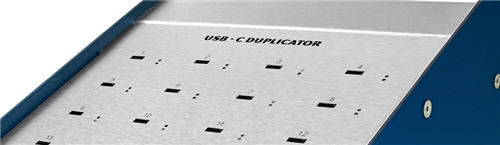
Via the EIN News Wire Service, Nexcopy announced a twenty target USB-C Duplicator. Some of the information posted in the release talks about the upward trend manufacturers are seeing with USB type C product. In addition, the production of a mass aggregator, or duplicator, is another indication users are data loading, in bulk, to USB-C product.

usb-c duplicator, nexcopy duplicator

“Apple computers and Iot, or Internet Of Things, are driving the force behind the increased demand for USB-C flash drive consumption. Although the internet is great for many data sharing applications, there is still a great need for data dissemination off line. USB is still the definitive choice among users to share data via flash memory,” states Greg Morris, President of Nexcopy.

Morris continues, “We see the demand of USB-C duplication to only rise in the coming years. In technology, smaller is always better, and as devices get slimmer in size the USB type A socket will eventually phase out and USB type C taking over. The transition is slow, but it is inevitable; and with that said, we are ready – today.”

nexcopy, usb-c duplicator, usb-c200pc

Nexcopy is also well known for the PRO series duplicators that perform advanced functions to flash drives, such as USB write protection (USB read-only), partitions at the controller level, and serial number control for UFD identification. From the press release, these advanced functions will also be available on the USB-C200PC duplicator.

The USB-C duplicator has a list price of $1,299 from what we understand and available now through a list of on-line retails like Amazon and NewEgg. The product is also available through a worldwide network of authorized resellers.

Nexcopy did allude to

Continue Reading

Windows 10 Update, Hickup With Flash Drives

We’ve read online that Microsoft’s May 2019 update might not install on systems that have USB flash drives or SD cards connected. According to Microsoft, the update is intentionally blocked when removable storage is detected because the operating system may reassign drive letters during the upgrade process.

Windows 10 update USB drive issue

At first glance, drive letter reassignment doesn’t sound like a serious issue, especially for removable devices. However, Microsoft also noted that internal hard drives could be affected by this drive letter shuffle.

That’s the red flag.

The newly published Windows 10 support documentation explains that systems already running the April 2018 update (version 1803) or the October 2018 update (version 1809) may receive the error message: “This PC can’t be upgraded to Windows 10.” This happens specifically when USB storage devices or SD cards are detected during the upgrade process.

Microsoft’s documentation does not indicate that internal drives will be reassigned when no removable media is present. That’s why the company chose to block the update entirely if a USB device or SD card is connected. Microsoft understands how critical mounted internal drives are to system stability, so this preventative block is their way of avoiding a potentially serious issue.

Continue Reading

Steampunk USB, Rocket Shape with Illumination

This is our second post in a series of eight featuring steampunk USB flash drives. Using classic steampunk materials such as brass, copper, glass, and stainless steel gears, this rocket ship–themed USB drive really comes to life.

Alex Slotzkin is based in Hawaii and has been a master craftsman for more than 30 years. He originally started in ceramics, spent time working in jewelry, and has since branched out into new mediums including digital technology and steampunk-inspired USB flash drives.

Steampunk rocket ship USB flash drive

This rocket ship USB drive is priced at $125 USD and uses a SanDisk flash memory module for storage. The capacity is 32GB, and the drive illuminates when connected, blinking during data transfer just like a traditional USB flash drive.

Alex has accumulated more than 1,000 positive reviews, so if you are considering a purchase, chances are you will not be disappointed. Additional photos are shown below.

Continue Reading

Microsoft Finally Capitulated the USB Safe Removal

In a battle so old most users no longer think about it, Microsoft has moved away from requiring safe removal for USB flash drives. The original intent behind safe removal was to prevent data loss if a user unplugged a drive before an active write operation had completed.

USB flash drive spinner

In practice, data loss was uncommon unless a large file was actively being transferred, but it is notable to see Microsoft finally adapt to real-world user behavior.

The update that introduced this change arrived with Windows 10 version 1809. If you are unsure which version of Windows you are running, right-click the Windows icon in the lower-left corner of your screen and select System.

Windows system information showing OS version

From the resulting screen, you can view the installed version of your operating system.

Continue Reading

Updated iPad OS Will Accept USB Thumb Drives

Today Apple announced the new iPadOS will support USB thumb drives. The iPad has long been toughted a workers tablet from Apple, but the relaity is their iPad didn’t provide much functionality. In addition, the devices have limited storage.

With today’s announcement the above argument could get a little muted.

Update: We learned the iPad will allow other storage devices such as external hard drives and SD or microSD cards (with USB adapters). The USB port will also allow for HID devices, such as a USB mouse and keyboard. We are not sure if the iPad will support Bluetooth mouse and keyboard, but we’ve got to assume, right!

There is no word about the connection. The connection could be one of three; an adapter, USB-C socket size or the classic USB type A socket size.

iPad accepts usb drive

Source: The Next Web.

Continue Reading

Will Trump Tariffs Affect USB Flash Drives?

Posted May 16, 2019.

The United States and China walked away from trade talks earlier this week. Following that departure, President Trump and China’s President Xi Jinping increased the number of products subject to tariffs.

With that said, will Trump-era tariffs affect USB flash drives?

A quick Google search may surface a BuzzFeed article claiming that flash drives are affected. That article is incorrect. USB flash drives are not affected by tariffs at this time.

U.S. and China trade tariffs illustration related to technology imports

Don’t take our word for it—verify the information directly using official sources.

Here is the Harmonized Tariff Schedule website: https://hts.usitc.gov/

The Harmonized Tariff Code for a USB flash drive is 8523.51.0000. Search the HS code on the site above. The tariff status is shown in the right-hand column, indicating whether the product is duty-free or subject to a percentage-based tax.

Continue Reading

Where to Guy SD Card Duplicators, Some Say “SD Copiers”

SD cards are so popular today because the gigabyte capacity in relation to the form factor size is such a great trade off. The average user on the street would associate an SD card with a camera, but we know heavy users of SD cards use them for embedded operating systems, GPS systems and hand-held point of sale systems.

With that said, for those who need to mass data load content to Secure Digital cards, you might be looking for options on where to buy the gear. The following article, which has no affiliate links for commissions, lists some house-hold names who offer on-line purchasing of SD duplication gear.

SD card duplicators manufactured by Nexcopy are available from a variety of different on-line retailers. The models available from the manufacturer range in different sizes. The models also range between systems running from a host computer and systems which are stand alone. The following content will talk about both, PC based and standalone duplicators.

Wal-Mart is a growing on-line destination for purchasing technology equipment. Yes, Wal-Mart. For example, a user can buy a 20 target SD card duplicator from Wal-Mart.

20 target SD card duplicator from Wal-Mart. A PC Based system for data loading to SD cards

This system is PC based and requires a very minimal Windows computer to run the software. You might ask, why a PC based system? What advantages are there with a system like this? Here are some bullet points on why a PC based system is a benefit:

Continue Reading

Steampunk USB, The Gatling Gun Flash Drive

The Gatling gun is one of the earliest known rapid-fire, hand-cranked weapons. The Gatling design is a forerunner of the modern machine gun and rotary cannon. Invented by Richard Gatling, it saw limited use by Union forces during the American Civil War in the 1860s.

Megan Kening of Etsy has taken this historic concept and transformed it into a steampunk USB flash drive. The Gatling gun USB features remarkable detail, vivid LED illumination during operation, and a rotating barrel assembly when powered on.

Steampunk USB flash drive modeled after a Gatling gun

Megan’s set includes the Gatling gun USB flash drive and a matching ballpoint pen, both presented in a wooden display case. Each piece is completely handmade using materials such as copper, brass, glass tubing, USB electronics, and a small motorized gear assembly.

Megan Kening has been featured previously on GetUSB, and his work continues to impress. With a near-perfect five-star rating from buyers, it is safe to say any purchase from Megan delivers both craftsmanship and originality. Additional photos appear below.

Continue Reading

USB Steampunk – Tesla Generator V1.2

Who doesn’t love a steampunk flash drive, or steampunk anything for that matter?

Over the next few weeks, this site will be highlighting some truly outrageous steampunk USB creations.

First up is the Tesla Generator USB drive by Megan Kening from Israel. Crafted from materials such as copper, brass, glass, and paper, this is a fully handmade USB drive you simply will not find anywhere else. Megan’s work has received consistently strong reviews from buyers.

A handmade piece like this is available exclusively through Etsy.

Steampunk Tesla Generator USB flash drive

Additional photos after the jump.

Continue Reading

Delete System Volume Information Folder Off Flash Drives

If you found this post, chances are you are trying to delete the System Volume Information folder from a USB flash drive.

UPDATE:

Thanks to a reader who shared additional details, we now have a solution that works universally across Windows PCs. This approach prevents the recurring message, “There’s a problem with this drive. Scan the drive now to fix it.” To apply the universal fix, scroll to the bottom of this article and look for Updated Solution.

There are several common reasons people want to remove this folder:

  • A Smart TV or car stereo displays the folder and uses it as the default playback location.
  • A binary or checksum verification utility flags the folder as inconsistent.
  • Windows repeatedly shows the “Disk needs to be scanned and repaired” message when a drive is removed without ejecting.
  • Antivirus software reports the folder as a potential risk.
  • A USB duplication or production workflow is disrupted by the folder.

You can skip ahead to the instructions if you prefer, but understanding what this folder does may help you decide whether removing it makes sense.

Any storage device connected to Windows will contain a System Volume Information folder. It is hidden by default, which is why you may not see it unless hidden files are enabled.

This folder typically contains two files used for restore points and indexing. Windows uses this information to speed up searching and to associate drives with internal search databases.

The files are usually IndexerVolumeGuid and WPSettings.dat. The GUID assigns a unique identifier to the drive so Windows knows which index database to use when the device is reconnected.

The WPSettings.dat file is related to Windows Phone storage settings. On a hard drive this may be useful, but on a USB flash drive it serves little purpose.

If this were a system hard drive, deleting the folder would not be recommended. For removable storage such as USB flash drives, removing it generally carries very little risk.

So how do you remove this folder?

And how do you stop it from coming back?

The process has two parts. First, remove the folder from the drive. Second, configure Windows so it does not recreate the folder in the future.

Connect the USB flash drive to your computer. Open File Explorer, double-click the USB drive letter, type cmd into the address bar, and press Enter.

This opens a command prompt scoped directly to that drive.

Command prompt opened on USB drive letter

At the command prompt, type the following command to remove the folder:

rmdir “system volume information” /s /q

Press Enter. The folder is now removed.
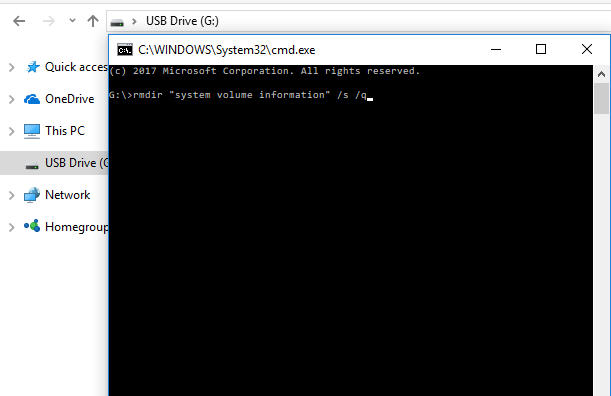
Removing System Volume Information folder via command line

Next, configure Windows so the folder does not return.

Press the Windows key and R together to open the Run dialog. Type gpedit.msc and click OK.
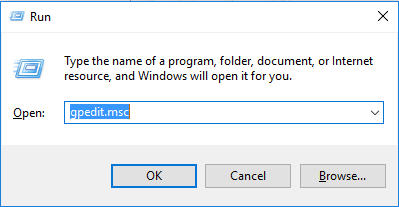
Opening Group Policy Editor

Navigate to Computer Configuration > Administrative Templates > Windows Components > Search.
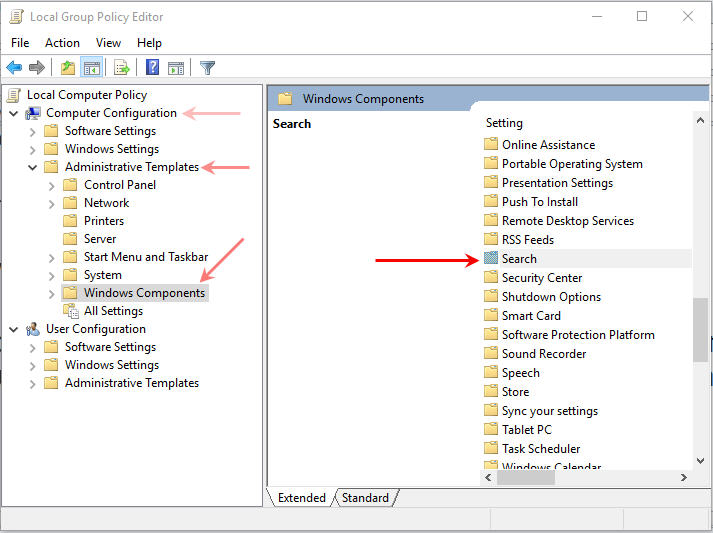
Group Policy Search settings

Locate the policy labeled Do not allow locations on removable drives to be added to libraries and double-click it.

Disable indexing on removable drives

Select Enabled, then click Apply and OK.

Apply Group Policy setting

To ensure indexing does not restart on reboot, press Windows + R again and type services.msc, then click OK.

Opening Windows Services manager

Scroll down to Windows Search and double-click it. Set the Startup Type to Disabled, then click Apply and OK.

At this point, the System Volume Information folder has been removed and Windows has been configured not to recreate it, providing a permanent solution for USB flash drives.

Continue Reading

Copyright

Copyright © 2006 +

USB Powered Gadgets and more...

All Rights Reserved

Advertise with us

GetUSB Advertising

This is a high value website providing great exposure to your product and brand. Visit our advertising page to learn specifics.

For more information
Visit our advertising page.

Nexcopy Ad

Nexcopy Provides

USB copy protection with digital rights management for data loaded on USB flash drives.

Contact us learn more

Resources and References Page

Resources and References Page