GetUSB.info Logo

Pros and Cons of the Raspberry Pi USB 3 Hub

It is common to hear Raspberry Pi owners want more USB ports. GetUSB.info just read about them introducing an official 4 port USB hub. Sweet. To note, most Raspberry Pi single-board computers, except for the Raspberry Pi Zero and A+ models, include a built-in USB hub that splits one USB connection into several USB Type-A ports. Just recently they launched the official Raspberry Pi USB 3 Hub, a high-quality USB 3.0 hub that offers four additional USB ports.

This hub includes a single upstream USB 3.0 Type-A connector with an 3 inches (8 cm) built-in cable. The “upstream” port is the socket used to communicate with the host device, which in this case is the Raspberry Pi. It also has four downstream USB 3.0 Type-A ports and can reach data transfer speeds up to 5 Gbps. There’s a USB-C socket for an optional external 3A power supply but that isn’t included with the $12 purchase. Quick note, the downstream port is are the sockets used to communicate with the devices, like a USB flash drive, hard drive, mouse, keyboard, printer, etc.

One driving force on why Raspberry Pi wanted to sponsor their own USB hub is the fact most ‘other’ hubs are just too expensive. One fundamental goal of Raspberry Pi is to provide an unparalleled offering for computer code development and the lowest possible price. Usually, you either pay a high price for a reliable, well-designed product, or you buy a cheaper option that’s unreliable, doesn’t work with various devices, or simply looks bad.

With this hub, there is no “race to the bottom,” where cheap, poor-quality products pushed out better options, and online marketplaces like Amazon became filled with low-quality hubs. To offer a better solution the Raspberry team got together with with Infineon to source a quality hub chip called the CYUSB3304.

Based on user beta testers and user comments here are the pros and cons of the Raspberry Pi USB 3 Hub:

Pros and Cons of the Raspberry Pi USB 3 Hub

Continue Reading

USB Flash Drive With Activity Light

A USB flash drive with activity light gives the user visual feedback the device is working.

Click here to buy a USB flash drive with activity light. While on this site, consider some other advanced functions you might need, but didn’t think of. Advanced functions such as:

  • Maybe you want the USB flash drive to be read-only (write protected)
  • Maybe you want the USB to act like a CD-ROM drive
  • Maybe you need to copy protect files on the drive – meaning people can view the files but they cannot print them, save them, screen capture, share, etc. The files can only be viewed.

These USB flash drives use an activity light and also provide the other cool functions mentioned above. The landing website offers six different body styles and an unlimited number of body colors along with free printing / branding if required.

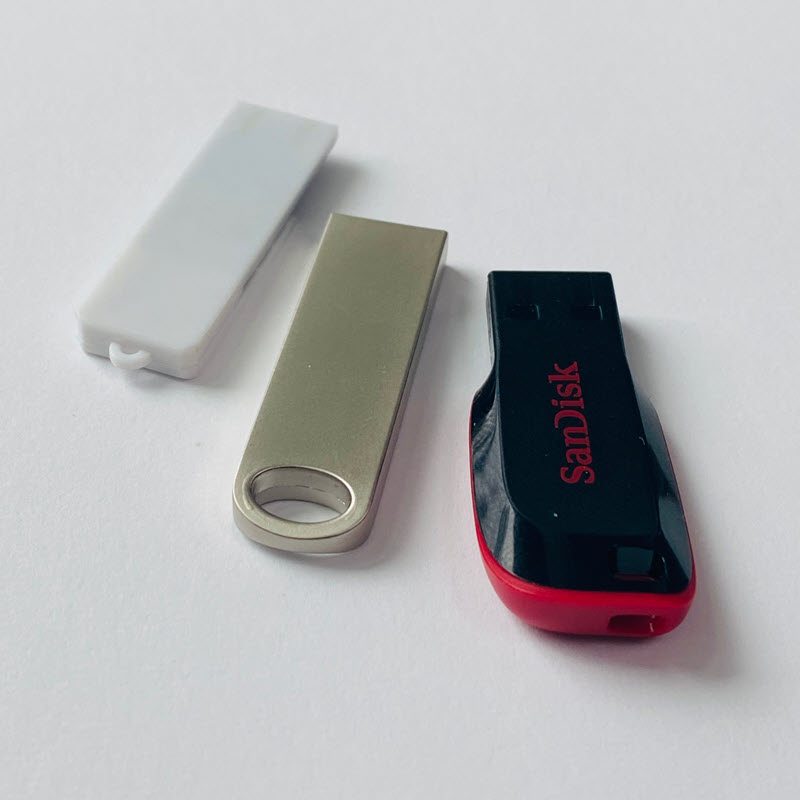
Many small and portable flash drives do not have an activity light and we don’t like those types of drives. They don’t give the visual feedback we want to see.

USB flash drive no activity light

Benefits of a Blinking LED Light on a USB Flash Drive

  • Data Transfer Awareness: A blinking LED lets users know data is actively being read or written. This helps prevent premature removal of the drive, which can corrupt files.
  • Visual Confirmation: The light confirms that the USB device is properly connected and receiving power from the host system.
  • Diagnostic Aid: If the LED never blinks or stays off, users can quickly determine there’s a connection or drive failure without launching Disk Management or File Explorer.
  • Multi-Drive Management: In environments where multiple USB drives are used at once—such as duplicator stations or kiosks—a blinking light helps identify which drives are in use versus idle.
  • Security Awareness: In high-security environments, a blinking light can alert users if a USB drive is unexpectedly being accessed, suggesting potential unauthorized read/write activity.

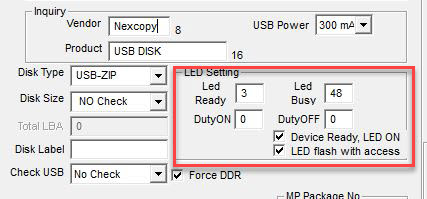
The people who write for this blog prefer a USB flash drive with an activity light. The USB manufacturers have different settings for the LED activity light. Here is a screen shot of the mass production software tool used when making a flash drive.

There are two main settings for a USB activity light:

  • On or Off setting for the LED on when device is ready
  • Blink or not when flash memory is being accessed (this is for either read or write)

USB flash drive with activity light, settings

In our experience any USB flash drive with an activity light will have both of the above settings to On. Meaning the LED will be a solid color when connected and ready, and will blink as the device is being accessed for either a read or write request.

USB flash drive with activity light, on

The most common LED color of a flash drive is red. However, we have seen green and blue LED lights on occasion. Most flash drives can be customized with specific LED colors if required. Lead times and pricing might fluctuate depending on what is required.

Continue Reading

How To Check USB Flash Drive Power Output

How to check a USB flash drive power output is fairly simple: the drive doesn’t output any power. That is the short answer.

What is really happening is the flash drive gives the host (the computer) instructions on the maximum power which should be sent to the flash drive.

So now that we understand a USB flash drive doesn’t put out power, but rather receives it, the next question becomes… how much power does the flash drive instruct it can receive?

When a USB flash drive is connected to a host computer there is something call a “device descriptor” which gives the host a long list of configuration settings. One of those device descriptors is the maximum power setting the device should receive. Now… it is 100% up to the host computer to respect that request, or not.

If you are having USB power disconnection issues it can be one of two things:

  1. The USB flash drive has too low of a power configuration setting
  2. The host is not respecting the device descriptor of the flash drive setting

99.9% of the time the host is respecting the device descriptor because the USB stack (code) to run the USB flash drives is typically well developed, i.e. the USB driver is from Microsoft.

The more likely problem is the power setting of the device is set too low. If the power setting is set too low this means the host computer will monitor the power and since the USB is asking for more power than what is set in the descriptor the host computer disconnects the drive.

Below is a screen shot for the mass production tool used to make USB flash drives. As you can see the power settings available to configure the drive range from 100mA (milliamps) to 500mA. The maximum power limit for USB 2.0 is 500mA and thus should be the setting to make a USB flash drive. However, if the USB manufacturer messed up with an incorrect selection then there is a very good chance a 200mA flash drive is being disconnected all the time… and by no fault of the host computer.

usb flash drive power output configure

So how do you find the power output of a flash drive? Or more accurately, what is the power consumption definition of the flash drive?

In short, there is no easy way to find this information in Windows. The easiest solution is download a third party application and run the tool to see. The tool (USBDeview) is very small and runs directly as an exe file, no installation required.

Below are two screen shots.

The first screen shot is a USB flash drive set at 200mA. Clearly this device will run into disconnection issues.

usb flash drive power output too low

The second screen shot is a USB flash drive set at 500mA. This is the correct configuration of a USB flash drive for power output.

usb flash drive power output correct

The above information is the easiest way to determine USB flash drive power output for a thumb drive.

Continue Reading

DIY USB Power Hub Station

Using very simple and inexpensive items, create a USB power hub station for all gadgets like headphones, chargers, GPS units, GoPro camera’s and more.

In addition to a very organized solution, the DIY USB power hub station is out of the way, yet easily accessible. No more taking up valuable kitchen counter space with cluttered gadgets and a birds nest of cables.

The solution is ultra-easy. For the DIY USB power hub station all you need is a shoe rack for the closet, a USB hub and your cables.

In less than 10 minutes you can be organized, powered and out of sight. This DIY project was less than $35 dollars.

First, grab a hanging shoe rack from Amazon. I found this 10 slot shoe rack for $13.

Next, grab a USB hub that only runs power (less expensive) and I found a matching 10 socket version for my 10 slot shoe rack for $20.

The only thing left to possibly buy are cables. However, you probably already have the powering USB cables required for your devices. I do think getting cables that have a combo Apple Lightening cable and microUSB cable allow things to be a bit more flexible when connecting various devices.

Here is a set of two cables with three different connectors (Lightening, USB-C and microUSB) for $6.00 (each) $13 total.

Once your items arrive the assembly is literally two minutes. There is a good chance it will take longer to clean out your closet than assemble the DIY USB power hub station.

The best location would be in the closet under your stairs. This is true because the space most likely has a power outlet.

  • Step 1 – Cut a small piece of fabric in the back of each shoe rack slot
  • Step 2 – Place USB powered hub in the bottom shoe rack slot
  • Step 3 – Lay out the shoe rack and thread each power cable from the USB hub to each shoe rack slot
  • Step 4 – Place devices in shoe rack slots and connect
  • Step 5 – Hang USB power hub charging station in your closet
Continue Reading

Transfer Rates Faster Than USB

In the world of physics, heat represents resistance. Think about touching your car tire before you’ve driven anywhere — it’s cool. Touch that same tire after driving to the store and it’s warm. That warmth is resistance.

Copper found in USB connectors and USB cables is the material where this resistance shows up. As copper heats up, data transfer rates slow down because heat represents inefficiencies in the material.

Research presented at February’s IEEE International Solid-State Circuits Conference by lead author Jack Holloway, along with co-authors Ruonan Han and Georgios Dogiamis, introduced a data transfer system capable of transmitting information up to 10 times faster than USB. The new link pairs high-frequency silicon chips with a polymer cable as thin as a strand of human hair.

Mr. Holloway explains, “Copper wires, like those found in USB or HDMI cables, are power-hungry — especially when dealing with heavy data loads. There’s a fundamental tradeoff between the amount of energy burned and the rate of information exchanged.”

Polymer cable technology for high-speed data transfer

The most commonly suggested alternative to copper wiring is optical fiber. Optical cables rely on photons and are extremely efficient, but the challenge lies in how photons interact with silicon chips. Because photons don’t interface cleanly with silicon, a direct connection between a fiber-optic cable and a computer chip is not ideal.

The technology developed by Holloway and his team uses a plastic polymer material that performs exceptionally well at sub-terahertz frequencies. These very high-frequency signals make the polymer a competitive alternative to fiber optics.

To complete the system, the team engineered a low-cost silicon chip that pairs directly with the polymer conduit. While traditional silicon chips struggle at sub-terahertz frequencies, this new design generates high-frequency signals with enough power to transmit data directly into the conduit. The clean interface between chip and conduit allows the entire system to be manufactured using standard, cost-effective processes.

Physically, the plastic polymer conduit is about the same diameter as a human hair.

Resource: Fiber optics.

Continue Reading

5 (legit) Reasons a USB Flash Drive Disconnects and Reconnects in Windows

Roll Play Scenario:

  • Windows: Sound of connecting a USB flash drive…
  • User: Ah yes… let’s get to work!
  • Windows: Sound of a disconnected USB device…
  • User: Oh no, what’s happening?

A quick Google search later and here we are. Let’s take a closer look.

Intermittent USB disconnects are frustrating because they often feel random. In reality, Windows is usually responding to a power, driver, or hardware condition rather than failing silently. The key is to determine whether the issue follows the USB device itself or stays with a specific computer or port. Once you isolate that variable, troubleshooting becomes much more predictable.

Below are five legitimate reasons your USB flash drive might be disconnecting from your Windows computer.

1. Running on Battery

By default, Windows is configured to reduce power consumption when running on battery, which can include powering down USB ports after a period of inactivity. This typically happens after 10–15 minutes, but power profiles can vary. Before changing any settings, plug your laptop into AC power and see if the issue disappears.

To check your USB power settings:

Search for Control Panel and press Enter.

Windows Control Panel

In the Control Panel, click Hardware and Sound.

Hardware and Sound settings in Windows Control Panel

From there, select Change battery settings, then Change plan settings, and finally Change advanced power settings. Scroll through the options to find USB settings and adjust power behavior as needed.

USB power settings in Windows advanced power options

2. Faulty USB Port

The most common cause of USB disconnects is a worn or damaged USB port. Laptop ports see frequent use, and front-panel ports on desktop towers often experience the most wear. If the USB device wiggles easily or inserts with little resistance, the port may be failing.

Continue Reading

Inexpensive iPhone Charging Cable – and Smart

Are you looking for an inexpensive iPhone cable? This is a common search on Google because those cables go missing, get taken by your kids or co-workers, or simply break. It’s as though we need an endless supply of them. I don’t recall the last cable I had that lasted more than four months. There is an article out there somewhere that claims for each iPhone made, the user will need at least three cables for charging it. The link to that article escapes me, but from personal experience, it feels accurate.

Typically, one cable lives in the car for charging while driving. One stays at work to charge while you’re at your desk (and yes, for a little TV-background noise {wink}). And one stays at home for overnight charging. That’s the baseline.

iPhone cables, or Lightning cables, are expensive. Go to Amazon and you’ll find a decent six-foot cable costing close to $20. Multiply that by three and you’re looking at a $60 expense just to keep your phone alive. No thanks. We want an inexpensive iPhone charging cable solution.

This cable problem actually gets worse, not better, and here’s why.

You also need microUSB cables to charge your portable battery packs. So now we’ve got three Lightning cables for the iPhone (work, car, home) and at least one microUSB cable to charge the power bank that keeps your phone alive when you’re away from all three. Portable batteries are non-negotiable these days. Kids’ baseball games can stretch to three hours. Softball tournaments stack games back-to-back. A round of golf runs 4.5 hours. The point is, we’re often away from power outlets longer than our phones can handle.

If this feels familiar, you’re not alone. We’ve been writing about USB charging standards and cable sprawl for years, including how USB slowly became the? standardized connection for charging phones and mobile devices in general (related article here).

So how do we solve the problem of finding an inexpensive iPhone charging cable? The answer is a combination of products. This setup charges your iPhone and your portable battery packs without buying multiple expensive Lightning cables.

On Amazon, you can find a pack of five microUSB cables for under $10. Be sure to check the length you want. It’s easy to save a dollar and accidentally buy cables that are too short to be useful.

Pack of microUSB charging cables

The other item you need is a microUSB to Lightning adapter. These small adapters sit on the end of your microUSB connector and convert it into a Lightning connection for your iPhone. A four-pack can usually be found for under $10.

MicroUSB to Lightning adapters

It’s important to note these adapters only supply power to your iPhone. They do not support data transfer. For most people, that’s a non-issue. When was the last time you plugged your iPhone into a computer to sync? Everything happens wirelessly now.

For about $20 total, you now have multiple Lightning charging options for your iPhone and multiple microUSB cables to charge your portable power packs. It’s a simple, flexible, and very inexpensive iPhone charging cable solution. Honestly, it’s hard to justify doing it any other way.

iPhone charging setup using microUSB cables and Lightning adapters

Continue Reading

USB WiFi Smart Adapter – But Why?

Given USB is everywhere, this gadget gives you the ability to control the on-and-off power of a USB-powered device. On paper, that sounds useful, especially as more accessories, lights, fans, and gadgets rely on USB for power instead of traditional wall adapters.

I think for most people, there is no real difference between a WiFi wall outlet and a WiFi USB adapter. The only meaningful distinction is when you want to control the power of a USB gadget that is being powered directly from your computer. In every other scenario, the power source is still a wall outlet, so a standard smart plug tends to be more flexible.

Can you plug in your Alexa via USB? No. Can you plug in your Google Home via USB? No. Can you plug in your lamps in the family room or living room via USB? No. Can you plug in your Bluetooth speaker to charge via USB? Yes, but who really cares about controlling the power to that? Can you plug in your phone via USB to charge it? Yes, but again, most people want it to charge to full capacity anyway. Oh wait, unless you are a super nerd, like these guys (read the comments section).

Sonoff WiFi USB smart adapter for controlling USB power

For the $6.50 that Sonoff is planning to charge, I’d personally put my money toward a more usable product, like the Smart Life WiFi outlets. They work with a wider range of household devices and don’t limit you to USB-only power scenarios.

Continue Reading

Remote access to USB security keys

If you are an avid user of USB security dongles, you might know how challenging it can be to get remote access to these devices. To simplify this task, Electronic Team, Inc. has developed a dedicated software solution capable of sharing USB protection dongles over a network.

Donglify is a lightweight desktop application that allows connecting USB hardware keys to remote computers over the Internet and LAN. The software uses 2048-bit SSL encryption to secure your connections, so you don’t need to worry that your sensitive data will be intercepted or lost.

One of the nicest things about Donglify is that it can redirect one USB dongle to several remote PCs simultaneously. In order to make a USB hardware key available for use on multiple computers, you can connect the device to your local PC and share it over the network with nothing more than a couple of clicks. This option currently works with HASP HL Pro, Sentinel HL Pro, SafeNet eToken 5110, and CodeMeter CmStick security keys.

Donglify software interface for sharing a USB security dongle over a network

USB hardware keys of other types can also be shared over the Internet, but you’ll only be able to access them from one remote machine at a time.

Donglify is available by subscription and comes with a 30-day free trial. When the trial period is over, you can continue using the service for $19.99 a month.

Continue Reading

Power Over Ethernet to USB-C From Far Away

USB-C is a great technology, offering ultra-fast data transfer rates close to 10Gbps and increased power delivery for charging laptops, monitors, and TVs. However, the power advantage of USB-C diminishes over longer cable lengths. According to the USB-C (USB 3) specification, optimal power and transfer rates are maintained only when the cable length is under two meters (about six feet).

Power over Ethernet (PoE) is a proven way to deliver both data and power over long distances via cable. PoE Texas has introduced a product that extends USB-C connections using this technology.

“As a standard, USB-C offers amazing speed and power delivery. Unfortunately, USB-C can only transmit power less than ten feet (three meters), and the cable infrastructure comes at a cost premium. Ethernet cable, nearly ubiquitous in modern construction, can transmit power and data up to 328 feet (100 meters). USB-C power and data transmitted over Power over Ethernet significantly lowers the cost of adopting USB-C by eliminating the need for new electrical infrastructure.”

Extending USB-C Connections with Power over Ethernet

Real-World Example of PoE USB-C in Use

A user has a workstation located about 30 feet away from the production unit it needs to communicate with. The production unit is a USB-C duplicator by Nexcopy. The workstation manager controls the data to be loaded onto USB-C flash drives, while the production manager physically connects and disconnects the USB sticks during the duplication process.

Because a standard USB-C cable cannot cover the required distance, the user can employ the USB-C Power over Ethernet solution to deliver both power and data effectively to the remote device.

  • Conference Room Setup: A USB-C monitor is mounted 40 feet away from the docking station. Using PoE to USB-C allows both video data and charging power to reach the display over a single Ethernet cable.
  • Security Camera Installation: A USB-C powered 4K security camera is installed 80 feet from the control room, receiving both power and data via PoE without additional electrical wiring.
  • Point-of-Sale Terminal: Retail stores can power USB-C tablets located 50–75 feet from the main server rack using PoE, avoiding the need for extra outlets and USB hubs.
  • Industrial Automation: A USB-C duplicator or machine placed 60 feet from the workstation uses PoE adapters to maintain stable power and high-speed data transfer without costly long USB cables.

Product Page: POETexas.com

Reference: Power over Ethernet (Wikipedia)

Continue Reading

How USB Cables Affect Charging – Simple Test

I came across an interesting article today from Dr Gough, a tech nerd, and thought it was good enough to summarize here:

The USB specifications for power from a port vary from 100mA to 1.5A, and all the way up to 100W of power for USB Type-C. However, the cables and connectors used in a USB cable don’t always align with the power capabilities of the device being designed or charged. Most everyday USB charging cables are typically rated for about 1.8A of current, which is common for consumer-grade charging scenarios.

USB charging cable showing internal wiring and connector quality

The 1.8A rating is largely based on safety limits related to resistive heating of the cable and connectors. This rating does not guarantee that your +5V at 1.5A setup will actually deliver maximum usable power to your device. The key point is that the cable-and-connector combination is primarily rated to handle heat safely, ensuring nothing melts or becomes a fire hazard. Most specifications go a step further and ensure the cable doesn’t even become noticeably warm to the human touch.

Every wire that isn’t a superconductor has some finite resistance. Put simply, electrical resistance turns energy into heat. Ohm’s Law tells us that E = IR, where E is voltage, I is current, and R is resistance. When power flows through a wire, current multiplied by resistance produces a voltage drop across that wire. That lost voltage becomes heat, meaning it never reaches your phone, tablet, or battery pack.

This also explains why some cables charge devices faster than others, even when using the same charger. Thicker conductors, better materials, and higher-quality connectors reduce resistance and therefore reduce energy loss. Cheap cables often cut corners on copper thickness and connector quality, which directly impacts charging efficiency.

I want to end this blog post with the above explanation because that’s the real takeaway. The more inefficient (or cheap) a cable is, the warmer it will get. If your iPhone cable is warm to the touch, it sucks. If the wire charging your power bank is warm, it sucks. Get a better cable. From what I can tell, there’s no meaningful rating posted on many of the low-cost cables you see on Amazon, so word to the wise: trust your tactile feedback.

Continue Reading

USB Wall Charger With Hidden Surveillance Camera

With USB gadgets like this, it’s hard to imagine how companies like ADT stay in business for residential customers. This functional USB wall charger includes a miniature camera that acts as a discreet surveillance device. You can plug any USB gadget into it for charging while simultaneously recording or streaming video of whatever falls within its field of view.

Using your Android or iPhone, you can stream video directly to the companion app or share access with a group of authorized users. The spy camera records 1080p HD video and also saves footage to the included 32GB microSD card. As a bonus, the camera can be configured to record only when motion is detected.

USB wall charger with hidden surveillance camera

The camera view is fixed directly in front of the wall plug, so there is no ability to pan or tilt the lens. That limitation is easy enough to work around by choosing an outlet that aligns with the area you want to monitor.

Here are some noteworthy features included at the low price of $29 USD:

  • Motion Detection – Can be configured to record only when motion is detected and send notifications directly to your phone.
  • Loop Recording – Automatically overwrites older footage to allow continuous recording.
  • Night Mode – Supports recording in dim or low-light environments.
  • Multi-User Support – Allows multiple users to connect to the same device, supporting up to eight users.
  • Multi-Camera Viewing – Supports up to eight cameras within the same app or software environment.

The Evela spy camera comes with a 32GB microSD card and a USB dongle for reviewing recorded footage. The low-light recording feature works particularly well. For a $29 investment, this device makes sense for frequent travelers who want to check in on their home while away. Another practical use case is monitoring a babysitter or nanny. You can never be too careful, and at this price point, the barrier to entry is minimal.

USB charger spy camera plugged into wall outlet

Visit the product page for the USB wall charger and surveillance camera to see ordering details and customer reviews. The product carries a four-star rating and has been well received.

For background information, Wikipedia offers a general overview of surveillance, which is worth reading before crossing the line into nanny-cam territory.

Continue Reading

Copyright

Copyright © 2006 +

USB Powered Gadgets and more...

All Rights Reserved

Advertise with us

GetUSB Advertising

This is a high value website providing great exposure to your product and brand. Visit our advertising page to learn specifics.

For more information
Visit our advertising page.

Nexcopy Ad

Nexcopy Provides

USB copy protection with digital rights management for data loaded on USB flash drives.

Contact us learn more

Resources and References Page

Resources and References Page