GetUSB.info Logo

Dangerous New USB Malware

Data security through the internet is one of the most volatile industries in today’s world. Bug exploits, malicious code, and all kinds of data stealing programs being born through the constant fluidity of web content has led to many companies and organizations removing their valuable information from the grid altogether. A new threat on the hardware front however, may prove to be a challenge for even this avenue of data protection.

USB


A new malware sample, appropriately named “USB Thief”, was discovered by researchers at the award-winning ESET security firm. As its name implies, the malware is completely USB-based, meaning it spreads only through devices plugging in through the USB ports of a computer.

Continue Reading No Comments

Create your own Custom USB Flash Drive Logos

Create your own Custom USB Flash Drive Logos is a great method to build your brand, make a great impression and leave a lasting positive vibe with your clients.

Branding products isn’t a new concept in today’s marketing world, but Nexcopy has made it a lot more accessible to brand one of the most versatile pieces of technology in the industry. With the new USB7P full color inkjet printer, anyone can bring their designs or images to life on their flash drives. Below is a video illustrating the product with its features and benefits.

For more information about customizing this video for our reseller channel, please contact Nexcopy directly.

Source: Nexcopy Inc.

Create your own Custom USB Flash Drive Logos Twitter promotion
Create your own Custom USB Flash Drive Logos Facebook promotion

We recently published an article featuring 60 incredible custom USB flash drive designs that range from miniature cars to footballs and represent industries as diverse as material handling, construction, medical, and environmental services. A custom-shaped USB flash drive is more than just portable storage—it’s a unique, physical representation of your brand

By transforming a company logo or product into a functional USB drive, businesses create a marketing tool that not only stands out but also makes a lasting impression on their target audience. For example, a construction company once commissioned a USB drive molded in the exact shape of one of their heavy-duty excavators. This creative giveaway left potential clients with a practical device that doubled as a memorable conversation starter, reinforcing brand recognition long after the initial meeting

Marketing professionals continue to choose custom logo USB flash drives because they offer a tangible, engaging, and highly effective way to drive home their brand message.

Continue Reading No Comments

Why is my USB write protected?

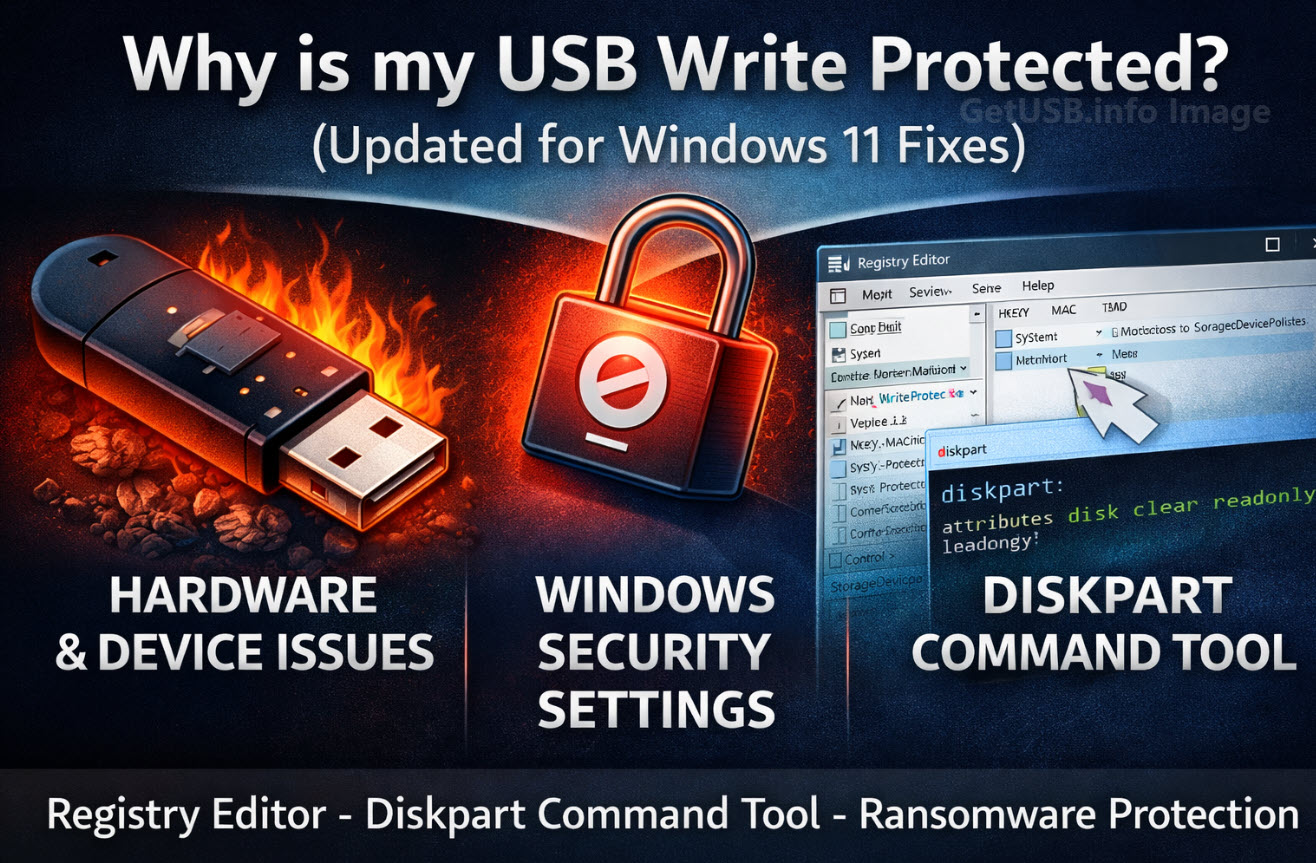
Why is my USB write protected? (Updated for Windows 11 Fixes)

USB write protected means the USB cannot be written to. But why does this happen? There can be several reasons, ranging from a corrupted flash drive to software settings in Windows that lock the device.

Originally posted in 2015, this article is now updated for modern systems, including Windows 10 and Windows 11, which introduce additional security layers that can cause USB write protection issues.

Hardware or Device Failure

It’s easy to damage a USB stick. A common cause is sending multiple write threads to the device at the same time. For example, copying large files while issuing another write command may corrupt the controller, leaving it permanently locked.

Windows Registry and Security Settings

Windows can mark a USB drive as write-protected due to policy settings or errors. Here’s how to remove this restriction on Windows 10 and Windows 11:

  • Press Win + R, type regedit, and press Enter.
  • Navigate to: HKEY_LOCAL_MACHINE\SYSTEM\CurrentControlSet\Control\StorageDevicePolicies
  • If WriteProtect exists, double-click it and set the value to 0. If it doesn’t exist, create a new DWORD (32-bit) entry named WriteProtect and set it to 0.
  • Restart your PC and reconnect the USB drive.

Using Diskpart Command (Windows 11)

Windows 11 offers an advanced command-line tool to clear write protection:

diskpart
list disk
select disk #
attributes disk clear readonly
exit

Replace # with your USB drive number.

Windows Security – Ransomware Protection

Windows 11’s Controlled Folder Access can block external writes. Disable or adjust this setting via: Settings > Privacy & Security > Windows Security > Virus & threat protection > Ransomware protection.

File System Repair

If the drive is corrupted, run:

chkdsk E: /f
(replace E: with your USB letter). This may fix read/write errors without losing data.

Manufacturer Tools

Brands like SanDisk, Kingston, or Nexcopy provide utilities to reset a locked USB device or reformat at a controller level.

Conclusion

Write protection errors are often recoverable and not always caused by hardware failure. With the new features in Windows 11, additional troubleshooting steps may be required before discarding a drive.


FAQ

Q: How do I remove USB write protection in Windows 11?
A: Use Registry Editor, Diskpart, or adjust Ransomware Protection settings to allow writes.

Q: Does Windows Defender block USB writes?
A: Yes, in some cases Controlled Folder Access can block external USB writes. Adjust settings to resolve this.

Continue Reading No Comments

Question Format a USB Flash Drive as exFAT or NTFS?

USB Flash Drive format exFAT vs NTFS, sketch of USB

It’s a good question; format a USB flash drive as exFAT or NTFS? There are several reasons not to format as NTFS and we’ll explain.

Most of the Time you are Okay

Most of the time, formatting a flash drive is a very simple decision. There are only two situations where you should carefully consider what format to use. Here are the details:

Note: This article is focused on Windows and Mac operating systems.

The file formats available for a USB flash drive are:

  • FAT (also called FAT16)
  • FAT32
  • exFAT
  • NTFS
  • HFS (Mac only)

Flash drive manufacturers typically format a drive as either FAT or FAT32. Any device of 2GB or smaller will be formatted as FAT, and any USB over 2GB will be formatted as FAT32.

Question Format a USB Flash Drive as exFAT or NTFS - image example

These two formats are the best file systems for removable drives like USB flash drives because they support quick disconnect functionality. Chances are very slim that you will destroy the device or files if you unplug the USB without using the Eject function (in Windows) or the Un-mount function (in Mac).

The one huge limitation with FAT and FAT32 is the single file size limit. If a single file is larger than 2GB, you need FAT32. If you have a single file bigger than 4GB, you must use NTFS or exFAT. Typically, these large files are video files or restore image files (for restoring a computer operating system from a single image file).

Continue Reading No Comments

Can I Connect a USB-C to a USB 2.0 Port?

USB Type C Connector

Question

Can I connect a USB Type C cable to an older USB 2.0 port?

Answer

No you cannot.

The USB type C socket is a backward compatible technology with respect to the protocol but it is not backward compatible in the physical connection. Meaning, the sockets wont fit, but with an adapter you will have no problem charge devices or trasnfering data.

Why

The USB-C connection was design for several reasons. Of course a new specification will always be developed to increase data transfer rates or introduce new features, such as increased power across the buss to charge or power connected devices. The main reason for USB-C connectors is size. With USB being the world’s most popular technology for peripheral devices, the Implementers Forum (with members such as Intel, Acer, AData, SanDisk, Lexar, Micron and many others) they wanted to insure the USB specification continued to be the #1 method for connecting the ever decreasing size of digital devices.

Continue Reading No Comments

Trained Dogs to Sniff Out SD Cards and USB Sticks

USB stick, dog

Police dogs have yet another smell they must detect. Tactical Detection K9 company now trains dogs to sniff out SD cards and USB sticks. The training is in response to better assisting law enforcement in child pornography investigations.

The percentage of a dog’s brain which is devoted to analyzing smells is 40 times greater than humans. For example, humans can detect about 5 million scents and a German Shepherd can detect around 225 million smells.

In a recent investigation a dog was used in the FBI raid of the home of the former Subway spokesman Jared Fogle in Hancock County, Indiana.

What could take investigators hours to find an SD card or USB stick in a house would take a trained dog considerably less time, probably no more than 30 minutes.

According to Tactical Detection K9 it took scientists over four years to isolate the odor associated with memory devices. Now that a specific odor has been identified it takes 8-9 months for a dog to be trained in picking up that scent.

A dog which can sniff out SD and USB sticks can cost upwards of $9,000.

Source: IB Times and Dummies.com .

Continue Reading No Comments

Portable, Plugable USB Type C Dock Station

With the single USB-C port of the new MacBook laptop we knew a power station and/or dock station was right behind.  Here is a Kickstarter compaign to address the single port computer and connecting all your peripheral gadgets to your new computer.

The ultimate dock station will power and charge your system using USB’s new Power Delivery specification, while providing an additional alternate mode video output up to 4K resolution, gigabit Ethernet, audio input/output, and 4 USB ports.  The tall slender design of the dock station packs a number of sockets to support any type of peripheral you need to connect.

In addition, the USB 3.1 Type-C specification supports a feature called “VESA Alternate Mode” which works with the built-in graphics processor on supported systems to provide video output at resolutions up to 4K.  This is particularly important given the up-tick in TVs and monitors which are being released with a 4K specification.  The other two display outputs in the Ultimate Dock are enabled by the DisplayLink DL-3900 graphics processor, which can support two additional 1080P displays at 60Hz.  The DisplayLink driver is still in development, but the Kickstarter campaign claims the driver will have a final release by the time the dock station hits full production.

The Plugable Ultimate USB-C Universal Docking Station supports:

Continue Reading No Comments

Cannot Format a USB GPT Protective Partition

Sometimes you will connect a USB to the PC and get an error message saying the drive has a GPT Protective Partition and you cannot format the drive. Here is the fix to resolve the issue:

First, what is a GPT USB stick? The GUID Partition Table (GPT) is the successor to the Master Boot Record. The MBR was created by IBM back in the early 90s. The problem with MBR is the limitation to partition table sizes which is 2 Terabytes.

Since there are no 2T USB flash drives (at the time of this post), there is no need to use GPT as your partition table.

Removing the GPT Protected Partition can be accomplished through the Windows Diskpart program.

  • Determine the Disk Number for the USB GPT-protected drive. To do this, perform the following:
  1. Right-click on (My) Computer.
  2. Choose Manage.
  3. Select Disk Management (listed under Storage).
  4. Look for the drive that is identified as GPT and note the Disk number (such as Disk 1).
Format USB GPT Protected Partition
  • Now, open a Command Window. From the command prompt, type diskpart and press Enter.
  • The diskpart prompt will open.
  • From the diskpart prompt, type list disk and press Enter. A list of disks will appear in a text format. You will return to the diskpart prompt.
  • From the diskpart prompt, type select disk disknumber (in this example from the screen shot above, you would type select disk 1)and press Enter. A message appears saying that the disk is selected. You will return to the diskpart prompt.
  • From the diskpart prompt, type clean and press Enter. At this point the drive’s partition and signature a removed. You will return to the diskpart prompt.
  • From the diskpart prompt, type exit and press Enter. Type exit once more to close the Command Window.
Continue Reading No Comments

How To Make a USB Read Only

There are two ways on “How to make a USB read only.” One method will make the USB read-only in anything it is connected to, so you could say this is a universal way of making a flash drive write protected.

The other way is a PC-specific solution where some registry edits are required to any computer the USB flash drive is connected to.

When we say 100% permanent, this means the USB stick is read only (write protected) on all devices, whether it be computers like a Mac, Windows PC, Linux box, or non-processor based products like a car stereo. This permanent solution also means the status of the drive cannot be changed. The other method flags a USB device to be read only in relationship to the PC it is connected to so that whenever that USB stick is connected to that computer, it makes the USB read only and blocks all write commands to the device.

Most times an IT manager or content owner wants the USB stick to be read only so the files cannot be deleted or formatted off the drive. Another reason for making a USB read only is for the original files to remain the same and block the ability for files to be changed or manipulated. Finally, it’s smart to have USBs read only so that viruses don’t jump onto the drive and possibly spread to other computers.

Let us start with the less permanent way because it’s easier to do and doesn’t require any specific hardware.

You will need a Windows7 machine or higher. The Windows7 machine will have DiskPart utility which allows us to perform all sorts of cool things to flash drives, like setting write protection.

  • Connect the USB to your Windows computer.
  • To begin, go to your Windows Start and in the Search Field type cmd
How To Make a USB Read Only command prompt example

This will run your Command Prompt.

  • Next, you will want to get to the C root of the Command Prompt and if you are signed in as a user you can simply type cd\ – this will get you back to the root of the C drive.
  • Type DISKPART
  • Type LIST DISK

Now you will need to find the USB stick connected to your PC. Most likely it’s DISK 1

Continue Reading No Comments

How Flash Memory Works

This is a great video that explains how flash memory works. Granted, the video is very technical but does work through the concept of reading and writing data to flash. So if you have the 17 minutes to use, I suggest giving this a watch. The video does cover SLC, MLC and TLC memory and how each of these technologies read and write with the different layers of a floating gate device like NAND. Source: YouTube. Continue Reading No Comments

Copyright

Copyright © 2006 +

USB Powered Gadgets and more...

All Rights Reserved

Advertise with us

GetUSB Advertising

This is a high value website providing great exposure to your product and brand. Visit our advertising page to learn specifics.

For more information
Visit our advertising page.

Nexcopy Ad

Nexcopy Provides

USB copy protection with digital rights management for data loaded on USB flash drives.

Contact us learn more

Resources and References Page

Resources and References Page