GetUSB.info Logo

How To: Check if My USB Flash Drive is Bootable?

The following article will explain how to check your USB flash drive for if it’s bootable. There is no software needed, no download, just a couple of simple commands in your Windows 10 operating system.

A master boot record (MBR) is a special type of boot sector at the very beginning of a partition storage device like a fixed disk (hard drive) or removable drive (USB thumb drive). The MBR contains executable code to function as a loader for the installed operating system. This loader turns over the functions of the hardware (mother board bios) and passes that loading responsibility off to the operating system (Windows).

This is how you check if your USB is bootable, or not:

First, please have only the one USB stick connected which you want to check if it’s bootable. It’s not required to do this, but will my the instructions below a bit easier to follow, that’s all.

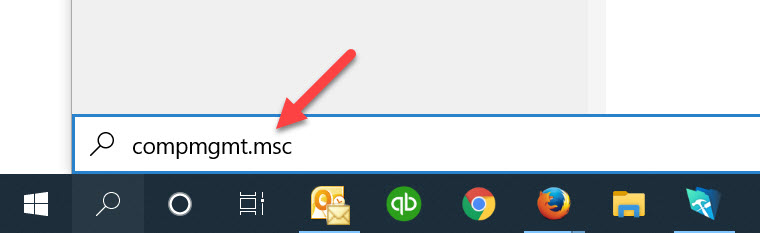
Using the Windows search function copy and paste this into the search field and click Enter

compmgmt.msc

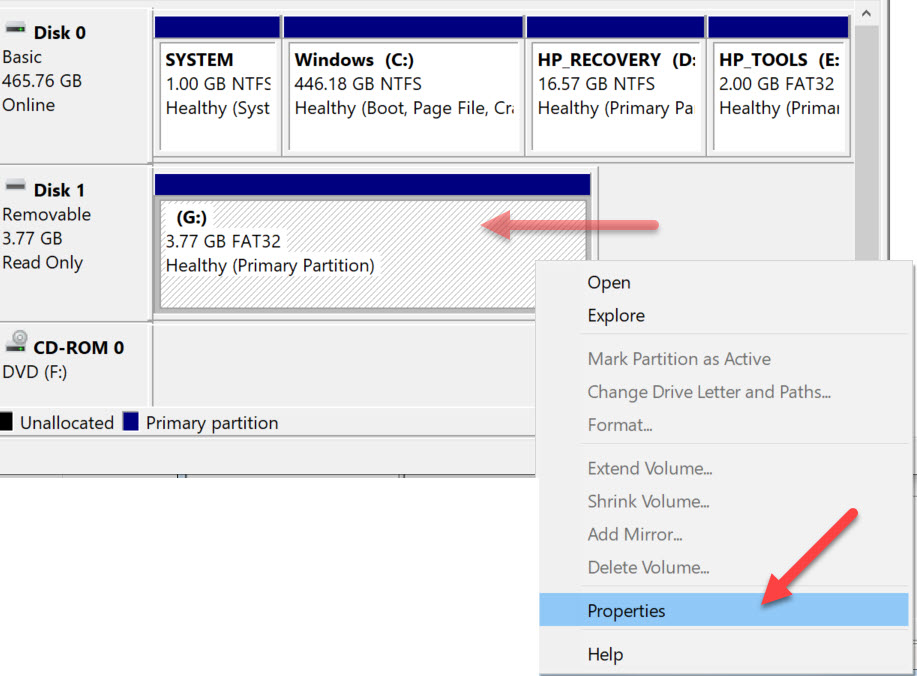
The screen shot below will pop up after you click Enter. Using the image as a reference, select “Disk Management” under the “Storage” folder“. In the middle of the dialogue box you will see the drive letter associated with your USB flash drive. In the middle of the box you will probably see the USB listed two different times. The top portion of the box, the USB will be listed along with other devices, like your hard drive and optical drive. The bottom portion of the box, the USB will be shown as “Removable

Once you’ve determined which drive letter is your USB drive, you may Right Click on the drive letter and select Properties.

A Properties dialogue box appears giving you the option to select any one of the devices show in the previous window (the Disk Management window). From this dialogue box, click the Hardware tab and select the “Mass Storage USB Device” by a single click. Then click the Properties button at the bottom.

The last dialogue box are the Properties of your specific flash drive.

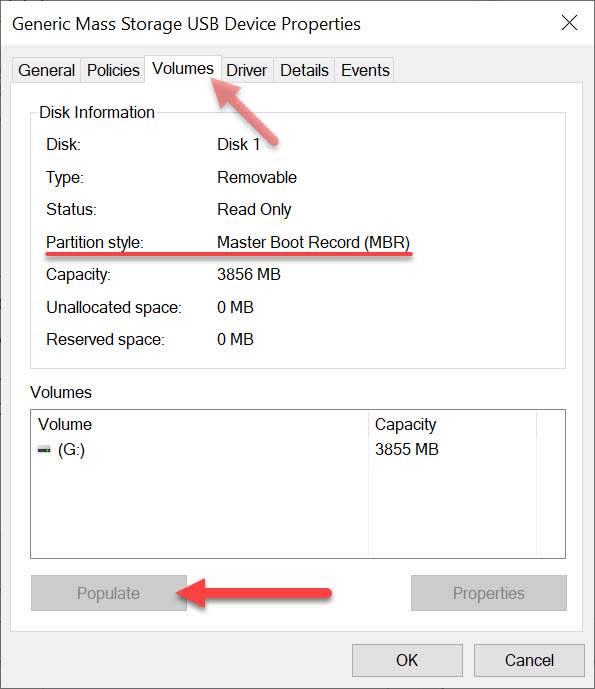
Click the Volumes tab at the top, you then must click “Populate” to get the device information. . The “Partition Style” will read either Master Boot Record (MBR) or the field will be empty.

If the above information isn’t detailed enough for the information you are looking for, the next step is to use a hex editor and check if the boot strap code is actually in the Master Boot Record. This is a bit more detail and the guys at Hakzone did a really good job of summarizing how this would be done using a hex editor program.

Continue Reading No Comments

What Is The Lifespan of a USB Flash Drive?

The lifespan of a USB flash drive depends on three main factors. In general, a flash drive will last much longer than most people expect. Below are the key elements that influence its durability.

Factors That Affect USB Flash Drive Lifespan

  • How the drive is made
  • Wear leveling technology
  • How the drive is treated

USB flash drives are largely commodity products driven by the lowest price. Manufacturers often cut corners to reduce costs. Understanding the quality of the device you’re using is essential for reliable, long-term storage.

1. How the Drive is Made

A USB flash drive consists of five main components: the PCB (printed circuit board), flash memory, USB controller, supporting components, and soldering that holds everything together.

Printed Circuit Board (PCB)

Many promotional USB drives use a two-layer PCB to save costs. However, the USB specification requires a four-layer PCB for proper grounding and interference-free data transmission. A two-layer board is more likely to experience performance issues. If you received a USB stick from a trade show, avoid using it for long-term or critical storage.

Example: A four-layer USB flash drive by Nexcopy with Micron memory offers write speeds of 12MB/s.

What Is The Lifespan of a USB Flash Drive?, USB flash drive PCB with NAND memory

Flash Memory Quality

USB drives often use downgraded NAND memory. High-quality NAND chips go to phones, set-top boxes, and other premium devices first. Lower-grade chips are repurposed for USB sticks. A 512MB USB drive may have gone through several downgrades, making it unreliable.

Quick Test: For USB 2.0, a good-quality drive should have a write speed of at least 9–10MB/s. For USB 3.0, look for 18–20MB/s or higher. Slower speeds suggest lower-quality silicon struggling with phase changes during data writes.

USB Controller

The controller is the “brain” of the flash drive, managing communication between the host computer and NAND memory. The quality of the controller and its firmware significantly affects drive performance and longevity. Firmware determines whether the device prioritizes speed, capacity, or compatibility with specific NAND chips. Unfortunately, it’s impossible to test this without knowing the manufacturer and their firmware configuration quality.

Device Components

Capacitors and resistors are typically reliable due to mature manufacturing processes. However, cost-driven production may result in lower-quality components, which can slightly reduce lifespan over time.

Soldering Quality

Poor soldering or the use of hot glue instead of precision solder joints can lead to device failure. If you’re curious, you can open a USB casing to inspect build quality. Sloppy soldering is a red flag for long-term reliability.

USB flash drive with USB controller, What Is The Lifespan of a USB Flash Drive?

2. Wear Leveling Technology

Wear leveling is a firmware-based algorithm that evenly distributes write and erase cycles across memory blocks, preventing premature failure of specific sectors.

  • Dynamic wear leveling: Maps data writes to unused blocks but ignores untouched areas, potentially shortening lifespan.
  • Static wear leveling: Periodically shifts data across unused memory areas, improving overall durability.

Thanks to wear leveling, modern USB flash drives can theoretically last up to 100,000 write cycles per individual memory block, not just per drive.

Learn more on Wikipedia.

USB wear leveling chart

3. How the Drive is Treated

Even a high-quality flash drive can fail if mishandled. Proper storage plays a huge role in lifespan:

  • For long-term archival storage, keep the drive in a safe, dry place away from physical stress.
  • A promotional flash drive or very small capacity stick (e.g., 2GB or less) is often unreliable for archiving important data.
  • Frequent handling, heat, and physical shocks can damage internal solder joints and components.

Final Answer: USB Lifespan

There’s no universal number for how long a USB flash drive will last. Quality manufacturing, proper wear leveling, and careful handling all extend its life. Under optimal conditions, data stored on a good-quality drive can remain intact for 15–20 years or more.

Continue Reading No Comments

How Does USB Copy Protection Work?

Understanding How USB Copy Protection Works

In this article we will detail how USB copy protection solutions work from a Southern California company named Nexcopy. Before we start there are important definitions we must all agree upon. As in today’s market place there are multiple vendors using the wrong definitions to explain copy protection.

Copy protection is different than encryption; although copy protection does use a form of encryption in the overall solution.

Encryption is scrambling up data and requiring a password to piece all the data together and display it. Once the password is entered the data can be viewed. The potential security issue is the user who entered the password can now do anything they wish with the files, print, save, share, etc.

Copy protection is different in two ways. First, there is no password required to view the data. Second, the files cannot be saved, printed, shared, streamed when viewed by even the most trusted user.

The later, copy protection, is what most people want when it comes to multi-media files like PDF, video, audio and HTML pages. Most users want the data to be seen by as many people as possible, yet the data cannot be saved, shared, streamed, printed or screen captured.

So with that in mind, let us review how the Nexcopy solution works for USB copy protection.

Key Features of Nexcopy USB Copy Protection

Here are six bullet points regarding features Nexcopy provides which others do not:

  • Copy protected content plays on both Mac and Windows computers
  • There are no Admin rights required to play the content
  • There is no installation required on the host computer
  • The content runs 100% from the flash drive
  • The USB stick is write protect, so files cannot be deleted or changed
  • The solution is both hardware and software, ultra-secure

The Nexcopy USB copy protection solution runs with the assumption the content owner does not want to share the data with even duplication service companies. It is assumed the content owner wants total control of the data before, during and after the USB duplication process.

Here are the steps for using the Copy Secure drives as the content owner:

Continue Reading No Comments

How To: Scan USB Flash Drive With Windows Defender (Automatically)

You never know where a flash drive has been.

Always best to scan a USB flash drive before using it.

Did you know Windows Defender could be configured to scan a USB stick automatically the moment it is plugged in? Below are the steps to configure Microsoft Windows to automatically scan a USB drive↓.

Windows Defender is not configured for automatic scanning when the operating system is installed. Not sure why, as malware spreading via USB flash memory is one of the more prolific tech issues of the day. Our only guess is Microsoft giving us free will to make our own decisions, after all, scanning takes time and why not let the user choose when this is done.

This tutorial will take about three minutes to setup. I would suggest read the rest of this article and when done, go back and perform the few steps required to make the Windows Defender scan for USB flash drives.

We are going to make a Group Policy to scan USB flash drives using Windows Defender.

Let us run the Group Policy editor.

Press the Windows Key + R

Type gpedit.msc and press Enter or OK.

Look for the Administrative Templates under the top Computer Configuration directory, expand this directory (folder)

Scroll down to Windows Components, expand it

In that directory scroll down more and look for Windows Defender Antivirus, expand it

Finally, look for the Scan folder and click that folder.

On the right side of the dialogue box you will see additional settings, search for the Scan removable drives and double click that setting

This setting is disabled by default. Please click the radial enable button to enable this setting for your Windows computer.

Click Apply in the bottom right and then click OK.

That is it. Your Windows computer will now automatically scan USB flash drives using Windows Defender.

Alternatively, you can insert a USB stick and right click the drive letter and select Scan with Windows Defender but the problem here, is the USB could have already done it’s virus work before you had a chance to scan for malicious code.

Continue Reading No Comments

What is Fuzzing and How Did It Find 26 USB Bugs?

Fuzzing is a method of testing with automated software which provides invalid, unexpected, and random data as inputs to a computer program. The testing program then monitors for crashes, assertions and potential memory leaks.

A research team based from Purdue University came up with USBFuzz, which pushes enormous amounts of random data through the USB bus of a system. Hui Peng and Mathias payer (from the Swiss Federal Institute of Tech) came up with the idea and program.

Please don’t lose any sleep over the bugs found.

Peng and Mathias found one bug in FreeBSD, three in MacOS (two resulting in an unplanned reboot and one freezing the system), four in Windows 8 and Windows 10 (resulting in Blue Screens of Death) and the vast majority of bugs, in Linux — 18 in total.

Of all these bugs, Windows users do not need to worry, they have been fixed. Of the 18 found in Linux, 16 of them have been corrected already. Those correct where major security flaws.

What we like about the USBFuzz is the underlying theme to improve the security of the USB platform and continued improvement. We also like USBFuzz becoming an open source bit of code that everyone may use to strengthen thier USB product. The team will release a version on GitHub later this year, 2020.

Continue Reading No Comments

Why Does the Partition Size Matter Inside an Image File?

This topic is brought up today because we hear some Users have issues understanding this point. The partition size inside an image file does matter. The question we will answer today is why it matters.

Let us start off with two simplified overviews. First, all storage devices use a partition to define it’s characteristics. A storage device has a file system, like FAT32 or exFAT or NTFS and that file system has a defined size or digital capacity. These characteristics, and some others, are laid out in the partition.

Second, an image file is the above partition with all its detail, the file system, defined capacity along with all the actual files and folders on that partition and put into a single file or .img file.

For a non-technical person, let me use a puzzle as an example.

partition table, puzzle, image file

  • The puzzle box is equivalent to the physical device.
  • The plastic bag inside the puzzle box, holding all the pieces, is the image file.
  • Print on the puzzle box indicating the number of pieces, is the partition.
  • The puzzle pieces inside the box are equivalent to the data.

Okay, so at this point we know the image file (.img) is the bag which holds all the puzzle pieces and the data are all the bits inside the bag. So let’s address the question of this post, “Why does the partition size matter inside an image file?”

Back to the puzzle box. As with any puzzle, the outside of the box lists the number of pieces. In this example, we can use the number of pieces printed on the outside of the box as the partition table size. If the physical box size is, let us say, 8″ x 11″ then it’s totally logical that a 1,000 piece puzzle would fit inside. In fact, it is logical to say even a 20 piece puzzle will fit inside the box. But, could a 5,000 piece puzzle fit inside this box?

From the three scenarios above, one doesn’t work, right? The scenario where the box says there are 5,000 puzzle pieces in a box that is physically to small.

Partitions are the same.

The situation which doesn’t work, is when the print on the outside of the puzzle is telling you the number of pieces inside the box are clearly more than what the physical box can handle.

Said another way, you cannot use a partition table size of 4GBs and try to have the image file fit on a USB stick that has only 1GB of storage space. Even if the image file itself is only 1GB large of actual data. Just like the puzzle, no matter what is printed on the outside of the box, if the number of pieces are larger than what can fit inside the box… it just doesn’t work.

Here is a real-world example: You can download this IMG file which is only 40MB large. The IMG itself has a 4GB partition inside it. As long as you write out the IMG file to a flash drive that is 4GBs or larger, everything will work. If you try and write out the IMG file to something smaller, like a 2GB stick, it won’t work.

What happens?

Windows is very smart. All versions of Windows (from 7 and higher) will take a look at the total available memory and compare that to the partition table size. If Windows sees the partition table is larger than the available memory of the device, she won’t let you do anything with the device… other than format it. Once the drive is formatted, Windows will automatically rewrite the partition table to fit the amount of available memory. In this example, Windows would format the drive to become a 2GB stick… not a 4GB stick.

Why does Windows do this?

They want to eliminate fraud. Windows 7 was introduced in 2009 and before that, the only OS was WindowsXP. Well, Windows XP didn’t have the capability to compare partition tables to available memory. The result was fraud. Many would sell some larger GB capacity drive… like at the time 32GB, but only 4GB of real, usable, memory was there. The user would run out of memory space long before the “printed capacity” of the drive was reached.

If you found this article; maybe there is a situation where an image file is not working when written out to a USB flash drive? If this is the case, be sure to check your partition table compared to the amount of physical memory available. The easiest way to check, would be mounting the IMG file on your computer and check Properties for the partition size. Keep in mind, the default “Mount” command in Windows doesn’t work. You need something like this.

Continue Reading No Comments

How To Format a Flash Drive as UDF (Windows 7 & 10 Solution)

How to Format a USB Flash Drive as UDF in Windows

When trying to format a flash drive in Windows (7 or 10), you will see the file system options best suited for the device. The proper file systems for a flash drive are: FAT, FAT32, or exFAT. Windows also provides NTFS as an option for USB flash drives, but as mentioned before, NTFS is not the best file system for a USB drive. During the format process, only the most compatible file systems will be displayed in Windows.

Why is UDF not listed as an option?

First, let me say it IS possible for Windows to format a USB flash drive as UDF (Universal Disk Format). Microsoft just doesn’t want you to do it—and with good reason.

Important: If you think formatting a flash drive as UDF will make the thumb drive appear as an optical drive in the computer, you are mistaken!

According to the Universal Disk Format (UDF) specification governed by the Optical Storage Technology Association, many believe UDF will make a device work like a disc. UDF is most widely used for DVDs and newer optical disc formats. While it can be used on flash drives, it does not make them function as optical drives.

Some may assume that formatting a USB flash drive as UDF makes it universally compatible across Windows, Mac, Linux, Symbian, and other proprietary systems. In reality, exFAT offers the same cross-platform compatibility without the drawbacks of UDF.

Why You Should Avoid Formatting USB Drives as UDF

Here are the main reasons not to use UDF on USB flash drives:

  • Lack of fully functional filesystem check tools.
  • 64GB limit with Windows & Linux (a bug, not an inherent UDF limit).
  • Risk of quick wear-leveling failure on SD and USB mass storage devices.
  • UDF is read-only on Windows XP.

The most important issue is the lack of filesystem check tools. If the USB is removed during operation and data corruption occurs, there are no tools available to diagnose or repair the UDF file system. Since flash drives are designed for portability and frequent quick access, this risk makes UDF a poor choice.

How to format a flash drive as UDF:

1. Connect the USB flash drive to your computer and note its assigned drive letter.

2. Make sure no programs or data are accessing the drive.

3. Navigate to your C: drive in Windows Explorer. In the search field, type “CMD” (case-insensitive) and press Enter. Administrator privileges are required.

How To Format a Flash Drive as UDF

4. In the command prompt window, type the following command:

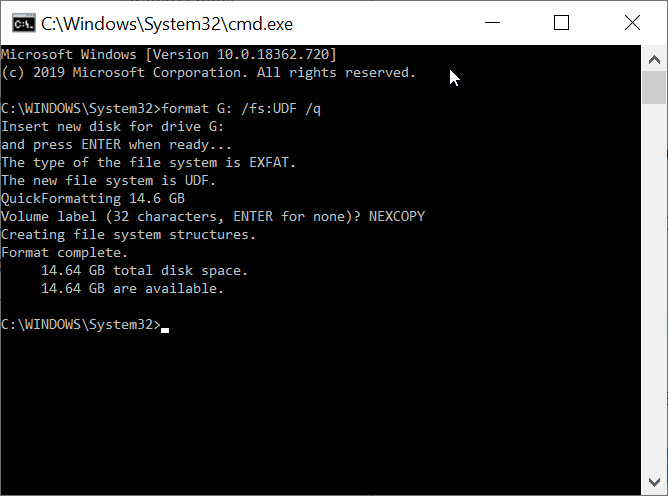
format G: /fs:UDF /q   (Replace G with your USB drive letter.)

The /fs parameter specifies the file system (UDF), and the /q parameter tells DISKPART to perform a quick format.

5. The OS will prompt you to insert the drive (it’s already inserted), press Enter.

6. Next, you’ll be prompted to enter a Volume name. Press Enter to leave it blank or type a custom name (e.g., “Nexcopy”).

How To Format a Flash Drive as UDF, other than FAT or exFAT

DISKPART will process the command and notify you once formatting is complete.

7. Type exit to close the command prompt window.

Note: The /q command deletes the file table and root directory of the previously formatted flash drive but does not perform a full sector scan for bad areas. This highlights the problem mentioned earlier: UDF lacks robust filesystem check tools, making it a risky choice for USB flash drives.

Continue Reading No Comments

Remote access to USB security keys

If you are an avid user of USB security dongles, you might know how challenging it may be to get remote access to these devices. To simplify this task, Electronic Team, Inc. has developed a dedicated software solution capable of sharing USB protection dongles over the network.

Donglify is a lightweight desktop application that allows connecting USB hardware keys to remote computers over the Internet and LAN. The software uses the 2048-bit SSL encryption to secure your connections, so you don’t need to worry that your sensitive data will be intercepted or lost.

One of the nicest things about Donglify is that it can redirect one USB dongle to several remote PCs simultaneously. In order to make a USB hardware key available for use on multiple computers, you can just connect the device to your local PC and share it over the network with nothing more than a couple of clicks. This option, currently, works with HASP HL Pro, Sentinel HL Pro, SafeNet eToken 5110, and CodeMeter CmStick security keys.

USB hardware keys of other types can also be shared over the Internet but you’ll be able to access them from one remote machine at a time.

Donglify is available by subscription and comes with a 30-day free trial. When the trial period is over, you can continue using the service for $19.99 a month.

Continue Reading No Comments

Change USB Connection Sound, #Easy

We all spend so much time on our computer, its worth customizing sounds and events we experience while using the computer. Today, we will cover the topic of changing the USB sound when a USB device is connected. You can really have some fun with this, especially if you consider some of the USB jokes mention before, and how those jokes could apply when a USB is shoved into a USB port.

While your mind wonders, I’ll move along to the tutorial part of this post:

In the search field, type in Control Panel and select the Control Panel.

From with in the Control Panel click Hardware and Sound

From the Sounds category, select Change system sounds

The window will pop up on the “Sound” tab and you’ll need to scroll down through the list of “Program Events” to find Device Connect and you will click on that time to highlight it.

Continue Reading No Comments

USB Flash Drive Doesn’t Get Assigned a Drive Letter: Solution

You’ve connected a USB flash drive, heard the familiar Windows sound of connection, yet no drive letter shows up. You then go into Disk Management for Windows and see the device and memory, but the USB flash drive doesn’t get assigned a drive letter.

What should you do?

USB Flash Drive Doesn't Get Assigned a Drive Letter

Most of the time, Windows will automatically assign a drive letter to any connected storage device—whether it’s a USB stick, USB hard drive, or other mass storage device.

However, if a drive letter isn’t assigned, there’s a quick fix to get your computer working properly again:

  1. Open Command Prompt as Administrator (search for CMD, then right-click and select “Run as Administrator”).
  2. Type diskpart and press Enter.
  3. Once in DISKPART, type automount enable and press Enter.
DISKPART command prompt for USB drive automount, USB Flash Drive Doesn't Get Assigned a Drive Letter

If the above steps don’t solve the problem, there could be conflicting registry entries from past USB devices that disabled or interfered with the automount function.

Nexcopy offers a registry cleaning tool specifically designed for USB devices connected to your computer. This utility is an executable file that requires no installation and contains no spyware or malware. Nexcopy is a reputable company that provides direct support via phone, email, or live chat, so you can trust their software is safe and reliable.

USBScrub is the utility name and is available for download here.

Continue Reading No Comments

Erase USB or Clean USB or Format USB?

We’ve seen these terms floating around in forums and How To’s for years when someone is explaining what to do with USB flash drives. I think most people glaze over the definitions of Clean, Erase and Format simply because they believe the terms are interchangeable, or they aren’t planning on doing the task mentioned in the post.

I hope the following information will clear up some terms and definitions so we can all better understand what people are talking about when passing along information about flash drives and the Clean, Erase and Format function.

All of these functions can be performed in your Windows 10 computer, or higher. I will start with the least complicated definition and task, and move along from there.

Format

This function is what 98% of Windows computer operators will use. This is the graphical interface inside Windows when you right click a drive letter and ask the operating system to format the drive. What is this function really doing?

Format is the least complicated of the tasks, and this function is removing the File Allocation Table of the USB and creating a new one. Said a simpler way… this function takes away the list of files sitting on the drive so it then appears blank with no data.

It’s important to note, the files are still on the drive, just not listed in an easy, organized manor which you can see through windows explorer (clicking on the drive letter to see the list of files).

Using the most basic file recovery software tools, like the one we wrote about several months back, you can recover all the files sitting on the drive.

Maybe a picture will help. Looking at the image below you can see the “data” is light grey. Meaning the data is still there, just not easily accessible. This data is what recovery software will look for, find, and list back on your drive. Also notice the boot code of the USB (if you want to load an operating system on your USB stick) isn’t touched either.

format usb flash drive

You might have questions if a USB flash drive should be formatted as FAT, FAT32, exFAT or NTFS and we did a great post about that a bit earlier as well.

Clean

The Clean function is a bit more in-depth than the format function. This function applies directly to the Master Boot Record (MBR) or boot code mentioned just above.

The Clean function will clear out boot code and will remove any partition on the flash drive. The partition of a flash drive is the information which tells a host computer how big the drive is, and if the partition should be bootable in the event you are trying to start the computer from a flash drive.

The Clean function is not accessible through the GUI of Windows, for example you cannot right click on a drive letter and find the Clean function. The Clean function is only accessible through the Windows utility called DiskPart.

Continue Reading No Comments

How To Enable Disable USB Write Protection in Windows 10

The link below is for a ZIP file that contains two batch files to either enable or how to disable USB write protection on a Windows 10 computer. These batch files also work on Windows 7 machines.

This solution is ultra-easy and very quick: one click to run the registry edit file and one click to confirm the task. That’s it.

Typically, a person will want to lock down the USB ports of a computer to ensure a virus doesn’t spread through a USB device, such as a flash drive. This batch file provides a fast and simple way to both lock down your USB ports and easily unlock them again.

Important: Do not have a USB flash drive connected to the system when you run either batch file.

For those seeking more technical details, here is the specific registry edit being applied. Changing the DWORD value to 00000001 sets the device policy for the computer to be write-protected. Changing that value back to 00000000 restores normal read/write access.

[HKEY_LOCAL_MACHINE\SYSTEM\CurrentControlSet\Control\
StorageDevicePolicies]
“WriteProtect”=dword:00000001

Note: This USB write protection method is specific to the PC on which it is applied. It is not device-specific and will not follow the USB drive to other machines.

If you require USB write protection that is permanent on the device itself and universal across all computers, contact Nexcopy.com and ask about their Lock License USB drives. This hardware-level solution is embedded in the USB controller, ensuring the drive is always write-protected, preventing any possibility of a virus being written to the USB stick. This is the best universal solution for USB write protection.

Screenshots of the Batch File Process

Batch files included in the ZIP:

USB Write Protection batch files

Windows confirmation prompt after running the batch file:

Windows confirmation prompt

Task completion screen:

USB write protection task complete

Download link for the two batch files:

USB Write Protection Registry Edit Batch Files

Continue Reading No Comments

Copyright

Copyright © 2006 +

USB Powered Gadgets and more...

All Rights Reserved

Advertise with us

GetUSB Advertising

This is a high value website providing great exposure to your product and brand. Visit our advertising page to learn specifics.

For more information
Visit our advertising page.

Nexcopy Ad

Nexcopy Provides

USB copy protection with digital rights management for data loaded on USB flash drives.

Contact us learn more

Resources and References Page

Resources and References Page