Zap And Kill USB Sticks With Rfiddler Modified Nerf Gun
Some guy in Germany had a bit too much time on his hands and modified a Nerf gun into a electromagnetic USB stick stun gun.

Windows XP Home edition requires a different method to turn off the USB autoplay function than XP Professional [which we reported on earlier].
It’s not difficult to turn off the USB autoplay, just a couple easy steps.
Note:Â We are going into the Registry so be careful not to do anything other than what we suggest.
Got to>Â START > RUN > type “regedit“
Navegate to HKEY_CURRENT_USER
+ software
+ Microsoft
+ Windows
+ CurrentVersion
+ Policies
+ Explorer
**The “+” are the registry hives you must expand.
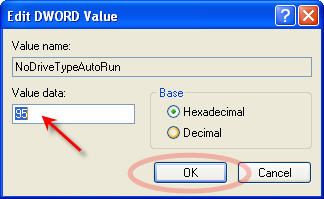
Now click the + Explorer directory just once so it is blue. On the right side you will see “NoDriveTrypeAutoRun“
Right click that and Select “Modify“

Here you most likely have b5 listed in the “Value data” field. Simply replace that value with 95.
Click OK.

Close out of the Registry and reboot your machine. Done!
Continue ReadingDid you know Windows can make over 260 registry entries with a single enumeration of a USB stick? This means for those with multiple flash drives, your registry will get extremely cluttered and bogged down.
With flash drives dirt cheap these days, you’ll find at least a couple dozen going into your computer throughout the year. That would be over 6,240 registry entries.
USB Scrub is a free utility from Nexcopy which performs a deep cleaning of those unused drivers and registry edits.
We gave USB Scrub a try, and it worked great. We went from enumerating a single USB stick in 45 seconds to enumerating that stick in less than 12 seconds.
In addition, if you have a USB stick that doesn’t perform correctly or the Windows OS doesn’t see it, chances are the USB Scrub will clear up those problems and your drive will work once again. This is because a registry entry can become corrupt, and simply clearing it out will resolve your issue.
So let’s take a closer look.
Using RegShot (a free application which takes a snapshot before and after an event and compares only the changed registry values), I took a snapshot before and after a USB stick was connected and ejected. The result was this:
Here is a snapshot. Click the image to get the full text file:
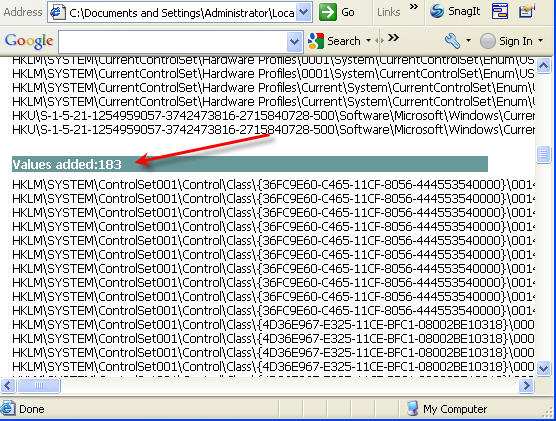
Next, I took a snapshot of the registry before a stick was connected, then ran USB Scrub, then took the second registry snapshot. This is what I got:
Clearly we have a big difference. Clearly we have a great cleaning tool for USB devices in Windows.
If you have a USB flash drive not working correctly, a slow computer, or you are a heavy user of removable drives, give USB Scrub a try. You’ll see a noticeable difference in USB enumeration.
As a closing note, when the enumeration speed went from 45 seconds to 12 seconds, USB Scrub reported that it cleared over 9,000 registry entries.
USB Scrub is a free utility. There is no malware or spyware.
Unfortunately, USB Scrub only supported Windows XP in the past. The maker, Nexcopy, has now updated support for Windows 7 and Windows 10. (Does not support Windows 8.)
UPDATE: Download link now supports Windows 7 and Windows 10 (32/64bit).
Download USB Scrub. Source: EverythingUSB.com.


“The ‘Windows 7 USB/DVD Download Tool’ is used when you buy a down-loadable version of the software from Microsoft’s online store. During the download process, buyers are given the option of creating a bootable USB stick or burning a DVD.”So now the question becomes, should a user be required to Continue Reading

Here at GetUSB.info we are a fan of the USB key logger technology. After all, what better way to find out what employees, girlfriends and such are doing with their spare time. Especially with all the social network, it’s important to know what is, or is not, being said about you.
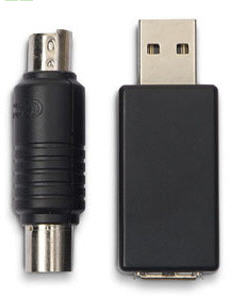
We have reported about USB key loggers before, but this one is especially nice with the old school PS/2 connector. Great for the older machines.
The device comes with 2MB of internal memory, but check it often as that amount of space will be filled quickly.
Pricing is a bit different depending on the connection type you need. $60-$75.
Here is the USB key logger product page.
Reminder from UberGizmo.
Continue Reading
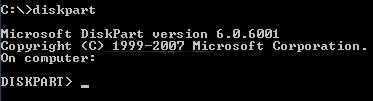
Before we begin the USB tutorial on NT60 boot sector, review the checklist of items needed before you start. Chances are, if you find yourself searching for this tutorial, you already have everything needed to make a USB bootable with NT60 boot sector.
When selecting your flash drive, be sure there is nothing you need on the device as this process to create an NT60 boot sector will clean the drive of all data.


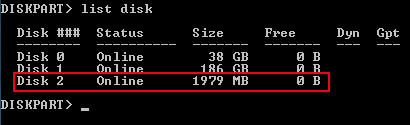
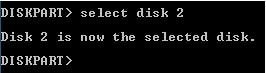
Once you get 100% complete, type ‘assign‘ and press Enter. This will assign a drive letter (e.g., Drive L).

Note: ‘D’ is the drive letter of the optical drive with the Vista disk. Adjust if yours differs.

Congratulations, you have just created a bootable USB flash drive with the NT60 boot sector.
Note: If you are a Microsoft publisher, OEM or OED, please contact Nexcopy for more information about NT60 boot straps and related Microsoft specifications.
As of 2025, creating an NT60 bootable USB stick is rarely required. NT60 was designed for Windows Vista and early Windows 7 installations. Modern systems primarily use UEFI boot loaders and GPT partition tables, making this manual NT60 process mostly obsolete. The only common scenarios for creating an NT60 bootable USB today are for legacy system maintenance, forensic recovery, or historical testing environments.
For modern bootable USB creation on Windows 10, Windows 11, or newer operating systems, you can use dedicated tools that automatically handle boot sectors, partitions, and formatting. One of the most popular options is Rufus, which simplifies the process and supports both BIOS and UEFI systems without manual diskpart commands.


To create the millefiori USB drive can be done in several simple steps. If you haven’t heard of millefiori then let me tell you: Millefiori is a glass work technique which produces distinctive decorative patterns on glassware. The term “millefiori” is a combination of the Italian words “mille” (thousand) and “fiori” (flowers).
The millefiori technique has been applied to polymer clays and other materials. Because polymer clay is quite pliable and does not need to be heated and reheated in order to fuse it, it is much easier to produce millefiori patterns than with glass. And this is what we are going to do today.
In seven steps you can produce a nice looking USB necklece. The detailed how-to is over at Instructables but here is the general idea.
Get a small USB flash drive and take it apart. Get some polymer clay, such as Fimo Soft or Fimo Effect. Prep the millefiori material into a cane like shape. Include a core in the cane shape as this is where the USB stick will go. Cut the cane so you have
Continue Reading