All of Apple products are designed as a “less is more” philosophy where a user just “knows” how to use the product when they hold it or see it. The Apple Trackpad is no exception. Great looking product that works exceptionally well and is bare bone minimum on design features.
One of the beautiful elements of the Trackpad is the wireless freedom you get from using the product. For the wireless product you need juice. The Trackpad does this via batteries. However, some get tired of replacing the batteries [like it’s that hard] and did a simple USB hack to power the Trackpad. This hack is not used for communication, that is still done through Blue-tooth, but this is only for eliminating the need to swap batteries or constantly recharge them.
To accomplish the hack, remove the pad’s batteries, strip a USB cable down to the red and black power wires and attach them to a battery-sized wooden dowel. Finally, push the dowel inside the pad’s battery compartment and presto! It works.
Granted this is a USB hack even my 7 year old could do [less the wire stripping] and I’d recommend making something a bit more elegant.
Continue Reading
I think we can all agree there are not enough USB laser ducks out there. To help solve this problem we came across a nice USB laser duck tutorial to take any rubber ducky and turn it into a zombie, creepy laser duck.
I don’t think Ernie will be to pleased to hear the news.
The USB hack is fairly simple and the ideal project for a young kid looking to do something cool for the first time. All you need is a USB cable, rubber duck and some diodes.
You’ll need to solder the diodes to the USB cable, then mount the laser eyes correctly and securely into the rubber ducky. If the concept doesn’t make sense, you can jump over to Instructables and get the play-by-play.
I think one way to increase the coolness would be stuffing the entire USB cable into the duck body. Either that, or take another Instructable where you can increase the laser intensity to pop balloons, burn paper and more… but do it with a bit of caution and common sense.
Video.
Continue Reading
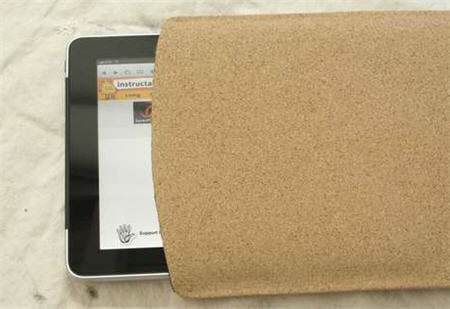
Don’t dismiss this post because you think a cork sleeve would be cheezy for your $700 iPad. It’s not. This tutorial helps you create a well designed, cool looking, durable cork case.
Sure, cork isn’t very strong, but with added cloth and fleece the end result creates a strong sleeve and something which will protect your iPad and last for quit some time.
The materials are not difficult to find and should run you about $20 at most.
Bobber does an excellent job of point out the details and making sure you don’t miss the important steps for making a quality DIY iPad sleeve. He includes a ton of well documented pictures, after all, nothing is better than a picture for projects you’ve never tried.
Full tutorial here.
Continue Reading
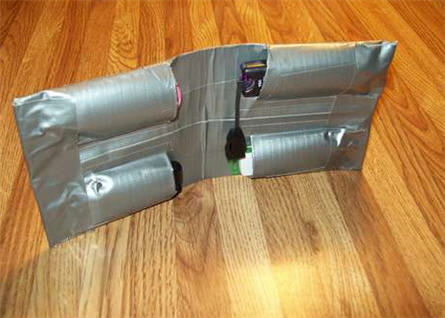
I’ve seen some USB holders at Staples and Office Max for over $20 dollars and that’s just for a fancy pouch to place your USB sticks while on-the-go. What about a DIY duct tape USB holder? You get the satisfaction of making it yourself, save yourself some cash and a hint of coolness to your storage devices.
Granted the duct tape approach is more in tune with kids, but lets give this a quick review.
In four simple steps you can do this exact project.
Step 1 – Grab some materials, that being a ruler, knife, duct tape, thumb drives and creativity.
Step 2 – Make the back plane duct tape which is very similar to making a duct tape wallet.
Step 3 – Add the pockets. In the picture you can see the USBs are parallel with each other, I would recommend staggering them so the thickness is reduced when folding.
Step 4 – Put the finishing touches on there with some clean lines of duct tape, patterns and custom designs.
For the full tutorial and loads more pictures visit Instructables.
Continue Reading
I came across this very interesting USB hack from TechOat the other day. The concept of this modification is taking the key of a power box in your computer and turning that into the physical on/off switch for USB communication.
The premise is disassembling the wires of the USB cable and port and weaving that into the circuit of a locking switch on your PC. I think this illustration shows it best:
What I particularly like about this USB hack, is the physical requirement to have the key in order to work the USB port. This type of security [more fun then practical] for USB devices in general is much better than a Truecrypt type solution as that only protects the device, not the system.
So what you need includes:
Small USB thumb drive
USB extension cable or USB socket and plug with cable
Locking switch DPST
Plastic box
The rest is just elbow grease to get it working, for the specific details and tutorial, jump here.
Here at GetUSB.info we love the USB steampunk drive. We’ve reported on at least a dozen of them over the past couple years and I’m sure we’ve missed three times that many. Today we are tipping you off to a great tutorial on how to USB steampunk your own flash drive.
Instructables has a very detailed, 9 page tutorial on how to steampunk your own gear. It gives you a list of material, a detailed process, good and creative guidelines along with plenty of pictures and resources.
It’s my goal to actually do this over the July 4th weekend [2010] and post my result. Lets hope for the best!
To give you an idea of the scope of project considering the following list of materials and tools. If it fits into your abilities, then give it a shot!
Continue Reading
The easiest way to remove any virus from a USB stick is this: format it! Be sure to use the Full Format function, not the quick format function.In the very unlikely event you get an error messages saying you cannot format the drive because it’s being used by another program, or for some reason you have data on there you don’t want to format off, then you can try the following.
Before I start however, let me explain the fundamental concept of what we are trying to do.
With most virus’ they make it very hard to delete the files so they can spread their infection. To do this, they use several files and ping each other so they appear to be in constant use. This is why you see the error “being used by another program cannot delete or format.” So what we need to do, is stop that process. In addition, programmers put in attributes to make it hard to delete as well. For example they set the file attribute to Archive, or System File so we’ll need to remove those attributes too.
So lets start: In Windows go to START > RUN. In the field type cmd
This will open the DOS command prompt. Here you should be at the C drive root. If not type cd\ and click return. You will then be at the C:\ root.
Next type the drive letter of your flash drive. In my example that is drive letter F. You can find the drive letter of your flash drive by going to START > MY COMPUTER > and look for the “Removable Disk“Next, type the drive letter, so for me, type f: and hit enter.
After you are in the drive letter of the flash drive, type dir/w/a
This will list all the files in your flash drive, regardless of it’s attributes of being hidden, System file or archive.
Now we should look for suspicious files such as anything listed as a .exe file or a .inf file. Specifically anything with a autorun.inf should be deleted. Some other popular ones are Ravmon.exe, svchost.exe, Heap41a and pagefile.pif.
If you see any of these, then lets remove all the file attributes and try and delet them.
To remove all attributes do the following:
In the DOS command prompt type attrib -r -a -s -h *.*Â This command will remove all attributes for all files.
Now we can delete the files. You do this by typing del filename [be sure to include the exentions too, for example type del autorun.inf and hit enter.
This should do the trick if you’d like to remove problem files without running the Full Format function.
Continue Reading
During the month of July Instructables is running a USB contest for who can make the best mod while incorporating USB technology. For this reason, we’ve been keeping a close eye on what you creative folks are up to.
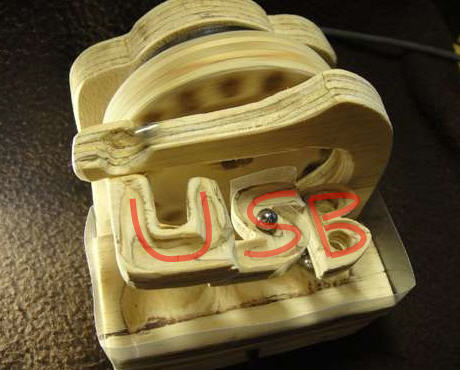
Today we bring you the 100% natural, all wood, USB marble machine.
I will admit the name is more impressive then the look, but the cool factor outweighs the look.
The wood USB marble machine is an excellent DIY project and will open up your eyes to all sorts of different ways you can make an automated, electric motor powered marble machine.
Check out the video, it’s well worth it!
Learn how at Instructables.
Continue Reading
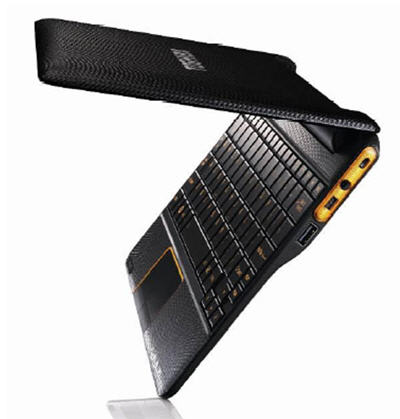
Toshiba announces a slick new Netbook running Android OS and NVIDIA processor. It boots in about 1 second, yes, that’s right, 1 second…and is it just me, or does that case look like leather?
The AC100 has a full sized keyboard, 10.1 LED backlite screen and 512RAM [upgradeable to 1GB] with 8GB of storage. With the USB port and mini USB port storage should not be a problem as it’s virtually unlimited with USB hard drives and USB flash drives.
Toshiba claims that the machine is good for up to seven days on standby with mixed use and the machine weighs in at 870g and is 14mm thick at the thinnest point.
The AC100 will be released in the UK first with an undiscolsed price point, but can’t be more than $350. To find a bit more here is the Toshiba PDF.
Continue Reading
Several years ago, I reported on a USB wifi extender in parabolic form. Now, we’ve got a slimmed down version using an empty food can and your USB wifi dongle.
It’s not the prettiest thing, but it works and will boost your signal strength enough to grab the channel from your neighbor who’s barely showing up in your wireless network.
Plus this hack gives you adjustable control both up and down, and left and right.
The concept here is getting the can to increase your signal. In addition, mounting the can and USB wifi dongle to a portable camera stand. This will give you the stability you need to keep the signal strength strong while in use. It will also allow you to keep the position for use from day to day.
Continue Reading
There is nothing more satisfying for a finger work-out then using a laboriously slow old school typewriter. Or on those cloudy days where you feel a bit melancholy and in the mood to write the start of a novel you’ll never finish, you may need to punch down on those exhausting keys of a manual typewriter to get the creative juices flowing.
Today I present you that possibility and better yet, with a touch of technology to make your craving a bit more current.
A well known steampunk modder [Jack Zylkin] has taken the traditional typewriter and transformed it’s key punching into a digital conversion of letters and numbers. Using some customized PCBA, a USB connection and a bit of code it’s now possible to sync your great grandmother’s typewriter with your computer, or in this video, your iPad.
Your craving wont go without some minor cash flow issues, as you can purchase a pre-made [or pre-mod I should say] USB typewriter or you can buy a kit and down grade your very own typewriter and keep the family air loom alive and kicking.
To get more details visit the Etsy Shop to make your purchase or gather more information.
Continue Reading
The love for Linux is that with a bit of tweaking you can do just about anything. Case in point: Sven Killig took the Nexus One, loaded up some code to control the USB host controller and is now running a full work station.
Now this sounds awesome. Sven can run a digital camera off his phone, stream video from a USB stick to his screen or even run a printer off the USB port. Check out the screen-shot of his work station…
So if you’re like me, this project would be in the advanced level of Instructables for DIY mods, but thanks to Sven’s recording skills, we have a video to tell us how.
The best part of all this? He’s got the whole thing demonstrated for you on video, but not only that, you can hit up the down-loadable binaries from his website. And while he tried all of this on Android 2.2, which means its the only version of Android it’s been successfully tested on (at the moment), Sven believes that it will work on Android 2.1, too.
Source: SlashGear.com.
Continue Reading