GetUSB.info Logo

Author Archive

Matt LeBoff

Kicking around in technology since 2002. I like to write about technology products and ideas, but at the consumer level understanding. Some tech, but not too techie.

Solved: (Video) Windows Cannot Delete the System Volume on This Disk

Sometimes Windows cannot delete the system volume on the disk because the partition table is corrupt. The solution is very easy and all the tools required to solve this problem are pre-installed and ready to use on any Windows 10 (+) computer.

Windows Cannot Delete the System Volume on This Disk

In short, the Disk Management utility cannot delete the volume because there is corrupt data in the partition table of the device. This issue we are talking about is most likely associated with a USB flash drive and sometimes USB hard drives.

One of the reasons a user will get a corrupt partition table is from formatting the USB device over and over again. Sometimes computers just don’t do what they are supposed to do! Surprise!

A common reason a user would like to delete the volume of a flash drive is to start “clean” with a fresh device. The reason to start “clean” is because some other function or task is not working as expected. For example, a user trying to create an digital image file (.img) from a physical USB flash drive continues to create corrupt image files. Well, when you start with a corrupt partition table, you’ll end up with a corrupt image file.

Another reason could be a user is trying to make a two partition flash drive using Disk Management. However, you cannot make a two partition flash drive if you cannot delete the volume in the first place!

We did a great write up about “How to partition a USB flash drive in Windows” a while back. A good read if you have the time.

The below steps will show you exactly how to fix this problem. There is a video at the bottom of this post showing the steps.

  • Connect your flash drive
  • In the search field in Windows (bottom left white box that says “Type here to search”) type “Disk Management” and click ENTER on the keyboard. Disk Management should pop up.
  • In the search field in Windows type “diskpart” and click ENTER on the keyboard. DiskPart will either pop open, or a dialogue box will ask if you want to open it, click YES
  • In DiskPart type “list disk
  • From the list provided determine which disk number represents your USB flash drive or hard drive
  • In the screen shot below, our disk is #1
  • Type “select disk x*In this example we typed “select disk 1”
  • Type “clean
  • When that is complete, toggle over to the Disk Management utility
  • Right click the box which represents the USB flash drive and select “New Simple Volume
  • Follow the prompts in the wizard to complete the process

After completing the above steps the flash drive is now ready for use. In addition, if it is required to go back and delete the volume, say to make a two partition flash drive, you can now do this without the error message “This Request Is Not Supported”

Here is a video for the above process:
Continue Reading

USB Speeds Shown in MBs – Picture Graph

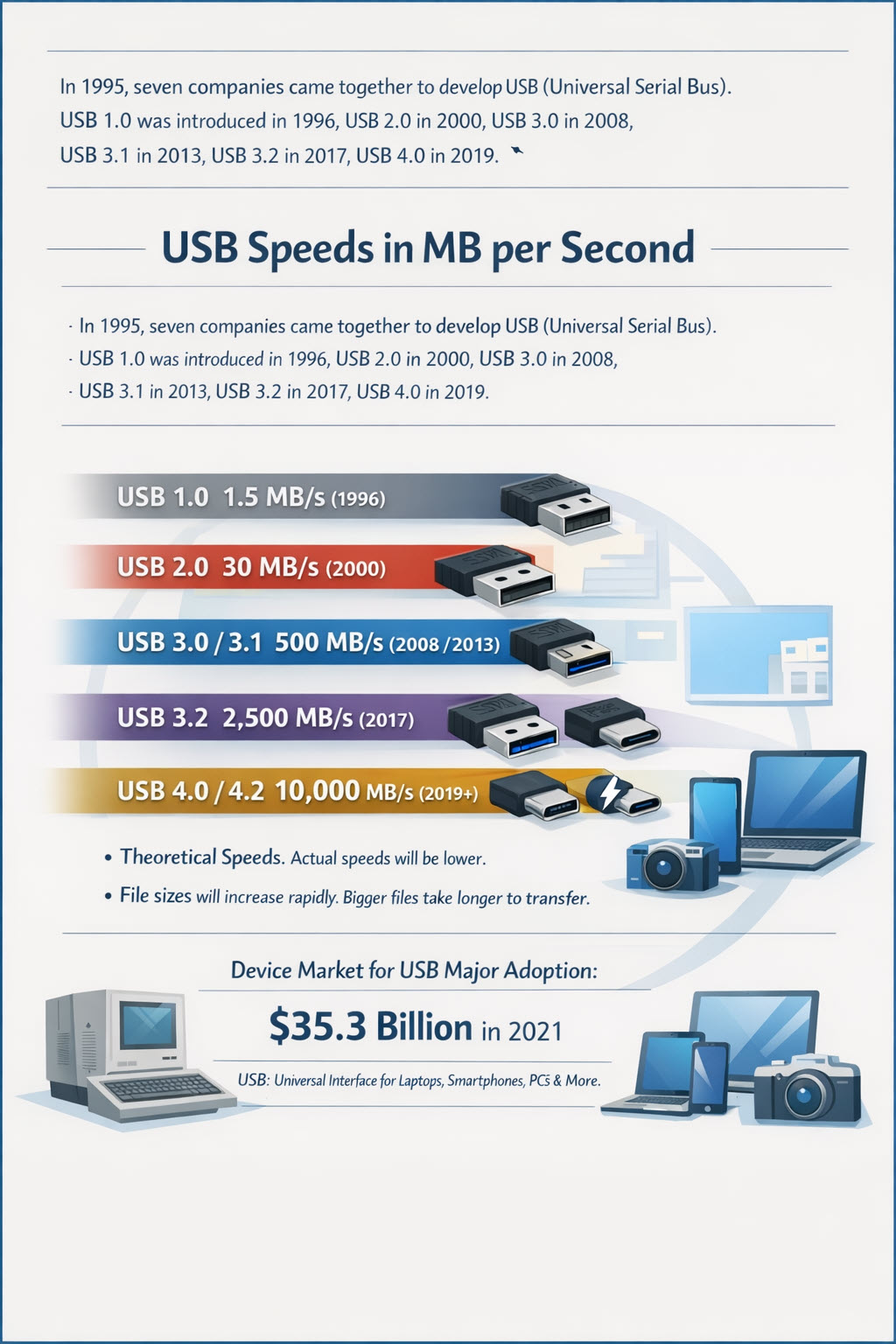
Most USB specification speeds are shown in Mbps (megabits per second), but nearly all users reference data storage in MB (megabytes) or GB (gigabytes), so this post converts the Mbps rate to MB per second and presents the information in a picture graph. Scroll down to see the image.

In 1995, seven companies came together to develop USB (Universal Serial Bus). The overall goal was to create a uniform way storage devices would connect to computers. (The seven companies were: Compaq, DEC, IBM, Intel, Microsoft, NEC, and Nortel.)

  • USB 1.0 was introduced in 1996.
  • USB 2.0 was introduced in 2000.
  • USB 3.0 was introduced in 2008, with the next generation of USB 3.0 called 3.1 introduced in 2013.
  • USB 3.2 was released in 2017.
  • USB 4.0 specification was released in 2019.

USB speeds shown in MB per second are shown below as a picture graph. The graph shows the MB/second in relationship to the USB version. In addition, the USB connector type is highlighted for the versions where applicable.

The adoption rate of USB specifications typically has a two-year delay from the time of specification release to products becoming widely available. The duration for those technologies to become fully saturated in the market takes even longer. For example, the USB 4.0 specification may take another four years before the majority of products available will support those transfer speeds.

The data transfer speeds of USB 4.2 will be welcome, as moving 10,000 MB/s will easily satisfy the human expectation of “is it done yet!”

Two things to consider when it comes to expectations versus reality:

  1. The transfer speeds listed in these specifications (or any specification like PCI or SCSI) are always theoretical speeds. Actual, real-world speeds will be lower.
  2. Although USB 4.2 sounds incredibly fast, the likelihood of files increasing in size is about as exponential as Moore’s Law. Meaning our MP4 video file of today that is 100 MB in size will be higher resolution with better sound a year or two down the road and may balloon in size to 500 MB or more.

The device market for all USB technologies in the year 2021 was valued at an estimated $35.3 billion US dollars.

The growing use of consumer electronics such as smartphones and laptop computers in developed and developing countries is primarily due to rising disposable income, population growth, and increased internet penetration. Significant technological advancements have resulted in increased adoption of these devices across many economies. According to the Consumer Technology Association (CTA), smartphone sales in the United States totaled 152 million units in 2020.

USB devices have emerged as a dominant interface for meeting the growing demand for fast data transfer between end devices such as laptops, smartphones, PCs, and digital cameras. As a result of increasing demand for consumer electronics and data transmission products, global USB device market players are focusing on launching new products to achieve sustainable growth and differentiate themselves from competitors, thereby contributing to overall market growth.

USB speeds shown in MB per second chart comparing USB versions

Continue Reading

Micron Commits $15 Billion for New Boise Idaho NAND Factory

Micron Memory , a leader in worldwide supply of semiconductors, committed 15 billion dollars for the new construction of a manufacturing plant in Boise, Idaho.

Micron announces $15 billion investment for new semiconductor manufacturing plant in Boise, Idaho

This new plant will be the first built in over 20 years inside the United States. In addition, it will become the only operational manufacturing facility within the United States. The 15 billion dollar investment by Micron will span the next ten years with investments inside of Boise and in other states as well.

This is the first of several planned US investments by Micron following the passage of the CHIPS and Science Act. This is the largest private investment ever made in Idaho. The new manufacturing fabrication facility will be a co-location with Micron’s Research and Development (R&D) center. Being this close to the company’s headquarters will improve operational efficiency, accelerate technology deployment, and shorten time to market.

The CHIPS and Science Act is a federal law in the United States that was passed by the 117th United States Congress and signed into law by President Joe Biden on August 9, 2022. The act includes billions of dollars in new funding to boost domestic semiconductor research and manufacturing in the United States. The law is divided into three sections, each with its own short title:

  • Division A is the CHIPS Act of 2022
  • Division B is the Research and Development, Competition, and Innovation Act
  • Division C is the Supreme Court Security Funding Act of 2022

This endeavor will generate an estimated 17,000 new American jobs, of which 2,000 will be Micron direct hires. To support Micron’s growing employee population, the company plans to open a world-class childcare facility operated by local partners at the Treasure Valley Family YMCA across from Micron’s corporate headquarters. The center will provide STEM-based programming and easy access for parents to interact with their children during the day, as well as ease the transition for those, particularly mothers, returning to the workforce.

Boise State University, which is located less than ten minutes from Micron’s headquarters, is ranked 131 in Engineering. The press release from Micron did not mention investments or support to improve the engineering school’s rank over the course of the 15 billion dollar investment. The #1 engineering school in the United States continues to be MIT (Massachusetts Institute of Technology).

Continue Reading

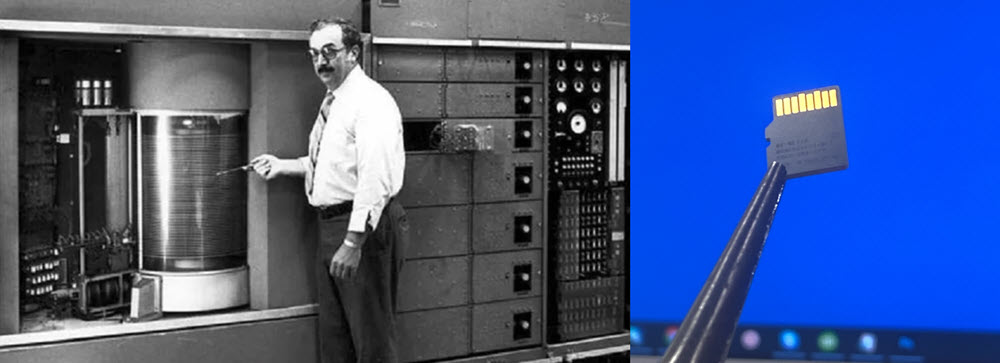
Digital Storage Capacity in 1956, Now in 2022 and Future 2087

Digital Storage Capacity in 1956, Now in 2022 and Future 2087

IBM introduced the world’s first commercial storage system, the 305 RAMAC, in 1956. A magnetic disk was used to store data and was intended for a secondary storage system. RAMAC stands for Random Access Method of Accounting and Control and was designed for real-world accounting needs in business. The first customer was the US Navy.

The physical size of the 305 was 6 feet wide by 5 feet deep. Total storage capacity was 4.4 MB (megabytes). The weight for this storage system was just over one ton (source).

Today (2022), we can see a 1TB (terabyte) microSD card (TF card) at the small size of 15 mm x 11 mm and a weight under one gram.

The big selling point from IBM in 1956 was the ability for the 305 to store the equivalent of 64,000 punch cards on its magnetic disks. Punch cards are stiff pieces of paper which contain digital data represented by the presence (or absence) of holes in predefined positions on the card.

The IBM 350 disk system could store 5 million alphanumeric characters as six data bits, one parity bit, and one space bit, for a total of eight bits per character. It had fifty disks with a diameter of 24 inches. Under servo control, two independent access arms moved up and down to select a disk and in and out to select a recording track.

In comparison, today’s 1TB microSD card will hold about 6.5 million documents. Said another way, that is roughly equivalent to about 1,300 filing cabinets of documents.

In 1957, IBM would lease the RAMAC 305 for about $3,200 per month (roughly $33,000 in 2022 dollars). Over one thousand 305 systems were manufactured before production ceased in 1961.

Digital Storage in the Future

If we consider Moore’s Law, where storage capacity and technology in general double every 18 months, we can calculate 43 cycles of Moore’s Law between today and 65 years into the future. Doing some advanced math, we estimate the storage capacity of a microSD card, if still available, in 2087 would be 18,446,744,073,709,600,000,000,000 TB of data.

Continue Reading

What is USB Restricted Mode in macOS Ventura

USB Restricted Mode in macOS Ventura

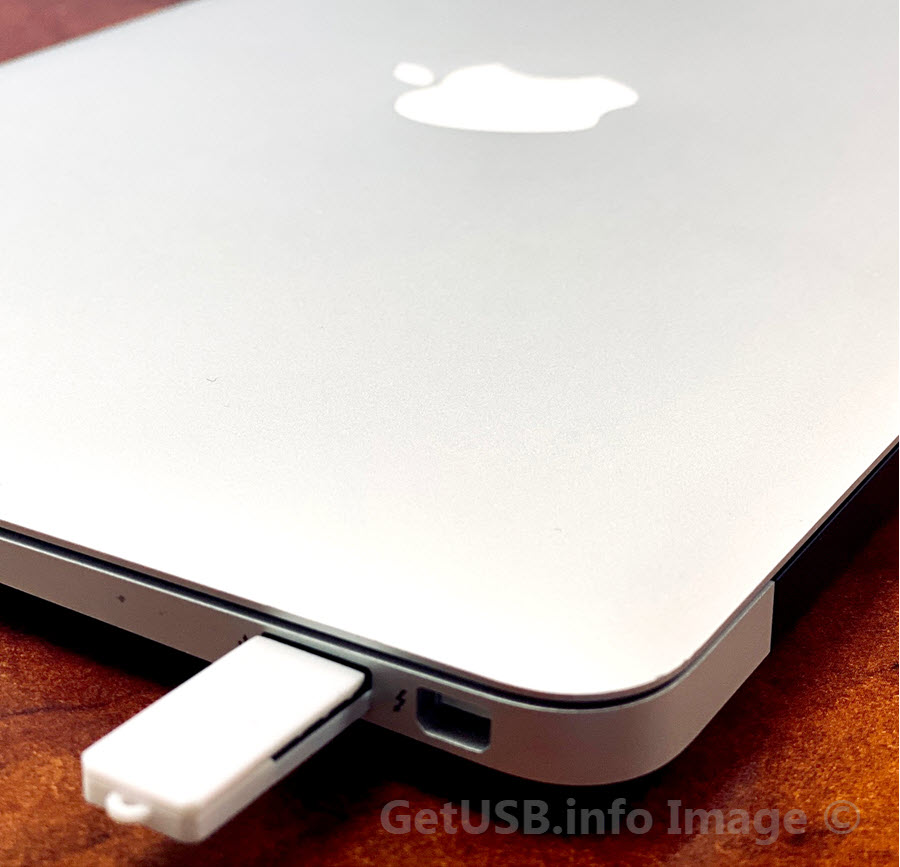
Beginning with macOS Ventura, a new layer of protection offers some reassurance to enterprise IT against USB device-borne attacks.

Mac computers using the new Apple silicon will require USB and Thunderbolt accessories to be approved by the user before the accessory can communicate with macOS.

When a new USB or Thunderbolt device is connected to a Mac, the user will be prompted to approve the connection. The end user must unlock a locked Mac before the computer will recognize the accessory. This makes use of the allowUSBRestrictedMode restriction, which is new to the Mac. When your Mac is locked for more than an hour, the protection kicks in.

It does not apply to power adapters, displays, or connections to an approved hub, according to Apple, and devices will continue to charge even if you select Do Not Allow Use of a Connected Accessory. Energy flows, but data does not, according to the theory.

Where does USB Restricted Mode operate?

  • On Apple Silicon Macs, the protection is enabled by default.
  • The enabled protection is set to Request New Accessories; other options include:
  • — Every time, inquire.
  • — When unlocked, this happens automatically.
  • — Always.
  • Requesting new accessories is the bare minimum of security, though highly secure enterprises will want to request permission each time.
  • You can disable or enable the setting by going to: System Settings > Security & Privacy > Security
  • Setting up an accessibility Switch Control configures the policy to allow accessory use at all times.
  • For up to three days, approved devices can connect to a locked Mac.

This is a new security setting and configuration Apple is planning to introduce from Ventura forward. More articles related to USB and Mac computers.

Continue Reading

TeamViewer Alternative – And it’s Free – Quick Assist from Microsoft

TeamViewer is one of the most popular applications to share computer screens with other people. However, TeamViewer is very expensive. Is there a TeamViewer alternative? Yes there is… and it’s 100% free.

We found a TeamViewer alternative one day because, as a business, we had to provide technical support to a remote Windows computer. TeamViewer is very clear about their software being used in a business should have a business license.

From the screenshot below, you can see a single license is $34.90 per month. What TeamViewer doesn’t tell you… until halfway through the purchase process… is a yearly subscription is your only option. Ugh. This now puts your TeamViewer cost at $418.80 for a single year. More licenses require a bigger financial commitment.

TeamViewer pricing screenshot showing high cost

We immediately went into TeamViewer alternative mode.

As an alternative, we found Quick Assist from Microsoft.

Quick Assist is 100% free and offered by Microsoft, which allows users to share their computer screen and give full control to the other person. There is no time limit for a sharing session, no limit to the number of times you can use the tool, and no restriction on who you can use the tool with.

You need to download the free utility from the Microsoft App Store, and that process is extremely easy. Type “quick assist” into the search bar and Windows will provide a link to download.

Quick Assist download screen from Microsoft Store

After download, the Quick Assist app is ready for use.

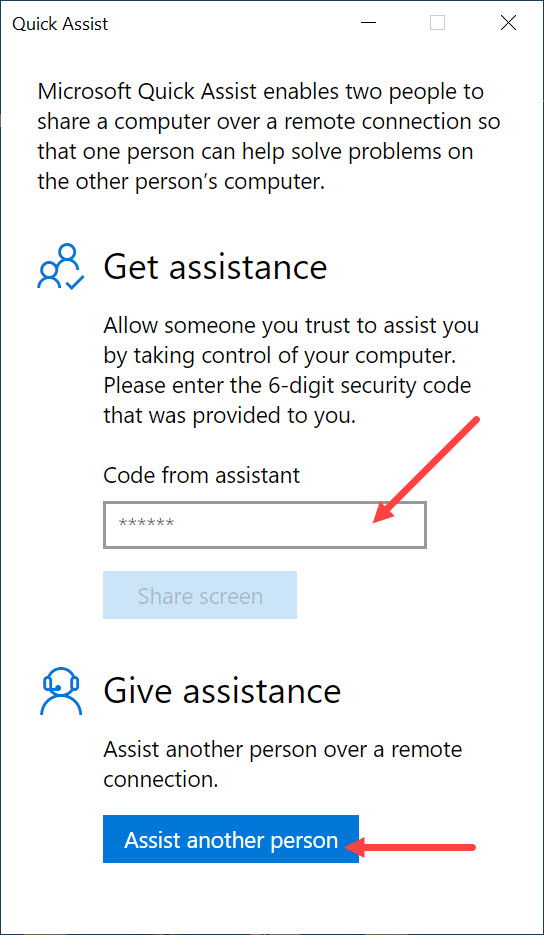
By launching the app you can either input a code from an assistant who is helping you remotely, or you can select the option to assist someone else. See the image below.

To assist another person you will need a Microsoft account, and if you don’t have one, Quick Assist will guide you through the process in just a couple of steps.

If you are receiving help from someone, a Microsoft account is not required.

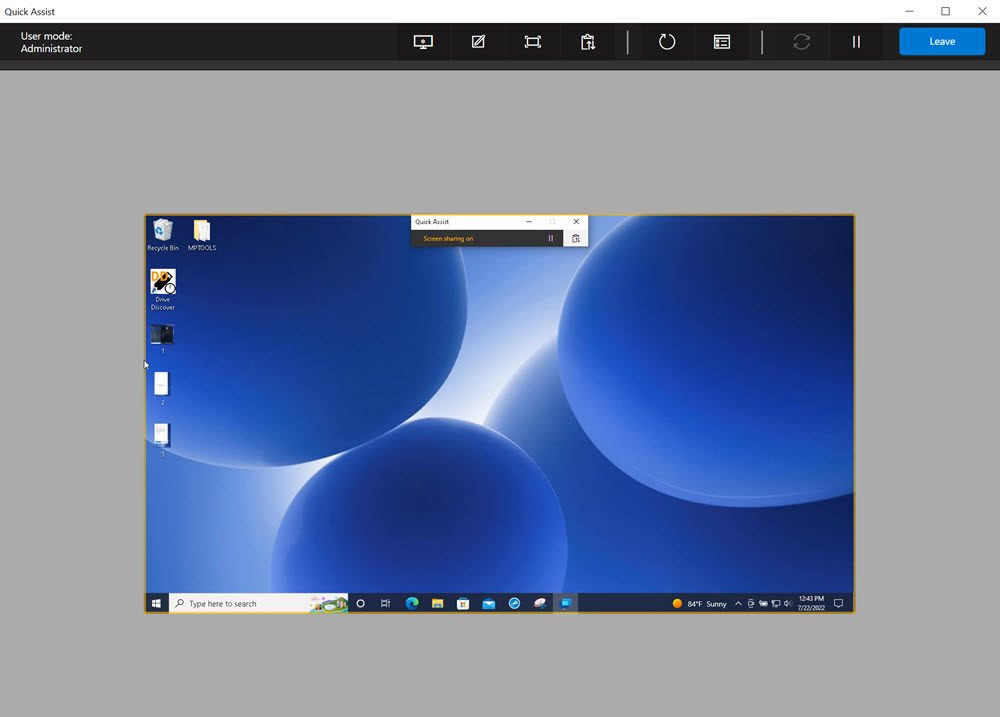
Below are a couple screenshots showing the connection flow between an “assistant” and the person receiving help.

Quick Assist access code screen

Share screen with Quick Assist, TeamViewer alternative

Take control of remote PC using Quick Assist

Quick Assist connection step screen

Quick Assist remote sharing session screenshot

It is worth noting, the Quick Assist application is 100% free, but there are some limitations to it. For example, there is no built-in chat feature like in TeamViewer; however, we found that launching Notepad allows both users to type and communicate during the session. Of course, the two can always pick up a phone and communicate the old-school way.

The only potentially serious limitation is the fact Quick Assist does not allow file transfers between computers. In our situation, we needed to supply a file to the client and simply emailed the files instead. However, if email is part of the problem, this could be a roadblock.

That said, for our use case, we found an excellent TeamViewer alternative that cost nothing, was quick to set up, and had all the features we needed.

The other thing to consider is that Quick Assist is a Microsoft product designed for Microsoft Windows. The tool does not work on other operating systems.

So the next time you need to share a computer screen with someone off-site, the Quick Assist tool is a strong alternative to the popular TeamViewer application.

Continue Reading

Make USB Flash Drive Bootable in Anything

USB flash drive, bootable, in anything

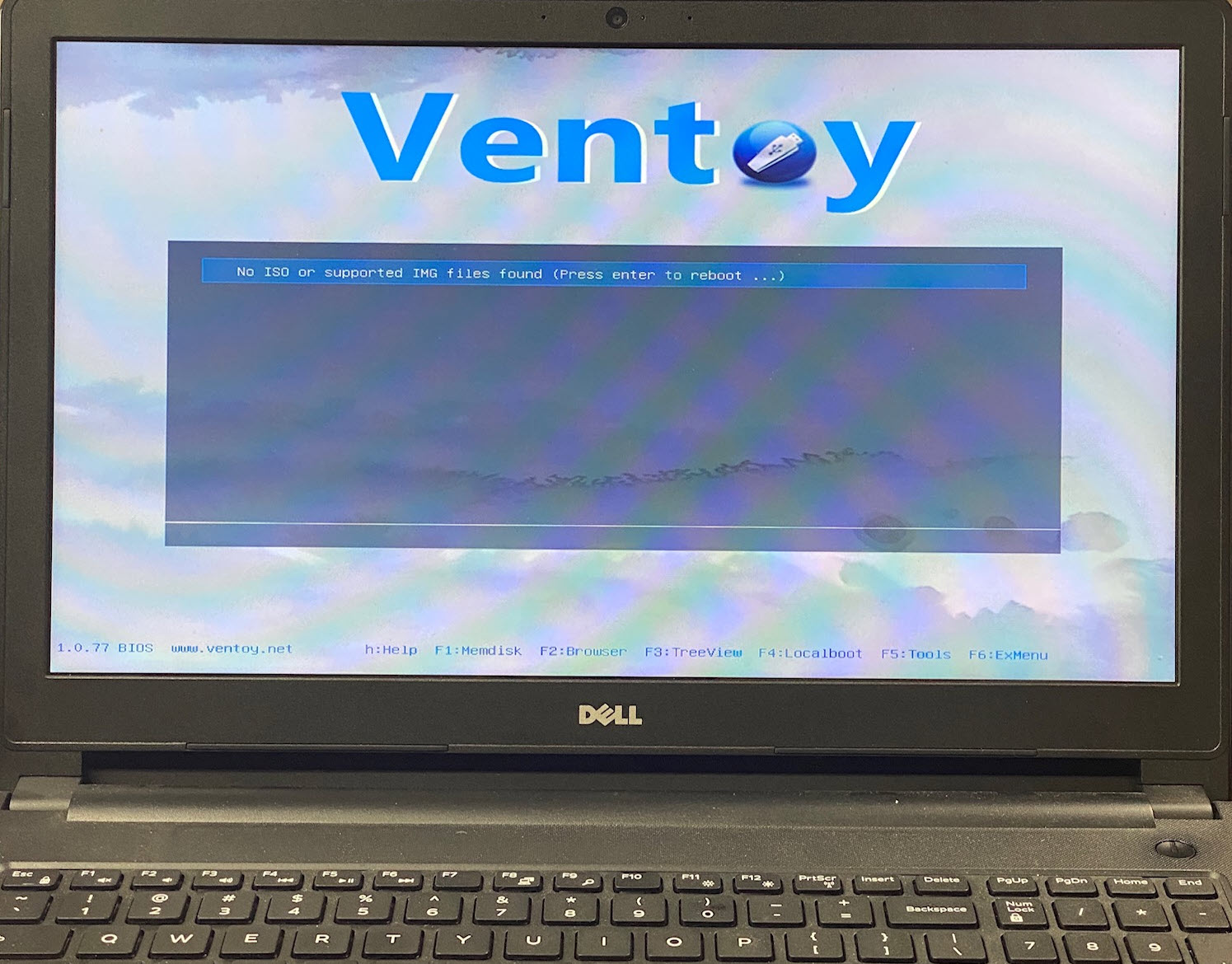
Doing some research for why some HP computers do not boot from a USB flash drive, I came across Ventoy.

Ventoy is a software tool to create a USB flash drive bootable in anything and supports the most common image files.

We tried Ventoy to make a USB flash drive bootable, and it works like a champ. In fact, the software is so easy to use, it is worth commenting about a previous post we did. A while back we talked about how to check if your USB flash drive is bootable, and to be honest, rather than putting in the time and work to read the article and do the steps, your time is better used flashing your drive with Ventoy. The result is a bootable USB flash drive for any device.

Ventoy is an open source tool for creating bootable flash drives when using image files like ISO, IMG, WIM, VHD and EFI files. The project team tested over 900 image files which tested successfully on over 90% of the distro packages.

What we like about this solution is no need to flash the drive with boot code using the source CD-ROM like so many tutorials out there (for Windows at least) because the Ventoy tool creates a second partition which all the boot code and the Ventoy utility flashes that partition with the boot code needed. You can see from the Disk Management screenshot below there are now two partitions on the tested flash drive.

USB flash drive, bootable, disk management, Ventoy

You can tell there have been plenty of Ventoy updates and what is (also) very nice about their software tool is the display of Ventoy version on your device. Nice feature to cross reference if your device is current or needs an update. The update process is just as quick as the original creation of the bootable device.

USB bootable in anything, Ventoy software screen

Considering the above, it goes without saying it is easier than ever to make a USB flash drive bootable in anything without having to re-do the work. This software eliminates the need to re-create a bootable image to USB and flash it over and over. Simply update the image file content, not the boot strap code.

The only thing even slightly annoying, which is easy enough to correct, is the Volume name for the primary partition defaults to “Ventoy”. Would be nice if an edit feature was in the software to customize this without the additional step of renaming the volume after-the-fact.

USB volume name, Ventoy, for bootable flash drive

Here is a list of features copied from the website. The project is open source and we suggest making a donation if you do in fact use the code. It’s only fair, right!

  • 100% open source
  • Very simple to use
  • Fast (limited only by the speed of copying ISO file)
  • Can be installed in USB, local disk, SSD, NVMe, SD card
  • Directly boot from ISO/WIM/IMG/VHD(x)/EFI files, no extraction needed
  • Support to browse and boot ISO/WIM/IMG/VHD(x)/EFI files in local disk
  • No need to be continuous in disk for ISO/WIM/IMG/VHD(x)/EFI files
  • Both MBR and GPT partition styles are supported
  • x86 Legacy BIOS, IA32 UEFI, x86_64 UEFI, ARM64 UEFI, MIPS64EL UEFI supported
  • IA32/x86_64 UEFI Secure Boot supported
  • Persistence supported
  • Windows auto installation supported
  • RHEL7/8, CentOS7/8, SUSE, Ubuntu Server auto installation supported
  • FAT32/exFAT/NTFS/UDF/XFS/Ext2(3)(4) supported for main partition
  • ISO files larger than 4GB supported
  • Native boot menu style for Legacy and UEFI
  • Most types of OS supported, 900+ ISO files tested
  • Linux vDisk (vhd/vdi/raw…) boot solution
  • Not only boot but also complete installation process
  • Menu dynamically switchable between ListView and TreeView mode
  • “Ventoy Compatible” concept
  • Plugin framework and GUI plugin configurator
  • Injection files to runtime environment
  • Boot configuration file dynamically replacement
  • Highly customizable theme and menu style
  • USB drive write-protected support
  • USB normal use unaffected
  • Data nondestructive during version upgrade
  • No need to update Ventoy when a new distro is released

I think it is safe to say RUFUS is probably a thing of the past given this new tool. The Ventoy tool is great for making any USB flash drive bootable.

Make USB bootable in anything, Ventoy boot screen

Continue Reading

Kingston – To Pay $7.5 mil In Compensatory Damages

Kingston USB flash drive, stock photo

Friday, June 3, 2022 Kingston Technology Company LLC was held accountable for willfully infringing on US Patent No 6,926,544 held by Pavo Solutions LLC.

The patent abstract:

A flash memory apparatus with a single body type rotary cover, where the cover is not completely separated from the main body to prevent cover loss. The flash memory apparatus consists of the following components: a flash memory main body with a rectangular shaped case in which a memory element is mounted. A USB terminal piece is electrically connected to the memory element and installed at a front end of the case to protrude therefrom, as well as a hinge protuberance formed on at least one side of the case. A cover is provided that is defined by a pair of parallel plate members facing each other with an interval corresponding to the thickness of the case. The cover has an open front and a closed back. The cover’s lateral ends are both open. The parallel plate members are joined to the hinge protuberance by a pair of hinge holes, allowing the cover to rotate with respect to the flash memory main body, allowing the USB terminal piece to be received in an inner space of the cover or rotated for exposure to the outside of the cover.

We are not a legal website so for more detail on the proceedings, please visit IP Watchdog.

Continue Reading

How To: Hide Files on a USB Flash Drive

How To: Hide Files on a USB Flash Drive

close up picture of flash drive

This article, “How To: Hide Files on a USB Flash Drive,” explains two free methods to conceal files on a USB drive using built-in Windows features. One method is quick and basic; the other is more advanced and harder to detect.

Overview of the Two Methods

Method 1: Standard Hidden Attribute

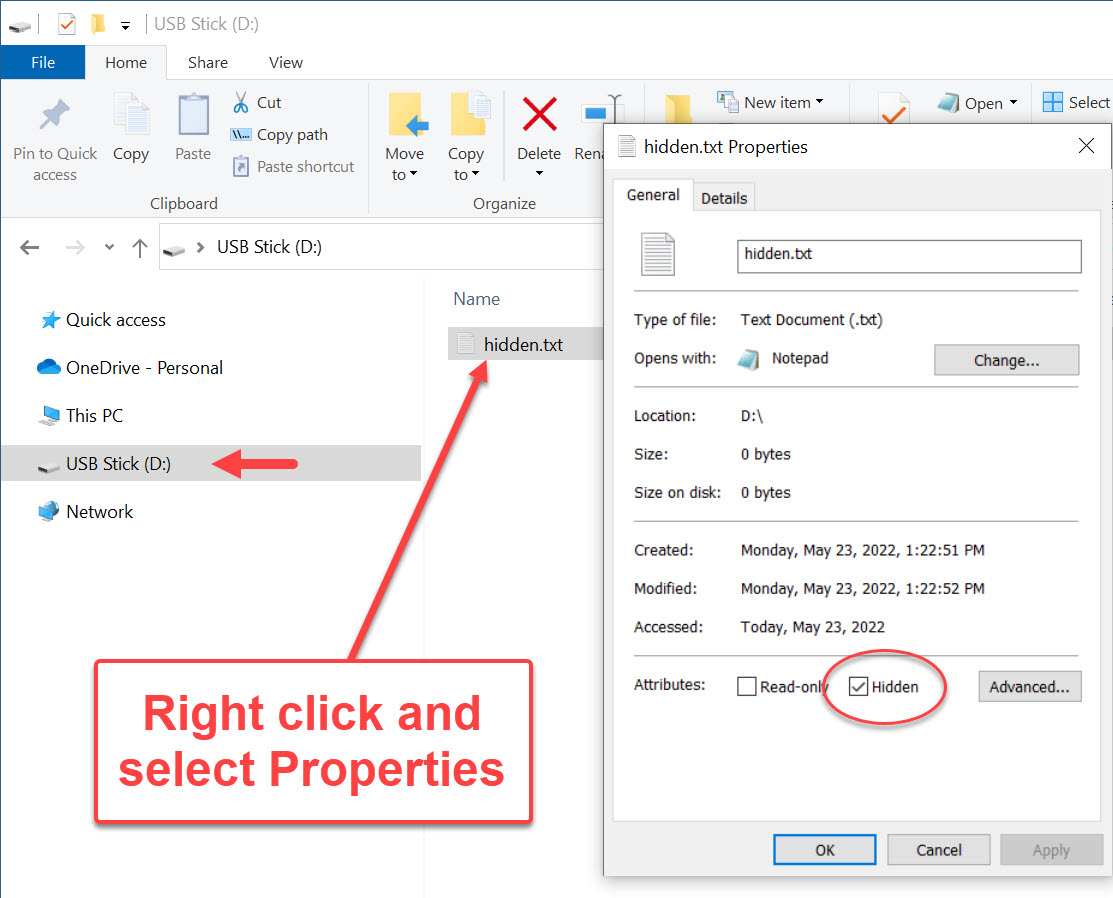
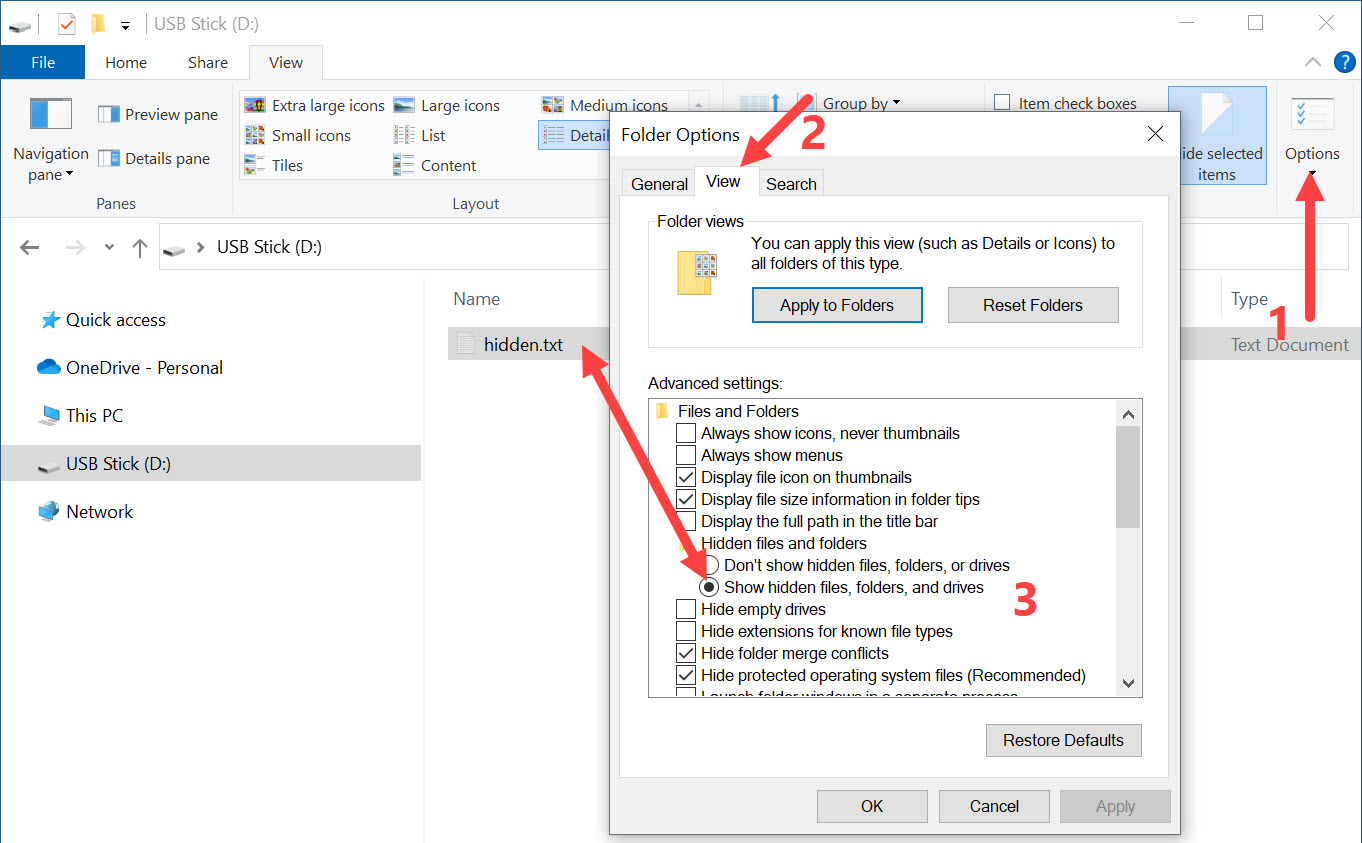
This method is the easiest. Anyone can right-click a file or folder, go to Properties, and select the Hidden checkbox. This will hide the file unless a user has Windows configured to show hidden files.

Pros: Easy and fast
Cons: Easily bypassed

Method 2: System Hidden Attribute

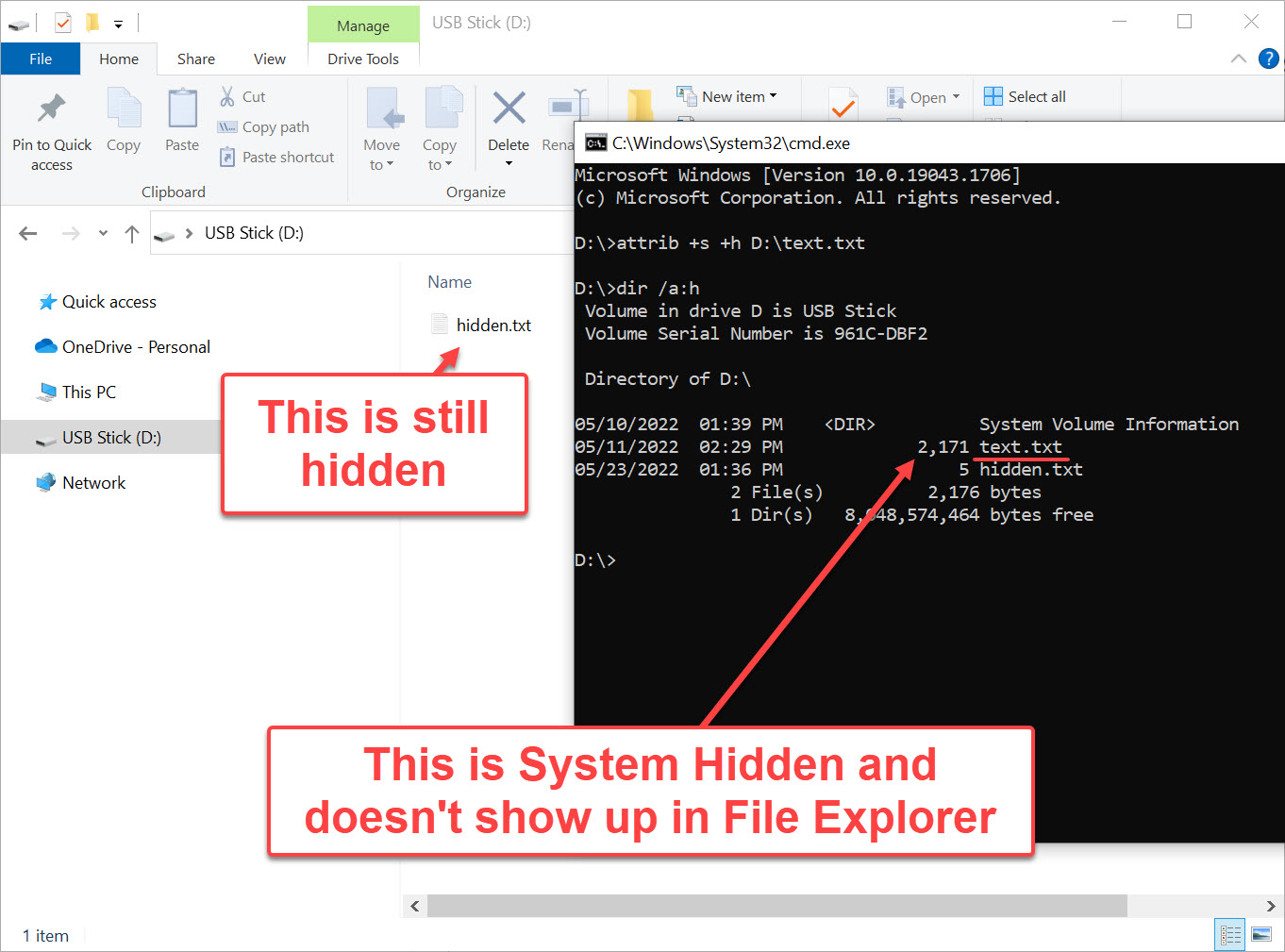
This method hides a file using both the system and hidden attributes. Windows will not show these files—even if “Show hidden files and folders” is enabled—unless the user also disables “Hide protected operating system files.”

Pros: Harder to detect
Cons: Slightly more technical

How to Hide a File Using the Hidden Attribute

Right-click the file or folder ? Properties ? check the Hidden box ? click OK.

properties of hidden file on USB flash drive

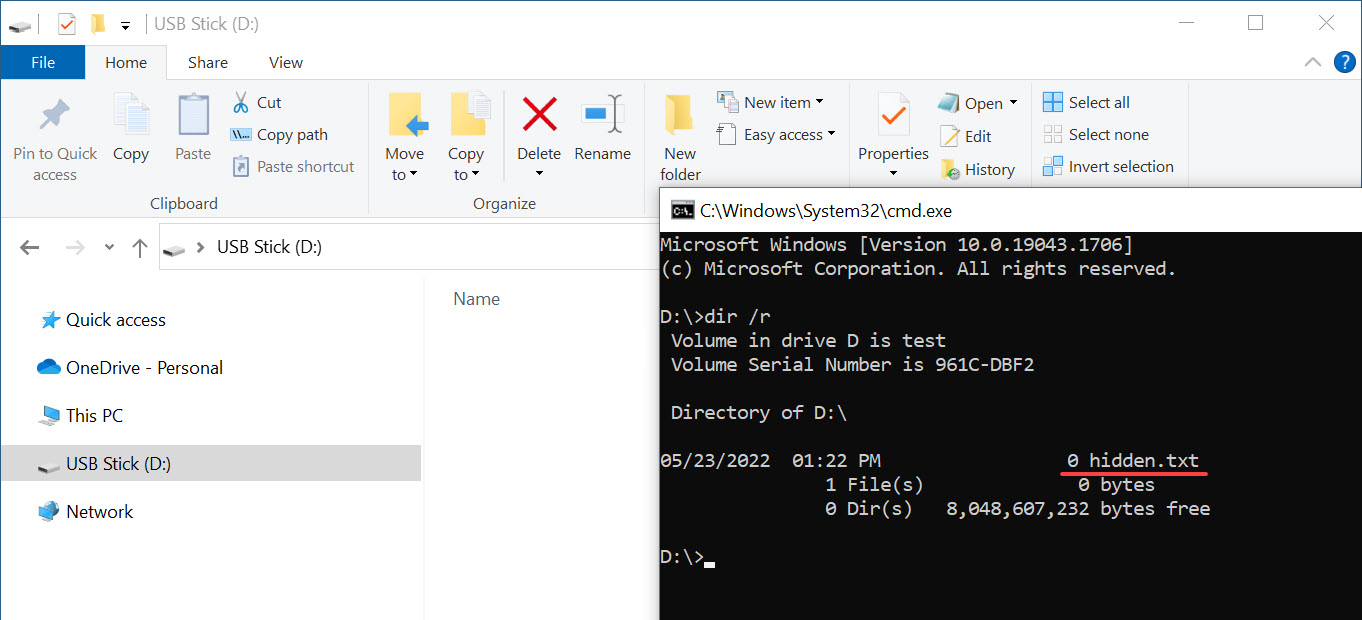
If Windows is set to not show hidden files, it disappears from File Explorer. However, it still shows in the Command Prompt:

command line of hidden file on USB flash drive

If the user has “View hidden files and folders” enabled, the file is visible again:

show hidden files on USB flash drive

How to Use the System Hidden Attribute

Let’s take it a step further and apply the system attribute in addition to the hidden flag.

Step 1: Prepare the File

Place the file (e.g., text.txt) onto the USB flash drive.

Step 2: Open Command Prompt on the USB Drive

Click in the File Explorer address bar, type cmd, and hit Enter.

use command line to hide files on flash drive

Step 3: Apply the System Hidden Flags

At the prompt, type:

attrib +s +h D:\text.txt

Replace D:\ with your actual USB drive letter.

system hidden file property to hide file on a USB stick

Type exit to close the prompt. Then unplug and reconnect the USB drive. The file will now be invisible—even with hidden files shown—unless the system file setting is also disabled.

Confirming the Hidden File

Open Command Prompt and type:

dir /a:h

You’ll see hidden files listed—even the system hidden ones—but they won’t appear in File Explorer.

view system hidden file on USB drive

How to Open or Restore the Hidden File

Option 1: Show Protected Files (Not Recommended)

Enable “Hide protected operating system files” in Windows Explorer. This reveals system-hidden files but also exposes critical OS files to potential deletion.

Option 2: Remove Attributes

In Command Prompt, type:

attrib -s -h D:\text.txt

Option 3: Open Without Changing Attributes

To open the file without unhiding it, use:

notepad D:\text.txt

open hidden file on USB flash drive from command line

Need Stronger File Protection?

If you require stronger security, consider a Secure Disk solution. These USB flash drives hide entire partitions until a password is entered. They’re hardware-based, making them immune to software workarounds or hacks.

For more info, check out Nexcopy’s Secure Flash Drives.

Continue Reading

How To: Create a Website Shortcut on a USB Drive

How To Create a Website Shortcut on a USB Drive

This article will show you how to create a website shortcut that works from a flash drive. The article includes the instructions, a video on the instructions and a template file one can download and tweak for their own use.

The reason for this topic of creating a website shortcut on a flash drive is because dragging and dropping your desktop shortcut to a flash drive doesn’t work.

The shortcut on a desktop is a relative path of the computer to the website. Which means the shortcut doesn’t transfer well to a flash drive for others to use. Rather than a working shortcut, the shortcut either errors off or takes you to a generic page within the browser.

Creating a shortcut that works on a USB flash drive is very easy. Like, crazy easy.

  • Open Notepad (type notepad in search and click Enter)
  • Type: [InternetShortcut]
  • Type website landing page: URL=https://www.getusb.info
  • Now Save As the file to your USB flash drive with .URL extension.

You have now successfully made a website shortcut on your USB flash drive.

This link can be used on any flash drive or hard drive or desktop location. The shortcut is truly a universal file that will work from any location.

Here is the text file which you can use as a template if the above instructions are too complicated or you simply don’t want to perform the steps.

Here is the video: How To: Create a Website Shortcut on a USB Drive

Continue Reading

Power Apple TV Box Without Outlet

Power Apple TV box without outlet

From Mission, a company which makes your favorite accessories a little better, introduces a power solution to power your Apple TV box without needing an AC outlet.

By offering this solution, one less power outlet plug is required to run your Apple TV box.

Perfect for wall mounted TVs with only one outlet behind or near the TV. Declutter the cables around your TV with the Mission accessory.

How does it work?

Between the connection to your Apple TV box and a USB port on your TV sits a small electrical box. This box has a lithium ion battery and a custom PCB which stores extra power from the USB socket from your TV and buffers that power in the lithium battery. Then a slightly stronger current is sent to your Apple TV box to properly power it.

How it works, power Apple TV box without outlet

This Mission product is compatible with all versions of the Apple TV box.

  • Powerful battery: 7.2V / 2000mAh
  • High output power capability: works with 4K HDR video
  • Product dimensions: 4 ft / 121 cm total cable length, 7.9 oz
  • Compatibility: compatible with all generations of Apple TV

F.A.Q.

Q. Does the internal battery ever fully discharge and disrupt the USB cable performance?

A. No, the cable is designed to always have sufficient power, even after many hours of continuous use.

Q. Is a mount for Apple TV included in the box?

A. No, for the easiest setup we recommend the purchase of an Apple TV mount. This will allow the Apple TV and Mission USB Power cable to be easily installed on the back of the TV, minimizing clutter around the TV.

Q. What is the output voltage of the cable?

A. 120V

Q. What is the total length of the cable?

A. 4 feet or 121 centimeters.

Mission also provides this same type of solution for the Chromecast product and Amazon Fire Stick.

Continue Reading

Official (nearly) – Apple Dropping Thunderbolt for USB-C

Apple switching Thunderbolt to USB-C

We love to hear the big and small wins for USB technology. After 10 years, USB-C will win the battle as the connection socket of choice for iPhone products.

Why?

It is estimated the value of charging cables to be sold in 2022 is $2.6 billion dollars. If you estimate cable to be $10 USD, that is 260 million physical cables made. Yes, this is an estimated number, but that is a lot of potential waste given most already have charging cables.

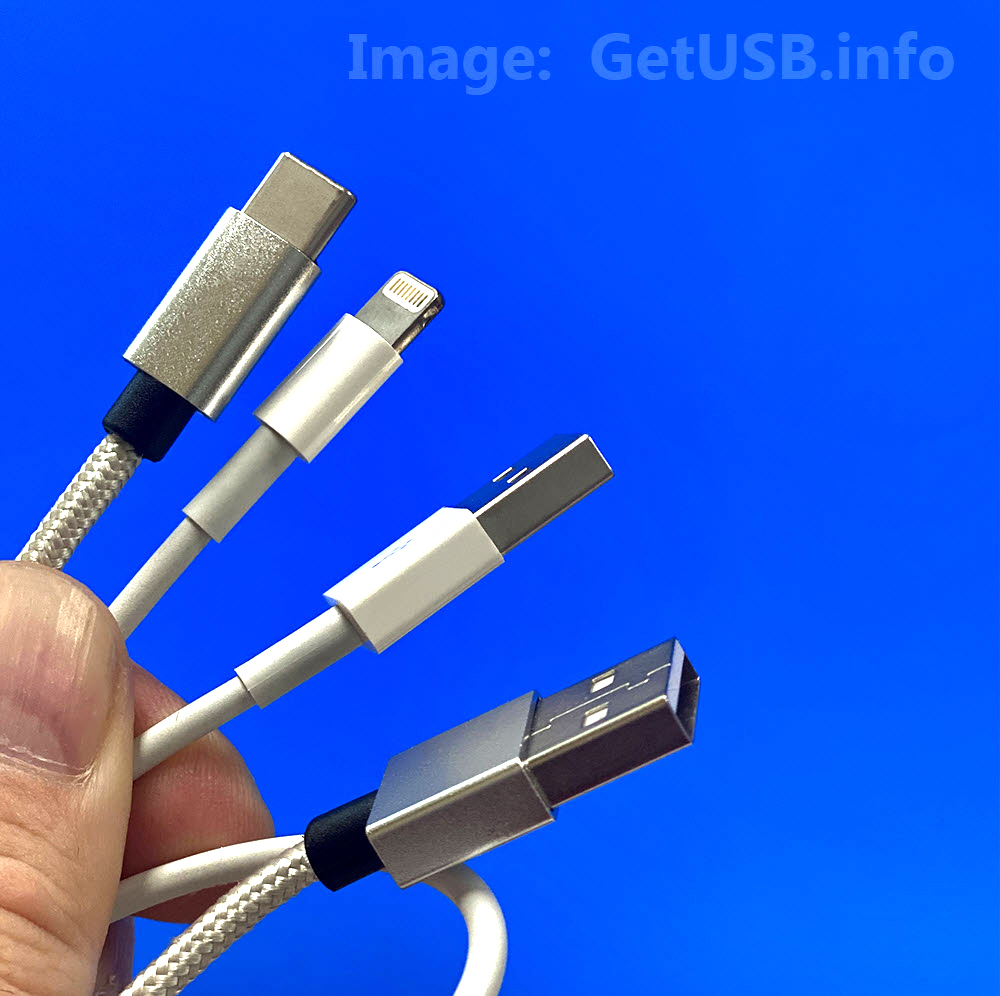
The fundamental problem are the different cables needed for different devices. This is why USB is such a lovely technology. It is designed to be universal. Really, all electronic devices which can charge or communicate should connect via one physical method. We vote USB-C!

Who started it?

The EU started the push to codify the use of a single connector type for all electronic devices starting in 2018. The EU started this process in order to eliminate waste associated with one cable being shipped with every electronic device. Their goal is to reduce the number of charging cables manufactured to get the world closer to a carbon neutral position. EU wants all devices to use the same connection type by 2030.

Who tipped us off?

Today we learn from a well known parts analyst who covers Apple products. Ming-Chi Kuo is an analyst who surveys different parts suppliers related to the supply chain of products manufactured for Apple. Through forecasting surveys and supplier questions, Kuo is able to accurately predict many upcoming trends and changes related to Apple products.

When will this start?

Based on parts forecasting and the ramp up of USB-C components, Kuo believes the change will happen in 2023.

Continue Reading

Copyright

Copyright © 2006 +

USB Powered Gadgets and more...

All Rights Reserved

Advertise with us

GetUSB Advertising

This is a high value website providing great exposure to your product and brand. Visit our advertising page to learn specifics.

For more information
Visit our advertising page.

Nexcopy Ad

Nexcopy Provides

USB copy protection with digital rights management for data loaded on USB flash drives.

Contact us learn more

Resources and References Page

Resources and References Page