GetUSB.info Logo

Author Archive

Matt LeBoff

Kicking around in technology since 2002. I like to write about technology products and ideas, but at the consumer level understanding. Some tech, but not too techie.

Custom USB Flash Drive – 60 Incredible Designs (images)

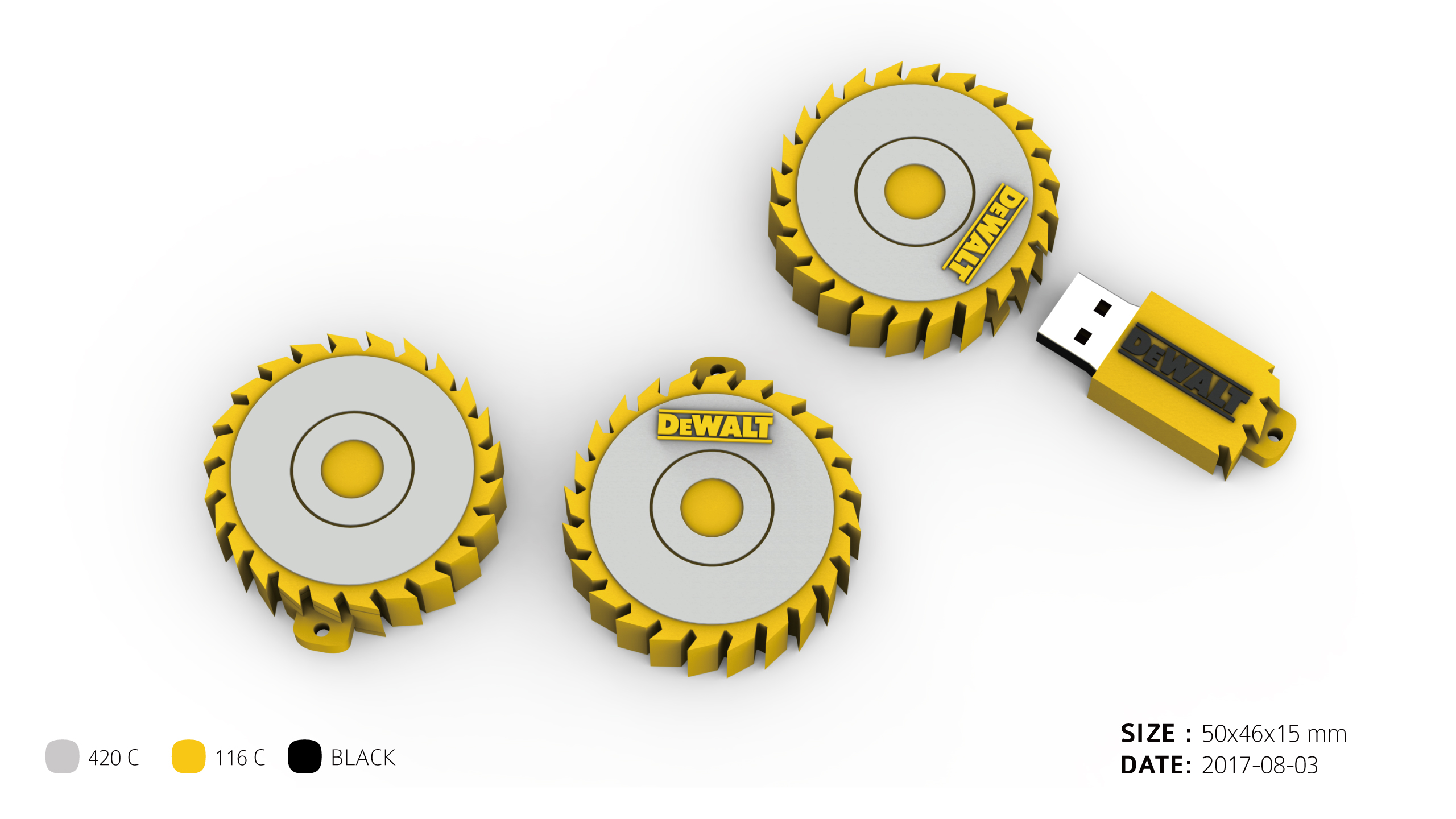
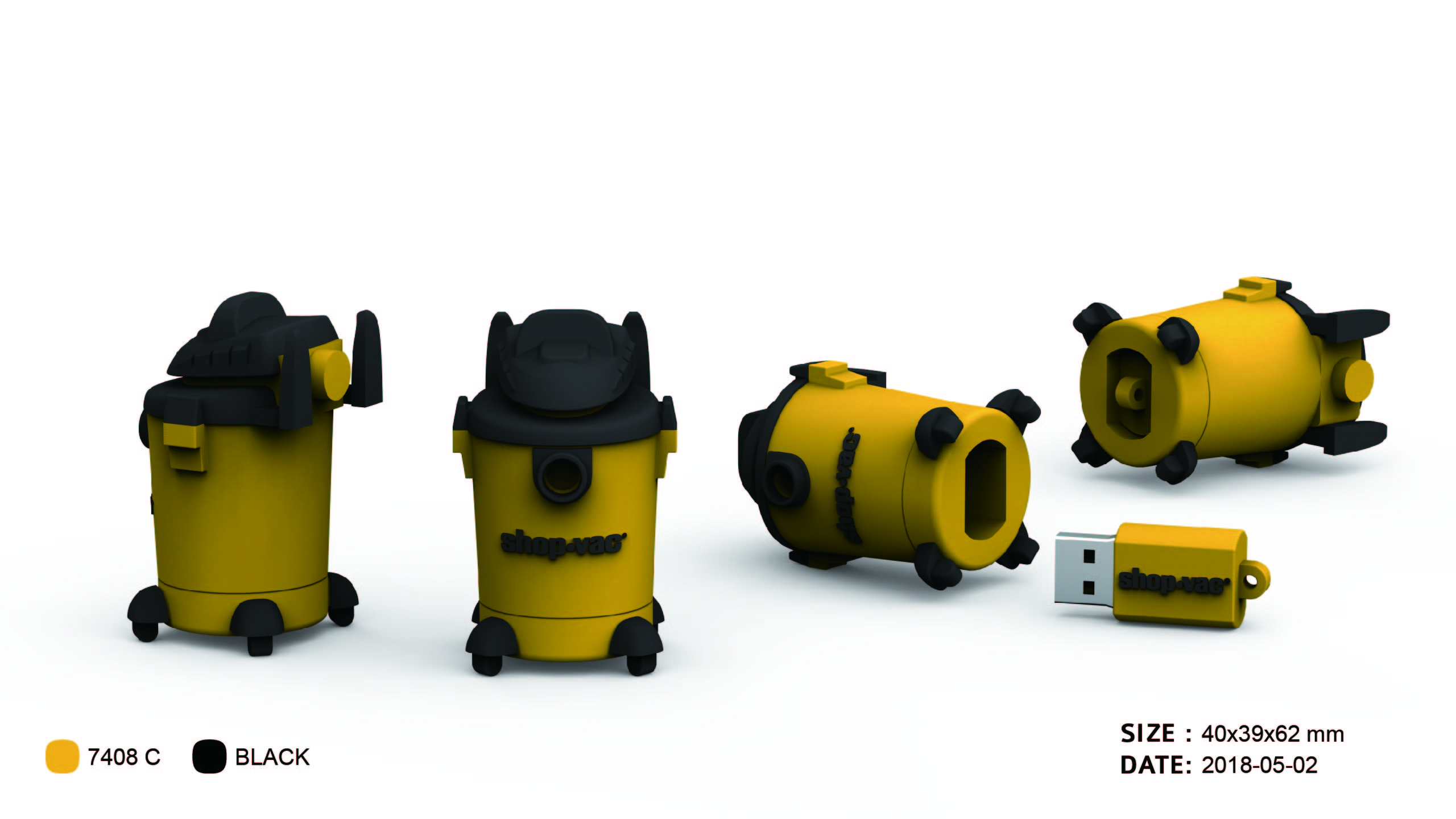
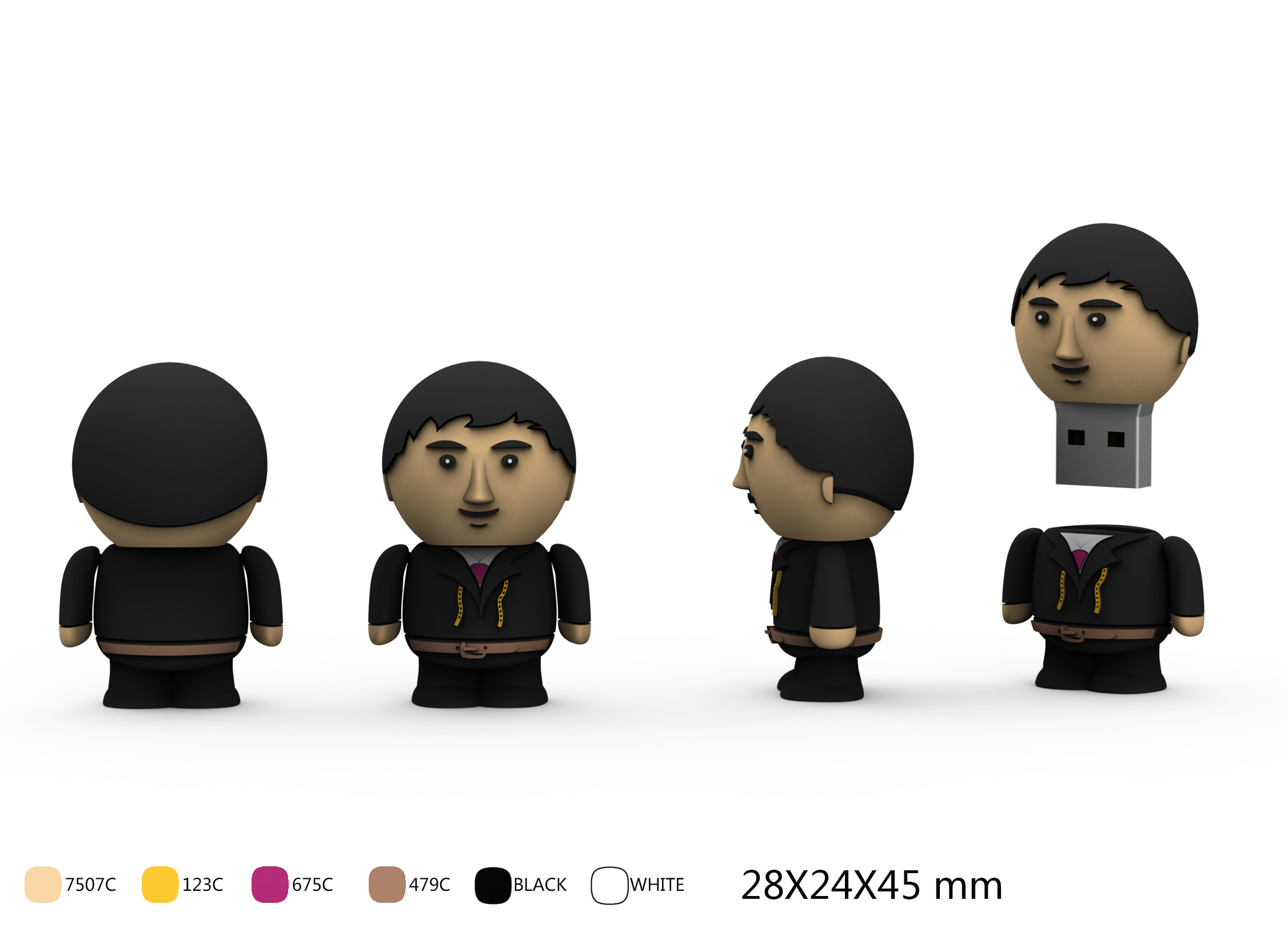

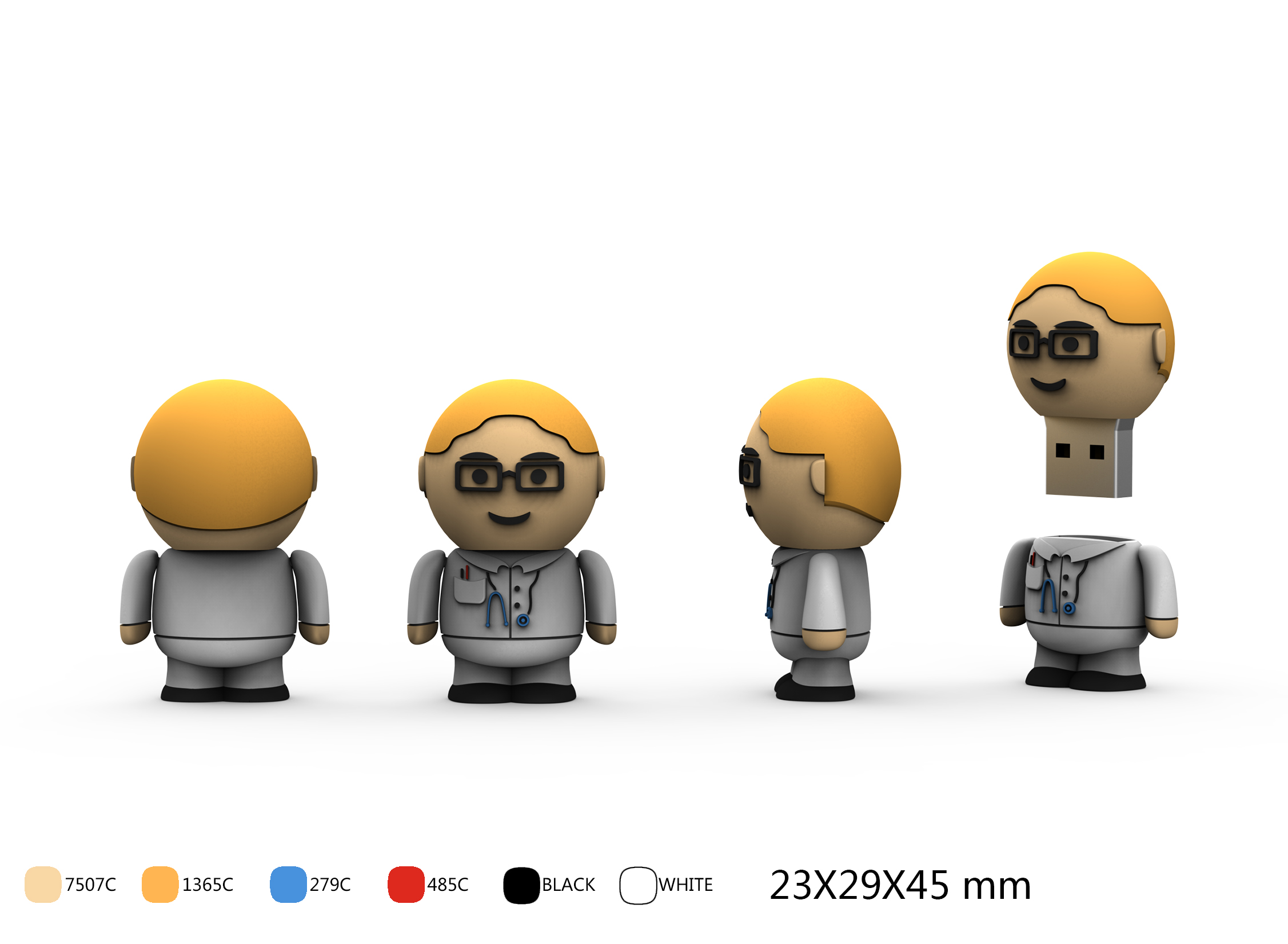
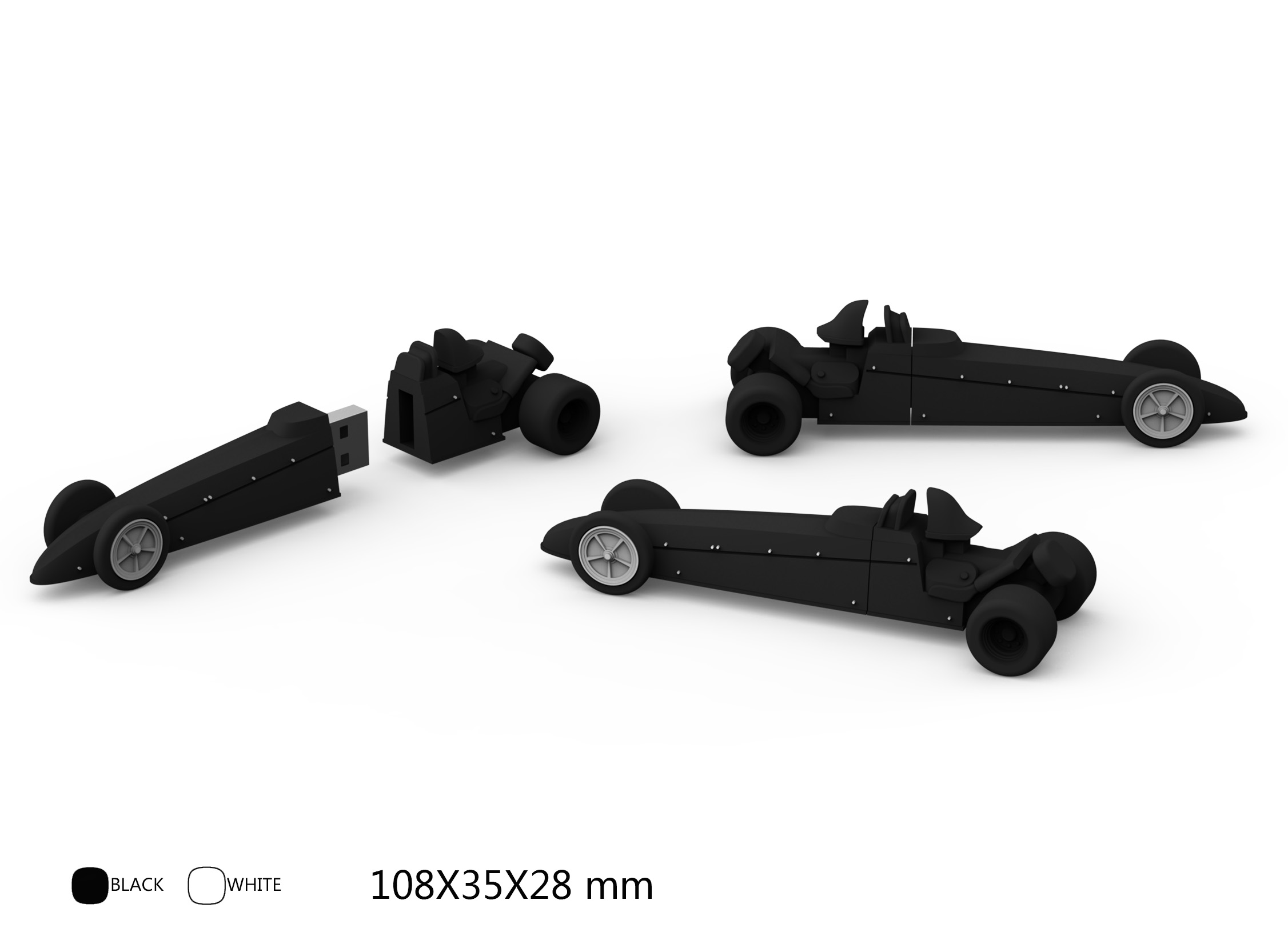
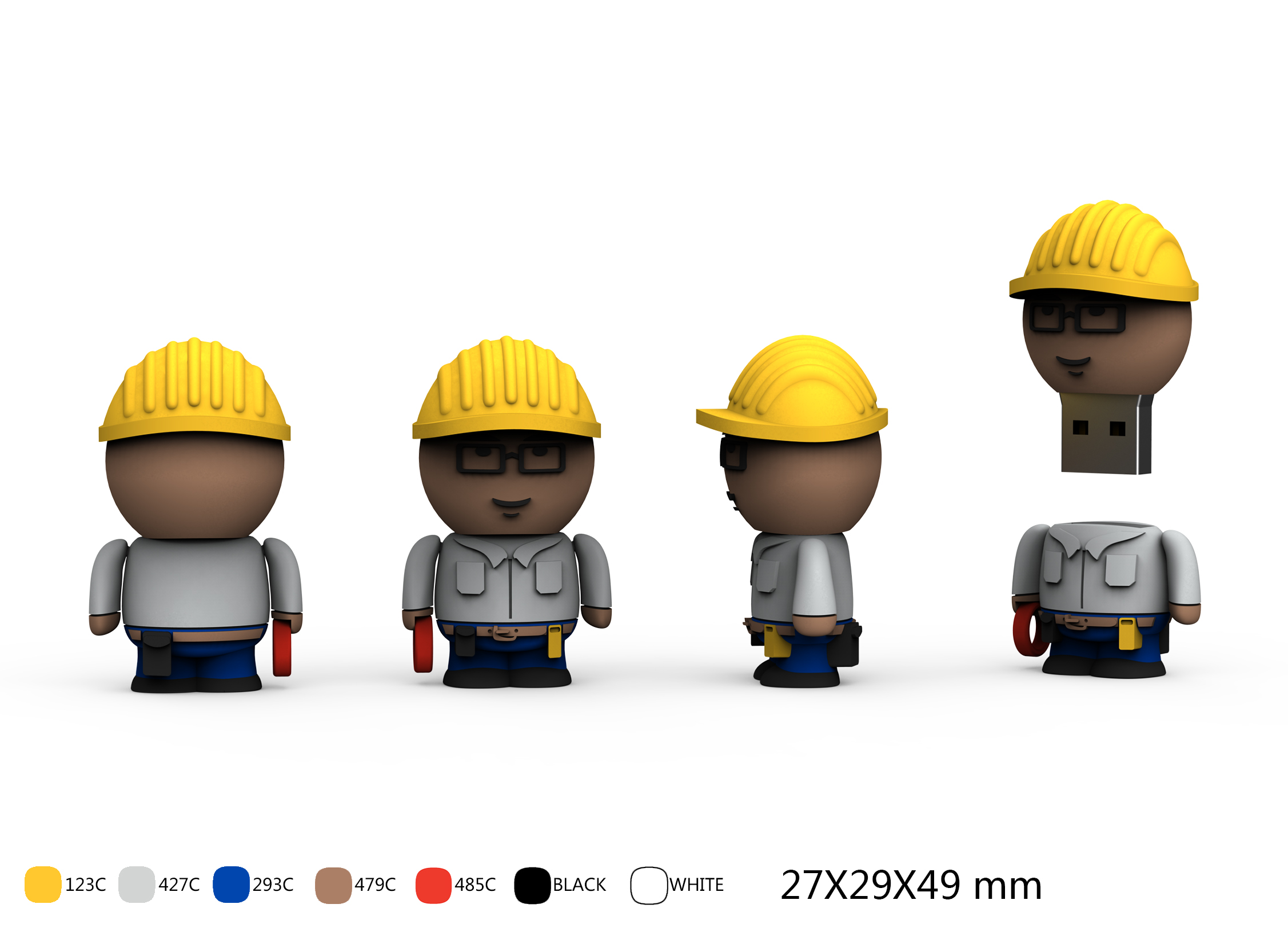
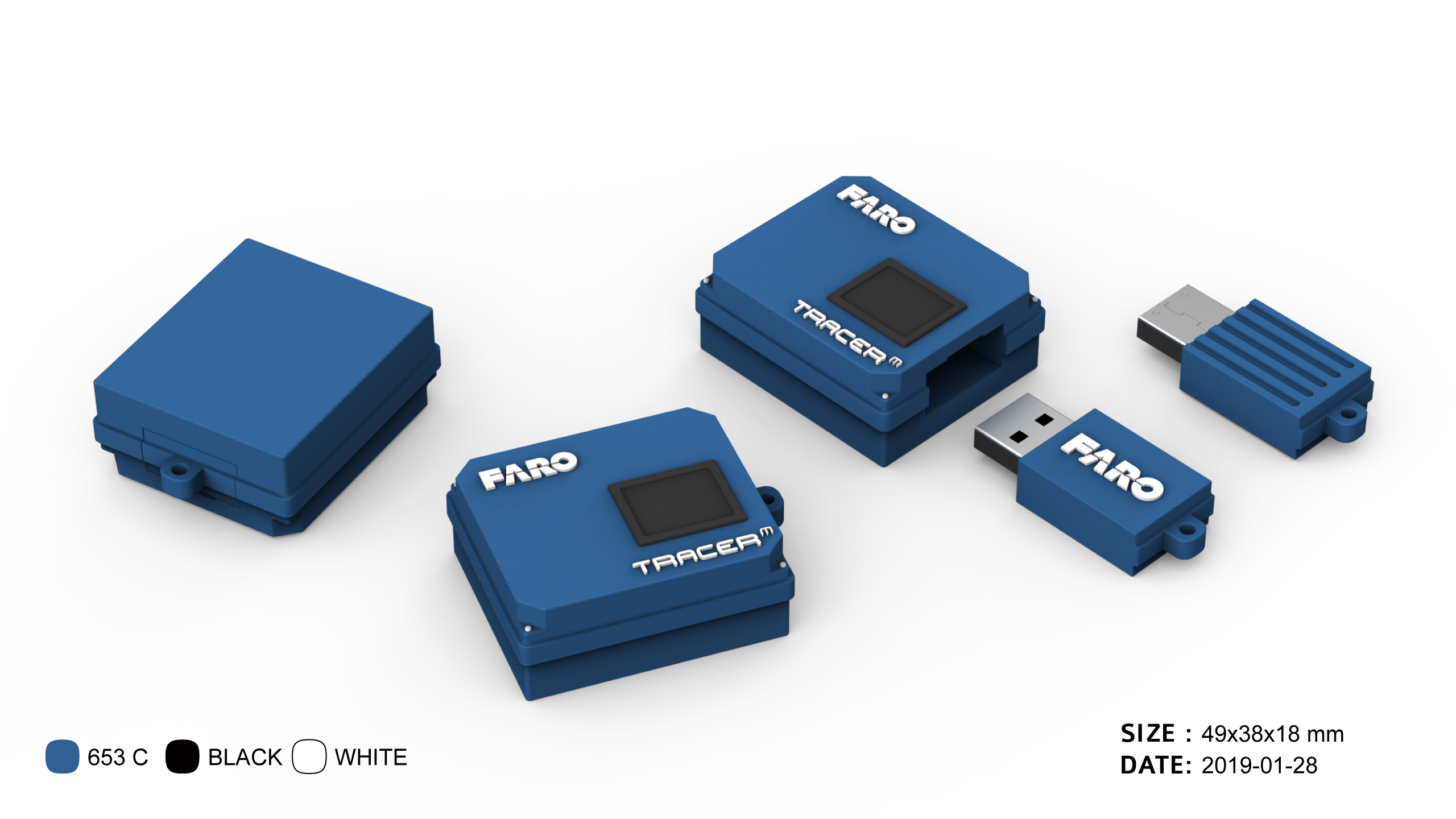
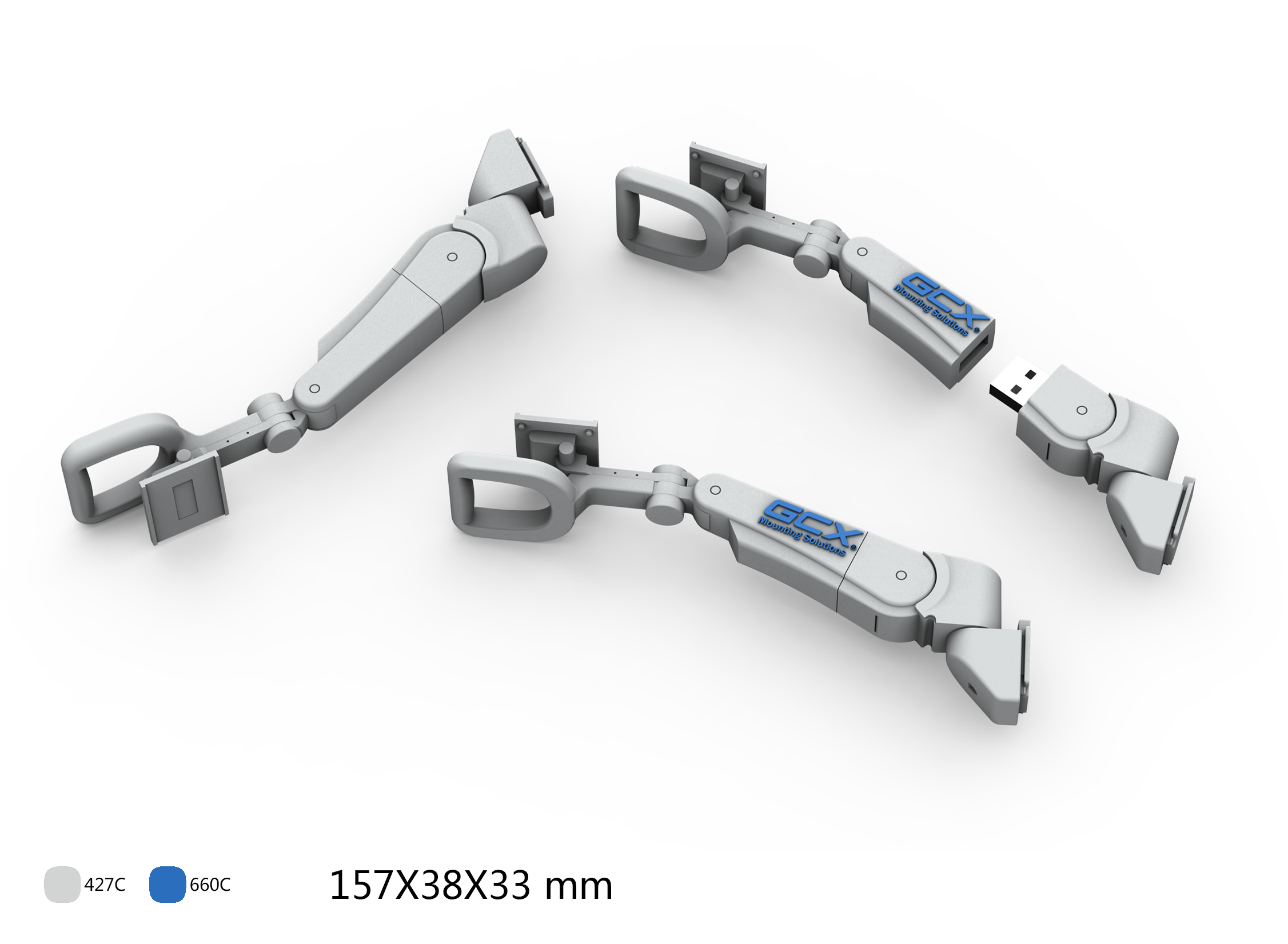
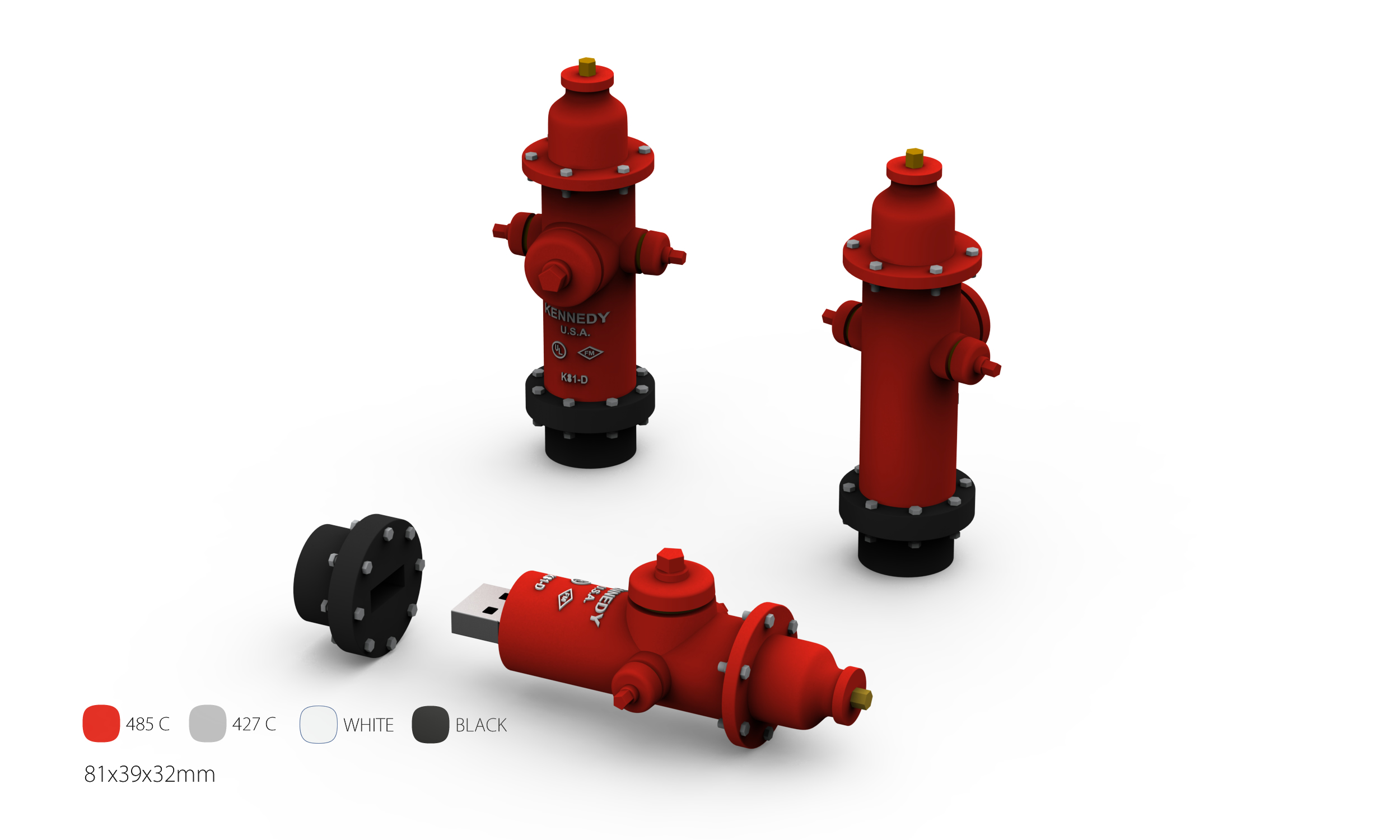
Here are 60 incredible Custom USB Flash Drive designs. Each one of these designs is real and was made for a company or client. The custom USB shapes are not listed in any specific order.

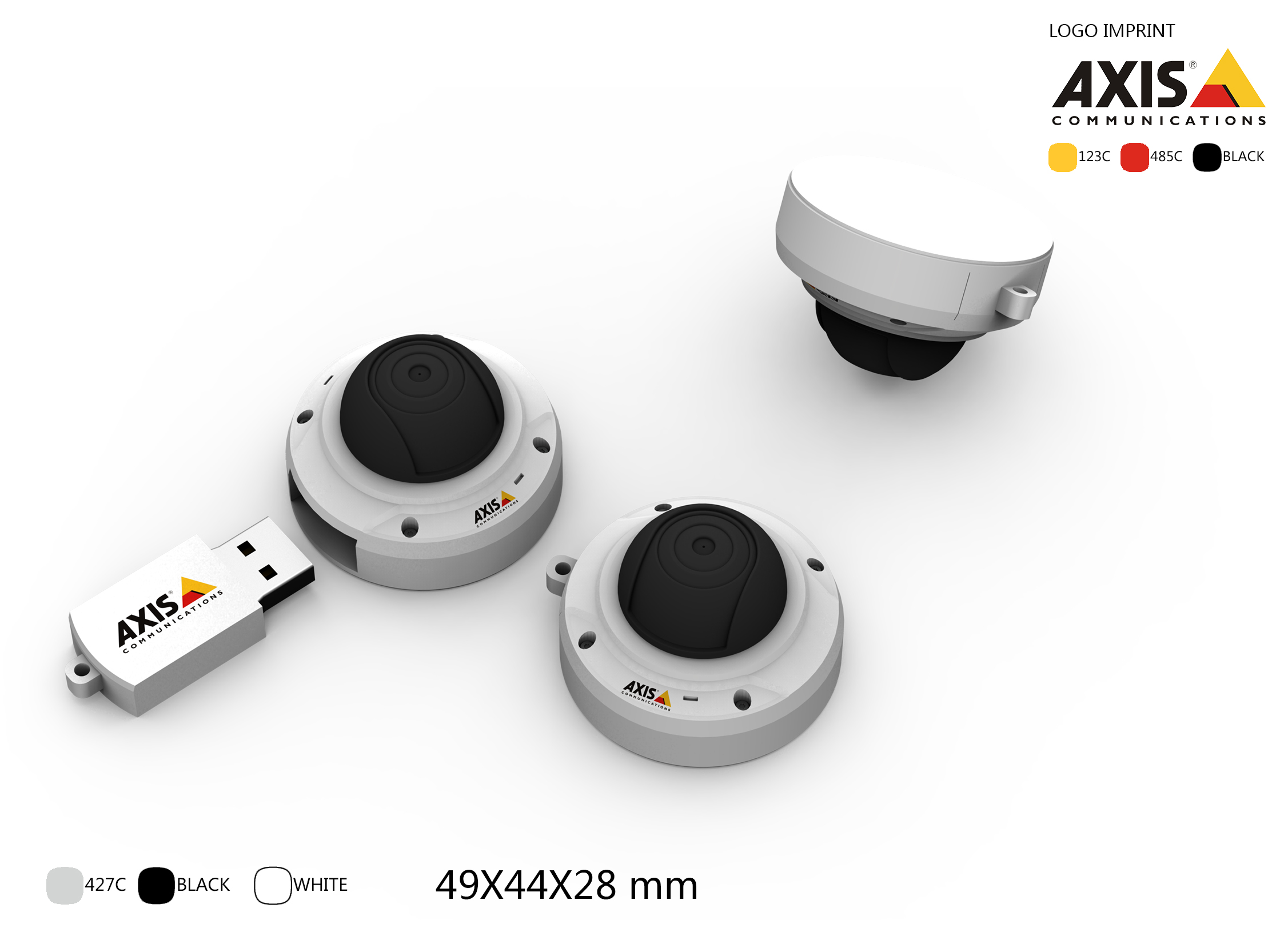
Flash Drive #1

custom molded USB flash drive with logo branding

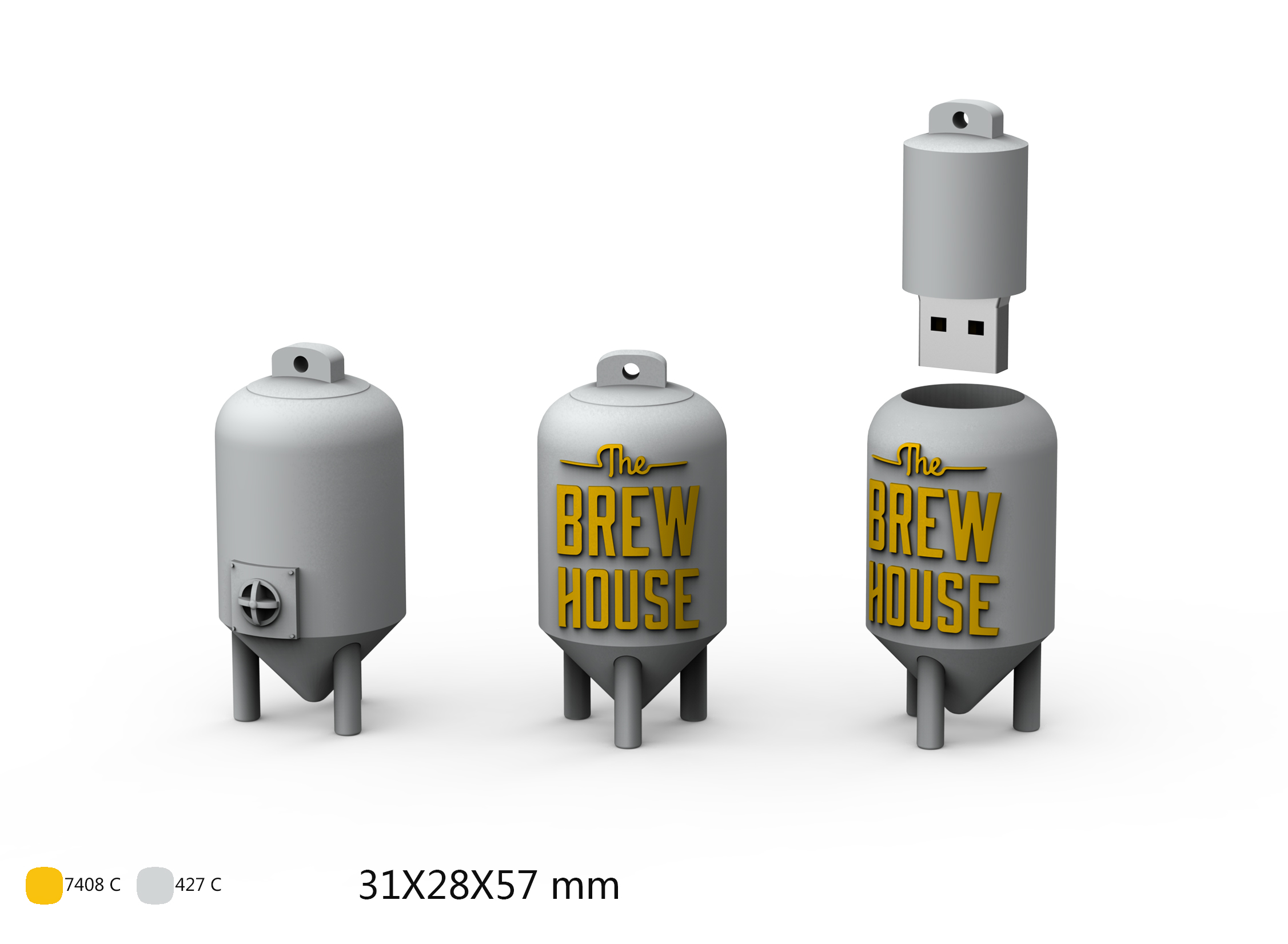
Flash Drive #2

unique promotional USB memory stick design

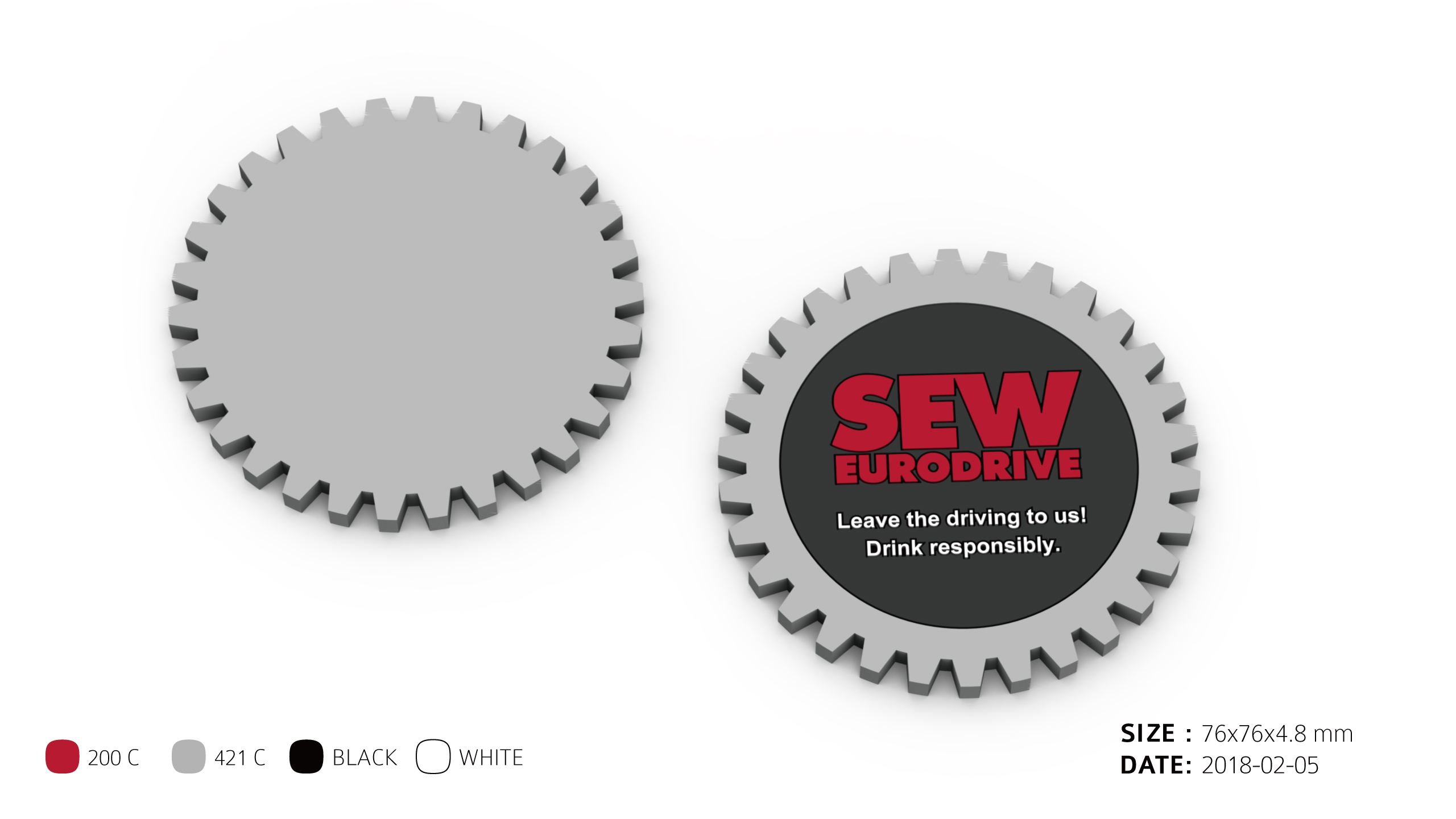
Flash Drive #3

logo branded custom USB stick for marketing

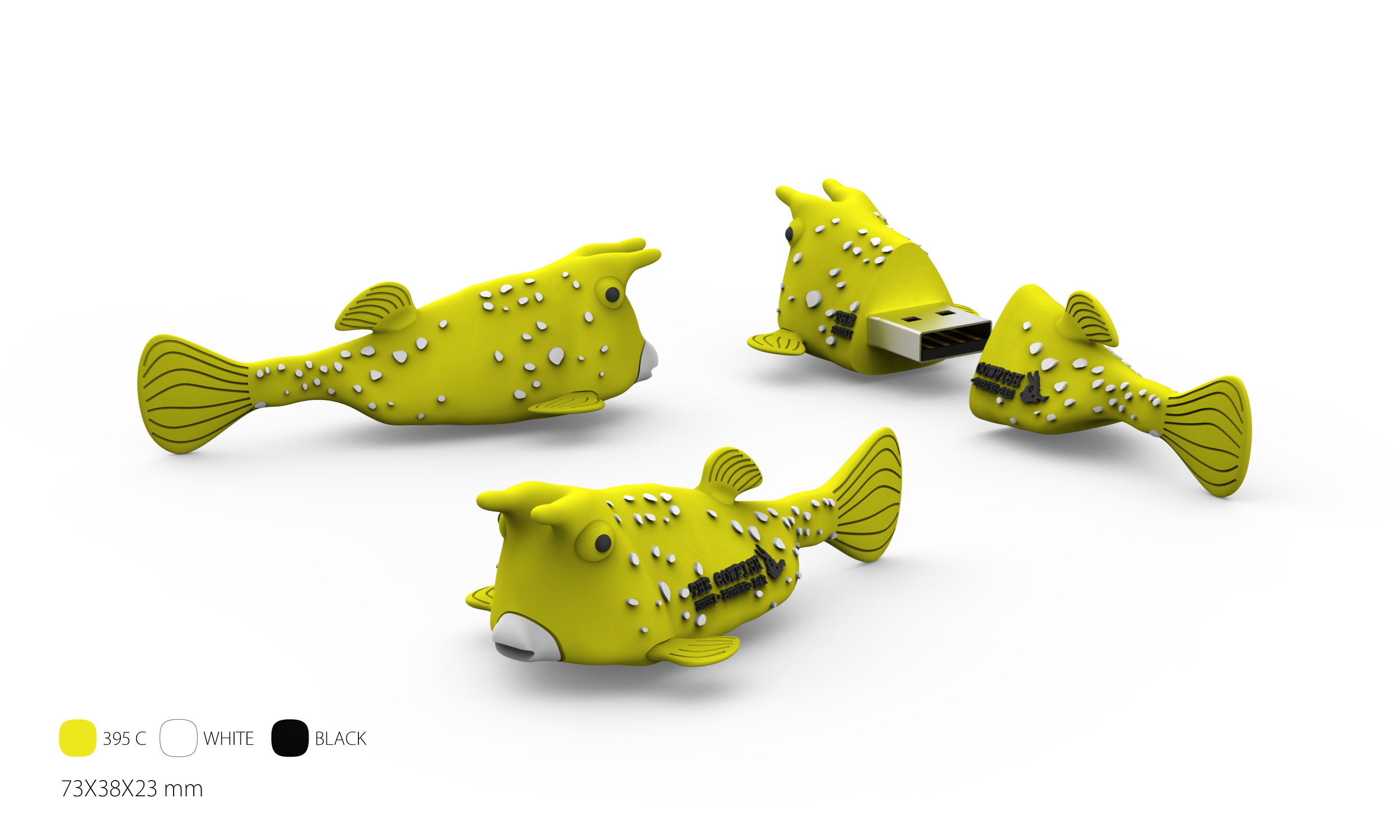
Flash Drive #4

creative USB thumb drive shape for promotions

Flash Drive #5

custom shaped USB drive for advertising campaigns

Flash Drive #6

novelty promotional USB flash design

Flash Drive #7

corporate branded USB stick giveaway

Flash Drive #8

company logo custom USB flash drive

Flash Drive #9

unique novelty USB drive promotional gift

Flash Drive #10

creative molded USB thumb drive for events

Flash Drive #11

personalized logo USB memory stick

Flash Drive #12

custom promotional USB device for branding

Flash Drive #13

unique USB flash stick with company name

Flash Drive #14

3D molded promotional USB memory device

Flash Drive #15

creative USB giveaway with custom design

Flash Drive #16

logo printed USB flash drive for marketing events

Flash Drive #17

custom 3D shaped USB promotional item

Flash Drive #18

personalized corporate gift USB stick

Flash Drive #19

custom made USB flash drive for trade shows

Flash Drive #20

custom promotional USB with detailed molding

Want a Custom Drive?

Contact US for Details

Flash Drive #21

promotional USB pen drive custom design

Flash Drive #22

branded flash stick for business marketing

Flash Drive #23

molded USB giveaway with unique shape

Flash Drive #24

corporate logo USB thumb drive promotional

Flash Drive #25

custom novelty flash memory USB stick

Flash Drive #26

personalized USB promotional gadget

Flash Drive #27

trade show branded USB device sample

Flash Drive #28

logo imprinted USB memory key

Flash Drive #29

3D promotional USB flash drive custom molded

Flash Drive #30

unique corporate USB handout design

Flash Drive #31

custom branded USB device for giveaways

Flash Drive #32

special edition molded USB flash drive

Flash Drive #33

creative marketing USB thumb drive sample

Flash Drive #34

custom promotional USB stick for events

Flash Drive #35

logo customized USB flash memory device

Flash Drive #36

unique branded USB giveaway sample

Flash Drive #37

personalized flash drive for product launch

Flash Drive #38

custom USB marketing tool with logo print

Flash Drive #39

3D molded promotional memory stick design

Flash Drive #40

exclusive USB flash drive for corporate branding

Want a Custom Drive?

Contact US for Details

Flash Drive #41

custom logo printed USB gadget for promotions

Flash Drive #42

creative 3D shaped flash drive corporate gift

Flash Drive #43

branded promotional USB for trade fairs

Flash Drive #44

personalized molded USB key design

Flash Drive #45

company branded custom USB flash storage

Flash Drive #46

custom themed USB promotional device

Flash Drive #47

unique shape USB drive for advertising use

Flash Drive #48

corporate USB giveaway with logo engraving

Flash Drive #49

3D molded USB promotional tool for events

Flash Drive #50

custom USB stick for brand visibility campaign

Flash Drive #51

logo printed promotional USB thumb drive

Flash Drive #52

novelty shaped USB flash drive for giveaways

Flash Drive #53

custom molded USB for product promotions

Flash Drive #54

corporate logo flash memory giveaway

Flash Drive #55

personalized USB device for conferences

Flash Drive #56

creative promotional USB with custom imprint

Flash Drive #57

special molded USB thumb drive gift

Flash Drive #58

unique branded flash memory promotional item

Flash Drive #59

final sample of custom promotional USB stick design

Flash Drive #60

custom promotional USB flash drive sample design #60

Want a Custom Drive?

Contact US for Details

Continue Reading

Harmonization Code for USB Flash Drives

HS Code for USB Flash Drives

When importing or exporting USB flash drives in the United States, you will want to use the correct Harmonized System code to complete customs and shipping paperwork accurately.

The Harmonized System code is an international tariff nomenclature that defines standardized names and numbers assigned to traded products. The HS Code system came into effect in 1988 and is maintained by the World Customs Organization (WCO), headquartered in Brussels, Belgium. Today, more than 200 countries participate in and rely on this system.

The HS Code for a USB flash drive is: 8523.51.0000

If your freight forwarder or shipping service indicates that an ECCN is required to ship USB flash drives or to complete Automated Export System (AES) documentation, providing this HS Code should resolve the issue in most cases.

USB flash drive with harmonized system code reference

ECCN stands for Export Control Classification Number. An ECCN is an alphanumeric designation used within the Commerce Control List to identify items that may be subject to export control regulations.

Continue Reading

A Flash Drive, an Ex Marine and Russia

Update: June 15, 2020

Paul Whelan was sentenced to 16 years in prison for espionage against the United States. As stated in the original post, an IT professional who cannot access “photos” on a flash drive, which later became the alleged vehicle for trading information, is a significant red flag that something more serious may have been occurring.

Update: February 3, 2019

“I want to tell the world that I am a victim of political kidnap and ransom,” Whelan said during a press conference in May. “This is retaliation for sanctions.”

“There are abuses and harassment that I am constantly subject to. There is a case for isolation,” he continued, before listing alleged abuses committed by prison staff.

The former Marine said he was being subjected to “typical POW Chapter 1 isolation” techniques intended to break him down and described his imprisonment as having a “Salem witch trial mentality.”

According to Reuters, Whelan made a direct plea to the President of the United States, stating, “Mr. President [Trump], we cannot keep America great unless we aggressively protect and defend American citizens wherever they are in the world.”

It is not every day that a “flash drive” appears in international espionage headlines. However, American citizen Paul Whelan was arrested in Russia and charged with espionage, with a USB flash drive playing a central role in the case.

Based on reporting surrounding the arrest, Whelan is a former Marine who frequently traveled to Russia. He worked as a security professional for a U.S.-based auto parts supplier, BorgWarner, spoke Russian, and used the Russian social media platform VKontakte, commonly referred to as VK.

According to reports, the arrest unfolded as follows: Whelan met with a Russian associate who handed him a USB flash drive. Earlier in the trip, Whelan claimed he had received digital vacation photos but was unable to view them on his computer. Because of this, he requested that the images be transferred to a flash drive.

Moments after the exchange took place, Russian police arrested Whelan and later claimed the USB flash drive contained state secrets.

Plugging a USB flash drive into a computer

Whelan has maintained that he had no knowledge of any sensitive information on the flash drive and believed it contained only vacation photos. If true, one can only hope he is given a fair opportunity to prove his innocence.

Additional background information about Paul Whelan includes the following.

He served for 14 years in the U.S. Marine Corps Reserve and was discharged in 2008 for bad conduct.

The discharge stemmed from a conviction involving the attempted theft of $10,410 in U.S. currency. He was accused of misusing another individual’s Social Security number and writing bad checks. Poor decisions early in life are not uncommon, though they can cast long shadows.

Playing devil’s advocate, the most troubling detail remains the claim that a security-focused IT professional could not open digital image files. Regardless of file format, that task is typically straightforward. If nothing else, this situation highlights the importance of using write-protected USB flash drives when traveling internationally. You never know how a simple device could be interpreted or misused.

Sources: CNN and GetUSB.info

Continue Reading

Look What 10 Years Does for Lexar and SD Cards

Almost ten years ago Lexar announced it’s first 1GB SD card. Today Lexar announces their first 1TB SD card. My, how times have changed. A one GB card ten years ago cost about $125 and difficult to find at that capacity. The 1TB card announced today is $499. Doing a quick calculation means the price per Megabyte went from $0.12 cents all the way down to $0.0005 per Megabyte. Awesome!

If the price difference isn’t a big enough shock to you, consider the storage capacity increased this much, yet the form factor of the SD card has not changed.

Lexard 1TB SD Card

This new Lexar card is a Class 10 device with transfer speeds over 95MB per second. Ideal for newer cameras capturing video in 4K.
Lexard 1TB SD Card

About Lexar:

Continue Reading

Chromebook Gets a USB Guard

Anyone in tech has seen the reports and news about USB sticks with a virus ruining a company network or infecting computers. Google built a small and effective feature: Chromebook Gets a USB Guard.

Chromebook Gets a USB Guard

The USBGuard is a feature that blocks interaction between the mass storage device and the Chrome operating system. The OS will give power to the device, but not let data transmit.

The USBGuard blocks this activity when the Chromebook is in locked mode. When the Chromebook is not in lock mode, the USB will interact as expected as a read/write device.

Continue Reading

Satechi USB-C Hub for New 2018 iPad

Satechi, a San Diego–based company, unveiled a new USB hub designed for the 2018 iPad Pro.

The hub is built specifically for the 2018 iPad Pro, allowing convenient access to peripheral devices while on the go.

Satechi USB hub attached to 2018 iPad Pro

Features include 4K HDMI output at 30Hz, USB-C Power Delivery 3.0 charging, USB 3.0 data transfer at up to 5Gbps, and a 3.5mm headphone jack, all delivered through a single USB-C connection. The USB 3.0 port is the only interface used for data transfer, while the USB-C port is dedicated solely to power. USB Power Delivery 3.0 ensures the iPad receives optimal charging even when handling demanding tasks such as 4K video playback.

The hub follows Apple’s design language closely and integrates cleanly with the iPad Pro. It does not feel like a bulky or awkward add-on when attached.

Satechi offers the USB hub for $59, with color options available in Silver or Space Gray.

Satechi USB hub side view

End

Continue Reading

USB Two Factor Authentication Dongle

The Yubico YubiKey 4 is an excellent option for implementing two-factor authentication. Two-factor authentication requires two separate elements before access is granted. In this case, one element is your password and the second is a physical factor, such as fingerprint verification or possession of the hardware key.

If you currently use a password manager such as LastPass or Dashlane, this device is a strong addition. The primary benefit is the ability to enable hardware-based two-factor authentication, requiring the YubiKey itself to authorize sign-ins even when the correct password is entered.

YubiKey hardware security key

This means that even if someone learns your password, access is still blocked without the physical key. Most modern password managers and services support established security standards such as FIDO U2F, PIV smart card authentication, and OpenPGP, all of which are compatible with YubiKey devices.

Continue Reading

USB Condom – Power But No Data

For those in a situation where you plug devices into unknown USB ports, a USB data blocker is a good thing to have around. Or some call it the USB condom!

This is a physical device that sits between the USB host connection and your device. The data blocker enables the power pings of a USB socket, but not the data lines. This means your device will get the power it needs, but without the possibility of infection via data transfers.

For example, if you are at a client’s office and need to connect your device to a USB port and don’t want to risk anything, use the USB data blocker. You’ll get the power, but without the risk of spreading or getting a virus.

USB condom

Not much use for those who surround themselves with a trusted environment, but for those on the move, I think it’s a great product.

Continue Reading

Why is my USB name always CAPS?

Why is my USB name always CAPS?

The reason is fairly simple. You also have the option to make your USB name or USB volume name upper and lower case.

The all CAPS of a USB name is due to your flash drive being formatted as FAT or FAT32. Windows will not allow FAT or FAT32 devices to use lower case letters.

To use lower case letters, or upper and lower case letters, simply format the drive as exFAT or NTFS. Note; we do not recommend formatting a USB as NTFS … so better to stick with exFAT.

Here are some screen shots to help better understand exactly what to do.

# Right click your USB drive letter, select Format, and do as the images below show

USB name all CAPS

##

USB name upper lower case
Continue Reading

Snap Power USB Charger

You know a product is a great idea when a couple of pictures describe the entire product. With that in mind, we’ve all seen wall outlet USB charges, but the Snap Power, in my opinion, will rule them all. The design is clever. Installation is ultra-easy. Accessibility supersedes all others. Take a second and just look at it: In my mind there are three things which make this a brilliant wall charger. If you don’t mind me walking you through the obvious, here we go. Or skip the highlights and jump right over to their website: The design is brilliant. The User keeps both outlets available for normal use while a sleek looking USB port is added underneath. At the time of this article there is one USB socket, but visiting their website you can see two sockets, one on either side. They are constantly improving. Installation is very easy. Simply unscrew your current face-plate and replace it with Continue Reading

How To Partition a USB Flash Drive in Windows

Using Windows 10, you can partition a USB flash drive into multiple partitions. The process is not difficult; you simply follow some easy steps. This tutorial will partition the drive so that your device is assigned multiple drive letters when connected to the computer.

This partition process is not done at the USB controller level, or said another way, done at the hardware level. This USB partition process, for lack of better terms, is done at the software level. What does this mean for you? It means the partitions can be wiped off the drive and the full capacity of the USB flash drive can be restored.

When a USB stick is partitioned at the controller level, or at the hardware level, there is no way to reverse the partition. The multi-partition drive is permanent. At the end of this tutorial is the solution for a hardware-based partition solution.

So let’s get started.

How to partition a USB flash drive in Windows 10:

Connect the USB flash drive to your Windows 10 machine. Be sure there is nothing valuable on the USB as this process will remove all content from the drive.

Right Click the Windows icon and select Disk Management.

How To Partition a USB Flash Drive in Windows - Disk Management Access

The Disk Management window will appear with all the connected devices. Select your USB flash drive by clicking one time. By selecting your flash drive, it will allow Windows to apply the partition to that device.

Partition a USB Drive in Windows - Select USB Device

You will see your flash drive as Disk X. The device is represented by diagonal gray lines. Right Click your device in the diagonal gray line area on your screen and select Delete Volume.

Delete Volume to Partition USB in Windows

Windows will display an error message stating all the contents of the device will be removed. Confirm Yes.

USB Flash Drive Partition Setup - Windows Confirmation

You will now have an unallocated partition for the flash drive. This means a file system is not assigned to the drive. Having no file system on your USB means you cannot save data to the drive. We need to create a file system for this partition, i.e., FAT, FAT32, NTFS, or exFAT.

At the same time, we assign a file system to this partition, we will also slice up the USB flash drive to create multiple partitions.

Right Click the unallocated space on your screen, represented by the diagonal gray lines. Select New Simple Volume from the options presented.

Create New Simple Volume - Partition USB Drive in Windows

A Microsoft wizard utility will start. Click Next from the first introductory screen. Windows will display the total amount of memory available to the device. This is where you will enter the size of your first partition. In this example, I am using a 2GB flash drive (1,896MBs) and will make a first partition of 500MBs.

Set Partition Size for USB Flash Drive in Windows

The rest of the wizard utility is auto-populated and straightforward. For example, the wizard will ask if you want a specific drive letter assigned to the partition once the process is done.

The wizard utility will ask you what file system you want for this new partition. If you are not sure, just leave the auto-populated selection from Windows.

TIP: If you want the dual partition USB drive to also work in Mac computers, be sure to format the drive as FAT, FAT32, or exFAT. Do not use NTFS, as Mac computers will only read the content but cannot write to the device. In fact, read this article on why to never format USBs as NTFS.

Be sure to set a volume name to the device so the partition (new drive letter) will be easy to recognize.

Name Partition - USB Flash Drive Setup Windows

Click Finish for Windows to make this first partition. Looking in Disk Management once the wizard has closed, you will now see the device with one partition and a balance of the drive as unallocated.

Partition USB Flash Drive - Disk Management Final View

Rinse and Repeat. Do the same steps as above for this smaller unallocated memory space.

After the second pass using the partition wizard for Windows, you will have a dual partition USB drive with two drive letters. Each USB flash drive letter will work and appear like a normal, single flash drive. You can data load each partition as normal. You can even flash one partition to make it bootable if you are into making bootable USB sticks.
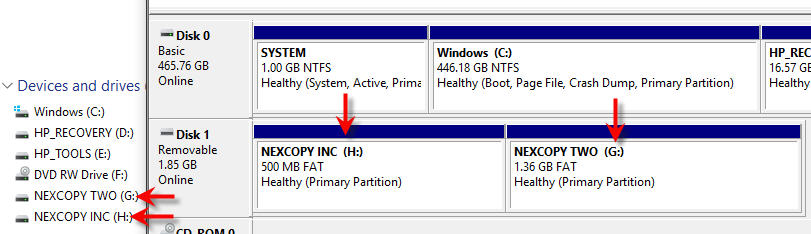
Dual Partition USB Drive Setup in Windows

Although the above tutorial makes things easy to partition a USB flash drive into multiple drive letters, this method is not permanent. Using the same steps, you may clear out all the partitions and its content. For some users or companies, having an unsecured dual partition drive is not ideal for their business practice or application. There is an alternative. There is a method to partition a USB at the hardware level.

In order to partition a USB drive at the hardware level, or controller level, you will need some specific controller chips and the vendor commands to set up the partitions. These tools are not readily available as there are hundreds of chip makers and thousands of USB suppliers. However, Nexcopy has a solution for business-to-business applications for creating dual partitions at the controller level.

In addition, Nexcopy has the ability to make these partitions write-protected, or read-only. If this hardware solution is what you need, please contact them.

Continue Reading

Copyright

Copyright © 2006 +

USB Powered Gadgets and more...

All Rights Reserved

Advertise with us

GetUSB Advertising

This is a high value website providing great exposure to your product and brand. Visit our advertising page to learn specifics.

For more information
Visit our advertising page.

Nexcopy Ad

Nexcopy Provides

USB copy protection with digital rights management for data loaded on USB flash drives.

Contact us learn more

Resources and References Page

Resources and References Page