GetUSB.info Logo

Author Archive

Matt LeBoff

Kicking around in technology since 2002. I like to write about technology products and ideas, but at the consumer level understanding. Some tech, but not too techie.

Review: Wireless Phone Charger For Tesla Model 3

My neighbor has a Model 3 with a wireless charging station built right into the center console. I didn’t realize this was an aftermarket purchase at first, which is why I wanted to review it here today. The brand my neighbor uses is the Taptes Generation 2 wireless charging station.

The Gen 2 model includes several improvements over the previous version. Starting with the basics, this version has a ridge line molded into the center of the charging platform. This allows a user to charge two phones vertically at the same time, each independently receiving power. The center ridge does not extend all the way to the bottom, so if you need to charge a phone in landscape mode, for example while viewing Google Maps, that is still possible.

The charging station also includes a USB-C port in the event a passenger has a phone that does not support wireless charging. This applies to both Android and Apple devices, making the setup flexible for mixed-device households.

My neighbor’s car is a 2019 Tesla Model 3, but this charging station supports Tesla center consoles from the 2017, 2018, 2019, and 2020 model years. The black finish closely matches the Tesla interior trim, and as mentioned earlier, it does not look like an aftermarket add-on once installed.

The charging pad uses an anti-slip grip material so phones don’t slide around while driving. The wireless signal is strong enough to charge through most phone cases. However, if your phone has a magnetic disc or pop-socket attached, charging may not work reliably. This is typically due to increased distance from the charging coil or signal obstruction. The pad also includes two LED indicators to show when the charging station is active, while your phone confirms receipt of power. Two USB splitters are included so the charger can be powered from the Tesla USB ports while still allowing connections for accessories such as a dash camera.

  • 1 × Wireless Charger / Pad (Gen 2)
  • 1 × Manual
  • 2 × USB Splitters

Taptes Gen 2 wireless phone charger installed in Tesla Model 3

Continue Reading

Why Does the Partition Size Matter Inside an Image File?

This topic is brought up today because we hear some users have issues understanding this point. The partition size inside an image file does matter. The question we will answer today is why it matters, and why an image can fail even when the IMG file itself looks small.

Let us start off with two simplified overviews. First, all storage devices use a partition to define their characteristics. A storage device has a file system like FAT32, exFAT, or NTFS, and that file system has a defined size or digital capacity. These characteristics, along with a few others, are laid out in the partition table.

Second, an image file is the above partition with all its detail — the file system, defined capacity, along with all the actual files and folders on that partition — captured into a single file, typically an .img file.

For a non-technical person, let me use a puzzle as an example.

partition table puzzle analogy for image file and storage device

  • The puzzle box is equivalent to the physical device.
  • The plastic bag inside the puzzle box, holding all the pieces, is the image file.
  • The print on the puzzle box indicating the number of pieces is the partition.
  • The puzzle pieces inside the box are equivalent to the data.

At this point we know the image file (.img) is the bag that holds all the puzzle pieces and the data are the pieces themselves. So let’s address the core question: why does the partition size matter inside an image file?

Back to the puzzle box. The outside of the box lists how many pieces are inside. If the physical box size is, say, 8 by 11 inches, it’s logical that a 1,000-piece puzzle would fit. It’s also logical that a 20-piece puzzle would fit. But could a 5,000-piece puzzle fit inside that same box?

From those scenarios, one clearly doesn’t work. The box claims more pieces than the physical space can support. Partitions behave the same way.

Said another way, you cannot use a partition table size of 4GB and try to write that image to a USB stick that has only 1GB of physical storage. Even if the image file itself contains only 1GB of actual data, the declared partition size still must fit on the device.

Here is a real-world example: you can download this IMG file which is only 40MB in size. The IMG contains a 4GB partition. Write it to a 4GB (or larger) flash drive and it works. Try writing it to a 2GB drive and it will not.

What happens?

Windows is smart. All modern versions of Windows compare the partition table size against the available physical memory on the device. If Windows sees the partition claims more space than physically exists, it blocks access to the device and only allows formatting. Formatting rewrites the partition table to match the real capacity.

This behavior exists to prevent fraud. Older operating systems like Windows XP did not validate partition size versus physical memory, which allowed fake-capacity USB drives to be sold. Windows 7 and newer closed that loophole.

This same partition-size rule shows up frequently when creating bootable media. We’ve seen it come into play when users attempt to write boot images that fail silently or appear corrupted, such as when creating tools like the Ultimate Boot CD on a USB flash drive, where the target USB device must meet or exceed the image’s declared partition size.

If you found this article because an image file is not working when written to a USB flash drive, check the partition size inside the image against the physical capacity of the device. The easiest way to verify this is to mount the IMG file and check its properties. Keep in mind the default Windows mount option does not work for this; you need something like this.

Continue Reading

Home Office Tools – Home Office USB Duplicator

Today, more than ever before, individuals are working from home offices. A comfortable and productive environment is one of the main reasons so many love working from home. However, even with all the conveniences, sometimes the home office lacks the computer equipment needed to handle specific tasks. With many businesses now practicing social distancing, certain tools are still essential. Let us look at a unique product by Nexcopy, the home office USB duplicator.

Consider the niche requirement to make USB duplicates at home. For example, an IT manager might need to prepare bootable recovery sticks, or a software engineer might need to send program updates to remote sales teams. These professionals require a fast, simple, and economical device to do the job efficiently.

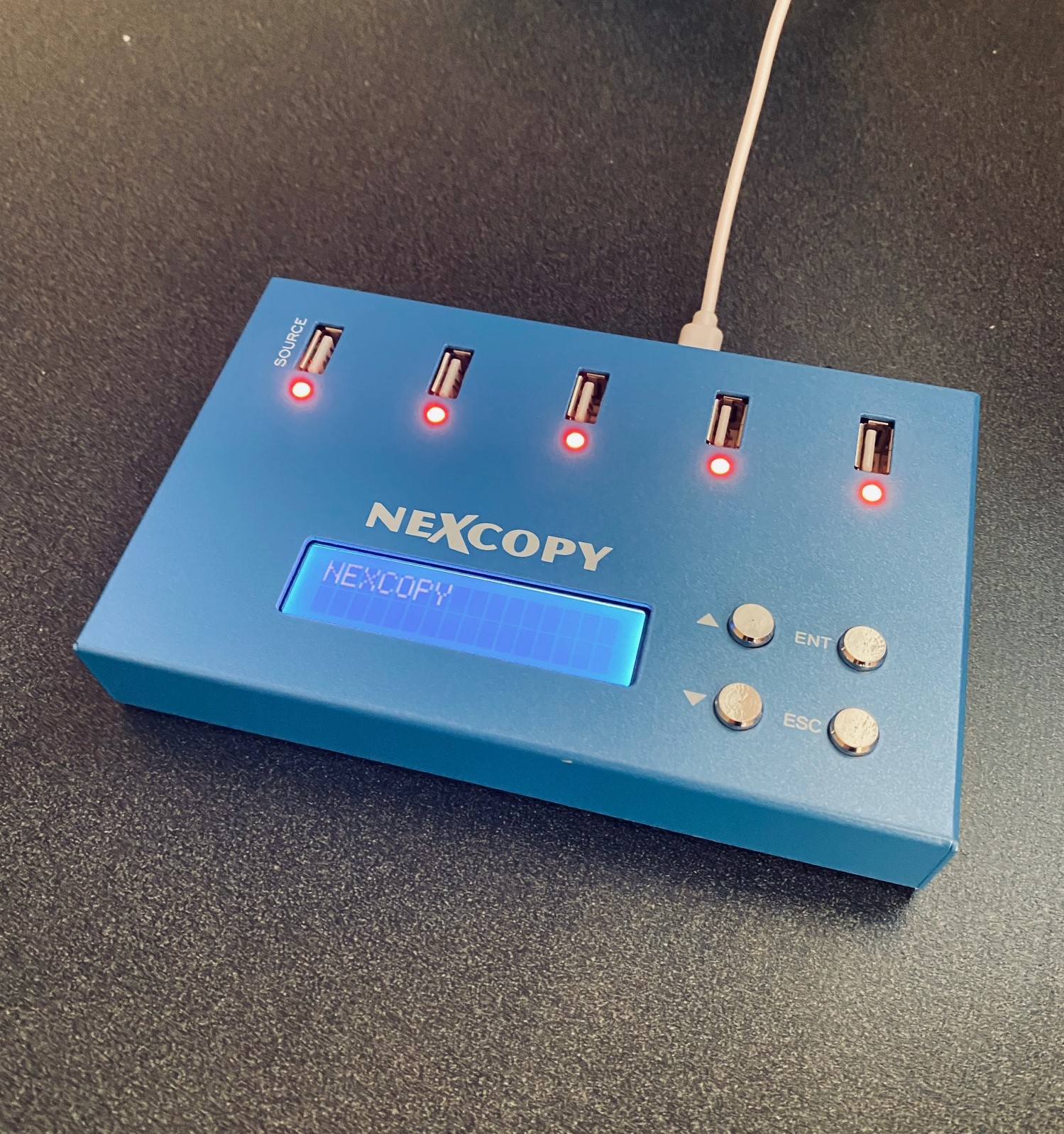
The compact USB flash drive duplicator from Nexcopy is the perfect solution for this need. Measuring just 15cm long and 10cm wide, it fits easily into any computer bag and is as light as a book.

Home Office USB Duplicator

The USB duplicator is a one-master to four-target copy station. It is a digital binary copier capable of duplicating any file system or structure provided by the master flash drive. Using a USB cable, the duplicator can power up to five USB flash drives, though it is not recommended for USB hard drives.

With this device, making duplicates in a home office is quick and easy. The unit has four menu buttons: Enter, Escape, Up, and Down. It operates with a single button press, making it ideal for non-technical users. The duplicator can be set for a standard binary copy or a copy-and-compare function, ensuring every duplicate is an exact match to the master for added peace of mind.

Key Features of the Nexcopy USB104SA:

  • Asynchronous copy mode at all times
  • Binary copier supports all formats: FAT, FAT32, exFAT, NTFS, HFS, Ext2,3,4, Proprietary
  • Binary CRC verification algorithm
  • Quick Erase and Full Erase for data sanitization
  • Four language modes on the LCD menu (English, Spanish, Portuguese, Simplified Chinese)
  • USB speed benchmark utility
  • Firmware upgradeable for future updates

Is this mini-sized USB duplicator worth the investment for a home office? The easiest way to decide is to consider how much time it saves. The Nexcopy USB104SA can copy 1GB of data to each device in just over one minute. If an IT manager or developer had to manually load 12GB of data onto four drives using a PC, it would take about 12 minutes. The duplicator accomplishes this in a fraction of the time. Using the copy-and-compare mode adds some time, about 1.5 minutes per GB, but still remains extremely fast.

The Erase function is another valuable feature. Unlike a simple format, which only removes the file allocation table (directions to data), Erase overwrites memory blocks with random binary data, making data recovery impossible. Quick Erase scrubs portions of the drive, corrupting most data, while Full Erase writes random 0s and 1s to the entire NAND memory, ensuring complete and irreversible data removal.

The USB benchmark utility is a convenient tool for testing read and write speeds, especially with lower-quality promotional USB media, which can be unstable. A write speed below 4MB/s indicates poor quality memory. Speeds above 8MB/s for USB 2.0 or 20MB/s for USB 3.0 are considered good quality.

The duplicator uses CRC (Cyclical Redundancy Check) for data verification. Learn more about this in our article on CRC vs Checksum verification for USB flash drives.

This Nexcopy duplicator is backward compatible with USB 1.0, 2.0, and 3.0 flash drives and writes as fast as the connected device allows. For best performance, USB 3.0 media is recommended.

Source: GetUSB.info

Continue Reading

How To Format a Flash Drive as UDF (Windows 7 & 10 Solution)

How to Format a USB Flash Drive as UDF in Windows

When trying to format a flash drive in Windows (7 or 10), you will see the file system options best suited for the device. The proper file systems for a flash drive are: FAT, FAT32, or exFAT. Windows also provides NTFS as an option for USB flash drives, but as mentioned before, NTFS is not the best file system for a USB drive. During the format process, only the most compatible file systems will be displayed in Windows.

Why is UDF not listed as an option?

First, let me say it IS possible for Windows to format a USB flash drive as UDF (Universal Disk Format). Microsoft just doesn’t want you to do it—and with good reason.

Important: If you think formatting a flash drive as UDF will make the thumb drive appear as an optical drive in the computer, you are mistaken!

According to the Universal Disk Format (UDF) specification governed by the Optical Storage Technology Association, many believe UDF will make a device work like a disc. UDF is most widely used for DVDs and newer optical disc formats. While it can be used on flash drives, it does not make them function as optical drives.

Some may assume that formatting a USB flash drive as UDF makes it universally compatible across Windows, Mac, Linux, Symbian, and other proprietary systems. In reality, exFAT offers the same cross-platform compatibility without the drawbacks of UDF.

Why You Should Avoid Formatting USB Drives as UDF

Here are the main reasons not to use UDF on USB flash drives:

  • Lack of fully functional filesystem check tools.
  • 64GB limit with Windows & Linux (a bug, not an inherent UDF limit).
  • Risk of quick wear-leveling failure on SD and USB mass storage devices.
  • UDF is read-only on Windows XP.

The most important issue is the lack of filesystem check tools. If the USB is removed during operation and data corruption occurs, there are no tools available to diagnose or repair the UDF file system. Since flash drives are designed for portability and frequent quick access, this risk makes UDF a poor choice.

How to format a flash drive as UDF:

1. Connect the USB flash drive to your computer and note its assigned drive letter.

2. Make sure no programs or data are accessing the drive.

3. Navigate to your C: drive in Windows Explorer. In the search field, type “CMD” (case-insensitive) and press Enter. Administrator privileges are required.

How To Format a Flash Drive as UDF

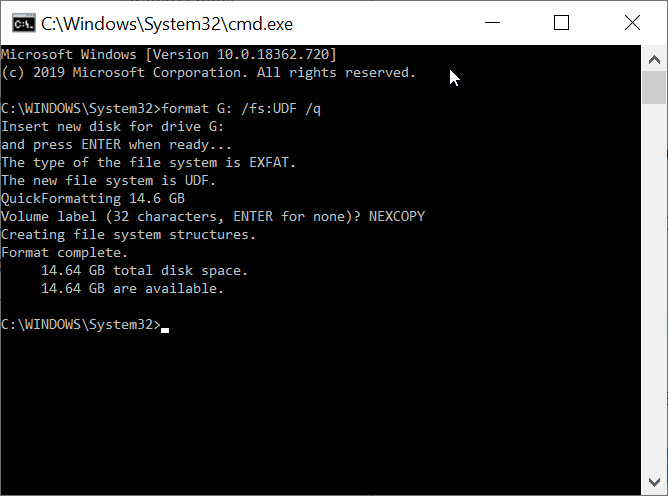
4. In the command prompt window, type the following command:

format G: /fs:UDF /q   (Replace G with your USB drive letter.)

The /fs parameter specifies the file system (UDF), and the /q parameter tells DISKPART to perform a quick format.

5. The OS will prompt you to insert the drive (it’s already inserted), press Enter.

6. Next, you’ll be prompted to enter a Volume name. Press Enter to leave it blank or type a custom name (e.g., “Nexcopy”).

How To Format a Flash Drive as UDF, other than FAT or exFAT

DISKPART will process the command and notify you once formatting is complete.

7. Type exit to close the command prompt window.

Note: The /q command deletes the file table and root directory of the previously formatted flash drive but does not perform a full sector scan for bad areas. This highlights the problem mentioned earlier: UDF lacks robust filesystem check tools, making it a risky choice for USB flash drives.

Continue Reading

Inexpensive iPhone Charging Cable – and Smart

Are you looking for an inexpensive iPhone cable? This is a common search on Google because those cables go missing, get taken by your kids or co-workers, or simply break. It’s as though we need an endless supply of them. I don’t recall the last cable I had that lasted more than four months. There is an article out there somewhere that claims for each iPhone made, the user will need at least three cables for charging it. The link to that article escapes me, but from personal experience, it feels accurate.

Typically, one cable lives in the car for charging while driving. One stays at work to charge while you’re at your desk (and yes, for a little TV-background noise {wink}). And one stays at home for overnight charging. That’s the baseline.

iPhone cables, or Lightning cables, are expensive. Go to Amazon and you’ll find a decent six-foot cable costing close to $20. Multiply that by three and you’re looking at a $60 expense just to keep your phone alive. No thanks. We want an inexpensive iPhone charging cable solution.

This cable problem actually gets worse, not better, and here’s why.

You also need microUSB cables to charge your portable battery packs. So now we’ve got three Lightning cables for the iPhone (work, car, home) and at least one microUSB cable to charge the power bank that keeps your phone alive when you’re away from all three. Portable batteries are non-negotiable these days. Kids’ baseball games can stretch to three hours. Softball tournaments stack games back-to-back. A round of golf runs 4.5 hours. The point is, we’re often away from power outlets longer than our phones can handle.

If this feels familiar, you’re not alone. We’ve been writing about USB charging standards and cable sprawl for years, including how USB slowly became the? standardized connection for charging phones and mobile devices in general (related article here).

So how do we solve the problem of finding an inexpensive iPhone charging cable? The answer is a combination of products. This setup charges your iPhone and your portable battery packs without buying multiple expensive Lightning cables.

On Amazon, you can find a pack of five microUSB cables for under $10. Be sure to check the length you want. It’s easy to save a dollar and accidentally buy cables that are too short to be useful.

Pack of microUSB charging cables

The other item you need is a microUSB to Lightning adapter. These small adapters sit on the end of your microUSB connector and convert it into a Lightning connection for your iPhone. A four-pack can usually be found for under $10.

MicroUSB to Lightning adapters

It’s important to note these adapters only supply power to your iPhone. They do not support data transfer. For most people, that’s a non-issue. When was the last time you plugged your iPhone into a computer to sync? Everything happens wirelessly now.

For about $20 total, you now have multiple Lightning charging options for your iPhone and multiple microUSB cables to charge your portable power packs. It’s a simple, flexible, and very inexpensive iPhone charging cable solution. Honestly, it’s hard to justify doing it any other way.

iPhone charging setup using microUSB cables and Lightning adapters

Continue Reading

Does Erasing Flash Memory Shorten It’s Life?

Yes. Performing an erase or a "full format" shortens the life of the device. The erase function is also very slow. This matters more than most people realize because flash memory wear is cumulative and irreversible over time.

Here are some additional questions based on the answer above which we will address in today's post:

Is "erase" and "format" the same thing?

Erasing flash memory (a.k.a. setting all bits to 0, also called a "full format" by Windows) does more damage. Flash memory has a limited number of times that it can be written, and the more you write to it, the more it degrades. With an erase function, you're writing to the entire device.

With a format, all that's happening is changing a few bits at the front of the device to indicate the rest of the memory space on the flash drive is available to be overwritten. This preserves the life of the flash memory because the old data isn't being overwritten immediately—just flagged for reuse later. We've covered the broader implications of flash wear and longevity in more detail in our article on the life cycle of a USB flash drive.

Diagram illustrating erase versus format behavior on flash memory

Continue Reading

USB WiFi Smart Adapter – But Why?

Given USB is everywhere, this gadget gives you the ability to control the on-and-off power of a USB-powered device. On paper, that sounds useful, especially as more accessories, lights, fans, and gadgets rely on USB for power instead of traditional wall adapters.

I think for most people, there is no real difference between a WiFi wall outlet and a WiFi USB adapter. The only meaningful distinction is when you want to control the power of a USB gadget that is being powered directly from your computer. In every other scenario, the power source is still a wall outlet, so a standard smart plug tends to be more flexible.

Can you plug in your Alexa via USB? No. Can you plug in your Google Home via USB? No. Can you plug in your lamps in the family room or living room via USB? No. Can you plug in your Bluetooth speaker to charge via USB? Yes, but who really cares about controlling the power to that? Can you plug in your phone via USB to charge it? Yes, but again, most people want it to charge to full capacity anyway. Oh wait, unless you are a super nerd, like these guys (read the comments section).

Sonoff WiFi USB smart adapter for controlling USB power

For the $6.50 that Sonoff is planning to charge, I’d personally put my money toward a more usable product, like the Smart Life WiFi outlets. They work with a wider range of household devices and don’t limit you to USB-only power scenarios.

Continue Reading

Remote access to USB security keys

If you are an avid user of USB security dongles, you might know how challenging it can be to get remote access to these devices. To simplify this task, Electronic Team, Inc. has developed a dedicated software solution capable of sharing USB protection dongles over a network.

Donglify is a lightweight desktop application that allows connecting USB hardware keys to remote computers over the Internet and LAN. The software uses 2048-bit SSL encryption to secure your connections, so you don’t need to worry that your sensitive data will be intercepted or lost.

One of the nicest things about Donglify is that it can redirect one USB dongle to several remote PCs simultaneously. In order to make a USB hardware key available for use on multiple computers, you can connect the device to your local PC and share it over the network with nothing more than a couple of clicks. This option currently works with HASP HL Pro, Sentinel HL Pro, SafeNet eToken 5110, and CodeMeter CmStick security keys.

Donglify software interface for sharing a USB security dongle over a network

USB hardware keys of other types can also be shared over the Internet, but you’ll only be able to access them from one remote machine at a time.

Donglify is available by subscription and comes with a 30-day free trial. When the trial period is over, you can continue using the service for $19.99 a month.

Continue Reading

Change USB Connection Sound, #Easy

We all spend so much time on our computer, it’s worth customizing the sounds and events we experience while using it. Today, we’ll cover the topic of changing the USB sound when a USB device is connected. You can really have some fun with this, especially if you consider some of the USB jokes mentioned before, and how those jokes might apply when a USB device is shoved into a USB port.

While your mind wanders, I’ll move along to the tutorial part of this post:

In the search field, type in Control Panel and select the Control Panel.

Windows Control Panel search result

Continue Reading

New mini Size USB Duplicator from Nexcopy

LAKE FOREST, CA, USA, November 20, 2019 /EINPresswire.com/ — Lake Forest, CA – November 20, 2019 – Nexcopy Inc. introduces an all-new mini-size USB duplicator, the USB104SA, a 4-target standalone USB flash memory duplicator specifically designed to be lightweight and portable.

USB104SA mini USB duplicator by Nexcopy

The USB104SA USB Duplicator has a list of features which pivot from the larger, award-winning Nexcopy standalone duplicators. Features include:

  • Asynchronous copy mode, all the time
  • Binary copier will copy any format: FAT, FAT32, exFAT, NTFS, HFS, Ext2, Ext3, Ext4, Proprietary
  • Binary CRC verification algorithm
  • Quick Erase and Full Erase for disk sanitization
  • Four language modes in LCD menu
  • USB speed benchmark utility
  • Firmware upgradeable

“With the lack of optical drives in computers and laptops, the USB stick continues to grow in popularity,” reports Greg Morris, President of Nexcopy. “What we have seen is a demand for both small configuration systems for those transitioning from optical media to USB media and large production systems which we’ve serviced for years. The USB104SA is a great stepping stone for those coming from the optical duplication industry.”

Stan McCrosky, Head of Sales, comments, “What we have seen are small organizations and businesses requesting something low cost and low volume for data duplication. Our main focus is still business-to-business, but the growing demand for low-volume duplication equipment justified the development of a product like the USB104SA.”

The USB104SA is a portable solution and ideal for trade shows or speaking events. The unit weighs less than one pound and has a footprint of about six inches by one inch tall. The unit can easily fit into your computer bag, which is ideal for carry-on luggage at the airport.

The USB duplicator is powered by a microUSB cable which can be connected to your laptop’s USB port. A USB power block is also provided for powering from an outlet.

Nexcopy firmware is a code technology which has evolved since 2008. This system is backward compatible with USB 1.0, 2.0, and 3.0 flash memory. The system will accept SD card reader adapters, microSD and CF card reader adapters. The firmware may be used to speed test flash memory, which is a great tool for understanding the quality of flash memory a supplier has provided.

EIN PressWire official news release

Continue Reading

USB Vacuum For Holiday Season

For most, the middle of November is when you start thinking about Christmas and the holiday season. With that in mind, if you have an office gift exchange, this USB vacuum could make your short list, if you draw the office IT person as your secret Santa.

What tipped my memory about seeing this USB vacuum several years ago is a commercial during Sunday night football. Yup, someone actually worked this USB gadget into a prime time commercial. First image is from the commercial, second image is the link to get the USB vacuum from Amazon (or equivalent).

USB desk vacuum shown in a TV commercial

USB desk vacuum product photo

Before you get your hopes up the USB vacuum actually works, it doesn’t. The thing will make a vacuum noise, but doesn’t suck anything up.

That said, the images here are still useful in a completely different way: as a sales tool for promotional products. If you sell branded USB flash drives, the real pitch is rarely “it stores files.” The pitch is visibility, desk presence, and the moment someone pulls it out in front of other people. A novelty gadget photo like this helps you sell that idea without saying it out loud.

Here’s the angle: use a funny, familiar “desk gadget” visual to start a conversation, then pivot to a branded USB stick as the practical version of the same concept. A USB vacuum is memorable but disposable; a customized USB drive is memorable and actually useful. In a catalog, on a landing page, or in a sales email, you can place a hero image like this next to a simple message such as “Make your brand part of the desk.” Then show the real product: a USB drive with your client’s logo, packaged like a small gift, or bundled with an IT-themed swag kit.

For promotional buyers, the decision is emotional first (does it feel fun and giftable?) and practical second (will people keep it?). These images do the emotional lift. You can use them as a hook in a holiday campaign, an internal employee gift program, trade show swag, or an IT onboarding kit. Once you have attention, you close with options: capacity, style, imprint area, packaging, and turnaround time. The novelty image gets the smile; the branded USB closes the order.

Continue Reading

Power Over Ethernet to USB-C From Far Away

USB-C is a great technology, offering ultra-fast data transfer rates close to 10Gbps and increased power delivery for charging laptops, monitors, and TVs. However, the power advantage of USB-C diminishes over longer cable lengths. According to the USB-C (USB 3) specification, optimal power and transfer rates are maintained only when the cable length is under two meters (about six feet).

Power over Ethernet (PoE) is a proven way to deliver both data and power over long distances via cable. PoE Texas has introduced a product that extends USB-C connections using this technology.

“As a standard, USB-C offers amazing speed and power delivery. Unfortunately, USB-C can only transmit power less than ten feet (three meters), and the cable infrastructure comes at a cost premium. Ethernet cable, nearly ubiquitous in modern construction, can transmit power and data up to 328 feet (100 meters). USB-C power and data transmitted over Power over Ethernet significantly lowers the cost of adopting USB-C by eliminating the need for new electrical infrastructure.”

Extending USB-C Connections with Power over Ethernet

Real-World Example of PoE USB-C in Use

A user has a workstation located about 30 feet away from the production unit it needs to communicate with. The production unit is a USB-C duplicator by Nexcopy. The workstation manager controls the data to be loaded onto USB-C flash drives, while the production manager physically connects and disconnects the USB sticks during the duplication process.

Because a standard USB-C cable cannot cover the required distance, the user can employ the USB-C Power over Ethernet solution to deliver both power and data effectively to the remote device.

  • Conference Room Setup: A USB-C monitor is mounted 40 feet away from the docking station. Using PoE to USB-C allows both video data and charging power to reach the display over a single Ethernet cable.
  • Security Camera Installation: A USB-C powered 4K security camera is installed 80 feet from the control room, receiving both power and data via PoE without additional electrical wiring.
  • Point-of-Sale Terminal: Retail stores can power USB-C tablets located 50–75 feet from the main server rack using PoE, avoiding the need for extra outlets and USB hubs.
  • Industrial Automation: A USB-C duplicator or machine placed 60 feet from the workstation uses PoE adapters to maintain stable power and high-speed data transfer without costly long USB cables.

Product Page: POETexas.com

Reference: Power over Ethernet (Wikipedia)

Continue Reading

Copyright

Copyright © 2006 +

USB Powered Gadgets and more...

All Rights Reserved

Advertise with us

GetUSB Advertising

This is a high value website providing great exposure to your product and brand. Visit our advertising page to learn specifics.

For more information
Visit our advertising page.

Nexcopy Ad

Nexcopy Provides

USB copy protection with digital rights management for data loaded on USB flash drives.

Contact us learn more

Resources and References Page

Resources and References Page