Administator for GetUSB.info
GetUSB.info started in 2004 with the concept of providing USB information for everything USB related. At the time, USB was gaining momentum and every day new products, articles and news became published. Today, the site is focused on bringing technical information, tricks and hacks to USB related products. The site does publish off topic information as well, to keep the variety up. Please visit the footer area of any page if you or your company is interested in article or product placement via purchased advertising.
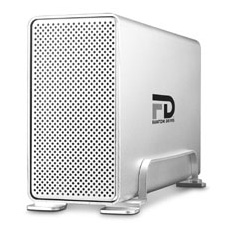
Fantom Drives are well known for high performance and high capacity storage abilities. Just recently Fantom introduced their G-Force series to include both eSATA and USB connectivity. The eSATA port is designed for maximum throughput (wait till USB 3.0 though) and USB 2.0 for universal compatibility. Keep in mind, my previous post about the SATA to USB adapter for chump change.
“The G-Force Megadisk eSATA+USB RAID features flexible and user configurable RAID operation modes or RAID 0 (disk striping) for maximum speed RAID 1 (Disk Mirroring) for maximum fault tolerance JBOD (Direct Mapping) for maximum flexibility or Spanning for simple large volume support at bus speeds of 300MB/Sec.”
The G-Force Fantom series includes NTI Shadow software for real-time continuous backup in addition to scheduled backup capabilities. What I like about the NTI software is the included ability to backup any attached storage devices like U3 flash drives. The NTI software includes support for Windows and Mac.
Continue Reading
Okay, granted this isn’t the latest and greatest in USB technology posts, but it does hold value. The SATA to USB adapter is a great adapter tool to have for any half/computer savvy user. With the increased popularity of eSATA hard drives, it’s very likely you, or someone you know (and support) will upgrade their hard-drive via a new SATA drive. To that end, many older computers don’t have SATA support – so what do you do?
Dig into your computer bag and pull out that SATA to USB adapter you read about on GetUSB … is what you do. This handy adapter will convert any SATA to the #1 most popular connectivity method, USB. So without buying a SATA controller card, installing the software and all that BS – just use the adapter. The adapter is about as basic as you’d like – plug in the SATA cable, plug in the USB adapter – DONE!
Once more, if you have one in your bag, it’s easy enough to finish the job without an extra trip to the computer shop, or couple days via on-line ordering.
This year the Chinese New Year starts on February 7, 2008 and is the year of the Rat. Kingston has a Limited Edition, Chinese New Year Rat UFD available for the taking.
A little background: The Lunar New Year dates back from 2600 BC, when the Emperor Huang Ti introduced the first cycle of the Chinese zodiac. Because of cyclical lunar dating, the first day of the year can fall anywhere between January and the middle of February. On the Chinese calendar, 2008 is Lunar Year 4705-4706.
On a typical Western calendar, the start of the New Year falls on
Continue Reading
Before you Wii addicts get too excited, it’s not a Wii remote at all, but a well disguised USB stick.
This design uses the Wii A button to pop out the USB connector. The spring loaded mechanism looks a little stiff (see video). What’s great about this product, is it looks just like the Wii remote – but far from it and for the Wii fan – it stores between 1 & 8GBs of whatever you want.
So what do you call a Wii remote look-a-like USB stick? The Wedisk of course. For those interested in a gift giving idea, the company will also custom label the remote with your logo.
Source: Techeblog.
Continue Reading
Word on the street is that USB Fever as a Firmware version 1.12 SIM card to unlock your iPhone. Card is $30 and available now. Here is a picture of what you get and it replaces the current iPhone SIM card. The site also includes an iPhone tool kit to help you get through the process.
Mars Volta has joined the ranks of artists who’ve introduced music via USB Albums. Their latest album, The Bedlam in Goliath is was available on a 1GB drive but is now sold out due to popular demand. The drive included album artwork and music video Wax Simulacra and what’s interesting about this Mars Volta offering – after Feb 29th connecting the USB music album to your computer allows unique content download from the Mars Volta website. Including B-side material, webisodes and limited edition wallpaper.
I’ve mentioned before about the death of the CD because of the recent trend in USB music albums and with dropping flash memory prices I believe this music trend will continue and grow in strength, numbers and popularity.
Here is the Mars Volta web page and the dedicated order page (sold out now) for the USB music album ($29).
Continue Reading
How many would raise their hand if asked, “Do you use only two or three on-line passwords?“ I bet the number would be huge. Unfortunately, having just a small handful of passwords isn’t the best way for on-line business and buying. Today I bring you the Mandylion Password Manager which is a military grade device which can create, store and access 50 different log-in sequences.
The password manager comes with a Policy Master Configuration Software (Windows only) which connects via USB where by you can set and configure sequence options and group policy requirements.
The Mandylion Password Manager displays 14 characters and works with any setting such as length, alpha-numeric and special characters. You can also set the password manager to regenerate passwords at preset time intervals (90 days, 1 year etc).  So with this device you can easily upgrade your weak password habits to that of uber-security-geek.
The device uses a 5 button keypad for navigation and data entry and a unique key pattern is the only way to unlock the device and get to your coveted 50 passwords.
This little unit has been designed to meet U.S. Military standards for secure creation of passwords (use authorized under Army Regulation 25-2 IA.) This device helps create a strong security policy for your work environment – so naturally you can brag to the boss about how security conscience you are.
Suggested retail price is $199, street price is $175ish and this reconditioned 2GB Sansa is only $25. Reconditioned? Not a big deal, especially with a reputable company like Sandisk. 90 day warranty and all the goodies which come with a normal retail pack – it might just be that perfect Valentine’s gift for yourself.
Here is the corporate line:
The new Sansa C250 2GB MP3 Player is the latest in SanDisk audio line. Created by the leaders in flash memory, this flash-based player provides everything you need to play music, enjoy photos, and FM radio in vibrant color! This affordable, compact color-screen MP3 player has an amazingly easy-to-use interface. It supports Microsoft PlaysForSure subscription music and is available in 2GB capacity.
The guys at Instructables have come up with yet another great tutorial to add some USB gadgetry to your closet. This time we take a look at building a USB telescope from an old analog zoom lens, webcam and PVC piping for housing. Reading through the instructions, the USB tutorial is a seven step process. You will need some prep work done at the hardware store and have your zoom lens and webcam available (both items can be found on eBay for under $15 each). Here is a video summary:
For the full USB Telescope tutorial make the jump.
Continue Reading
Readyboost is a Windows Vista feature which uses flash memory to enhance computer performance. The reports have varied about it’s success, but one thing is for sure – you need a Readyboost drive to use the feature – well, until now.
Here is a USB hack or work-around for turning any regular USB stick into a Readyboost drive. First, lets look to see what Windows would like in a Readyboost drive:
The USB Key must be at least USB 2.0.
The device must be able to do 3.5 MB/s for 4 KB random reads uniformly across the entire device and 2.5 MB/s for 512 KB random writes uniformly across the device.
The USB Key has to have at least 64mb of free space.
If your USB key is at least USB 2.0, but is rated slower for the random reads and writes required to use ReadyBoost, more than likely you have seen this message:
If so, plug in the USB Key, and cancel Autoplay if it pops up.
Click on Start button, and select “Computer.” After Windows Explorer opens, in the right window pane find the USB Key you want to use.
Right click and select Properties, then select
Continue Reading
The first couple of times I connected a USB drive to my computer it was nice to see the pop-up window asking me what I wanted to do with the drive. However, the pop-up window gets old. Here is how to disable the autoplay pop-up window for USB drives:
Go to your Windows Start button and navigate to RUN… type in:
gpedit.msc then click OK
A Windows Group Policy window pops up. This is where you configure the pop-up window setting.
Click the Administrative Templates folder, then click the System folder.
On the right side of the window you will see (may have to scroll down) the “Turn Off Autoplay” item. Double click that item.
Another window pops up and this is where you enable the turn-off autoplay pop-up window dialogue box. Simply click the radial button for “Enable” now select “All drives” or “CD-ROM drives”  Click OK or Apply and you’re set.
Please note, this setting will also affect your CD-ROM autoplay function as well. I’d like to see the ability to select only USB devices, but that’s just not the case.
To reverse the setting, follow the above instructions and set the radial button to either “Not Configured” or “Enabled”
If using Windows Vista – the process is just a little easier. Go to your Start button, or Windows Logo and navigate to “Dafault Programs” here a pop-up window opens and click the link for “Change AutoPlay Settings” which then takes you to the following window to configure your autoplay settings for all your devices.
Continue Reading
For many IT managers USB port connectivity can still pose a large threat to company security. One quick down-and-dirty method is disabling the read and write from any system USB port. This can be done through a quick registry edit.
Here is the full Microsoft article explaining how to disable a USB port (link). Note:Â This is a registry edit so be sure to backup your registry first and know how to restore it in case something terrible happens.
To disable the access to USB port, in windows XP and 2000:
1. Click Start, and then click Run.
2. In the Open box, type regedit, and then click OK.
3. Locate, and then click the following registry key:
HKEY_LOCAL_MACHINE\SYSTEM\CurrentControlSet\Services\UsbStor
4. In the right pane, double-click Start.
5. In the Value data box, type 4, click Hexadecimal (if it is not already selected), and then click OK.
6. Quit Registry Editor.
To re-enable a disabled port:
1. Click Start, and then click Run.
2. In the Open box, type regedit, and then click OK.
3. Locate, and then click the following registry key:
HKEY_LOCAL_MACHINE\SYSTEM\CurrentControlSet\Services\UsbStor
4. In the right pane, double-click Start.
5. In the Value data box, type 3, click Hexadecimal (if it is not already selected), and then click OK.
6. Quit Registry Editor.
Continue Reading




 For many IT managers USB port connectivity can still pose a large threat to company security. One quick down-and-dirty method is disabling the read and write from any system USB port. This can be done through a quick registry edit.
Here is the full Microsoft article explaining how to disable a USB port (
For many IT managers USB port connectivity can still pose a large threat to company security. One quick down-and-dirty method is disabling the read and write from any system USB port. This can be done through a quick registry edit.
Here is the full Microsoft article explaining how to disable a USB port (