When someone duplicates 100 USB flash drives and discovers they all have the same disk signature, the immediate assumption is often that the duplication equipment assigned it. That seems reasonable, especially when every USB drive came out of the same duplication process. However, in most situations, the disk signature was already present on the master device before duplication ever started.
Understanding when a disk signature is created helps explain why identical signatures appear on cloned USB drives and why the duplication equipment isn’t necessarily responsible.
What Is a Disk Signature?
A disk signature is a unique identifier Windows uses to recognize and manage storage devices. For drives using the Master Boot Record (MBR) partition structure, the signature is a four-byte value stored in the master boot record at byte offset 440 (0x1B8). Although four bytes may not sound like much, that provides approximately 4.3 billion possible values.
The important distinction is that a disk signature is not the same as the USB device serial number, volume serial number, or information programmed into the USB controller. These identifiers serve different purposes, and confusing them can lead to incorrect assumptions about how a USB drive was manufactured or duplicated.
When Is the Disk Signature Actually Created?
There are several stages in the life of a USB flash drive where information is written to the device. Manufacturing, Windows initialization, and data duplication are three different operations, and each plays a different role in determining what information ends up on the drive.
During USB Manufacturing
USB flash drives are typically configured using manufacturing software commonly called an MPTool (Mass Production Tool). This software communicates with the USB controller to configure the NAND flash memory, storage capacity, device descriptors, and other controller-level settings.
In a typical manufacturing process, the MPTool does not generate the Windows MBR disk signature. Its primary responsibility is preparing the controller and flash memory so the device can function as a USB storage product. However, some manufacturing processes also include partitioning, formatting, or writing a predefined disk image. If that image contains a disk signature, the finished device can already have one before it ever reaches a Windows computer.
When Windows Initializes the Disk
For a blank disk without an existing partition structure, Windows can generate a disk signature when the device is initialized using the MBR partition style. The signature is written into the master boot record and becomes part of the information stored on the device.
Simply connecting a USB drive to a Windows computer does not automatically mean Windows will generate a new disk signature. A drive may already contain one, or it may not require initialization at all. Windows can also assign or modify a signature during certain disk-management operations, including situations involving missing or conflicting identifiers.
This is an important point because the first Windows computer to recognize a USB drive is not necessarily the computer that created its disk signature.
During USB Duplication
When a USB duplicator performs a sector-by-sector copy, it reproduces the information stored on the master device, including the MBR and its disk signature. If the master already contains a signature, every target receiving an exact copy will contain that same signature.
In this situation, the duplicator isn’t generating a new disk signature. It is copying the existing value, just as it copies the partition table, boot information, file system, and data.
Some duplication systems offer additional functions that can generate or modify disk signatures during the copying process. This is a separate operation from standard sector-by-sector duplication and depends on the features and configuration of the equipment being used.
Why Can Identical Disk Signatures Become a Problem?
Having identical disk signatures does not automatically mean the duplicated USB drives are defective. A user connecting one drive at a time may never encounter a problem. The issue becomes more noticeable when multiple drives with the same signature are connected to the same Windows computer.
Windows can detect a disk signature collision and may place one or more disks offline to avoid conflicts. This behavior is particularly relevant for IT administrators, system deployment projects, and organizations working with cloned bootable USB drives.
It is also worth mentioning that not every USB flash drive is handled by Windows in exactly the same way. How the operating system identifies and manages the device can influence whether a signature collision becomes visible to the user.
What About GPT Disk Signatures?
The discussion above primarily applies to drives using the traditional MBR partition structure. Drives initialized using the GUID Partition Table (GPT) format use a 128-bit disk GUID rather than the four-byte MBR disk signature. GPT also assigns unique identifiers to individual partitions.
The underlying concept remains similar. If a complete disk image is duplicated without changing these identifiers, the resulting drives can share the same disk GUID and partition GUIDs. This can create identification conflicts depending on how the operating system manages the connected devices.
How to Check a USB Drive’s Disk Signature in Windows
If you’re curious about the disk signature assigned to your USB flash drive, Windows PowerShell provides a quick way to check. The process is read-only, so nothing on the USB drive will be modified.
First, connect the USB drive to your Windows computer. Open PowerShell and enter the following command:
Get-Disk | Select-Object Number, FriendlyName, PartitionStyle, Signature, Guid
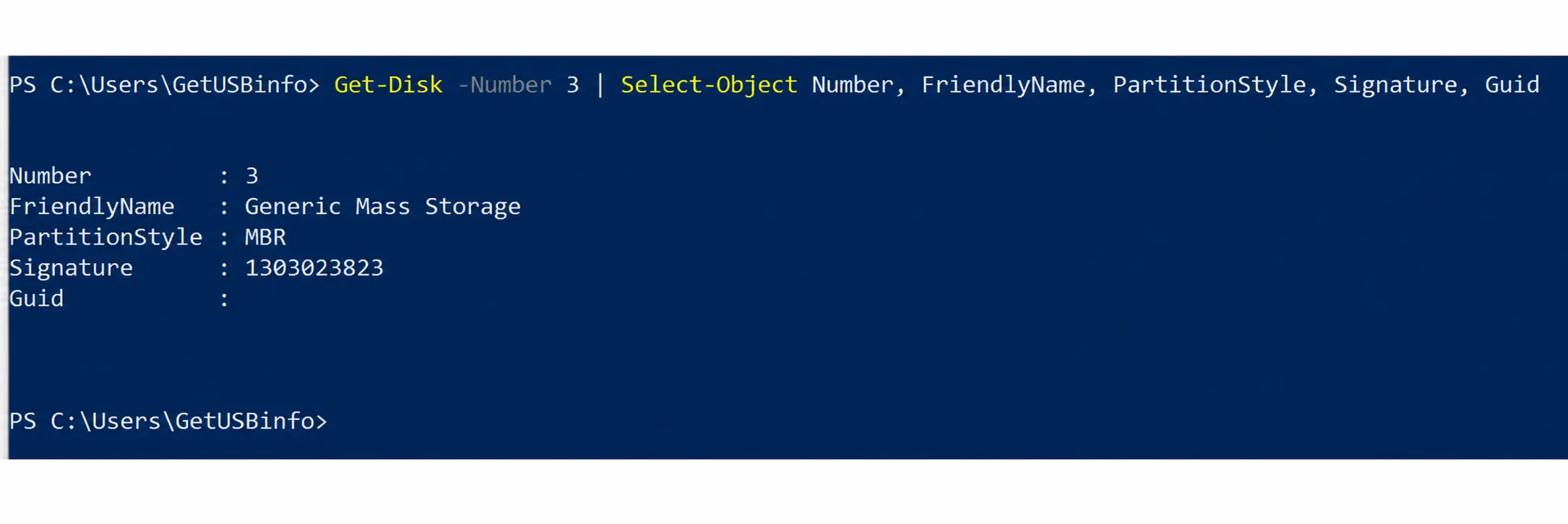
PowerShell will display the connected storage devices, including their disk numbers, names, partition styles, and available disk identifiers. For MBR disks, the Signature column shows the disk signature. For GPT disks, the Guid column displays the disk GUID.
If you have several USB drives connected, use the disk number and device name to identify the correct drive. You can also check a specific disk using its assigned number. For example, to check Disk 2:
Get-Disk -Number 2 | Select-Object Number, FriendlyName, PartitionStyle, Signature, Guid
Replace the number 2 with the disk number assigned to your USB drive.
For an additional test, check the disk signature of your original master USB drive and compare it with a duplicated copy. If the duplication process performed an exact sector-by-sector copy without modifying the disk identifiers, the signatures should match.
Note: This procedure only reads disk information. It does not initialize, format, or change the USB drive. Windows may handle duplicate disk identifiers differently depending on the device and disk configuration, so compare the drives individually if necessary.
The Master Device Determines What Gets Copied
The simplest way to understand disk signatures is to look at how the master device was prepared. If the master was initialized in Windows, partitioned, formatted, and then used to create a complete disk image, that image will normally include the disk signature already assigned to the master.
Preparing a clean master is therefore an important step in any duplication workflow. Utilities such as DiskPart Clean and Clean All can remove existing disk structures before the master is rebuilt, although these commands should not be confused with generating a new disk signature. The signature is established or updated through subsequent disk initialization or other operations that explicitly write it.
The takeaway is that a USB duplicator performing an exact sector copy is generally preserving information rather than creating new disk identifiers. Before assuming the duplication equipment assigned identical disk signatures, it makes sense to understand how the master was initialized, what information it contained, and whether the duplication process includes any additional disk identification functions.
Editorial Note: This article is based on our hands-on experience with USB flash memory, storage device initialization, and duplication workflows. The PowerShell screenshot was captured by GetUSB.info using an actual USB flash drive to demonstrate how Windows reports an MBR disk signature. Disk signature behavior can vary depending on partition structure, operating system, USB device configuration, and the methods used to prepare or duplicate storage media.
Let GetUSB.info keep you updated.
Receive article notifications about USB storage, flash memory, and duplication updates in your preferred language. We average a couple of articles per week.