
Eject USB Flash Drive Safely, Free Download
Microsoft does not provide a simple one-click method to eject USB flash drives automatically. Universal Serial Bus (USB) is the most common method for expanding storage in Windows, yet Microsoft still makes ejecting a storage device a very manual process. Frustrating to many, like you, because you are here. {wink}
Today we cover how to eject a USB flash drive in Windows using the command prompt. In addition, this article also provides a software method to eject a USB flash drive with the single click of a button. Yes, that is right, a single click.
Let us start by covering how to eject a USB drive using the command prompt.
As mentioned above, Microsoft does not make this easy. The user must open DiskPart, list the volumes connected to the computer, select the specific volume, and then eject the drive by typing the correct command.
The commands can be performed through the command prompt, but honestly it is a pain because of all the typing involved and the need to manually select the device. This process needs to be automated. {hint}
If you are reading this article, you probably want a quick, easy, and simple way to remove a USB flash drive safely.
Nexcopy solved this problem with a free utility that does not require installation, does not require Admin rights, and does not require the user to select the drive. The tool is ultra-quick and ultra-easy. In addition, anyone can bundle the free EXE file into their own software to automate the process.
The free software tool is called USB Eject Button.
Here is the free download link to eject USB flash drives from the Windows command prompt
Below is the command prompt using a single word to eject a USB flash drive. The command is release.

However, what if multiple USB flash drives are connected? Is it still just as easy to eject all the USB flash drives? The answer is yes. The USB Eject Button tool works by automatically selecting the last USB flash drive connected as the first USB flash drive to eject.
Below is an example. We connected Drive One first, then Drive Two, and finally Drive Three.

We then ran the command to eject the USB flash drives. The tool ejected Drive Three (F), then Drive Two (E), and finally Drive One (D).

Again, Nexcopy provides this tool for free and it does not require installation, does not require Admin rights, and does not require the user to select a drive. The tool is also free to bundle with other applications if someone chooses.
The USBEjectButton.exe file used for the command prompt also includes a very slick graphical user interface. Simply download the ZIP file, extract it to any location, then make a shortcut to the EXE file and place that shortcut on your desktop or, better yet, on the Windows taskbar.
The USB Eject Button tool is designed so when a user clicks the shortcut icon, that single click triggers the ejection process and safely ejects the USB flash drive. Simple. Slick. Instant.
There is even a Windows confirmation sound so the user knows the eject process happened.
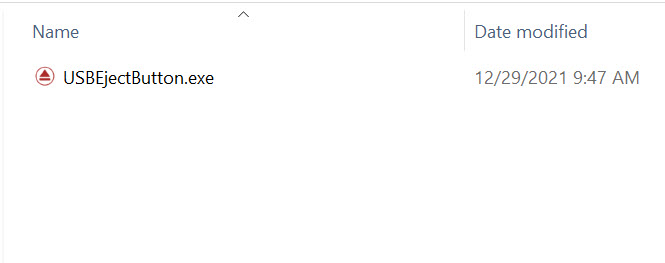
With the shortcut placed in the Windows taskbar, it is now possible to eject a USB flash drive from Windows with the single click of a button. Brilliant.

Here is a video showing the process of ejecting a USB flash drive with a single click, along with ejecting the USB flash drive from the command window.
So what does this USB Eject Button do if there is no USB flash drive connected? If no flash drive is connected and the user clicks the shortcut, a Nexcopy website page opens in the default browser.
The website page provides information about different Nexcopy USB products. Given Nexcopy put in the work to make such a nice, simple, and free utility, this is not that intrusive. The webpage lists the four different types of flash drives Nexcopy offers:
Copy Secure drives are USB flash drives that provide copy protection for MP4 video files, MP3 audio files, PDF files, HTML pages, text files, image files, and more.
Lock License drives use technology where the default state of the USB stick is write protected, or locked, and the user can programmatically unlock the drive. Whenever power is cut from the device, write protection is enabled again, making read-only the default state of the drive.
Disc License drives create true USB CD-ROM flash drives from an ISO file. This type of USB flash drive appears as a physical CD-ROM drive to Windows, Mac, Linux, and other host systems. Loading an ISO file creates a true hardware USB CD-ROM. This is a hardware solution, not a software-only workaround.
USB encryption flash drives protect all content with a password and strong AES encryption technology. This encryption solution is unique for two reasons: first, the USB is write protected so the encrypted content cannot be deleted or formatted off the drive, even after the password is correctly entered; second, the drive can decrypt content on both Mac and Windows computers.
Let GetUSB.info keep you updated.
Receive article notifications about USB storage, flash memory, and duplication updates in your preferred language. We average a couple of articles per week.


