
How To: Get Serial Number of USB Flash Drive
Using the CMD prompt in Windows 10 or 11, it is a one-line request to get the serial number of a USB flash drive. The serial number in question is the device serial number, which follows the device and remains the same value used to identify the physical device. This serial number is written into read-only memory on the flash drive and cannot be duplicated, deleted, or modified. This is different than the volume serial number, which we covered in a previous post.
Steps are very simple:
# Insert a flash drive (or multiple drives)
# Select a flash drive by clicking on the drive letter
# In the Explorer path field type cmd
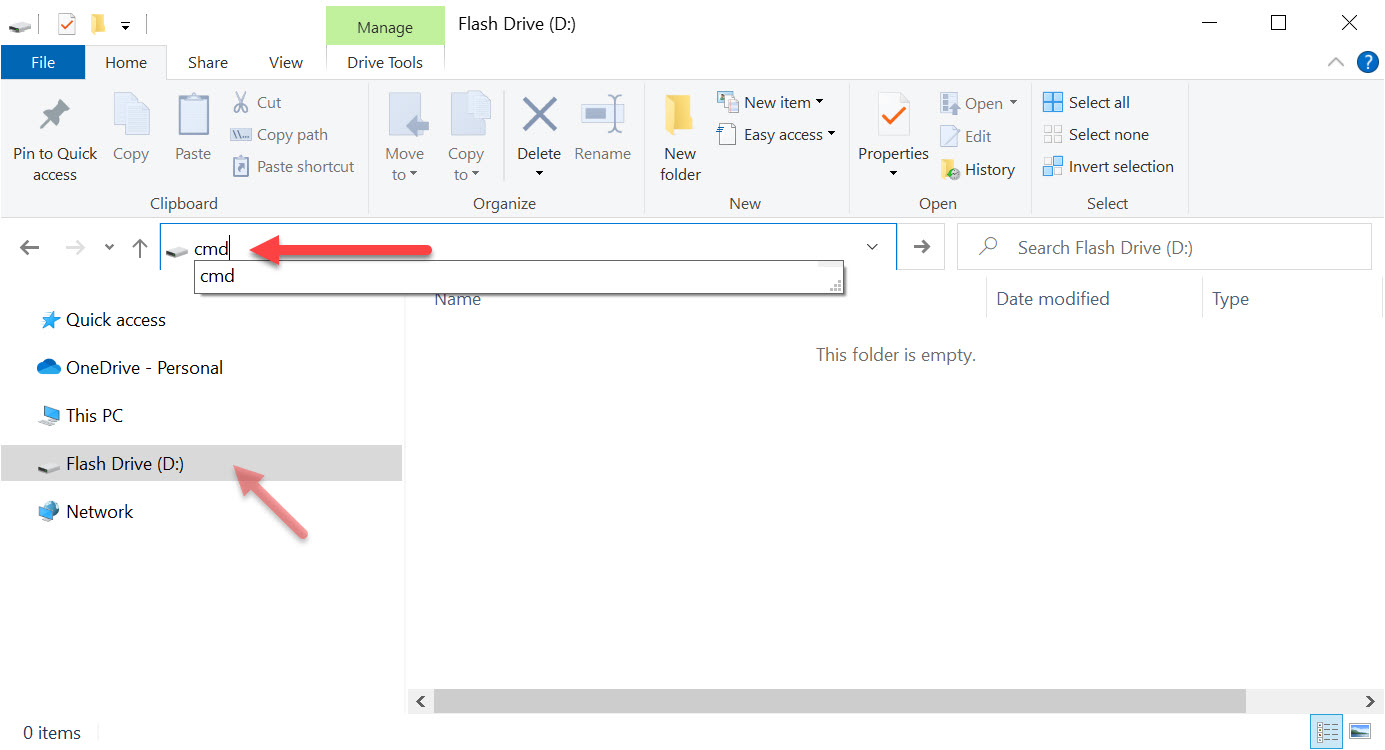
This will open the Command Prompt.
# Copy the text below and press Enter
wmic path Win32_USBControllerDevice get Dependent | find “USBSTOR”
This command asks Windows to search the system for any Mass Storage devices (flash drives) connected to the computer’s USB host controller.


You do need to parse some information out, because more than just the serial number is returned.
The serial number of the USB flash drive is listed last, and there is a &0 at the end which is not part of the serial number. The hardware serial number can vary in length, so there is no fixed guideline. In practice, we commonly see serial numbers ranging from 8 to 30 alphanumeric characters.
Using a third-party utility, you can confirm that the serial number reported by the software matches the same serial number shown by the CMD prompt method.
