GetUSB.info Logo

USB-C Cable Tester Sets the Bar High

Review: USB-C cable tester by BLE caberQU

USB-C cable tester by BLE caberQU

USB-C has firmly established itself as the universal connector standard, integrating data transfer, power delivery, and video output into a single interface. With so many cables on the market, knowing which ones truly deliver on their promises can be challenging. That’s where the BLE caberQU comes in, a great USB-C cable tester that provides the details most people never realize they’re missing.

We can break down the need to test USB-C cables into five categories. And it’s worth saying out loud: if you’re going to spend good money on a device, monitor, or peripheral, isn’t it worth a bit of effort to make sure the cable connecting everything actually performs at the level it claims?

The blockbuster category is USB-C data transfer speed. Different USB-C cables support very different throughput. Some are limited to USB 2.0 (480 Mbps), while others support USB 3.1 or USB 3.2 (up to 10 or 20 Gbps). Testing confirms you’re getting the performance you paid for, especially when moving large files or working with external storage.

The BLE caberQU excels at its core purpose. It provides a reliable way to test USB-C cables for data speed, charging capability, and overall health. The LED indicators offer a clear visual of pin connectivity, which simplifies troubleshooting. The LCD screen takes things further, providing detailed metrics about the cable being tested.

The second most important category is compatibility. Not all USB-C cables are created equal. Some won’t properly support higher-speed protocols like Thunderbolt 3 or 4, which can affect everything from monitor output to dock behavior. The BLE caberQU offers a systematic way to determine the true protocol capability of a cable. Because some marginal cables can produce inconsistent results, testing a cable multiple times is recommended to ensure the reported values are accurate.

Continue Reading

SMI “Displays” Their SoC Technology with SM770 Chipset

SMI displays SoC technology with SM770 chipset

SMI (Silicon Motion Inc.) has introduced a new chip that allows multiple 4K displays to connect to a single host computer. The SM770 chip is what SMI calls a high-performance USB display interface, or system-on-chip (SoC).

The promise is straightforward: run three concurrent 4K UHD displays from one host system without noticeable latency. The new SMI chip includes a user-friendly InstantView software application designed to manage and configure multi-display setups. One of the more attractive points is that it does not require a traditional display driver, which helps avoid the long-term maintenance headaches that often come with driver dependencies.

The SM770’s feature set includes:

  • Support for triple 4K (3840 × 2160) @60Hz, with support up to 144Hz displays
  • Second-generation CAT technology delivering reduced-latency codec performance
  • USB 3.2 Gen2 (10Gbps)
  • Support for displays over USB, Ethernet, or wireless
  • Operating system compatibility: Windows, Linux, macOS, Android, and ChromeOS

USB docking stations have become essential for professionals who rely on multi-screen workflows. The SM770 is clearly positioned to improve that experience by reducing latency and improving overall system efficiency. This type of technology supports the next generation of high-quality USB docking stations and display adapters built for demanding modern work environments.

At the time of writing, the chips are available for sampling, but we have yet to see a finished consumer product using the SM770 in the wild. If SMI (or any partner) has a shipping product, we’d genuinely like to hear about it.

Continue Reading

USB Duplication Service Company, Name Says it all “USBCOPIER.com”

USB Duplication Service

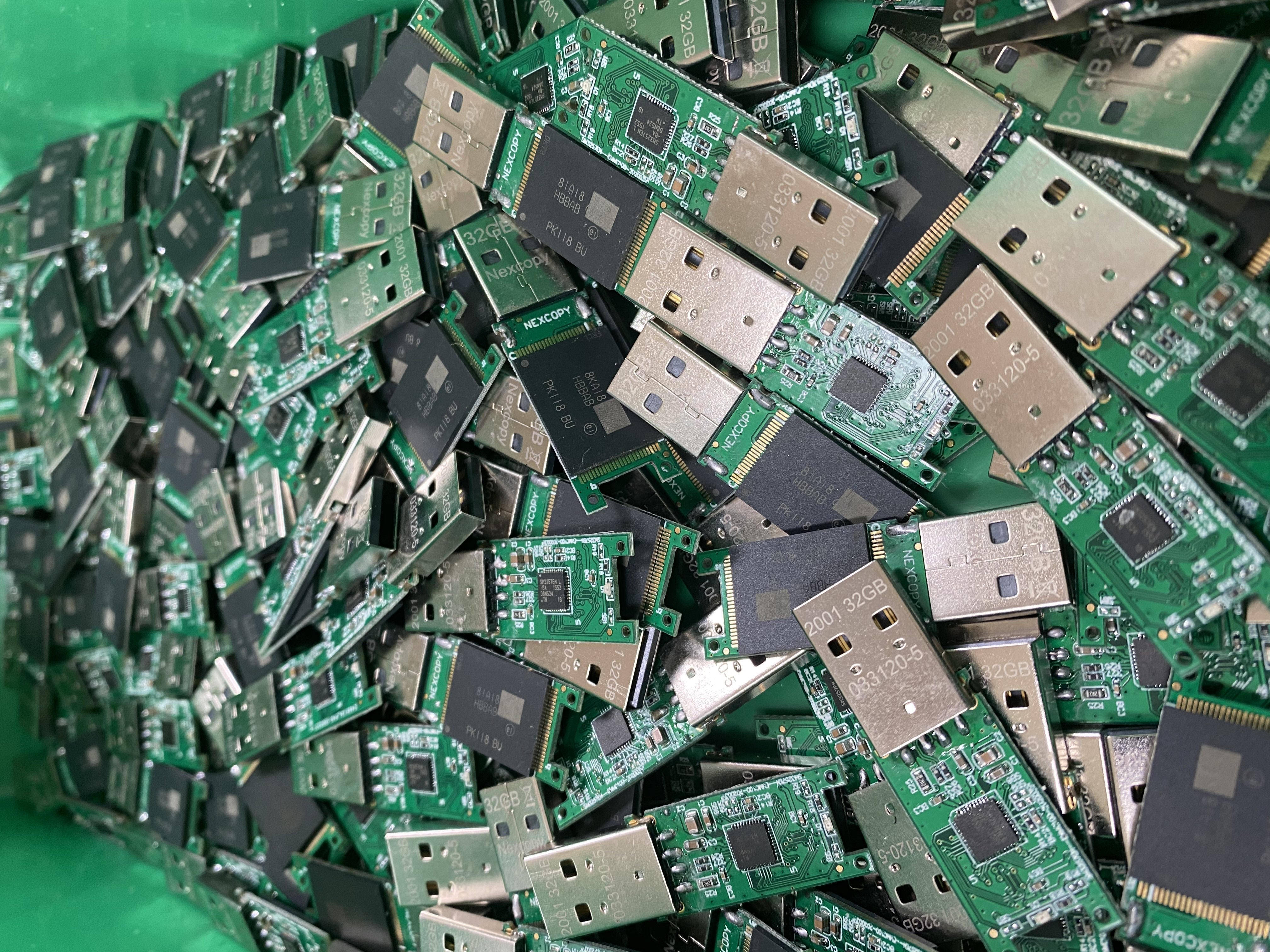
A “USB copy service” means copying data from one USB drive to many other USB drives at the same time. A USB duplication service company is a good resource when the content owner does not have the equipment to produce large volumes of copies. Some duplication systems cost several thousand dollars, so it is often more economical to hire a service rather than invest in the hardware. Another common reason is a company not having the staff or internal workflow to run a dedicated USB duplication operation.

Picking the right USB duplication service matters because the job must be accurate and reliable. The service should understand USB flash media quality, since not all USB sticks are made the same and there is a wide range of NAND memory quality that affects long-term reliability. USBCOPIER.com is a service that has been around since 2004 and has seen USB evolve from USB 1.0 through today’s USB 3.2 generation.

Great USB Copy Service

USBCOPIER.com is easy to work with and available during business hours (8am to 4pm Pacific Time). They use professional USB duplication equipment (Nexcopy) to copy and verify data. That verification step is critical when the content being distributed actually matters.

Fast USB Copying

Speed matters when deadlines are involved. USBCOPIER.com focuses on fast turnaround while still maintaining data integrity and quality control. If you need volume duplication completed quickly, this is a practical advantage.

Customizable USB Duplication Solutions

USBCOPIER.com allows extensive customization in their USB duplication service. They provide a range of

Continue Reading

Antibacterial Flash Drive From Verbatim – Microban Technology

Although the Covid pandemic is officially over, from that time, people are paying more attention to the cleanliness of things they come in contact with. Because this website is dedicated to USB technology, it’s probably worth a mention about the Microban Technology used with USB flash drives from Verbatim.

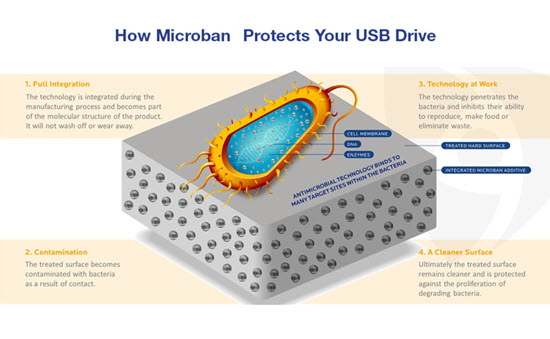
Microban technology is a type of antimicrobial technology that is incorporated into products during the manufacturing process to provide continuous antimicrobial protection against a range of microbes such as bacteria, mold, and mildew.

Microban works by disrupting the vital life processes and biological functions of microbes that come into contact with the treated surface. This disruption helps to prevent the growth and proliferation of these microbes.

Verbatim is now incorporating some of their USB flash drive products with this Microban technology. Consider the following:

If someone handles a flash drive with unwashed or unclean hands, they can transfer bacteria or other microbes onto the surface of the drive. Common bacteria from hands could include Staphylococcus aureus or Escherichia coli (E. coli).

Flash drives are often carried in pockets, bags, or purses where they can pick up dirt, dust, and other contaminants that may contain microbes. Pockets and bags are not always the cleanest environments, especially if food, tissues, or other items are stored alongside the flash drive.

microban technology explanation

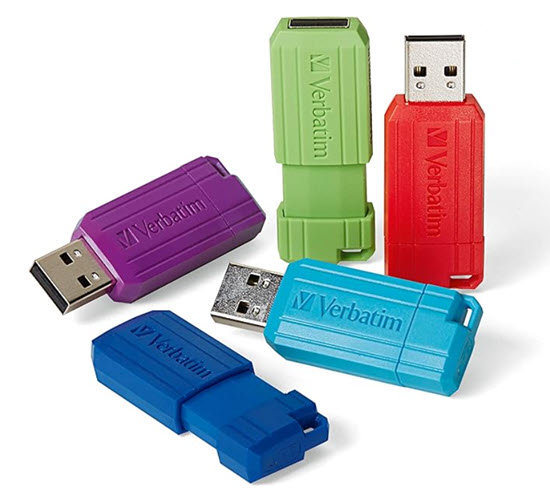
The Verbatim flash drives are available from Amazon in 16GB, 32GB and 64GB capacities. The “Pinstrip” drive uses the Microban technology.

Microban technology was developed by a team led by Dr. John H. McConnell in the mid-1960s. Dr. McConnell, along with his colleagues at Microban Products Company (formerly known as Microban International), pioneered the use of antimicrobial additives for various applications, including consumer products, textiles, and industrial materials.

Continue Reading

IKEA Recalls 3 Port USB Hub

IKEA has issued a recall for thousands of its ASKSTORM 40W USB Chargers in the United States and Canada due to potential burn and electric shock hazards. The recall, prompted by the Consumer Product Safety Commission, addresses concerns that the chargers’ cables may break or become damaged over time, posing risks to users.

Internationally, there have been 17 reported incidents related to these chargers, including five instances of burns and four reports of electrical shock. However, no such incidents have been reported in the United States.

These gray chargers, bearing model number ICPSW5-40-1, were sold both online and in IKEA stores between April 2020 and December 2023.

Contact the IKEA recall center to find out how to swap out the product or receive a refund for the purchase.

IKEA ASKSTORM 40W USB charger recall image

In its journey to becoming a household name, IKEA has a rich history that dates back to 1943 when founder Ingvar Kamprad started selling pens, wallets, and other goods. The company’s name is an acronym formed from Ingvar Kamprad’s initials along with those of the farm where he grew up (Elmtaryd) and the nearby village (Agunnaryd) in Sweden. From these humble beginnings, IKEA gradually evolved, introducing its first furniture piece in 1947 and opening its first store in 1958. Over the decades, IKEA’s innovative approach to design, affordability, and sustainability has propelled it to global success, making it a widely recognized brand worldwide.

Continue Reading

How Much Memory Prices Have Dropped

How much memory prices have dropped over time

It’s mind-blowing to think that storing a terabyte of data once cost tens of billions of dollars. Today, that same amount of storage fits on a consumer flash drive that can cost around $20 on sale (even though MSRP is often closer to $100).

In 1956, IBM introduced the first hard drive: the IBM 305 RAMAC. It offered about 5 megabytes (MB) of storage and carried a cost of roughly $10,000 per megabyte. That put the system cost around $50,000 for just 5 MB of storage.

To calculate the cost of 1 terabyte (TB) of storage in 1956 using this rate:

  • 1 TB = 1,024 GB
  • 1 GB = 1,024 MB
  • 1 TB = 1,048,576 MB

At $10,000 per MB, the cost of 1 TB would have been:

1,048,576 MB × $10,000 per MB = $10,485,760,000 (over 10 billion dollars)

So yes, 1 TB of storage would have cost more than 10 billion dollars in 1956.

By 2020, storage pricing had fallen dramatically due to advances in semiconductor manufacturing, higher density NAND flash, improved controllers, and massive economies of scale across the tech industry.

In 2020, the average cost of storage was roughly $0.02 per gigabyte, which equals $0.00002 per megabyte. Using the same calculation:

  • 1 TB = 1,024 GB
  • 1 GB = 1,024 MB
  • 1 TB = 1,048,576 MB

At $0.00002 per MB, the cost of 1 TB in 2020 would have been:

1,048,576 MB × $0.00002 per MB = $20.97

That means one terabyte of storage dropped from more than 10 billion dollars in 1956 to roughly twenty dollars in 2020. Put simply, storage has become one of the most extreme examples of technological cost collapse in modern history.

Continue Reading

10 Reasons for Dracal’s Environmental USB Monitoring System

The PTH200 from Dracal Tech offers a long list of benefits for environmental monitoring and data acquisition. Below are ten practical reasons this device stands out.

1. Very accurate. The sensors are precise, factory-calibrated, and compensate for temperature variation. This matters when you need reliable environmental data.

2. Easy to use. The compact size makes the device easy to integrate into existing systems, even where space is limited.

3. Simple software. Dracal includes a straightforward interface and management tools that do not require deep technical expertise.

Dracal PTH200 environmental USB monitoring sensor

Continue Reading

WHAT IS: DiskPart Clean and/or Clean All Function?

What is DiskPart clean and clean all

The clean function in DiskPart is a command used to remove all partitions or volumes from a disk, essentially wiping out all existing data on the disk. When you use clean in DiskPart on a particular disk, it performs the following actions:

Removal of partitions: Deletes all partition or volume structures from the selected disk. This includes removing any partition tables and file system information — or said another way, it removes the format of the drive.

Data erasure: The clean command deletes the partition table entries and boot code, but it does not overwrite the data itself. That means after using clean, data recovery software could still potentially recover the original files.

Disk initialization: After executing clean, the disk is left uninitialized. It will appear as raw, unallocated space. To use the drive again, you must open Windows Disk Management and create a new volume. Once that is done, the device will have a file system and be usable again.

The CLEAN function is a practical way to quickly remove partitions and start fresh. For example, if you write a 5GB IMG file to a 32GB USB drive, the drive will often appear as only 5GB usable. The remaining space becomes unallocated. Running the DiskPart CLEAN command resets the device so that, after reinitializing in Disk Management, the full 32GB capacity is available again.

The clean all function in DiskPart is similar to clean but adds an additional step of overwriting the entire disk with zeros. When you use clean all, DiskPart performs the following actions:

Removal of partitions: Like clean, clean all deletes all partition or volume structures from the selected disk, removing existing partition tables, file systems, and metadata.

Data overwriting: In addition to removing partitions, clean all writes zeros to every sector of the disk. This effectively erases all data and makes recovery extremely difficult using standard recovery tools.

Disk initialization: After executing clean all, the disk is left completely wiped and uninitialized. It appears as raw, unallocated space with no recoverable structure.

The clean all command is a more secure method of erasing data than clean, because it actively overwrites every sector. The tradeoff is time — it can take significantly longer to complete, especially on large drives.

Tip: As with clean, always double-check that you have selected the correct disk before running clean all. Running this command on the wrong drive results in permanent data loss.

Ref: DiskPart on Wikipedia

Continue Reading

Maximum Single File Size for FAT32 Format File System

Maximum single file size for FAT32 file system

The maximum file size for a single file on a FAT32 file system is not exactly 4 GB, but rather slightly less than that. FAT32 uses a 32-bit file allocation table, which means it can theoretically support file sizes up to 4,294,967,295 bytes (which is 4 GB minus 1 byte).

However, in practical terms, the maximum file size is usually constrained by the operating system or the software used to create or manipulate the file. Some operating systems or software may impose additional limitations, such as a maximum file size of 2 GB or 4 GB.

Furthermore, while FAT32 technically supports file sizes up to 4 GB minus 1 byte, it may not be the most efficient or reliable choice for handling very large files due to its limitations. For handling larger files, other file systems like NTFS (New Technology File System) or exFAT (Extended File Allocation Table) are typically more suitable.

Microsoft did not explicitly stop supporting FAT32 for formatting 64GB drives, but rather the limitations of the FAT32 file system itself led to practical considerations. FAT32 has inherent limitations in terms of maximum volume size and file size.

FAT32 has a maximum volume size limit of 32 GB when formatting drives in Windows. While there are ways to format larger drives with FAT32 (e.g., using third-party utilities or command-line tools), it is not officially supported by Windows due to compatibility and stability concerns.

Given the limitations, Microsoft and other operating system developers have shifted towards file systems like NTFS (New Technology File System) and exFAT (Extended File Allocation Table) for handling larger drives and files. NTFS, in particular, provides better performance, security features, and support for larger volumes and files compared to FAT32.

Therefore, while FAT32 remains useful for smaller drives and compatibility with older systems and devices, its limitations make it less suitable for modern storage solutions, especially when dealing with larger capacities like 64GB or more.

Related: Why did Microsoft drop the feature to format 64GB flash drives as FAT32?

Continue Reading

Star Wars R2D2 USB Hub – 3.0 Speeds

Star Wars R2-D2 USB 3.0 hub front view

Celebrate the all time fan favorite of Star Wars with this R2D2 USB hub that not only lights up but also plays his notorious R2D2 sounds. Before we get to the product, let us take a few minutes and review how awesome R2D2 is with this summary of his big screen persona.

R2-D2 is a fictional character in the Star Wars franchise, and it is an astromech droid known for its resourcefulness and loyalty. Here’s a brief history of R2-D2:

Creation and Introduction

R2-D2 was created by George Lucas and designed by Ralph McQuarrie for the original Star Wars film, “Star Wars: Episode IV – A New Hope,” which was released in 1977. R2-D2 made its first appearance in this film.

Continue Reading

Encrypt a USB Flash Drive, Windows 10, Free Feature!

Encrypt a USB Flash Drive, Windows 10, Free Feature!

Encrypting a USB flash drive is quick and easy in Windows 10. The PRO version of Windows 10 will allow anyone to activate Microsoft’s built in bitlocker technology to encrypt an entire flash drive, or part of a USB flash drive.

Microsoft BitLocker is a disk encryption technology designed to enhance data security by encrypting entire disk volumes on Windows operating systems. Introduced with Windows Vista and included in subsequent versions, BitLocker provides a robust defense against unauthorized access and data breaches.

The primary purpose of BitLocker is to protect sensitive data in case a device is lost, stolen, or accessed by an unauthorized user. It uses full-disk encryption to secure the entire contents of a disk, including the operating system, system files, and user data. Even if someone physically removes the hard drive and attempts to access it on another system, the data remains inaccessible without the proper authentication credentials.

BitLocker employs various encryption methods, with Advanced Encryption Standard (AES) being a commonly used algorithm.

The encryption process is transparent to the user once configured, and access is granted through authentication methods like PINs and passwords.

Below are nine screen shots and simply follow along in your Windows 10 Pro computer and do what you see below. The process is very easy to do. The longest part of this entire setup is the encryption of the USB stick itself. The time required to encrypt the drive will depend on a couple of factors, such as the GB capacity of the USB drive and the processing power of your computer. In the example below, using a USB 2.0 device with a 16GB capacity the encryption time took only 4 minutes.

Continue Reading

Copyright

Copyright © 2006 +

USB Powered Gadgets and more...

All Rights Reserved

Advertise with us

GetUSB Advertising

This is a high value website providing great exposure to your product and brand. Visit our advertising page to learn specifics.

For more information
Visit our advertising page.

Nexcopy Ad

Nexcopy Provides

USB copy protection with digital rights management for data loaded on USB flash drives.

Contact us learn more

Resources and References Page

Resources and References Page