
How To: Make USB Volume Name Longer Than 11 Characters
By default the Windows operating system assigns the Volume name of a USB stick as “Removable Disk.” However, there are times when you need a different Volume name…and many times the USB Volume name needs to be longer than 11 characters. Using the standard Windows “Rename” function, limits you to only 11 characters. You can’t always get what you want with just 11 characters…so how do you make the Volume name of USB stick longer than 11 characters? It’s easy, with the help of an inf file. An INF file (or Setup Information file) is a plain text file used by Microsoft Windows for installation of software and/or drivers. Today we are going to use the .INF file to increase the length of our USB Volume name past 11 characters. For those of you who are familiar with .INF files here is the meat of the answer:[autorun] Label=type whatever you want hereFor those of you less familiar with .INF files they are extremely easy to make and use. For the USB Volume name this is what you do:
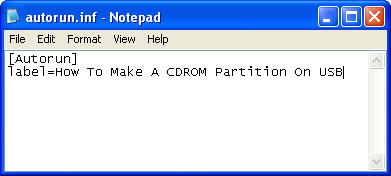
- Open Notepad
- Type: [autorun]
- Next line type: label=whatever you want here
- *replace the “whatever you want here” text with YOUR USB Volume name. In my example we named the USB Volume: How To Make A CDROM Partition On USB
- Save the file as “autorun.inf”
- Now put the autorun.inf file in the root of your USB drive. “The root” means the file sits at the first level of the USB drive, not inside a folder on the drive.
~~~


Tags: USB Hacks, USB Tutorials, usb volume name

Matt LeBoff
Kicking around in technology since 2002. I like to write about technology products and ideas, but at the consumer level understanding. Some tech, but not too techie.