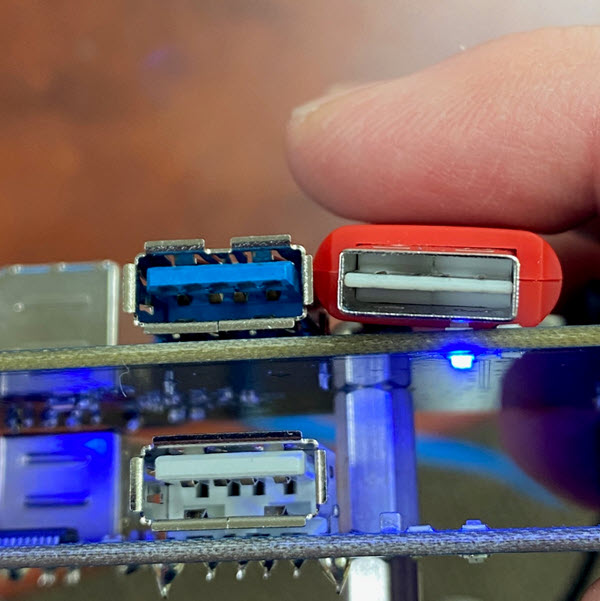
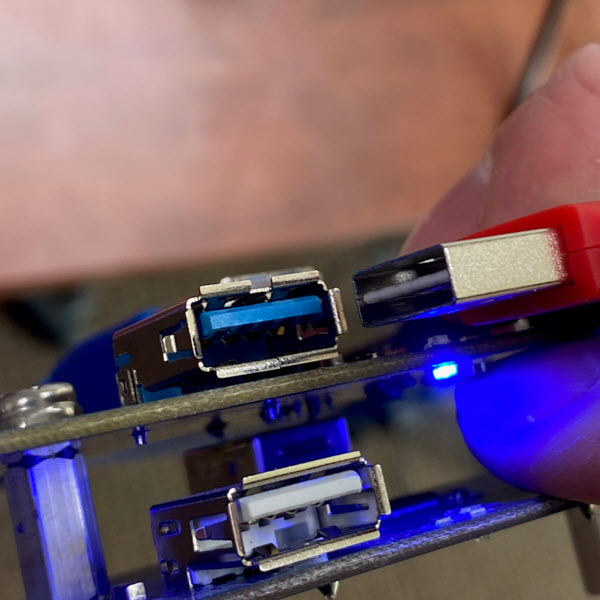
There are some USB articles floating around right now about the USB type A connector and how it takes three tries for a connection. Well, we do agree with them but it doesn’t have to be that way. There is a universal USB connector for the Type A, it’s just not that readily available.
Would you buy this? Shoot us an email if interested {gmo [@] getusb [.] info}
Pictures first, here are three up-close pictures of the universal USB connector
Physically, a USB type-A connector appears to be symmetrical. It’s rectangular in shape with no clear marking of a top or bottom. I think most have figured out the seem on the USB is the bottom side, the smooth side would be the top. HDMI for example is very easy to distinguish top and bottom because each side is shaped a little differently. However, the type A connector is not symmetrical! Looking inside the connector one will see a slight position change of the internal USB connector. One side up – one side down.
It is unclear why this USB connector type has not gained more traction with vendors and manufactures. Our company received samples of this several years ago with the comment product would change to this connector type; however, that shift has never come to fruition.
ASUS unveiled the Tinker Board 2 and Tinker Board 2S, its most powerful single-board computer or (SBC) and was designed to challenge the Raspberry Pi. The Tinker Board 2 and Tinker Board 2S have a Rockchip RK3399 processor, and up to 4 GB of dual-channel LPDDR4 RAM in addition to more USB connectivity than before with one USB 3.2 Gen1 Type-C socket and three USB 3.2 Gen1 Type A sockets.
The only thing distinguishing the Tinker Board 2S from the Tinker Board 2 is its 16 GB of eMMC flash storage. The latter relies on a microSD card reader instead, which the Tinker Board 2S also has. All other specifications are identical, though.
Underpinning both SBCs is a Rockchip RK3399 processor that includes two ARM Cortex-A72 cores, four ARM Cortex-A53 cores and an ARM Mali-T860 MP4 GPU. There is also 2 GB or 4 GB of dual-channel LPDDR4 RAM.
Here is a list of the I/Os:
1x HDMI 2.0
1x USB 3.2 Gen1 Type-C (OTG & DisplayPort 1.2)
3x USB 3.2 Gen1 Type-A
1x 22-pin MIPI DSI
1x 15-pin MIPI CSI-2
1x RJ-45 Gigabit LAN
1x Wi-fI 802.11 ac & Bluetooth 5.0
1x 40-pin GPIO header
1x DC fan header
1x RTC battery header
1x Power and recovery headers
1x 12 V – 19 V DC-in barrel connector
Now heres the real question; will ASUS have the same problem with nearly zero support for the board? The thing that keeps the Pi above everyone else, is the support/community behind it.
Small at 85 mm x 56 mm supports Debian 9, while ASUS plans to deliver Android 10 by Q1 2021. So it’s heard, the Tinker Board 2 and Tinker Board 2S will offer up to 1.5x the performance of the original Tinker Board. It is unknown when ASUS plans to release either board though, or how much they will cost. However, we expect them to arrive by Q1 2021, going off ASUS’ commitment to delivering Android 10 in that quarter.
Although the Tinker Board 2 isn’t available as of this post (Nov 2020) you can click this Tinker Board 2 link at any time to search it’s availability on Amazon.
Microsoft Windows has been sending out updates which have created some problems for those cloning mass storage devices like USB flash drives and USB hard drives. This article should help you resolve those issues.
The Disk Signature is a unique ID Windows will assign to a device inside the Master Boot Record or MBR. The disk signature is 6 bytes long and sits in the first sector of the mass storage device. The disk signature becomes a problem for those cloning flash drives or hard drives with either a software utility or a large duplication equipment like a USB duplicator. The disk signature compounds itself if a multi-partition device is being cloned.
Many times a multi-partition device is created in Linux and at the time of create only one disk signature is assigned to the physical device. However, if multiple units of those copies are put in a Windows computer, Windows will try and assign a disk signature to each partition. This will cause a collision.
There are different situations one could have a disk signature collision, so this is only one example.
How to Copy Protect PDF Files Outside Adobe Ecosystem
This article will overview how to copy protect PDF files outside of the Adobe ecosystem. A couple of things worth mentioning before getting into the details:
Encryption is different than copy protection. Encryption is a technology solution where the PDF owner assigns a password to the document and after the user enters that password the user can do anything they want with the file. Print, share, screen capture, etc. The idea for encryption is the document being unattainable until a password is entered.
Copy protection does not use a password and anyone can see the file. However, the file cannot be copied, printed, shared or screen captured. The idea behind copy protection is the PDF being viewed by anyone, but nothing can be done with the file. When people are searching for PDF copy protection, this is the solution most likely sought after.
Challenges with PDF Security and Copy Protection
PDF or Portable Document Format is an open standard. What this means is the document format was designed to be used in just about any document reader program. The goal for the PDF specification was to make the format as universal as possible. For this reason, it is a bit more difficult than one would think to copy protect a PDF file.
Windows comes pre-installed with Adobe Reader. In addition, Windows has embedded Adobe API code to read PDF files. Even if Adobe Reader was not installed on your computer, or uninstalled, the underlying code is still there to open a PDF. In additional to Adobe Reader (#1 PDF reader in the market) there are dozens of additional PDF reader programs. Again, the goal for all these readers is to open and read a portable document file.
Adobe copy protection solutions are very well known for being cracked. If you Google “Adobe copy protection crack” you will find pages of ways the Adobe security features are compromised. Here and here are two examples of Google search results with web pages dedicated to hacking.
The fundamental problem with copy protection are the lack of controls when viewing a PDF. Meaning a PDF content owner (you) does not have the control over Adobe Reader, or other programs, to stop the user (your client/customer/student) from printing, screen grabbing, sharing and saving.
The idea behind a PDF copy protection solution is a framework where the PDF can be opened and viewed, while you (the content owner) maintains control of the document.
Of course Adobe Reader, FoxIt Reader and others, will not provide the tools to block a user from printing or saving from within their program. In contrast, we need a “reader” or “viewer” with controls to block those functions.
With this in mind, it is difficult to provide a reader with these security functions. Most users who receive a PDF do not want to download and install another program just to read a PDF file. The ease and beauty of a PDF gets lost in that process. No longer is the PDF a portable document format. In addition, a software program that can be downloaded to view a PDF can also be downloaded by a hacker to be reverse engineered. There needs to be something more than just a secure reader/viewer to control the PDF.
The most secure way to copy protect a PDF file is to associate it with something physical. There are some software (only) solutions, but those are not as secure as a solution with something physical.
In general terms the TF card and microSD card are the same. They are the same in physical size and same in most technical terms. The two devices may be used in exchange with each other.
There are some technical differences between the two which will be explained later, for now, the biggest difference between a TF card and microSD card is the history of the name.
The TF card came out first. TF card or T-Flash or TransFlash was first to market from SanDisk in 2004. SanDisk, in partnership with Motorola, created the TF card specification. The TF card was the smallest read/write memory form factor and was designed for mobile devices (thus the small size).
TF cards are based on NAND1 memory. The TF card did not last long. At the end of 2004 the Secure Digital Association, which is the governing body over Secure Digital media, absorbed the TransFlash technology and re-branded as: microSD.
This implies, the life of the TF card ended in late 2004 and the microSD card has been available ever since. This will explain why you cannot find a “TF” branded card today (2020). The other reason you cannot find TF cards today is the maximium size of only 16MBs or 32MBs at the time of production. Today you cannot find any memory device with that small of gigabyte capacity.
Here is the technical difference between the two: Micro SD cards can support SDIO mode, which means they can perform tasks unrelated to memory, such as Bluetooth, GPS, and Near Field Communication. Whereas a TransFlash card cannot perform this kind of task.
SDIO mode stands for Secure Digital Input Output, a type of Secure Digital card interface. It may be used as an interface for input or output devices.
The SD Association devised a way to standardize the speed ratings for different cards. These are defined as ‘Speed Class’ and refer to the absolute minimum sustained write speeds. Cards can be rated as Class 2 (minimum write speed of 2MB/s), Class 4 (4MB/s), Class 6 (6MB/s) or Class 10 (10MB/s). It’s important to note that these are the minimum, so it’s entirely possible a card can achieve faster speeds.
NAND is not an acronym. Instead, the term is short for “NOT AND,” a Boolean operator and logic gate. The NAND operator produces a FALSE value only if both values of its two inputs are TRUE. It may be contrasted with the NOR operator, which only produces a TRUE value if both inputs are FALSE.
In this article we will detail how USB copy protection solutions work from a Southern California company named Nexcopy. Before we start there are important definitions we must all agree upon. As in today’s market place there are multiple vendors using the wrong definitions to explain copy protection.
Copy protection is different than encryption; although copy protection does use a form of encryption in the overall solution.
Encryption is scrambling up data and requiring a password to piece all the data together and display it. Once the password is entered the data can be viewed. The potential security issue is the user who entered the password can now do anything they wish with the files, print, save, share, etc.
Copy protection is different in two ways. First, there is no password required to view the data. Second, the files cannot be saved, printed, shared, streamed when viewed by even the most trusted user.
The later, copy protection, is what most people want when it comes to multi-media files like PDF, video, audio and HTML pages. Most users want the data to be seen by as many people as possible, yet the data cannot be saved, shared, streamed, printed or screen captured.
So with that in mind, let us review how the Nexcopy solution works for USB copy protection.
Key Features of Nexcopy USB Copy Protection
Here are six bullet points regarding features Nexcopy provides which others do not:
Copy protected content plays on both Mac and Windows computers
There are no Admin rights required to play the content
There is no installation required on the host computer
The content runs 100% from the flash drive
The USB stick is write protect, so files cannot be deleted or changed
The solution is both hardware and software, ultra-secure
The Nexcopy USB copy protection solution runs with the assumption the content owner does not want to share the data with even duplication service companies. It is assumed the content owner wants total control of the data before, during and after the USB duplication process.
Here are the steps for using the Copy Secure drives as the content owner:
Does the title of this article even make sense? Yes, but not to most.
USB enumeration is the process a host computer goes through to identify the type of USB device connected and what the operating system should do with the newly detected device.
Fingerprint would simply imply the different steps a computer operating system goes through when determine the USB device type.
For 99.7% of the people who visit this site, this information doesn’t matter, but for others it does. The security industry would be the prime candidate for wanting this information. If a security expert, team or programmer knows the exact steps an operating system goes through to mount a USB device, it will help them keep programs secure.
Andrea Barisani, a security expert based out of Italy, put together some open source code which compares the USB enumeration fingerprint for the MacOS, Windows and Linux. The open source code is available on Github.com (here).
This bit of code is probably valuable to software programmers who deal with USB flash drives and portable applications.
Always best to scan a USB flash drive before using it.
Did you know Windows Defender could be configured to scan a USB stick automatically the moment it is plugged in? Below are the steps to configure Microsoft Windows to automatically scan a USB drive↓.
Windows Defender is not configured for automatic scanning when the operating system is installed. Not sure why, as malware spreading via USB flash memory is one of the more prolific tech issues of the day. Our only guess is Microsoft giving us free will to make our own decisions, after all, scanning takes time and why not let the user choose when this is done.
This tutorial will take about three minutes to setup. I would suggest read the rest of this article and when done, go back and perform the few steps required to make the Windows Defender scan for USB flash drives.
We are going to make a Group Policy to scan USB flash drives using Windows Defender.
Let us run the Group Policy editor.
Press the Windows Key + R
Type gpedit.msc and press Enter or OK.
Look for the Administrative Templates under the top Computer Configuration directory, expand this directory (folder)
Scroll down to Windows Components, expand it
In that directory scroll down more and look for Windows Defender Antivirus, expand it
Finally, look for the Scan folder and click that folder.
On the right side of the dialogue box you will see additional settings, search for the Scan removable drives and double click that setting
This setting is disabled by default. Please click the radial enable button to enable this setting for your Windows computer.
Click Apply in the bottom right and then click OK.
That is it. Your Windows computer will now automatically scan USB flash drives using Windows Defender.
Alternatively, you can insert a USB stick and right click the drive letter and select Scan with Windows Defender but the problem here, is the USB could have already done it’s virus work before you had a chance to scan for malicious code.
The average user inserts a USB stick into their computer from a trusted source. However, there are companies and situations who receive USB flash drives or USB hard drives and they are not certain if the device is infected. Some information to help with USB firewall for connecting USB devices.
Globotron is a company based in New Zealand who designed the product. The product is called Armadillo and is an open-source USB firewall.
Some research has shown, as many as 29 different types of USB attacks can happen from plugging in mass storage devices (like USB flash drives and USB hard drives) or also HID devices (human input devices like keyboards and mouse).
The USB stack which is the low level code used in the host computer, is very complex and over time researchers and hackers have discovered ways to compromise a computer system through these vulnerabilities.
The Armadillo is an open-source device which is a firewall between a USB device and computer. The firewall isolates the firmware of the USB device so as not to infect your PC if the device has been infected with malicious firmware. You just need to plug in Armadillo between your computer and the USB device using the provided micro-USB cable. Armadillo is an upgrade over USG, the original or first-generation USB hardware firewall device.
The Armadillo has bot detection. This means if the USB firewall device detects malicious codes are being entered via keyboard or mouse (HID devices) the device will block transmission and a red LED indicator light will turn on.
The Armadillo has the ability to temporarily make your USB read only. This is valuable if the computer is infected and you need pull information (recovery software) from the USB stick and want to insure virus’ do not infect the flash drive. The USB is read-only, but it is read/write when not connected to the Armadillo.
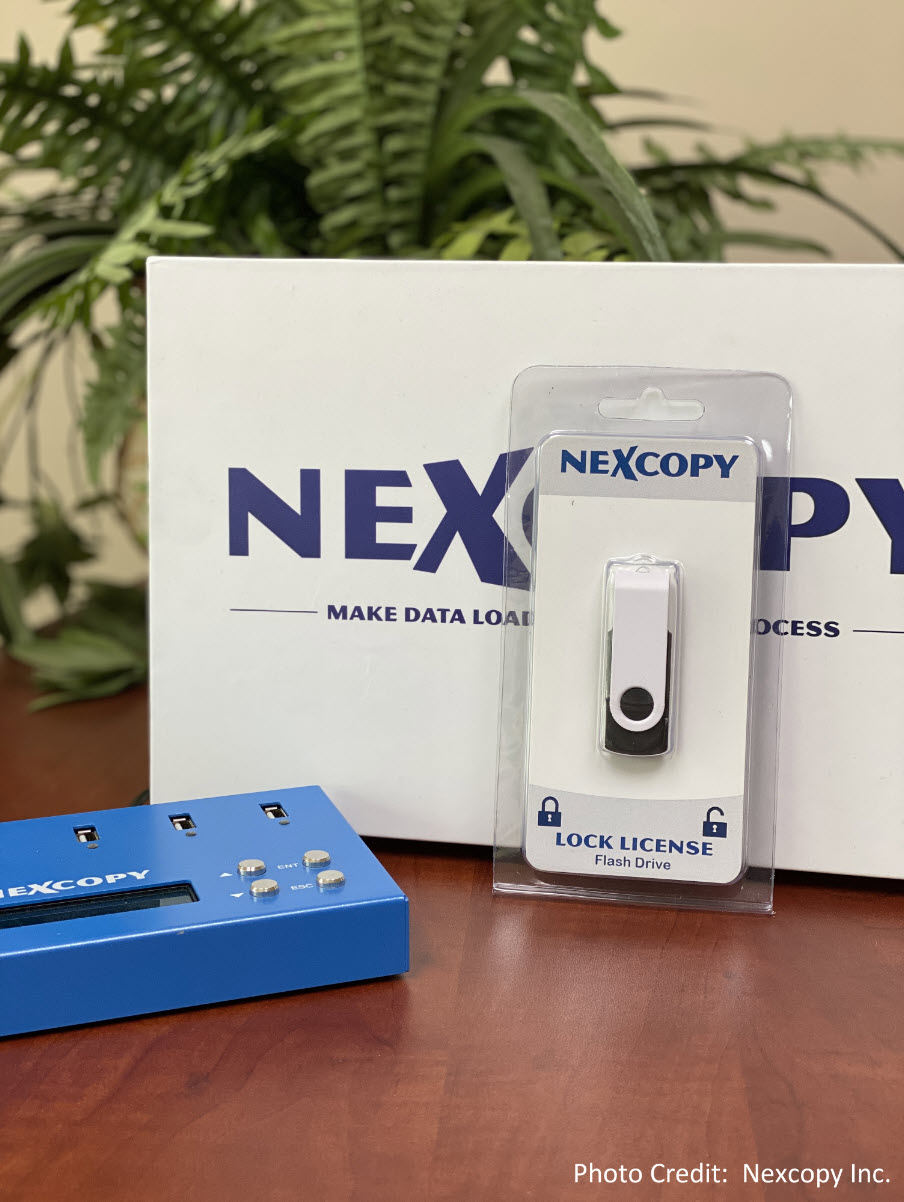
Note: If you need a USB stick that is always write protected at the controller level, yet need to temporarily turn off the write protection for data changes, the Lock License drive from Nexcopy is your solution.
This last point about the Armadillo is a bit strange, but we like it. The body is sealed with glitter epoxy so it is easy to identify if the box itself was tampered with. Very creative!
Fuzzing is a method of testing with automated software which provides invalid, unexpected, and random data as inputs to a computer program. The testing program then monitors for crashes, assertions and potential memory leaks.
A research team based from Purdue University came up with USBFuzz, which pushes enormous amounts of random data through the USB bus of a system. Hui Peng and Mathias payer (from the Swiss Federal Institute of Tech) came up with the idea and program.
Please don’t lose any sleep over the bugs found.
Peng and Mathias found one bug in FreeBSD, three in MacOS (two resulting in an unplanned reboot and one freezing the system), four in Windows 8 and Windows 10 (resulting in Blue Screens of Death) and the vast majority of bugs, in Linux — 18 in total.
Of all these bugs, Windows users do not need to worry, they have been fixed. Of the 18 found in Linux, 16 of them have been corrected already. Those correct where major security flaws.
What we like about the USBFuzz is the underlying theme to improve the security of the USB platform and continued improvement. We also like USBFuzz becoming an open source bit of code that everyone may use to strengthen thier USB product. The team will release a version on GitHub later this year, 2020.
Today, more than ever before, individuals are working from home offices. A comfortable and productive environment is one of the main reasons so many love working from home. However, even with all the conveniences, sometimes the home office lacks the computer equipment needed to handle specific tasks. With many businesses now practicing social distancing, certain tools are still essential. Let us look at a unique product by Nexcopy, the home office USB duplicator.
Consider the niche requirement to make USB duplicates at home. For example, an IT manager might need to prepare bootable recovery sticks, or a software engineer might need to send program updates to remote sales teams. These professionals require a fast, simple, and economical device to do the job efficiently.
The compact USB flash drive duplicator from Nexcopy is the perfect solution for this need. Measuring just 15cm long and 10cm wide, it fits easily into any computer bag and is as light as a book.
The USB duplicator is a one-master to four-target copy station. It is a digital binary copier capable of duplicating any file system or structure provided by the master flash drive. Using a USB cable, the duplicator can power up to five USB flash drives, though it is not recommended for USB hard drives.
With this device, making duplicates in a home office is quick and easy. The unit has four menu buttons: Enter, Escape, Up, and Down. It operates with a single button press, making it ideal for non-technical users. The duplicator can be set for a standard binary copy or a copy-and-compare function, ensuring every duplicate is an exact match to the master for added peace of mind.
Four language modes on the LCD menu (English, Spanish, Portuguese, Simplified Chinese)
USB speed benchmark utility
Firmware upgradeable for future updates
Is this mini-sized USB duplicator worth the investment for a home office? The easiest way to decide is to consider how much time it saves. The Nexcopy USB104SA can copy 1GB of data to each device in just over one minute. If an IT manager or developer had to manually load 12GB of data onto four drives using a PC, it would take about 12 minutes. The duplicator accomplishes this in a fraction of the time. Using the copy-and-compare mode adds some time, about 1.5 minutes per GB, but still remains extremely fast.
The Erase function is another valuable feature. Unlike a simple format, which only removes the file allocation table (directions to data), Erase overwrites memory blocks with random binary data, making data recovery impossible. Quick Erase scrubs portions of the drive, corrupting most data, while Full Erase writes random 0s and 1s to the entire NAND memory, ensuring complete and irreversible data removal.
The USB benchmark utility is a convenient tool for testing read and write speeds, especially with lower-quality promotional USB media, which can be unstable. A write speed below 4MB/s indicates poor quality memory. Speeds above 8MB/s for USB 2.0 or 20MB/s for USB 3.0 are considered good quality.
This Nexcopy duplicator is backward compatible with USB 1.0, 2.0, and 3.0 flash drives and writes as fast as the connected device allows. For best performance, USB 3.0 media is recommended.
If you are an avid user of USB security dongles, you might know how challenging it may be to get remote access to these devices. To simplify this task, Electronic Team, Inc. has developed a dedicated software solution capable of sharing USB protection dongles over the network.
Donglify is a lightweight desktop application that allows connecting USB hardware keys to remote computers over the Internet and LAN. The software uses the 2048-bit SSL encryption to secure your connections, so you don’t need to worry that your sensitive data will be intercepted or lost.
One of the nicest things about Donglify is that it can redirect one USB dongle to several remote PCs simultaneously. In order to make a USB hardware key available for use on multiple computers, you can just connect the device to your local PC and share it over the network with nothing more than a couple of clicks. This option, currently, works with HASP HL Pro, Sentinel HL Pro, SafeNet eToken 5110, and CodeMeter CmStick security keys.
USB hardware keys of other types can also be shared over the Internet but you’ll be able to access them from one remote machine at a time.
Donglify is available by subscription and comes with a 30-day free trial. When the trial period is over, you can continue using the service for $19.99 a month.