GetUSB.info Logo

How Much Memory Prices Have Dropped

How much memory prices have dropped over time

It’s mind-blowing to think that storing a terabyte of data once cost tens of billions of dollars. Today, that same amount of storage fits on a consumer flash drive that can cost around $20 on sale (even though MSRP is often closer to $100).

In 1956, IBM introduced the first hard drive: the IBM 305 RAMAC. It offered about 5 megabytes (MB) of storage and carried a cost of roughly $10,000 per megabyte. That put the system cost around $50,000 for just 5 MB of storage.

To calculate the cost of 1 terabyte (TB) of storage in 1956 using this rate:

  • 1 TB = 1,024 GB
  • 1 GB = 1,024 MB
  • 1 TB = 1,048,576 MB

At $10,000 per MB, the cost of 1 TB would have been:

1,048,576 MB × $10,000 per MB = $10,485,760,000 (over 10 billion dollars)

So yes, 1 TB of storage would have cost more than 10 billion dollars in 1956.

By 2020, storage pricing had fallen dramatically due to advances in semiconductor manufacturing, higher density NAND flash, improved controllers, and massive economies of scale across the tech industry.

In 2020, the average cost of storage was roughly $0.02 per gigabyte, which equals $0.00002 per megabyte. Using the same calculation:

  • 1 TB = 1,024 GB
  • 1 GB = 1,024 MB
  • 1 TB = 1,048,576 MB

At $0.00002 per MB, the cost of 1 TB in 2020 would have been:

1,048,576 MB × $0.00002 per MB = $20.97

That means one terabyte of storage dropped from more than 10 billion dollars in 1956 to roughly twenty dollars in 2020. Put simply, storage has become one of the most extreme examples of technological cost collapse in modern history.
Continue Reading

WHAT IS: DiskPart Clean and/or Clean All Function?

What is DiskPart clean and clean all

The clean function in DiskPart is a command used to remove all partitions or volumes from a disk, essentially wiping out all existing data on the disk. When you use clean in DiskPart on a particular disk, it performs the following actions:

Removal of partitions: Deletes all partition or volume structures from the selected disk. This includes removing any partition tables and file system information — or said another way, it removes the format of the drive.

Data erasure: The clean command deletes the partition table entries and boot code, but it does not overwrite the data itself. That means after using clean, data recovery software could still potentially recover the original files.

Disk initialization: After executing clean, the disk is left uninitialized. It will appear as raw, unallocated space. To use the drive again, you must open Windows Disk Management and create a new volume. Once that is done, the device will have a file system and be usable again.

The CLEAN function is a practical way to quickly remove partitions and start fresh. For example, if you write a 5GB IMG file to a 32GB USB drive, the drive will often appear as only 5GB usable. The remaining space becomes unallocated. Running the DiskPart CLEAN command resets the device so that, after reinitializing in Disk Management, the full 32GB capacity is available again.

The clean all function in DiskPart is similar to clean but adds an additional step of overwriting the entire disk with zeros. When you use clean all, DiskPart performs the following actions:

Removal of partitions: Like clean, clean all deletes all partition or volume structures from the selected disk, removing existing partition tables, file systems, and metadata.

Data overwriting: In addition to removing partitions, clean all writes zeros to every sector of the disk. This effectively erases all data and makes recovery extremely difficult using standard recovery tools.

Disk initialization: After executing clean all, the disk is left completely wiped and uninitialized. It appears as raw, unallocated space with no recoverable structure.

The clean all command is a more secure method of erasing data than clean, because it actively overwrites every sector. The tradeoff is time — it can take significantly longer to complete, especially on large drives.

Tip: As with clean, always double-check that you have selected the correct disk before running clean all. Running this command on the wrong drive results in permanent data loss.

Ref: DiskPart on Wikipedia

Continue Reading

Antibacterial Flash Drive From Verbatim – Microban Technology

Although the Covid pandemic is officially over, from that time, people are paying more attention to the cleanliness of things they come in contact with. Because this website is dedicated to USB technology, it’s probably worth a mention about the Microban Technology used with USB flash drives from Verbatim.

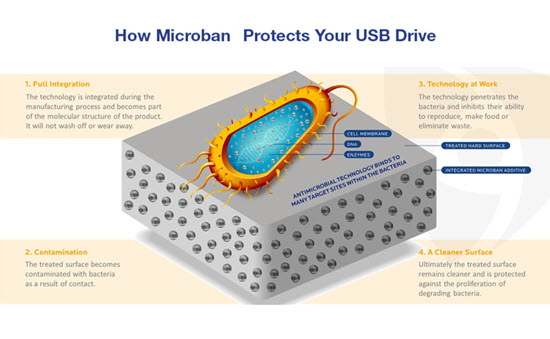
Microban technology is a type of antimicrobial technology that is incorporated into products during the manufacturing process to provide continuous antimicrobial protection against a range of microbes such as bacteria, mold, and mildew.

Microban works by disrupting the vital life processes and biological functions of microbes that come into contact with the treated surface. This disruption helps to prevent the growth and proliferation of these microbes.

Verbatim is now incorporating some of their USB flash drive products with this Microban technology. Consider the following:

If someone handles a flash drive with unwashed or unclean hands, they can transfer bacteria or other microbes onto the surface of the drive. Common bacteria from hands could include Staphylococcus aureus or Escherichia coli (E. coli).

Flash drives are often carried in pockets, bags, or purses where they can pick up dirt, dust, and other contaminants that may contain microbes. Pockets and bags are not always the cleanest environments, especially if food, tissues, or other items are stored alongside the flash drive.

microban technology explanation

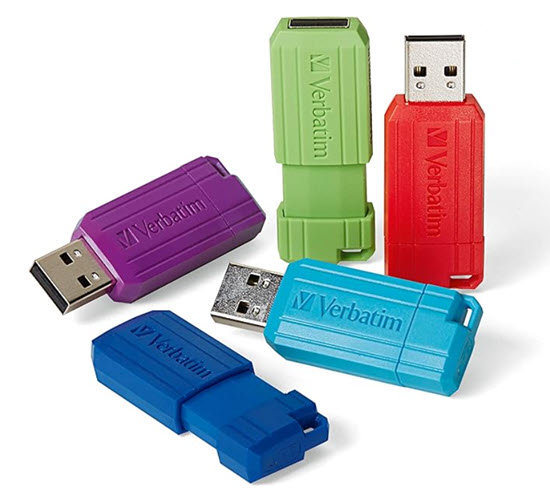
The Verbatim flash drives are available from Amazon in 16GB, 32GB and 64GB capacities. The “Pinstrip” drive uses the Microban technology.

Microban technology was developed by a team led by Dr. John H. McConnell in the mid-1960s. Dr. McConnell, along with his colleagues at Microban Products Company (formerly known as Microban International), pioneered the use of antimicrobial additives for various applications, including consumer products, textiles, and industrial materials.

Continue Reading

Encrypt a USB Flash Drive, Windows 10, Free Feature!

Encrypt a USB Flash Drive, Windows 10, Free Feature!

Encrypting a USB flash drive is quick and easy in Windows 10. The PRO version of Windows 10 will allow anyone to activate Microsoft’s built in bitlocker technology to encrypt an entire flash drive, or part of a USB flash drive.

Microsoft BitLocker is a disk encryption technology designed to enhance data security by encrypting entire disk volumes on Windows operating systems. Introduced with Windows Vista and included in subsequent versions, BitLocker provides a robust defense against unauthorized access and data breaches.

The primary purpose of BitLocker is to protect sensitive data in case a device is lost, stolen, or accessed by an unauthorized user. It uses full-disk encryption to secure the entire contents of a disk, including the operating system, system files, and user data. Even if someone physically removes the hard drive and attempts to access it on another system, the data remains inaccessible without the proper authentication credentials.

BitLocker employs various encryption methods, with Advanced Encryption Standard (AES) being a commonly used algorithm.

The encryption process is transparent to the user once configured, and access is granted through authentication methods like PINs and passwords.

Below are nine screen shots and simply follow along in your Windows 10 Pro computer and do what you see below. The process is very easy to do. The longest part of this entire setup is the encryption of the USB stick itself. The time required to encrypt the drive will depend on a couple of factors, such as the GB capacity of the USB drive and the processing power of your computer. In the example below, using a USB 2.0 device with a 16GB capacity the encryption time took only 4 minutes.

Continue Reading

Superhero USB Flash Drive

AI-generated superhero holding a USB flash drive while flying over a city

This image was created during the early days when ChatGPT first began offering AI image generation. At the time, the novelty alone was enough to spark endless experimentation. One of the first ideas we tried was simple: “What would a superhero USB flash drive look like?” The result was this over-the-top, cinematic scene of a caped hero flying across a city skyline, gripping a USB drive like it contained the world’s most important data.

Early AI image tools were wildly inconsistent. Some prompts produced abstract nonsense, others produced accidental masterpieces. Getting something usable meant testing dozens of variations, tweaking descriptions, changing lighting styles, adding camera angles, and sometimes just getting lucky. That unpredictability was part of the fun. You were not just generating images, you were discovering how the system “thought.”

Looking back, this image represents a moment in time when AI visuals felt new, surprising, and slightly magical. Today, image generation is more refined and controllable, but there was something special about those early experiments where every prompt felt like opening a mystery box.

Continue Reading

Transfer Photos from iPhone to PC – Easy

Transfer Photos from iPhone to PC – Easy and Automated

Qubii Pro iPhone photo backup device

iCloud is the default way to store your photos from your Apple device to another location. Once the files are in your iCloud account, you can log in and download those images to your computer.

However, many users do not use iCloud and are looking for an alternative. Here is an option that is easy, automatic, and far less expensive than maintaining an iCloud subscription.

The Qubii Pro is a backup device that works while you charge your phone. There is nothing to configure and no settings to manage. The Qubii Pro holds a microSD card for storage and connects between your iPhone cable and your charging block.

Photo and video transfer from your iPhone to storage happens automatically. Qubii scans your photo and video library and backs up any file not already present on the microSD card. The first backup can take a while because everything must be copied. The total time depends on how many photos and videos you have. On future connections, only new files are backed up.

Since most people charge their phones overnight, the backup process happens without disrupting normal usage.

Apple provides 5GB of free iCloud storage, but that space fills up quickly with high-resolution photos and video. As shown below, iCloud pricing seems inexpensive at first, but the monthly cost increases as storage needs grow.

  • Free: 5GB of storage per iCloud account (not per device)
  • $0.99/month: 50GB of storage (single user)
  • $2.99/month: 200GB of storage (family use)
  • $9.99/month: 2TB of storage (family use)
  • Apple One Family plan ($22.95/month) includes 200GB of iCloud storage
  • Apple One Premier plan ($32.95/month) includes 2TB of iCloud storage

Apple does a very good job of encouraging users to upgrade storage plans, so there is a high likelihood that monthly costs will exceed $20 USD over time (based on pricing in 2023).

There are a few important limitations to understand with Qubii:

  • You cannot choose specific photos or videos to back up; everything is included
  • If a file is deleted from the microSD card but still exists on your phone, it will be backed up again
  • The solution backs up photos and videos only, not contacts or documents
  • If you replace the microSD card, the entire backup process starts over

The last point above is important.

Continue Reading

Is it worth buying a USB 3.1 Flash Drive?

Is it worth buying a USB 3.1 USB flash drive?

The tech industry, tech nerds and tech blogs will definitely say that buying a USB 3.1 flash drive is worth it. After all, these blogs need something new to write about and new links to generate for affiliate advertising, but are these blogs reporting back valuable information before someone spends their hard earned cash?

Let us compare the write speed difference between a USB 3.1 flash drive and a USB 3.0 flash drive to see what information we can uncover.

Universal Serial Bus (USB) has different transfer speeds based on the version of technology, we did a write about that earlier. The USB 3.1 specification has a transfer rate which taps out at 1,250 MB/second (Megabytes per second). The USB 3.0 specification has a transfer rate which taps out at 625MB/second. Of course this is the theoretical maximum transfer speed. When anyone says “theoretical transfer speed” they are implicating all conditions are ideal. For example, the host computer has the horsepower and bandwidth to push that much data and the receiving device (in this case, flash drive) has equal throughput to receive that data. But is that the real world – is it worth buying a USB 3.1 USB flash drive?

Below are some images and here is the general order of what you will be reading:

  • Screen shots of the USB device type (USB 3.0 and USB 3.1)
  • Screen shots of benchmark software testing both USB technologies
  • Screen shots of a real-world copy jobs using a Windows computer

From the screen shots below you can see a USB 3.0 flash drive and USB 3.1 flash drive. Both flash drives use an SMI controller for the USB 3.0 and 3.1 technology. These are the same high quality and higher performance controllers seen in iPhones and NAND memory used from Micron Technology. The NAND memory type is MLC (multi-layer cell memory) is slower than SLC NAND memory (single layer cell). Note: USB flash drives do not use SLC memory because the NAND memory price is too expensive and the SLC supply is very small. Flash drives are produced at mass scale and meant to be a low cost data transfer and storage tools – speed is not the #1 priority, despit all the marketing we read online.

USB 3.0 flash drive specifications

USB 3.1 flash drive specifications

Here are benchmark speed tests for both USB devices in discussion today.

The program has two test settings for benchmarking a speed test. One test setting is for the theoretical maximum speed of the device and writes data directly to memory without accounting for operating system and device overhead for were the data is stored. Think of this as a random write test to any available sector on the flash drive.

The second test setting is a write sequence which includes the operating system and device overhead cache for placing files in the file allocation table. This means extra time is spend during the data transfer to log where each sector is written along with the calculation required to write the next bit of data. This second test setting is more like a real-world experience.

Speed benchmark software is designed to provide a relatively quick summary of the device capability. So the first test setting is designed to show the theoretical maximum write speed or “burst” write speed. The second test setting is designed to show a more “sustained” write speed. Any benchmark software is designed to provide a quick and easy snap-shot of what the device can do – but can the device do it?

Readers can download the USB Scrub software for speed benchmarking their flash drives. The software is 100% free, no installation or sign-ups, and includes other cool features like registry cleaning and making image files of flash drives. USB Scrub download link
Continue Reading

IronKey USB Flash Drive – Hacks – $235M of BitCoin

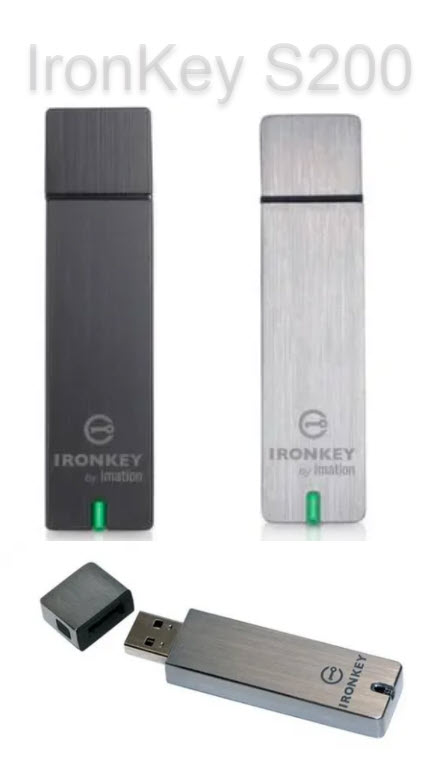
IronKey encrypted USB flash drive

IronKey is considered a bellwether for encrypted USB flash drives. The company, owned by Kingston Digital (a Southern California–based private company), uses dedicated hardware encryption chips to deliver one of the highest levels of security available in mass storage devices.

GetUSB.info came across an interesting story from Wired Magazine in which one of their authors sent an IronKey device to a Seattle-based security firm called Unciphered to see whether the drive could be accessed. They succeeded.

This is not an easy task to accomplish. IronKey devices use strong protections including FIPS 140-2 Level 3 certification, FIPS 197 compliance, and XTS-AES 256-bit encryption. The design allows only 10 password attempts before the controller permanently wipes the device, which creates a high risk if the password is forgotten.

Unciphered reportedly developed a method that allows for more than the standard 10 password attempts. The exact number of attempts is not publicly known, but it is clearly more than the built-in limit.

Why does this matter, beyond the fact that IronKey may have a security issue to address? In early 2021, it was widely reported that over 7,000 Bitcoin were locked inside an IronKey device because the owner forgot the password. The owner, programmer Stefan Thomas, did not use the Enterprise Management Service that could have enabled recovery. As of October 2023, those 7,000 Bitcoin were valued at more than $235 million.

Credit to Wired Magazine for the original reporting. You can read the full story by Andy Greenberg.

Continue Reading

Disable USB Flash Drive Pop Up Messages in Windows 10

Users can turn disable USB flash drive pop up messages in Windows 10 by performing a very simple step in Settings. While it may seem counterproductive to turn off USB notifications in Windows 10, once you’ve been using Windows for a while you will likely want to reduce the number of pop-up messages.

There are two ways to disable USB flash drive messages in Windows. Performing a RegEdit or modifing a Settings feature in the Windows GUI

Disable the USB flash drive pop up message via Windows Registry Edit

  • Open RegEdit by typing “regedit” in the Search bar
  • Navigate to: HOKEY_LOCAL_MACHINE\SOFTWARE\Miscrosoft\Shell\USB
  • Click the USB folder on the left of the screen to highlight the registry entries for \USB\
  • On the right side of screen select “NotifyOnUsbErrors” by clicking on it
  • Right click and select “Modify”
  • Set the value to “0” (zero). Zero is off, One is on

Disable USB message Windows 10, regedit

NOTE: Most users will receive a message saying they do not have privileges to modify the registry value. That is meant by design, and please see the comments at the end of this article for why.

Disable the USB flash drive pop up message via Settings

  • Type “settings” in the Seach bar of Windows
  • Select “Devices”
  • Select the USB tab near/at the bottom on left
  • Uncheck “Notify me if there are issues connecting USB devices

Disable USB message Windows 10, Settings

The second method via Settings is the preferred method because changing registry entries is not recommended unless the user is very experienced with computers. Windows 10 does a good job of not allowing users make registry changes that would crash their computer or brick the operating system, but the risk is still there.

If you received some sort of permissions message when attempting our regedit method, I would stay away from trying to resolve that security message. The reason Miscrosoft locks downt he registry in certain areas is to provide a more secure computer system for the user and reduce potential risk of malware or hackers getting control of your computer.

Over the years, numerous reports have come out about how hackers will expose certain USB protocols to insert malware or take control of a system. The registry is the main point of focus for hackers.

If you are persistent about changing the registry entries the first thing you can try is running RegEdit as Administrator. If that doesn’t resolve your issue then you may Google search for your specific error message and see if another website offers up a solution.

Continue Reading

Why Did Microsoft Drop Formatting FAT32 for 64GB and Above?

close up of USB flash drive, picture

Microsoft has not made an official announcement on: Why Did Microsoft Drop Formatting FAT32 for 64GB and Above?

In both Windows 10 and Windows 11 the format option given by Windows is either NTFS (New Technology File System) or exFAT (Extended File System). The option to format FAT32 is no long available in Windows.

Without an official announcement from Microsoft we can only speculate the reason is do to single file sizes averaging a larger size as of 2023.

The largest single file size supported by the FAT32 file system is 4GB. This is due to the limitations of the file system’s design. FAT32 uses a 32-bit file allocation table, which means it can address up to 4,294,967,295 clusters. Since each cluster in FAT32 is typically 4KB in size, the maximum file size is limited to 4GB (4,294,967,295 clusters multiplied by 4KB per cluster).

If you need to store files larger than 4GB, you will need to use a different file system that supports larger file sizes, such as NTFS (New Technology File System), exFAT (Extended File Allocation Table), or others. NTFS, in particular, is commonly used in modern Windows operating systems and supports much larger file sizes, making it suitable for storing large files and operating system installations.

We speculate, to reduce customer inquiries or complaints to Microsoft they have eliminated the option of FAT32 to any device of 64GBs or larger in capacity. The reason is that a user will receive an error message from the device when an attempt to copy a single file of 4GBs or larger to a FAT32 device. To reduce the frequency of error messages, by formatting the device as exFAT will eliminate this error.

The ExFAT (Extended File Allocation Table) file system supports significantly larger file sizes compared to FAT32. The maximum file size supported by ExFAT is a staggering 16 exabytes (EB), which is equivalent to 16 million terabytes (TB) or 16 billion gigabytes (GB). This vast file size limit allows for storing extremely large files, such as high-resolution videos, large databases, or disk images.

ExFAT was specifically designed to overcome the limitations of FAT32, including the maximum file size restriction. It is commonly used in various devices and operating systems, including Windows, macOS, and some embedded systems, for handling large files and providing interoperability between different platforms.

It’s important to note that while ExFAT supports large file sizes, the actual maximum file size might be limited by the specific implementation or the capabilities of the storage medium itself.

If the above information was helpful, please consider looking at some advanced flash drives offered by Nexcopy. Advanced functions include USB copy protection, USB write protection, USB CD-ROM, and HIPAA compliant flash drives. These functions are done at the hardware level and are universal solutions.

Continue Reading

I asked ChatGPT to Write a Thriller with a Flash Drive Holding the Secrets – Here is What Happened Next

Me: ChatGPT — Would you be so kind to write a five-paragraph thriller novel about international espionage where a USB flash drive is used to hide secrets from the KBG?

I asked ChatGPT to write a thriller story involving a USB flash drive

As a renowned international spy, Sasha had faced countless challenges and dangers. But nothing had prepared her for the mission she had been tasked with. She was to retrieve a USB flash drive that held vital information about the KBG’s plans to launch a massive cyberattack on the United States. The stakes were high, and the clock was ticking.

Sasha knew the risks involved in such a mission, and she was willing to go to any lengths to complete it. She flew to Moscow under the guise of a journalist and managed to sneak into the KBG’s headquarters. The flash drive was heavily guarded, and Sasha knew she had to act fast. With her quick reflexes and stealthy moves, she managed to grab the drive and slip away unnoticed.

But the KBG wasn’t going to let go of their secrets so easily. Sasha soon found herself on a secret plane bound for Washington, DC, with KBG agents hot on her heels. With time running out, she had to come up with a plan to keep the flash drive out of their hands.

As the plane took off, Sasha felt a sense of relief. She had managed to outsmart the KBG and keep the flash drive safe. But her relief was short-lived when she realized that the flash drive was corrupted, and she couldn’t access the information it held. Someone had tampered with it.

Sasha knew she had to act fast to uncover the truth. She suspected that there was a mole within her agency who had sabotaged the mission. She had to find the mole before it was too late. With the clock ticking and danger lurking around every corner, Sasha set out on a perilous journey to uncover the truth and protect her country from a devastating cyberattack.

As Sasha raced against time, she found herself embroiled in a deadly game of cat and mouse. With the KBG hot on her heels, she had to stay one step ahead of them to uncover the truth. But with the fate of the country hanging in the balance, Sasha knew she had no choice but to risk everything to protect it.

Me: ChatGPT — Please write a three-paragraph conclusion about what was found on the flash drive and how that information impacted the United States.

Sasha’s investigation eventually led her to uncover the truth about the flash drive. It turned out that the mole within her agency was actually a double agent, working for the KBG all along. They had corrupted the flash drive to hide their tracks and throw Sasha off course. But Sasha’s persistence and instincts ultimately led her to the truth.

The information on the flash drive was shocking. It contained detailed plans for a coordinated cyberattack on critical U.S. infrastructure, designed to disrupt power grids, communications, and transportation systems. If executed, the attack would have caused widespread chaos, economic damage, and risk to human life.

Thanks to Sasha’s courage and quick thinking, the plot was exposed before it could be carried out. The intelligence community credited her with preventing a national crisis. While she was recognized as a hero, Sasha understood the reality of her world: threats would continue to evolve, and vigilance would always be required to protect what mattered most.

Continue Reading

Copyright

Copyright © 2006 +

USB Powered Gadgets and more...

All Rights Reserved

Advertise with us

GetUSB Advertising

This is a high value website providing great exposure to your product and brand. Visit our advertising page to learn specifics.

For more information
Visit our advertising page.

Nexcopy Ad

Nexcopy Provides

USB copy protection with digital rights management for data loaded on USB flash drives.

Contact us learn more

Resources and References Page

Resources and References Page