GetUSB.info Logo

Extra Facebook Security With USB Keys

Account security is one of the most vital pieces of the busy and interconnected world right now and nobody wants strangers accessing their personal information online. You might use a password manager as well as two-factor authentication like we mentioned in a previous post, but now there’s another way to stay protected.

Data Cable


In response to similar approaches from Google and Dropbox, Facebook has added support for safe login security keys. When you log into your account, this device will prove your identity rather than a code which sends to your phone. In addition to the superior security, they’re also potentially faster. With just a tap on the device you can have access to your Facebook account and feel safer in knowing only you can unlock it. It’s a welcome move from the company in an age where cyberattacks and identity theft are on the rise and as a universal rule on the internet, it’s never a bad time to strengthen your defences.

Continue Reading No Comments

How To: Correctly Format a USB Flash Drive in exFAT

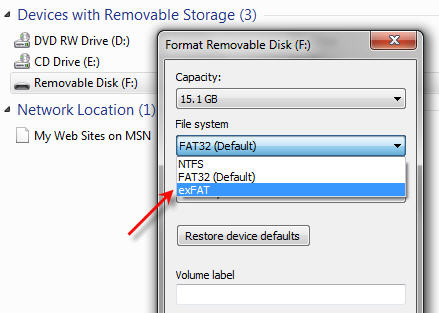
Whether you’re formatting an internal drive, external drive, or USB flash drive, Windows makes it possible to choose between NTFS and exFAT formats. In this guide, we’ll go over the simple steps to formatting a USB drive and which format is best for certain situations.

USB Format


exFAT is a file system optimized specifically for flash drives. Introduced in 2006, it’s designed to be a lightweight file system like FAT32 without the extra features of NTFS and without the FAT32 limitations. exFAT has very large file size and partition size limits so files larger than 4GB a piece can be stored on a flash drive formatted with exFAT. It makes very few unnecessary writes, and stores files throughout the drive in order to maximize the lifespan and speed up transfers.

Continue Reading No Comments

Morse Code Beacon via USB Board

For those into home-brew programming projects, its easy to make a microcontroller spit out some Morse code with the post shown below. What makes [pavlin’s] take on this project interesting is that it resides on a tiny USB board with an ARM processor. The design for the board is available with single-sided artwork suitable for production using simple methods like toner transfer.

The STM device has a built-in USB bootloader. It can also act as a serial port, which makes the project very simple and a bit more flexible. The only external parts are a speaker and an opt-oisolator.

The program provides a command line interface over the serial port that you can use to program the message and set other options like speed and the delay between messages.

Continue Reading No Comments

Question Format a USB Flash Drive as exFAT or NTFS?

USB Flash Drive format exFAT vs NTFS, sketch of USB

It’s a good question; format a USB flash drive as exFAT or NTFS? There are several reasons not to format as NTFS and we’ll explain.

Most of the Time you are Okay

Most of the time, formatting a flash drive is a very simple decision. There are only two situations where you should carefully consider what format to use. Here are the details:

Note: This article is focused on Windows and Mac operating systems.

The file formats available for a USB flash drive are:

  • FAT (also called FAT16)
  • FAT32
  • exFAT
  • NTFS
  • HFS (Mac only)

Flash drive manufacturers typically format a drive as either FAT or FAT32. Any device of 2GB or smaller will be formatted as FAT, and any USB over 2GB will be formatted as FAT32.

Question Format a USB Flash Drive as exFAT or NTFS - image example

These two formats are the best file systems for removable drives like USB flash drives because they support quick disconnect functionality. Chances are very slim that you will destroy the device or files if you unplug the USB without using the Eject function (in Windows) or the Un-mount function (in Mac).

The one huge limitation with FAT and FAT32 is the single file size limit. If a single file is larger than 2GB, you need FAT32. If you have a single file bigger than 4GB, you must use NTFS or exFAT. Typically, these large files are video files or restore image files (for restoring a computer operating system from a single image file).

Continue Reading No Comments

Cannot Format a USB GPT Protective Partition

Sometimes you will connect a USB to the PC and get an error message saying the drive has a GPT Protective Partition and you cannot format the drive. Here is the fix to resolve the issue:

First, what is a GPT USB stick? The GUID Partition Table (GPT) is the successor to the Master Boot Record. The MBR was created by IBM back in the early 90s. The problem with MBR is the limitation to partition table sizes which is 2 Terabytes.

Since there are no 2T USB flash drives (at the time of this post), there is no need to use GPT as your partition table.

Removing the GPT Protected Partition can be accomplished through the Windows Diskpart program.

  • Determine the Disk Number for the USB GPT-protected drive. To do this, perform the following:
  1. Right-click on (My) Computer.
  2. Choose Manage.
  3. Select Disk Management (listed under Storage).
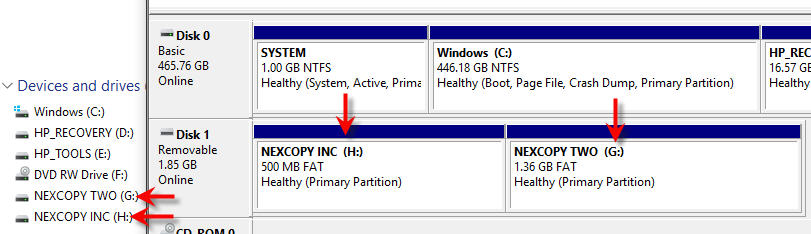
  4. Look for the drive that is identified as GPT and note the Disk number (such as Disk 1).
Format USB GPT Protected Partition
  • Now, open a Command Window. From the command prompt, type diskpart and press Enter.
  • The diskpart prompt will open.
  • From the diskpart prompt, type list disk and press Enter. A list of disks will appear in a text format. You will return to the diskpart prompt.
  • From the diskpart prompt, type select disk disknumber (in this example from the screen shot above, you would type select disk 1)and press Enter. A message appears saying that the disk is selected. You will return to the diskpart prompt.
  • From the diskpart prompt, type clean and press Enter. At this point the drive’s partition and signature a removed. You will return to the diskpart prompt.
  • From the diskpart prompt, type exit and press Enter. Type exit once more to close the Command Window.
Continue Reading No Comments

How To Make a USB Read Only

There are two ways on “How to make a USB read only.” One method will make the USB read-only in anything it is connected to, so you could say this is a universal way of making a flash drive write protected.

The other way is a PC-specific solution where some registry edits are required to any computer the USB flash drive is connected to.

When we say 100% permanent, this means the USB stick is read only (write protected) on all devices, whether it be computers like a Mac, Windows PC, Linux box, or non-processor based products like a car stereo. This permanent solution also means the status of the drive cannot be changed. The other method flags a USB device to be read only in relationship to the PC it is connected to so that whenever that USB stick is connected to that computer, it makes the USB read only and blocks all write commands to the device.

Most times an IT manager or content owner wants the USB stick to be read only so the files cannot be deleted or formatted off the drive. Another reason for making a USB read only is for the original files to remain the same and block the ability for files to be changed or manipulated. Finally, it’s smart to have USBs read only so that viruses don’t jump onto the drive and possibly spread to other computers.

Let us start with the less permanent way because it’s easier to do and doesn’t require any specific hardware.

You will need a Windows7 machine or higher. The Windows7 machine will have DiskPart utility which allows us to perform all sorts of cool things to flash drives, like setting write protection.

  • Connect the USB to your Windows computer.
  • To begin, go to your Windows Start and in the Search Field type cmd
How To Make a USB Read Only command prompt example

This will run your Command Prompt.

  • Next, you will want to get to the C root of the Command Prompt and if you are signed in as a user you can simply type cd\ – this will get you back to the root of the C drive.
  • Type DISKPART
  • Type LIST DISK

Now you will need to find the USB stick connected to your PC. Most likely it’s DISK 1

Continue Reading No Comments

How Flash Memory Works

This is a great video that explains how flash memory works. Granted, the video is very technical but does work through the concept of reading and writing data to flash. So if you have the 17 minutes to use, I suggest giving this a watch. The video does cover SLC, MLC and TLC memory and how each of these technologies read and write with the different layers of a floating gate device like NAND. Source: YouTube. Continue Reading No Comments

5 Realistic Looking USB Airplane Flash Drives

Promotional items have been around for years. Coffee mugs, pens, etc are still the default item for marketing manager without an imagination. Back in 2000 the flash drive was the new kid on the block for swag. Flash forward five years and the USB stick was a bit like the coffee mug, old and boring. At about this same time manufacturing processes started improving for using silicon as a moldable material. This is where the custom flash drive started gaining popularity. As time move along, the process and technology got even better. Today we are seeing some fantastic promotional items in the shape of logo’s, parts, products and even airplanes. Today we list five realistic looking USB airplane designs that would get any marketing manager excited about a promotional flash drive. Let’s take a look large cabin cruiser airplane usb, flash drive Here is the Pilatus airplane flash drive airplane, pilatus Here is a Hawker airplane usb airplane, hawker Here is the F16 and F35 planes designed by Lockheed Martin usb jet, F16   usb jet, F35 These are all very impressive designs and certainly a piece of swag any trade show junkie, or even executive, would love to have. Times have certainly changed. The source for these designs is through a company named www.USBCOPIER.com and these products or any customized design can be created, just contact them. Continue Reading No Comments

Stand alone Windows Password Reset Tool

One of the most classic and – yet still perversely prevalent – issues IT staff face is resetting Windows passwords for users who have forgotten them (again). While remote administration has reduced the need to physically reactivate and reset passwords in most scenarios, a copy of L0phtcrack still remains in every experienced admins ‘toolbox’. Of course, having to reboot the system and use a copy of Bart PE or other portable OS’ to run L0phtcrack has a PITA factor all its own. USB key reset tool   Well, it seems that entrepreneur Jonty Lovell has done something about it as the all new – and fully funded – Password Reset Key has been designed to take the hassle out of this common issue. In fact, as long as you have physical access to the system even home owners can now reset their forgotten password within mere moments. The secret to the Password Reset Key is the fact that it combines a key shaped 1GB flash drive – available in black, stainless steel, or ‘gold’ – with a simple OS that auto-loads his custom software upon startup. Just as with L0phtcrack, with a simple click or three, you can scan, reset and even test how secure a given systems login passwords are. Because of its ‘key’ form factor, it will be hard to lose as you can simply stick on your keychain and always have it close at hand. However, be warned that this $15 – $50 device (depending on which option to choose) may get you in trouble with your IT staff as resetting the ‘administrator’ password will greatly ‘annoy’ them if they find out. Continue Reading No Comments

Question CRC Verse Checksum Verification for USB Flash Drives?

What is better?

CRC Verse Checksum Verification for USB flash drives

This article does the math and gives examples on which verification method is best.

This post is to give the general user an idea of what verification method is better for writing data to a flash drive. There are reference links at the bottom of this post which dive much deeper into the two methods of verification if this simple overview is not enough.

The short answer is Cyclical Redundancy Check (CRC) is the best method for checking data written to a USB flash drive.

Many believe a checksum is the best method to verify data written to a flash drive (most popular is MD5). I believe this is favored because it is easier to understand how the verification works, and also easier to implement. However, there are flaws in checksum verification and therefore it is not suitable for verification of data written to a flash drive.

What is the difference between Checksum and CRC verification? The checksum method uses addition in its math calculations to check whether all data was written correctly. CRC uses long division in its math calculations to check whether all data was written correctly. It is worth noting I am talking about binary long division, not the school-yard long division you so fondly remember.

Checksum methods will calculate the total bits in a packet of data and include that total checksum amount when the data is sent over communication lines. The receiver will then look at the packet, read the checksum value and then perform the same calculation to make sure everything adds up. The problem is a high probability that somewhere between the sender and receiver the bits of data are changed, corrupted or swapped yet still turn a correct checksum value after calculation on the receiving end.

Continue Reading No Comments

USB ScanStik with Voice Notes

Planon is known for having pen-sized scanners for mobile scanning of business cards, documents, lecture notes and more.  What Planon continues to do is develop the scanning technology year after year. The company has just released it’s latest pen scanner, the ScanStik SK600V.  The V is for Voice Notes.  It’s now possible to scan from a device the size of a writing pen and include voice memos for the scanned document.  Nice. They have also added bluetooth connectivity, but apparently the “b” didn’t make it into the updated part number. You can scan at 600dpi (dots per inch) and save the file to a microSD card.  Once you are ready for download, you can connect to a host computer via USB and off-load all those trade show business cards (or competitors spec sheets of that product not yet released). Continue Reading No Comments

Copyright

Copyright © 2006 +

USB Powered Gadgets and more...

All Rights Reserved

Advertise with us

GetUSB Advertising

This is a high value website providing great exposure to your product and brand. Visit our advertising page to learn specifics.

For more information
Visit our advertising page.

Nexcopy Ad

Nexcopy Provides

USB copy protection with digital rights management for data loaded on USB flash drives.

Contact us learn more

Resources and References Page

Resources and References Page