GetUSB.info Logo

One Giant Gold Nugget, Millions of USB Sticks

Gold nugget transformed into USB sticks illustration

How Many USB Flash Drive PCBs Could You Make From the Monumental Nugget of 1869?

If you crack open a USB flash drive hoping to find treasure, you’ll be disappointed—but not entirely wrong. There is gold in there. Not much, not enough to make you rich, and certainly not worth firing up a smelter in your garage. But a typical USB PCB does contain tiny amounts of gold in its connector plating and, in some cases, inside microscopic bond wires. How tiny? Most USB boards carry somewhere around 1–5 milligrams of gold—less than what sticks to your fingers after eating a Dorito.

Manufacturers use gold because it’s solder-friendly, corrosion-resistant, and makes a perfect electrical contact. Even the thinnest “gold flash” layer on connector pins can survive years of plugging and unplugging. But for recycling? Forget it. You’d need thousands of dead USB drives just to make a visible speck of gold, and tens of thousands to produce anything resembling a nugget. Still, this tiny bit of gold creates a fun thought experiment: what if we went all the way in the opposite direction? What if we took one of the largest gold nuggets ever found and asked how many USB sticks we could make from it?

That brings us to the legendary Monumental Nugget of 1869, the crown jewel of the California Gold Rush’s late years.

Continue Reading No Comments

Why There Is No Universal Bootable USB Flash Drive

Universal Bootable USB Flash Drive Illustration

Understanding why a truly universal bootable USB flash drive cannot exist, even though millions of people keep searching for one.

People search for a universal bootable USB flash drive because the idea sounds so simple: one USB stick you plug into any computer, and everything just starts. Windows, Mac, Linux, old laptops, new desktops — one drive to boot them all. If millions of people keep looking for it, surely it must exist, right?

But the truth is more like walking into a hardware store and asking for one key that unlocks every house on Earth. Not because the idea is silly, but because every house is built differently. Some have old metal locks, some have smart deadbolts with keypads, some slide, some latch, some spin, and some are designed never to open unless the owner approves it. The problem isn’t the key. The problem is the doors.

A universal bootable USB flash drives drive runs into the exact same issue.

People imagine a USB stick as a magic power switch — plug it into any machine and the computer should wake up and run from it. But computers don’t share a single design. They’re more like different types of vehicles. A Ford pickup, a Tesla, a Harley-Davidson motorcycle, and a jet ski all have engines, but you can’t fire them up with the same ignition key. You wouldn’t expect the same engine to fit in all of them either.

Continue Reading No Comments

The Butterfly Effect of USB: How One Design Choice Changed Tech History

USB Butterfly Effect

A tiny design decision in 1996 didn’t just annoy us — it reshaped tech culture, product adoption, and billions of daily interactions.

This post was drafted on a napkin somewhere between a refill and a revelation.

Let me paint you a picture. It’s 1996. Somewhere in a conference room filled with beige computers and men wearing pleated khakis, a group of engineers is finalizing the design for a new kind of cable called USB.

And then… it happens.

Someone says, “Should we make it work both ways?” Someone else replies, “Nah, people will figure it out.”

That’s it. That was the moment. That was the butterfly wing flap that doomed humanity to decades of flipping a plug three times before it fits.

Fast-forward to today. Seven billion people have lived through the USB Shuffle:

  1. Try to plug it in. Doesn’t fit.
  2. Flip it. Still doesn’t fit.
  3. Flip it back. Suddenly works, because the universe is mocking you.

If you haven’t cursed under your breath during step two, congratulations — you’re either lying or, I don’t know, you use wireless everything and hate productivity.

The Cost of the USB Struggle: Humanity’s Dumbest Time Sink

Let’s talk impact. Because this isn’t just inconvenience. This is a global time suck of biblical proportions.

Quick napkin math:

  • Average person plugs in a USB 2× a day
  • Each attempt wastes 3–5 seconds of flipping, inspecting, and questioning your life choices
  • Multiply by 3+ billion USB users worldwide

We’re looking at millions of hours of collective human existence lost to a tiny, avoidable design flaw.

Think about that. We could’ve cured something. We could’ve written more books. We could’ve finally understood taxes. But no — we were busy rotating a rectangle like chimps trying to solve a puzzle box.

If USB Had Been Reversible From Day One

Continue Reading No Comments

A Detailed Sales Pitch on Custom USB Flash Drives

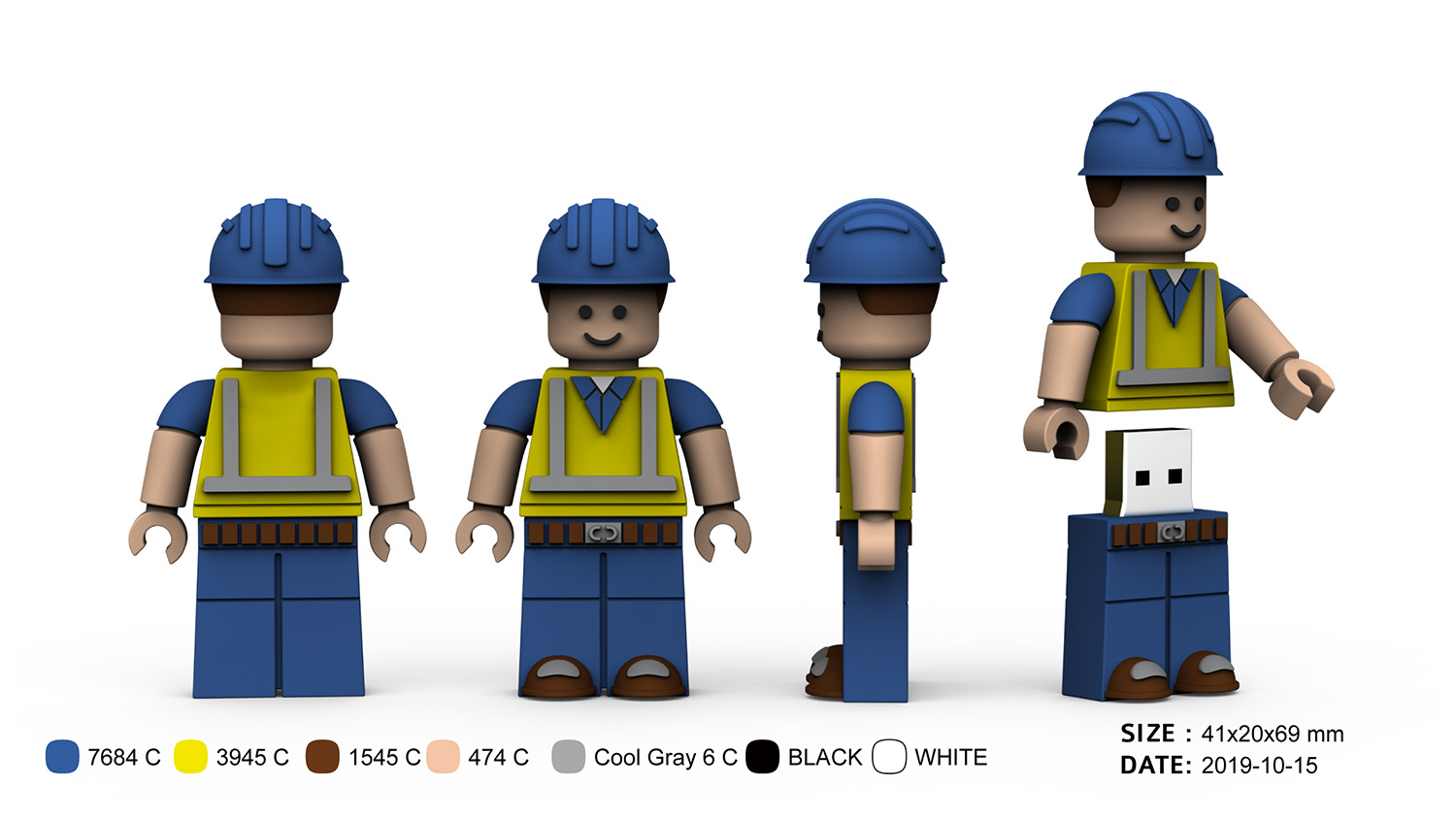
A Construction Worker USB Flash Drive That Builds Lasting Impressions

Custom USB flash drive shaped like a construction worker

At first glance, this isn’t just another thumb drive—it’s a miniature construction worker, complete with hard hat, safety vest, and a friendly smile. The figure looks like something you’d keep on your desk, and that’s exactly the point. It mixes a useful tool with a playful, display-worthy shape, so people actually keep it rather than toss it in a drawer.

Continue Reading No Comments

Forget Hubs — This Board Packs 25 USB Ports

ASRock’s X870 LiveMixer WiFi puts USB connectivity first with twenty-five total ports for creators, gamers, and power users.

A Motherboard With More USB Ports Than You’ll Probably Ever Use

Most boards today give you a few decent USB connections and expect you to figure out the rest with hubs and adapters. That’s fine for casual setups, but chances are if you’re running external drives, cameras, audio gear, or other devices, you’ll run out of ports fast. The ASRock X870 LiveMixer WiFi flips that script. This board comes with twenty-five USB ports in total, which is way more than you’ll see on a typical motherboard.

Rear panel options

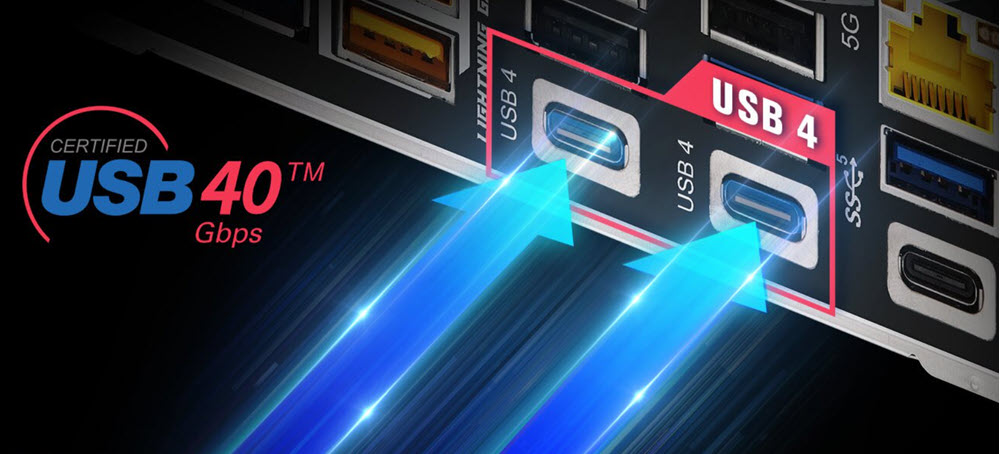
The first thing to understand is that the back panel is stacked. You get sixteen ports right out of the box, and two of those are USB4 Type-C. Those are your heavy hitters: up to 40 Gbps transfers, plus display output if the CPU supports it. That kind of bandwidth makes external SSDs or capture gear run like they should.

You also get another Type-C rated for USB 3.2 Gen1 speeds and about seven Type-A ports in that same Gen1 class. That’s plenty fast for most peripherals — webcams, audio interfaces, or storage that doesn’t need crazy speed. Then there’s the legacy support: six USB 2.0 ports still hanging around. They’re slow at 480 Mbps, sure, but perfect for things like keyboards, mice, dongles, or older hardware that doesn’t benefit from more bandwidth.

Internal headers and front access

Add another nine ports through the internal headers and you hit the big twenty-five.

Continue Reading No Comments

Pros and Cons of the Raspberry Pi USB 3 Hub

It is common to hear Raspberry Pi owners want more USB ports. GetUSB.info just read about them introducing an official 4 port USB hub. Sweet. To note, most Raspberry Pi single-board computers, except for the Raspberry Pi Zero and A+ models, include a built-in USB hub that splits one USB connection into several USB Type-A ports. Just recently they launched the official Raspberry Pi USB 3 Hub, a high-quality USB 3.0 hub that offers four additional USB ports.

This hub includes a single upstream USB 3.0 Type-A connector with an 3 inches (8 cm) built-in cable. The “upstream” port is the socket used to communicate with the host device, which in this case is the Raspberry Pi. It also has four downstream USB 3.0 Type-A ports and can reach data transfer speeds up to 5 Gbps. There’s a USB-C socket for an optional external 3A power supply but that isn’t included with the $12 purchase. Quick note, the downstream port is are the sockets used to communicate with the devices, like a USB flash drive, hard drive, mouse, keyboard, printer, etc.

One driving force on why Raspberry Pi wanted to sponsor their own USB hub is the fact most ‘other’ hubs are just too expensive. One fundamental goal of Raspberry Pi is to provide an unparalleled offering for computer code development and the lowest possible price. Usually, you either pay a high price for a reliable, well-designed product, or you buy a cheaper option that’s unreliable, doesn’t work with various devices, or simply looks bad.

With this hub, there is no “race to the bottom,” where cheap, poor-quality products pushed out better options, and online marketplaces like Amazon became filled with low-quality hubs. To offer a better solution the Raspberry team got together with with Infineon to source a quality hub chip called the CYUSB3304.

Based on user beta testers and user comments here are the pros and cons of the Raspberry Pi USB 3 Hub:

Pros and Cons of the Raspberry Pi USB 3 Hub

Continue Reading No Comments

Star Wars R2D2 USB Hub – 3.0 Speeds

Star Wars R2D2 USB Hub - 3.0 Speeds

Celebrate the all time fan favorite of Star Wars with this R2D2 USB hub that not only lights up but also plays his notorious R2D2 sounds. Before we get to the product, let us take a few minutes and review how awesome R2D2 is with this summary of his big screen persona.

R2-D2 is a fictional character in the Star Wars franchise, and it is an astromancy droid known for its resourcefulness and loyalty. Here’s a brief history of R2-D2:

Creation and Introduction:

R2-D2 was created by George Lucas and designed by Ralph McQuarrie for the original Star Wars film, “Star Wars: Episode IV – A New Hope,” which was released in 1977. R2-D2 made its first appearance in this film.

Continue Reading No Comments

Transfer Photos from iPhone to PC – Easy

Transfer Photos from iPhone to PC – Easy and Automated

iCloud is the default way to store your photos from your Apple device to another location. Once the files are in your iCloud, you can log into the iCloud account and save those images to your computer.

However, many users don’t use the iCloud service and looking for an alternative. Here is an alternative that is easy, automatic and far less expensive than an iCloud account.

The Qubii Pro is a backup device that takes place while you are charging your phone. There is nothing to do and there are no settings to set. The Qubii Pro is a small device that holds a microSD card for data storage and connects directly to your iPhone cable and of course your charging block.

Transfer photos from your iPhone to storage is automatic. Qubii will scan your video and photo library and backup any file it doesn’t detect on the microSD card. The first time used, the backup process could take a long time because the Qubii hasn’t seen your digital library and so will back everything up. The time to do this will depend on the number of video and photo files you have. However, on subsequent connections Qubii will only backup new photos or video.

Since everyone is good about charging their phones at night, the backup process will take place without disrupting usage. The backup will take place while you sleep.

Yes, Apple gives each user 5GB of free space, but do you realize that space goes very quickly? The high resolution photos and video will chew threw your 5GBs of storage fairly quickly. As you can see from the price matrix below, the cost for using the iCloud isn’t all that expensive, at first, but gets up there for sure!

  • Free: 5GB of storage per iCloud account (not per device)
  • $0.99/month: 50GB of storage (single user)
  • $2.99/month: 200GB of storage (family use)
  • $9.99/month: 2TB of storage (family use)
  • If you purchase the $22.95/month Apple One Family plan, you receive 200GB of iCloud storage as part of your membership. The $32.95/month Apple One Premier plan comes with 2TB of iCloud storage.

Apple does a very good job of pestering you to signup for the Family Plan so there is a high probability your monthly cost will be north of $20 USD (at the time of this writing in 2023)

With the Qubii, there are some items to be aware of:

  • The solution does not allow you to select which video and photo to back up, it just does it all
  • If a file is deleted off the microSD card, the solution will backup the photo again if found on your phone
  • The solution backs up only photo images and video files, doesn’t backup contacts or documents
  • If you swap out the microSD card, the entire backup will start over again

The last point mentioned above is key.

Continue Reading No Comments

Is it worth buying a USB 3.1 Flash Drive?

Is it worth buying a USB 3.1 USB flash drive?

The tech industry, tech nerds and tech blogs will definitely say that buying a USB 3.1 flash drive is worth it. After all, these blogs need something new to write about and new links to generate for affiliate advertising, but are these blogs reporting back valuable information before someone spends their hard earned cash?

Let us compare the write speed difference between a USB 3.1 flash drive and a USB 3.0 flash drive to see what information we can uncover.

Universal Serial Bus (USB) has different transfer speeds based on the version of technology, we did a write about that earlier. The USB 3.1 specification has a transfer rate which taps out at 1,250 MB/second (Megabytes per second). The USB 3.0 specification has a transfer rate which taps out at 625MB/second. Of course this is the theoretical maximum transfer speed. When anyone says “theoretical transfer speed” they are implicating all conditions are ideal. For example, the host computer has the horsepower and bandwidth to push that much data and the receiving device (in this case, flash drive) has equal throughput to receive that data. But is that the real world – is it worth buying a USB 3.1 USB flash drive?

Below are some images and here is the general order of what you will be reading:

  • Screen shots of the USB device type (USB 3.0 and USB 3.1)
  • Screen shots of benchmark software testing both USB technologies
  • Screen shots of a real-world copy jobs using a Windows computer

From the screen shots below you can see a USB 3.0 flash drive and USB 3.1 flash drive. Both flash drives use an SMI controller for the USB 3.0 and 3.1 technology. These are the same high quality and higher performance controllers seen in iPhones and NAND memory used from Micron Technology. The NAND memory type is MLC (multi-layer cell memory) is slower than SLC NAND memory (single layer cell). Note: USB flash drives do not use SLC memory because the NAND memory price is too expensive and the SLC supply is very small. Flash drives are produced at mass scale and meant to be a low cost data transfer and storage tools – speed is not the #1 priority, despit all the marketing we read online.

USB 3.0 flash drive specifications

USB 3.1 flash drive specifications

Here are benchmark speed tests for both USB devices in discussion today.

The program has two test settings for benchmarking a speed test. One test setting is for the theoretical maximum speed of the device and writes data directly to memory without accounting for operating system and device overhead for were the data is stored. Think of this as a random write test to any available sector on the flash drive.

The second test setting is a write sequence which includes the operating system and device overhead cache for placing files in the file allocation table. This means extra time is spend during the data transfer to log where each sector is written along with the calculation required to write the next bit of data. This second test setting is more like a real-world experience.

Speed benchmark software is designed to provide a relatively quick summary of the device capability. So the first test setting is designed to show the theoretical maximum write speed or “burst” write speed. The second test setting is designed to show a more “sustained” write speed. Any benchmark software is designed to provide a quick and easy snap-shot of what the device can do – but can the device do it?

Readers can download the USB Scrub software for speed benchmarking their flash drives. The software is 100% free, no installation or sign-ups, and includes other cool features like registry cleaning and making image files of flash drives. USB Scrub download link
Continue Reading No Comments

Test USB-C Cable For USB 2.0 and USB 3.0x Standards

Test USB-C Cable For USB 2.0

The C2C caberQU is a USB board to test a USB-C cable in a variety of situations or configurations.

This handy tool for computer professionals will check USB-C cables in great detail and down to every pin found inside a USB-C cable. It applies voltage to all the pins in a cable and detects which ones are connected on the other end. With 25 LEDs, it can show all possible combinations for USB-C pins in various modes, such as USB 2.0/1.1, USB Power Delivery, USB 3.0/3.1/3.2, Alternate Mode, Debug Accessory Mode, and Audio Adapter Accessory Mode. A comprehensive manual is included to explain connectors, modes, and pin details.

Examples for IT Managers:

  1. USB Cable Verification = Imagine an IT manager dealing with a pile of USB-C cables in an office. They can use the C2C caberQU board to quickly test and identify the functionality of each cable. This ensures that the right cables are used for different devices, preventing data transfer issues or device compatibility problems.
  2. Hardware Troubleshooting = In a data center or server room, an IT manager may encounter connectivity problems with USB-C peripherals. By using the C2C caberQU board, they can pinpoint cable issues, such as broken pins or incorrect connections, saving time and minimizing downtime.
  3. Inventory Management = Managing a stock of USB-C cables for an organization can be challenging. The C2C caberQU board helps IT managers ensure that the purchased cables meet the required specifications. They can easily distinguish between different cable versions (like V1 and V3) and make informed purchasing decisions based on their specific needs.

V1 vs. V3 – Which One to Choose?

Test USB-C Cable For USB 3.0

There are two versions of the C2C caberQU board available, V1 and V3, with some distinctions:

  • V1 comes with a standard battery, while V3 features a German name brand battery.
  • V3 can be used with a protective case.
  • V1 lacks hanging holes for convenient storage.
  • V1 has a slightly different printed design.

Both V1 and V3 serve the same purpose, testing USB-C to USB-C cables effectively. They include the same manual and offer identical LED combinations for testing.

Why did these guys make it?

USB-C cables come in numerous variations, making it challenging to select the right one for specific tasks. If the wrong cable is used, it can lead to slower data transfer rates or device incompatibility. USB-C cables must adhere to specific pin configurations, grounding, and resistor requirements, adding to the complexity.

Why is this better testing USB-C board?

Determining if a particular cable supports a specific use case can be challenging. Broken pins can make matters worse due to their unpredictable behavior. The C2C caberQU cable tester simplifies this process. By flipping the USB connectors, it lights up opposing LEDs on certain pins, as per the USB-C standard. The product includes one CR2032 battery, the PCB, and a comprehensive manual. Note that the USB-C cable is not included, and you need to select the pins according to your specific requirements.

No external power supply is required, as the CR2032 battery provides the necessary power when a cable is connected. This battery should last for an extended period.

Please keep in mind that this item is a prototype, not certified, and mainly suitable for prototyping purposes. If a more economical shipping option is available, it will be used, and any cost difference will be refunded. Funny quirks and unexpected behavior are possible but are part of its prototyping nature.

The USB Implementers Forum (USB-IF) was founded by a group of technology companies, including Intel, Microsoft, and others, in 1995. Its primary purpose is to promote and develop USB (Universal Serial Bus) technology standards. The USB 3.0 specification, also known as USB 3.1 Gen 1, was released in 2008. This marked a significant advancement in data transfer speeds, offering up to 5 gigabits per second (Gbps) compared to the slower USB 2.0 standard. USB 3.0 introduced improved performance and backward compatibility, enhancing the connectivity and functionality of various devices and peripherals.

No affiliation or affiliate money to this item, but you can source it here: The C2C caberQU USB board for about $30 USD.

Continue Reading No Comments

Solved: (Video) Windows Cannot Delete the System Volume on This Disk

Sometimes Windows cannot delete the system volume on the disk because the partition table is corrupt. The solution is very easy and all the tools required to solve this problem are pre-installed and ready to use on any Windows 10 (+) computer.

Windows Cannot Delete the System Volume on This Disk

In short, the Disk Management utility cannot delete the volume because there is corrupt data in the partition table of the device. This issue we are talking about is most likely associated with a USB flash drive and sometimes USB hard drives.

One of the reasons a user will get a corrupt partition table is from formatting the USB device over and over again. Sometimes computers just don’t do what they are supposed to do! Surprise!

A common reason a user would like to delete the volume of a flash drive is to start “clean” with a fresh device. The reason to start “clean” is because some other function or task is not working as expected. For example, a user trying to create an digital image file (.img) from a physical USB flash drive continues to create corrupt image files. Well, when you start with a corrupt partition table, you’ll end up with a corrupt image file.

Another reason could be a user is trying to make a two partition flash drive using Disk Management. However, you cannot make a two partition flash drive if you cannot delete the volume in the first place!

We did a great write up about “How to partition a USB flash drive in Windows” a while back. A good read if you have the time.

The below steps will show you exactly how to fix this problem. There is a video at the bottom of this post showing the steps.

  • Connect your flash drive
  • In the search field in Windows (bottom left white box that says “Type here to search”) type “Disk Management” and click ENTER on the keyboard. Disk Management should pop up.
  • In the search field in Windows type “diskpart” and click ENTER on the keyboard. DiskPart will either pop open, or a dialogue box will ask if you want to open it, click YES
  • In DiskPart type “list disk
  • From the list provided determine which disk number represents your USB flash drive or hard drive
  • In the screen shot below, our disk is #1
  • Type “select disk x*In this example we typed “select disk 1”
  • Type “clean
  • When that is complete, toggle over to the Disk Management utility
  • Right click the box which represents the USB flash drive and select “New Simple Volume
  • Follow the prompts in the wizard to complete the process

After completing the above steps the flash drive is now ready for use. In addition, if it is required to go back and delete the volume, say to make a two partition flash drive, you can now do this without the error message “This Request Is Not Supported”

Here is a video for the above process:

Continue Reading No Comments

What is USB Restricted Mode in macOS Ventura

USB Restricted Mode in macOS Ventura

Beginning with macOS Ventura, a new layer of protection offers some reassurance to enterprise IT against USB device-borne attacks.

Mac computers using the new Apple silicon will require USB and Thunderbolt accessories to be approved by the user before the accessory can communicate with macOS.

When a new USB or Thunderbolt device is connected to a Mac, the user will be prompted to approve the connection. The end user must unlock a locked Mac before the computer will recognize the accessory. This makes use of the allowUSBRestrictedMode restriction, which is new to the Mac. When your Mac is locked for more than an hour, the protection kicks in.

It does not apply to power adapters, displays, or connections to an approved hub, according to Apple, and devices will continue to charge even if you select Do Not Allow Use of a Connected Accessory. Energy flows, but data does not, according to the theory.

Where does USB Restricted Mode operate?

  • On Apple Silicon Macs, the protection is enabled by default.
  • The enabled protection is to Request New Accessories; other options include:
  • — Every time, inquire.
  • — When unlocked, this happens automatically.
  • — Always.
  • Requesting new accessories is the bare minimum of security, though highly secure enterprises will want to request permission each time.
  • You can disable / enable the setting by going to: System Settings>Security & Privacy>Security
  • Setting up an accessibility Switch Control configures the policy to allow accessory use at all times.
  • For up to three days, approved devices can connect to a locked Mac.

This is a new security setting and configuration Apple is planning to introduce from Ventura forward. More articles related to USB and Mac computers.

Continue Reading No Comments

Copyright

Copyright © 2006 +

USB Powered Gadgets and more...

All Rights Reserved

Advertise with us

GetUSB Advertising

This is a high value website providing great exposure to your product and brand. Visit our advertising page to learn specifics.

For more information
Visit our advertising page.

Nexcopy Ad

Nexcopy Provides

USB copy protection with digital rights management for data loaded on USB flash drives.

Contact us learn more

Resources and References Page

Resources and References Page