GetUSB.info Logo

Author Archive

Matt LeBoff

Kicking around in technology since 2002. I like to write about technology products and ideas, but at the consumer level understanding. Some tech, but not too techie.

USB-C to Lightening Cable, Unique Combo For Sure

We really don’t like reporting about cables. It’s boring. But this post is going into publication for two reasons: 1) The model used to show off the product is a complimentary image {wink} and 2) it’s actually a unique feature combination for a USB cable. Also, cables are one of those accessories you only think about when they fail, so anything that improves durability and portability is worth a quick mention.

HyperDrive USB-C to Lightning cable with keychain capsule design

Hyper has a new USB-C to Lightning cable that makes it convenient to keep the cable near by and doubles as a cleaver key-chain holder. The new HyperDrive Cable series includes Key-chain, Lanyard, and Tough. All of the cables are MFi certified (Made For iPhone/iPad devices) and make use of bulletproof ballistic nylon for high durability and longevity.

The cable length is 3.3 feet, or 1 meter.

Made of TOUGH 2m material by Hyper. This is material that can withstand 70kg of tension before something bad happens.

The key-chain has made of aluminum and screws into the capsule like casing which also doubles as the housing for the ends of the USB-C and Lightening connections.

They Hyper cable starts out at $27.99 USD at the time of this post.

Continue Reading

How USB Cables Affect Charging – Simple Test

I came across an interesting article today from Dr Gough, a tech nerd, and thought it was good enough to summarize here:

The USB specifications for power from a port vary from 100mA to 1.5A, and all the way up to 100W of power for USB Type-C. However, the cables and connectors used in a USB cable don’t always align with the power capabilities of the device being designed or charged. Most everyday USB charging cables are typically rated for about 1.8A of current, which is common for consumer-grade charging scenarios.

USB charging cable showing internal wiring and connector quality

The 1.8A rating is largely based on safety limits related to resistive heating of the cable and connectors. This rating does not guarantee that your +5V at 1.5A setup will actually deliver maximum usable power to your device. The key point is that the cable-and-connector combination is primarily rated to handle heat safely, ensuring nothing melts or becomes a fire hazard. Most specifications go a step further and ensure the cable doesn’t even become noticeably warm to the human touch.

Every wire that isn’t a superconductor has some finite resistance. Put simply, electrical resistance turns energy into heat. Ohm’s Law tells us that E = IR, where E is voltage, I is current, and R is resistance. When power flows through a wire, current multiplied by resistance produces a voltage drop across that wire. That lost voltage becomes heat, meaning it never reaches your phone, tablet, or battery pack.

This also explains why some cables charge devices faster than others, even when using the same charger. Thicker conductors, better materials, and higher-quality connectors reduce resistance and therefore reduce energy loss. Cheap cables often cut corners on copper thickness and connector quality, which directly impacts charging efficiency.

I want to end this blog post with the above explanation because that’s the real takeaway. The more inefficient (or cheap) a cable is, the warmer it will get. If your iPhone cable is warm to the touch, it sucks. If the wire charging your power bank is warm, it sucks. Get a better cable. From what I can tell, there’s no meaningful rating posted on many of the low-cost cables you see on Amazon, so word to the wise: trust your tactile feedback.

Continue Reading

Google is Releasing a USB-C Titan Security Key

Last year, Google released the Titan security key. It can be used as an ultra-secure method for two-factor authentication for some online services over USB-A, NFC, or Bluetooth. Today, Google announced an updated USB-C key to the lineup, which will be available tomorrow from the Google Store for $40.

The new USB-C key appears to have similar functionality to its previous models, all of which are built to the FIDO standard. The USB-C model lacks the NFC capabilities that its other two keys have, but this shouldn’t matter much, as the USB-C design is meant to plug directly into modern devices such as phones, tablets, and ultra-thin laptops. In that context, NFC becomes largely unnecessary.

Google’s new USB-C key is compatible with Android, Chrome OS, macOS, and Windows devices. (Only the Bluetooth key works with iOS, and it requires the installation of Google’s Smart Lock app.) Like its previous keys, Google says the USB-C key’s firmware is permanently sealed into a secure element hardware chip, making the key more resistant to physical tampering and cloning attempts.

Google Titan USB-C security key for two-factor authentication

Google partnered with security key-maker Yubico to manufacture its new USB-C key. Google’s key looks a lot like Yubico’s YubiKey 5C. Both keys are similar in size and form factor, but Yubico’s keys support a wider range of protocols, including WebAuthn, which may make them a better fit for users with more advanced authentication requirements.

From a practical standpoint, hardware security keys continue to be one of the strongest defenses against phishing attacks, account takeovers, and credential reuse. Because the authentication process requires physical possession of the key, attackers can’t simply steal a password or intercept a code remotely. For users managing sensitive accounts or enterprise logins, this added layer of protection is increasingly becoming a baseline rather than an optional extra.

Google’s other two Titan security keys were previously only available as a $50 bundle, but Google says you’ll be able to buy them individually starting tomorrow. The USB-A / NFC key will cost $25, while the Bluetooth key,

Continue Reading

Will The Optical Drive Survive Another Year?

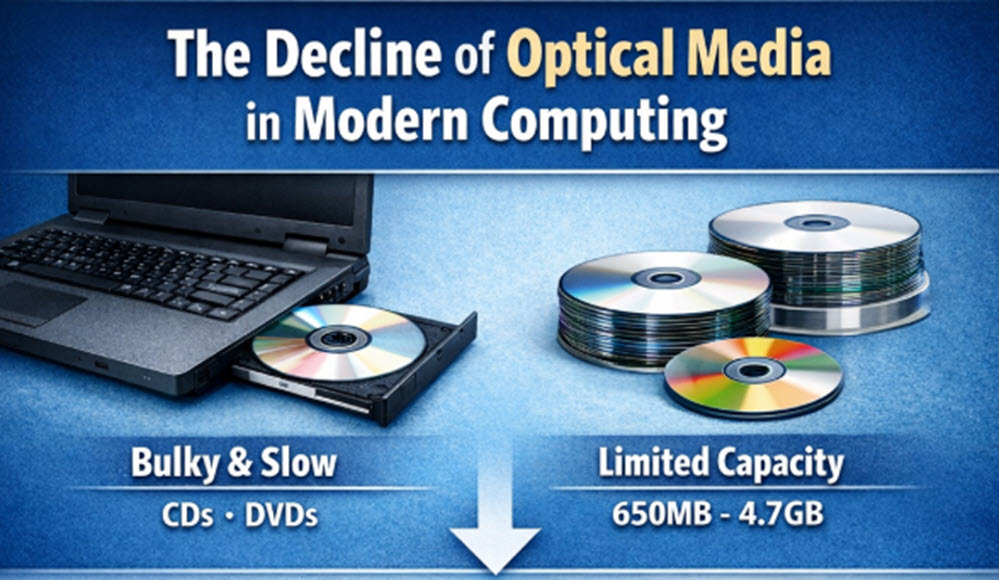
The decline of optical media in modern computers

The Decline of Optical Media in Modern Computing

Let’s face it, optical discs are large and bulky. At nearly five inches in diameter, they feel oversized compared to modern laptops and tablets. Even though optical drives have been reduced in size over the years, many laptop manufacturers have eliminated them entirely to save space and power.

Beyond the size factor, space once used for an optical drive could be better allocated. It could house a larger battery for extended runtime, a faster solid-state drive for improved performance, or a more powerful graphics solution for design work or gaming.

When CD-R drives first entered the market, they offered massive storage compared to traditional magnetic media of the time. With 650 MB of capacity, they outperformed most hard drives of that era. DVDs expanded this further, offering 4.7 GB on recordable discs.

While optical media grew steadily, it never matched the exponential growth of hard drives and USB flash drives. Optical storage remains limited to gigabytes, while modern hard drives now store terabytes of data. Using CDs, DVDs, or Blu-ray discs for storage has become impractical—the write speed is slow, and retrieval times are equally sluggish. Hard drives and portable USB flash drives have become the dominant solution.

USB Duplicators: The Modern Replacement for Optical Disc Copiers

Given these points, it’s easy to see why optical media is fading out. CD-R and DVD-R may survive for a few more years, but USB drives and hard disks have already taken over. The next logical question is: how do you efficiently load data onto USB drives? In the optical era, you had CD/DVD tower duplicators, often with robotics and printers for disc labeling. These systems are now rare.

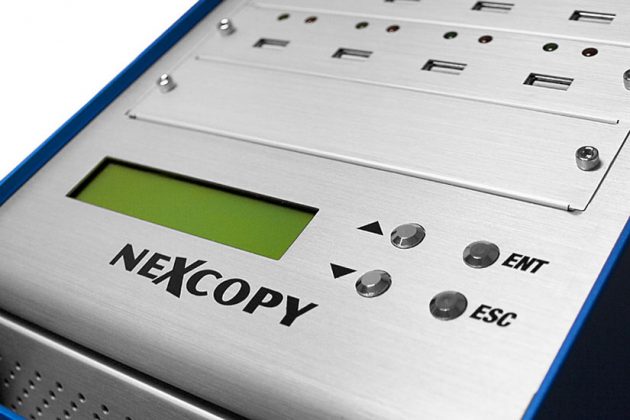
The solution today is USB duplicators. These are high-speed flash memory copier systems designed to load content onto USB drives quickly and efficiently. Similar to how optical duplicators had different burning methods, USB duplicators support multiple copy modes—file copy, binary copy, and duplication from ISO or IMG files.

Will The Optical Drive Survive Another Year

It’s important to choose a USB duplicator that supports all these functions. Some models offer up to six copy modes, making them highly versatile. Options may include file copy, copy add, unique data streaming, copy from a physical device, and image-based duplication from IMG or ISO files. This flexibility ensures compatibility regardless of how the source content is provided.

Continue Reading

USB Juice Jacking – A Total Long Shot?

Will "USB juice jacking" trend on Twitter anytime soon? Probably not. Should you be paranoid about USB juice jacking? Probably not.

What is USB juice jacking anyway?

The idea is someone, a hacker, trying to steal your data while you are charging up, or "getting juice" from a public USB port.

Yes, it can technically happen, so don't be fooled. But could it actually happen? Probably not, so don't sound like a fool.

Public USB charging port example used in juice jacking discussions

Getting down to brass tacks of how this could happen, what would a hacker need to pull it off?

First, they'd need to make a connection, either WiFi or Bluetooth. This connection would transmit your valuable data to the hacker. To do that, the hacker needs some sort of device that holds that communication chip. That chip would need to sit behind the USB port in the string of communication. This "device" would also need power.

Given the above, a quick observation of the USB port you are planning to use will tell you everything you need to know. So basically if you see a big block with a USB port, don't plug in your device. If it's a wall mounted USB port, chances are ultra-slim there is a technology behind the placard stealing your data.

So take airport chairs and charging stations for example; as this is the most common place a website gives for the "scare." You are not going to get hacked using those ports. First off, airports are high security areas and those charging stations are monitored. Second, the security cameras will pick up on someone trying to tamper with a charging station or USB port on the chair. Third, the people in the terminal need a boarding pass to get to those spots, so their identity is already known if anything suspicious does turn up.

Airport seating with built-in USB charging ports

It's also worth noting that USB charging has effectively become the universal power standard for mobile devices. As discussed in our follow-up coverage on how USB became the dominant "juice" connection for phones and mobile gear, power delivery has standardized far faster than most people expected. Read the updated analysis here .

Now, if we are talking a coffee shop just be sure

Continue Reading

USB Flash Drive Doesn’t Get Assigned a Drive Letter: Solution

You’ve connected a USB flash drive, heard the familiar Windows sound of connection, yet no drive letter shows up. You then go into Disk Management for Windows and see the device and memory, but the USB flash drive doesn’t get assigned a drive letter.

What should you do?

USB Flash Drive Doesn't Get Assigned a Drive Letter

Most of the time, Windows will automatically assign a drive letter to any connected storage device—whether it’s a USB stick, USB hard drive, or other mass storage device.

However, if a drive letter isn’t assigned, there’s a quick fix to get your computer working properly again:

  1. Open Command Prompt as Administrator (search for CMD, then right-click and select “Run as Administrator”).
  2. Type diskpart and press Enter.
  3. Once in DISKPART, type automount enable and press Enter.
DISKPART command prompt for USB drive automount, USB Flash Drive Doesn't Get Assigned a Drive Letter

If the above steps don’t solve the problem, there could be conflicting registry entries from past USB devices that disabled or interfered with the automount function.

Nexcopy offers a registry cleaning tool specifically designed for USB devices connected to your computer. This utility is an executable file that requires no installation and contains no spyware or malware. Nexcopy is a reputable company that provides direct support via phone, email, or live chat, so you can trust their software is safe and reliable.

USBScrub is the utility name and is available for download here.

Continue Reading

Erase USB or Clean USB or Format USB?

We’ve seen these terms floating around forums and how-to articles for years when someone is explaining what to do with USB flash drives. Most people gloss over the definitions of Clean, Erase, and Format because the terms sound interchangeable or because they are not planning to perform the task being discussed.

The goal of this article is to clearly explain the differences between Clean, Erase, and Format so you can better understand what people mean when discussing USB flash drive maintenance and data removal.

All of the functions below can be performed on a Windows 10 system or newer. We’ll start with the simplest operation and work toward the more advanced ones.

Format

Formatting is what roughly 98% of Windows users rely on. This is the graphical option you see when you right-click a drive letter in Windows Explorer and select “Format.” But what does this function actually do?

Formatting is the least complicated option. It removes the file allocation table from the USB flash drive and creates a new one. Put simply, the operating system deletes the index that tells Windows where files are stored, making the drive appear empty.

The important detail is that the data itself still exists on the drive. It is no longer organized in a way that Windows can easily display, but the underlying information remains intact.

Using basic file-recovery tools, like the one we reviewed previously, it is often possible to recover most or all of the files that were on the drive.

The image below illustrates this concept. The light-gray area represents data that still exists on the flash memory but is no longer referenced by the file system. Recovery software scans this space to reconstruct files. Notice that the boot code area of the drive is untouched during a standard format.

Format USB flash drive showing remaining data blocks

If you’re wondering whether a flash drive should be formatted as FAT, FAT32, exFAT, or NTFS, we previously published a detailed comparison covering those file systems.

Clean

The Clean function goes a step further than formatting. It directly targets the Master Boot Record and partition information of the USB flash drive.

Running Clean removes the boot code and deletes all partitions. The partition data is what tells a computer how large the drive is and whether it can be used as a bootable device.

The Clean function is not available through the standard Windows graphical interface. It can only be accessed through the Windows command-line utility DiskPart.

The image below highlights the boot code area affected by the Clean command. While this portion of the drive is cleared, the actual data area remains intact, which is why Clean executes very quickly.
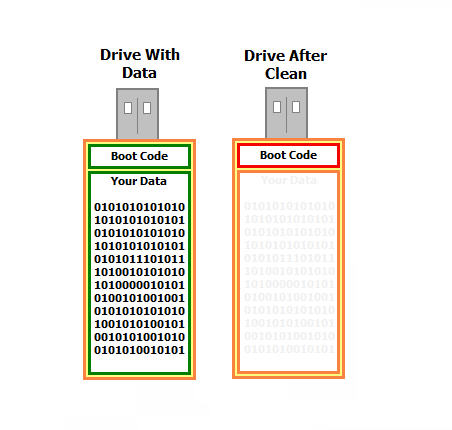
Clean USB flash drive removing boot record

The most common reason to use Clean is troubleshooting. If a flash drive contains data but no longer behaves correctly when connected to a computer, clearing corrupted boot or partition information can sometimes restore functionality while preserving recoverable data.

To run Clean on a USB flash drive:

  • Type diskpart into the Windows search bar and press Enter
  • Type list disk and press Enter
  • Identify which disk number corresponds to your USB flash drive
  • Type select disk 1 (replace 1 with your USB’s disk number) and press Enter
  • Type clean and press Enter
  • DiskPart will confirm when the process is complete

After running Clean, the drive will appear as RAW and unreadable to Windows. To make it usable again, open Disk Management, locate the unallocated space, create a new simple volume, and follow the formatting wizard.
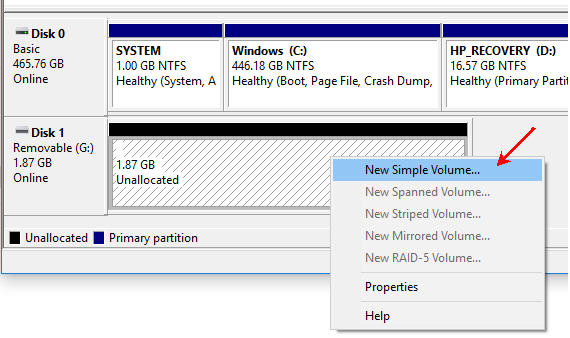
Windows Disk Management showing unallocated USB space

Clean All

The Clean All command is the most thorough option. Like Clean, it is only available through DiskPart, but it also writes zeros across the entire memory space of the flash drive.

This means all previous data is physically overwritten. Once Clean All is complete, file recovery is no longer possible.

For readers familiar with Department of Defense data-destruction methods, Clean All is conceptually similar to a single-pass overwrite. Traditional DoD methods repeat this process multiple times using different patterns.
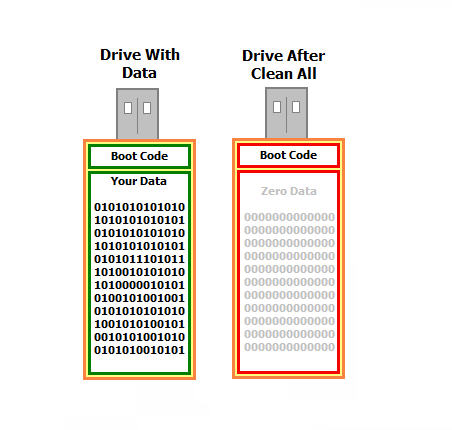
Clean All USB flash drive overwriting data

Common reasons to use Clean All include securely handing a drive to another person, recycling a USB flash drive, or ensuring a virus is completely removed.

To run Clean All, follow the same DiskPart steps as Clean, but replace the final command with clean all. Because the entire memory space is overwritten, this process can take significant time depending on drive capacity.
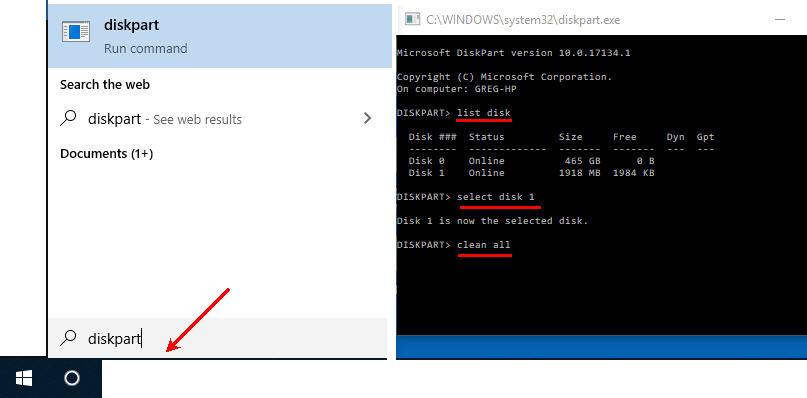
DiskPart Clean All process

This tutorial applies to Windows 7, Windows 8, and Windows 10 systems. Administrator privileges are required to use DiskPart’s Clean and Clean All commands.

This article was inspired by a forum discussion on TenForums.com.

If you found this post helpful, please share it so others can benefit as well.
Continue Reading

How To Enable Disable USB Write Protection in Windows 10

The link below is for a ZIP file that contains two batch files to either enable or how to disable USB write protection on a Windows 10 computer. These batch files also work on Windows 7 machines.

This solution is ultra-easy and very quick: one click to run the registry edit file and one click to confirm the task. That’s it.

Typically, a person will want to lock down the USB ports of a computer to ensure a virus doesn’t spread through a USB device, such as a flash drive. This batch file provides a fast and simple way to both lock down your USB ports and easily unlock them again.

Important: Do not have a USB flash drive connected to the system when you run either batch file.

For those seeking more technical details, here is the specific registry edit being applied. Changing the DWORD value to 00000001 sets the device policy for the computer to be write-protected. Changing that value back to 00000000 restores normal read/write access.

[HKEY_LOCAL_MACHINE\SYSTEM\CurrentControlSet\Control\
StorageDevicePolicies]
“WriteProtect”=dword:00000001

Note: This USB write protection method is specific to the PC on which it is applied. It is not device-specific and will not follow the USB drive to other machines.

If you require USB write protection that is permanent on the device itself and universal across all computers, contact Nexcopy.com and ask about their Lock License USB drives. This hardware-level solution is embedded in the USB controller, ensuring the drive is always write-protected, preventing any possibility of a virus being written to the USB stick. This is the best universal solution for USB write protection.

Screenshots of the Batch File Process

Batch files included in the ZIP:

USB Write Protection batch files

Windows confirmation prompt after running the batch file:

Windows confirmation prompt

Task completion screen:

USB write protection task complete

Download link for the two batch files:

USB Write Protection Registry Edit Batch Files

Continue Reading

USB4 Is Coming: Here Is The Speed

USB 3.2, the most recent widely deployed standard at the time of its introduction, supports maximum transfer speeds of up to 20Gbps under its fastest configuration. USB4 builds on that foundation and raises the ceiling to 40Gbps, with the newer USB4 Version 2 specification extending bandwidth even further to a theoretical 80Gbps. Put another way, 80Gbps is equivalent to moving roughly 10,000MB of data in a single second, or about 10GB per second.

Keep in mind this is all theoretical maximum throughput. Real-world performance will always be lower due to protocol overhead, controller limitations, cable quality, and storage speed. That gap between headline numbers and actual transfer rates has always existed and will continue to do so.

USB4 flash drive concept image

USB4 is built on Intel’s Thunderbolt technology, a high-speed interface Apple strongly promoted starting around 2012. While Thunderbolt delivered excellent performance, licensing costs and strict certification requirements kept accessory prices high and limited widespread adoption. Intel’s long-term goal was always to merge Thunderbolt into USB, bringing higher speeds to the mainstream at more affordable price points.

USB4 maintains backward compatibility with USB 3.2, USB 2.0, and Thunderbolt 3 devices. Because the standard fully embraces the USB-C connector and unifies multiple protocols, manufacturers can design fewer ports while supporting more use cases. As USB4 adoption increases, faster cables, docks, and storage devices are already becoming more common and less expensive.

USB4 devices are also required to support USB Power Delivery, which intelligently manages charging and power negotiation. This allows everything from smartphones to high-performance laptops to draw the correct wattage safely and efficiently from the same port.

Early USB4 products began appearing in the market in 2020, and today the ecosystem is steadily expanding as controllers, cables, and host systems mature. This post was originally prompted by the release of the finalized specification from the governing body, USB-IF, and the momentum behind USB4 has only increased since then.

Continue Reading

USB Wall Charger With Hidden Surveillance Camera

With USB gadgets like this, it’s hard to imagine how companies like ADT stay in business for residential customers. This functional USB wall charger includes a miniature camera that acts as a discreet surveillance device. You can plug any USB gadget into it for charging while simultaneously recording or streaming video of whatever falls within its field of view.

Using your Android or iPhone, you can stream video directly to the companion app or share access with a group of authorized users. The spy camera records 1080p HD video and also saves footage to the included 32GB microSD card. As a bonus, the camera can be configured to record only when motion is detected.

USB wall charger with hidden surveillance camera

The camera view is fixed directly in front of the wall plug, so there is no ability to pan or tilt the lens. That limitation is easy enough to work around by choosing an outlet that aligns with the area you want to monitor.

Here are some noteworthy features included at the low price of $29 USD:

  • Motion Detection – Can be configured to record only when motion is detected and send notifications directly to your phone.
  • Loop Recording – Automatically overwrites older footage to allow continuous recording.
  • Night Mode – Supports recording in dim or low-light environments.
  • Multi-User Support – Allows multiple users to connect to the same device, supporting up to eight users.
  • Multi-Camera Viewing – Supports up to eight cameras within the same app or software environment.

The Evela spy camera comes with a 32GB microSD card and a USB dongle for reviewing recorded footage. The low-light recording feature works particularly well. For a $29 investment, this device makes sense for frequent travelers who want to check in on their home while away. Another practical use case is monitoring a babysitter or nanny. You can never be too careful, and at this price point, the barrier to entry is minimal.

USB charger spy camera plugged into wall outlet

Visit the product page for the USB wall charger and surveillance camera to see ordering details and customer reviews. The product carries a four-star rating and has been well received.

For background information, Wikipedia offers a general overview of surveillance, which is worth reading before crossing the line into nanny-cam territory.

Continue Reading

Review: Powerhouse 200 Portable Station by Anker

The Anker Powerhouse 200 is a product which you would say “I should have thought of that years ago.” Well this charging station, is truly that, a station of power.

I’m not even going put the features in some lofty gargon sentence, but rather list them off like a spelling test in 5th grade. After you read the following paragraph, I wonder what you will think; here we go…

Input High-Voltage Protection, Output High-Voltage Protection, Input Current Regulation, Automatic Current Matching, Input Short-Circuit Protection, Device Overcharge Protection, Static Resistance, Output Short-Circuit Protection, Output Current Regulation, Battery Overdischarge Protection, Output Temperature Control. That is an awesome sounding product.

Specifications are below, but we couldn’t find out how heavy the Powerhouse 200 weighs.

  • Capacity: 57600mAh/218.8Wh
  • Input: AC/Power Delivery
  • USB Output: 5V=3A (15W)
  • Power Delivery Output: 5V=3A, 9V=3A, 15V=2A, 20V=1.5A (30W)
  • DC Output: 12V=5A
  • AC Output: 110V, 0.9A, 60Hz, 100W
  • AC Waveform: Pure Sine Wave
  • Total Output: 130W Max
  • Operating Temperature: 32°F-104°F / 0°C-40°C
  • Recharging Temperature: 14°F-104°F / -10°C-40°C

Product page from retailer:

About Anker Electronics:

Continue Reading

Hynix Enters US Market With Ultra-Fast SSD Drive

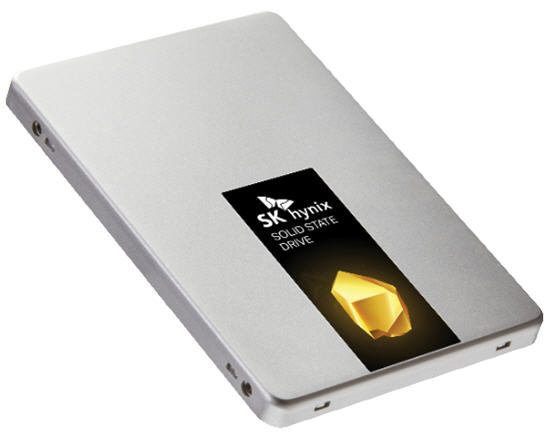
Today, Hynix put out a press release on their Gold S31 solid-state drive (SSD). The SATA III, first generation, is the first of their SuperCore series of products.

With a 560MB/s read speed, this device becomes an ideal SSD for high-demand users such as gamers. What’s also somewhat unique about the new Gold S31 drives is that they are entirely built in-house.

“All key components in Gold S31, from NAND flash and built-in controller to DRAM and firmware, were designed and produced by SK Hynix. The in-house components are built for robust performance and reliability,” SK Hynix says.

SK Hynix G31

What’s more interesting, at least for us right now, is the history of SK Hynix we uncovered while researching the company.

I always wondered what happened to Maxtor, an optical media giant in the early 2000s. It turns out SK Hynix acquired them. Today, SK Hynix is the third-largest conglomerate in South Korea.

Hynix is the world’s second-largest memory chipmaker (after Samsung) and the world’s third-largest semiconductor company. Founded as Hyundai Electronic Industrial Co., Ltd. in 1983, the company has continued to grow steadily ever since.

Hynix memory is well known for quality and is used in products made by Apple, Asus, Google, Dell, Nexcopy, and Hewlett-Packard.

The company also merged with LG Semiconductors in 1999.

These guys reported an operating income of $18 billion for 2018, so this is a company with serious capital and a willingness to spend it to stay competitive. We say good luck with your SSD product in the United States.

Press release source

Source for company history

Continue Reading

Copyright

Copyright © 2006 +

USB Powered Gadgets and more...

All Rights Reserved

Advertise with us

GetUSB Advertising

This is a high value website providing great exposure to your product and brand. Visit our advertising page to learn specifics.

For more information
Visit our advertising page.

Nexcopy Ad

Nexcopy Provides

USB copy protection with digital rights management for data loaded on USB flash drives.

Contact us learn more

Resources and References Page

Resources and References Page