GetUSB.info Logo

Author Archive

Matt LeBoff

Kicking around in technology since 2002. I like to write about technology products and ideas, but at the consumer level understanding. Some tech, but not too techie.

Industrial Control System USB Flash Drive Designed For ICS Security

Industrial Control System USB Flash Drive Designed For ICS Security

The fourth industrial revolution or “Industry 4.0” is a term used to categorize today’s trend with industrial control systems (ICS) and how these machines interact with each other and humans.

The fourth era of “industry” combines hardware, software and biology and emphasizes the advancements in communication and connectivity. When the term IoT (Internet of Things) is used, this is the type of example that would apply. Industrial Control System USB Flash Drives designed for ICS security are critical to industrial systems and how they are controlled by their owners. The key when a USB flash drive is introduced into a control system, is security. Without security, one could lose control of the industrial system and ultimately introduce risks into a population or region.

Before we look closer at Industry 4.0 and data storage, let us provide a short summary of the first three phases of the industrial revolution.

First Industrial Revolution

The first industrial revolution was marked by a transition from hand production methods to machines through the use of steam power and water power. The integration of these new technologies took a long time, and spans a period between 1760 and 1840 for Europe and the United States. The first phase had the greatest impact on virtual industrial channels such as textile manufacturing, iron production, agriculture and mining (in general).

Second Industrial Revolution

The Second Industrial Revolution, also known as the Technological Revolution, is the period between

Continue Reading

Review Rufus The Big Misconception With ISO Files

If anyone searches for “burn ISO to USB” they will get pages and pages of Rufus links. However, there is a big misconception with Rufus… it doesn’t create USB CD-ROM drives! Review Rufus with us now:

The only thing Rufus does is take a bootable ISO file and write the data to a USB stick. Basically Rufus will extra the data on an ISO file and write it to the flash drive. You can do the same thing with WinRAR.

There is nothing magical about Rufus when it comes to “making a CD” because Rufus doesn’t make a “CD.”

If you need to make a USB CD-ROM flash drive the best solution found so far, is the Disc License drive. The Disc License drive is a blank USB CD-ROM flash drive. Using their Drive Wizard software (free), easily write ISO files to USB. The resultant drive will be a USB CD-ROM flash drive.

Before we get into Disc License technology, we do need to clear up some points about WinRAR and Rufus software. WinRAR will extract all the files contained in an ISO file and write them to your USB flash drive; however, if the ISO is bootable, WinRAR won’t write the boot code. This is where Rufus does shine. The Rufus software will write all the files contained in an ISO file along with the boot code to make your device bootable. With that said, there is a clear advantage for using Rufus over WinRAR.

Does Rufus burn any ISO file to USB? NO.

Does Rufus make your USB flash drive read-only, like a CD? NO.

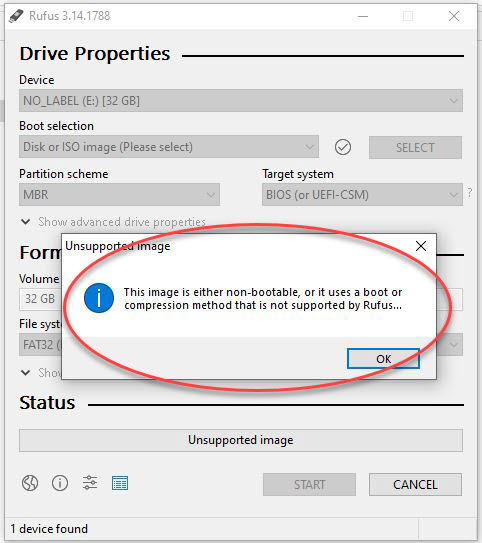
If the ISO file isn’t bootable, there isn’t much [more] Rufus can offer. A non-bootable image will display an error message saying “This image is either non-bootable, or it uses a boot or compression method that is not supported by Rufus.”

rufus does not support iso file

Rufus is truly designed for one thing:

Continue Reading

How To: Add USB Flash Drive to Roku TV Getting Pause and Rewind Features

It’s not difficult to add some premium-style functionality to a Roku TV — such as pause and rewind — simply by adding a USB flash drive to your setup.

You’ll need to configure the Roku TV and the flash drive to work together, but the process is straightforward and only takes a few minutes.

To get close to 90 minutes of pause or rewind time, you’ll want to use a 16 GB or larger flash drive. Using something small like a 2 GB or 4 GB USB drive generally isn’t worth the effort.

One important limitation to note: the pause feature only works with the Live TV input. That means you’re limited to content coming in through an antenna or cable connection, not streaming apps.

If that sounds useful, here’s how to set it up.

What you’ll need:

  • Roku Smart TV (not a dongle or external box — the Roku OS must be built into the TV)
  • Live TV input (antenna or cable)
  • Roku TV remote control
  • USB flash drive, 16 GB or larger (USB 2.0 or USB 3.0)

Before you begin, make sure there is nothing on the USB flash drive. Roku will format the drive, and any existing files will be permanently erased.

Getting Started

Locate a USB port on your Roku Smart TV. Any USB port will work; they are typically located on the back of the TV. Insert the flash drive into the USB port.

From the Roku home screen, move the cursor until the Live TV tile is highlighted.

Do not select Live TV yet. Instead, open the Options menu. You can do this either by pressing the Gear (Settings) button on the Roku remote, or by pressing the Home button on the remote five times.

Roku TV remote showing gear settings button

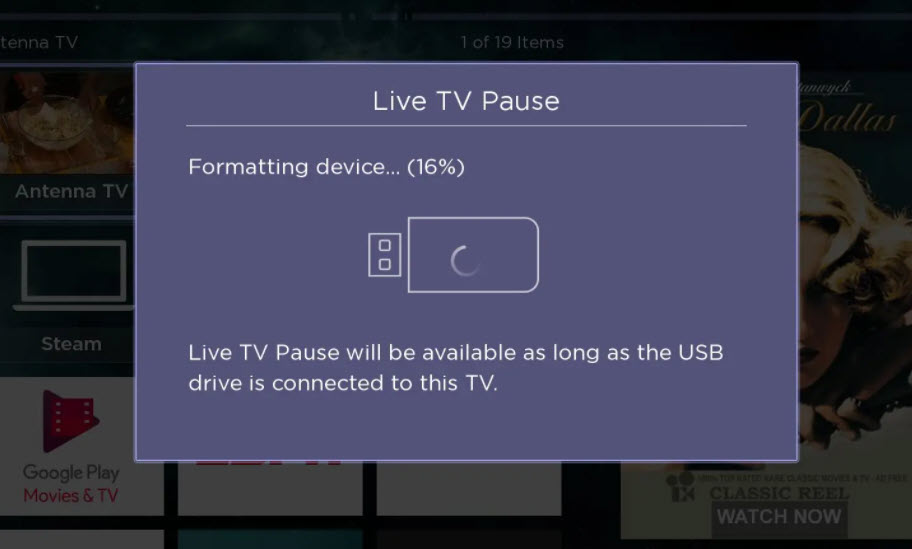
In the Options menu, select “Set up Live TV Pause” and follow the on-screen instructions. Part of the setup process includes formatting the USB flash drive so Roku can use it for pause and rewind buffering.

Roku will ask you to confirm the formatting process using a PIN. This step exists to make sure the action is intentional — once the drive is formatted, all previous data on the USB stick will be erased.

Roku TV formatting USB flash drive for live TV pause

Done

Once Live TV Pause is enabled, you can pause live television using the Play/Pause button on the Roku remote. You’ll also be able to rewind live TV by up to about 90 minutes — plenty of time to step away for dinner and come back without missing anything.

Continue Reading

Turn a USB Flash Drive Into a Portable Gaming System

Batocera.linux is an open-source and completely free retro-gaming distribution that can be copied to a USB flash drive or an SD card. Its goal is to turn almost any computer — including small form-factor and nano computers — into a dedicated gaming console, either temporarily or permanently. Batocera.linux runs independently and does not require any modification to your existing operating system. As always, you must legally own the games you play to remain compliant with copyright law.

The Batocera firmware allows you to flash a lightweight, emulation-focused operating system onto a USB flash drive, hard drive, or SD card. That raises an interesting question: what happens if you load Batocera onto a USB flash drive and treat it as a fully portable gaming system? Plug it into almost any Windows PC, boot from USB, and suddenly you have your own personal retro console. That’s exactly what we’re exploring in this video.

The real appeal is portability and consistency. Your entire gaming environment — operating system, emulators, settings, and game library — lives on a single USB drive. No installs, no changes to the host computer, and nothing left behind when you unplug it. This makes Batocera a great option for travel, shared computers, classrooms, or anyone who wants the same retro-gaming setup wherever they go.

Continue Reading

Hold USB Flash Drive In DVD Case – Brilliant Solution – Inexpensive

Hold USB Flash Drive in a DVD Case

This is a brilliant solution that, after watching the video, will make you say, “This should have come out years ago!”

It is the least expensive — yet most secure way to hold a USB flash drive in a DVD case.

The era of CDs and DVDs is coming to a close, with USB flash drives taking their place. Yet many CD and DVD duplication facilities still have shelves full of DVD jewel cases that need a new purpose. The DVD-to-USB Insert card is a quick, easy, and low-cost solution.

The insert allows users to keep their existing DVD cases and printed artwork exactly the same, while securely holding a USB flash drive inside the case instead of an optical disc.

Many businesses continue to prefer DVD cases because they make excellent storage containers. The case size is practical, and the thick spine provides space to clearly label the contents.

This solution allows you to continue using that same “library-style” organization with the DVD-to-USB Insert card.

As shown in the video above, the insert can securely hold two USB flash drives inside a single DVD case. The DVD-to-USB Insert is made from clear plastic with a thickness of 0.65 mm — the same diameter as a DVD disc.

The clear plastic insert includes two inverted rectangular cutouts designed to hold nearly any USB flash drive. It accommodates drives up to approximately 3 inches long, 3/4 inch wide, and 3/8 inch thick (for metric users: 76 mm long, 21 mm wide, and 9.5 mm deep).

A center hole, the same size as a DVD disc hub, allows the insert to snap securely into the DVD case’s retention clip. Using virtually any standard DVD case on the market, the USB flash drive remains firmly in place and will not fall out during shipping or transit.

DVD-to-USB insert holding two USB flash drives inside a DVD case

To be clear, the DVD-to-USB Insert includes only the clear plastic insert that holds the USB flash drive using the DVD case’s center snap. The DVD case itself is not included, as this solution assumes the user already has DVD case inventory.

This method of securing USB flash drives inside a DVD case does not infringe on patents held by other manufacturers using alternate retention designs.

Please contact USB Copier for more details. USB Copier is a professional USB duplication service company.

Continue Reading

USB Duplicator Review Highlights Strengths

CD and DVD optical duplicators have been popular for years; however, with the disc drive no longer sold in computers, the only device left for moving files around are USB flash drives – well, most common device at least. With that in mind, let us provide a USB duplicator review and our observations about them.

So what is the speed of burning a DVD compared to copying to a USB flash drive? With a 16X DVD recorder it will take about 6-7 minutes to burn an entire disc, which is 4.7GBs. A common size DVD duplicator is seven drive system which means 7 copies every 7 minutes. However, today’s file sizes are getting larger and a data load can easily be over 5GBs. A dual layer DVD is 8.5GBs and would take about 27 minutes.

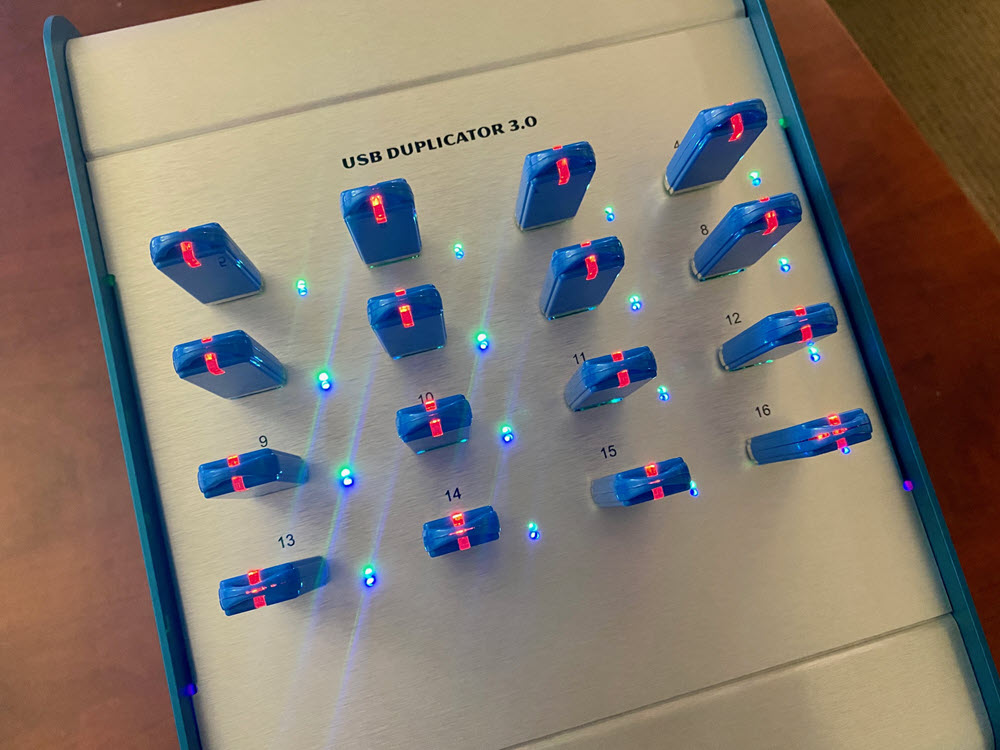
The USB duplicator in this review is a sixtenn target USB 3.0 duplicator manufactured by Nexcopy. This model was selected because it was the most popular in search results, and honestly – looks best for an office setting. This system will make sixteen copies at 1GB under a minute; which translates to 16 copies in less than five minutes. The dual-layer DVD mentioned above would be 9 minutes to make 16 copies. Clearly a USB duplicator is more efficient than a DVD duplicator.

OVERVIEW

Nexcopy’s model in today’s review is the USB160PC. This is a Windows computer based software and hardware solution which runs on Windows 7 or Windows 10. The copy speeds are the same as designated standalone systems. Below is a picture of the PC based system and the standalone system, both about the same port numbering (16).

USB Duplicator Nexcopy

The USB160PC uses software and provides six copy modes which a company can chose which copy method is best for their needs. Copy modes are:

  • File Copy
  • Copy Add
  • Device Copy – Data Only
  • Device Copy – Full Media
  • IMG Copy
  • Unique Data Streaming

We will cover the copy modes a bit later in the review.

The Drive Manager software by Nexcopy, has a data extraction feature giving the user the ability to extract data off the drive and make a data dump to a location on the host PC.

The PC based USB duplicator is fast and flexible to work with and provides excellent user feedback during the duplication process. The GUI (Graphical User Interface) ties in the obvious information such as USB flash drive total size, bytes used, percentage done during duplication and pass/fail response. Nexcopy uses their own Drive Manager software (trademarked) and provides lifetime software support and updates for free.

The GUI does an excellent job of identifying the USB device shown in the software with the USB socket on the duplicator. This is one problem with any home-grown duplication system, like connecting flash drives to a USB hub – the only way to identify a drive is by disconnecting it until you’ve found the one in question. The USB160PC gives you the tools to quickly identify each USB drive connected.

drive manager software by nexcopy

The bonus information from Drive Manager is the second tab of the GUI. This page shows the device serial number, the VID (Vendor ID) the PID (Product ID) and device descriptor information. The tech folks will appreciate this feature.

HARDWARE

For this USB duplicator review we weighed the duplicator box and it came in just under 5 pounds – so portable! Two LED for feedback along with the GUI software. Blue LED shows power to the socket and green LED displays activity of the device (will blink when reading or writing data). The GUI will provide performance feedback and status about the copy job and process. The power supply is auto-detecting and will automatically work in a 110v or 230v environment, no need to make a manual power setting switch with the physical box. The USB duplicator has a 5v fan on the back side to provide air flow for cooling; although we didn’t experience any heat during testing and operation.

The power supply inside is a 150watt MeanWell brand power block, which is a brand used by medical companies so power will never be an issue. This also means the 150watt power supply can support 16 USB hard drives.
usb copier by nexcopy

Continue Reading

This USB Stick Can Backup Your Phone Pics

There are two popular methods to get large videos off your iPhone.

The most common problem is having a large video on your iPhone that you need on your computer. Email programs usually limit file sizes to around 20 MB, so if the file is larger, what can you do?

Two popular options come to mind: using QuickTime or using a USB flash drive.

Option #1

Use QuickTime. Macs already include QuickTime in the operating system, but Windows users must install it. Before choosing this as your preferred method, here are a few things to consider:

  • You must back up your iPhone through QuickTime before accessing the video
  • You need an authorized computer to perform the backup
  • Windows users must download and install QuickTime
  • QuickTime is an invasive program that many Windows users dislike
  • This is not a portable way to move videos off your iPhone
  • However, this is a free solution

Option #2

Use a flash drive.

Yes, you need to purchase a specific flash drive, but after this one-time investment it becomes far easier to move videos off your iPhone. Some advantages worth considering:

  • Transfer large videos without using a PC
  • Share videos immediately with another user’s computer
  • Use the drive as external storage for video backups

Point number one is really the value in all of this ?.

While you won’t be able to make the transfer immediately without the hardware, once you have the USB device the process is quick and repeatable.

Certain USB drives include software that works with iOS, allowing files to be copied directly from the phone to the drive. The device tested here is the SanDisk iXpand flash drive with 128 GB capacity, which typically costs around $40.

SanDisk iXpand flash drive for iPhone

The process is very straightforward:

  • Download the iXpand app from the Apple App Store
  • Connect the flash drive to your iPhone
  • Select the files you want to transfer
Continue Reading

Vaccinate Yourself From Ransomware — For Free

Ransomware warning graphic

We all know what ransomware is — a type of malware that threatens to publish a victim’s data or permanently block access to it unless a ransom is paid. In most cases, ransomware encrypts the user’s files, and only after payment is made will a decryption key be provided to restore access.

One way to avoid paying a ransom is to restore data from a recent backup. If a company configures its backup software to run nightly, this can be an effective way to recover original files after an attack.

However, there is an even simpler preventative measure: making your PC appear “friendly.” A friendly PC is one that ransomware identifies as a system it should not infect.

To create a friendly PC, use the Windows language settings to install the Russian keyboard layout. When this language option is enabled, most ransomware software will recognize the system as one it should avoid and will not execute the attack.

This language feature is available in Windows 10 and Windows 10 Pro. We do not believe the language option is available in the Windows 10 Home edition.

Learn more about ransomware on Wikipedia.

Continue Reading

40TB Expansion Solution – Not Much When Viewed Like This:

Seagate offers a 40 TB expansion solution that is truly plug-and-play. At first glance, 40 TB may seem excessive, but when you break it down into real-world usage and modern content demands, it may not be as much as it sounds.

Seagate 40TB expansion storage system

To illustrate the point, consider a family of four — two parents and two young children, ages two and five.

At that age, video recording happens almost daily. If it doesn’t, those parents are missing out on moments that are nearly impossible to recreate later.

Using an iPhone set to record video at 4K resolution and 24 FPS (frames per second), a one-minute video consumes roughly 270 MB of storage. If a parent records a four-minute video once per day for a year, that results in about 360 GB of data — roughly one-third of a terabyte.

Before continuing, it’s worth noting that the Seagate solution includes software that automatically syncs mobile devices with the storage system. Large videos can be difficult to move off an iPhone without a cloud or streaming backup service, and Seagate provides that capability. We also published an article covering manual transfers using a SanDisk USB iXpand device.

Given the age of the kids, a four-minute video is probably short for whatever funny or chaotic moment is unfolding. Rounding up to ten minutes of video per day, per parent, puts daily storage consumption at roughly 5.5 GB.

You could reduce resolution from 4K down to H.264, but who really wants to do that? High-resolution video is useful for editing, and five years from now today’s 4K footage may feel low resolution.

As the kids get older, they’ll start contributing their own videos to the Seagate storage system. The examples could go on, but the takeaway is simple: as technology improves, the amount of storage required to preserve our digital content grows right alongside it.

As a closing thought, consider how difficult and time-consuming it can be to migrate data from one storage device to a newer, larger one. While a 40 TB expansion may feel like a big purchase today, upgrading from a smaller system later often takes longer — and is more painful — than expected.

Seagate external expansion storage enclosure

Continue Reading

A Quadrillion+ Swivel USB Flash Drives Fit Inside the Empire State Building

Empire State Building

The Empire State Building stands at a total height of 1,454 feet, with an interior volume of about 37 million cubic feet.

If you take a swivel USB flash drive (the world’s #1 selling body style) measuring roughly 57 × 19 × 10 mm, it is theoretically possible to fit about 17,760,000,000,000,000 quadrillion flash drives inside the Empire State Building.

Would this be a good conversation starter at a cocktail party?

Ref: Wikipedia

Continue Reading

The Difference Between USB Splitter and USB Hub

GetUSB.info researches USB products every day from every corner of the internet. While we don’t publish every finding, the research continues with a focus on delivering value to our visitors.

Over the past six weeks, we’ve seen an increasing number of products described as a USB splitter. This trend makes it worth explaining what a USB splitter actually is — or more accurately, what it is not.

A USB splitter does not split a USB signal. The most common use of the term “splitter” comes from telephone hardware, such as a phone splitter for an analog signal. In that case, a single phone line can be split so the same analog signal reaches two phones at the same time. USB does not work this way — at all.

What many sellers call a USB splitter should actually be called a USB hub. A USB hub consists of one upstream port and multiple downstream ports. The upstream port carries the incoming signal, while the downstream ports make that signal available to connected devices. The key phrase here is “available,” because not all ports can receive or use the same upstream signal simultaneously.

For example, if audio is playing from your PC to a USB speaker, a hub will not automatically split that audio signal to multiple USB speakers connected to the same hub. The same limitation applies to video and data. USB signals cannot be automatically duplicated across multiple devices.

Calling a USB hub a USB splitter is a poor choice of words. In fact, we consider this a red flag and a reason to avoid buying products from suppliers who use misleading terminology to describe basic USB hardware.

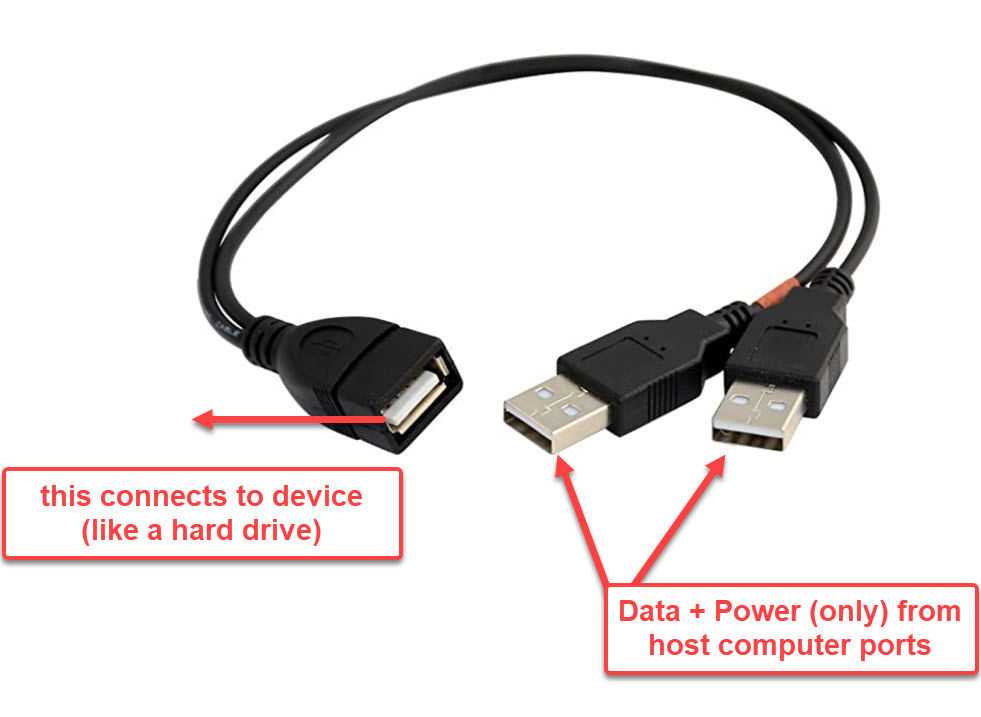
The closest thing to a true “splitter” is a USB Y-cable. A USB Y-cable has two connectors on the upstream side and a single connector on the downstream side. However, both upstream connectors do not transmit data. One connector provides both data and power, while the second connector supplies additional power only.

This configuration is commonly used with external hard drives (traditional disk drives, not solid-state drives). The purpose is to draw additional power from the host computer using two USB ports and deliver that extra power to the external device.

USB Y-cable with dual USB Type-A connectors for additional power

As shown above, the idea is to connect the two USB Type-A connectors to two USB ports on the host computer, while the single USB connector attaches to the peripheral device. This setup allows the device to receive additional power beyond what a single USB port can provide.

Continue Reading

A USB Flash Drive Which Cannot Get a Virus

A computer virus is something we all strive to avoid because we understand the consequences and the amount of time and energy required to restore a computer to its original condition. In a recent poll by GetUSB.info when asking users to name the top three ways a computer can get a virus, they responded with:

  • Link from an email
  • Link from an unsecure website
  • USB flash drive

However, if Nexcopy has anything to do with the last answer, a computer virus which spreads by USB flash drive will be a thing of the past.

Nexcopy is a US company based in Southern California who specializes in flash memory duplication equipment, printers, FDA compliant flash drives, copy protection and now a road-blocking malware on flash drives.

USB drive cannot get a virus

A virus will spread via a USB stick because the device is writable. In fact, any device that is connected to a computer which is writeable could spread a virus; other devices such as external hard drives, SD cards, microSD cards, etc. all have the same potential for harm.

But what happens when you turn these storage devices on their head and not allow them to be writable in the first place? This simple yet obvious solution is a gigantic step in the right direction for controlling the spread of a virus via USB.

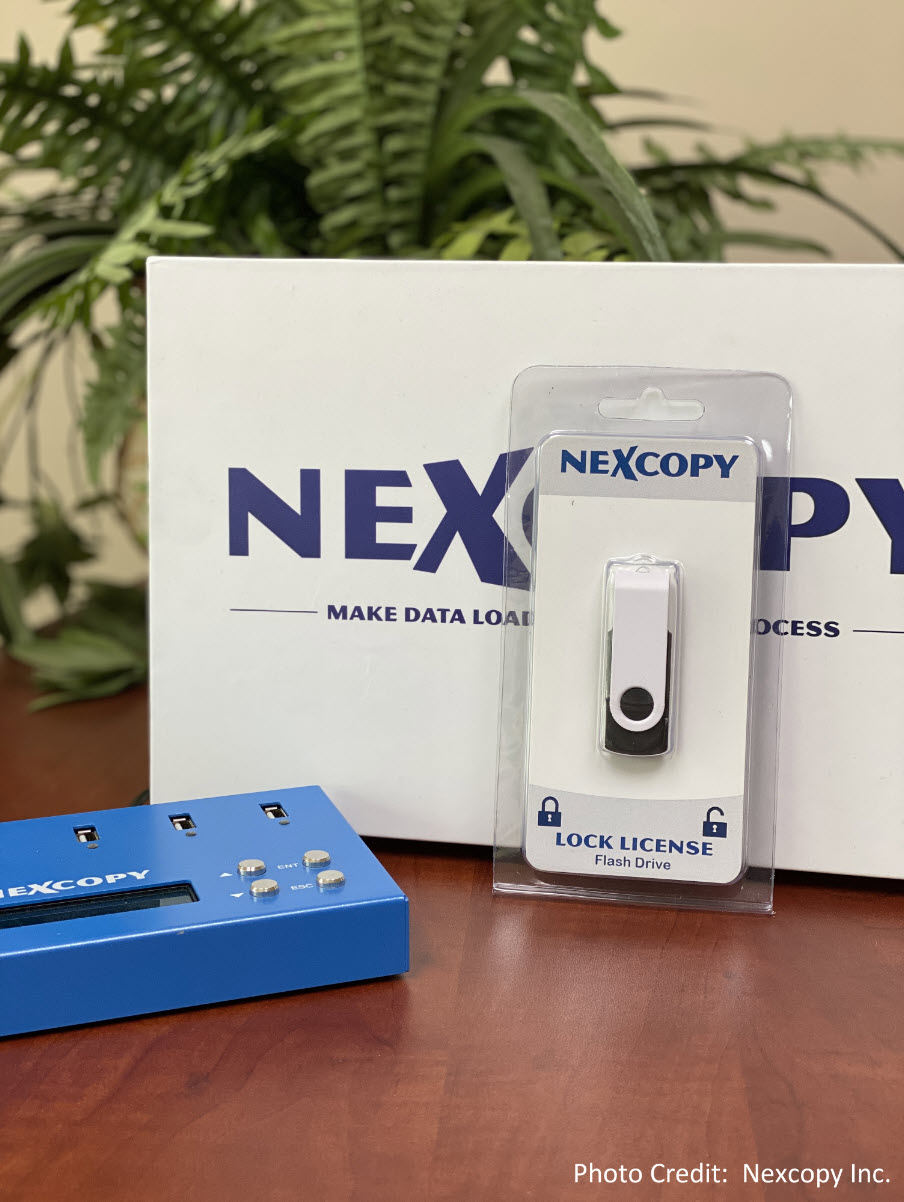
The Lock License flash drive designed and manufactured by Nexcopy is exactly that. The Lock License drive is a USB stick which is always write protected. The device doesn’t care what it’s plugged into, or when, or how, the Lock License drive will always be read-only.

A virus will spread in a very specific way. A virus is designed to scan newly connected devices and ping them to see if they can spread (if the device is writable). A new device is defined by any computer system when “power” is assigned upon connection, which, coincidentally is the same time the virus will try and spread.

Continue Reading

Copyright

Copyright © 2006 +

USB Powered Gadgets and more...

All Rights Reserved

Advertise with us

GetUSB Advertising

This is a high value website providing great exposure to your product and brand. Visit our advertising page to learn specifics.

For more information
Visit our advertising page.

Nexcopy Ad

Nexcopy Provides

USB copy protection with digital rights management for data loaded on USB flash drives.

Contact us learn more

Resources and References Page

Resources and References Page