GetUSB.info Logo

Posts Tagged ‘flash drive’

USB Flash Drive Speed Test – Built Free in Windows

Did you know Windows 10 has a speed test feature you can easily run from the CMD prompt?

This feature is what many USB flash drive speed test applications call upon during their operation. Some people feel uncomfortable downloading software from an unknown source, so this article will explain how to use Windows features everyone already has for checking the speed of a USB flash drive, or any storage device.

TIP: The company which owns this website (Nexcopy Inc.) took the below information and wrapped it into a GUI (Graphical User Interface). The free GUI is easier to use because you can click a button rather than type in commands in the CMD prompt window. We baked in a couple extra USB benchmark speed features {wink}. Our free GUI version is here.

Every flash drive manufacturer claims a particular read and write speed of their flash drive and this is a great tool to verify what you purchased is what you received. It’s been said manufacturers will manipulate their computer environment to optimize the performance and use those optimized results as their marketing material. This could be true when a manufacturer is trying to determine the maximum performance, so let’s take a look now at benchmarking a standard environment.

The read and write speed of a flash drive will depend on the USB port one is using during the test. You will see a performance difference between a USB 2.0 and USB 3.0 device that is connected to a USB 2.0 or USB 3.0 socket on your computer. So take note about what you are doing!

After you’ve connected the USB drive to your USB port, take note of which technology they are, and be sure no data is on your drive. Although this Windows utility did not remove our data during testing, one can never be too sure.

In Windows type CMD into the search field.

Please be sure to use the Ctrl + Shift keys when you click the Enter key. This will run the command prompt at the Administrator level. You want to run this at the Admin level because if you don’t, a separate window will pop up during the testing process and immediately disappear with the process is done… taking the speed test results with it!

USB Flash Drive Speed Test, free in windows

Once you’ve opened the command prompt at the Admin level, type the following:

winsat disk -drive d (where d is drive letter)

Windows will perform it’s task and should take about one minute to complete. The results will be printed out in the console window once everything is complete. Take note from our example below. This is a 64GB drive which we connected to both a USB 2.0 socket and a USB 3.0 socket. You can see the performance difference.

The information you want are:

  • > Disk Sequential 64.0 Read
  • > Disk Sequential 64.0 Write

benchmark USB speed test, USB Flash Drive Speed Test

Nice feature, right? Free and immediately available.

For those who don’t want to go this far, you could always take a large file, say 100MBs or larger and drag-and-drop this to your USB flash drive for speed testing. Just look at the copy process window and you’ll get a fairly good idea of device speed.

USB stick Speed Test

It’s important to remember flash drive media does not copy at sustained transfer speeds. The speed process does move around during the copy process; however, the read process is more stable and should happen at a more sustained transfer speed. We’ve seen drives drop down to 1MB/second for a short bit, before jumping back up to 30+MB/second write speed.

Continue Reading

Quickly Eject USB Flash Drive in Windows

Microsoft updates for Windows 10 seem endless. Most users don’t bother reading the update notes about what has changed or been added — myself included.

Today, we noticed the eject feature in the Windows taskbar that allows you to quickly unmount USB flash drives.

This isn’t breaking news — just a quick post about a feature you may not have noticed.

How to quickly eject a USB flash drive in Windows:

Click the access arrow in your taskbar.

Windows taskbar access arrow showing USB eject option

Hover over the USB icon and click it.

A list of connected devices will appear. Hover over the USB flash drive you want to eject and click it.

Windows USB device list showing eject option

That’s it. Your USB flash drive is now safely ejected.

Windows notification confirming USB device ejection

Continue Reading

How To: Watch Video, Play Music on PS5 from USB Flash Drive

Like the PS4 before it, the Sony PS5 allows you to play music and video directly from a USB flash drive through the console. The process is straightforward, but a few practical reminders can help everything run more smoothly the first time you set it up.

The PS5 supports MP3 audio and MP4 video playback from a USB flash drive. While the console is capable, it does not support every audio or video format available. To avoid compatibility issues, stick with widely supported formats—MP3 for audio and MP4 for video—and you should have no trouble.

It’s also worth noting that the PS5 supports the same media formats as the PS4 family and plays video at resolutions up to 3840 × 2160 (4K). Attempting to play 8K video files will not work, as the PS5 does not currently support 8K output.

Pro tip: organize your MP3 audio and MP4 video into folders before copying them to the USB flash drive. The PS5 uses folder structure to create playback order, effectively treating each folder like a simple playlist. While this requires a bit of manual organization, it makes browsing and playback far more manageable. For example, separate folders by artist, album, or video type.

When playing media from a USB flash drive, video and audio are accessed from different areas of the system interface.

Do not use the Media section. That area is reserved for streaming content and media purchased through the PlayStation Store.

To watch video, long-press the PS Button and select Media Gallery from the main menu. Then navigate to USB on the far right. Video files can only be accessed through this path.

PS5 Media Gallery USB selection screen

Navigation follows this basic path:

PS5 Home ? Media Gallery ? USB

Files within each folder are indexed in order, similar to a playlist. You can use R1 and L1 to skip between files, while the left and right directions on the D-Pad allow for smaller, chapter-style skips within a video.

To play audio, press the PS Button once to open the Control Center quick bar, then select the Music icon. The interface is fairly minimal, but it gets the job done.

Music playback can continue in the background while you navigate menus or play games. Once music is playing, you can pause tracks, skip songs, or adjust playback directly from the Control Center without interrupting gameplay.

Continue Reading

Disk Signature Collision While Cloning

Microsoft Windows has been sending out updates which have created some problems for those cloning mass storage devices like USB flash drives and USB hard drives. This article should help you resolve those issues.

The Disk Signature is a unique ID Windows will assign to a device inside the Master Boot Record or MBR. The disk signature is 6 bytes long and sits in the first sector of the mass storage device. The disk signature becomes a problem for those cloning flash drives or hard drives with either a software utility or a large duplication equipment like a USB duplicator. The disk signature compounds itself if a multi-partition device is being cloned.

Many times a multi-partition device is created in Linux and at the time of create only one disk signature is assigned to the physical device. However, if multiple units of those copies are put in a Windows computer, Windows will try and assign a disk signature to each partition. This will cause a collision.

There are different situations one could have a disk signature collision, so this is only one example.

GetUSB.info did a write up about this a couple months back, here is the full blog post:
https://www.getusb.info/only-1-usb-drive-can-be-use-others-are-ignored/

In addition, we found the following website which does a fantastic job about how one would edit the disk signature using a hex editor:
http://www.multibooters.com/tutorials/view-and-change-disk-signature-in-mbr.html

Continue Reading

How To – View Linux Files on USB Flash Drive

This article explains how to view Linux files stored on a USB flash drive when it is connected to a Windows 10 computer.

This situation is more common than many people expect. As of 2020, roughly 25% of computers run some form of Linux. Because of this, there is a good chance you will eventually receive a USB flash drive formatted on a Linux system that you need to access from Windows. This guide walks through the steps a Windows user can take to read a Linux-formatted USB flash drive.

Linux commonly formats USB flash drives using ext2, ext3, or ext4 file systems. These formats are native to Linux and are optimized for reliability, permissions, and journaling. While Linux can also read and write FAT32 or exFAT, ext-based formats are preferred for system tools, bootable media, and application data.

When a USB drive formatted as an ext file system is connected to Windows, the operating system will usually prompt you to format the drive. Do not format it. Formatting will permanently erase the data. Try the steps below first. You may also find this related guide helpful: best practices for formatting USB flash drives.

Follow these steps to access a Linux-formatted USB flash drive in Windows.

The first step may not be strictly required, but it is strongly recommended for improved compatibility.

In the Windows search field, type Control Panel and press Enter.

This opens the Windows Control Panel.

Click Programs, then select Turn Windows features on and off.

In the dialog box that appears, scroll down until you find Windows Subsystem for Linux and check the box. Click OK to apply the change and close the window.

Continue Reading

How To Copy Protect PDF Files

How to Copy Protect PDF Files Outside Adobe Ecosystem

This article will overview how to copy protect PDF files outside of the Adobe ecosystem. A couple of things worth mentioning before getting into the details:

  • Encryption is different than copy protection. Encryption is a technology solution where the PDF owner assigns a password to the document and after the user enters that password the user can do anything they want with the file. Print, share, screen capture, etc. The idea for encryption is the document being unattainable until a password is entered.
  • Copy protection does not use a password and anyone can see the file. However, the file cannot be copied, printed, shared or screen captured. The idea behind copy protection is the PDF being viewed by anyone, but nothing can be done with the file. When people are searching for PDF copy protection, this is the solution most likely sought after.

Challenges with PDF Security and Copy Protection

PDF or Portable Document Format is an open standard. What this means is the document format was designed to be used in just about any document reader program. The goal for the PDF specification was to make the format as universal as possible. For this reason, it is a bit more difficult than one would think to copy protect a PDF file.

Windows comes pre-installed with Adobe Reader. In addition, Windows has embedded Adobe API code to read PDF files. Even if Adobe Reader was not installed on your computer, or uninstalled, the underlying code is still there to open a PDF. In additional to Adobe Reader (#1 PDF reader in the market) there are dozens of additional PDF reader programs. Again, the goal for all these readers is to open and read a portable document file.

Adobe copy protection solutions are very well known for being cracked. If you Google “Adobe copy protection crack” you will find pages of ways the Adobe security features are compromised. Here and here are two examples of Google search results with web pages dedicated to hacking.

The fundamental problem with copy protection are the lack of controls when viewing a PDF. Meaning a PDF content owner (you) does not have the control over Adobe Reader, or other programs, to stop the user (your client/customer/student) from printing, screen grabbing, sharing and saving.

The idea behind a PDF copy protection solution is a framework where the PDF can be opened and viewed, while you (the content owner) maintains control of the document.

Of course Adobe Reader, FoxIt Reader and others, will not provide the tools to block a user from printing or saving from within their program. In contrast, we need a “reader” or “viewer” with controls to block those functions.

With this in mind, it is difficult to provide a reader with these security functions. Most users who receive a PDF do not want to download and install another program just to read a PDF file. The ease and beauty of a PDF gets lost in that process. No longer is the PDF a portable document format. In addition, a software program that can be downloaded to view a PDF can also be downloaded by a hacker to be reverse engineered. There needs to be something more than just a secure reader/viewer to control the PDF.

The most secure way to copy protect a PDF file is to associate it with something physical. There are some software (only) solutions, but those are not as secure as a solution with something physical.

Continue Reading

How To: Check if My USB Flash Drive is Bootable?

The following article will explain how to check your USB flash drive for if it’s bootable. There is no software needed, no download, just a couple of simple commands in your Windows 10 operating system.

A master boot record (MBR) is a special type of boot sector at the very beginning of a partition storage device like a fixed disk (hard drive) or removable drive (USB thumb drive). The MBR contains executable code to function as a loader for the installed operating system. This loader turns over the functions of the hardware (mother board bios) and passes that loading responsibility off to the operating system (Windows).

This is how you check if your USB is bootable, or not:

First, please have only the one USB stick connected which you want to check if it’s bootable. It’s not required to do this, but will my the instructions below a bit easier to follow, that’s all.

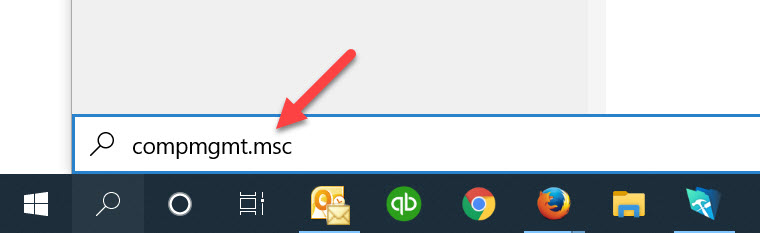
Using the Windows search function copy and paste this into the search field and click Enter

compmgmt.msc

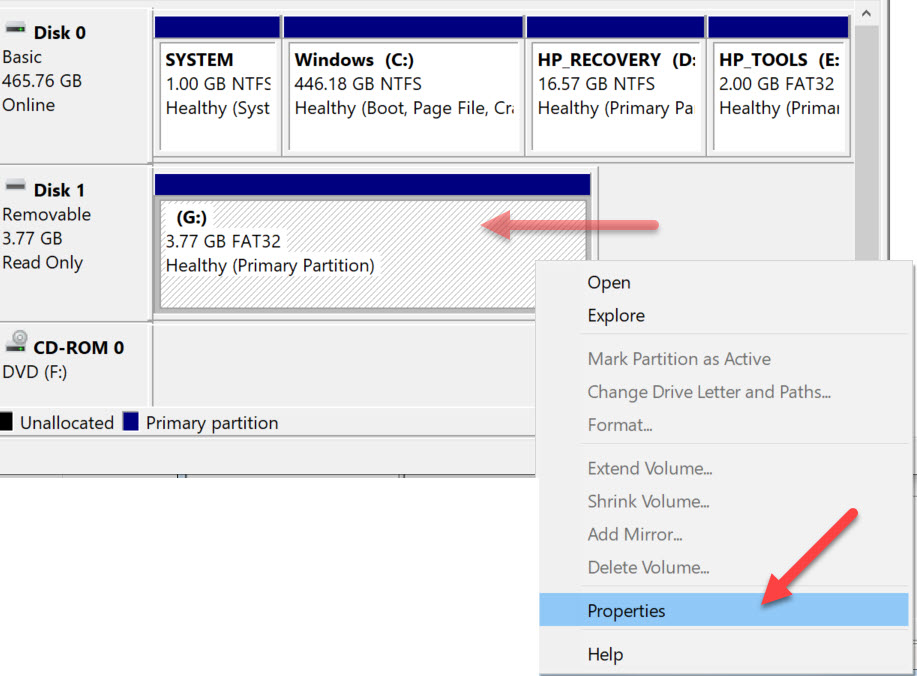
The screen shot below will pop up after you click Enter. Using the image as a reference, select “Disk Management” under the “Storage” folder“. In the middle of the dialogue box you will see the drive letter associated with your USB flash drive. In the middle of the box you will probably see the USB listed two different times. The top portion of the box, the USB will be listed along with other devices, like your hard drive and optical drive. The bottom portion of the box, the USB will be shown as “Removable

Once you’ve determined which drive letter is your USB drive, you may Right Click on the drive letter and select Properties.

A Properties dialogue box appears giving you the option to select any one of the devices show in the previous window (the Disk Management window). From this dialogue box, click the Hardware tab and select the “Mass Storage USB Device” by a single click. Then click the Properties button at the bottom.

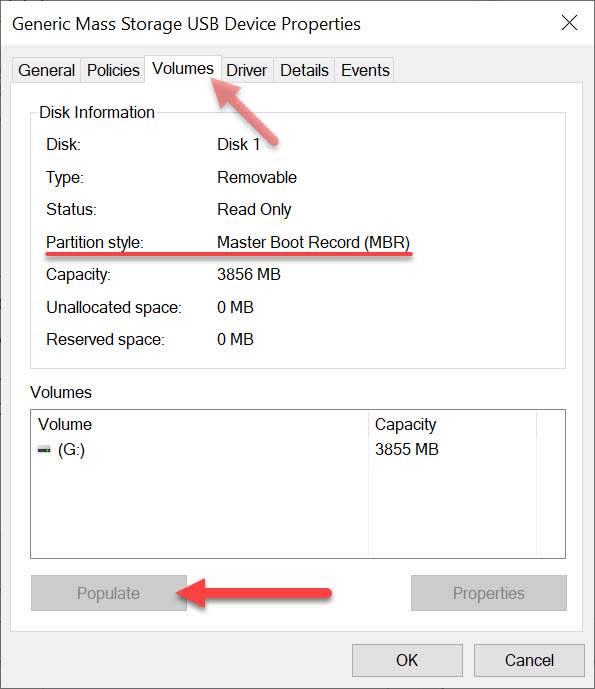
The last dialogue box are the Properties of your specific flash drive.

Click the Volumes tab at the top, you then must click “Populate” to get the device information. . The “Partition Style” will read either Master Boot Record (MBR) or the field will be empty.

If the above information isn’t detailed enough for the information you are looking for, the next step is to use a hex editor and check if the boot strap code is actually in the Master Boot Record. This is a bit more detail and the guys at Hakzone did a really good job of summarizing how this would be done using a hex editor program.

Continue Reading

What Is The Lifespan of a USB Flash Drive?

The lifespan of a USB flash drive depends on three main factors. In general, a flash drive will last much longer than most people expect. Below are the key elements that influence its durability.

Factors That Affect USB Flash Drive Lifespan

  • How the drive is made
  • Wear leveling technology
  • How the drive is treated

USB flash drives are largely commodity products driven by the lowest price. Manufacturers often cut corners to reduce costs. Understanding the quality of the device you’re using is essential for reliable, long-term storage.

1. How the Drive is Made

A USB flash drive consists of five main components: the PCB (printed circuit board), flash memory, USB controller, supporting components, and soldering that holds everything together.

Printed Circuit Board (PCB)

Many promotional USB drives use a two-layer PCB to save costs. However, the USB specification requires a four-layer PCB for proper grounding and interference-free data transmission. A two-layer board is more likely to experience performance issues. If you received a USB stick from a trade show, avoid using it for long-term or critical storage.

Example: A four-layer USB flash drive by Nexcopy with Micron memory offers write speeds of 12MB/s.

What Is The Lifespan of a USB Flash Drive?, USB flash drive PCB with NAND memory

Flash Memory Quality

USB drives often use downgraded NAND memory. High-quality NAND chips go to phones, set-top boxes, and other premium devices first. Lower-grade chips are repurposed for USB sticks. A 512MB USB drive may have gone through several downgrades, making it unreliable.

Quick Test: For USB 2.0, a good-quality drive should have a write speed of at least 9–10MB/s. For USB 3.0, look for 18–20MB/s or higher. Slower speeds suggest lower-quality silicon struggling with phase changes during data writes.

USB Controller

The controller is the “brain” of the flash drive, managing communication between the host computer and NAND memory. The quality of the controller and its firmware significantly affects drive performance and longevity. Firmware determines whether the device prioritizes speed, capacity, or compatibility with specific NAND chips. Unfortunately, it’s impossible to test this without knowing the manufacturer and their firmware configuration quality.

Device Components

Capacitors and resistors are typically reliable due to mature manufacturing processes. However, cost-driven production may result in lower-quality components, which can slightly reduce lifespan over time.

Soldering Quality

Poor soldering or the use of hot glue instead of precision solder joints can lead to device failure. If you’re curious, you can open a USB casing to inspect build quality. Sloppy soldering is a red flag for long-term reliability.

USB flash drive with USB controller, What Is The Lifespan of a USB Flash Drive?

2. Wear Leveling Technology

Wear leveling is a firmware-based algorithm that evenly distributes write and erase cycles across memory blocks, preventing premature failure of specific sectors.

  • Dynamic wear leveling: Maps data writes to unused blocks but ignores untouched areas, potentially shortening lifespan.
  • Static wear leveling: Periodically shifts data across unused memory areas, improving overall durability.

Thanks to wear leveling, modern USB flash drives can theoretically last up to 100,000 write cycles per individual memory block, not just per drive.

Learn more on Wikipedia.

USB wear leveling chart

3. How the Drive is Treated

Even a high-quality flash drive can fail if mishandled. Proper storage plays a huge role in lifespan:

  • For long-term archival storage, keep the drive in a safe, dry place away from physical stress.
  • A promotional flash drive or very small capacity stick (e.g., 2GB or less) is often unreliable for archiving important data.
  • Frequent handling, heat, and physical shocks can damage internal solder joints and components.

Final Answer: USB Lifespan

There’s no universal number for how long a USB flash drive will last. Quality manufacturing, proper wear leveling, and careful handling all extend its life. Under optimal conditions, data stored on a good-quality drive can remain intact for 15–20 years or more.

Continue Reading

USB Enumeration Fingerprint

Does the title of this article even make sense? Yes—but probably not to most people.

USB enumeration is the process a host computer uses to identify the type of USB device that has been connected and determine how the operating system should interact with the newly detected device.

The term “fingerprint” refers to the specific sequence of steps an operating system follows when determining the type and behavior of a USB device.

For roughly 99.7% of visitors to this site, this information won’t matter. For others, however, it is critical. The security industry is a prime example. If a security professional, development team, or programmer understands the exact steps an operating system takes to mount a USB device, they can better design and protect secure applications.

Andrea Barisani, a security researcher based in Italy, published open-source code that compares USB enumeration fingerprints across macOS, Windows, and Linux. The source code is available on GitHub (view here).

This code is particularly valuable for software developers working with USB flash drives, portable applications, or device-level security controls.

USB enumeration fingerprint comparison across operating systems

Continue Reading

How To: Scan USB Flash Drive With Windows Defender (Automatically)

You never know where a flash drive has been.

It’s always best to scan a USB flash drive before using it.

Did you know Windows Defender can be configured to automatically scan a USB flash drive the moment it is plugged in? Below are the steps to configure Microsoft Windows to scan USB drives automatically.

By default, Windows Defender is not configured to automatically scan removable drives when the operating system is installed. This is surprising, as malware spreading through USB flash drives remains a common security issue. The likely reason is user choice—automatic scans take time, and Microsoft leaves the decision up to the user.

This tutorial takes about three minutes to complete. Read through the steps first, then return and apply the settings when ready.

We are going to create a Group Policy rule that instructs Windows Defender to scan USB flash drives.

First, open the Group Policy Editor.

Press Windows Key + R.

Type gpedit.msc and press Enter or click OK.

Under Computer Configuration, locate and expand Administrative Templates.

Scroll down and expand Windows Components.

Continue scrolling until you find Windows Defender Antivirus, then expand it.

Group Policy Editor showing Windows Defender Antivirus settings

Locate the Scan folder and click it.

Scan folder within Windows Defender Antivirus policy settings

On the right-hand side, look for the setting labeled Scan removable drives and double-click it.

This setting is disabled by default. Select the Enabled option to activate automatic scanning for USB flash drives.

Click Apply, then click OK.

Enable Scan removable drives setting in Group Policy Editor

That’s it. Your Windows computer will now automatically scan USB flash drives using Windows Defender when they are connected.

Alternatively, you can insert a USB stick, right-click the drive letter, and select Scan with Windows Defender. The problem with this approach is the USB device may have already executed malicious code before you had a chance to initiate the scan.

Right-click context menu showing Scan with Windows Defender option

Continue Reading

Three Options For Recycling Flash Drives

The last two decades have ushered in an enormous expansion of electronic devices. Prices have dropped, users upgrade more frequently, and society reaps the benefits of rapid technological advancement. However, this explosive growth has also led to a surge in end-of-life (EOL) electronics and electronic waste (e-waste). When electronic devices are discarded in traditional landfills, toxic materials can leach into the soil and surrounding environment.

With the availability of inexpensive devices, society has gained tremendous benefits. This same growth in the electronics industry, however, has created a rapidly escalating problem of EOL electronics, commonly referred to as e-waste. In landfills or primitive recycling operations, toxic materials can be released from old electronic devices into the environment.

E-waste continues to grow, and with that surge comes the need for effective electronics recycling programs. As of 2018, e-waste became the fastest-growing waste stream in the world, with an estimated volume of 48.5 million tonnes and a material value of approximately 62.5 billion US dollars.

The amount of e-waste generated specifically from USB flash drives is not isolated in these statistics. Even so, it is not necessary to automatically include flash drives in the e-waste equation. There are practical options for reusing or recycling USB flash drives.

Option One:

Run antivirus software from a USB flash drive.

If your computer is infected with malware, running antivirus software from within Windows may not be enough to remove it. In cases involving rootkits, malicious software can hide itself from traditional antivirus tools. One proven way to remove deeply embedded malware is to boot the computer outside the Windows environment and perform the cleaning process from there.

This is where bootable antivirus solutions come into play. They operate independently of the infected operating system, preventing malware from running and interfering with cleanup. The HowToGeek website provides a clear overview of this process. If this is a tool you may need, consider repurposing an old USB flash drive instead of discarding it.

Option Two:

Run Linux from a USB flash drive.

As of 2020, Windows users still represented approximately 88% of desktop computer users worldwide. macOS users accounted for about 10%, with Linux users making up the remaining 2%. If you have never used Linux, it can be a surprisingly capable and flexible operating system. Instead of recycling a USB flash drive, you can install Linux on it and explore the platform at no cost.

The process is straightforward, and nearly any non-technical user can download and install a Linux distribution onto a flash drive. Slax is a well-known Linux distribution with simple installation instructions, making it a strong choice for first-time users.

Running Linux from a USB drive allows you to test the operating system without purchasing new hardware or making changes to your existing Windows installation.

This skill can also be useful during a computer failure. For example, if a system becomes infected with malware and immediate file access is required, booting into Linux from a USB drive can provide direct access to the hard drive without waiting for lengthy antivirus scans.

Option Three:

Recycle USB drives for a good cause.

“One person’s garbage is another person’s treasure.”

You can donate unused USB flash drives to organizations that repurpose them for educational and humanitarian use. Building on the Linux approach above, a non-profit organization called SugarLabs.org installs a Linux-based operating system onto donated flash drives. This specialized version of Linux is designed to help children learn how computers work. The organization distributes these drives to communities around the world.

SugarLabs Linux USB flash drives used for educational programs

SugarLabs is based in Boston, Massachusetts, and was founded by Walter Bender, a Harvard graduate and researcher from the MIT Media Lab. As part of the donation process, each USB drive is sanitized to ensure all personal data and malware are removed.

RecycleUSB.com manages the cleaning and preparation of donated USB flash drives before they are sent to SugarLabs. The RecycleUSB website outlines the donation process, contact information, and the data-sanitization steps used. The partnership between RecycleUSB and SugarLabs began in December 2009, when flash drives first became large enough to support portable operating systems.

If none of the above reuse options are suitable and you still plan to discard USB flash drives, check with your local community or municipality regarding approved e-waste programs. In most cities and counties, electronics should not be disposed of in standard trash. Instead, use certified recyclers participating in recognized programs such as R2/RIOS or e-Stewards to ensure responsible recycling.

Continue Reading

Does Erasing Flash Memory Shorten It’s Life?

Yes. Performing an erase or a "full format" shortens the life of the device. The erase function is also very slow. This matters more than most people realize because flash memory wear is cumulative and irreversible over time.

Here are some additional questions based on the answer above which we will address in today's post:

Is "erase" and "format" the same thing?

Erasing flash memory (a.k.a. setting all bits to 0, also called a "full format" by Windows) does more damage. Flash memory has a limited number of times that it can be written, and the more you write to it, the more it degrades. With an erase function, you're writing to the entire device.

With a format, all that's happening is changing a few bits at the front of the device to indicate the rest of the memory space on the flash drive is available to be overwritten. This preserves the life of the flash memory because the old data isn't being overwritten immediately—just flagged for reuse later. We've covered the broader implications of flash wear and longevity in more detail in our article on the life cycle of a USB flash drive.

Diagram illustrating erase versus format behavior on flash memory

Continue Reading

Copyright

Copyright © 2006 +

USB Powered Gadgets and more...

All Rights Reserved

Advertise with us

GetUSB Advertising

This is a high value website providing great exposure to your product and brand. Visit our advertising page to learn specifics.

For more information
Visit our advertising page.

Nexcopy Ad

Nexcopy Provides

USB copy protection with digital rights management for data loaded on USB flash drives.

Contact us learn more

Resources and References Page

Resources and References Page