
One Fix For: Windows Doesn’t Boot. Black Screen.
Windows doesn’t boot and all you’re seeing is a black screen after turning on the computer with the power button.
If this sounds familiar, read on.
Given this website is dedicated to USB (Universal Serial Bus) technology, here is a USB-related tip that could explain the black screen during boot.
Check your computer to make sure a USB flash drive is not connected at the time of power up. If you have a USB drive connected, disconnect it and try again. If this resolves the issue, then you likely have a bootable USB flash drive and your BIOS is configured to boot from USB. Both of these issues can be corrected.
The simple solution is removing the flash drive. But if you want to fix the problem permanently, there are a few steps you can take.
First, you can remove the boot code from your flash drive. Unfortunately, you cannot do this with a simple format or even a full format. You will need to clean the flash drive using DiskPart. This process wipes the device of boot code so it becomes a standard mass storage device rather than a bootable device.
Do the following (note: this will remove all data because the file allocation table will be erased):
- In the Windows search bar, type cmd
- From the Command Prompt window, type diskpart
- Type list disk
- From the list, identify the USB flash drive and its disk number
- Type select disk X (replace X with the correct disk number)
- With the flash drive selected, type clean
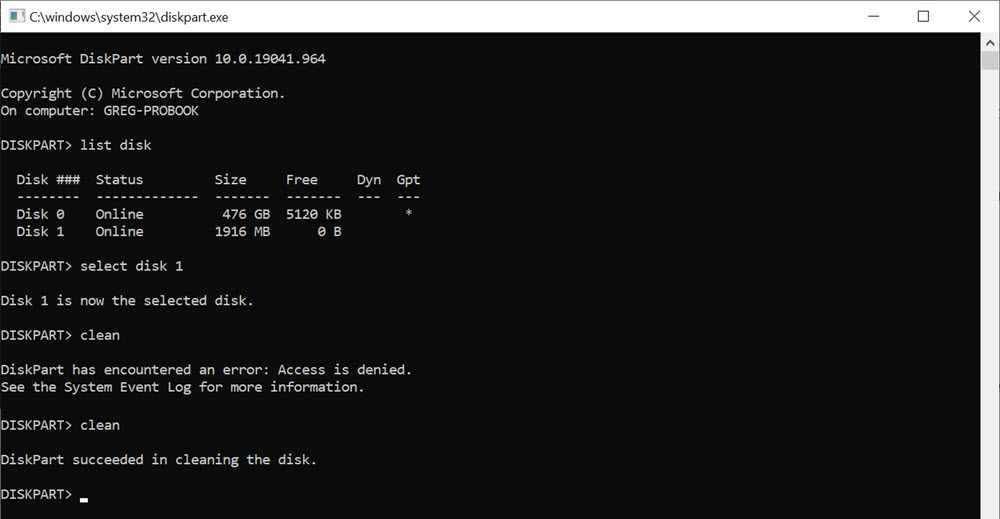
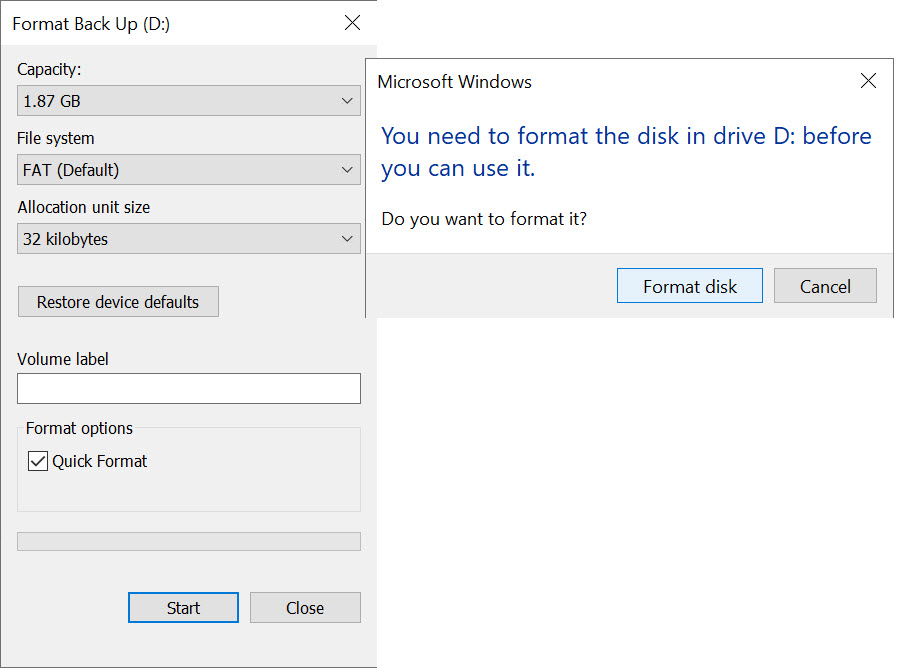
Your flash drive is now clean of boot code. However, the USB device is not yet ready for use. When you clean the flash drive, the file allocation table is removed, so Windows will prompt you to format the drive.
Navigate to your flash drive and attempt to access it. Windows will request to format the drive. Proceed with the format and the USB drive will then be ready for normal use.
The final step, if you want to fully resolve this issue, is to update the BIOS setting so the computer does not attempt to boot from a USB mass storage device by default. This step varies by manufacturer, and you may need to research the correct key to access BIOS during startup.
In this example, the Dell keyboard command to access BIOS is pressing the F12 key as the system powers on. Once inside the BIOS, locate the boot sequence settings and ensure the USB flash drive or mass storage device is not set as the first boot option. The first boot device should be the internal HDD or SSD (C: drive). The image below shows an example.
