GetUSB.info Logo

Posts Tagged ‘backup’

This USB Stick Can Backup Your Phone Pics

There are two popular methods to get large videos off your iPhone.

The most common problem is having a large video on your iPhone that you need on your computer. Email programs usually limit file sizes to around 20 MB, so if the file is larger, what can you do?

Two popular options come to mind: using QuickTime or using a USB flash drive.

Option #1

Use QuickTime. Macs already include QuickTime in the operating system, but Windows users must install it. Before choosing this as your preferred method, here are a few things to consider:

  • You must back up your iPhone through QuickTime before accessing the video
  • You need an authorized computer to perform the backup
  • Windows users must download and install QuickTime
  • QuickTime is an invasive program that many Windows users dislike
  • This is not a portable way to move videos off your iPhone
  • However, this is a free solution

Option #2

Use a flash drive.

Yes, you need to purchase a specific flash drive, but after this one-time investment it becomes far easier to move videos off your iPhone. Some advantages worth considering:

  • Transfer large videos without using a PC
  • Share videos immediately with another user’s computer
  • Use the drive as external storage for video backups

Point number one is really the value in all of this ?.

While you won’t be able to make the transfer immediately without the hardware, once you have the USB device the process is quick and repeatable.

Certain USB drives include software that works with iOS, allowing files to be copied directly from the phone to the drive. The device tested here is the SanDisk iXpand flash drive with 128 GB capacity, which typically costs around $40.

SanDisk iXpand flash drive for iPhone

The process is very straightforward:

  • Download the iXpand app from the Apple App Store
  • Connect the flash drive to your iPhone
  • Select the files you want to transfer
Continue Reading

iTunes Backups Suck Your Hard Drive Space – How to Fix It

The iTunes backups for your mobile iPhone device or iPad device will eventually suck up much of your hard drive space.  From the source article, this can be as much as 20% or more, depending on the amount of content iTunes is backing up.


To alleviate this problem, you can redirect your iTunes backup location to be an external storage drive, or a 2nd hard drive on your system.  By using a Windows symbolic link routine, you can take control of where the backup location will reside.

For this tutorial you’ll need to download NTFS Junction utility [free] and do some CMD prompt edits to bring it all together.  If you are not comfortable with the above, yet quest the solution, then I recommend getting someone a bit more knowledgeable with Windows to perform the task.

  1. So to begin, you need to download this free tool to create NTFS Junctions. (This is a tool provided by a Microsoft engineer on Microsoft’s website ironically enough)
  2. When you unzip that file, extract the junction.exe into the C:\Windows folder so that you can run in from anywhere.
  3. Next up, you need to move all of your existing backup files to their new location.  This could be secondary hard drive, or another partition, or even an external hard drive.  Before we move the files, make sure iTunes is closed.
  4. To move the files, open up a “My Computer” Window and type this into the address bar: “C:\Users\%username%\AppData\Roaming\Apple Computer\MobileSync” (without the quote of course) and press enter.  This should take you into your iTunes MobileSync Folder where the Backup folder is located.
  5. You need to right click on the Backup folder and select “Cut”.
  6. Now navigate to where you’d like your backups to be located.  For me, I wanted them on the D: drive in a folder I created called “iTunes Backup”.  Paste the Backup folder to this location.
  7. Next you need to open a command prompt.  To do this, click on the Start button and type in “cmd” (again, no quotes) and then press enter.  A black window should open up that looks like this.
  8. Now for the easy part, creating the junction.  All you need to do to create the junction is type in the word “junction” then the path to where Windows stores the files, then the path to where you decided to place your backup.  So for me, I typed in: Junction “C:\Users\onelson\AppData\Roaming\Apple Computer\MobileSync\Backup” “D:\iTunes Backup\Backup”  (Note that there are quotes around both paths since both paths contain spaces, these quotes are required).
  9. If everything worked correctly, the junction command should indicate that it created the junction

If you decide to use an external storage device be sure the device is powered on before you start the backup process.  Ya, some people are knuckleheads and will forget!

GetUSB.info did not write this tutorial, but we’d love to hear your feedback in our community.

Source:  TheiPhoneGuru.com.

Continue Reading

USB Cable Runs Your Back Up Software

Backing up your data is probably the #1 item most computer users neglect, ignore or simply don’t pay attention to.  Most times it’s because the software is too difficult or you don’t have the right storage device to back up your data [sat DVD, DLT tape etc].  Well, this article should change your mind.

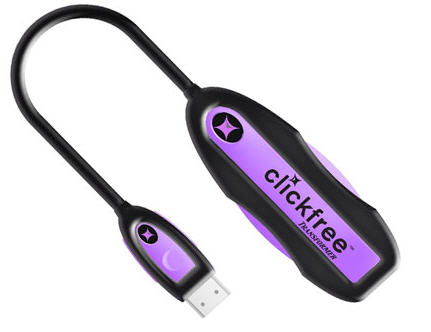
usb backup cable

ClickFree has a very unique and convenient solution for data backup.  Using their USB cable and embedded backup software [embedded on the cable] you can backup any computer to your USB hard drive, USB stick or anything else USB. No software to install or setup.  Works right out-of-the-box.  Just plug the Clickfree Transformer into the computer, then plug any external USB hard drive into the other end of the Transformer and it converts the external hard drive into a Clickfree backup drive.  Automatically starts, finds, organizes and backs up all of your data onto the external hard drive. The ClickFree software is robust enough to support over 400 file types.  Here is the category breakdown for you: Continue Reading

Copyright

Copyright © 2006 +

USB Powered Gadgets and more...

All Rights Reserved

Advertise with us

GetUSB Advertising

This is a high value website providing great exposure to your product and brand. Visit our advertising page to learn specifics.

For more information
Visit our advertising page.

Nexcopy Ad

Nexcopy Provides

USB copy protection with digital rights management for data loaded on USB flash drives.

Contact us learn more

Resources and References Page

Resources and References Page