
How To – View Linux Files on USB Flash Drive
This article explains how to view Linux files stored on a USB flash drive when it is connected to a Windows 10 computer.
This situation is more common than many people expect. As of 2020, roughly 25% of computers run some form of Linux. Because of this, there is a good chance you will eventually receive a USB flash drive formatted on a Linux system that you need to access from Windows. This guide walks through the steps a Windows user can take to read a Linux-formatted USB flash drive.
Linux commonly formats USB flash drives using ext2, ext3, or ext4 file systems. These formats are native to Linux and are optimized for reliability, permissions, and journaling. While Linux can also read and write FAT32 or exFAT, ext-based formats are preferred for system tools, bootable media, and application data.
When a USB drive formatted as an ext file system is connected to Windows, the operating system will usually prompt you to format the drive. Do not format it. Formatting will permanently erase the data. Try the steps below first. You may also find this related guide helpful: best practices for formatting USB flash drives.
Follow these steps to access a Linux-formatted USB flash drive in Windows.
The first step may not be strictly required, but it is strongly recommended for improved compatibility.
In the Windows search field, type Control Panel and press Enter.
This opens the Windows Control Panel.
Click Programs, then select Turn Windows features on and off.
In the dialog box that appears, scroll down until you find Windows Subsystem for Linux and check the box. Click OK to apply the change and close the window.

Next, download the software that will allow Windows to read ext-formatted devices. You will use Linux Reader by DiskInternals, a free utility for Windows. Download Linux Reader here.
Linux Reader works by mounting ext-based file systems in a read-only mode by default. This is an important safety feature because it prevents accidental modification or corruption of Linux file permissions and metadata. While the software also offers paid options for writing data back to Linux drives, read-only access is sufficient for most users who simply need to retrieve files.

After downloading and installing the software, your Windows computer is ready to view Linux files. You may still see a Windows prompt asking to format the USB drive—click Cancel. Open File Explorer as you normally would, navigate to the USB drive letter, and you should be able to browse the Linux file system.
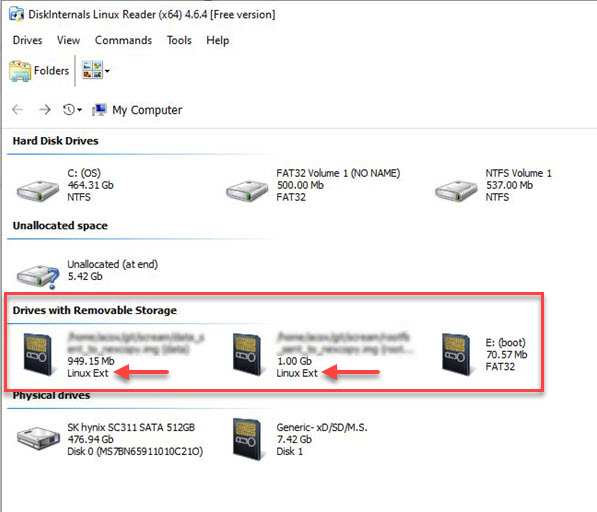
If the USB drive contains multiple partitions, Linux Reader will display each partition separately. This is common with bootable Linux USB drives or recovery media. Simply select the partition that contains user data to access files.
The entire process takes about five minutes and provides a reliable way to access Linux files on a USB flash drive from a Windows system without risking data loss or reformatting the device.
Tags: files, flash drive, linux, usb, view
