
How To Make a USB Read Only
There are two ways to make a USB read only. One method will make the USB read-only on anything it is connected to, so you could say this is a universal way of making a flash drive write protected.
The other way is a PC-specific solution where some registry edits are required on any computer the USB flash drive is connected to.
When we say 100% permanent, this means the USB stick is read only (write protected) on all devices, whether it be computers like a Mac, Windows PC, Linux box, or non-processor based products like a car stereo. This permanent solution also means the status of the drive cannot be changed. The other method flags a USB device to be read only in relation to the PC it is connected to, so whenever that USB stick is connected to that computer, it makes the USB read only and blocks all write commands to the device.
Most times an IT manager or content owner wants the USB stick to be read only so the files cannot be deleted or formatted off the drive. Another reason for making a USB read only is for the original files to remain the same and block the ability for files to be changed or manipulated. Finally, it’s smart to have USB drives set to read only so that viruses don’t jump onto the drive and possibly spread to other computers.
Let us start with the less permanent way because it’s easier to do and doesn’t require any specific hardware.
You will need a Windows 7 machine or higher. Windows 7 includes the DiskPart utility, which allows us to perform useful tasks on flash drives, like setting write protection.
- Connect the USB to your Windows computer.
- To begin, go to your Windows Start menu and in the search field type cmd.

This will run your Command Prompt.
- Next, you will want to get to the C root of the Command Prompt. If you are signed in as a user you can simply type cd\ – this will get you back to the root of the C drive.
- Type DISKPART.
- Type LIST DISK.
Now you will need to find the USB stick connected to your PC. Most likely it’s DISK 1.
- We must select the device we want to change the attributes for, so type SELECT DISK 1.
- To set the drive as read only, type ATTRIBUTES DISK SET READONLY.
- DiskPart will confirm the attribute was set and you can now type EXIT.

What we did here is create a registry entry on that Windows machine to always treat that flash drive as read only. As you can see, this is a simple solution that is PC-specific. In addition, if you use a registry cleaning tool like USB Scrub, that utility can remove the registry entry we just made and the user can once again do anything they want to the drive.
Another simple method to make files more permanent is to set individual files as Read Only. When a file on the USB stick is set to Read Only it blocks the user from deleting or modifying that file. However, this only works on Windows PCs, so if the USB is plugged into a Mac or Linux system, the files can still be changed.
Another easy way to make a USB drive read only is formatting the drive as NTFS. This is not recommended because the NTFS file system is what we call a dynamic file system and is always changing. This means the user must properly eject the drive instead of simply unplugging it. If you decide to format as NTFS, you would then modify permissions so all users have only Read Access. The workaround, however, is that a user can take ownership and restore Full Access.
So what about those USB drives that are permanently read only? No matter what you do, on which computer, you cannot remove the read only setting? The answer is this: the read only setting was done at the controller level.
What this means specifically is the USB controller chip on the flash drive controls what happens to the data on the flash memory. One feature the controller can perform is blocking the SCSI write command to the NAND memory. This is what makes the USB stick read only. The write command is blocked at the controller level. This means the setting exists within the USB stick itself and is not dependent on the computer telling the device what it can and cannot do. Instead, the device tells the computer what it will allow.
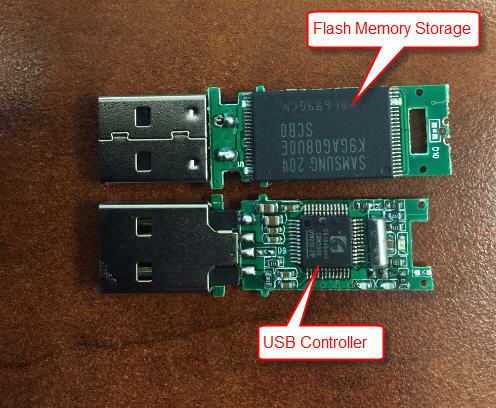
Unfortunately, there are a very large number of USB controller manufacturers, each using their own set of commands to block the SCSI write command. Because of this, there is no universal method to set the read only attribute across all USB flash drives.
There is hope! A permanent USB read only stick.
If you are reading this post you are probably trying to figure out how to make a set of flash drives read only for distribution or deployment to employees. You might even be looking for a way to turn write protection on and off so you can update software or installation files while keeping the drive read only the rest of the time. Wouldn’t that be nice?
A vendor offers a solution that does exactly this. They provide USB drives with the ability to turn the read only setting on and off through either a command line tool (which can be called from within your own software) or through a GUI (Graphical User Interface). The command line option allows your application to programmatically unlock and lock the USB drive at precise moments during execution.
If you are not a programmer and want to toggle the read only setting with a click of a button, there is also free GUI software that comes with the drives to manage these settings.
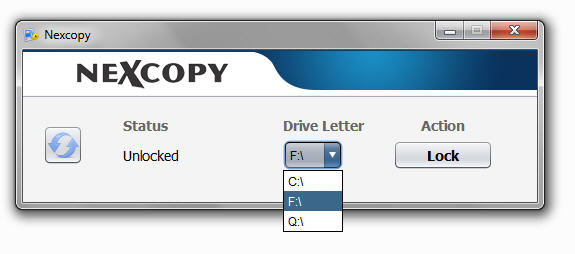

Nexcopy offers the drives in both USB 2.0 and USB 3.0 configurations, with capacities ranging from smaller 2GB models to much larger 32GB+ sizes.
We found the Nexcopy website through this resource: www.usbcopier.com, which does a great job explaining USB read only, USB CD-ROM partitions, and related topics.
Tags: nexcopy, Read Only, usb, Write Protect
