
How To: Add USB Flash Drive to Roku TV Getting Pause and Rewind Features
It’s not difficult to add some premium-style functionality to a Roku TV — such as pause and rewind — simply by adding a USB flash drive to your setup.
You’ll need to configure the Roku TV and the flash drive to work together, but the process is straightforward and only takes a few minutes.
To get close to 90 minutes of pause or rewind time, you’ll want to use a 16 GB or larger flash drive. Using something small like a 2 GB or 4 GB USB drive generally isn’t worth the effort.
One important limitation to note: the pause feature only works with the Live TV input. That means you’re limited to content coming in through an antenna or cable connection, not streaming apps.
If that sounds useful, here’s how to set it up.
What you’ll need:
- Roku Smart TV (not a dongle or external box — the Roku OS must be built into the TV)
- Live TV input (antenna or cable)
- Roku TV remote control
- USB flash drive, 16 GB or larger (USB 2.0 or USB 3.0)
Before you begin, make sure there is nothing on the USB flash drive. Roku will format the drive, and any existing files will be permanently erased.
Getting Started
Locate a USB port on your Roku Smart TV. Any USB port will work; they are typically located on the back of the TV. Insert the flash drive into the USB port.
From the Roku home screen, move the cursor until the Live TV tile is highlighted.
Do not select Live TV yet. Instead, open the Options menu. You can do this either by pressing the Gear (Settings) button on the Roku remote, or by pressing the Home button on the remote five times.

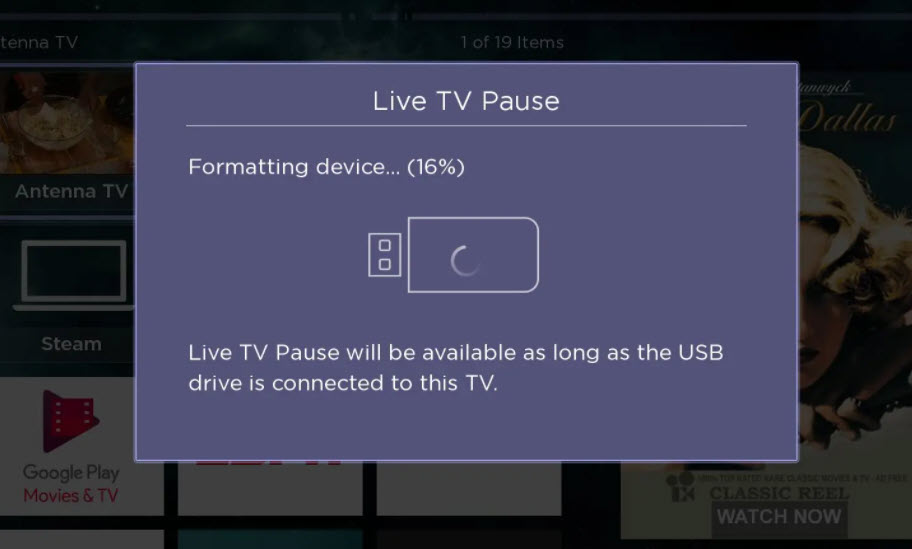
In the Options menu, select “Set up Live TV Pause” and follow the on-screen instructions. Part of the setup process includes formatting the USB flash drive so Roku can use it for pause and rewind buffering.
Roku will ask you to confirm the formatting process using a PIN. This step exists to make sure the action is intentional — once the drive is formatted, all previous data on the USB stick will be erased.
Done
Once Live TV Pause is enabled, you can pause live television using the Play/Pause button on the Roku remote. You’ll also be able to rewind live TV by up to about 90 minutes — plenty of time to step away for dinner and come back without missing anything.
Tags: flash drive, format, roku tv, usb
