Fix: Computer Will Not Boot With USB Device Plugged In
There is nothing worse than a blank screen after pressing the power button on your computer. Your heart sinks, your shoulders drop, and a sense of anxiety quickly sets in.
Why now? You have emails to check, orders to process, work to finish.
It always seems like computer problems happen at the worst possible time.
A quick glance at the computer reveals a USB flash drive sticking out of a USB port. Could this be the problem? You remove the USB device and restart the computer.
A few moments later, the system boots normally. So what happened? Why will your computer not boot with a USB device plugged in?
In this scenario, the explanation is simple. When the USB device is connected, the computer attempts to boot from the flash drive instead of the internal hard drive.
At some point in the life of that USB drive, it was made bootable and boot-strap code was written to it. Because the BIOS detects boot code on the device, it assumes the USB drive contains an operating system and attempts to start from it.
This does not mean every flash drive will cause this issue. Only USB drives that were previously made bootable can interfere with startup. Most standard flash drives are not bootable by default.
The other important factor is that the BIOS may be configured to check USB devices for boot media before checking the internal hard drive. This is often intentional, as it makes system recovery easier when troubleshooting.
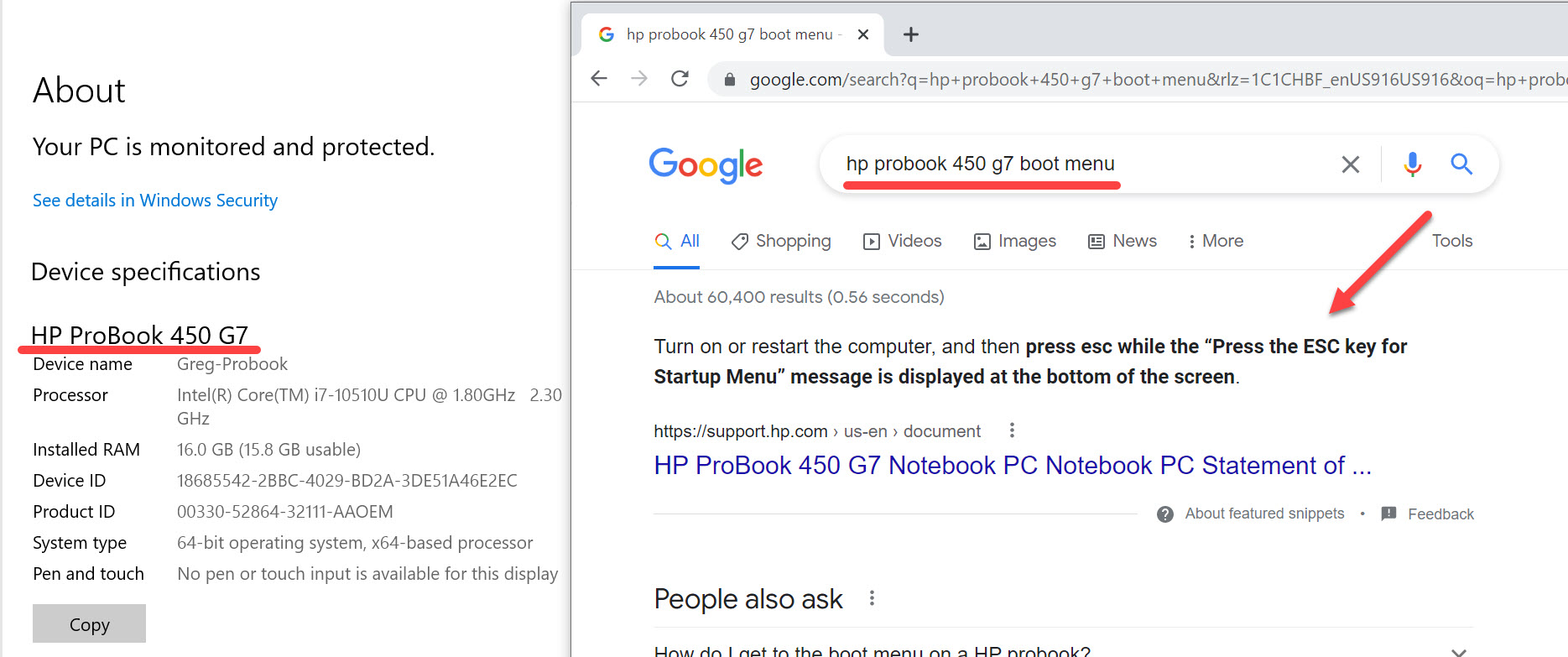
You can change or disable this behavior by adjusting the BIOS boot order. To do this, identify your computer model and search online for the appropriate boot menu or BIOS access key.
First, right-click the Windows icon.
Select System to view your computer model. Then search online using a phrase such as: HP ProBook 450 G7 boot menu (replace with your actual model).

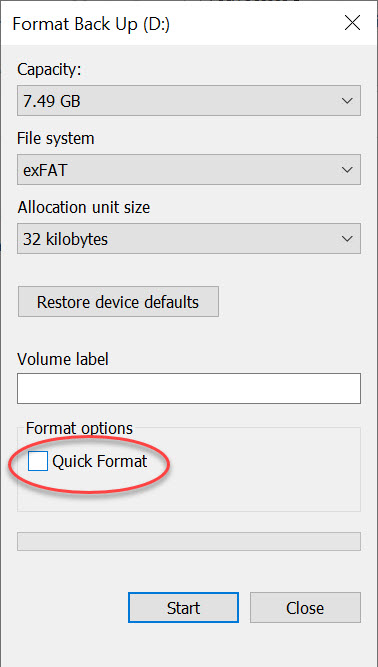
If you want to completely remove the boot-strap code from the flash drive so this problem does not happen again, the solution is straightforward. Right-click the drive letter in Windows Explorer and choose Format. In the format dialog, be sure to uncheck the Quick Format option.