GetUSB.info Logo

Kingston – To Pay $7.5 mil In Compensatory Damages

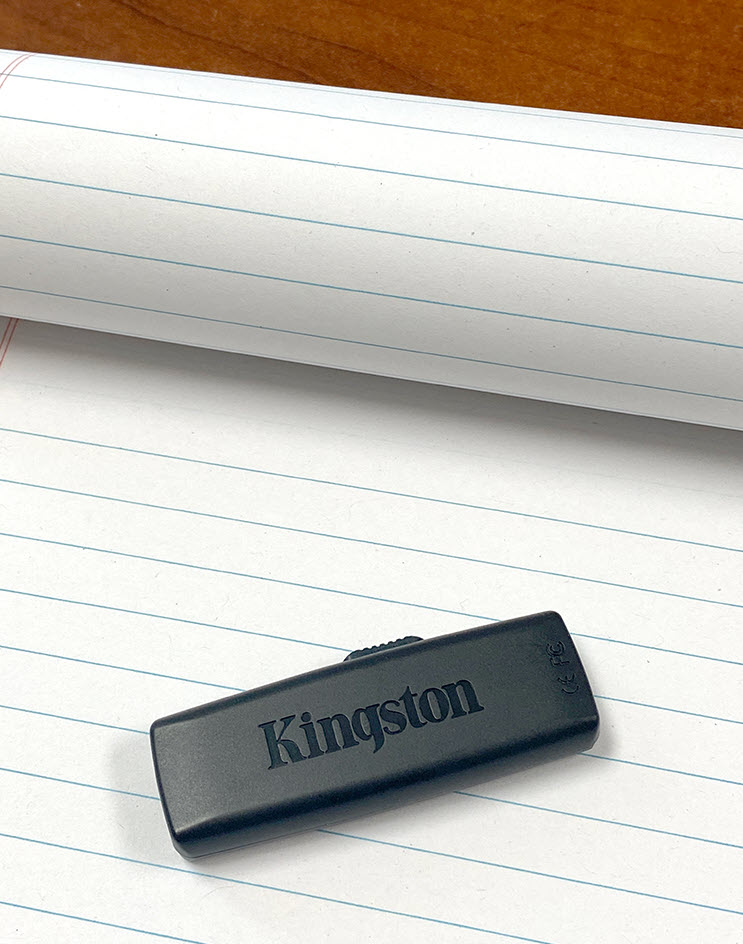
Kingston USB flash drive, stock photo

Friday, June 3, 2022 Kingston Technology Company LLC was held accountable for willfully infringing on US Patent No 6,926,544 held by Pavo Solutions LLC.

The patent abstract:

A flash memory apparatus with a single body type rotary cover, where the cover is not completely separated from the main body to prevent cover loss. The flash memory apparatus consists of the following components: a flash memory main body with a rectangular shaped case in which a memory element is mounted. A USB terminal piece is electrically connected to the memory element and installed at a front end of the case to protrude therefrom, as well as a hinge protuberance formed on at least one side of the case. A cover is provided that is defined by a pair of parallel plate members facing each other with an interval corresponding to the thickness of the case. The cover has an open front and a closed back. The cover’s lateral ends are both open. The parallel plate members are joined to the hinge protuberance by a pair of hinge holes, allowing the cover to rotate with respect to the flash memory main body, allowing the USB terminal piece to be received in an inner space of the cover or rotated for exposure to the outside of the cover.

We are not a legal website so for more detail on the proceedings, please visit IP Watch Dog.

Continue Reading No Comments

Why do I have to Eject my USB Flash Drive?

Why do I have to Eject my USB Flash Drive

Do I have to eject my USB flash drive?

The short answer: No.

The technical answer: Yes.

If the technical answer is yes, the why do I have to Eject my USB Flash Drive?

The difference boils down to the type of file system being used. If the USB is FAT, FAT32 or exFAT you do NOT need to eject the USB flash drive before pulling it out of a computer.

If the USB drive is NTFS, then yes, eject the flash drive before pulling it out of the computer.

So why eject when the USB flash drive is formatted as NTFS?

The NTFS (New Technology File System) is a journaling file system system.

A journaling file system is one that keeps track of changes which have not yet been committed to the main part of the file system by recording the goal of such changes in a data structure known as a “journal,” which is typically a circular log. In the event of a system crash or power outage, such file systems can be restored more quickly and with a lower risk of corruption.

Depending on how it is implemented, a journaling file system may only keep track of stored metadata, resulting in improved performance at the expense of increased data corruption risk. A journaling file system, on the other hand, may track both stored data and related metadata, with some implementations allowing for user-selectable behavior in this regard.

With an NTFS formatted flash drive it is very possible there are journal entries going on in the background which the user is not away of, so if the drive is unexpectedly pulled out of the computer that physical action could corrupt the data on the drive.

Why do people format flash drives as NTFS?

Two common reasons people (wrongfully) format a flash drive as NTFS include:

  1. The user would like to take advantage of security settings which NTFS does offer
  2. The user has large single files and isn’t aware exFAT solves the same problem

NTFS allows an Administrator to assign privileges’ to files and folders and those security settings will remain for said files on the NTFS formatted flash drive. This is probably the ONLY legitimate reason a flash drive should be formatted as NTFS.

FAT and FAT32 have a single file limit of 4GBs so any single file larger than 4GBs will not be copied to a FAT or FAT32 flash drive. To get around this problem, Users will format the drive as NTFS. They select NTFS because it’s the same file system as their host computer… and since it works there… might as well format the flash drive the same way. However, what the users don’t understand is exFAT solves the same problem while at the same time providing a more stable file system – one that isn’t a journaling file system – so a flash drive can be pulled out without ejecting.

Good News – Free USB Eject Software Tool

GetUSB.info reported on this earlier; Eject USB Flash Drive safely, Free Download. The software is free to download, free to distribute and free to embed into other programs.

Continue Reading No Comments

What replaces write protect switch on USB flash drive?

physical write protect switch, USB

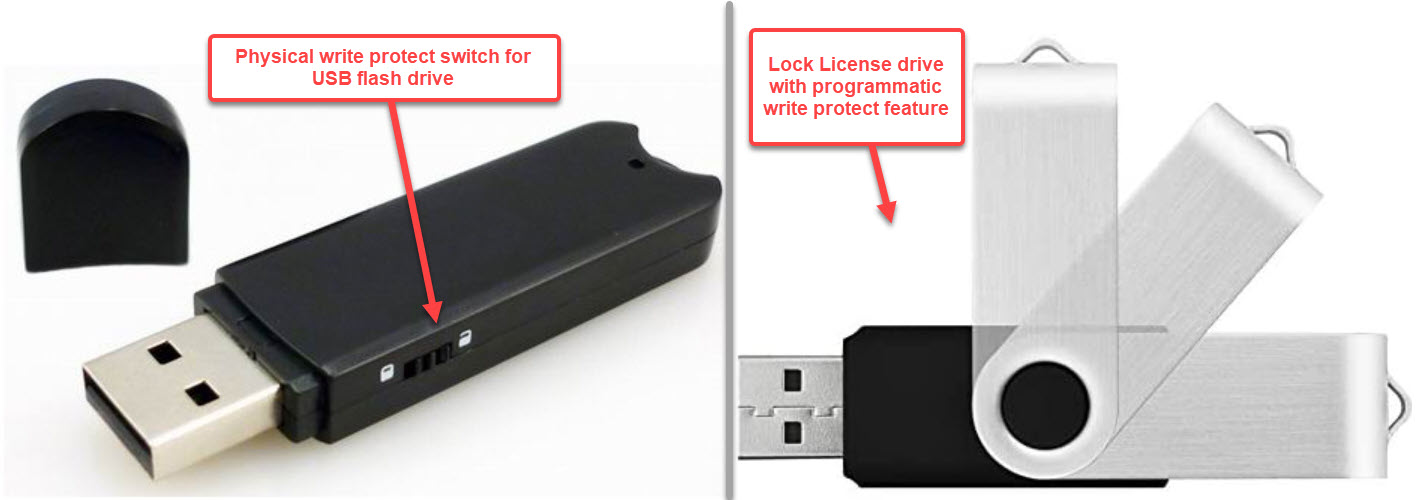
A “write protect switch” for a USB drive is meant to turn on and off the ability to write data to the drive. When the USB is locked (read-only) content cannot be added, changed, altered, manipulated, formatted or deleted off the drive. What is the point of a physical write protect switch if anyone can turn the write protection on or off? Doesn’t add up…

Yes, a write protect switch keeps the honest people honest, however the USB write protect switch doesn’t apply in all situations.

So what replaces a write protect switch for a USB flash drive?

How about programmable firmware for turning ON and OFF the USB write protection?

Better yet, how about a required password before turning ON and OFF the USB write protection?

We can relax because the Lock License USB flash drive addresses both these issues of
#1) Replacing the USB write protect switch with a more secure method
#2)
Provides the feature of assigning a password to turn on and off the USB write protection.

The Lock License drive is a hardware based ( at the chip level ) write protection solution and through a specific vendor software command the write protection can be removed to make the USB stick writable. The function to write protect the media can be done through a provided GUI software application, can use a command line to change the write protect status, or use the command line to build your own custom method for how the USB write protection can work.

The write protection is configured on the USB controller of the flash drive. This means the write protection is done at the device level and will follow the USB stick. The result is a Lock License drive which is truly read-only when connected to anything… such as a Windows computer, Mac computer, Linux box, Smart TV, car stereo, anything!

The Lock License drive comes with a software method to unlock the drive and make it writable. This special software requires a password to be assigned for the unlocking. The password is required because the manufacturer, Nexcopy, didn’t want a universal way to unlock the drive.

Kanguru manufactures a USB flash drive with a physical write protect switch. The write protection itself is as secure as the Lock License solution, the difference is a Lock License drive adds one additional layer of security. The additional layer of security, the password requirement to make the stick ‘writable’ is an important step for ensuring the device is as secure as possible. To be clear, the Lock License drive is always readable. This product seems a great solution for those who want a USB write protected without the ability for users to turn the write protection off with a flip of a switch.

Another interesting fact about the Lock License drive is the default state of the USB stick being read-only, or write protected. This means it is impossible for a user to accidently leave the Lock License drive unlocked.

The “locking” or write protection is done when power is cut from the device. Even if a user forgets to lock the drive, the locking happens automatically when the USB is disconnected from the computer. This is a major issue with those using a USB write protect switch; if a user forgets to set the write protect switch, well not much security at that point.

It is worth noting there is no universal way to write protect any flash drive, this is why you cannot buy some software solution to do the feature. Write protection is a hardware based solution, not software.

From our on-line research, the Lock License drive is manufactured by Nexcopy Inc who is based out of Southern California. The product is available in USB 2.0 for the smaller 2GB and 4GB and any GB capacity higher (8GB and above) is USB 3.0 technology. The maximum size as of this posting is 256GB media.

Continue Reading No Comments

Aleratec Closed and out of Business Since February 2022

Aleratec Closed and out of Business Since February 2022

From all accounts it appears Aleratec closed their doors and out of business from sometime starting in February, 2022.

GetUSB.info has called the corporate office multiple times searching for comment, but no answer. In addition, it appears Google removed Aleratec from their search results as their domain www.aleratec.com has been off-line for well over 30 days. We are posting this information in the event end-users are looking for support or warranty information related to the company.

Aleratec, Inc. was a family-owned, California-based company with two decades’ experience in designing, developing and marketing products acclaimed for high performance, reliability and ease of use.

Greg Morris, CEO of Nexcopy Inc, a similar company profile and also based in Southern California commented today after request, “I’ve known about Perry Solomon, the CEO, well over twenty years and he was always a good person to speak with regarding industry trends and business practices. Extremely friendly and approachable. Perry was focused on bring a solution to the market which brought true value to the end-user. I wish him the best of luck with his next business adventure.”

Aeratec sold PC based and standalone flash memory duplicators, CD and DVD duplicators, hard drive duplicators and hard drive demolishers. Aleratec also provided a “charge and guard” cabinet for charging portable devices like tablets. Schools found the charge and guard cabinet particularly beneficial.

At the time of this posting some products can still be found on-line, but most models seem to be listed as out of stock or on back order.

If Aleratec would like to comment or provide information for post sales support and parts, please reach out at: gmo @ getusb dot info and we can post the information in this article

aleratec out of business

Continue Reading No Comments

Ten Questions and Answers About USB Disk Signature Collision

Below are a list of the ten most common questions about a disk signature collision along with the related answer. The bottom of this article includes a video for some of the diskpart steps, which is needed when investigating a disk signature collision.

  1. What is a disk signature collision?
  2. Why does Windows create a disk signature collision?
  3. How do I find the disk signature ID?
  4. Does Windows 10 have diskpart?
  5. How do I start or launch diskpart?
  6. How to change a disk signature?
  7. Is there a disk signature collision for every device?
  8. What is MBR verse GPT
  9. What is the difference between an online and offline device, how do I fix it?
  10. Where can I find the full list of diskpart commands?
  11. Jump right to the demonstration video at bottom of article

#1 – What is a disk signature collision?

When two (or more) storage devices have the same hexadecimal value for their disk ID (also known as disk signature). Windows does not like to see multiple storage devices with the same signature, so it will take all but one offline so the user gains access to only one device. The signature collision is most often found when binary copies of a master have been made to target devices.

#2 – Why does Windows create a disk signature collision?

Our understanding of why Microsoft did this was to prevent malware from spoofing the OS by presenting an identical seeming drive with bad intent. Bear in mind this MBR stuff was developed when dinosaurs still ruled the earth. Malware was but a dream in some teenage miscreants mind. So little effort was expended in that direction, much to the chagrin of todays Microsoft. The bible says something about this, “The sins of a father shall be visited upon their sons” or words to that effect.

#3 – How do I find the disk signature ID?

Continue Reading No Comments

What is USB4?

USB4 connector, close up

One-sentence summary; What is USB4

USB4 is the USB-C form factor for connecting; fully supports Thunderbolt 3 specification, all wrapped up using the USB 3.2 specification.

USB4 has four benefits over prior versions of USB.

Maximum Speed of 40Gbps. Using two-lane cables or a set of cables, devices may operate at up to 40 Gbps, the same speed as Thunderbolt 3. Keep in mind there is a big difference between Mb and MB. Mb is megabits, not Megabytes (MB). So for example 8Mb is about 1MB of data. As a reference, a typical MP3 audio file is about 3MB (megabytes). 5,000 MB/second is the theoretical maximum speed of USB4.

USB 4 supports DisplayPort 2.0. DisplayPort 2.0 cables feature 80Gbps bandwidth, making it possible to display ultra-high resolutions at previously impossible refresh rates. DisplayPort 2.0 can handle up to two 4K screens at 144Hz simultaneously, or an 8K display at up to 85Hz natively, with no form of image compression. This is true because USB4 uses all eight data lanes at once time.

Compatible with Thunderbolt 3 devices. USB4 is a protocol which supports all the specifications of Thunderbolt 3; however, Thunderbolt 3 is capable of 100Watts of bi-directional power delivery and not all manufacturers who support USB4 will not include the [full] power implementation of Thunderbolt 3.

Most efficient resource allocation scheme. USB4 devices use a process called “protocol tunneling” which optimizes the use of DisplayPort, PCIe and USB packets at the same time while allocating bandwidth to optimize efficiency. This scheme will create better performance across multiple devices with a collection of protocols.

USB4 will only operate through a USB-C type physical connector. USB4 peripherals will most likely not see older standard USB type A ports because the connection speeds and power delivery mechanisms will not be available. Although USB4 is 100% backward compatible with all other USB protocols, it doesn’t mean the older standard will get the improved benefits. If connecting, for example, a Type-A, 5 Gbps USB 3 port by using an adapter, the speed and power will drop to the lowest common denominator.

Some notable comments:

Device and host manufacturers will not [be required] to pay Intel royalties when implementing USB4 technology. This implies a better chance of mass adoption of USB4; however, there is a catch between manufacturing USB4 devices and making said products [fully] USB4 compliant. Specifically, the Thunderbolt compatibility specification may become a part of the product when developing and manufacturing a USB4 product which can use the USB4 logo. This issue means a consumer could buy a laptop with USB4 and find that it doesn’t work with a Thunderbolt 3 peripheral.

It is important to know Thunderbolt 3 and Thunderbolt 4 are logo certified programs from Intel which cost manufacturers time and money. So, while a USB4 powered computer could work with 40 Gbps devices or even those labeled as Thunderbolt, it may not be obvious because the product didn’t go through a certification process. Or the opposite of this would be a USB4 device does not support Thunderbolt because of the expense required to get the certificate.

USB4 has two speeds. As with Thunderbolt the paradox a USB4 product may not support the full 40Gbps specification. 40Gbps is the theoretical maximum speed, but many devices will use the lower 20Gbps standard because the manufacturing cost will be lower, thus creating a lower target price for consumers. If speed is the number one priority be sure and check the specifications of the USB4 product before purchase. At the time of this writing most USB4 products which support 40Gbps are cables and PCIe adapter cards.

Why the USB4 name?

An online article that summarized an interview with Brad Saunders the CEO of the USB Implementers Forum [USB.org or USB-IF] indicated the lack of space between “USB” and “4” is to focus away from USB version numbers and focus more on brand. This branding concept for USB is a good change, but afraid the history of all the USB versions of the past will continue to haunt them.

Continue Reading No Comments

Port Hub for MacBook Connects via USB from Satechi

Port Hub, MacBook

Port Hub Provides Six Connection Options via USB

The Satechi Port Hub adapter extends the functionality of your M1 MacBook Pro laptop. It has all of the necessary ports, including a USB4 port, Gigabit Ethernet, a USB-C data port, two USB-A data ports, and an audio jack port. The Pro Hub Mini is the only adapter you need, with a plethora of options for fast data transfer and a modern aluminum design.

Designed to complement your MacBook ports, it includes two USB-A 3.0 data ports, one USB-C data port capable of up to 5 Gbps, Gigabit Ethernet, and a 3.5mm audio jack.

The port hub features Next-Gen USB4 technology and can charge your devices at a whopping 100W. You can also benefit from data transfer speeds of up to 40 Gbps and video output resolutions of up to 5K/60Hz.

By connecting the hub to the Thunderbolt ports of your MacBook Pro 14 & 16 inch, 2021, you will have access to all ports. The MagSafe 3 port is still usable and recommended for fast charging. We’ve also included an audio jack port clip that will fit perfectly into your MacBook Pro 14 & 16-inch, 2021 to keep it in place.

Having designed multiple technology products this product does ask the question about the relationship between the physical connection between the port hub and the Mac computer. From the image, as I have not tested this product, it appears the physical connection of the audio jack and two USB-C connectors will make for a durable mating.

However, people do stupid things and if the collective unit gets dropped on the floor (say slips of table’s edge) and falling on the port hub, I wonder what kind of damage that fall would have on the audio jack and USB ports.

My logic is thinking it being expensive to fix the internal USB ports of the laptop, given that would be required since it’s the only digital external connection this computer has. Food for thought.

Port Hub, USB-C

Consider buying this MacBook port hub from Amazon if this article provided any bit of useful information in the buying process

Important

  • To achieve 5K video output, you’ll need a computer, a thunderbolt cable, and a 5K monitor
  • The MacBook Pro (16 inch, M1 Pro/Max, 2021)’s MagSafe 3 port can charge up to 140W
  • The USB4 port can only charge up to 100W
  • Use the MagSafe 3 port directly on the computer for faster charging
  • Charging and CD drives are not supported by USB-A ports
  • The Audio Jack Port clip is only compatible with the new MacBook Pro 14 and 16 inch models released in 2021
  • The Hub can be used with older MacBooks with USB-C, but the Audio Jack Clip will not work

Original equipment manufacturer’s product webpage can be found here which is directly from the Satechi website.

Continue Reading No Comments

Encrypt USB Flash Drive For Both Mac and Windows

Encrypt USB Flash Drive For Both Mac and Windows

This article explains how to encrypt data which can be decrypted on both a Mac and Windows computer.

Microsoft Windows accounts for almost 80% of the desktop computers with Apple OS coming in second place at about 18% market share (as of Q3, 2021) and with that in mind, it is very common for users to want encrypted data to be shared on both Mac and Windows computers. For example, the work place uses Microsoft Windows and the employee uses a Mac computer at home. To share encrypted data between these two operating systems is not straight forward. There is no installed solution from either Microsoft or Apple which provides a cross-platform encryption and decryption solution.

Two solutions are available for those who want to decrypt files for both a Microsoft Windows computer and an Apple Mac computer.

One solution is the individual user purchasing software which encrypts and decrypts software for both Mac and Windows computers.

The other solution is buying a physical drive which supports decryption on either operating system.

The second solution is more well suited for a business. This is true because the burden of purchasing software is not put on the employee or individual.

This article explains how to encrypt data which can be decrypted on both a Mac and Windows computer by using a specific USB flash drive.

The only known solution that has the following three characteristics in a product by Nexcopy. This is a company which provides feature rich USB duplicator solutions, but also provides advanced functions to flash drive, such as cross-platform encryption.

This is how the Nexcopy USB flash drive encryption solution works:

  • PC based software is used to encrypt the data
  • Included with the encrypted data are two software utilities loaded onto the flash drive
  • The utilities run from the flash drive and decrypt the data when the correct password is entered
  • The applications do not require installation, they run directly from the flash drive
  • The PCViewer.exe is the Windows based utility – no admin rights required
  • The MacViewer.app is the mac based utility – no admin rights required
  • By launching the correct utility and entering correct password the files will be decrypted and displayed on the associated operating system

Please keep in mind there is a difference between the term “encryption” and the term “copy protection.” There is a difference.

Encryption is the process of encoding information. This process converts the original representation of the information, for example plaintext, into an alternative form known as ciphertext. The ciphertext can only be reorganized and pieced back together from the authorized party who knows how the decipher the ciphertext back into plaintext. The important point to understand is that once the decipher has taken place, the user can do anything they want with the plaintext. The user can copy, duplicate, share, stream and screen capture that content.

Copy protection includes the process of encoding; however, has an additional layer of security whereby the user cannot do anything in addition to the content, such as copy, duplicate, share, stream and screen capture. Said another way, the files can only be viewed, but nothing else.

Encryption is a valuable technology where the content owner trusts the person with the password; however, needs security in case the USB flash drive was dropped, stolen or misplaced. Using encryption to protect the content means unauthorized users cannot access the information.

Copy protection is a valuable technology to protect the content, yet at the same time, allow many users to see the content. For example, a teacher might have valuable lessons they want all the students to see; however, they don’t want lessons to be saved or shared with other classes. This would be a good application for copy protection.

The manufacturer provides USB duplicator solutions for mass production of USB encrypted flash drives. Nexcopy also provides large scale USB duplicator solutions for copy protected flash drives. So depending on the specific needs of the individual or company, there is a solution for those who need encryption for both Windows and Mac computers.

Continue Reading No Comments

Eject USB Flash Drive From Windows Command Prompt Any Version

Eject USB Flash Drive safely, Free Download

Microsoft does not provide ways to eject USB flash drives with a single click, or automatically. Universal Serial Bus (USB) is the #1 method for expanding storage in Windows, yet Microsoft makes ejecting a storage device such a manual process! Frustrating to many, like you, because you are here. {wink}

Today we cover how to eject a USB flash drive in Windows using the command prompt. In addition, this article also provides a software way to eject a USB flash drive with the single click of a button. Yes, that is right, a single click!

Let us start by covering how to eject a USB drive using the command prompt.

Like mentioned above, Microsoft does not make this easy. The user must get into DiskPart, List the volumes (drives) connected, select the specific volume (drive) then eject by typing “release.”

The above commands may be performed via the command prompt, but honestly it’s a pain in the a$$ because all the typing involved and manually selecting the device. This process needs to be automated. {hint}

If you are reading this article you want to make things quick to remove USB, easy and simple.

Nexcopy solved this problem with a free utility that doesn’t require installation, doesn’t require Admin rights, and doesn’t require you to select the drive. The tool is ultra-quick and ultra-easy. In addition, anyone can bundle the free exe file into their own software to automate the process.

The free software tool is called USB Eject Button

Here is the free download link to eject USB flash drives from Windows command prompt

Below is the command prompt using a single word to eject a USB flash drive. The command is “release”

Continue Reading No Comments

Three Level Aluminum Laptop Riser

aluminum laptop riser

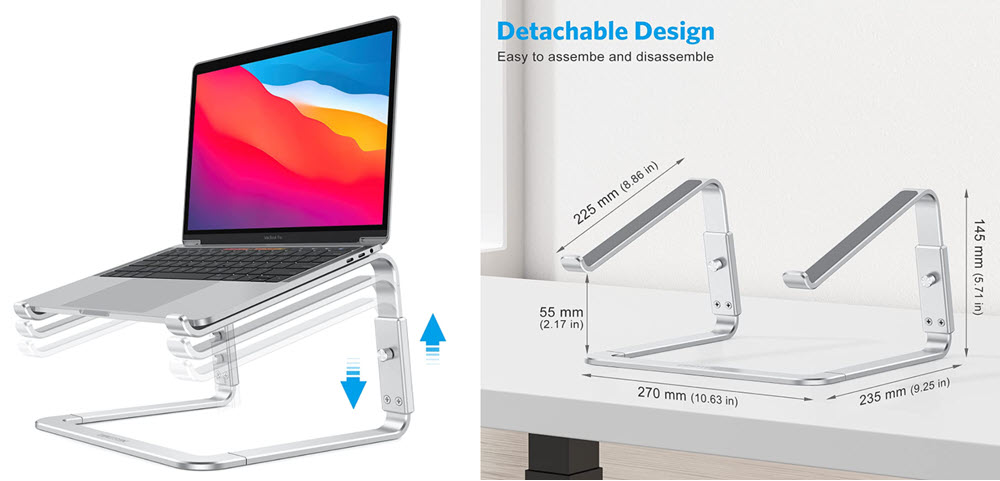
Alles-Omoton is offering their three level aluminum laptop riser unit for only $16.62. They have a 99% positive feedback so little risk considering the company’s Amazon rating. If you are not a Prime member, orders that exceed $25 will qualify for free shipping. A recent price drop in addition to an on-page coupon reduces the total price 33% from list price. With room for any modern MacBook, this aluminum stand is also able to uphold a majority of PCs and Chromebooks, as well. This unique offering wields an adjustable design that’s uncommon among this style of laptop stand. Owners can choose between a 5.7-, 6.3-, or 6.8-inch height. This will undoubtedly lead to improved ergonomics and perhaps even a better arrangement for multi-monitor setups. Rated 4.7/5 stars.

OMOTON 3-Level Aluminum Laptop Riser features:

  • The laptop riser offers 3 height choices (5.7/6.3/6.8 inch) to meet your different needs. It provides optimal viewing angles.
  • This laptop stand for desk helps to relieve neck and shoulder pain. It also creates more space under your PC, which helps you to organize your desk.
  • The laptop holder is made of reinforced aluminum alloy. It can support up to 11lbs of weight. The soft silicone pads protect your laptop from scratches.

Click to view more details, pricing and size options.

GetUSB.info does mention Amazon affilate products to help pay for the cost of running our blog.

Continue Reading No Comments

Industrial Control System USB Flash Drive Designed For ICS Security

Industrial Control System USB Flash Drive Designed For ICS Security

The fourth industrial revolution or “Industry 4.0” is a term used to categorize today’s trend with industrial control systems (ICS) and how these machines interact with each other and humans.

The fourth era of “industry” combines hardware, software and biology and emphasizes the advancements in communication and connectivity. When the term IoT (Internet of Things) is used, this is the type of example that would apply. Industrial Control System USB Flash Drives designed for ICS security are critical to industrial systems and how they are controlled by their owners. The key when a USB flash drive is introduced into a control system, is security. Without security, one could lose control of the industrial system and ultimately introduce risks into a population or region.

Before we look closer at Industry 4.0 and data storage, let us provide a short summary of the first three phases of the industrial revolution.

First Industrial Revolution

The first industrial revolution was marked by a transition from hand production methods to machines through the use of steam power and water power. The integration of these new technologies took a long time, and spans a period between 1760 and 1840 for Europe and the United States. The first phase had the greatest impact on virtual industrial channels such as textile manufacturing, iron production, agriculture and mining (in general).

Second Industrial Revolution

The Second Industrial Revolution, also known as the Technological Revolution, is the period between

Continue Reading No Comments

Review Rufus The Big Misconception With ISO Files

If anyone searches for “burn ISO to USB” they will get pages and pages of Rufus links. However, there is a big misconception with Rufus… it doesn’t create USB CD-ROM drives! Review Rufus with us now:

The only thing Rufus does is take a bootable ISO file and write the data to a USB stick. Basically Rufus will extra the data on an ISO file and write it to the flash drive. You can do the same thing with WinRAR.

There is nothing magical about Rufus when it comes to “making a CD” because Rufus doesn’t make a “CD.”

If you need to make a USB CD-ROM flash drive the best solution found so far, is the Disc License drive. The Disc License drive is a blank USB CD-ROM flash drive. Using their Drive Wizard software (free), easily write ISO files to USB. The resultant drive will be a USB CD-ROM flash drive.

Before we get into Disc License technology, we do need to clear up some points about WinRAR and Rufus software. WinRAR will extract all the files contained in an ISO file and write them to your USB flash drive; however, if the ISO is bootable, WinRAR won’t write the boot code. This is where Rufus does shine. The Rufus software will write all the files contained in an ISO file along with the boot code to make your device bootable. With that said, there is a clear advantage for using Rufus over WinRAR.

Does Rufus burn any ISO file to USB? NO.

Does Rufus make your USB flash drive read-only, like a CD? NO.

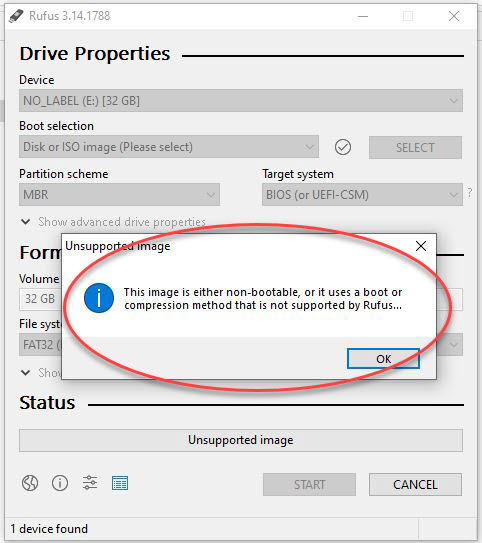
If the ISO file isn’t bootable, there isn’t much [more] Rufus can offer. A non-bootable image will display an error message saying “This image is either non-bootable, or it uses a boot or compression method that is not supported by Rufus.”

rufus does not support iso file

Rufus is truly designed for one thing:

Continue Reading No Comments

Copyright

Copyright © 2006 +

USB Powered Gadgets and more...

All Rights Reserved

Advertise with us

GetUSB Advertising

This is a high value website providing great exposure to your product and brand. Visit our advertising page to learn specifics.

For more information
Visit our advertising page.

Nexcopy Ad

Nexcopy Provides

USB copy protection with digital rights management for data loaded on USB flash drives.

Contact us learn more

Resources and References Page

Resources and References Page