GetUSB.info Logo

We Can Solve Apple’s Glucose Testing Issues – Just Do This

It’s been reported for more than four years that Apple has been trying to solve non-invasive blood glucose testing — and continues to run into problems.

Apple has not disclosed the specific technical issues during development, but it’s almost certainly due to inconsistent test readings. In other words, whatever method Apple is using to estimate blood glucose levels is not reliable enough to meet regulatory approval standards.

Hey Apple — if you want to solve your glucose testing problem, listen up.

It is well documented that blood glucose levels correlate directly with blood viscosity, or how thick and fluid the blood is.

Our take is that Apple’s current sensor approach isn’t accurate enough to determine viscosity, which makes reliable glucose readings impossible.

That makes sense when you consider where Apple Watch sensors are located. They’re attempting to measure through skin that’s simply too thick — the wrist.

Here’s the hot tip for Apple (@AppleHCG @tim_cook):

Forget using the Apple Watch itself as the primary sensing device. What Apple should build is a mouthpiece accessory that communicates with the Apple Watch and scans the lingual frenulum.

The lingual frenulum is the thinnest skin on the human body, making it ideal for optical scanning. Measuring opacity in this area would allow for far more accurate assessment of blood viscosity — and therefore glucose levels — than scanning through the wrist.

Lingual frenulum location under the tongue

The mouthpiece would sit under the tongue with a sensor aimed directly at the lingual frenulum. It would scan blood circulation and analyze color and opacity to determine glucose levels in real time.

This under-the-tongue device would only be used when a reading is required. The scan itself would likely take no more than five seconds.

For accuracy, the mouthpiece would read from both the left and right sides of the lingual frenulum. Higher blood viscosity results in darker, denser blood and greater opacity. Lower glucose levels produce lighter, less opaque blood.

The mouthpiece would communicate wirelessly with the Apple Watch to transmit the glucose reading.

Obviously, this is not a finished product design. Engineering, validation, and clinical testing would need to be handled by Apple’s healthcare team. That said, this concept points in a direction far more likely to succeed than wrist-based optical sensing.

Concept illustration of under-tongue glucose sensor

If someone at Apple reads this article, we hope they have the integrity and respect for original ideas to reach out. gmo (at) getusb.info

Continue Reading

How To: Add USB Flash Drive to Roku TV Getting Pause and Rewind Features

It’s not difficult to add some premium-style functionality to a Roku TV — such as pause and rewind — simply by adding a USB flash drive to your setup.

You’ll need to configure the Roku TV and the flash drive to work together, but the process is straightforward and only takes a few minutes.

To get close to 90 minutes of pause or rewind time, you’ll want to use a 16 GB or larger flash drive. Using something small like a 2 GB or 4 GB USB drive generally isn’t worth the effort.

One important limitation to note: the pause feature only works with the Live TV input. That means you’re limited to content coming in through an antenna or cable connection, not streaming apps.

If that sounds useful, here’s how to set it up.

What you’ll need:

  • Roku Smart TV (not a dongle or external box — the Roku OS must be built into the TV)
  • Live TV input (antenna or cable)
  • Roku TV remote control
  • USB flash drive, 16 GB or larger (USB 2.0 or USB 3.0)

Before you begin, make sure there is nothing on the USB flash drive. Roku will format the drive, and any existing files will be permanently erased.

Getting Started

Locate a USB port on your Roku Smart TV. Any USB port will work; they are typically located on the back of the TV. Insert the flash drive into the USB port.

From the Roku home screen, move the cursor until the Live TV tile is highlighted.

Do not select Live TV yet. Instead, open the Options menu. You can do this either by pressing the Gear (Settings) button on the Roku remote, or by pressing the Home button on the remote five times.

Roku TV remote showing gear settings button

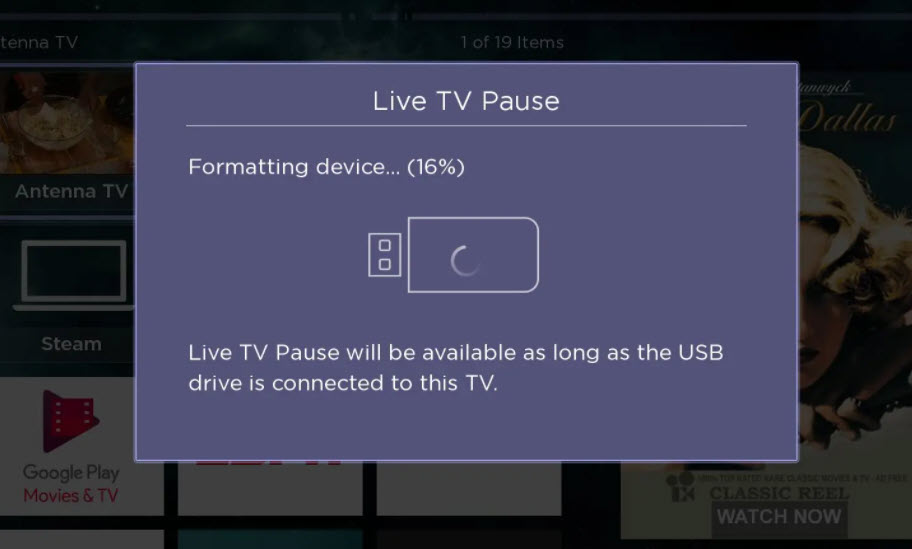
In the Options menu, select “Set up Live TV Pause” and follow the on-screen instructions. Part of the setup process includes formatting the USB flash drive so Roku can use it for pause and rewind buffering.

Roku will ask you to confirm the formatting process using a PIN. This step exists to make sure the action is intentional — once the drive is formatted, all previous data on the USB stick will be erased.

Roku TV formatting USB flash drive for live TV pause

Done

Once Live TV Pause is enabled, you can pause live television using the Play/Pause button on the Roku remote. You’ll also be able to rewind live TV by up to about 90 minutes — plenty of time to step away for dinner and come back without missing anything.

Continue Reading

Turn a USB Flash Drive Into a Portable Gaming System

Batocera.linux is an open-source and completely free retro-gaming distribution that can be copied to a USB flash drive or an SD card. Its goal is to turn almost any computer — including small form-factor and nano computers — into a dedicated gaming console, either temporarily or permanently. Batocera.linux runs independently and does not require any modification to your existing operating system. As always, you must legally own the games you play to remain compliant with copyright law.

The Batocera firmware allows you to flash a lightweight, emulation-focused operating system onto a USB flash drive, hard drive, or SD card. That raises an interesting question: what happens if you load Batocera onto a USB flash drive and treat it as a fully portable gaming system? Plug it into almost any Windows PC, boot from USB, and suddenly you have your own personal retro console. That’s exactly what we’re exploring in this video.

The real appeal is portability and consistency. Your entire gaming environment — operating system, emulators, settings, and game library — lives on a single USB drive. No installs, no changes to the host computer, and nothing left behind when you unplug it. This makes Batocera a great option for travel, shared computers, classrooms, or anyone who wants the same retro-gaming setup wherever they go.

Continue Reading

Hold USB Flash Drive In DVD Case – Brilliant Solution – Inexpensive

Hold USB Flash Drive in a DVD Case

This is a brilliant solution that, after watching the video, will make you say, “This should have come out years ago!”

It is the least expensive — yet most secure way to hold a USB flash drive in a DVD case.

The era of CDs and DVDs is coming to a close, with USB flash drives taking their place. Yet many CD and DVD duplication facilities still have shelves full of DVD jewel cases that need a new purpose. The DVD-to-USB Insert card is a quick, easy, and low-cost solution.

The insert allows users to keep their existing DVD cases and printed artwork exactly the same, while securely holding a USB flash drive inside the case instead of an optical disc.

Many businesses continue to prefer DVD cases because they make excellent storage containers. The case size is practical, and the thick spine provides space to clearly label the contents.

This solution allows you to continue using that same “library-style” organization with the DVD-to-USB Insert card.

As shown in the video above, the insert can securely hold two USB flash drives inside a single DVD case. The DVD-to-USB Insert is made from clear plastic with a thickness of 0.65 mm — the same diameter as a DVD disc.

The clear plastic insert includes two inverted rectangular cutouts designed to hold nearly any USB flash drive. It accommodates drives up to approximately 3 inches long, 3/4 inch wide, and 3/8 inch thick (for metric users: 76 mm long, 21 mm wide, and 9.5 mm deep).

A center hole, the same size as a DVD disc hub, allows the insert to snap securely into the DVD case’s retention clip. Using virtually any standard DVD case on the market, the USB flash drive remains firmly in place and will not fall out during shipping or transit.

DVD-to-USB insert holding two USB flash drives inside a DVD case

To be clear, the DVD-to-USB Insert includes only the clear plastic insert that holds the USB flash drive using the DVD case’s center snap. The DVD case itself is not included, as this solution assumes the user already has DVD case inventory.

This method of securing USB flash drives inside a DVD case does not infringe on patents held by other manufacturers using alternate retention designs.

Please contact USB Copier for more details. USB Copier is a professional USB duplication service company.

Continue Reading

This USB Stick Can Backup Your Phone Pics

There are two popular methods to get large videos off your iPhone.

The most common problem is having a large video on your iPhone that you need on your computer. Email programs usually limit file sizes to around 20 MB, so if the file is larger, what can you do?

Two popular options come to mind: using QuickTime or using a USB flash drive.

Option #1

Use QuickTime. Macs already include QuickTime in the operating system, but Windows users must install it. Before choosing this as your preferred method, here are a few things to consider:

  • You must back up your iPhone through QuickTime before accessing the video
  • You need an authorized computer to perform the backup
  • Windows users must download and install QuickTime
  • QuickTime is an invasive program that many Windows users dislike
  • This is not a portable way to move videos off your iPhone
  • However, this is a free solution

Option #2

Use a flash drive.

Yes, you need to purchase a specific flash drive, but after this one-time investment it becomes far easier to move videos off your iPhone. Some advantages worth considering:

  • Transfer large videos without using a PC
  • Share videos immediately with another user’s computer
  • Use the drive as external storage for video backups

Point number one is really the value in all of this ?.

While you won’t be able to make the transfer immediately without the hardware, once you have the USB device the process is quick and repeatable.

Certain USB drives include software that works with iOS, allowing files to be copied directly from the phone to the drive. The device tested here is the SanDisk iXpand flash drive with 128 GB capacity, which typically costs around $40.

SanDisk iXpand flash drive for iPhone

The process is very straightforward:

  • Download the iXpand app from the Apple App Store
  • Connect the flash drive to your iPhone
  • Select the files you want to transfer
Continue Reading

The Difference Between USB Splitter and USB Hub

GetUSB.info researches USB products every day from every corner of the internet. While we don’t publish every finding, the research continues with a focus on delivering value to our visitors.

Over the past six weeks, we’ve seen an increasing number of products described as a USB splitter. This trend makes it worth explaining what a USB splitter actually is — or more accurately, what it is not.

A USB splitter does not split a USB signal. The most common use of the term “splitter” comes from telephone hardware, such as a phone splitter for an analog signal. In that case, a single phone line can be split so the same analog signal reaches two phones at the same time. USB does not work this way — at all.

What many sellers call a USB splitter should actually be called a USB hub. A USB hub consists of one upstream port and multiple downstream ports. The upstream port carries the incoming signal, while the downstream ports make that signal available to connected devices. The key phrase here is “available,” because not all ports can receive or use the same upstream signal simultaneously.

For example, if audio is playing from your PC to a USB speaker, a hub will not automatically split that audio signal to multiple USB speakers connected to the same hub. The same limitation applies to video and data. USB signals cannot be automatically duplicated across multiple devices.

Calling a USB hub a USB splitter is a poor choice of words. In fact, we consider this a red flag and a reason to avoid buying products from suppliers who use misleading terminology to describe basic USB hardware.

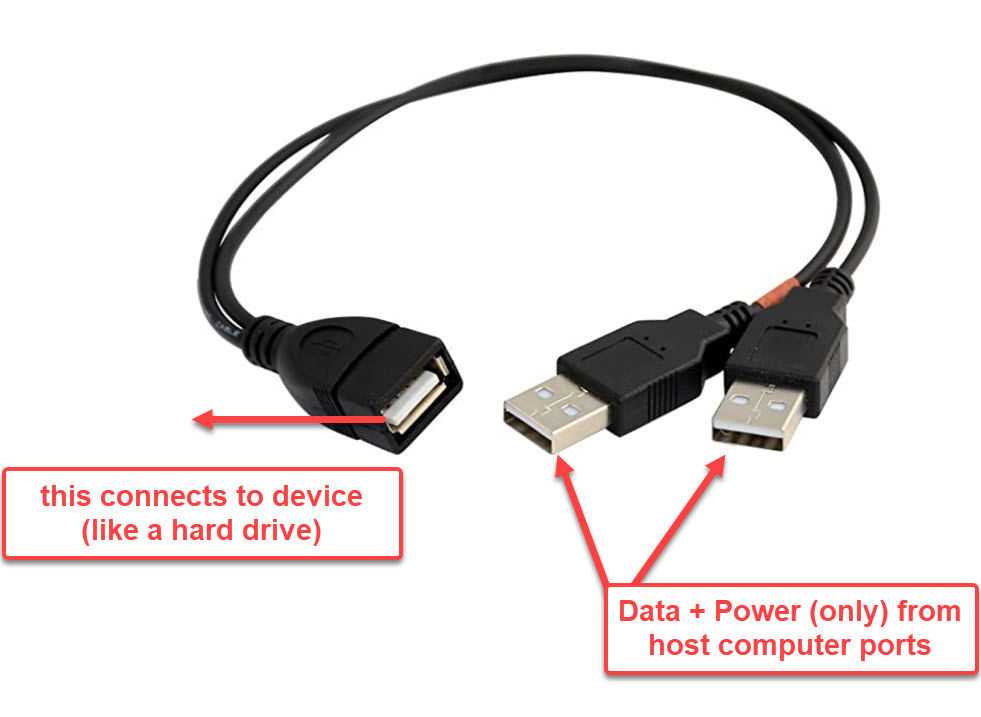
The closest thing to a true “splitter” is a USB Y-cable. A USB Y-cable has two connectors on the upstream side and a single connector on the downstream side. However, both upstream connectors do not transmit data. One connector provides both data and power, while the second connector supplies additional power only.

This configuration is commonly used with external hard drives (traditional disk drives, not solid-state drives). The purpose is to draw additional power from the host computer using two USB ports and deliver that extra power to the external device.

USB Y-cable with dual USB Type-A connectors for additional power

As shown above, the idea is to connect the two USB Type-A connectors to two USB ports on the host computer, while the single USB connector attaches to the peripheral device. This setup allows the device to receive additional power beyond what a single USB port can provide.

Continue Reading

How To Get Large Videos Off iPhone

There are two popular methods to get large videos off your iPhone.

The most common problem is having a large video on your iPhone that you need on your computer. Email programs usually limit file sizes to around 20 MB, so if the file is larger, what can you do?

Two popular options come to mind: using QuickTime or using a USB flash drive.

Option #1

Use QuickTime. Macs already include QuickTime in the operating system, but Windows users must install it separately. Before choosing this route to transfer large videos off your iPhone, here are a few things to consider:

  • You must back up your iPhone through QuickTime before accessing the video
  • You need your computer (an authorized computer) to perform the backup
  • Windows users must download and install QuickTime
  • QuickTime is an invasive program that many Windows users dislike
  • This is not a portable way to move videos off your iPhone
  • However, this is a free solution

Option #2

Use a flash drive.

Yes, you need to purchase a specific flash drive, but after this one-time investment, it becomes far easier to move videos off your iPhone. Some advantages worth considering:

  • Transfer large videos without using a PC
  • Share videos immediately with another user’s computer
  • Use the drive as external storage for video backups

Point number one is really the value in all of this ?.

While you won’t be able to make the transfer immediately without the hardware, once you have the USB device, the process is quick and repeatable.

Certain USB drives include software that works with iOS, allowing files to be copied directly from the phone to the drive. The device tested here is the SanDisk iXpand flash drive with 128 GB capacity, which typically costs around $40.

SanDisk iXpand flash drive for iPhone

The process is very straightforward:

  • Download the iXpand app from the Apple App Store
  • Connect the flash drive to your iPhone
  • Select the files you want to transfer
Continue Reading

How To: Watch Video, Play Music on PS5 from USB Flash Drive

Like the PS4 before it, the Sony PS5 allows you to play music and video directly from a USB flash drive through the console. The process is straightforward, but a few practical reminders can help everything run more smoothly the first time you set it up.

The PS5 supports MP3 audio and MP4 video playback from a USB flash drive. While the console is capable, it does not support every audio or video format available. To avoid compatibility issues, stick with widely supported formats—MP3 for audio and MP4 for video—and you should have no trouble.

It’s also worth noting that the PS5 supports the same media formats as the PS4 family and plays video at resolutions up to 3840 × 2160 (4K). Attempting to play 8K video files will not work, as the PS5 does not currently support 8K output.

Pro tip: organize your MP3 audio and MP4 video into folders before copying them to the USB flash drive. The PS5 uses folder structure to create playback order, effectively treating each folder like a simple playlist. While this requires a bit of manual organization, it makes browsing and playback far more manageable. For example, separate folders by artist, album, or video type.

When playing media from a USB flash drive, video and audio are accessed from different areas of the system interface.

Do not use the Media section. That area is reserved for streaming content and media purchased through the PlayStation Store.

To watch video, long-press the PS Button and select Media Gallery from the main menu. Then navigate to USB on the far right. Video files can only be accessed through this path.

PS5 Media Gallery USB selection screen

Navigation follows this basic path:

PS5 Home ? Media Gallery ? USB

Files within each folder are indexed in order, similar to a playlist. You can use R1 and L1 to skip between files, while the left and right directions on the D-Pad allow for smaller, chapter-style skips within a video.

To play audio, press the PS Button once to open the Control Center quick bar, then select the Music icon. The interface is fairly minimal, but it gets the job done.

Music playback can continue in the background while you navigate menus or play games. Once music is playing, you can pause tracks, skip songs, or adjust playback directly from the Control Center without interrupting gameplay.

Continue Reading

5 (legit) Reasons a USB Flash Drive Disconnects and Reconnects in Windows

Roll Play Scenario:

  • Windows: Sound of connecting a USB flash drive…
  • User: Ah yes… let’s get to work!
  • Windows: Sound of a disconnected USB device…
  • User: Oh no, what’s happening?

A quick Google search later and here we are. Let’s take a closer look.

Intermittent USB disconnects are frustrating because they often feel random. In reality, Windows is usually responding to a power, driver, or hardware condition rather than failing silently. The key is to determine whether the issue follows the USB device itself or stays with a specific computer or port. Once you isolate that variable, troubleshooting becomes much more predictable.

Below are five legitimate reasons your USB flash drive might be disconnecting from your Windows computer.

1. Running on Battery

By default, Windows is configured to reduce power consumption when running on battery, which can include powering down USB ports after a period of inactivity. This typically happens after 10–15 minutes, but power profiles can vary. Before changing any settings, plug your laptop into AC power and see if the issue disappears.

To check your USB power settings:

Search for Control Panel and press Enter.

Windows Control Panel

In the Control Panel, click Hardware and Sound.

Hardware and Sound settings in Windows Control Panel

From there, select Change battery settings, then Change plan settings, and finally Change advanced power settings. Scroll through the options to find USB settings and adjust power behavior as needed.

USB power settings in Windows advanced power options

2. Faulty USB Port

The most common cause of USB disconnects is a worn or damaged USB port. Laptop ports see frequent use, and front-panel ports on desktop towers often experience the most wear. If the USB device wiggles easily or inserts with little resistance, the port may be failing.

Continue Reading

The Swiss Army Knife of USB-C Hubs

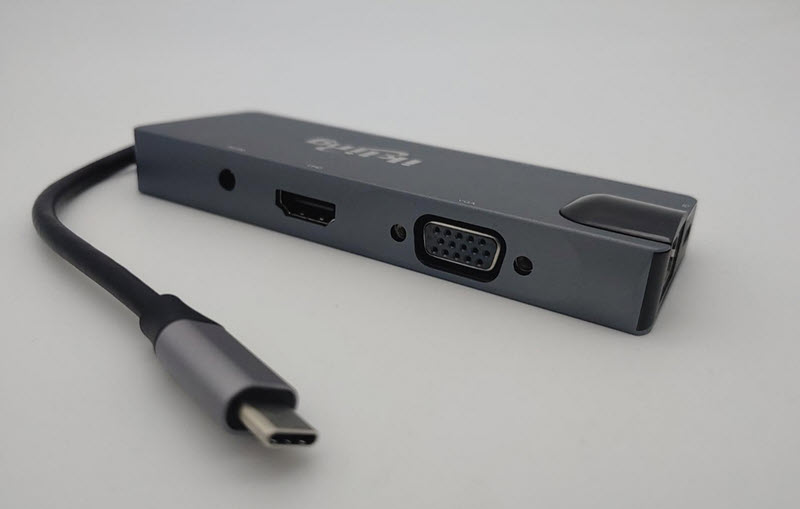
Did you buy one of those ultra-thin laptops and fall in love with the lightweight design, sleek form factor, and powerful processor—only to realize you can’t use its full potential because it lacks the ports you need? A 9-in-1 USB-C hub solves that problem, giving your laptop desktop-like connectivity.

A USB-C hub allows you to connect a monitor, speakers, headphones, SD cards, and even a 10Base-T Ethernet cable at home. A hardwired Ethernet connection is especially useful, but the ability to connect a spare VGA monitor for a second screen is equally valuable.

USB-C hub with multiple video, USB, and network ports

The 9-in-1 hub is compact, lightweight, and well built. It consists of a wedge-shaped aluminum tube, with the taller side housing the video ports. A circuit board is suspended inside using plastic inserts that also align and cover the port openings. The two end caps are press-fit into the aluminum body without adhesive. If the device were dropped and came apart, it would be easy to snap back together.

USB-C hub 9-in-1 angled view showing aluminum enclosure

Evaluating product quality often requires taking it apart. This hub disassembles easily by removing the plastic cap over the Ethernet port, allowing the internal board to slide out effortlessly. The cap on the cable end can also be removed, though it is not required for board access. The USB-C cable is connected via a displacement-style connector and secured with adhesive. The cable shielding is ungrounded, which adds minimal functionality, but the short cable length helps preserve signal reliability.

Most major components, aside from the DAC, are older parts from reputable manufacturers. Two of the four USB-C high-speed lanes are assigned to USB data, while the remaining lanes are allocated to DisplayPort. As a result, USB operates without compromise, but DisplayPort bandwidth is limited to two lanes. This means higher-bandwidth modes such as 4K at 60Hz are not supported. The onboard 3A DC converter should provide sufficient power for all components, assuming only low-power USB devices are connected simultaneously.

Internal PCB of USB-C hub showing chipset and port layout

  • The USB hub supports up to 2.4A fast charging for a single device; however, the hub is limited to 3A total, so charging multiple devices at high speed is not possible.
  • The HDMI output is limited to HDMI 1.4, but all non-3D display modes within the specification are supported.
  • VGA output supports both widescreen 1080p (16:9) and UXGA (4:3).
  • The card reader supports simultaneous use of microSD and full-size SD cards.
  • The 2-channel DAC requires HDMI audio input and converts HDMI audio to analog stereo output.
  • Ethernet supports link detection and Energy Efficient Ethernet (EEE) to reduce power consumption when idle and during operation. Shorter Ethernet cables may also reduce heat. Wake-on-LAN features are supported.

When compared to the OEM Microsoft Surface Dock, which typically costs around $200, the value difference is significant. This USB-C hub offers strong value at around $30 at the time of this post.

View all articles related to USB hub products published by GetUSB.info.

Continue Reading

USB Fan Resembles Design from Apple Computers

Billy Idol’s Hot in the City is the tune that comes to mind whenever talking about USB gadgets designed to keep you cool.

With summer coming into full swing, it’s a good time to mention a USB fan. While browsing Amazon, this Aikoper product caught our attention. At first glance, it honestly looked like something designed by Apple. The aluminum base, sleek black body, and cool gray vents gave it that unmistakable Apple-like aesthetic. Turns out, it’s not an Apple product at all.

This USB fan includes several features we think most people will appreciate.

Aikoper USB fan with aluminum base and black dual-blade design

There is no physical on/off switch. Instead, the fan is controlled by touching the aluminum base, which feels very Apple-esque. A single tap activates low-speed mode, a double tap switches to high speed, and a third tap turns the fan off. The touch-sensitive base includes four rubber pads to prevent vibration during operation.

The fan itself uses a dual-blade design. There are four blades toward the front of the shell and another four blades toward the rear. This configuration is intended to reduce operating noise while maintaining airflow.

Rear view of Aikoper USB fan showing dual-blade airflow design

The black shell is convex in shape, designed to pull air downward into the system rather than upward. While the pitch angle is limited, this airflow approach may reduce the amount of dust and debris drawn into the fan. The curved shell rests on the aluminum base and allows for slight tilt adjustments to aim airflow higher or lower during use.

The product measures 5.6 × 3.9 × 4.9 inches and sells for $16.99 USD on Amazon at the time of this post.

Side angle view of Aikoper USB fan on desk

The Amazon listing shows over 1,600 ratings, with 61% rated five stars and 13% rated four stars. The remainder appears to come from more critical reviewers. To give a sense of real-world feedback, here are a few testimonials from the listing:

Continue Reading

USB Firewall For Connecting USB Devices

The average user inserts a USB stick into their computer from a trusted source. However, there are companies and situations who receive USB flash drives or USB hard drives and they are not certain if the device is infected. Some information to help with USB firewall for connecting USB devices.

Globotron is a company based in New Zealand who designed the product. The product is called Armadillo and is an open-source USB firewall.

Some research has shown, as many as 29 different types of USB attacks can happen from plugging in mass storage devices (like USB flash drives and USB hard drives) or also HID devices (human input devices like keyboards and mouse).

The USB stack which is the low level code used in the host computer, is very complex and over time researchers and hackers have discovered ways to compromise a computer system through these vulnerabilities.

The Armadillo is an open-source device which is a firewall between a USB device and computer. The firewall isolates the firmware of the USB device so as not to infect your PC if the device has been infected with malicious firmware. You just need to plug in Armadillo between your computer and the USB device using the provided micro-USB cable. Armadillo is an upgrade over USG, the original or first-generation USB hardware firewall device.

USB Firewall For Connecting USB Devices

The Armadillo has bot detection. This means if the USB firewall device detects malicious codes are being entered via keyboard or mouse (HID devices) the device will block transmission and a red LED indicator light will turn on.

The Armadillo has the ability to temporarily make your USB read only. This is valuable if the computer is infected and you need pull information (recovery software) from the USB stick and want to insure virus’ do not infect the flash drive. The USB is read-only, but it is read/write when not connected to the Armadillo.

Note: If you need a USB stick that is always write protected at the controller level, yet need to temporarily turn off the write protection for data changes, the Lock License drive from Nexcopy is your solution.

This last point about the Armadillo is a bit strange, but we like it. The body is sealed with glitter epoxy so it is easy to identify if the box itself was tampered with. Very creative!

The Armadillo USB Firewall is available from Globotron for $150 USD and ships from New Zealand.

Continue Reading

Copyright

Copyright © 2006 +

USB Powered Gadgets and more...

All Rights Reserved

Advertise with us

GetUSB Advertising

This is a high value website providing great exposure to your product and brand. Visit our advertising page to learn specifics.

For more information
Visit our advertising page.

Nexcopy Ad

Nexcopy Provides

USB copy protection with digital rights management for data loaded on USB flash drives.

Contact us learn more

Resources and References Page

Resources and References Page