Kicking around in technology since 2002. I like to write about technology products and ideas, but at the consumer level understanding. Some tech, but not too techie.
Get ready for summer with this water based USB fan. This is a small, portable fan houses a sponge so when air is drawing over it, cooler air comes out.
I’ve seen on the web some call this a portable air-conditioner, and I think that is unrealistic. However; if you want cooler air than what is in your office or room, this will do the trick.
I’ve read a couple of reviews from Amazon about the fan it people say it’s quite and does a good job of sending a stream of cool air.
You can run the fan directly from USB, or charge the battery for portable use. For example, on a hot summer day watching your kid play travel soccer or softball.
The USB water cooled fan comes in three different colors and is available now, before the heat of summer hits! At the time of this writing the USB fan was only $15. Almost a no-brain-er just as a try.
I won’t claim to be a science expert, but found this article very interesting about a DNA Reader just a little larger than a USB drive.
For years, Illumina Technology has the lead in genome sequencing. Their gear is good and from what I understand their gear is expensive. The MinION (from Oxford Nanopore ) is an inexpensive alternative with some great upsides.
The DNA sequencer is just over $1,000 at the time of this post. Traditionally, a DNA sequencer could only read about 200 basis. A “basis” is a nucleobasis which is a collection of biologicial compounds that make up the basic building blocks of nucleic acid… or DNA.
The MinION is impressive with the ability to read 900,000 basis. Also called “long reads.” With the long reads you get a better idea of the compounds making up the DNA. Although the longer reads are not as accurate as short reads, the trade-off isn’t bad. The amount of time and effort to construct a long read from a collection of short reads is considerable. The less accurate long reads from MinION and not that far off base, thus a bit of a break through.
It is simply amazing that 15 years ago the human genome was a global effort, yet today it can be done in a device no larger than a flash drive.
It could be said the top five topics for CES 2018 were robots, driverless cars, virtual reality, internet of things and drones; however, we should keep our eye on less flashy topics like our beloved USB.
We learned at CES the USB Implementer Forum is looking at the capability to increase data transfer rates up to 40Gbits/second. Translated into a more common term, that is about 5,000 MB/second.
It was reported Jeff Ravencraft, president of the USB Implementers Forum, was said this is a real possibility and the wiring currently used, is capable of such speeds.
Those who favor Thunderbolt because it’s speed capability will no longer have a debatable advantage over USB, because once this new specification is released the speed between USB 3.x and Thunderbolt would be the same, maxing out at 40Gbps.
It’s always nice to appreciate our past before looking into the future. With that said, here is a chart of the USB ports currently available:
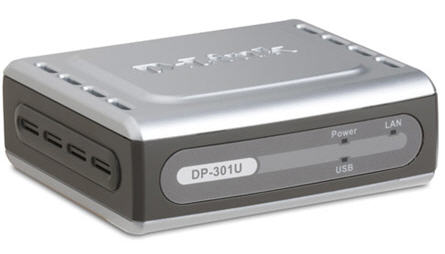
Question: Have you ever used a WiFi printer setup? It may sound like nothing special, but trust me, once you try it you’ll wonder why you waited so long. Some printers have WiFi built into them already [Brother for only $109 >] and some printers need a wireless print server. This is where the D-Link wireless print server comes into play.
The D-Link DP-301U allows you to connect those older laser and inkjet printers to the wireless print server. Meaning everyone in your office will have access to the printers without the cables. Consider I work off a laptop and so do most others, walking around and being to print on demand is insanely convenient. You may not think so now… but that means you don’t have a wireless printer connection [otherwise you’d agree].
You can buy it from Amazon.com and includes free shipping [limited time] if you use a free shipping Amazon coupon. The unit is not refurbished.
This is indeed a great deal for everyone and you should buy it while this price is still so low.
For those into home-brew programming projects, its easy to make a microcontroller spit out some Morse code with the post shown below. What makes [pavlin’s] take on this project interesting is that it resides on a tiny USB board with an ARM processor. The design for the board is available with single-sided artwork suitable for production using simple methods like toner transfer.
The STM device has a built-in USB bootloader. It can also act as a serial port, which makes the project very simple and a bit more flexible. The only external parts are a speaker and an opt-oisolator.
The program provides a command line interface over the serial port that you can use to program the message and set other options like speed and the delay between messages.
CES, 2016. Sony releases a USB turntable, named HX500. Sony will provide backup- software for the Mac and PC and it connects via USB. From there, you can send the DSD (Direct Stream Digital) copies to your computer or device. Of course Sony would prefer you to play them back on their Hi-Res-playing Sony Walkmans.
The DSD audio is a lossless audio quality that will sound more full and rich than your downloaded MP3 file. Andy why not, vinyl records have been making a big comeback the last couple of years.
The Airbar will turn any Windows laptop into a touch screen. Very cool. The technology is friendly with Windows 8 and 10 and this is because it uses Microsoft’s “Gestures” technology to turn your laptop into a touchscreen laptop.
The Airbar was designed in Sweden and made in Sweden. The bar is $50 US Dollars.
The Airbar works by invisible light beams. To get it working you connect is via USB and set the bar at the bottom of your laptop screen, just like you see in the picture.
The Airbar will project light upward. As your fingers break the barrier of the projected light, the bar will translate this into gestures. Through the Windows API for gestures your actions will translate to the programs running.
The USB 3.0 / 4K display and dock station is ideal for the Bring Your Own Device work environment (BYOD).
Assuming you have a limited port laptop computer the StarTech dock station can expand your laptop screen and extend out to a 4K video feed needed. It doesn’t stop there with USB 3.0 port connectivity, and Ethernet connection.
The front side of the dock station also includes a USB charging port. You can avoid the inconvenience of a dead battery and make sure your mobile device is always ready to go, using the dock’s USB fast-charge and sync port. Plus, the always-on port supports device charging even when your laptop isn’t connected to the dock.
The dock station can act as a charging station unplugged as well, making it a very portable solution. A good fit for this product would be home-office where the work space is not that large, or class room where the budget isn’t there for a complete work station and a BYOD situation best applies.
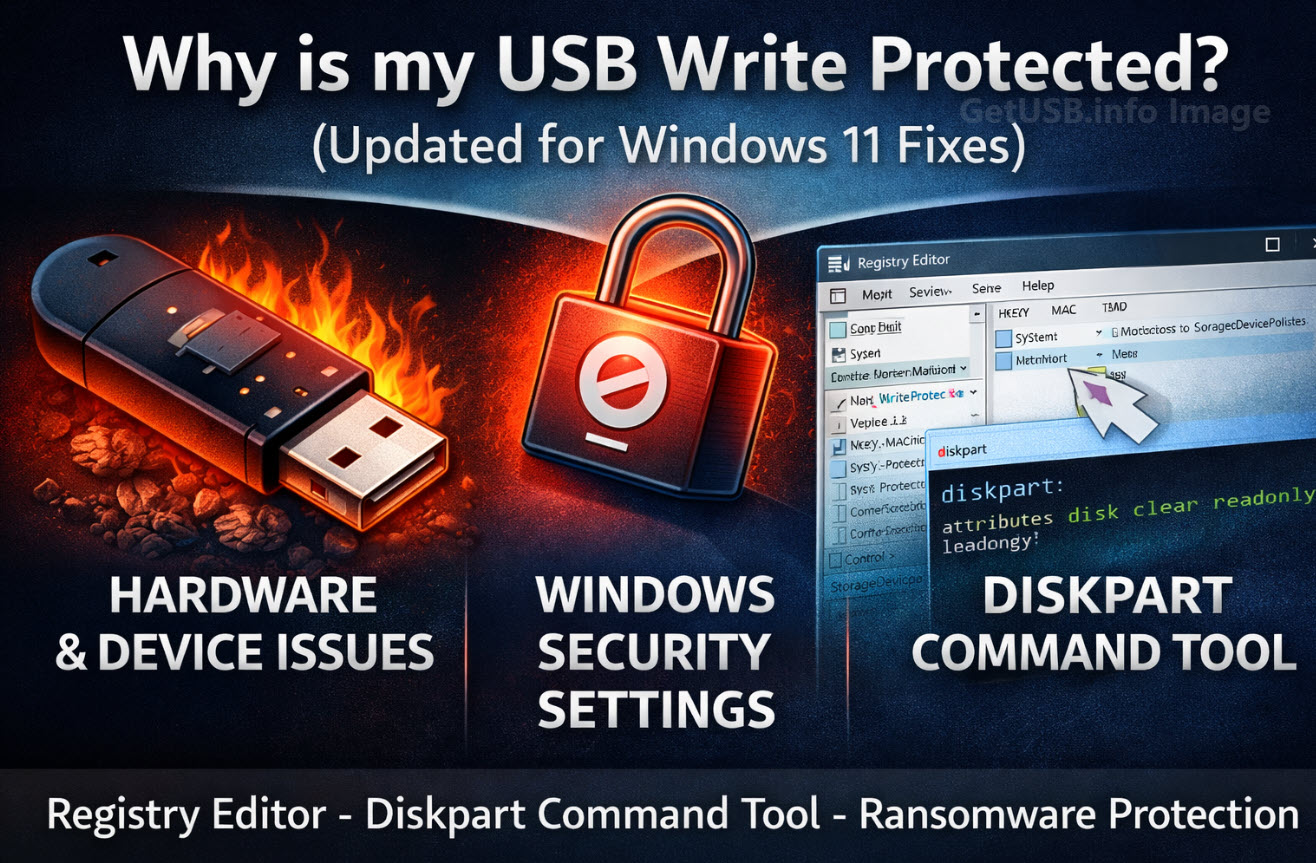
Why is my USB write protected? (Updated for Windows 11 Fixes)
USB write protected means the USB cannot be written to. But why does this happen? There can be several reasons, ranging from a corrupted flash drive to software settings in Windows that lock the device.
Originally posted in 2015, this article is now updated for modern systems, including Windows 10 and Windows 11, which introduce additional security layers that can cause USB write protection issues.
Hardware or Device Failure
It’s easy to damage a USB stick. A common cause is sending multiple write threads to the device at the same time. For example, copying large files while issuing another write command may corrupt the controller, leaving it permanently locked.
Windows Registry and Security Settings
Windows can mark a USB drive as write-protected due to policy settings or errors. Here’s how to remove this restriction on Windows 10 and Windows 11:
Press Win + R, type regedit, and press Enter.
Navigate to:
HKEY_LOCAL_MACHINE\SYSTEM\CurrentControlSet\Control\StorageDevicePolicies
If WriteProtect exists, double-click it and set the value to 0. If it doesn’t exist, create a new DWORD (32-bit) entry named WriteProtect and set it to 0.
Restart your PC and reconnect the USB drive.
Using Diskpart Command (Windows 11)
Windows 11 offers an advanced command-line tool to clear write protection:
diskpart
list disk
select disk #
attributes disk clear readonly
exit
Replace # with your USB drive number.
Windows Security – Ransomware Protection
Windows 11’s Controlled Folder Access can block external writes. Disable or adjust this setting via:
Settings > Privacy & Security > Windows Security > Virus & threat protection > Ransomware protection.
File System Repair
If the drive is corrupted, run:
chkdsk E: /f
(replace E: with your USB letter). This may fix read/write errors without losing data.
Manufacturer Tools
Brands like SanDisk, Kingston, or Nexcopy provide utilities to reset a locked USB device or reformat at a controller level.
Conclusion
Write protection errors are often recoverable and not always caused by hardware failure. With the new features in Windows 11, additional troubleshooting steps may be required before discarding a drive.
FAQ
Q: How do I remove USB write protection in Windows 11?
A: Use Registry Editor, Diskpart, or adjust Ransomware Protection settings to allow writes.
Q: Does Windows Defender block USB writes?
A: Yes, in some cases Controlled Folder Access can block external USB writes. Adjust settings to resolve this.
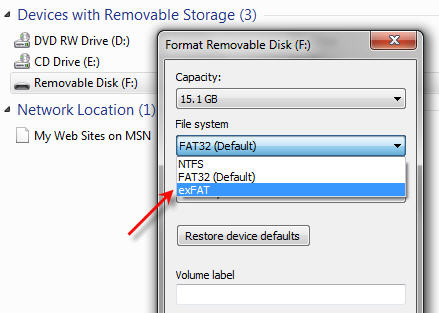
It’s a good question; format a USB flash drive as exFAT or NTFS? There are several reasons not to format as NTFS and we’ll explain.
Most of the Time you are Okay
Most of the time, formatting a flash drive is a very simple decision. There are only two situations where you should carefully consider what format to use. Here are the details:
Note: This article is focused on Windows and Mac operating systems.
The file formats available for a USB flash drive are:
FAT (also called FAT16)
FAT32
exFAT
NTFS
HFS (Mac only)
Flash drive manufacturers typically format a drive as either FAT or FAT32. Any device of 2GB or smaller will be formatted as FAT, and any USB over 2GB will be formatted as FAT32.
These two formats are the best file systems for removable drives like USB flash drives because they support quick disconnect functionality. Chances are very slim that you will destroy the device or files if you unplug the USB without using the Eject function (in Windows) or the Un-mount function (in Mac).
The one huge limitation with FAT and FAT32 is the single file size limit. If a single file is larger than 2GB, you need FAT32. If you have a single file bigger than 4GB, you must use NTFS or exFAT. Typically, these large files are video files or restore image files (for restoring a computer operating system from a single image file).
Can I connect a USB Type C cable to an older USB 2.0 port?
Answer
No you cannot.
The USB type C socket is a backward compatible technology with respect to the protocol but it is not backward compatible in the physical connection. Meaning, the sockets wont fit, but with an adapter you will have no problem charge devices or trasnfering data.
Why
The USB-C connection was design for several reasons. Of course a new specification will always be developed to increase data transfer rates or introduce new features, such as increased power across the buss to charge or power connected devices. The main reason for USB-C connectors is size. With USB being the world’s most popular technology for peripheral devices, the Implementers Forum (with members such as Intel, Acer, AData, SanDisk, Lexar, Micron and many others) they wanted to insure the USB specification continued to be the #1 method for connecting the ever decreasing size of digital devices.