GetUSB.info Logo

Author Archive

Matt LeBoff

Kicking around in technology since 2002. I like to write about technology products and ideas, but at the consumer level understanding. Some tech, but not too techie.

What Is The Lifespan of a USB Flash Drive?

The lifespan of a USB flash drive depends on three main factors. In general, a flash drive will last much longer than most people expect. Below are the key elements that influence its durability.

Factors That Affect USB Flash Drive Lifespan

  • How the drive is made
  • Wear leveling technology
  • How the drive is treated

USB flash drives are largely commodity products driven by the lowest price. Manufacturers often cut corners to reduce costs. Understanding the quality of the device you’re using is essential for reliable, long-term storage.

1. How the Drive is Made

A USB flash drive consists of five main components: the PCB (printed circuit board), flash memory, USB controller, supporting components, and soldering that holds everything together.

Printed Circuit Board (PCB)

Many promotional USB drives use a two-layer PCB to save costs. However, the USB specification requires a four-layer PCB for proper grounding and interference-free data transmission. A two-layer board is more likely to experience performance issues. If you received a USB stick from a trade show, avoid using it for long-term or critical storage.

Example: A four-layer USB flash drive by Nexcopy with Micron memory offers write speeds of 12MB/s.

What Is The Lifespan of a USB Flash Drive?, USB flash drive PCB with NAND memory

Flash Memory Quality

USB drives often use downgraded NAND memory. High-quality NAND chips go to phones, set-top boxes, and other premium devices first. Lower-grade chips are repurposed for USB sticks. A 512MB USB drive may have gone through several downgrades, making it unreliable.

Quick Test: For USB 2.0, a good-quality drive should have a write speed of at least 9–10MB/s. For USB 3.0, look for 18–20MB/s or higher. Slower speeds suggest lower-quality silicon struggling with phase changes during data writes.

USB Controller

The controller is the “brain” of the flash drive, managing communication between the host computer and NAND memory. The quality of the controller and its firmware significantly affects drive performance and longevity. Firmware determines whether the device prioritizes speed, capacity, or compatibility with specific NAND chips. Unfortunately, it’s impossible to test this without knowing the manufacturer and their firmware configuration quality.

Device Components

Capacitors and resistors are typically reliable due to mature manufacturing processes. However, cost-driven production may result in lower-quality components, which can slightly reduce lifespan over time.

Soldering Quality

Poor soldering or the use of hot glue instead of precision solder joints can lead to device failure. If you’re curious, you can open a USB casing to inspect build quality. Sloppy soldering is a red flag for long-term reliability.

USB flash drive with USB controller, What Is The Lifespan of a USB Flash Drive?

2. Wear Leveling Technology

Wear leveling is a firmware-based algorithm that evenly distributes write and erase cycles across memory blocks, preventing premature failure of specific sectors.

  • Dynamic wear leveling: Maps data writes to unused blocks but ignores untouched areas, potentially shortening lifespan.
  • Static wear leveling: Periodically shifts data across unused memory areas, improving overall durability.

Thanks to wear leveling, modern USB flash drives can theoretically last up to 100,000 write cycles per individual memory block, not just per drive.

Learn more on Wikipedia.

USB wear leveling chart

3. How the Drive is Treated

Even a high-quality flash drive can fail if mishandled. Proper storage plays a huge role in lifespan:

  • For long-term archival storage, keep the drive in a safe, dry place away from physical stress.
  • A promotional flash drive or very small capacity stick (e.g., 2GB or less) is often unreliable for archiving important data.
  • Frequent handling, heat, and physical shocks can damage internal solder joints and components.

Final Answer: USB Lifespan

There’s no universal number for how long a USB flash drive will last. Quality manufacturing, proper wear leveling, and careful handling all extend its life. Under optimal conditions, data stored on a good-quality drive can remain intact for 15–20 years or more.

Continue Reading

What is the Difference Between a TF Card and microSD Card?

In general terms, TF cards and microSD cards are the same. They share the same physical size and most technical characteristics, and the two formats can be used interchangeably.

Physical size comparison of TF card and microSD card

There are some technical differences between the two, which are explained later. For now, the most important difference between a TF card and a microSD card is the history behind the name.

The TF card came first. TF card—also known as T-Flash or TransFlash—was introduced by SanDisk in 2004. SanDisk, in partnership with Motorola, created the TF card specification. At the time, it was the smallest read/write memory form factor available and was designed specifically for mobile devices.

TF cards are based on NAND1 flash memory. The format had a short lifespan. By the end of 2004, the Secure Digital Association—the governing body for Secure Digital media—absorbed the TransFlash technology and rebranded it as microSD.

As a result, the TF card effectively disappeared in late 2004, while the microSD card has remained in production ever since. This explains why TF-branded cards are no longer available today. Another factor was capacity: TF cards were limited to 16MB or 32MB at the time of production, capacities that are impractically small by modern standards.

Here is the key technical distinction between the two formats: microSD cards support SDIO mode, which allows them to perform functions unrelated to storage, such as Bluetooth, GPS, and Near Field Communication. TransFlash cards do not support these capabilities.

SDIO stands for Secure Digital Input Output. It is a Secure Digital interface specification that allows SD cards to function as input or output devices rather than just memory.

The SD Association also established a method to standardize speed ratings for SD cards. These ratings, known as Speed Class, define the minimum sustained write speed of a card. Common classes include Class 2 (2MB/s), Class 4 (4MB/s), Class 6 (6MB/s), and Class 10 (10MB/s). These values represent minimum performance levels, and actual speeds may be higher.

MicroSD card speed class rating symbols

NAND is not an acronym. The term comes from “NOT AND,” a Boolean logic operator. A NAND gate produces a false value only when both inputs are true. It contrasts with a NOR gate, which produces a true value only when both inputs are false.

Continue Reading

How Does USB Copy Protection Work?

Understanding How USB Copy Protection Works

In this article we will detail how USB copy protection solutions work from a Southern California company named Nexcopy. Before we start there are important definitions we must all agree upon. As in today’s market place there are multiple vendors using the wrong definitions to explain copy protection.

Copy protection is different than encryption; although copy protection does use a form of encryption in the overall solution.

Encryption is scrambling up data and requiring a password to piece all the data together and display it. Once the password is entered the data can be viewed. The potential security issue is the user who entered the password can now do anything they wish with the files, print, save, share, etc.

Copy protection is different in two ways. First, there is no password required to view the data. Second, the files cannot be saved, printed, shared, streamed when viewed by even the most trusted user.

The later, copy protection, is what most people want when it comes to multi-media files like PDF, video, audio and HTML pages. Most users want the data to be seen by as many people as possible, yet the data cannot be saved, shared, streamed, printed or screen captured.

So with that in mind, let us review how the Nexcopy solution works for USB copy protection.

Key Features of Nexcopy USB Copy Protection

Here are six bullet points regarding features Nexcopy provides which others do not:

  • Copy protected content plays on both Mac and Windows computers
  • There are no Admin rights required to play the content
  • There is no installation required on the host computer
  • The content runs 100% from the flash drive
  • The USB stick is write protect, so files cannot be deleted or changed
  • The solution is both hardware and software, ultra-secure

The Nexcopy USB copy protection solution runs with the assumption the content owner does not want to share the data with even duplication service companies. It is assumed the content owner wants total control of the data before, during and after the USB duplication process.

Here are the steps for using the Copy Secure drives as the content owner:

Continue Reading

USB Enumeration Fingerprint

Does the title of this article even make sense? Yes—but probably not to most people.

USB enumeration is the process a host computer uses to identify the type of USB device that has been connected and determine how the operating system should interact with the newly detected device.

The term “fingerprint” refers to the specific sequence of steps an operating system follows when determining the type and behavior of a USB device.

For roughly 99.7% of visitors to this site, this information won’t matter. For others, however, it is critical. The security industry is a prime example. If a security professional, development team, or programmer understands the exact steps an operating system takes to mount a USB device, they can better design and protect secure applications.

Andrea Barisani, a security researcher based in Italy, published open-source code that compares USB enumeration fingerprints across macOS, Windows, and Linux. The source code is available on GitHub (view here).

This code is particularly valuable for software developers working with USB flash drives, portable applications, or device-level security controls.

USB enumeration fingerprint comparison across operating systems

Continue Reading

How To: Scan USB Flash Drive With Windows Defender (Automatically)

You never know where a flash drive has been.

It’s always best to scan a USB flash drive before using it.

Did you know Windows Defender can be configured to automatically scan a USB flash drive the moment it is plugged in? Below are the steps to configure Microsoft Windows to scan USB drives automatically.

By default, Windows Defender is not configured to automatically scan removable drives when the operating system is installed. This is surprising, as malware spreading through USB flash drives remains a common security issue. The likely reason is user choice—automatic scans take time, and Microsoft leaves the decision up to the user.

This tutorial takes about three minutes to complete. Read through the steps first, then return and apply the settings when ready.

We are going to create a Group Policy rule that instructs Windows Defender to scan USB flash drives.

First, open the Group Policy Editor.

Press Windows Key + R.

Type gpedit.msc and press Enter or click OK.

Under Computer Configuration, locate and expand Administrative Templates.

Scroll down and expand Windows Components.

Continue scrolling until you find Windows Defender Antivirus, then expand it.

Group Policy Editor showing Windows Defender Antivirus settings

Locate the Scan folder and click it.

Scan folder within Windows Defender Antivirus policy settings

On the right-hand side, look for the setting labeled Scan removable drives and double-click it.

This setting is disabled by default. Select the Enabled option to activate automatic scanning for USB flash drives.

Click Apply, then click OK.

Enable Scan removable drives setting in Group Policy Editor

That’s it. Your Windows computer will now automatically scan USB flash drives using Windows Defender when they are connected.

Alternatively, you can insert a USB stick, right-click the drive letter, and select Scan with Windows Defender. The problem with this approach is the USB device may have already executed malicious code before you had a chance to initiate the scan.

Right-click context menu showing Scan with Windows Defender option

Continue Reading

USB Fan Resembles Design from Apple Computers

Billy Idol’s Hot in the City is the tune that comes to mind whenever talking about USB gadgets designed to keep you cool.

With summer coming into full swing, it’s a good time to mention a USB fan. While browsing Amazon, this Aikoper product caught our attention. At first glance, it honestly looked like something designed by Apple. The aluminum base, sleek black body, and cool gray vents gave it that unmistakable Apple-like aesthetic. Turns out, it’s not an Apple product at all.

This USB fan includes several features we think most people will appreciate.

Aikoper USB fan with aluminum base and black dual-blade design

There is no physical on/off switch. Instead, the fan is controlled by touching the aluminum base, which feels very Apple-esque. A single tap activates low-speed mode, a double tap switches to high speed, and a third tap turns the fan off. The touch-sensitive base includes four rubber pads to prevent vibration during operation.

The fan itself uses a dual-blade design. There are four blades toward the front of the shell and another four blades toward the rear. This configuration is intended to reduce operating noise while maintaining airflow.

Rear view of Aikoper USB fan showing dual-blade airflow design

The black shell is convex in shape, designed to pull air downward into the system rather than upward. While the pitch angle is limited, this airflow approach may reduce the amount of dust and debris drawn into the fan. The curved shell rests on the aluminum base and allows for slight tilt adjustments to aim airflow higher or lower during use.

The product measures 5.6 × 3.9 × 4.9 inches and sells for $16.99 USD on Amazon at the time of this post.

Side angle view of Aikoper USB fan on desk

The Amazon listing shows over 1,600 ratings, with 61% rated five stars and 13% rated four stars. The remainder appears to come from more critical reviewers. To give a sense of real-world feedback, here are a few testimonials from the listing:

Continue Reading

USB Firewall For Connecting USB Devices

The average user inserts a USB stick into their computer from a trusted source. However, there are companies and situations who receive USB flash drives or USB hard drives and they are not certain if the device is infected. Some information to help with USB firewall for connecting USB devices.

Globotron is a company based in New Zealand who designed the product. The product is called Armadillo and is an open-source USB firewall.

Some research has shown, as many as 29 different types of USB attacks can happen from plugging in mass storage devices (like USB flash drives and USB hard drives) or also HID devices (human input devices like keyboards and mouse).

The USB stack which is the low level code used in the host computer, is very complex and over time researchers and hackers have discovered ways to compromise a computer system through these vulnerabilities.

The Armadillo is an open-source device which is a firewall between a USB device and computer. The firewall isolates the firmware of the USB device so as not to infect your PC if the device has been infected with malicious firmware. You just need to plug in Armadillo between your computer and the USB device using the provided micro-USB cable. Armadillo is an upgrade over USG, the original or first-generation USB hardware firewall device.

USB Firewall For Connecting USB Devices

The Armadillo has bot detection. This means if the USB firewall device detects malicious codes are being entered via keyboard or mouse (HID devices) the device will block transmission and a red LED indicator light will turn on.

The Armadillo has the ability to temporarily make your USB read only. This is valuable if the computer is infected and you need pull information (recovery software) from the USB stick and want to insure virus’ do not infect the flash drive. The USB is read-only, but it is read/write when not connected to the Armadillo.

Note: If you need a USB stick that is always write protected at the controller level, yet need to temporarily turn off the write protection for data changes, the Lock License drive from Nexcopy is your solution.

This last point about the Armadillo is a bit strange, but we like it. The body is sealed with glitter epoxy so it is easy to identify if the box itself was tampered with. Very creative!

The Armadillo USB Firewall is available from Globotron for $150 USD and ships from New Zealand.

Continue Reading

What is Fuzzing and How Did It Find 26 USB Bugs?

Fuzzing is a testing method that uses automated software to feed invalid, unexpected, or random data into a computer program. The testing system then monitors the program for crashes, failed assertions, and potential memory leaks.

A research team associated with Purdue University developed a tool called USBFuzz, which pushes massive amounts of random data through a system’s USB bus. The project was created by Hui Peng and Mathias Payer of the Swiss Federal Institute of Technology.

USBFuzz testing USB protocol stability with randomized data input

Please don’t lose any sleep over the bugs that were discovered.

Peng and Payer identified one bug in FreeBSD, three in macOS (two resulting in unexpected reboots and one causing a system freeze), and four in Windows 8 and Windows 10, which resulted in Blue Screens of Death. The majority of issues were found in Linux systems, totaling eighteen bugs.

Windows users do not need to be concerned, as all identified Windows issues have been resolved. Of the eighteen Linux bugs, sixteen have already been corrected. Several of these were considered major security vulnerabilities.

What stands out about USBFuzz is its underlying goal of improving USB platform security through continuous testing and refinement. The project is also being released as open-source software, allowing developers to use it to strengthen their own USB products. The research team plans to release USBFuzz on GitHub later in 2020.

Continue Reading

Three Options For Recycling Flash Drives

The last two decades have ushered in an enormous expansion of electronic devices. Prices have dropped, users upgrade more frequently, and society reaps the benefits of rapid technological advancement. However, this explosive growth has also led to a surge in end-of-life (EOL) electronics and electronic waste (e-waste). When electronic devices are discarded in traditional landfills, toxic materials can leach into the soil and surrounding environment.

With the availability of inexpensive devices, society has gained tremendous benefits. This same growth in the electronics industry, however, has created a rapidly escalating problem of EOL electronics, commonly referred to as e-waste. In landfills or primitive recycling operations, toxic materials can be released from old electronic devices into the environment.

E-waste continues to grow, and with that surge comes the need for effective electronics recycling programs. As of 2018, e-waste became the fastest-growing waste stream in the world, with an estimated volume of 48.5 million tonnes and a material value of approximately 62.5 billion US dollars.

The amount of e-waste generated specifically from USB flash drives is not isolated in these statistics. Even so, it is not necessary to automatically include flash drives in the e-waste equation. There are practical options for reusing or recycling USB flash drives.

Option One:

Run antivirus software from a USB flash drive.

If your computer is infected with malware, running antivirus software from within Windows may not be enough to remove it. In cases involving rootkits, malicious software can hide itself from traditional antivirus tools. One proven way to remove deeply embedded malware is to boot the computer outside the Windows environment and perform the cleaning process from there.

This is where bootable antivirus solutions come into play. They operate independently of the infected operating system, preventing malware from running and interfering with cleanup. The HowToGeek website provides a clear overview of this process. If this is a tool you may need, consider repurposing an old USB flash drive instead of discarding it.

Option Two:

Run Linux from a USB flash drive.

As of 2020, Windows users still represented approximately 88% of desktop computer users worldwide. macOS users accounted for about 10%, with Linux users making up the remaining 2%. If you have never used Linux, it can be a surprisingly capable and flexible operating system. Instead of recycling a USB flash drive, you can install Linux on it and explore the platform at no cost.

The process is straightforward, and nearly any non-technical user can download and install a Linux distribution onto a flash drive. Slax is a well-known Linux distribution with simple installation instructions, making it a strong choice for first-time users.

Running Linux from a USB drive allows you to test the operating system without purchasing new hardware or making changes to your existing Windows installation.

This skill can also be useful during a computer failure. For example, if a system becomes infected with malware and immediate file access is required, booting into Linux from a USB drive can provide direct access to the hard drive without waiting for lengthy antivirus scans.

Option Three:

Recycle USB drives for a good cause.

“One person’s garbage is another person’s treasure.”

You can donate unused USB flash drives to organizations that repurpose them for educational and humanitarian use. Building on the Linux approach above, a non-profit organization called SugarLabs.org installs a Linux-based operating system onto donated flash drives. This specialized version of Linux is designed to help children learn how computers work. The organization distributes these drives to communities around the world.

SugarLabs Linux USB flash drives used for educational programs

SugarLabs is based in Boston, Massachusetts, and was founded by Walter Bender, a Harvard graduate and researcher from the MIT Media Lab. As part of the donation process, each USB drive is sanitized to ensure all personal data and malware are removed.

RecycleUSB.com manages the cleaning and preparation of donated USB flash drives before they are sent to SugarLabs. The RecycleUSB website outlines the donation process, contact information, and the data-sanitization steps used. The partnership between RecycleUSB and SugarLabs began in December 2009, when flash drives first became large enough to support portable operating systems.

If none of the above reuse options are suitable and you still plan to discard USB flash drives, check with your local community or municipality regarding approved e-waste programs. In most cities and counties, electronics should not be disposed of in standard trash. Instead, use certified recyclers participating in recognized programs such as R2/RIOS or e-Stewards to ensure responsible recycling.

Continue Reading

Single Atom Transistor Recipe Sets The Stage For Quantum Computers

Some extremely smart researchers at the National Institute of Standards and Technology (NIST), along with colleagues at the University of Maryland, developed a step-by-step process for producing atomic-scale devices. Atomic-scale devices are at the heart of quantum computing. Put very simply, the word “quantum” comes from Latin and means “amount.” In physics, it represents the smallest possible unit of energy or matter.

The researchers demonstrated that they could precisely control the flow of electrons across an incredibly small physical gap—an electrical barrier known as a transistor. The real challenge is controlling energy (electrons) at extremely small scales, down to the size of a single atom. What the team developed is a repeatable recipe for creating atoms whose behavior can be controlled by electrons.

Illustration of atomic-scale transistor fabrication process

In very simple terms, here is the process:

First, the team used a known technique in which a silicon chip is coated with a layer of hydrogen atoms. These hydrogen atoms naturally bind to the silicon surface.

Next, they used an extremely fine-tipped scanning microscope to selectively remove hydrogen atoms from specific areas of the silicon.

What remained was a hydrogen barrier with only precise openings where the hydrogen had been removed, as shown in the image above.

The researchers then introduced phosphine gas to the silicon surface. The gas bonded to the exposed silicon areas, passing through only where hydrogen atoms had been removed.

As a final step, the silicon was heated, triggering a chemical reaction. This reaction formed a foundation of highly stable, single-atom devices that behave like a quantum bit—or qubit.

This process can be overwhelming to understand at first, so the video below helps explain it visually. The truly exciting part is that the researchers defined a repeatable process to create a programmable quantum unit. In everyday terms, this opens the door to computers that could be hundreds of times more powerful than today’s machines, all in devices no larger than something like an Apple Watch.

Continue Reading

Off Topic: Making Home Brew Starbucks Vanilla Latte – Life Changer

DIY recipes are beloved for many reasons: saving money, saving time, and the rewarding task of simply doing it yourself. Today’s post is clearly off topic from the normal USB hacks and news we typically write about. Today we’re talking about making a Starbucks-style coffee at home — not standard black coffee, but the more delicious varieties like a vanilla latte.

At the time of this post, the Coronavirus is in full swing and many Starbucks shops are closed, operating with limited hours, or have drive-thru lines that are simply too long. Here’s your in-home solution.

The first thing to understand is just how sweet Starbucks really makes their drinks. It’s well known the calorie and carbohydrate counts for a vanilla latte are fairly high. This DIY recipe helps you control those intake amounts, giving you better control over how much sugar your body gets from these sweet, delicious, energy-giving drinks.

We should really give Starbucks credit for figuring out the exact balance of sugar and caffeine needed to jump-start your heart rate in a legally addictive way.

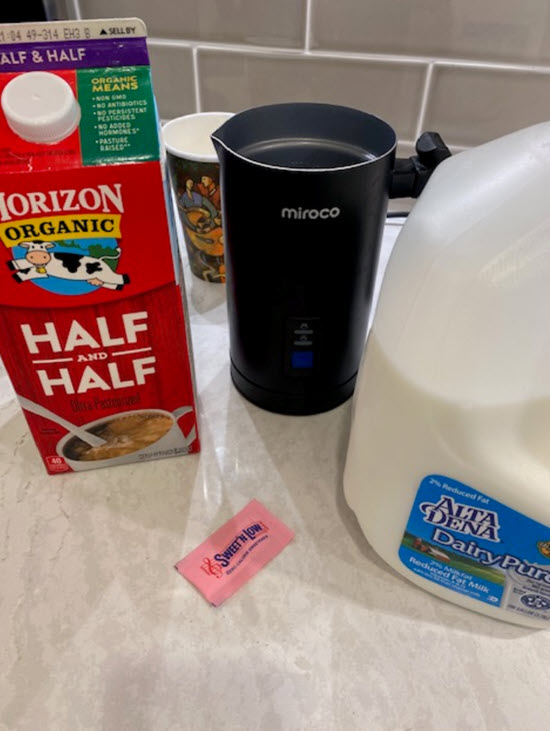
Starting with a vanilla latte, the real magic of this drink is the full, frothy milk. There’s no requirement for the fancy frother you see behind the Starbucks counter. A simple $40 (approximately) milk frother from Amazon will do the trick. The Miroco is a fantastic product and a true life-changer for making coffee-based drinks. Probably the best “appliance” purchase we’ve made since the introduction of the DVR in 1999 (feel free to challenge us on this claim {wink}).

Starbucks-style milk frother

The first step is to brew your coffee. Use any brand you like. If you want the closest taste to Starbucks, use their coffee, but honestly, with enough sugar and syrup added, the coffee brand doesn’t matter all that much.

Once the coffee is brewed, fire up the milk frother.

Continue Reading

Review Windows 10 Computer Stick

In 2015, Intel introduced the Compute Stick, or Computer Stick – a product that has been around ever since. The idea is simple and elegant: Intel wanted to create an HDMI dongle computer that could run Windows 10.

There is no confirmation, but our suspicion is that Intel aimed to provide an ultra-cheap and portable solution to run Windows for embedded applications like set-top boxes (DVRs) and other IoT (Internet of Things) products. If our assumption is correct, it’s a wonderful product and a great solution for its intended purpose.

PCWorld did a fantastic review of the Compute Stick back in 2016, and a link to that article is at the footer of this post. The PCWorld review outlined the specifications and performance levels of the Intel-based product. We’ll let that article do the heavy lifting for the tech people out there, but today we want to talk about the applications one might have for a computer stick.

For only around $120 on Amazon, this is an excellent solution to run Windows 10 for a host of specific applications.

Intel Compute Stick device

Several quick talking points before we move to examples of usage out in the field:

Continue Reading

Copyright

Copyright © 2006 +

USB Powered Gadgets and more...

All Rights Reserved

Advertise with us

GetUSB Advertising

This is a high value website providing great exposure to your product and brand. Visit our advertising page to learn specifics.

For more information
Visit our advertising page.

Nexcopy Ad

Nexcopy Provides

USB copy protection with digital rights management for data loaded on USB flash drives.

Contact us learn more

Resources and References Page

Resources and References Page